
by Steve Sorbo | Apr 1, 2024 | Uncategorized
In iOS 17.4, iPadOS 17.4, and macOS 14.4 Sonoma, Apple enhanced its Podcasts app to include transcripts of all podcasts in the Apple Podcasts catalog as long as they’re in English, French, German, or Spanish. (It doesn’t translate from one language to another.) Much like song lyrics in the Music app—open it by tapping the dialog button in the player—the transcript scrolls in sync with the podcast’s audio, and you can tap anywhere in the transcript to play the audio from that spot. Tap the Search button that appears when you view the transcript to look for any text contained within. Recent podcasts should all have transcripts now, and Apple is working to catch up on older podcasts. The AI that generates the transcripts sometimes makes mistakes and doesn’t distinguish between different speakers, but overall, the transcripts provide a good sense of what’s being said.

(Featured image by iStock.com/microgen)
Social Media: Did you know Apple’s Podcasts app now includes written transcripts? Our tip helps you view the text while you listen, use it to navigate within the audio, search for specific bits, and more.

by Steve Sorbo | Apr 1, 2024 | Uncategorized
You can change the resolution of your Mac’s screen—how many pixels appear—to make text and graphics larger and easier to see or smaller to fit more content onscreen. In System Settings > Displays, Apple shows thumbnails for five likely possibilities. Hover the pointer over a thumbnail to see its numeric resolution underneath. If you prefer the traditional list of numeric resolutions, Option-click a thumbnail—another Option-click in the list brings back the thumbnails. Although the Show All Resolutions switch reveals more options, most will be fuzzy. If you always want to see resolutions as a list, click Advanced at the bottom and turn on Show Resolutions as a List. Finally, look closely for a tiny Easter egg: the text in the thumbnails is the script from Apple’s classic Think Different ad spot.

(Featured image by Adam Engst)
Social Media: You can adjust your Mac’s screen resolution to make text and graphics larger so they’re easier to see, or if you have good vision, you can make them smaller so more content fits on the screen. Our tips will help.

by Steve Sorbo | Apr 1, 2024 | Uncategorized
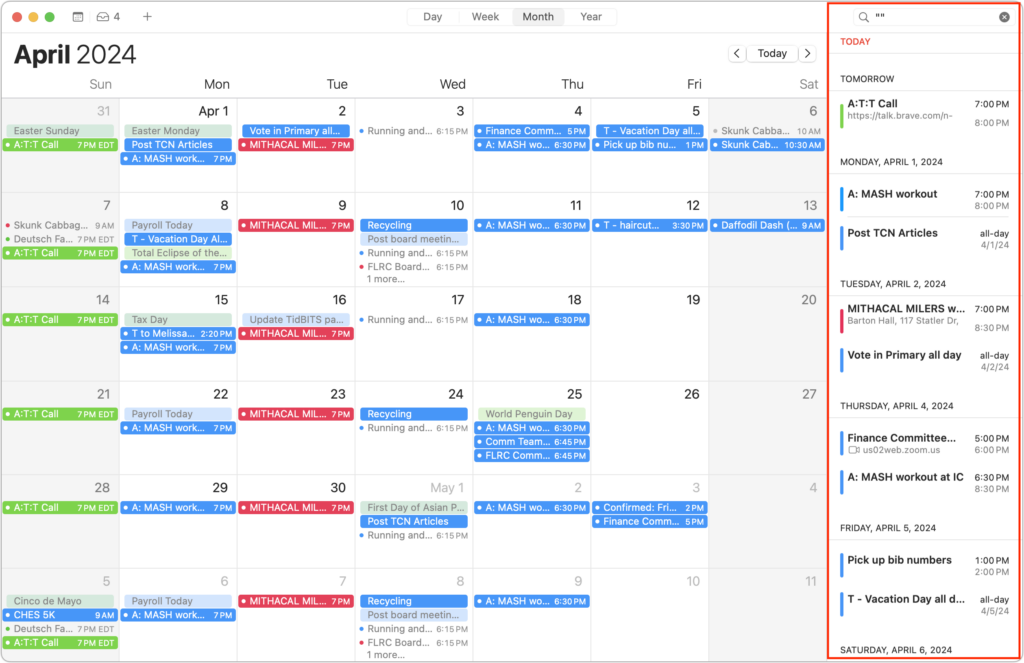
Along with day, week, month, and year views, most calendar apps offer the option of a simple chronological list of events, which can be a handy way to see what’s coming up. Apple’s Calendar app on the Mac is unfortunately not among those apps. However, there is a trick you can use to get it to show all your upcoming events in a scrolling list. Click in the Search field in the upper-right corner and enter two double quote marks (“”). In essence, it’s a search for “everything,” and Calendar promptly shows all your events in a row down the right side of the window. If you’re looking for a more capable calendar app, BusyCal and Fantastical are popular in the Mac community, and some apps like Microsoft Outlook and Zoom also include calendaring features.
(Featured image by iStock.com/AndreyPopov)
Social Media: Want to see all your upcoming events in a list in Apple’s Calendar app on the Mac? It doesn’t have a built-in list view, but there’s a workaround.

by Steve Sorbo | Apr 1, 2024 | Uncategorized
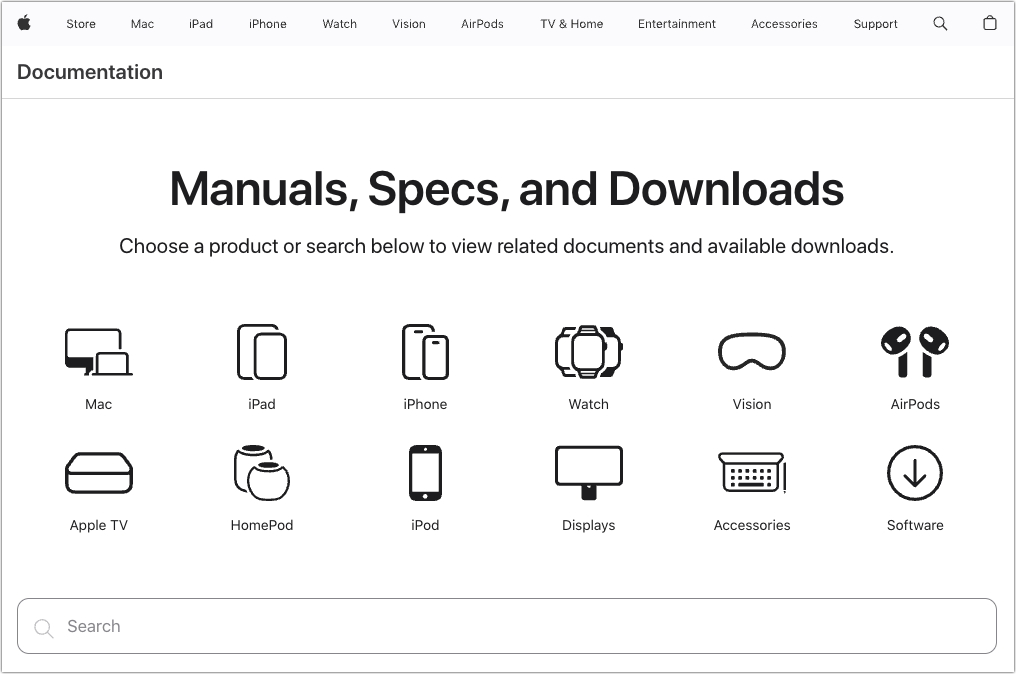
Apple publishes a multitude of manuals and tons of technical documentation for its products on its support site, but until recently, it could be challenging to find something specific because the search engine on Apple’s site is poor. For a better path into Apple’s online support materials, check out the company’s new Documentation site, which brings together manuals, specs, and some downloads for nearly all its products. The operating system User Guides are particularly helpful, and they even provide a Version pop-up menu that lets you make sure you’re getting information for the version you’re using.
(Featured image by iStock.com/Ildo Frazao)
Social Media: Do you want to read the actual manuals or specs for Apple products? You can now easily find them on Apple’s new Documentation website.

by Steve Sorbo | Apr 1, 2024 | Uncategorized
Although many of us think of Messages as an iPhone app, Apple’s platform integration lets you read and reply to conversations in Messages on other Apple devices, including the Mac and iPad. All your devices must have the correct settings to make this work reliably. We regularly hear from users who don’t see all their messages on all their devices. If that’s you, check these settings:
- Same Apple ID: Your devices all know they’re yours when they’re logged in to the same Apple ID. That’s not a problem for most people, but couples who share an Apple ID, for instance, can run into trouble here. To verify this, open Settings > Your Name in iOS and iPadOS, or System Settings > Your Name in macOS. The email address under your picture at the top of each of those screens should match. If it doesn’t, scroll to the bottom, tap or click Sign Out, and sign in again with the correct Apple ID.
- Two-factor authentication: As with so many Apple services now, your Apple ID must be set up for two-factor authentication, which causes certain logins to be queried a second time on another device. Most people have two-factor authentication set up by now, but if not, turn it on using Apple’s instructions.
- iCloud Keychain: Your devices must have iCloud Keychain turned on to share your Messages account information. It’s probably already on, but you can enable it if not. Turn it on for an iPhone or iPad in Settings > Your Name > iCloud > Passwords and Keychain > Sync this iPhone. On a Mac, the switch is in System Settings > Your Name > iCloud > Passwords & Keychain > Sync this Mac.
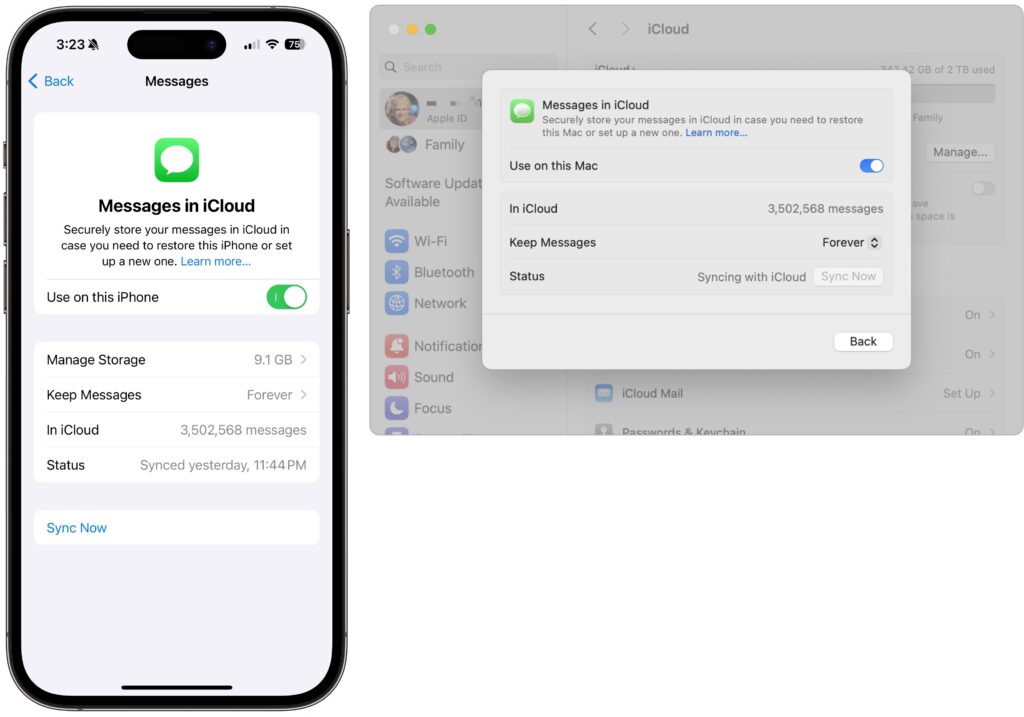
- Messages in iCloud: This is the key setting—the previous three are just foundational requirements. Enable it for an iPhone or iPad in Settings > Your Name > iCloud > Show All > Messages in iCloud > Use on this iPhone. On the Mac, look in System Settings > Your Name > iCloud > Show More Apps > Messages in iCloud > Use on this Mac.
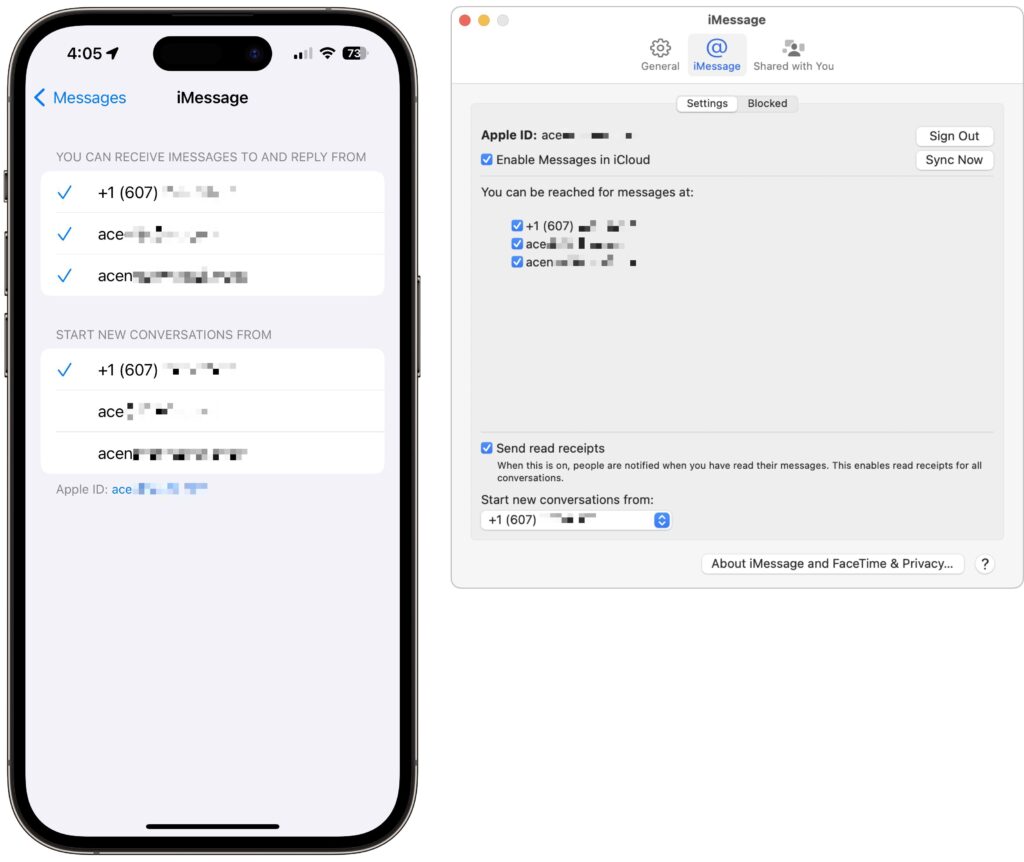
- iMessage account: You’ve checked that you’re using the same Apple ID everywhere, but there’s a similar setting that’s also important. On your iPhone or iPad, go to Settings > Messages > Send & Receive and make sure you’re signed into iMessage with the same Apple ID—look at the bottom of the screen. Also, ensure you’re set to send and receive from your phone number and appropriate email addresses. It’s safest to send and receive from all the possibilities and start new messages from your phone number. On the Mac, verify that you have the same settings in Messages > Settings > iCloud.
- Text Message Forwarding: Turning on Messages in iCloud should keep message history synced across all your devices, including green bubble SMS/MMS text messages. However, it’s worth verifying that SMS/MMS messages are being sent to all your devices. On your iPhone, in Settings > Messages > Text Message Forwarding, select all the devices you want to receive text messages.
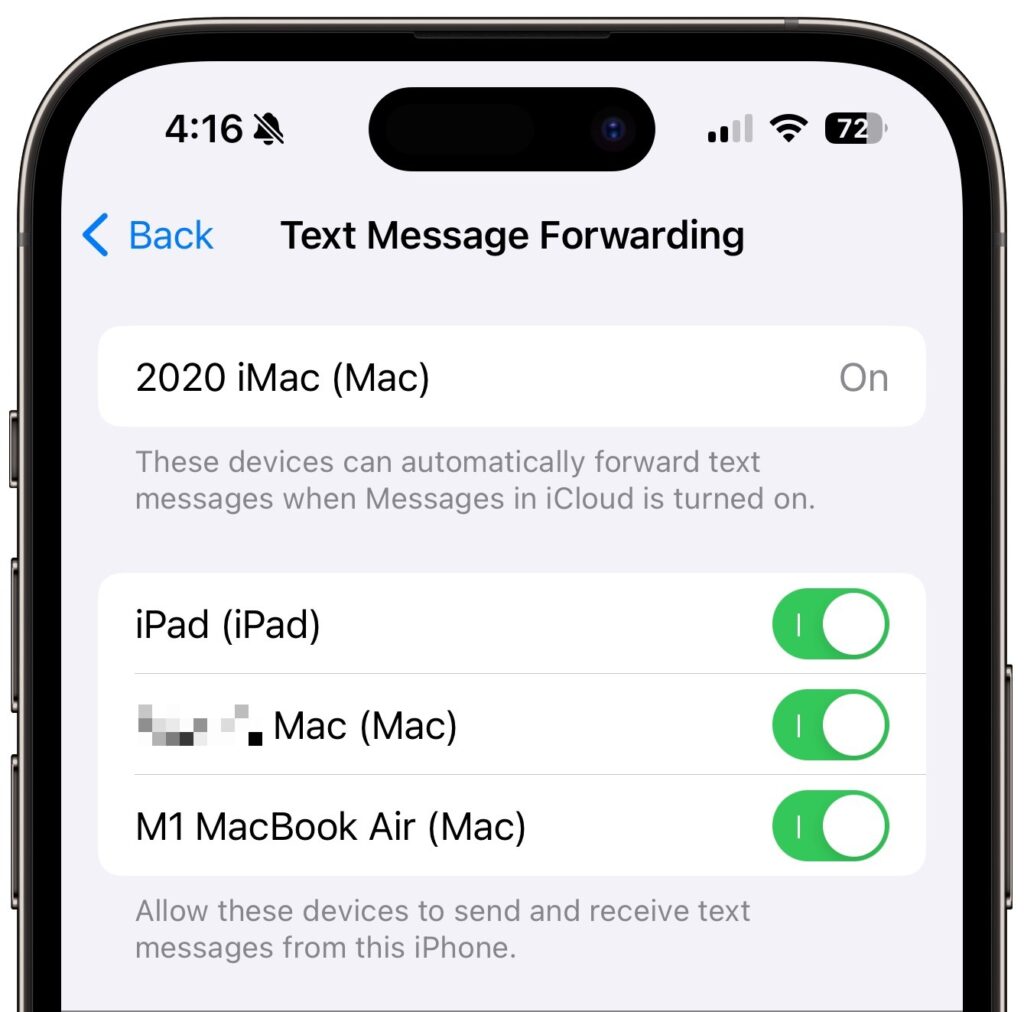
Although all the above settings may seem like a lot, most should already be set up correctly. We listed them all because when people have trouble with their messages syncing across all their devices, one or more of these are usually set wrong.
Even with everything configured correctly, there can be hiccups—nothing’s perfect. If messages fail to sync consistently, try these troubleshooting steps:
- Use the Sync Now button in the Messages in iCloud settings on any device that hasn’t caught up. That likely won’t help instantly, but syncing should eventually catch up.
- Restart the device—it’s always worth trying. On an iPhone or iPad, choose Settings > General > Shut Down (at the bottom), slide to power off, and then press and hold the side (iPhone) or top (iPad) button to turn the device back on. On a Mac, just choose Restart from the Apple menu.
When Messages in iCloud is working properly, though, you can carry on text message conversations using any of your devices at any time. It’s especially nice to switch to the Mac for easier typing when you’re in an involved conversation.
(Featured image by iStock.com/anyaberkut)
Social Media: One of the best parts of Apple’s tight platform integration is that you can view your text messages on all your devices. Or at least you can if you get everything set correctly.

Recent Comments