
by Steve Sorbo | Mar 1, 2024 | Uncategorized
Have you ever noticed the shading in the corner of text area fields in Safari, Chrome, Firefox, and most other Mac Web browsers? These “handles” let you resize the field—always vertically and sometimes horizontally. That’s handy when the website designer has provided only a small text box and you want to enter more text than will fit. Just drag the handle to make the text box the size you need. Other objects on the page move to accommodate the larger text box. If a text box doesn’t have a resize handle, the site designer doesn’t expect it to need to hold more than a single line of text.

(Featured image based on originals by iStock.com/OlgaCanals and PhotoMelon)
Social Media: If you want to enter more text than will seemingly fit in a text box on a Web page, you can use a trick to expand the box so you can see what you’re typing.

by Steve Sorbo | Mar 1, 2024 | Uncategorized
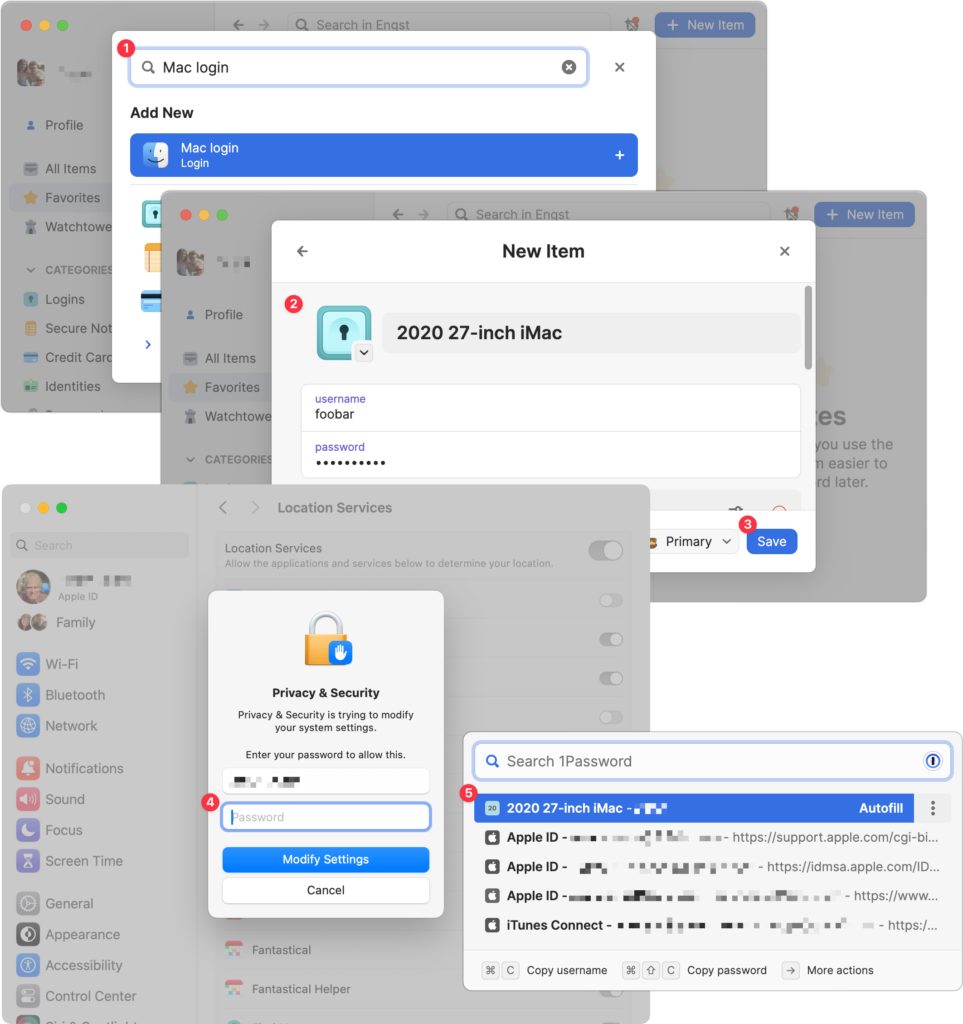
We think of 1Password as being helpful for entering passwords on websites and in iPhone and iPad apps. But its Universal Autofill feature has a hidden capability that lets 1Password enter your Mac login password when you have to provide it to change certain system settings, install apps, format drives in Disk Utility, and more. (But it won’t work to log in at startup before 1Password is running.) To turn this feature on, click the New Item button in 1Password, search for and select “Mac login” ➊, give it a name that will sort alphabetically to the top, like “2020 27-inch iMac” ➋, enter your password, and click Save ➌. From then on, whenever you’re prompted for your Mac login password ➍, press Command-\ (Backslash, located above the Return key), and then click the desired login or press Return to select the topmost item ➎.
(Featured image based on an original by iStock.com/ipuwadol)
Social Media: 1Password is tremendously helpful for entering website passwords, but a little-known feature also enables it to enter your Mac login password for changing system settings, installing apps, and more.

by Steve Sorbo | Mar 1, 2024 | Uncategorized
Is your Mac’s menu bar overwhelmed with icons? They’re helpful little critters, but finding one can be difficult when you have too many and they’re in no particular order. The hidden trick to cleaning up your menu bar relies on the Command key.
- Rearrange the menu bar icons in an order that makes sense to you by Command-dragging them around. You can’t move the Control Center icon or put anything to its right, but every other icon is movable.
- Delete unnecessary Apple-provided status icons by holding down Command and dragging them off the menu bar. (To put one back, select the “Show icon-name status in menu bar” checkbox in its System Settings screen.) You can’t remove the clock, Control Center, or the Siri icon this way, though you can turn off Siri in System Settings > Siri & Spotlight. Command-dragging to delete doesn’t work for non-Apple apps; instead, look for a preference in the app itself.

(Featured image by iStock.com/Valentyna Yeltsova)
Social Media: If your Mac’s menu bar is a mess, you can use the Command key to rearrange the icons and remove those you never use.

by Steve Sorbo | Mar 1, 2024 | Uncategorized
On the iPhone and iPad, to send a photo to a Messages chat, tap the ⊕ button and then tap Photos in the list that appears to reveal the photo picker. That’s not difficult, but it requires an extra step you can avoid with this tip. If you’re running iOS 17 or iPadOS 17, instead of tapping the ⊕ button, touch and hold it for a second to bring up the photo picker immediately.

(Featured image based on an original by iStock.com/oatawa)
Social Media: It’s not hard to add a photo to a conversation in Messages, but with this tip, it’s even faster and easier!

by Steve Sorbo | Mar 1, 2024 | Uncategorized
Does it feel like your Apple devices are always asking you to install operating system updates? You’re not wrong—from September 2022 to January 2024, we saw the following releases in Apple’s previous set of operating systems:
- macOS 13 Ventura: 20 releases
- iOS 16: 25 releases
- iPadOS 16: 20 releases
- watchOS 9: 15 releases
- tvOS 16: 12 releases
Apple issued many of those at the same time, but since you might not use all your devices every day, it can seem as though you spend all your time installing updates. As annoying as updating can be, we encourage you to do so soon after you’re notified for three reasons.
Reason One: Fewer Bugs
First, as has always been the case, updates fix bugs. You may not have experienced all the bugs that Apple fixes, but when one blocks something you want to do, the fix comes as a huge relief.
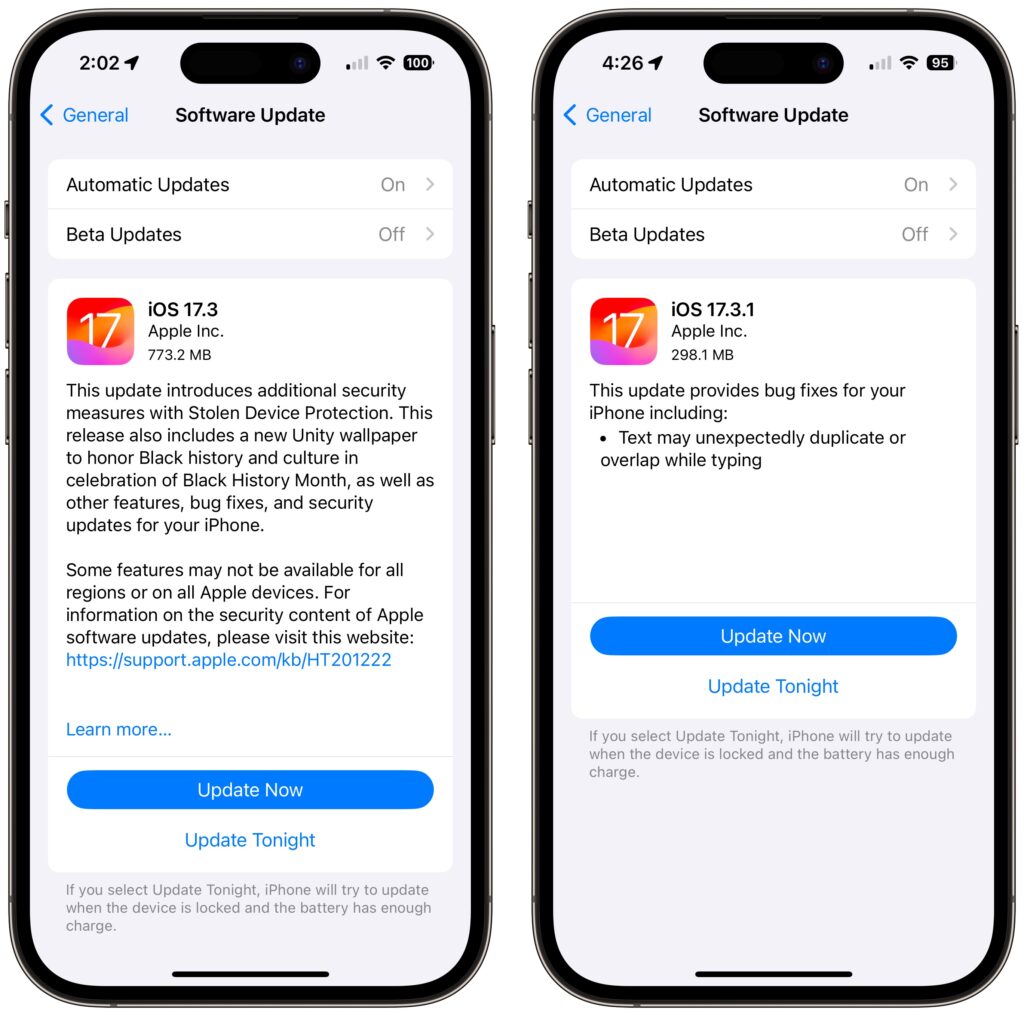
For instance, in a set of releases in January 2024, Apple inadvertently introduced a bug that caused text in many apps, including Mail, Notes, and Safari, to appear to be duplicated and overlap. It was only cosmetic, and switching to another window or resizing the window would make it look right again. But the bug was hugely disconcerting, so Apple fixed it two weeks later in macOS 14.3.1 Sonoma, iOS 17.3.1, iPadOS 17.3.1, and Safari 17.3.1 (which brought the fix to macOS 13 Ventura and macOS 12 Monterey).
Reason Two: Better Security
Second, many of the bugs Apple fixes won’t impact your experience of using your device, but they make it possible for attackers to steal information, install malware, spy on your communications, or even take over your entire device. Nearly all of Apple’s operating system updates contain security fixes to address newly discovered vulnerabilities, and some releases only have security fixes. Apple continues to release security updates for the last two versions of macOS and older versions of iOS and iPadOS as appropriate.
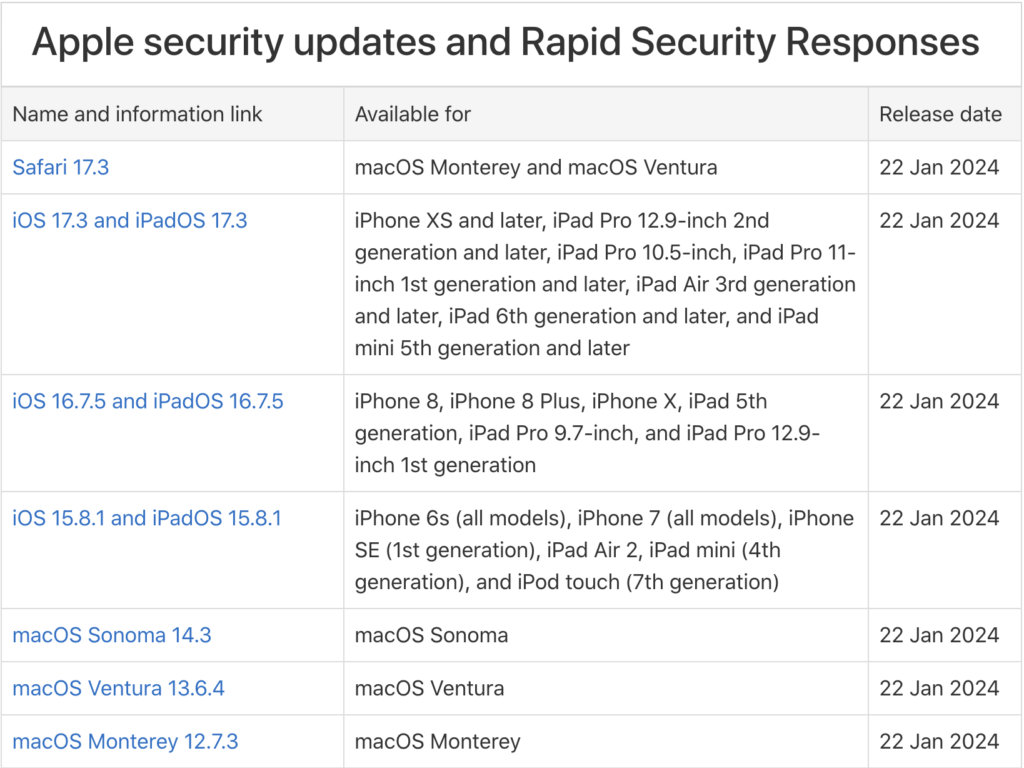
It’s easy to think that you won’t be impacted by security vulnerabilities, but remember that as soon as Apple releases an update outlining what it has fixed, attackers know what vulnerabilities exist in unpatched systems. Apple has to react swiftly to some reported vulnerabilities because blocking them can literally be a matter of life or death when it comes to, for instance, iPhone-using dissidents, activists, or journalists working in opposition to repressive governments that employ spyware against their enemies. (All spyware relies on previously unidentified vulnerabilities.)
However, some security vulnerabilities are more likely to impact regular users. For instance, in macOS 14.2.1, Apple fixed a bug in Screen Sharing. If you were sharing your full screen with someone else and had multiple Spaces, Screen Sharing could show the other person random windows in other Spaces, which could range from embarrassing (adult pictures) to seriously problematic (passwords or financial details).
Reason Three: New Features
Third, on the positive side, many operating system releases introduce welcome new features. When Apple unveils its next set of operating systems at the Worldwide Developer Conference in June, some of the promised features won’t appear with the initial releases. New features that shipped in later releases of macOS 14 Sonoma, iOS 17, iPadOS 17, and watchOS 10 include:
- watchOS’s double-tap gesture for tapping the default button in many apps
- AirDrop transfers continuing over the Internet when you move out of AirDrop range
- Adding NameDrop to share contact info when you bring two devices near each other
- Additional options to control when the iPhone screen shuts off in StandBy
- The option to choose a specific album for the Lock Screen’s Photo Shuffle wallpaper
- HomeKey support for Matter locks
- Expanded Favorites in the Music app
- A new automatic Favorite Songs playlist in the Music app
- The addition of Apple’s Journal app
- A Translate option for the Action button in the iPhone 15 Pro models
- 10-day precipitation forecasts in the Weather app
- Sharing of eligible passes in the Wallet app via NameDrop-like proximity
- A catch-up arrow in Messages that lets you jump to the first unread message
- Multiple timers in the Clock app on the Mac
- Stolen Device Protection for the iPhone
- Collaborative playlists in Apple Music
- Support for streaming content to TVs in select hotel rooms using AirPlay
Just Update It
Updates provide both a carrot (user-facing bug fixes and new features) and a stick (security fixes). That’s why we recommend updating soon after Apple pushes out a new release and why devices under management usually receive updates quickly. Even if a security breach is unlikely, the liability of allowing devices to remain unpatched is too high for most organizations. Installing updates is an easy way to reduce worry about things like compromised accounts and ransomware.
There are three types of operating system releases:
- Minor bug fix and security updates: Install these as soon as convenient, usually within a few days. Examples of these include macOS 14.3 to 14.3.1.
- Interim feature updates: Because these include bug fixes and security updates alongside the new features, you’ll also want to install these within a few days. An example is iOS 17.2.1 to iOS 17.3.
- Major version upgrades: Because Apple always releases security updates for the two versions of macOS before the current one, you can wait a month or three before installing a major upgrade, such as from macOS 13 to macOS 14. However, once you’ve verified that your apps and workflow are compatible with the new version, we recommend upgrading because skipping a major version of macOS often results in a more difficult upgrade experience.
In each of these cases, if you’re worried about how an update might impact your workflow, check online forums for discussions of each update and feel free to ask us what we recommend for your particular situation.
(Featured image by iStock.com/Fokusiert)
Social Media: We know it seems like your Apple devices are constantly asking you to install an update. Other than for major upgrades, we recommend updating shortly after updates appear so you can take advantage of bug fixes, security updates, and new features.

Recent Comments