
by Steve Sorbo | Feb 6, 2026 | Uncategorized
In macOS 26 Tahoe, Apple has made it easier to customize folder appearance in the Finder. Control-click any folder and choose Customize Folder. In the panel that appears, click a colored circle to apply that color and then select an icon to display on the folder. Click the Emoji button to choose from the full set of emoji instead of the icons. A few notes: Customization is available for everything except macOS’s Applications, Library, System, and Users folders. These colors are associated with Finder tags, which you can change in Finder > Settings > Tags. Although the colors and icons should sync via iCloud Drive, don’t assume they’ll survive other cloud-based syncing services or other actions (like archiving) that may not preserve Finder metadata. In other words, they’re mostly useful for individuals, not workgroups.

(Featured image by iStock.com/Christian Ouellet)
Social Media: Tired of identical blue folders? macOS 26 Tahoe lets you add colors and icons—including emoji—to folders with a few clicks. Here’s how to make your Finder easier to navigate.

by Steve Sorbo | Feb 6, 2026 | Uncategorized
Apple has introduced Apple Creator Studio, a subscription bundle of Final Cut Pro, Logic Pro, Pixelmator Pro, Motion, Compressor, and MainStage, priced at $12.99 per month or $129 per year (with education pricing at $2.99 per month or $29.99 per year). The bundle also includes premium content and a few AI tools for the iWork apps: Keynote, Pages, and Numbers. These apps will prompt you to download the new version 15, but don’t worry—they remain free for all existing features; only the new AI capabilities and premium content require a subscription. You can also still purchase Mac versions of the pro apps, though the iPad versions of Final Cut Pro, Logic Pro, and Pixelmator Pro are now available only to subscribers. Up to six family members can share a Creator Studio subscription via Family Sharing.

(Featured image by Apple)
Social Media: Apple’s new Creator Studio bundle includes Final Cut Pro, Logic Pro, Pixelmator Pro, and more—plus premium content and AI features in the iWork apps—for $12.99/month or $129/year. Don’t worry—Keynote, Pages, and Numbers stay free for existing features.

by Steve Sorbo | Feb 6, 2026 | Uncategorized
Apple offers several simple ways to share Wi-Fi network passwords. When someone nearby tries to connect to a Wi-Fi network with an iPhone, iPad, or Mac, and they are in your Contacts app, you will be automatically prompted to share the network password with them. Additionally, in the Passwords app, you can display a Wi-Fi network QR code that anyone can scan to join the network. However, sometimes you need to share a password via email or text. To look up a Wi-Fi password on an iPhone or iPad, open Passwords, tap Wi-Fi, select the desired network, and tap the obscured Password field. A Copy Password button makes it easy to copy. In the Mac version of Passwords, hover over the obscured password and click the revealed password to copy it.

(Featured image by iStock.com/jpkirakun)
Social Media: Apple makes it easy to share Wi-Fi passwords without requiring anyone to type them. We explain how you can do this nearly automatically, with a QR code, or by looking up the password and copying it so you can paste it into an email message or text.

by Steve Sorbo | Feb 6, 2026 | Uncategorized
Column view in the Finder has an annoying tendency to either show overly wide columns that waste space or truncate long filenames, forcing you to drag a column divider to see more of the name. In macOS 26.1 Tahoe, Apple added an option to the Finder’s View Options window that automatically adjusts column widths to display the longest visible filename in each column. To activate it, choose View > Show View Options with a column-view window frontmost, then select the “Resize columns to fit filenames” checkbox. If you’re running macOS 13 Ventura through macOS 15 Sequoia, this option is hidden, but you can enable it by pasting this command into Terminal: defaults write com.apple.finder _FXEnableColumnAutoSizing -bool YES; killall Finder. (Change YES to NO to revert the change.) Alternatively, the free TinkerTool 10 utility provides a graphical toggle for these older operating systems—look for “Automatically adapt to file name widths in column mode” in the Finder section.

(Featured image by iStock.com/IPGGutenbergUKLtd)
Social Media: Tired of truncated filenames in the Finder’s Column view? macOS 26.1 Tahoe adds a simple checkbox to auto-resize columns—and you can enable the same feature in earlier macOS versions with a quick Terminal command or free utility.
by Steve Sorbo | Feb 6, 2026 | Uncategorized
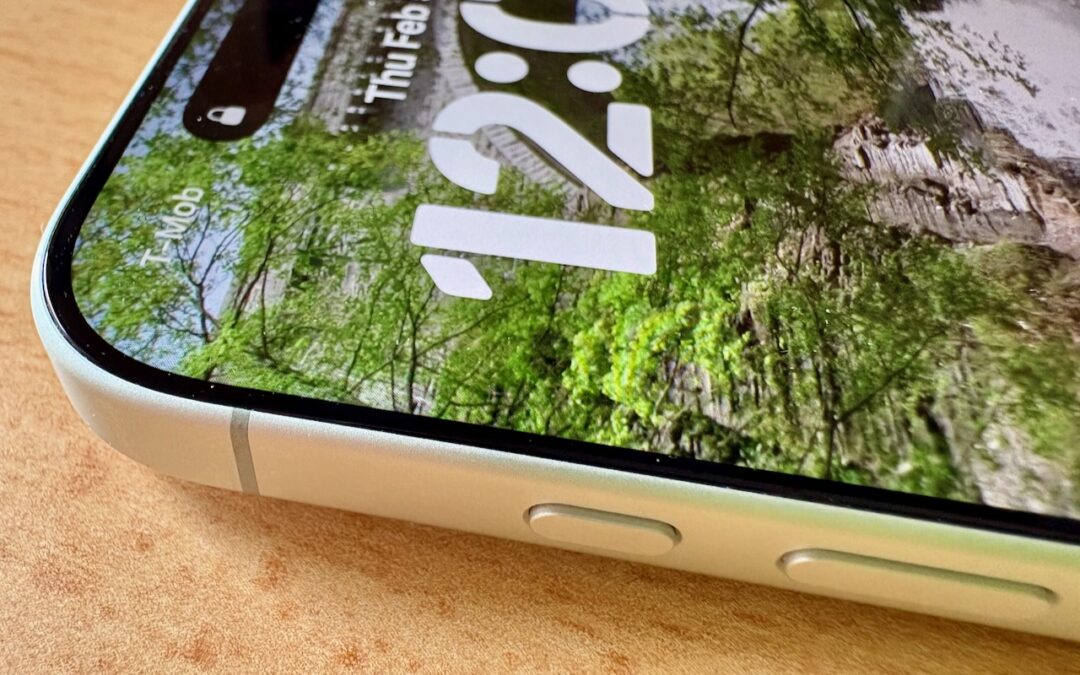
Starting with the iPhone 15 Pro and Pro Max, Apple replaced the Ring/Silent switch on the top-left edge of the iPhone with the Action button, making the new button standard across the iPhone 16 and iPhone 17 lineups in subsequent years. The Action button is a dedicated hardware button you can configure to perform one of many different tasks. Although Apple prompts everyone setting up a new iPhone to configure the Action button, our experience is that many people haven’t integrated it into their everyday usage.

Taking advantage of the Action button isn’t hard, but there are obstacles. The Ring/Silent switch had only one function, whereas the Action button offers so many options that it’s easy to fall prey to decision paralysis. Also, because the Action button is configurable, it behaves differently even if you leave it set to Silent Mode. The Ring/Silent switch was a physical switch that also showed its state with an orange indicator. With the Action button, you can’t tell at a glance if Silent Mode is on, and activating it requires a relatively long press-and-hold. Finally, the Action button’s ultimate power lies in its Controls and Shortcuts options, but many users are unaware of the wide-ranging possibilities these unlock.
So let’s look at how to make the most of the Action button. To configure the Action button, go to Settings > Action Button and swipe through the choices. The choice on screen when you exit Settings will be active. Although there are no bad choices here, many of the options Apple provides can be activated just as easily through Control Center or Siri, so you might not want to dedicate the Action button to them.
- Silent Mode: Toggle call and alert sounds on and off. This is the default setting, but unless you regularly need to toggle the ringer, it’s not worth dedicating the Action button to such a seldom-used option. You can toggle Silent Mode in Control Center just as easily.
- Focus: Activate or switch Focus modes such as Do Not Disturb. We recommend using Focus sparingly because it can block desired notifications, but if you’re a fan, the Action button might be a good way to switch between them. Focus modes are also easy to select in Control Center and turn on with “Siri, turn on Do Not Disturb.”
- Camera: Launch the Camera app. If your iPhone has the Camera Control (as do all Action button-equipped models except the iPhone 15 Pro/Pro Max and iPhone 16e), the Camera Control is the best way to open the Camera, but the Action button might still be helpful for opening the Camera app to a specific mode: Photo, Selfie, Video, Portrait, or Portrait Selfie.
- Visual Intelligence: Launch Apple’s AI-powered object recognition feature. Again, pressing and holding the Camera Control (if available) is a better way to access Visual Intelligence.
- Flashlight: Turn the flashlight on or off. This may be a good choice if you use the flashlight regularly, but if so, you’re probably already accustomed to tapping its icon on the iPhone’s Lock Screen. If your hands are too full, try “Siri, turn on the flashlight.”
- Voice Memo: Start recording audio in the Voice Memos app. If you use Voice Memos heavily, you may like this use of the Action button. Alternatively, just say, “Siri, record a voice memo.”
- Recognize Music: Use Shazam to identify music that’s playing nearby or on your iPhone. Another way to invoke Shazam quickly is to ask, “Siri, what’s playing?”
- Translate: Starts listening to translate between the default languages you set up in the Translate app. This use of the Action button is a great shortcut if you’re traveling in another country and need quick translations, but most people don’t need it every day.
- Magnifier: Launch the Magnifier app to make it easier to see tiny text and small objects. Those with low vision may particularly appreciate this use of the Action button, but the Magnifier app is also easily accessed from a Control Center button or by saying, “Siri, open Magnifier.”
- Controls: Invoke any Control Center control. Here’s where things get interesting! Starting with iOS 18, iPhone apps can create controls in Control Center. With the Controls option, you can choose any available control, so you could have the Action button start a ChatGPT conversation, add a task to TickTick, create a new event in BusyCal, or myriad other options. We strongly encourage you to scroll through the available controls to see if any catch your interest.

- Shortcut: Activate any custom Shortcut for personalized actions. The previous Controls choice is brilliant, but what if you want even more options? With Shortcuts, you can create custom actions that can even leverage multiple apps to do exactly what you want. For instance, you could create a shortcut that takes a photo of an expense receipt and sends it to a specific email address, all triggered by a long press on the Action button. The sky is the limit here.

- Accessibility: Quick access to accessibility features like VoiceOver, Zoom, Speak Screen, Apple Watch Mirroring, Live Captions, Conversation Boost, and more. Don’t assume these options are only for people with disabilities; many have broader utility.
- No Action: The final option is No Action, which is useful only if you accidentally press the Action button frequently and don’t want it to do anything.
So there you have it! If you’re not currently using the Action button, take a spin through the available options to see which can make a difference in your everyday iPhone experience.
(Featured image by Adam Engst)
Social Media: Your iPhone’s Action button can do much more than toggle Silent Mode. Try it for quick translations or voice memos—or explore the many options in Controls and Shortcuts to trigger nearly any action with a long press.

Recent Comments