by Steve Sorbo | Jun 3, 2024 | Uncategorized
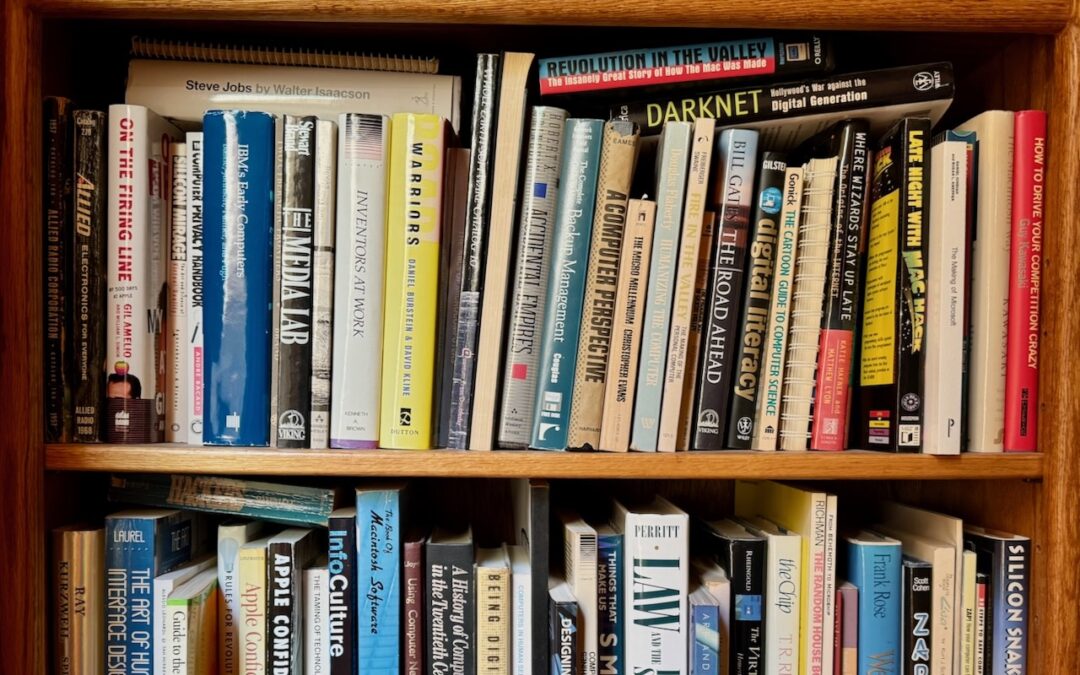
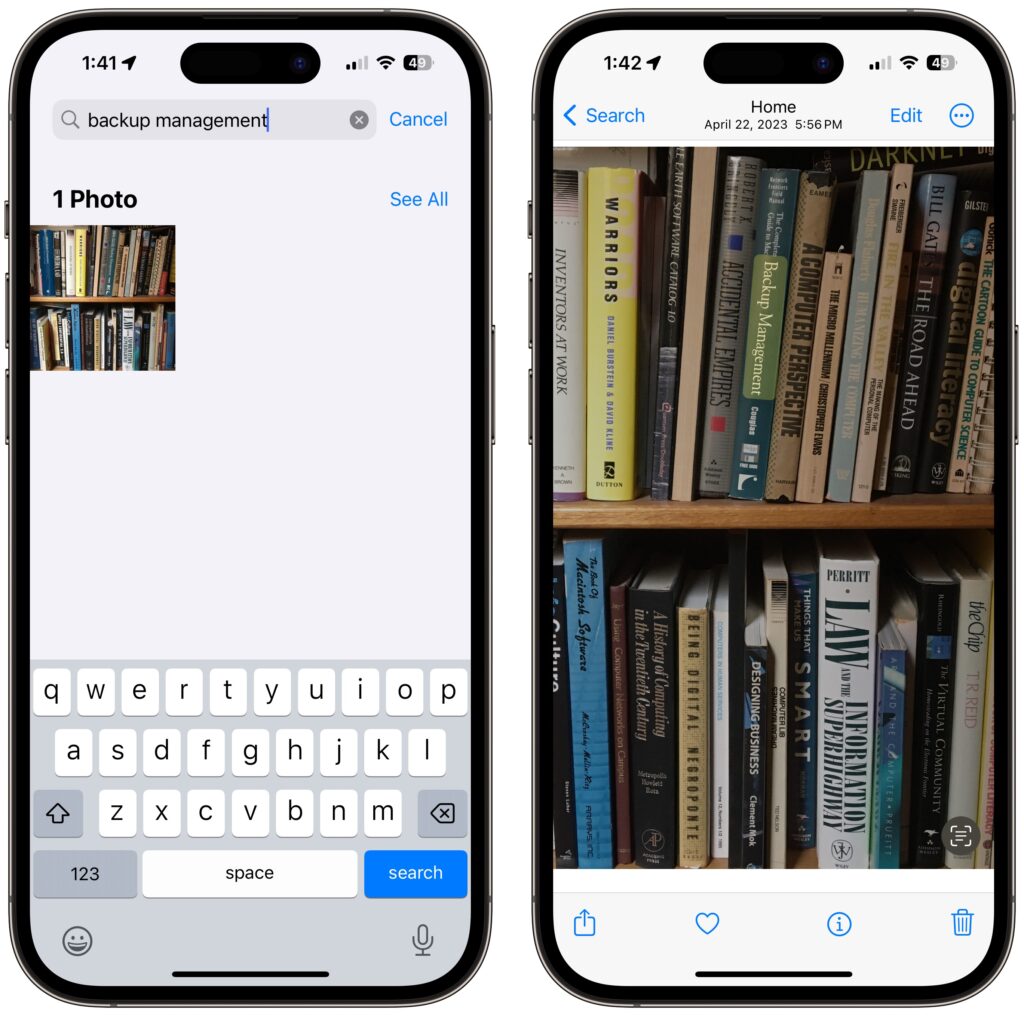
If you have trouble finding particular items across multiple shelves of books, labeled boxes, or anything else that’s clearly identified with a text name, take carefully composed photos that capture all the titles without glare. Later, you can search for any text in those photos to find them—tap the Search button in Photos on the iPhone or iPad, or use the Search field in Photos on the Mac. Photos highlights the search term on the found photo. (If Photos on the Mac doesn’t surface an expected photo, try again on your iPhone, which seems to get more hits on harder-to-read text.) This capability comes courtesy of Apple’s Live Text feature, which uses machine learning to identify text in photos. Think of it as the lazy person’s database!
(Featured image by Adam Engst)
Social Media: You can take advantage of Apple’s Live Text feature in Photos to catalog books, boxes, or any other items with text names. Think of it as a lazy person’s ad hoc database.

by Steve Sorbo | Jun 3, 2024 | Uncategorized
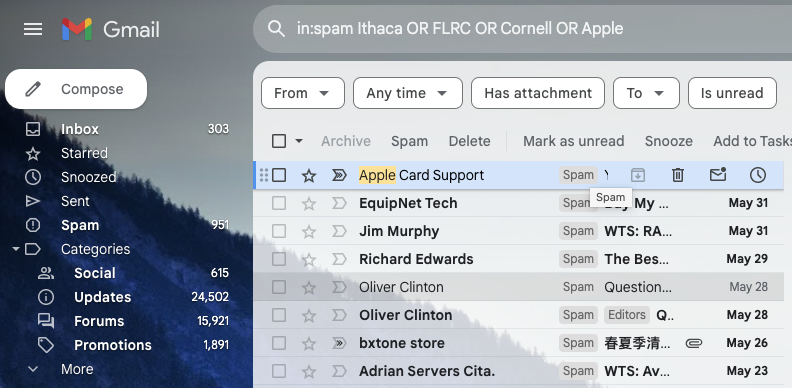
Spam filters work pretty well—99% of the messages in your spam mailbox are probably spam. But it’s frustrating to miss an important message that was caught by an overeager spam filter. Here’s an easy way to find many good messages, also known as “ham,” amidst all the spam. Think of keywords that might appear in legitimate email to you: the name of your city, major employers in your area, nearby colleges, companies whose products you use, their products, and so on. Then search for those terms inside your spam mailbox, either one at a time or, if your email app supports it, as a single search with OR statements for each keyword, like this Gmail search (use your actual town name and so forth): in:spam townName OR employerName OR clubName OR companyName. Of course, your keywords will appear in some spam messages, but if the searches reveal ham messages you would otherwise have missed, they’re worthwhile. Be extra cautious around any message that wants you to click a link, log in, or provide private information. The fact that your spam filter caught a message is a red flag.
(Featured image by iStock.com/Igor Kutyaev)
Social Media: Rather than frequently skimming your entire spam mailbox for incorrectly captured messages, try searching for specific keywords that are likely to appear in legitimate email.
by Steve Sorbo | Jun 3, 2024 | Uncategorized
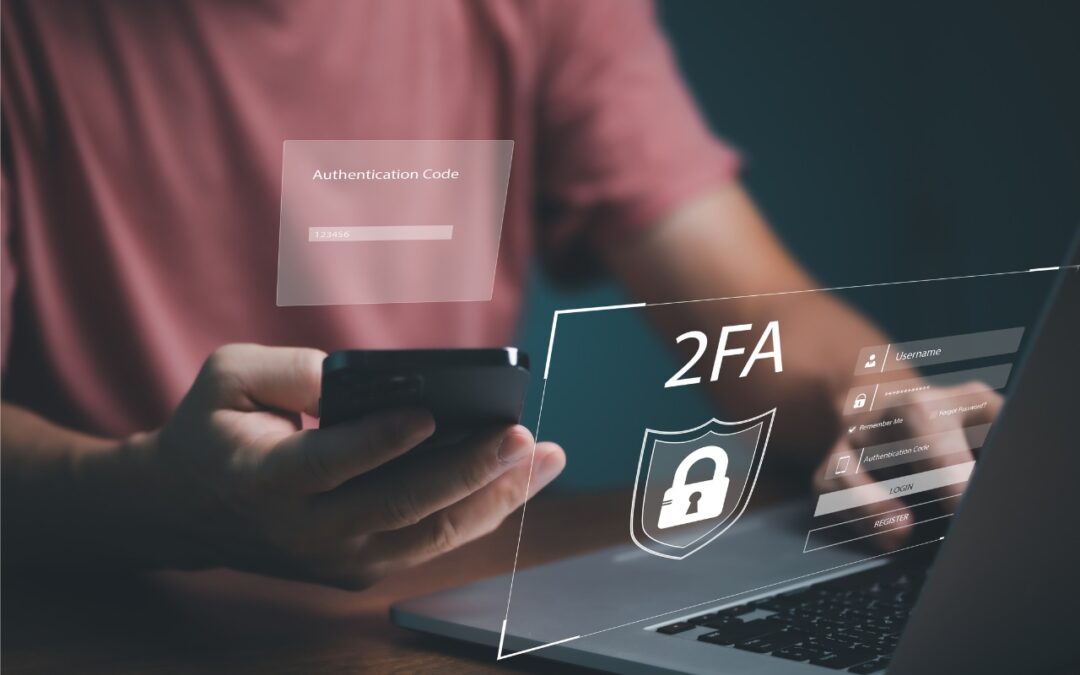
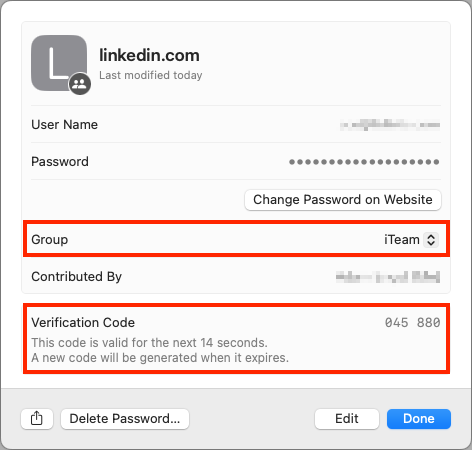
When your team or family shares access to a single account (such as for banking or social media, which seldom offer multi-user access), using two-factor authentication via SMS is awkward—whose phone receives the 2FA codes? One solution is to use an authentication app. Authentication apps are more secure, and multiple people can add 2FA support to the same account by scanning the QR code at setup or adding the 2FA setup URL later. (In both 1Password and Apple’s iCloud Keychain, edit the login to see and copy the setup URL.) An even better solution is to use a password manager that supports both 2FA codes and password sharing. That way, one person can set up the account with 2FA and add its login to a shared vault or collection. 1Password, Bitwarden, Dashlane, iCloud Keychain, and others provide such features.
(Featured image by iStock.com/May_Chanikran)
Social Media: For better results when a team or family group needs to share 2FA codes to log in to a website, try to use an authentication app instead of SMS, or better yet, use a password manager that can both generate 2FA codes and share logins with a group.

by Steve Sorbo | Jun 3, 2024 | Uncategorized
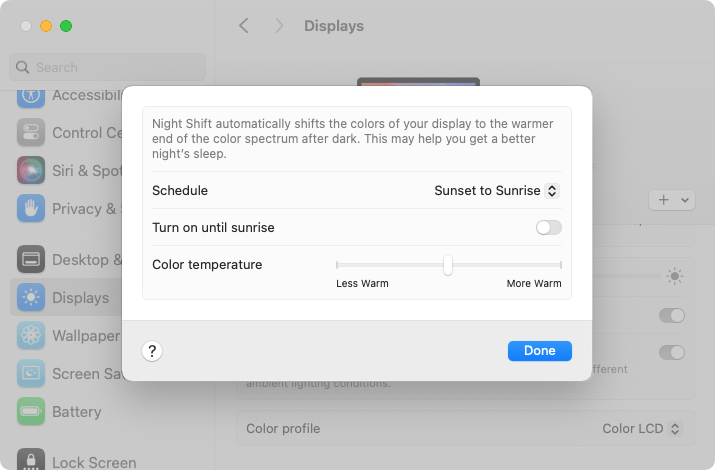
Research suggests that exposure to blue light fools your body into thinking it’s daytime, making it harder to fall asleep if you work late on a Mac with a bright white (which has a lot of blue light) screen. To help, a macOS feature called Night Shift subtly changes the colors of the screen as the sun sets to reduce the amount of blue light hitting your eyes. In essence, everything gets slightly warmer. To configure your Night Shift schedule—so it turns on and off automatically—go to System Settings > Displays > Night Shift. You can set any times, but Sunset to Sunrise adjusts for the sun’s movement in your location throughout the year. One warning: if you edit photos or videos, or work on graphics where specific colors matter, Night Shift’s color changes may be problematic.
(Featured image by iStock.com/PeopleImages)
Social Media: If you regularly work at your Mac late at night and have trouble falling asleep, consider turning on Night Shift to reduce your blue light exposure. By default, it makes the colors of your Mac warmer from sunset to sunrise.
by Steve Sorbo | Jun 3, 2024 | Uncategorized
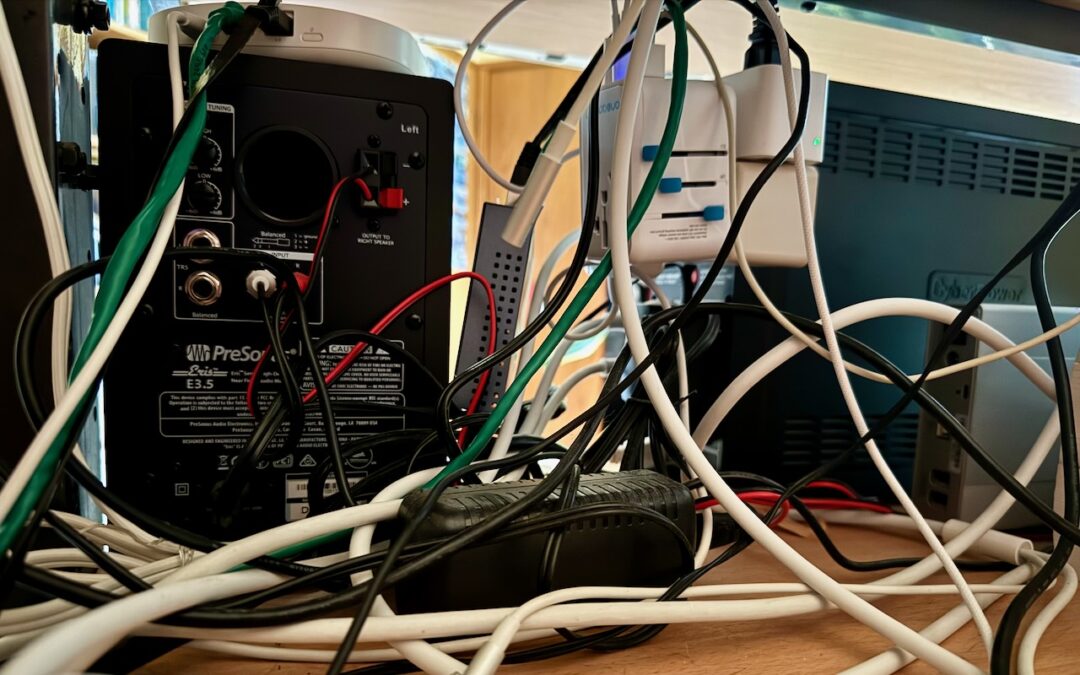
Take a moment and look behind your Mac. Do you see a tangle of cables? The main downside of a mess of cables is that it’s a cluster of chaos that attracts dust bunnies. However, it’s possible for power cables—especially when tightly bundled or looped—to emit electromagnetic interference that can disrupt or degrade the signal carried by nearby data or network cables. They can also heat up, which is generally best avoided. Plus, the more tangled the cable nest, the more likely you’ll cause harm if you pull too hard while attempting to remove a cable from the tangle.
Also, consider cables that extend beyond your desk. Do you have power cables that run across the ground or Ethernet cables that loosely snake up into the ceiling? To protect both people and equipment, ensure that cables aren’t a tripping or catching hazard.
If your cables are a complete disaster, take some time to shut down your devices, disconnect all the cables, clean underneath, and reconnect them in an organized fashion, removing unused cables and replacing damaged or unnecessarily long cables with new ones.
To keep your cables under control going forward, follow these tips:
Select and reduce cables:
- Buy and use cables that are only as long as they need to be.
- When buying new cables, prefer braided cables, which catch less and last longer.
- If you have many cables, try to trim the number with judicious use of docks or hubs.
- Upgrade to wireless accessories, like the Magic Keyboard and Magic Trackpad, that only need to be plugged in occasionally to charge.
Pay attention to cable location:
- Try to keep cables off the floor, but use a floor cord cover if it’s unavoidable.
- Attach long runs of network cabling to the wall or floor to reduce the chance of accidents.
- Run cables through raceways or inside cable trays to keep them together under desks.
- Add adhesive cable clips to the back or underside of desks without cable management options.
- Ensure cables don’t interfere with workstation ergonomics, especially with movable sit/stand desks.
- Keep power adapters away from other cables for better heat management.
Group your cables:
- Use Velcro straps or cable ties to bundle power and data cables separately.
- Avoid bundling too many power cables too tightly to avoid heat buildup.
- Label cables with their type and use so you can easily distinguish between them.
- Store extra cables in clear zip lock bags or bins, one per cable type.
Maintain your cables:
- Throw out any damaged or suspect cables right away.
- Periodically check and reorganize your cables, removing any that aren’t in active use.
You should be able to find a wide variety of cable management accessories, such as Velcro cable ties, cable labels, cable clips, and floor cord covers, at your preferred electronics retailer.
None of these suggestions are difficult to follow, and you’d be surprised how much you will appreciate having neatly organized cables in use and available when you need them.
(Featured image by Adam Engst)
Social Media: Do you have a rat’s nest of random cables behind your Mac? Follow our quick tips to bring order to the mess, reduce the chance of accidents, and avoid degraded data signals.

Recent Comments