
Apple’s New Home Lineup: What to Buy, What to Skip, and What to Wait For
Apple is reinvesting in the home in a big way. At its Welcome Home product launch on October 13, 2026, the company introduced the long-rumored HomeView—a touchscreen smart speaker for the whole family—alongside an updated HomePod mini and a next-generation Apple TV. Apple is also partnering with LG and Schneider Electric on a line of home automation products.
Here are the ship dates for the new products:
- HomePod mini 2: Friday, October 30, 2026
- HomeView and Apple TV 4K: Friday, November 13, 2026
- Home Collection: Begins shipping in December
Introducing HomeView
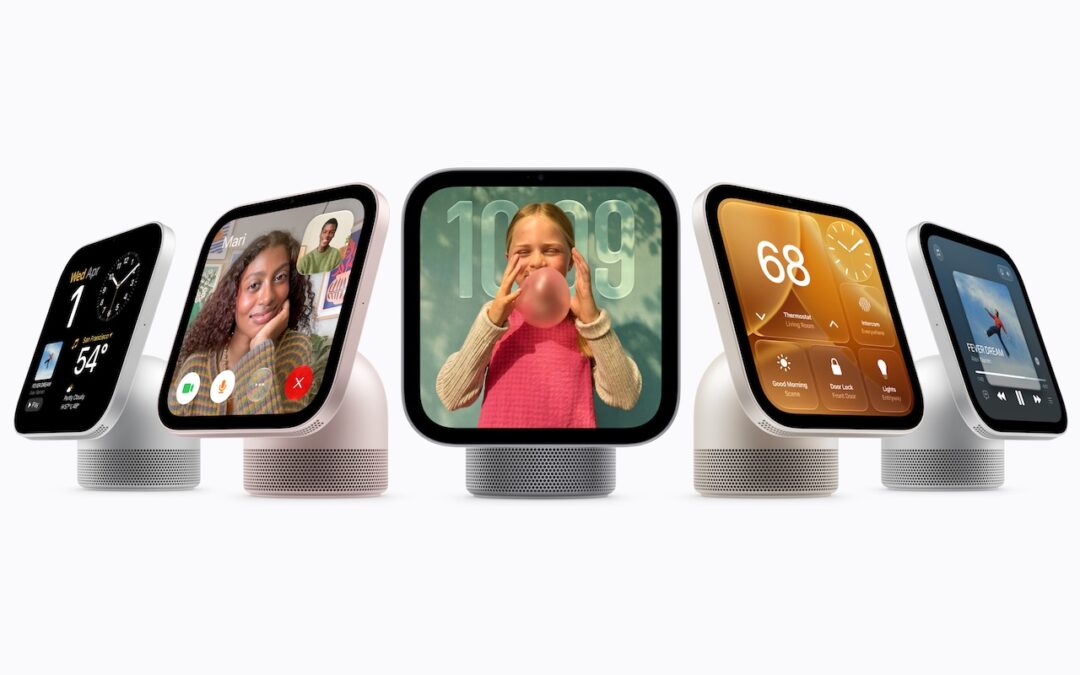
The headline product is the Apple HomeView, a home hub that plays music, controls home automation devices, and makes FaceTime calls. It’s a curious mix of an iPad mini and a HomePod, with a 7-inch display on a domed speaker base. It’s Apple’s answer to Amazon’s Echo Show and Google’s Nest Hub.

The most interesting thing about the HomeView is that it recognizes up to six people by face, and each gets a personalized Home Screen. Apple customers have wanted multiple user accounts on the iPad for years, and this will only increase that demand.

The HomeView has no App Store. It comes with 15 built-in apps, including:
- Calendar
- FaceTime
- Find My
- Messages
- Reminders
Third-party apps are limited to CarPlay-enabled audio and video apps, such as Spotify, which run from a paired iPhone. Like the Apple Watch, the HomeView also supports multiple “faces,” each with different sets of widgets, shortcuts, and stylings.
The HomeView leans heavily on Apple’s new Siri AI, which isn’t available in the European Union, so Apple isn’t selling it there. At launch, the HomeView will be available in the United States, United Kingdom, Canada, Australia, New Zealand, India, Singapore, and South Africa.
The HomeView costs $299 in either of two versions: tabletop and wall-mounted. The wall-mounted version lacks the built-in subwoofer and requires a separate Schneider Home mount: $59.95 for USB-C or $79.95 for AC wired, both available now, or $129.95 for Power over Ethernet (PoE), which arrives in early 2027.

The HomeView makes the most sense for families heavily invested in Apple Home who want a shared control panel for their home automation devices.
It could also work in a small office as a conference-room FaceTime station or a front-desk control panel, but Apple isn’t positioning it for business use yet.
Buy, Skip, or Wait? Wait. Almost everyone can afford to hold off on this one—it’s a product sure to mature and gain more functionality over time.
Fourth-generation Apple TV 4K
At $299, the new Apple TV 4K costs more than nearly any other streaming box on the market, and, puzzlingly, it still doesn’t support 120 Hz video.
Apple TV prices have been climbing steadily, and Apple has blamed soaring demand for memory and storage chips from AI data centers. In June, Apple raised Apple TV prices from $129 to $199 for the 64 GB model and from $149 to $249 for the 128 GB model. Apple has now consolidated to a single 128 GB model, simplifying the lineup.
Beyond the expected speed boost from the A19 chip, the most interesting addition is a set of three far-field microphones for hands-free Siri. It can also drive up to four HomePods for surround sound, either the second-generation HomePod or the new HomePod mini 2. You can mix and match speakers as long as each pair matches—for example, two full-size HomePods in front and two HomePod mini 2 units in the rear. Original HomePod minis and first-generation HomePods aren’t supported.
Since nearly every smart TV and streaming stick now supports the Apple TV app and AirPlay, the Apple TV 4K is increasingly a device for people who want the best tvOS experience, tight Apple Home integration, or an Apple Home hub. If you already own a second-generation or later Apple TV 4K, there’s little reason to upgrade—Apple says Siri AI is coming to your existing box, starting in beta with tvOS 27.2.
Here’s another welcome upgrade for existing Apple TV owners: a new, improved Siri Remote with built-in Find My. It’s included with the new Apple TV but is available as a separate $59 purchase for owners of existing Apple TV HD and 4K models. Precision Finding requires an iPhone Duo, iPhone Air, or iPhone 17 or later (not the 17e). With any other iPhone, you’ll have to make the remote play a sound to find it.
Buy, Skip, or Wait? Skip. The price is hard to justify unless you’re a die-hard Apple TV fan, and the best upgrades are coming to older models.
HomePod mini 2
The HomePod mini 2 offers modest upgrades over the original at a higher price of $149. It will support Siri AI in a future update, while the original will not. It ships in blue, green, midnight, pink, and white.

Beyond serving as surround speakers for the new Apple TV 4K, the HomePod mini 2 can be a Mac’s default speaker, alone or in a stereo pair (the Mac needs Wi-Fi 6E or later).

Another neat feature: the top surface pulses in rhythm with the music, a feature Apple calls Sound Glow.
Buy, Skip, or Wait? Buy, if you’re in the market for a smart speaker, but don’t rush to replace your existing HomePod minis unless Siri AI, Apple TV surround sound, or Mac speaker support matters to you.
Apple Home Collection
Apple has long left smart home hardware to other companies, first through its Works with Apple Home certification, which offered a small assortment of accessories at relatively high prices. Then it embraced the cross-platform Matter standard, which greatly expanded compatible accessories at lower prices, but at the cost of ambiguous accessory reliability and quality.

Apple is now swinging back in the other direction with the new Apple Home Collection. It’s a lineup of cameras, a lock, and thermostats built with LG Electronics and Schneider Electric and sold through Apple’s online and retail stores:
- LG Video Doorbell (Wired): Dual cameras (2.5K facing out, full HD facing down to catch packages), a built-in spotlight, and a chime that plays through a HomeView, HomePod, or HomePod mini. $249.95.
- LG Indoor Cam: Tilts automatically and turns away from the room when someone in the household comes home, so it isn’t recording you while you’re there. $199.95.
- LG Outdoor Cam and Floodlight Cam: Low-light color night vision. The Floodlight Cam adds dual floodlights that turn on when motion is detected. $299.95 and $399.95.
- LG Smart Deadbolt Lock: Unlocks automatically as you approach with your iPhone or Apple Watch, which use Apple’s Ultra Wideband chip to tell when you’re near. It also offers a PIN pad, a hidden backup key, and tap-to-unlock, and it keeps working locally if your Internet connection goes down. $349.95 (US and Canada only).
- LG and Schneider Home Smart Thermostats: Both offer Adaptive Temperature, and in the contiguous US, with a compatible utility plan, they can shift heating and cooling to times when electricity is cheaper or cleaner. $199.95 each, with $39.95 room sensors and optional $24.95 C-wire adapters (US and Canada only).

As usual, privacy is Apple’s key selling point. Apple says Home app data is end-to-end encrypted so that neither Apple nor its partners can read it, and camera footage is analyzed on your home hub or in Apple’s Private Cloud Compute rather than on a manufacturer’s servers. You don’t have to wonder whether someone is watching your security camera footage without your knowledge.
There are strings attached. The cameras are sold only in the US, Canada, and the UK, and they need an iCloud+ plan to store 10 days of event history: 50 GB covers one camera, 200 GB covers up to five, and 2 TB covers unlimited cameras. Those plans cover recording only. Apple’s new AI video summaries need at least the $9.99-per-month 2 TB plan for a single camera, and summaries on five cameras require the $59.99-per-month 12 TB plan—there’s no option beyond that. You’ll also need a home hub (HomeView, HomePod, HomePod mini, or Apple TV 4K) for many features. Apple says the collection starts shipping in December, but some accessories won’t arrive until early 2027, and it hasn’t said which. US customers can pay extra for professional installation by ADT through Apple Retail.
Buy, Skip, or Wait? Wait. If your home already runs on Apple Home and you’ve put off cameras or a smart lock because of privacy worries, the Home Collection is the most trustworthy option Apple users have had. The prices are on the high side, though, and smart home devices are hard to swap out once mounted, so it’s worth waiting for early camera reviews before you commit.
(Featured image by Apple)
Social Media: Apple’s Welcome Home event brought the HomeView smart display, a $299 Apple TV 4K, the HomePod mini 2, and Apple-branded cameras, locks, and thermostats. Here’s what’s worth buying now—and what to skip.






Recent Comments