
by Steve Sorbo | Feb 7, 2025 | Uncategorized
The devastating losses caused by the Los Angeles wildfires have underscored the need to protect data from catastrophic events. A traditional offsite backup—periodically moving a hard drive to another location—might not have sufficed in areas affected by wildfires, where many structures were destroyed. An online backup using a service like Backblaze or CrashPlan is often a better solution, although it can become costly for multiple Macs, and some individuals and organizations are uncomfortable storing their data online, even with encryption.
What about a safe? Would storing one or more backup drives in a safe provide adequate protection? Possibly, but the details are critical. Some safes are designed solely to guard against theft, focusing on preventing thieves from opening the door. However, paper ignites at 451ºF (it chars around 387ºF), and most house fires reach temperatures between 800ºF and 1200ºF, so you may think that all you need to do is look for a “fireproof” safe. That’s a good start, but paper is actually much more resilient than magnetic and optical media.
Fireproof safes come with ratings that indicate the internal temperature they can maintain, with the most common being:
- Class 350: Safes maintain an internal temperature of 350ºF, suitable only for paper.
- Class 150: Safes keep the interior below 150ºF, which should protect magnetic media.
- Class 125: Safes maintain temperatures under 125ºF, appropriate for optical media.
It is also important to determine how long the safe can maintain that temperature. Generally speaking, a fireproof safe is rated for 1 or 2 hours, indicating it can maintain the specified internal temperature for at least that duration. Time ratings represent minimums, not maximums, so the actual protection time may be longer.
In most cases, the protection time is likely to be longer. That’s because safes are tested in furnaces at temperatures that can be two to three times hotter than the average house fire. For example, Underwriters Laboratory (one of several independent testing labs) conducts tests at 1700ºF or 1850ºF. Additionally, while a house fire may burn for several hours, the average fire will consume everything near the safe within 20 minutes and then move on.
Wildfires are a different story. In extreme conditions, wildfire temperatures can range from 1500ºF to 2200ºF, approaching or exceeding the testing conditions. Wildfires also last longer, so a safe in a destroyed building may remain in embers for hours or even days before it can be recovered.
While temperature over time is the main factor to consider when researching a fireproof safe, also look for two other variables being mentioned as well:
- Water resistance: Where there’s fire, there’s usually water. Thousands of gallons of water, some of which will undoubtedly affect the safe. Not all fireproof safes are waterproof, so verify whether a specific safe can withstand being doused by firefighters.
- Impact protection: If the floor collapses, a safe on an upper story could fall a considerable distance. If you are considering such a location, ensure the safe can withstand the impact. To simulate realistic fire conditions, the test may involve withstanding a 30-foot drop onto a concrete floor, followed by reheating.
Finally, remember that if your safe is in a fire, the heat will cause its insulation to swell up, rendering the lock useless, regardless of its type. Typically, you will need to hire a locksmith to access the safe using instructions from the manufacturer.
If you’re going to trust your data to a fireproof safe, do your research to ensure that whatever you buy will meet your needs for fire, water, and impact protection. It won’t be cheap—depending on the size and other factors, a good fireproof safe can cost many hundreds or even thousands of dollars. However, this is one area where you definitely shouldn’t cut corners.
(Featured image based on originals by iStock.com/phive2015 and Hanna Plonsak)
Social Media: If the wildfires in Los Angeles have you considering a fireproof safe to safeguard backups and important documents, make sure to research temperature ratings over time and be mindful of water and impact resistance.
by Steve Sorbo | Feb 7, 2025 | Uncategorized
One of the flashiest features of macOS 15 Sequoia and iOS 18 is iPhone Mirroring, which allows you to use your iPhone in a window on your Mac. You might think, “But I can just pull my iPhone out of my pocket if I need to use it!” While that may be true, not everyone has their iPhone so readily accessible, even if it’s close by.
iPhone Mirroring Benefits
iPhone Mirroring provides a handful of benefits, including:
- Centralized notification management: Once you’ve set up iPhone Mirroring, notifications from your iPhone can also appear on your Mac, ensuring you stay informed while maintaining focus on your work.
- Increased productivity with a keyboard: Typing on a physical keyboard is faster and more efficient than using the iPhone’s virtual keyboard, making iPhone Mirroring a helpful tool for entering and editing lengthy texts.
- Reduced physical distractions: Keeping your iPhone out of sight helps you avoid being distracted by it. With iPhone Mirroring, you can access important apps and notifications without letting the physical iPhone capture your attention.
- Simplified file transfer: Certain apps allow file transfer between the iPhone and Mac using a straightforward drag-and-drop method.
- Access to iPhone-only apps on the Mac: Many apps are available only for iOS, and iPhone Mirroring lets you interact with them directly from your Mac, removing the need to switch devices.
iPhone Mirroring Requirements
A few requirements must be met before you can begin using iPhone Mirroring:
- Your iPhone must have iOS 18 or later, and your Mac needs macOS 15 Sequoia or later.
- Both devices must have Wi-Fi and Bluetooth turned on.
- The devices should be in close proximity and signed into the same Apple Account.
- Handoff must be enabled for the iPhone in Settings > General > AirPlay & Continuity and on the Mac in System Settings > General > AirDrop & Handoff.
Mac App Limitations
Once everything is set up correctly, launch the iPhone Mirroring app on your Mac. A few splash screens explain the basics during the first launch, and afterward, your iPhone will appear in a window. You can move it anywhere you wish and treat it like any other Mac app, with one notable exception—resizing. It does not have a green zoom button, and you cannot resize it by dragging the window edge, but it does offer three size options you can choose from the View menu.

iPhone Hardware Limitations
Using iOS and iPhone apps works pretty much as you’d expect, but there are some limitations. Notably, the iPhone camera and microphone aren’t available, although audio from the iPhone plays through the Mac. Face ID and Touch ID are also not accessible for obvious reasons, which may block access to apps and features protected by biometric authentication. There’s no way to access Notification Center or Control Center, nor to switch apps by swiping the Home indicator—presumably because those three swipes are special due to being at the edge of the iPhone screen. You cannot access the Lock Screen or perform any action that requires a physical button. Finally, you can use only one Continuity feature at a time, so other Continuity features like Universal Clipboard and AirDrop won’t function while you are using iPhone Mirroring.
Core iPhone Interactions
You’ll pick up the basic iPhone interactions quickly. Clicking is like tapping, Control-click acts like touch-and-hold, and swiping on a trackpad behaves like swiping on the iPhone screen. If your Mac has a mouse without swipe gestures instead of a trackpad, click and drag to swipe or use a scroll wheel (hold Shift to scroll horizontally with a scroll wheel). Buttons in the iPhone Mirroring window’s title bar take you back to the Home Screen and open the App Switcher—those actions involve swipes that would be difficult or impossible. Even easier are the keyboard shortcuts in the View menu for Home Screen (Command-1), App Switcher (Command-2), and Spotlight (Command-3).
File Transfer
Although the lack of Universal Clipboard prevents copying between your Mac and a mirrored iPhone, you can transfer files from apps that support it, like Files and Photos. Simply drag and drop between the Mac and the iPhone Mirroring app in either direction. With Files and Photos, it’s usually easier to use iCloud Drive in the Finder and the Mac version of Photos, but other apps may not be as well integrated.
Ending and Restarting Mirroring
Switching back to using the iPhone directly is simple—just unlock it to disconnect from the Mac. When you’re done, lock the iPhone and click the Connect or Resume button to resume.

Dealing with Multiple Macs and iPhones
Connecting an iPhone to multiple Macs is not an issue, although only one can use it at a time. To remove access for a Mac, use the iPhone to navigate to Settings > General > AirPlay & Continuity > iPhone Mirroring, tap Edit, and then tap the red delete button. If you have more than one iPhone available for iPhone Mirroring, you can select which one to use in System Settings > Desktop & Dock, just below the “Use iPhone widgets” setting—the menu appears only when the Mac detects multiple iPhones nearby.
On final note. In iPhone Mirroring > Settings, you can choose whether to require your Mac login for every connection or to authenticate automatically. Set it to “Ask every time” if your Mac is shared with others, if others know your Mac password, or if you want to enhance protection against potential malicious software. It’s more secure but slightly more inconvenient.

In the end, if you frequently find yourself reaching for your iPhone while working on your Mac or wish it were more accessible, try iPhone Mirroring. It’s an easy, effective way to work between the devices and reduce unnecessary interruptions.
(Featured image by iStock.com/Diego Antonio Maravilla Ruano)
Social Media: The new iPhone Mirroring app in macOS 15 Sequoia lets you use your iPhone running iOS 18 in a window on your Mac. It’s a welcome feature that offers the possibility of increased productivity and fewer distractions.

by Steve Sorbo | Feb 7, 2025 | Uncategorized
Cloud-based email services such as Google Workspace and Microsoft 365 dominate the market for organizational email for good reason. Dealing with the constant onslaught of spam and online attacks is hard, as those traumatized by running mail servers in the “good old days” can attest.
While email service providers excel at their primary functions of sending, receiving, and storing emails, they prioritize availability and uptime over backup and recovery. Depending solely on their built-in protection systems can leave organizations vulnerable to data loss. Although it’s exceedingly rare for email service providers to lose data due to system failures—all modern email systems are distributed and replicated in virtualized storage—they cannot safeguard against every risk. Here are some scenarios we’ve encountered where a separate email backup solution was useful:
- Recover from human error: This is the big one. People often accidentally delete important messages or clean out old messages too aggressively, inadvertently including critical conversations in a mass deletion. Backups ensure that these messages can be retrieved.
- Ease employee turnover: When employees leave, it’s essential to deactivate their email accounts for security reasons. However, information in their accounts may be vital for ongoing projects or legal purposes. Backups preserve this data for future access.
- Mitigate cyber threats: Phishing attacks are commonplace today. If an employee falls victim to one, their email account could be compromised and data lost. Worse still, the attacker could install malware—even ransomware, though that’s not a significant real-world concern for Apple-only installations—that could result in email data loss. While training employees to recognize and avoid phishing attacks is crucial, backups provide an essential safety net for anyone who makes a mistake.
- Facilitate data migration and archiving: Organizations often need to migrate email data from one system or user to another. While it’s rarely necessary or desirable to migrate everything—all the mail from the past year may be sufficient—it can be helpful to maintain archival access to historical communications.
In fact, both Google and Microsoft explicitly state that they store data for only a limited time and recommend employing a backup service. (The specifics may differ, but generally, you can retrieve a deleted email within 30 days, after which it may be recoverable for an additional 14 or 30 days.) Numerous companies provide email backup services, many of which are quite similar. The list below highlights some of the most common services, but we encourage you to reach out for recommendations based on your email service provider and organization size.
- CloudAlly offers unlimited data retention and extends its backup capabilities beyond email to encompass platforms such as Box, Dropbox, and Salesforce.
- CubeBackup focuses exclusively on Google Workspace and Microsoft 365. It provides a cost-effective solution by allowing users to utilize their own local or remote storage.
- Backupify and Datto SaaS Protection are from the same company and offer the same backup capabilities, but they serve different market segments. Datto further enhances its branded services with a range of business continuity and data protection tools.
- Dropsuite provides unlimited storage and also supports QuickBooks Online backup. It features a flexible backup cadence, with email backups up to 12 times per day.
- MSP360 Managed Backup is a feature-rich solution that, while more complex and potentially more expensive than those from competitors, offers extensive customization and supports a wide range of storage providers.
- Spanning goes beyond Google Workspace and Microsoft 365 with Salesforce backups. It offers highly granular restores, enabling the recovery of individual emails. Its FLEXspend feature simplifies backup expenditures when transitioning between platforms.
- SpinBackup offers disaster recovery services at an affordable price point, and its developer, Spin.ai, provides a wide range of security solutions beyond backup, including data leak and ransomware protection.
- Synology Active Backup includes free add-ons for Google Workspace and Microsoft 365 that back up cloud data to a Synology NAS. It’s an excellent solution for avoiding ongoing expenses.
As important as an email backup solution is for protecting against data loss, we urge you to proceed carefully when selecting one. If you end up with data that exists solely in a particular solution, legal retention requirements or the inability to export data in a non-proprietary format may lock you into paying for it indefinitely. Ideally, keep all data live so you can transition to a different solution to meet changing needs. Again, please contact us for help picking the most appropriate solution for your needs.
(Featured image by iStock.com/Rasi Bhadramani)
Social Media: Cloud-based email services like Google Workspace and Microsoft 365 provide excellent uptime and availability. However, an independent email backup solution is essential to protect against accidental deletion, cyber threats, and other data loss concerns.
by Steve Sorbo | Feb 7, 2025 | Uncategorized
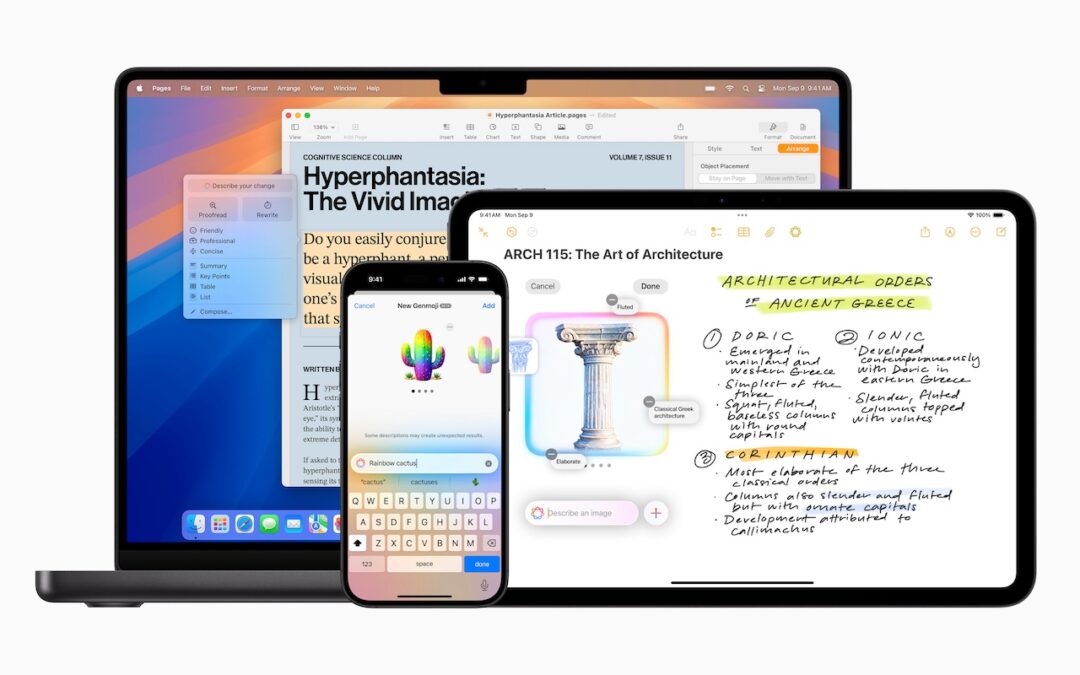
Apple unveiled Apple Intelligence in October 2024 and expanded its extensive collection of AI-powered features with its December updates. The company’s January 2025 releases of macOS 15.3 Sequoia, iOS 18.3, and iPadOS 18.3 enhanced the feature set in several notable ways. Remember, Apple Intelligence features operate only on a Mac with Apple silicon, an iPhone 15 Pro or any iPhone 16, or an iPad with an A17 Pro or M-series chip.
Although Apple still considers Apple Intelligence to be in beta, the January operating system releases enabled it by default. From Apple’s perspective, this makes sense because so many features depend on Apple Intelligence, and the company aims to ensure a consistent user experience for everyone. Those features include:
- Photos: Clean Up, natural language searching, and improved Memory movie creation
- Text and Writing: Writing Tools with ChatGPT integration for any app
- Communication: Priority messages in Mail, Smart Reply and summaries in both Mail and Messages
- Notes and Phone: Audio transcription summaries
- Creative Tools: Genmoji and Image Playground for image generation, Image Wand for Apple Pencil sketches
- Focus: Intelligent Breakthrough & Silencing and Reduce Interruptions Focus
- Notifications: Summaries for busy apps and conversations
- Siri: Enhanced capabilities, but primarily ChatGPT integration
- Camera: Visual Intelligence lookups (iPhone 16 only)
Apple Intelligence requires up to 7 GB of storage space (we see it occupying 5 GB in macOS 15.3 and 5.75 GB in iOS 18.3), so if your Mac, iPhone, or iPad is low on space, you may want to turn it off to free up room for photos, movies, and apps. Do that in the Apple Intelligence & Siri section of System Settings or Settings. However, you might not notice recovered space until your device decides to reclaim it. To check your space usage on a Mac, navigate to System Settings > General > Storage > macOS, and on an iPhone or iPad, go to Settings > General > iPhone/iPad Storage > iOS/iPadOS.

Assuming you intend to keep it enabled, what can you expect from this third update to Apple Intelligence features?
Changes to Notification Summaries
Notification summaries have proven to be Apple Intelligence’s most controversial feature. They have generated blatantly incorrect news summaries and misidentified spouses, resulting in complaints from major publications and widespread mockery. In response, Apple has temporarily turned off notification summaries for all apps in the App Store’s News & Entertainment category.
Apple also italicized all the text in notification summaries to better distinguish them from standard notifications. Previously, the only indicator of a summarized notification was a tiny icon.
Finally, Apple made it easier to manage settings for notification summaries from the Lock Screen. On an iPhone, for instance, you can swipe right to reveal an Options button, tap it, and then tap Turn Off AppName Summaries. You can also report a concern with a summary—Apple solicits feedback as part of the Apple Intelligence beta.

Visual Intelligence Adds Scheduling and Plant and Animal Identification
Apple Intelligence enhances the new Camera Control button on iPhone 16 models, enabling it to respond based on what’s in the viewfinder. Initially, it could only ask ChatGPT about what it saw or conduct a Google image search. Now, when you press and hold the Camera Control, Visual Intelligence can also detect whether you’re pointing at a poster or flyer and suggest creating a calendar event. Additionally, if it identifies a plant or animal within the frame, it will recognize it and provide more information with a tap.

Genmoji Become Available on the Mac
iOS 18.2 and iPadOS 18.2 introduced the custom emoji Apple calls Genmoji, but macOS 15.2 did not include this feature. With macOS 15.3, the Mac has now caught up. The functionality remains the same—you describe what you want to see in a few words, and the Genmoji can be based on a picture of a person. The Genmoji you create are essentially stickers, but you can use them just like regular emojis.
To create one, open the emoji picker, type a few words of description, and click Create New Emoji. You can then experiment with different descriptions and scroll through Apple Intelligence’s variants before clicking Add to save your Genmoji and insert it wherever you’re typing.

We expect at least one more major release related to Apple Intelligence, likely in early March, coinciding with the .4 operating system updates. If Apple’s engineers meet their targets, these releases will enable Siri to access and leverage your personal information for more context-aware responses. Siri will also be able to perform actions within apps. Additionally, Apple has promised priority notifications to ensure that we are quickly alerted to the most critical messages while minimizing distractions from less important ones.
In the meantime, explore the Apple Intelligence features currently available and see if they enhance your Apple experience.
(Featured image by Apple)
Social Media: Apple’s third update to Apple Intelligence introduces changes to notification summaries (including disabling controversial news headline summaries), enhancements to Visual Intelligence on the iPhone 16, and Genmoji creation on the Mac.

Recent Comments