by Steve Sorbo | Mar 7, 2025 | Uncategorized
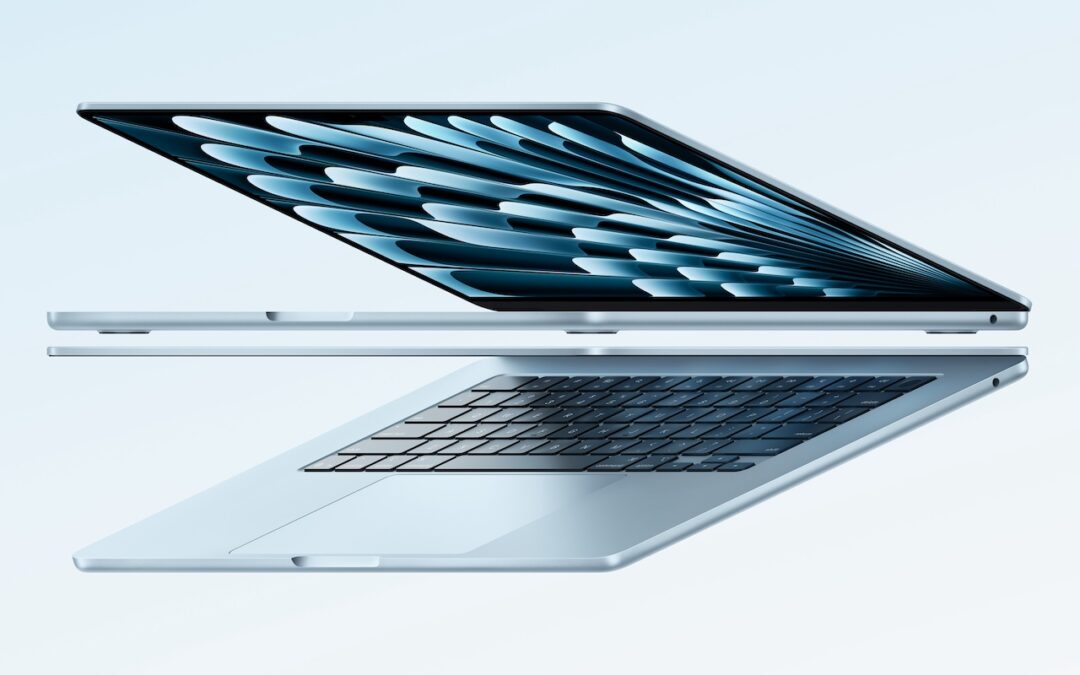
Apple has unveiled an update to the MacBook Air, which it touts as the world’s most popular laptop. While the MacBook Air has long been a compelling option for many consumers, the new 13-inch and 15-inch M4 MacBook Air models improve performance, boast a new 12-megapixel Center Stage camera, and fully support two external displays, making them even more appealing.
Adding to that appeal is a $100 price drop that brings the starting price back to $999 after Apple raised it several years ago. In concert with the return to the lower starting price, the company dropped the M2 MacBook Air and M3 MacBook Air from the official price list, though refurbished units remain available temporarily for discounted prices.
The jump from the M3 to the M4 increases performance, though Apple doesn’t say by how much. Independent benchmarks suggest that it may be about 20% faster. What’s more important for those considering an upgrade is that the M4 MacBook Air is up to twice as fast as the M1 MacBook Air and a whopping 23 times faster than the fastest Intel-based MacBook Air.
The base level of the M4 MacBook Air now comes with 16 GB of unified memory, up from 8 GB. This increase is partly aimed at enhancing Apple Intelligence performance. It also reduces the necessity for many users to consider upgrading, which we had previously recommended. For most people, 16 GB is sufficient, but for optimal multitasking performance and to future-proof your investment, consider upgrading to 24 GB. Only those with demanding workflows will need the new maximum of 32 GB, and in such cases, it may be worthwhile to consider a 14-inch MacBook Pro.
Apple also significantly improved video calls by swapping the MacBook Air’s previous 1080p FaceTime HD camera for the 12-megapixel Center Stage camera. As you move around during a call, Center Stage zooms and pans to keep you in the frame. Not having to stay stationary during calls can make a day with too many virtual meetings less exhausting. The camera also supports Desk View, which lets you show off items below the camera, essentially on top of the keyboard. It’s a niche feature, but one that some people find useful.
The final improvement in the M4 MacBook Air is subtle but may be compelling for some users. The M1 MacBook Air and M2 MacBook Air could drive a single external display in addition to the built-in screen, and the M3 MacBook Air supported two external displays at once, but only if you closed the lid and used an external keyboard and trackpad. With the M4 MacBook Air, you can now connect two external displays while keeping the lid open, which gives you three screens and lets you use the built-in keyboard and trackpad. Increasing screen space boosts productivity by allowing you to see more on-screen at once, so we recommend you give multiple displays a try.
The new M4 MacBook Air comes in four colors: silver, starlight, midnight, and a new sky blue that replaces the previous space gray. The 13-inch model starts at $999, and the 15-inch model at $1,199. Memory upgrades include 24 GB for $200 or 32 GB for $400, and storage options beyond the base 256 GB carry the usual price premiums: 512 GB for $200, 1 TB for $400, and 2 TB for $800.
Put simply, the M4 MacBook Air is impressive. It boasts serious power in a svelte, lightweight package that makes very few compromises. It’s equally at home on the road as a laptop or at a desk connected to external displays, making it the perfect Mac for nearly any student and many average Mac users. Only those who require significant processing power or prefer a desktop Mac need to look at the Mac mini or MacBook Pro.
(Featured image by Apple)
Social Media: Apple has updated the MacBook Air with an M4 chip and higher memory ceiling for added performance, a 12-megapixel Center Stage camera for better video calls, and enhanced multi-display support for greater productivity. And it’s $100 less.
by Steve Sorbo | Mar 7, 2025 | Uncategorized
With so many troubling things happening in the world, some clients have inquired about ways to enhance their security. While we don’t want to encourage paranoia, there are many legitimate threats, and everyone will have their own levels of worry about each one.
The effort and inconvenience that different people are willing to endure also vary. Higher levels of security often necessitate significant effort and inconvenience. We have divided our list of suggestions—roughly organized from easiest to hardest—into two sections: actions we believe everyone should take and security measures mainly for those most concerned and willing to tolerate some fuss.
Before we delve into the details, it is important to remember that privacy and security are not the same thing. Privacy refers to the proper collection, use, and governance of personal data. Security, conversely, is concerned with protecting data from unauthorized access and malicious threats. It entails defending data against external dangers, while privacy ensures that the management and use of that data adhere to agreed-upon standards.
Security Improvements for Everyone
These actions are generally beneficial for most users. They don’t require much technical knowledge and can often be accomplished with easily accessible tools and settings:
- Keep apps and operating systems up to date: Nearly every operating system update from Apple addresses numerous security vulnerabilities, and the same is often true for major apps. Always ensure you’re running current versions to take advantage of all those security improvements.
- Enable FileVault: While all data on the internal SSDs of Macs with Apple silicon and Intel-based Macs with the T2 chip is automatically encrypted to prevent unauthorized access if the SSD is removed, it is automatically decrypted whenever the Mac boots, even before you log in. To link decryption to your user account, which makes your login password necessary to decrypt all data, enable FileVault in System Settings > Privacy & Security > FileVault. There are essentially no drawbacks.
- Improve your passcode: For nearly a decade, it has been easy to set a six-digit passcode on the iPhone and iPad, greatly enhancing security compared to the previous standard four-digit passcode (1 million possible combinations versus only 10,000). If you still use four digits, consider switching to six digits, a custom number of digits, or a custom alphanumeric passcode in Settings > Face ID/Touch ID & Passcode > Change Passcode > Passcode Options. Alphanumeric passcodes offer the highest level of security but are more challenging to type.
- Turn on biometric authentication and Stolen Device Protection: If you aren’t already using Face ID or Touch ID on your iPhone or iPad, that’s a mistake. Both provide significantly stronger security than repeatedly entering your passcode, which could be observed. Turn on biometric authentication and Apple’s Stolen Device Protection in Settings > Face/Touch ID & Passcode.
- Adopt strong password habits: If security matters at all to you, you must use a strong, unique password for each online account and never reuse a password. It’s easy and secure as long as you create and store passwords with a password manager like Apple’s Passwords or 1Password.
- Enable MFA whenever it’s available: Multi-factor authentication greatly enhances security, safeguarding you even if your password is compromised in a breach. It typically requires entering a six-digit code that you retrieve from an app or receive via text message. Apple’s Passwords and 1Password can both automatically enter MFA codes for many websites.
- Use an ad blocker: Much of today’s surveillance society relies on ads to track you. Anything you can do to block ads will enhance your privacy, so use ad blockers whenever possible. Highly regarded options include 1Blocker, AdGuard, NextDNS, and uBlock Origin.
- Enable privacy and security features in Web browsers: Safari can prevent cross-site tracking and hide your IP address, along with other privacy and security features. In Safari > Settings, review all the options in the Privacy and Security screens and enable those that are appropriate. (Keep cookies and JavaScript enabled; many sites won’t function properly without them.) If you don’t use Safari, choose Brave or Firefox instead of Google Chrome.
- Utilize secure DNS services: To enhance browsing privacy and protect against DNS leaks, configure your devices to use a privacy-focused DNS service like Cloudflare’s 1.1.1.1 or Quad9’s 9.9.9.9.
- Minimize app exposure: Be vigilant about iPhone or iPad apps that might be sharing information about you with data brokers without your knowledge. Specifically:
- Turn off Settings > Privacy & Security > Tracking > Allow Apps to Request to Track.
- Rescind location tracking permissions for all apps except those that require it, such as navigation or weather apps, in Settings > Privacy & Security > Location Services.
- Delete apps you’re not using to prevent them from spying on you.
Security Improvements for the Particularly Concerned
Implementing these actions may require extra steps, specialized knowledge, or significant changes in habits. They’re primarily for those with heightened concerns or those at greater risk, such as journalists, activists, and individuals handling sensitive data:
- Use independent search engines: Google and Microsoft are known for collecting information about their users. To keep your searches private, use a search engine that prioritizes privacy, such as DuckDuckGo, Brave Search, Kagi, or Startpage.
- Protect network traffic: While we used to recommend ensuring you were using secure HTTP (HTTPS) connections, that’s now the bare minimum. For greater privacy while browsing the Web with Safari, turn on iCloud Private Relay in Settings/System Settings > Your Name > iCloud > Private Relay. (This requires an iCloud+ subscription and won’t encrypt traffic from most non-Apple apps.) More broadly, you can safeguard all your traffic by using a trusted VPN service like Mullvad VPN, NordVPN, or ProtonVPN.
- Activate Advanced Data Protection: End-to-end encryption (E2EE) keeps your online data private from everyone, including cloud providers. However, it requires you to manage your encryption keys, which means no one can help recover your data if you lose those keys. You can enable E2EE with Apple services using Advanced Data Protection; turn it on in Settings/System Settings > Your Name > iCloud > Advanced Data Protection.
- Use encrypted messaging: The iMessage system used by Apple’s Messages app for blue bubble conversations is highly secure, particularly with Advanced Data Protection enabled. However, for the most secure messaging with E2EE, look to Signal. While WhatsApp also offers E2EE, its backups might not be encrypted, and its parent company, Meta, is one of the most egregious privacy abusers on the planet.
- Regularly review and revoke permissions: Periodically check and manage app permissions on your device to ensure that no apps have unnecessary access to sensitive information, such as your contacts or location. Work through the options in Settings/System Settings > Privacy & Security and revoke permissions for anything that seems inappropriate. Apps that require additional permissions will always prompt you again.
- Encrypt cloud-stored data: To ensure that cloud storage services like Box, Dropbox, Google Drive, and OneDrive cannot read your data, use the free and open source Cryptomator to encrypt it first.
- Use encrypted email: While it’s impossible to ensure that email will remain private because you can’t control your recipients’ actions, the most privacy-focused email services are ProtonMail and Tuta Mail. They employ E2EE for emails sent to other users of the same service and allow the encryption of email messages sent to any external recipient.
- Reduce reliance on cloud services: If you have general concerns about cloud services, consider exploring peer-to-peer alternatives that remove the need for a central provider. You can find peer-to-peer solutions for file storage, file sharing, chat and messaging, videoconferencing, collaborative documents, cloud-based notes, and more.
- Avoid social media: Posting on social media, especially on platforms owned by large corporations, allows those companies to create a comprehensive profile of you that is shared with advertisers and is vulnerable to data breaches. Further, any information you disclose about yourself could be exploited by hackers in social engineering attacks targeting your accounts. Consider replacing social media with independent forums devoted to your interests and private messaging spaces for friends and family.
Ultimately, enhancing privacy and security is your responsibility. Apple and other companies may offer tools to assist, but it’s up to you to implement them and stay vigilant against new threats. We’re also happy to provide advice and assistance.
(Featured image by iStock.com/andreusK)
Social Media: If world events have you worried about your online privacy and security, you may be interested in minimizing your exposure. We recommend some simple steps that everyone can take and other actions for those who are especially concerned.

by Steve Sorbo | Mar 7, 2025 | Uncategorized
Ever since Apple launched the iTunes Store in 2003 with online accounts known as Apple IDs—now referred to as Apple Accounts—many users have ended up with multiple accounts. This situation arose partly because the early Apple IDs were tied to accounts users created with iTools and its successor, .Mac, which later evolved into MobileMe and then iCloud. Especially after Apple introduced the App Store in 2008, it was common for individuals with several Apple IDs to have their purchases scattered across different accounts.
Throughout that time, users have clamored to be able to merge accounts. Apple’s response was to let devices have a primary Apple Account for iCloud and other key features, plus another specifically for Media & Purchases. Others worked around the limitation by adding the second account to a Family Sharing group. That sufficed for most people but was never ideal, and we continue to field questions from people who want to merge the accounts.
It now appears that climate change has caused hell to freeze over, as Apple recently published three support articles detailing how to migrate apps, music, TV shows, books, and other digital purchases from one of your Apple Accounts to another:
It’s important to note that migrating purchases from a secondary account to a primary account is not exactly the same as merging them. iCloud data, account balances, and personalized recommendations in Apple’s media apps won’t transfer from the secondary account to the primary, nor will TestFlight betas for those who test apps for developers. Additionally, you will not be able to edit App Store reviews created with your secondary Apple Account after migration. The secondary account doesn’t go away, which also prevents certain other uses.
Normally, we’d tell you how to perform the migration, but because there are so many details and caveats, we recommend that you carefully read and follow Apple’s documentation linked above instead, especially since Apple may update it with new information as the feature gets more use. It explains:
- Why you might want to migrate purchases
- What happens when you migrate purchases
- What doesn’t migrate with your purchases
- What happens to your secondary account after migration
- Who can migrate purchases
- What to do before you migrate purchases
- How to migrate purchases
- What to do after migrating purchases
- Why you might not be able to migrate purchases
- What to do if you decide to undo a migration
- How to undo a migration of purchases
- What happens if you undo a migration of purchases
- What to do after you undo a migration of purchases
We’re happy to walk you through a migration, but if you can’t migrate purchases, you should call Apple Support. The list of reasons why a migration may not work is long and technical, and Apple Support may have access to internal data that will explain the problem.
If you have long chafed at having to maintain multiple Apple Accounts because of a decision you made many years ago, now’s your chance to clean up the mess. Good luck!
(Featured image based on an original by iStock.com/metamorworks)
Social Media: After decades of users asking to be able to merge Apple Accounts, Apple has just published documentation on how to migrate purchases from one of your Apple Accounts to another. Hallelujah!

Recent Comments