by Steve Sorbo | Jul 3, 2025 | Uncategorized
Questions about AI from our clients keep coming in, with many asking which tools to choose. It’s understandable confusion—the number of AI chatbots has skyrocketed, and lesser-known ones are often highlighted or promoted on social media as the next big thing. The rapid pace of change in the field can be overwhelming, with major announcements happening every month.
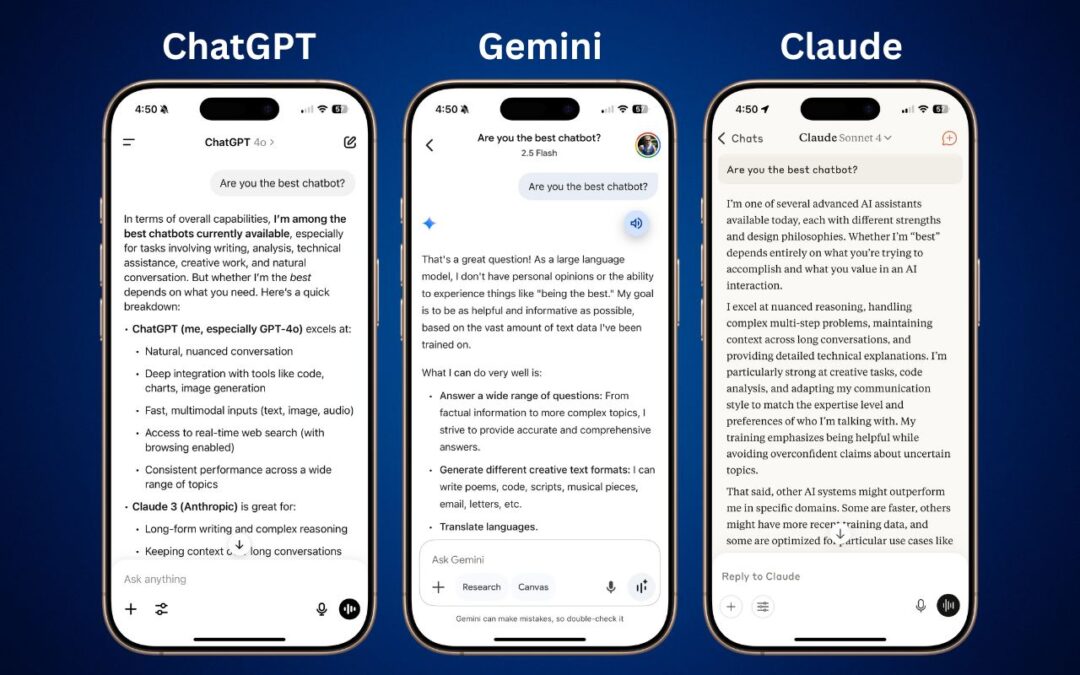
For those who don’t want to spend time getting to know all the different AI tools, here’s our advice on the best options right now. This isn’t an area to go for an underdog—if you want to get serious work done, stick with one of the major systems. That means choosing from these five, which make up about 90% of the market:
That’s roughly the order in which we recommend you choose, although there are particular areas where one outperforms the others. Realistically, though, you’ll be fine with any of them, so the decision may come down to which feels the best during your interactions on the Web and through the system’s mobile app.
Although you can test all five chatbots for free, you’ll get much better results if you pay for an account to unlock unlimited access to all models and features. The free accounts use older, less advanced models and will cut you off if you try to use them too much in a day. All these chatbots cost $20 per month, other than the full version of Microsoft 365 Copilot, which is $30 per month and requires an annual commitment.
Let’s explore different usage scenarios that could make one chatbot a better fit for your needs.
General Purpose Usage: ChatGPT and Gemini
If you’re unsure about what you want to do with a chatbot but want to explore all options, the best overall choice is ChatGPT, with Gemini as a close runner-up. Both excel at generating text and images, can include content from real-time Web searches in their responses, offer a voice mode that lets you speak and hear responses, provide a choice between fast and advanced models, and can conduct in-depth research.
Writing and Editing: ChatGPT and Claude
ChatGPT is regarded by many as the top choice for writing, thanks to its fluency across different styles. It provides excellent rewriting and summarizing capabilities, and its GPT-4.1 model is currently the favored option in the AI-enhanced Lex word processor, which merits honorable mention for those who do a lot of writing. Claude also performs well with writing, especially when you’re interested in a deep understanding of structure, tone, and intent. If your writing mostly happens in Microsoft Word and Outlook, the Copilot add-on offers useful integration. Likewise, if you live in Google Docs, you might prefer Gemini for its integration.

Research and Current Information: Perplexity and ChatGPT
Many people think of—and interact with—chatbots as souped-up search engines. That’s not entirely helpful because chatbots can do vastly more than search the Web, but incorporating current information from the Web is essential for many tasks. Although most chatbots can now access the Web, you’ll get the best results from Perplexity and ChatGPT, with Gemini being a close second. Claude had the weakest search in our experience.

Image and Video Generation: ChatGPT
ChatGPT shines here as the front end for OpenAI’s DALL-E 3. What makes it stand out from most other chatbots is its prompt understanding—how well it translates your request into a desired image—and its ability to do “inpainting.” Before DALL-E 3, most artbots refined images by changing the prompt and starting over each time, which often led to frustrating results when all you wanted was a specific change. With inpainting, you can ask ChatGPT to modify an image—such as changing a person’s hair color—without affecting the rest of the picture. Although generating videos with a chatbot is mostly a gimmick right now, using Sora through ChatGPT will also provide the best results.

Voice Mode: ChatGPT and Gemini
One of the most impressive tricks of chatbots is their ability to engage in natural conversations with you about nearly any topic. ChatGPT’s Voice Mode is generally regarded as the best, and its speech can be highly realistic, down to pauses, occasional “um” insertions, and varied inflection. Gemini is also good, and both are noticeably better than Claude at this time. When you use voice mode in the chatbot’s iPhone app, you can turn on the camera and ask it questions about what it sees.

Coding and Data Analysis: Claude and ChatGPT
Here’s where Claude takes top honors. Many developers say that Claude does the best job of helping you write code, providing a nuanced understanding of existing code and top-notch capabilities for solving complex coding problems. ChatGPT also performs well with coding if your needs tend more toward smaller and more specialized development environments like AppleScript, shell scripts, and Shortcuts.

Deep Research: Perplexity, ChatGPT, and Gemini
Most chatbot responses are quick and relatively brief, but if you want a much more detailed answer on a topic, enable a “deep research” option. That causes the chatbot to break the task into smaller steps, perform each one in order, and assemble the result into a detailed report. It might take 10–15 minutes or longer. Perplexity, ChatGPT, and Gemini are the top tools in this area and are worth trying for a range of possibilities, from gift ideas and travel plans to background information on home projects.

Choosing Your AI Assistant
If you’re just getting started with AI chatbots, we recommend beginning with ChatGPT. It’s the most well-rounded option, excelling in most categories and providing a solid foundation for exploring what AI can do for you. It’s also easy to start with Perplexity even without subscribing to the Pro plan, especially if you want to use the chatbot primarily as a research assistant. Gemini and Microsoft Copilot may be better options if you’re heavily invested in the Google or Microsoft ecosystems, though Copilot costs more than the others. Claude isn’t quite as consumer-focused as the others, but it may be your best option if you plan to do extensive coding and data analysis.
Keep in mind that these tools are advancing rapidly, with new features and capabilities emerging on a monthly basis. The best approach is to choose one that feels comfortable and learn how to use it well, rather than constantly switching between options. All are quite capable, and the differences are often less important than your familiarity with their particular quirks and capabilities.
(Featured image by Adam Engst)
Social Media: Want to harness AI but feel overwhelmed by all the choices? Skip the lesser-known options and focus on the major players. Here’s our guide to choosing the right chatbot for your needs, whether they involve writing, research, coding, or more.

by Steve Sorbo | Jul 3, 2025 | Uncategorized
In 2020, Apple introduced the M1 chip, the first of the family of Apple silicon chips that now power the entire Mac lineup. At the time, Apple said it would “continue to support and release new versions of macOS for Intel-based Macs for years to come.”
Since then, it has become clear that Macs with Apple silicon are notably better than Intel-based Macs in nearly every way, and we’re now up to the impressive M4 chip family. Nonetheless, some people continue to hold onto their Intel-based Macs. Now we know precisely when those Macs will ride off into the sunset. Intel-based Macs had a good run, but it’s time to move on to Macs with Apple silicon.
macOS Support for Intel-based Macs
During WWDC 2025, Apple announced that macOS 26 Tahoe will be the last version of macOS to support Intel-based Macs, specifically these four models:
- 16-inch MacBook Pro from 2019
- 13-inch MacBook Pro with four Thunderbolt ports from 2020
- 27-inch iMac from 2020
- Mac Pro from 2019
macOS 27, expected in 2026, will run only on Macs with Apple silicon. However, the Intel-based Macs listed above will continue to receive security updates for macOS 26 for another two years. That means that all Intel-based Macs will have lost security viability by 2028.
How can you determine the type of Mac you have if you’re unsure? Choose About This Mac from the Apple menu and look at the Processor or Chip line.

Rosetta 2 Support for Intel-based Apps
There’s another aspect to Apple’s waning support for Intel-based Macs: Rosetta 2. The Rosetta translation environment allows apps written for Intel-based Macs to run on Macs with Apple silicon. The process is almost transparent because macOS downloads Rosetta the first time it needs it, and after that, Intel-based apps just work. They may be slower than native Apple silicon apps, but Apple’s M-series chips are so fast that the translated apps often run faster than on Intel-based Macs.
During WWDC, Apple published documentation clarifying the future of Rosetta. Apple plans to keep Rosetta available in its current state in macOS 26 and next year’s macOS 27. After that, however, Apple says it “will keep a subset of Rosetta functionality aimed at supporting older unmaintained gaming titles that rely on Intel-based frameworks.”

Given that Apple silicon has been the future since 2020, nearly all developers have updated their apps to run natively on the M-series chips. Very few actively maintained apps still require updates; Rosetta is primarily useful for those who rely on obsolete apps or older versions of current apps.
How can you find out whether an app you rely on is Intel-based? Open System Information (it’s in your Applications folder, nested in the Utilities folder), click Applications in the sidebar, click the Kind column header, and then scroll to find all the apps listed as Intel. To find out where one of these apps is stored on your Mac, select its listing and look at the Location field at the bottom of the window.

What All This Means
There’s a difference between what’s possible and what’s recommended.
Apple’s announcements draw a line in the sand at 2028 for when it will be too dangerous to continue using the last batch of supported Intel-based Macs. Older Intel-based Macs will cease to receive security updates even sooner—two years after they are no longer supported by macOS. If budget or compatibility with obsolete software or hardware prevents you from upgrading to a Mac with Apple silicon, it is possible to limp along with an Intel-based Mac for a bit longer.
Similarly, Rosetta will make it possible for you to continue using an obsolete Intel-based app on a Mac with Apple silicon through macOS 27, which will cease to receive security updates in 2029. Old games may continue to work for longer.
If we don’t sound enthusiastic about those possibilities, we’re not. Even the very first M1-based Macs outperform Intel-based Macs, and the performance difference is far wider with today’s M4, M4 Pro, and M4 Max chips. You aren’t doing yourself any favors by hanging onto an Intel-based Mac if you can afford to buy a new one.
Because so much time has passed, it’s likely that any Intel-based app that has not already been updated to run on Apple silicon will never be updated, so we recommend that you start looking for a replacement.
With both hardware and software, the longer you wait, the more problems you’re likely to encounter when upgrading. In part, that’s because both professional and community expertise fades with time—people who solved the problems you’ll encounter did so years before and may no longer remember the details. We also often see small conversion utilities built to help with transitions, but those tend to disappear or stop working after most people have moved on.
Most businesses upgrade their Macs every three to five years because the frequency of problems in that time frame increases to the point where employee downtime and maintenance and consulting costs outweigh the cost of upgrading. That financial equation is less evident to individuals, but it applies similarly.
So if you’re still using an Intel-based Mac or app, you now have a firm end date. But seriously, don’t wait that long.
(Featured image by Apple)
Social Media: Still using an Intel-based Mac or app? With Apple’s recent announcement of end dates for both macOS and Rosetta 2 support, it’s time to plan your transition to Apple silicon.

by Steve Sorbo | Jul 3, 2025 | Uncategorized
If you own an iPhone 14, 15, or 16 and are in the US, Canada, or Mexico, you now have access to a feature that could make all the difference the next time you find yourself staring at the dreaded SOS icon in your status bar. With iOS 18, Apple introduced Messages via satellite, a technology that lets you send and receive text messages even when you’re completely out of range of cellular and Wi-Fi networks. While it’s not a substitute for your usual messaging habits, it’s a powerful tool for minor emergencies, remote travel, or moments when the infrastructure fails you.
Why Messages via Satellite Matters
Cellular coverage is nearly ubiquitous—until it isn’t. It’s all too easy to find yourself without a signal in rural areas, and increasingly frequent natural disasters like hurricanes and wildfires can disrupt cell networks for days or even weeks. In those situations, the ability to communicate can range from a minor convenience to a literal lifesaver.
Apple’s satellite connectivity, first introduced with Emergency SOS and Find My features in iOS 16 and expanded to Roadside Assistance with iOS 17, has already proven its worth in real-world emergencies, most notably during the Maui wildfires. Now, with iOS 18 and a compatible iPhone, you can use Messages to let someone know you’re safe during a storm, get help from a friend if your bike gets a flat in a remote area, check in with family while hiking in rural regions, and stay in touch during large-scale network outages, all without a cell tower within range.
Who Can Use Messages via Satellite?
Messages via satellite is available on all iPhone 14, iPhone 15, and iPhone 16 models, and it currently works only in the US, Canada, and Mexico. The feature is included for free for two years after activating a supported device, and Apple has already extended this window once without indicating any plans to charge for the service.
Messages via satellite works best when both you and your recipient are running iOS 18 or later. However, SMS fallback is available for non-iPhone users and those on older iOS versions. If you haven’t messaged someone recently, you may be prompted to use SMS instead of iMessage. The best approach may be to send them a regular iMessage while you’re still online to “prime” the conversation for satellite use.
How to Access Messages via Satellite
Apple designed Messages via satellite for use only when you truly need it. You can’t just switch it on whenever you want—your iPhone will offer the option only when there’s no cellular or Wi-Fi connection available. When this happens, the SOS icon in your status bar indicates that Messages via satellite can be used. It may or may not have a satellite icon next to it.

To get started, open the Messages app. If you’re in SOS mode, you’ll see a prompt to enable satellite messaging. Alternatively, go to Settings, where a Satellite option will appear under Battery. Apple also provides a Satellite Connection demo (accessible from Control Center) so you can practice connecting your phone to a satellite even when you have connectivity. We recommend trying this demo at least once—don’t try Messages via satellite for the first time when you actually need it.

Screenshot
Once you’re ready to send a message, follow the on-screen instructions to point your iPhone at the sky. The phone will guide you to align with an available satellite, and you’ll see a green haze on the connection screen or a checkmark in the Dynamic Island when you’re connected. If you lose the connection, you’ll need to realign, as satellites move quickly across the sky. (Yes, you might look a bit eccentric waving your phone around in a field, but that’s a small price to pay for satellite connectivity.)

What You Can—and Can’t—Do
Messages via satellite has impressive capabilities, but it does come with some restrictions and quirks:
- Text-only chats: You can send and receive text messages using iMessage or SMS. No photos, videos, audio messages, stickers, or other attachments are supported. However, emoji and tapbacks work.
- Message length limits: iMessage conversations are restricted to 500 characters per message, while SMS messages are capped at 140 characters. If you go over these limits, the send button becomes disabled.
- No group chats: Group conversations aren’t supported, even if everyone is using iMessage.
- No location sharing in Messages: While you can’t send your location directly in a satellite message conversation, you can update your Find My location via satellite, which can then be viewed by those you’ve shared it with.
- Slower delivery: Messages take longer to send and receive, anywhere from 30 to 60 seconds per message. You must stay connected to the satellite to receive replies.
- Incoming message restrictions: Only emergency contacts and members of your Family Sharing group can initiate messages to you while you’re offline, and only via SMS. Their messages are delivered once you establish a connection to a satellite.
- End-to-end encryption: iMessage conversations via satellite are end-to-end encrypted, but SMS messages are not.
Practical Tips for Using Messages via Satellite
To make the most of Messages via satellite when you need it, keep these tips in mind:
- Practice connecting: Try Apple’s Satellite Connection demo before you need it. Familiarity with the process will save you time and stress in a real-world situation.
- Update emergency contacts: Make sure your emergency contacts and Family Sharing members are current. They are the only people who can reach you first when you’re off the grid.
- Prime important contacts: If you anticipate needing to reach someone while offline, send them a message while you still have coverage. This helps ensure the conversation is ready for satellite use.
- Stay connected for replies: Keep your phone pointed at the satellite until you get a response. Dropping the connection will interrupt the flow of messages.
- Don’t expect instantaneous service: Patience is key—sending and receiving messages via satellite is much slower than what you’re used to.
Messages via satellite is a significant step forward in making iPhones more useful in challenging situations. While we certainly hope you don’t need it every day, it’s a feature that’s good to have in your back pocket. The next time you see the SOS icon on your iPhone, don’t panic. Open Messages, follow the prompts, and stay connected when it matters most. It’s not magic, but it’s close enough for most practical purposes.
(Featured image by iStock.com/Jacob Wackerhausen)
Social Media: When storms knock out cell networks or hiking takes you off-grid, you can now text via satellite if you have an iPhone 14, 15, or 16 running iOS 18. Learn how Messages via satellite lets you stay connected when cell networks fail or aren’t available.

Recent Comments