
by Steve Sorbo | Aug 1, 2025 | Uncategorized
A massive heat dome earlier this summer exposed large swaths of the United States to heat index values approaching or exceeding 120ºF, underscoring the importance of protecting our devices from heat damage. Overheating can degrade performance, interrupt charging, disable features, and cause general device instability.
When Temperature Becomes a Problem
You might be surprised by how sensitive electronic devices are to high temperatures. Apple says that most Apple devices—whether we’re talking about an iPhone or iPad, AirPods, Apple Watch, or Mac—work best in ambient temperatures under 95ºF (35ºC). The Apple Watch Ultra is a notable exception, capable of operating in temperatures up to 130ºF (55ºC), but even then, Apple recommends charging at a lower temperature.
These temperature limits are frequently surpassed in everyday situations. A parked car in direct sunlight can reach 130ºF (54ºC) within an hour, even with windows cracked open, and continue climbing from there. Just as you’d never leave children or pets in a parked car, your iPhone, iPad, or MacBook shouldn’t be left behind during a trip to the beach. Even when powered off, Apple devices shouldn’t be stored in temperatures above 113ºF (45ºC).
The risk isn’t limited to vehicles. Poorly ventilated homes and offices without air conditioning can become surprisingly hot, particularly affecting computers that run continuously and lack proper airflow. If you have a second-generation HomePod or HomePod mini—both of which have temperature and humidity sensors—you can ask Siri, “What’s the temperature in here?”
How Heat Hurts Your Devices
An often overlooked point is that electronic devices generate significant heat during operation, and high ambient temperatures make it harder for them to shed that heat effectively, increasing the risk of thermal throttling or shutdown. Under heavy workloads, internal components like an iMac’s CPU can reach temperatures as high as 212ºF (100ºC)—literally the boiling point of water.
Temperatures that exceed component design specs can have the following detrimental effects:
- Chip instability: As heat rises, electrons vibrate more intensely (thermal noise), leading to increased error rates and timing issues in chips. This can result in unpredictable behavior or system crashes.
- Battery degradation: While lithium-ion batteries actually perform well in high temperatures, the accelerated chemical reactions inside them can reduce their long-term lifespan.
- Physical damage: Repeated heating and cooling cycles can create microscopic stress fractures as different materials expand and contract at varying rates, potentially leading to component failure.
While some heat-related issues resolve themselves once devices cool down, others can cause permanent damage. Prevention is crucial.
Your Mac will typically warn you of dangerous temperatures by ramping up its cooling fans. (The fanless MacBook Air can’t provide this warning.) If you notice your Mac’s fans running at a high speed for several minutes:
- Close unnecessary apps, especially those that heavily tax the CPU.
- If the fans continue at full speed, restart to eliminate problematic background processes.
- If restarting doesn’t quiet the fans, shut down your Mac and let it cool off.
An overheated Mac may exhibit erratic behavior or shut down unexpectedly. Be particularly cognizant of potential heat-related issues during initial device setup, restoring from backup, using graphics-intensive apps or games, and streaming high-quality video, all of which can drive up internal temperatures on their own.

Without cooling fans, iPhones and iPads rely on other methods to manage high temperatures. When these devices detect dangerous heat levels, they’ll display a warning and automatically protect themselves through various measures. Apple says you might notice some of the following behaviors with an overheating iPhone or iPad:
- Slowed or interrupted charging (including wireless charging)
- Automatic display dimming—it might even go entirely dark
- Weakened cellular signals as radios enter a low-power state
- Disabled camera flash and other features
- Reduced performance, especially in graphics-heavy apps
Navigation deserves special mention: if your iPhone overheats during GPS navigation, it may display a “Temperature: iPhone needs to cool down” alert instead of the map view. Don’t worry—you’ll still receive voice guidance, and the screen will briefly activate to show important turns.
Apple Watches will also display a special warning screen if they get too hot.

Preventing Heat Damage
Protecting your Apple devices from heat damage mostly comes down to following these common-sense guidelines:
- Limit high-temperature use: When ambient temperatures exceed 95ºF (35ºC), as happens outside in Phoenix from May through September, minimize device usage or, ideally, avoid it entirely.
- Never leave devices in parked cars: The greenhouse effect can quickly create dangerous temperatures. If it happens accidentally, allow the device to cool completely before use.
- Ensure proper ventilation:
- Keep Mac ventilation ports unobstructed.
- Avoid using laptops on soft surfaces like beds or pillows.
- Periodically clean ventilation ports with compressed air.
- Never cover an open laptop’s keyboard.
- Don’t stack items on top of a Mac mini or Mac Studio.
- Watch server areas: Monitor temperatures in server closets and ensure adequate cooling through ventilation, fans, or air conditioning.
Remember: if you’re feeling uncomfortably hot, your devices probably are too. The temperatures that stress electronics tend to be similarly stressful for humans, making your comfort a good gauge of potential risk to your devices.
(Featured image based on an original by iStock.com/margouillatphotos)
Social Media: Think your Apple devices can handle the summer heat? Think again. Discover how high temperatures can damage your iPhone, iPad, and Mac—and what you can do to keep them safe.
by Steve Sorbo | Aug 1, 2025 | Uncategorized
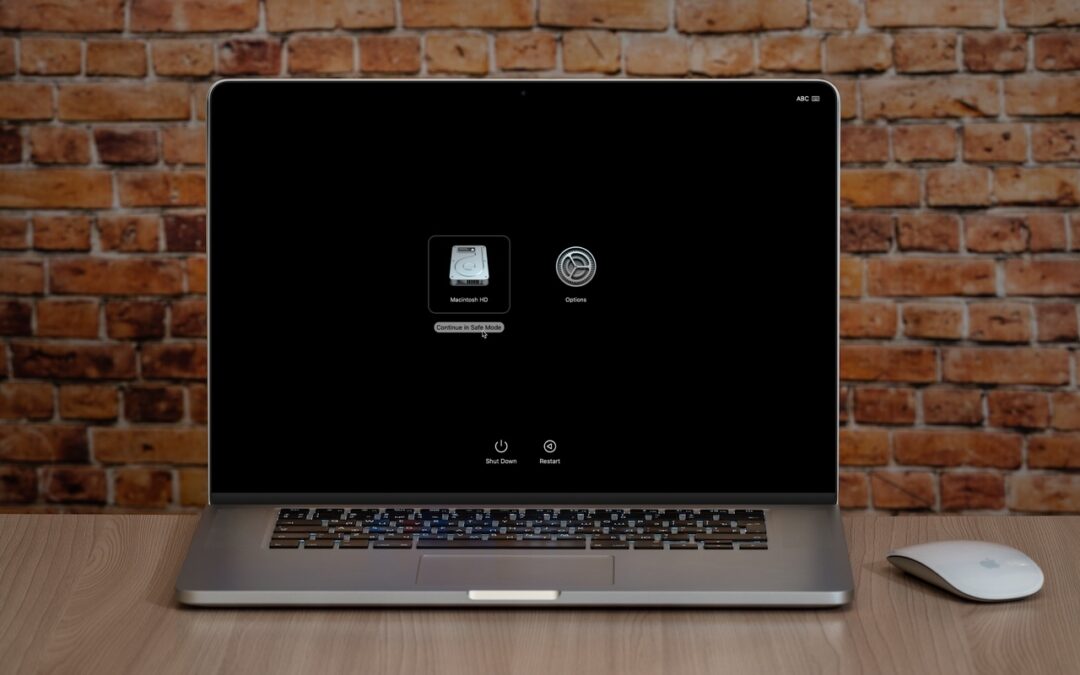
Although Macs are highly reliable, unusual problems can still rear their ugly heads. Often, these issues are caused by software you’ve installed or accessories you’ve connected. If you’re experiencing Mac misbehavior that isn’t easily fixed by restarting, updating software, or unplugging a dodgy device, try safe mode. (Seriously, before checking if safe mode will help with a problem, you should always restart, ensure you’re running the latest version of macOS and any involved apps, and unplug non-essential peripherals.)
Safe mode is one of macOS’s key troubleshooting tools, though many users don’t know when or how to use it. By starting up your Mac with minimal required software and services, safe mode can help identify and resolve various system issues.
How to Enter Safe Mode
The process for entering Safe Mode varies depending on whether you have a Mac with Apple silicon or an Intel-based Mac.
For Macs with Apple silicon:
- Shut down your Mac.
- Press and hold the power button until the startup options appear.

- Select your startup disk.
- Hold the Shift key and click Continue in Safe Mode.
- Log in (you may need to do this twice). You’ll see “Safe Boot” in red in the menu bar on the login screen.

For Intel-based Macs:
- Restart your Mac.
- Press and hold the Shift key until you see the login window.
(If you have a firmware password, you must remove it in Recovery before starting up in safe mode.)
To verify that you’re in safe mode, click the Apple menu while holding the Option key, select System Information, and look for “Boot Mode: Safe” under Software. To exit safe mode, just restart your Mac normally.

What Safe Mode Does
When your Mac boots in safe mode, it performs several important functions designed to eliminate troubleshooting variables:
- Prevents non-essential software from loading, including third-party login items, kernel extensions, system extensions (the modern replacement for kernel extensions), and fonts not installed by macOS
- Clears some system caches, including font caches and the kernel cache
Apple also says that safe mode performs a basic check of your startup disk, but research from the community suggests that this check is no different from the one performed during a normal boot. If you suspect disk-related problems, use the First Aid feature of Disk Utility to conduct a more comprehensive (and much slower) test.
This minimal environment helps identify whether the problems are caused by software that loads during startup or by core system components. Safe mode also prevents many customizations and modifications from taking effect, making it easier to determine if third-party software is the cause of the issues.
However, the downside of using safe mode is that some macOS features may not work. According to Apple, these include “video capture, graphics performance, file sharing, Wi-Fi, accessibility, audio devices, and devices connected via USB, Thunderbolt, or FireWire.” In practice, some of these will work fine, but the main point is that you might not be able to do everything you want while in safe mode. It’s designed for troubleshooting, not regular use.
When to Use Safe Mode
Safe Mode is beneficial in several common scenarios:
- Identifying extension conflicts: If your Mac is misbehaving, booting in safe mode can help determine if third-party kernel or system extensions are the cause.
- Troubleshooting startup problems: If your Mac doesn’t start normally, safe mode might help you get in and address the issue.
- Installing updates: Although this is less necessary in recent versions of macOS, if a macOS update fails to install properly, trying again in safe mode often resolves the issue.
- Fixing update issues: Problems that appear after a macOS update—likely caused by outdated third-party software incompatible with the new version of macOS—can often be resolved by starting in safe mode.
- Performance problems: If your Mac is running slowly, safe mode can help identify whether login items or extensions are causing the issue.
- General diagnostics: Safe mode is a worthwhile initial step for diagnosing issues before attempting more complex solutions.
What Comes After Safe Mode
Once you’re in safe mode, it’s up to you to reproduce the problem you experienced earlier. Then, there are two possibilities:
- The problem persists in safe mode: While this result is not ideal, safe mode has still provided you with more troubleshooting information by eliminating third-party login items, extensions, and fonts from consideration, along with clearing certain caches. Since those aren’t the cause, try testing in a clean user account, disconnecting remaining peripherals, and reinstalling macOS.
- The problem goes away in safe mode: Great! First, restart your Mac to see if the problem has disappeared, as would be the case if it were related to corrupt caches. If the problem returns after restarting, you can narrow down the cause to third-party login items, extensions, or fonts. Remove third-party log-in items in System Settings > General > Login Items & Extensions. (We recommend taking a screenshot with Command-Shift-5 first, so you can remember how you were set up.) You can also disable extensions in System Settings > General > Login Items & Extensions by toggling their switches. Restart and test again. If that still doesn’t fix it, try testing in a clean user account to rule out any software issues tied to your main account.
The beauty of safe mode is that it’s easy to enter and entirely non-destructive. It may not help identify all possible problems, but it’s always worth trying after the simple steps of restarting your Mac, updating associated software, and unplugging non-essential peripherals.
(Featured image based on an original by iStock.com/Armastas)
Social Media: Having Mac problems? Before trying more complex solutions, restart in safe mode—your Mac’s stripped-down troubleshooting environment. It disables non-essential software and clears system caches to help identify and resolve common issues.

Recent Comments