
by Steve Sorbo | Jul 3, 2026 | Uncategorized
Control Center debuted on the iPhone over a decade ago in iOS 7 and made its way to the Mac in 2020 with macOS 11 Big Sur. However, through macOS 15 Sequoia, Mac users who wanted to tweak Control Center for their needs were limited to turning specific controls on or off. With macOS 26 Tahoe, Apple completely overhauled Control Center, enabling users to remove, rearrange, and add controls, including new ones from independent developers.
If you mostly ignore Control Center on your Mac, it’s worth another look in Tahoe. The big win of Control Center is that it provides quick access to numerous controls without occupying valuable space in the menu bar, a limitation that MacBook users regularly encounter. Now that you can personalize Control Center, it’s much more useful than before.
Before we explain how to customize Control Center, let’s look at the basics.
Open and Use Control Center
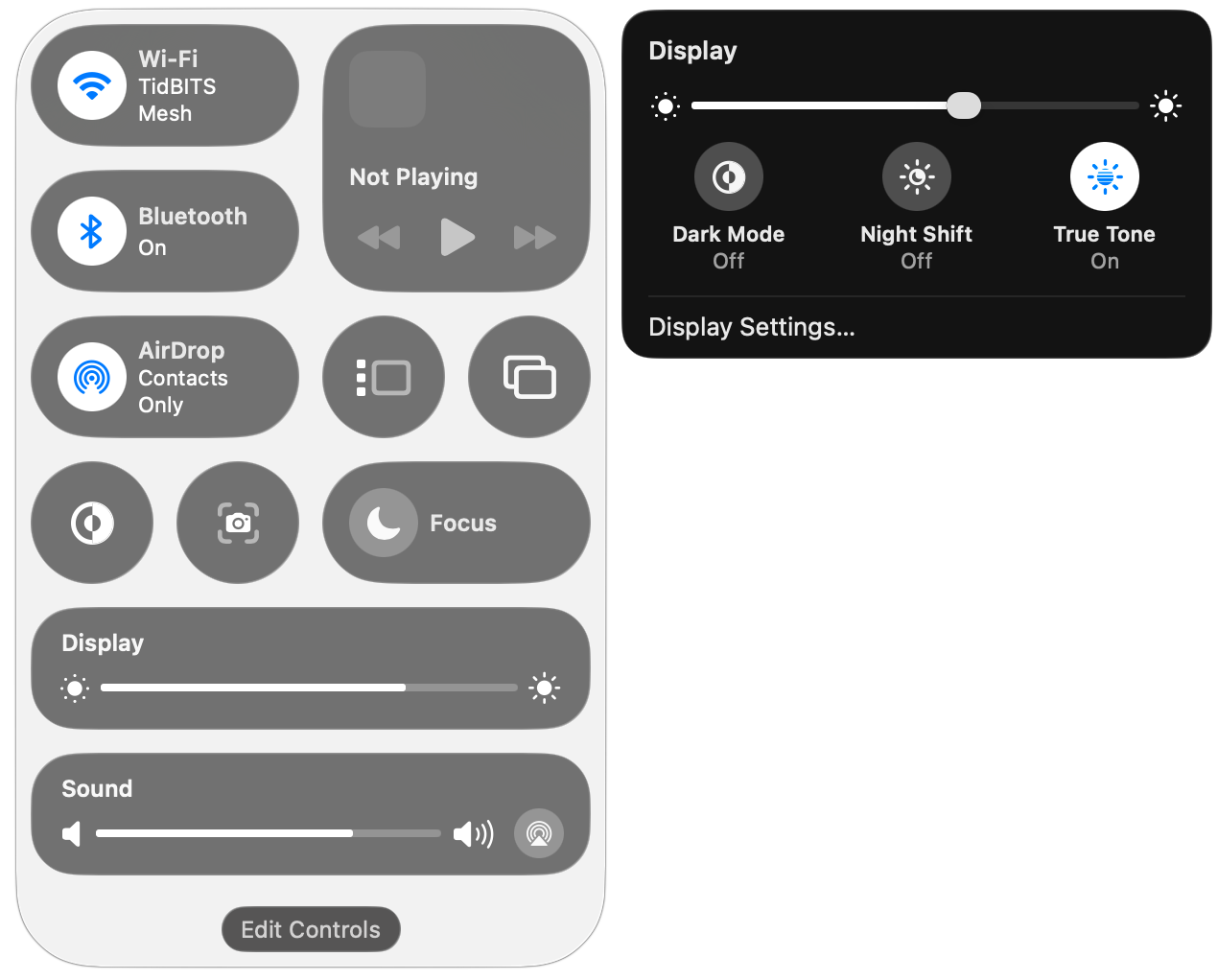
To open Control Center, click its icon  at the right side of the menu bar or use its Fn-C keyboard shortcut. It always appears in the top-right corner of the screen (below left). You may notice a colored dot next to the Control Center icon: orange means the microphone is in use, green tells you a camera is in use, purple indicates that system audio is being recorded, and an arrow means an app is using your location.
Some controls, like Dark Mode and Screenshot, are simple buttons that you click to toggle a setting or trigger an action. You’ll also see sliders, such as for Display Brightness and Sound Volume. Many controls, such as Display, open separate panels with additional controls (below right).
Customize Control Center
To begin customizing Control Center, don’t look in System Settings anymore—instead, click the Edit Controls button at the bottom of Control Center. That displays a ⊖ button on each control, adds eight empty single-button slots at the bottom, and opens the Control library.
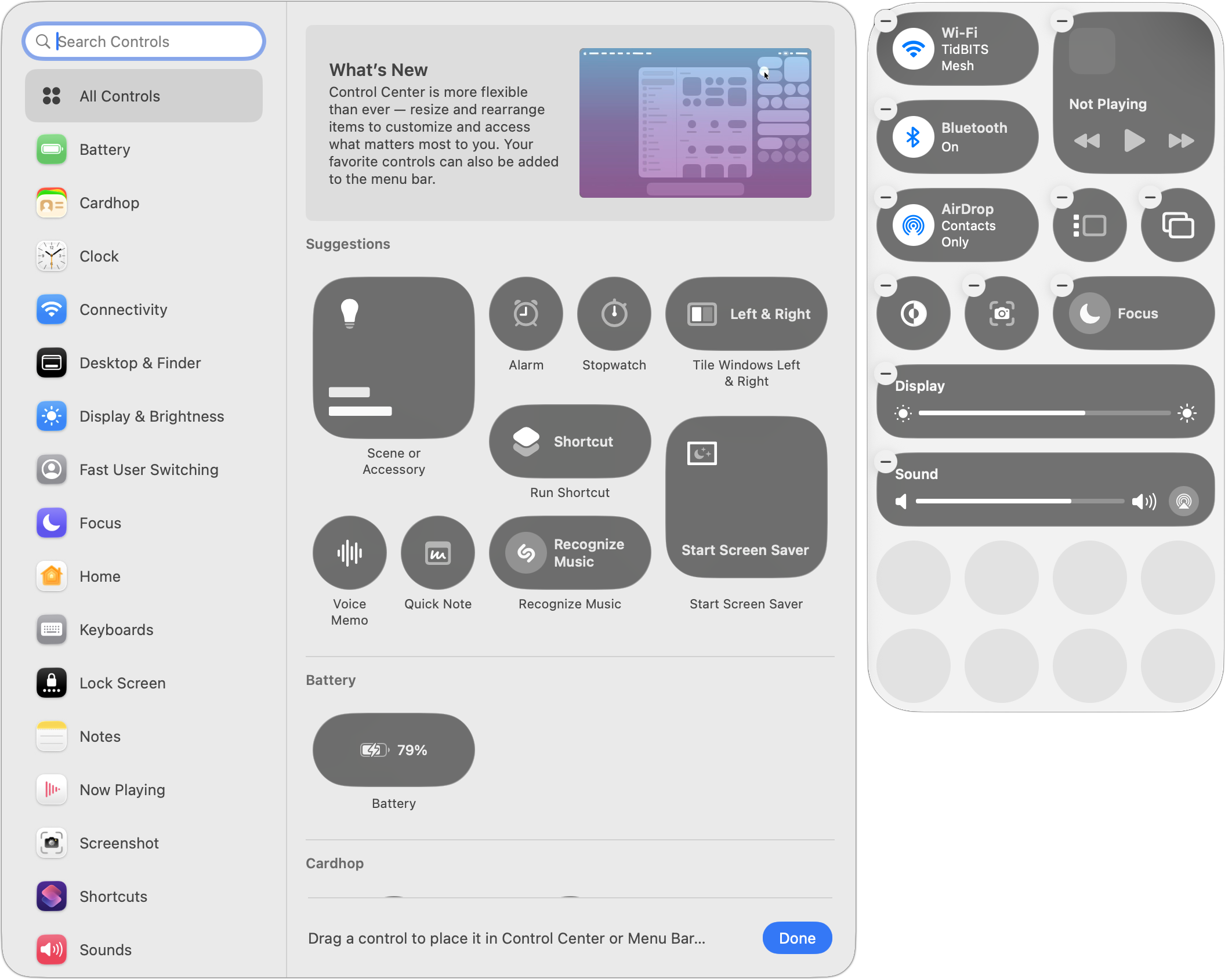
Once here, you can:
- Remove existing controls: Click a control’s ⊖ button to remove it from Control Center. You can always put it back later, although the lack of a label in Control Center can make it tricky to find in the Control library, because you may not know what you removed.
- Resize controls: You can usually resize a control by Control-clicking it and choosing Small, Medium, or Large. Small controls occupy a single slot; medium controls occupy two side-by-side slots; and large controls occupy four slots, either as a 2-by-2 grid or a 4-by-1 line.
- Rearrange the order: Drag controls in the grid to reorder them. You can move one only to a position where it’ll fit, so you may need to resize other controls to make space.
- Add new controls: More on this below, but in short, you add new controls from the Control library window that appears to the left of Control Center when you click Edit Controls.
When you’re finished customizing Control Center in these ways, click Done at the bottom of the Control library.
Adding Controls to Control Center
Apple gives you two ways to add controls from the Control library:
- Drag a control in the main pane to the desired Control Center spot.
- Hover over the desired control, click the green ⊕ button that appears, and choose Add to Control Center. You can also choose Add to Menu Bar to put the control there for even quicker access.
To discover what controls are available, either scroll through the All Controls collection or select a particular category in the sidebar. You can also search for controls by name.
Nearly all the controls have been added to the library in advance by Apple, but there are two exceptions:
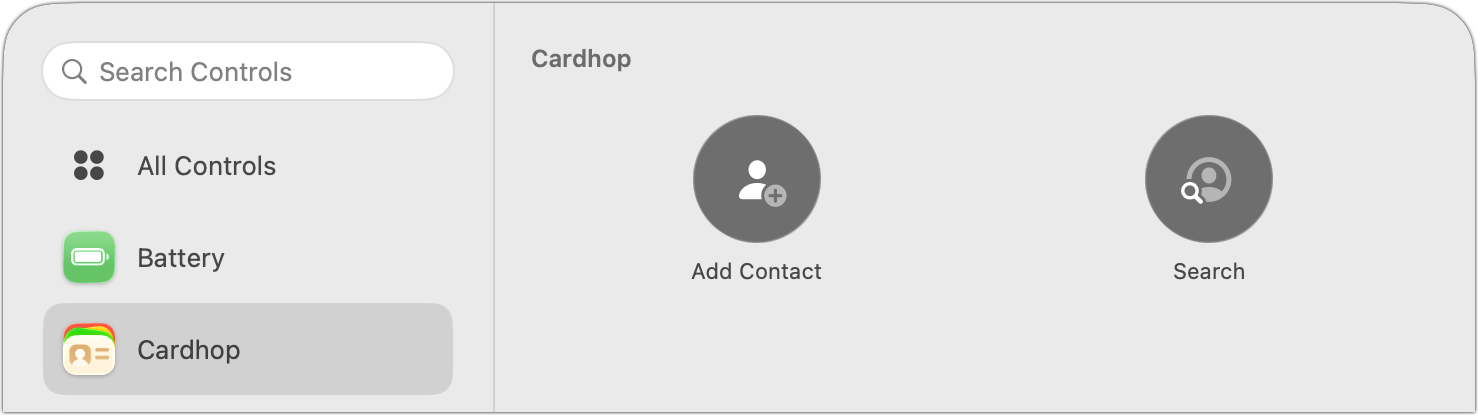
- Third-party controls: Independent developers can create their own. For instance, Flexibits’ Cardhop provides controls for adding and searching for contacts.
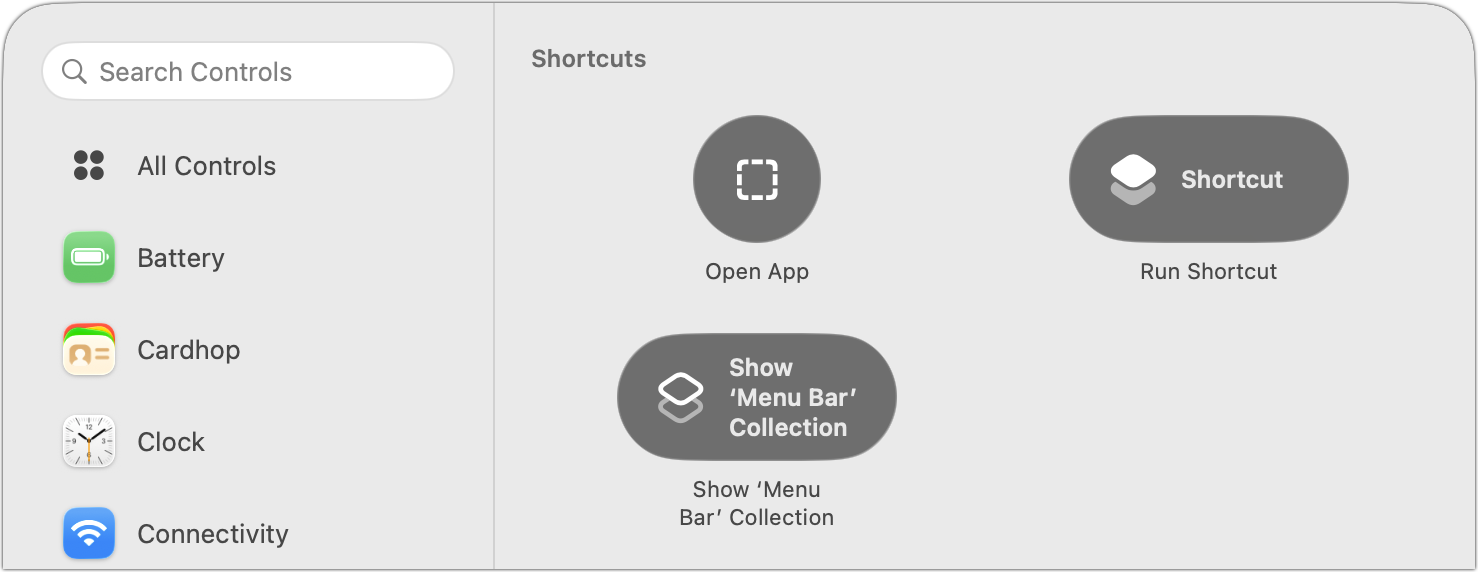
- Shortcuts: Apple’s automation app, Shortcuts, enables you to open any app from Control Center, run any shortcut, or show a collection of shortcuts. Anything you can create in Shortcuts can be triggered from Control Center. (Don’t be intimidated by Shortcuts; you can ask any AI chatbot to help you develop a shortcut.)
Don’t worry about messing up Control Center while you’re experimenting with different controls. You can always reset it in System Settings > Menu Bar by scrolling to the bottom and clicking Reset Control Center.
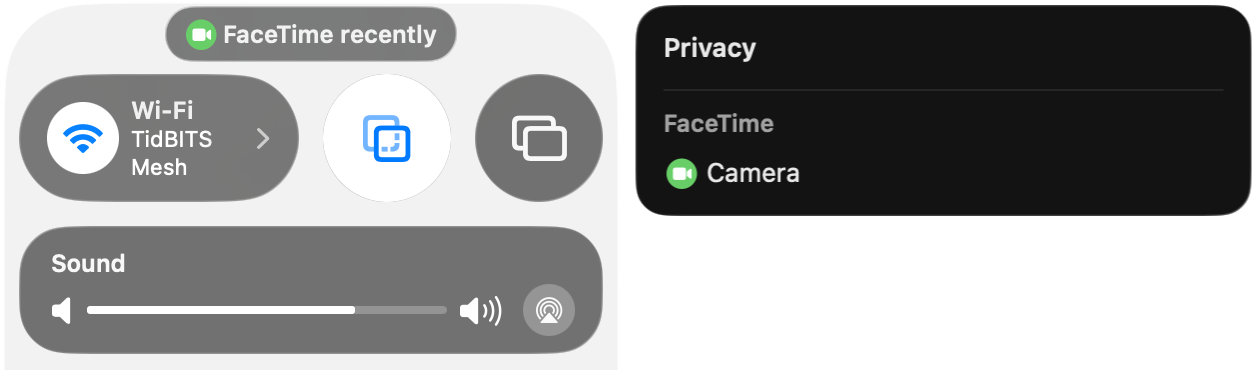
One final tip. A little control may appear at the top of Control Center at times. It’s a privacy notification that tells you whether an app has used your location recently (like Weather), used the camera (like FaceTime), recorded your screen (like Screenshot), or engaged in some other activity Apple thinks you might want to know about. Click it to learn a little more.
(Featured image based on an original by iStock.com/guteksk7)
Social Media: Stop wasting menu bar space. macOS 26 Tahoe’s revamped Control Center lets you add, remove, resize, and rearrange controls—including third-party ones—to fit your needs.
by Steve Sorbo | Jul 3, 2026 | Uncategorized
There’s no way to put a positive spin on this: Apple has raised prices across most of its product lineup, with increases averaging 20% on Macs, iPads, HomePods, the Apple TV, and even the Vision Pro. The iPhone and Apple Watch remain unaffected… for now.
The price hikes took effect on June 25. In a statement to the press, Apple blamed the AI industry’s insatiable appetite for memory chips, which has caused prices for memory and storage to increase up to sixfold:
The consumer electronics industry is facing an unprecedented challenge. The rapid expansion of AI data centers has created an extraordinary surge in demand for memory and storage. We have never seen a component price increase this much, this quickly. We have shielded our customers from these increases so far, but we have now reached a point where we need to begin raising prices on a number of products.
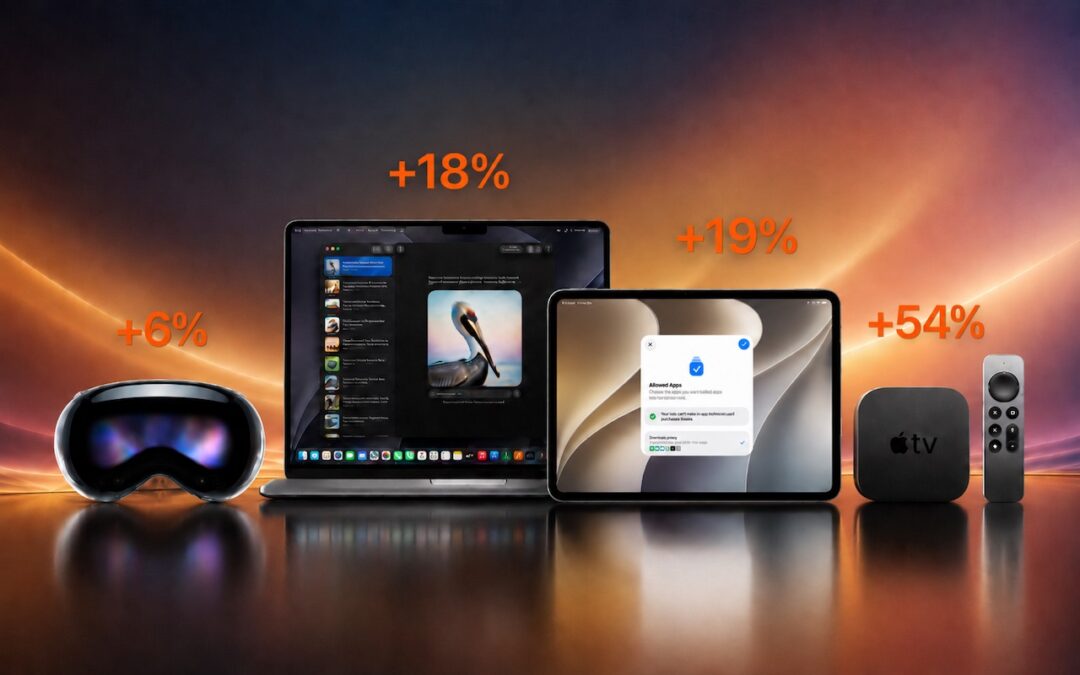
Apple’s price increases vary widely. The base model of the Apple TV 4K took the biggest percentage hit, jumping from $129 to $199—a 54% increase that’s particularly puzzling given the device has only 64 GB of storage and 4 GB of memory. It may be setting a new price floor for the next-generation Apple TV. At the other end of the percentage increase spectrum, the Vision Pro rose just 6%, from $3,499 to $3,699.
Mac and iPad Price Changes
The Mac lineup saw significant increases at both the low and high ends:
- MacBook Neo: $599 → $699 (+17%)
- MacBook Air (13-inch): $1,099 → $1,299 (+18%)
- MacBook Pro (14-inch base): $1,699 → $1,999 (+18%)
- Mac mini (M4): $599 → $799 (+33%)
- Mac Studio (M3 Ultra): $3,999 → $5,299 (+33%)
The $1,300 increase for the M3 Ultra model of the Mac Studio is the largest absolute dollar jump in the lineup—a reflection of just how much high-memory configurations are affected by the shortage.
iPads saw increases of 15–30%, with the base iPad hit hardest:
- iPad: $349 → $449 (+29%)
- iPad mini: $499 → $599 (+20%)
- iPad Air (11-inch): $599 → $749 (+25%)
- iPad Air (13-inch): $799 → $949 (+19%)
- iPad Pro (11-inch): $999 → $1,199 (+20%)
- iPad Pro (13-inch): $1,299 → $1,499 (+15%)
Base prices tell only part of the story. Memory and storage upgrade prices also jumped dramatically, with the 64 GB and 128 GB memory upgrades for M5 Max models of the MacBook Pro doubling in price.
Why iPhones and Apple Watches Were Spared
Apple left the prices for the iPhone, Apple Watch, AirPods, and Studio Display unchanged. The Studio Displays and AirPods likely escaped because they use minimal memory. The iPhone and Apple Watch are a different story—Apple may be willing to accept lower margins on its flagship products, betting that stable prices will drive enough additional sales to offset reduced profit per unit.
There’s also the timing factor. New iPhone and Apple Watch models are expected in September, and rumors suggest Apple will introduce only high-end (and higher margin) iPhone 18 models then, with more affordable models held until early 2027. That makes buying a current-generation iPhone now potentially the better deal—new models will almost certainly debut at higher prices.
Apple Isn’t Alone
The memory crisis has hit the entire consumer electronics industry. Microsoft raised prices on all Surface PCs. Samsung is raising prices on its Galaxy smartphones. Lenovo, HP, and Dell have all raised laptop prices.
The culprit is the industry’s rapid expansion into AI. Data centers are consuming memory and storage at a pace the industry wasn’t equipped to handle. Memory chip suppliers like Micron, Samsung, and SK Hynix have directed production toward AI chipmakers like Nvidia, who are willing to pay top dollar, leaving consumer electronics to compete for whatever remains. Industry observers expect the shortage to persist through at least 2027 due to the time required to build manufacturing capacity.
What Should You Do?
If you need a Mac or iPad, some retailers may not have updated prices yet, but that won’t last. Similarly, you could look for a refurbished Mac from Apple or a certified pre-owned Mac from retailers like OWC, but those prices have largely increased as well.
For the iPhone and Apple Watch, the calculus is unusual: normally, we’d encourage waiting for September’s new models, but this year, buying now at current prices may save you some money.
Ultimately, the only options may be to bite the bullet and pay current prices, buy a less-expensive model or configuration, or hold on to your existing hardware in the hopes that prices come back down.
(Featured image generated by Adam Engst with ChatGPT)
Social Media: Apple just raised Mac and iPad prices by 15–33%, blaming the AI industry’s hunger for memory and storage chips. The iPhone and Apple Watch were spared, but the next new models may be more expensive. Here’s what you need to know.

by Steve Sorbo | Jul 3, 2026 | Uncategorized
At some point, most of our communications shifted from analog to digital: letters and phone calls became emails, texts, and video calls. With analog methods, we could generally assume that our private communications would remain private. Few people were going to steam open a letter or wiretap a phone line. The Internet changed that—digital communications, if not properly protected, can be intercepted in bulk far more easily.
Not all everyday communications require strict privacy. Most of us prefer privacy, of course—few people want their dinner plans published for the world to see—but there are typically no consequences of exposure greater than mild embarrassment (McDonald’s again?). But even ordinary people regularly need to share information that could damage their relationships, finances, or careers if it fell into the wrong hands.
Passwords are the most obvious example because their entire point is secrecy. But other sensitive data includes credit card details, bank account numbers, tax documents, retirement planning materials, and health-related information. When you need to share such data, how do you do it securely?
Data at Rest and in Transit
Before exploring specific solutions, you need to think about how information is protected when it’s in transit between systems and when it’s stored somewhere:
In transit: To prevent eavesdropping, focus on communication channels that are encrypted between you and the destination:
- Between your app and a server: Nearly all Internet-enabled apps, including all Web browsers, use SSL/TLS to protect their connections to servers. A lock icon in a Web browser’s address bar indicates HTTPS encryption, or you can look for https at the start of a website’s URL.
- End-to-end encryption: Even better is end-to-end encryption, which ensures that not even the service provider can decrypt your traffic. iMessage (blue-bubble conversations), WhatsApp, and Signal provide end-to-end encryption protection (though WhatsApp archives are readable by other Meta apps). SMS messages are not encrypted at all, and RCS conversations only support encryption with the latest Apple and Google updates, plus carrier support. Both SMS and RCS appear as green-bubble conversations.
At rest: Stored data—whether on your computer, at remote email servers, or in the cloud—needs protection too. Two approaches help:
- Per-file encryption: Encrypt data before sending so even if an attacker figures out how to access the file, it can’t be decrypted without a password. Send the password through a completely different communication channel (called “out-of-band”)—for example, share an encrypted file via email but send the password via Messages.
- Time- or access-expiring links: Send a link to the information that expires after a short period or after a limited number of views, thereby shrinking the window during which a breach could occur.
Choosing the Right Solution
The best approach for any given communication depends on four factors:
- Audience: What are your recipients’ technical capabilities? Messages is easy and secure, but only Apple users can access it. Email reaches everyone but offers less protection. A password-protected PDF is probably easier for less-technical users than an encrypted disk image.
- Content type: Sharing a password differs from sharing a document, which in turn is different from sharing a collection of files.
- Importance: How problematic would it be if the sensitive information you’re sharing fell into the wrong hands? There’s a world of difference between the password for a club discussion forum and the credentials to your retirement account.
- Persistence: Does your recipient need to glance at something only once, or do they need to retain a copy permanently?
Eight Secure Sharing Methods
With all that in mind, here are eight secure methods of sharing information that you can employ in different situations:
- Use a secure portal when available: Doctors, lawyers, accountants, and other professionals who regularly receive sensitive information often use secure customer portals or services like DocuSign for sending messages, documents, and files. Use whatever system they provide unless you have good reason to doubt their IT competence.
- iMessage, Signal, or WhatsApp: For quick sharing of sensitive information, these end-to-end encrypted messaging services work well. They’re particularly useful for sending information that isn’t useful on its own—for instance, send a login URL and username via email but the password separately via Messages.
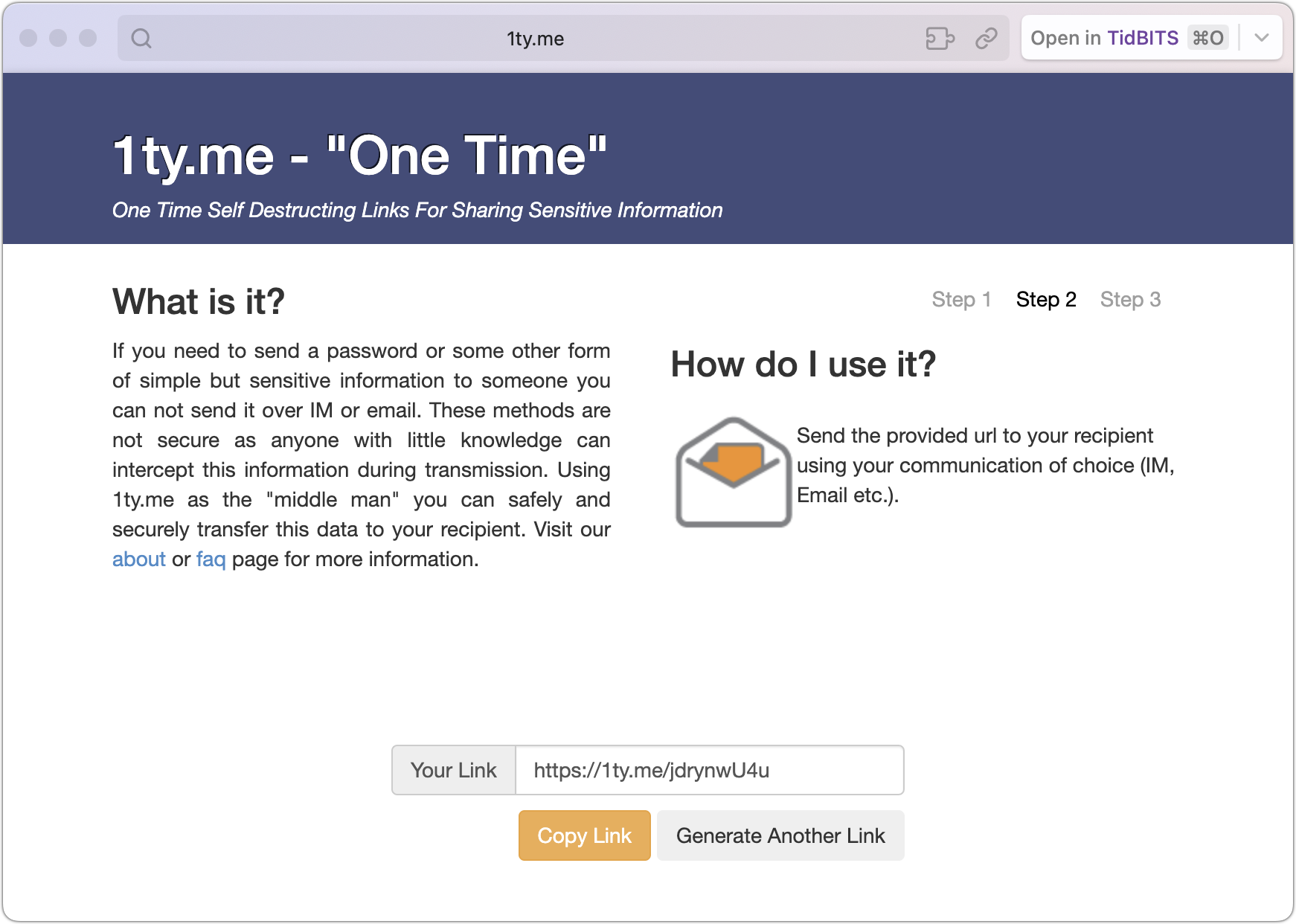
- Self-destructing links: Services like 1ty.me and One-Time Secret generate encrypted links that contain text. Once the recipient views the link, the server deletes the data, and the link self-destructs. If the recipient reports the link was already used, you know it was compromised. Be aware that some email systems automatically scan links, which could trigger premature self-destruction.
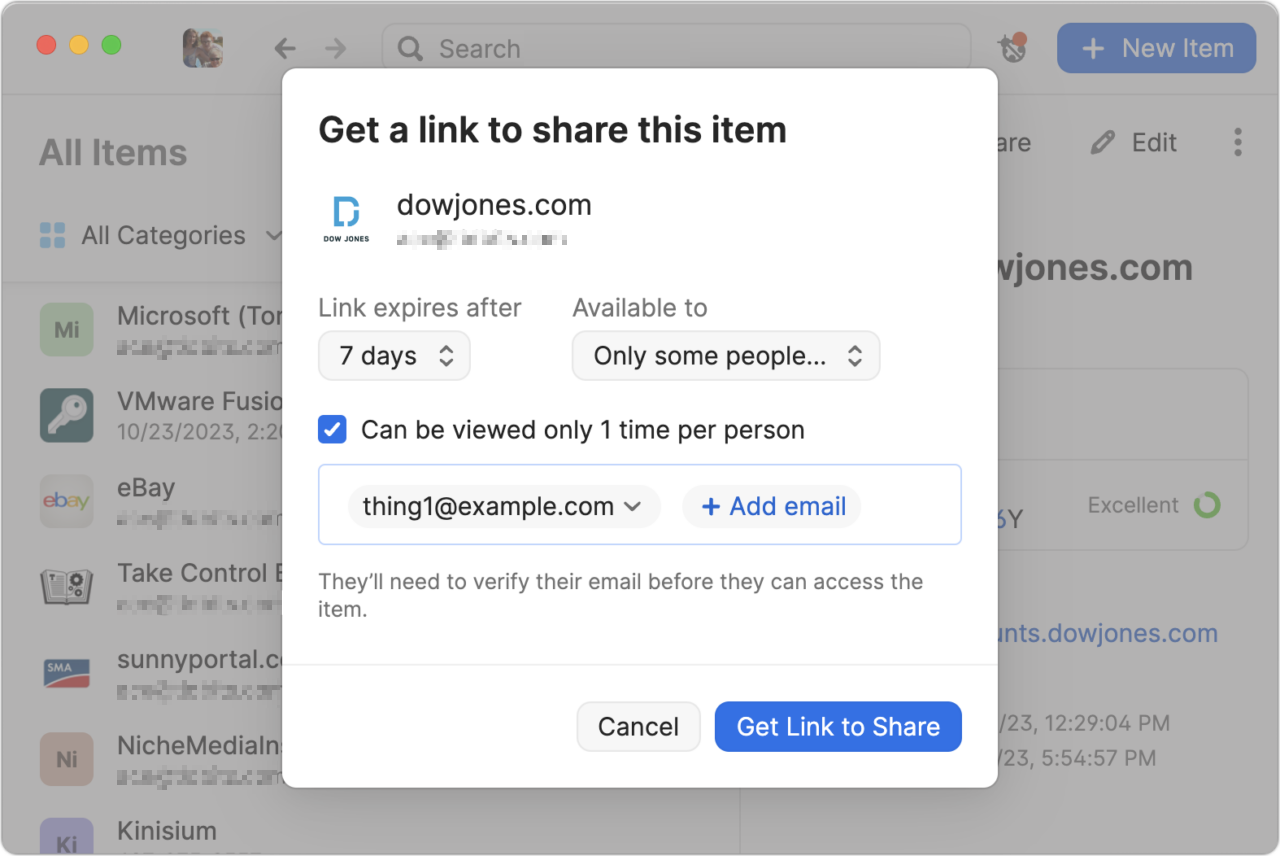
- Password manager sharing: 1Password, Bitwarden, and some other password managers (but not Apple’s Passwords) offer secure sharing features that make it easy to share credentials with someone who needs to access a particular account. You can create links with expiration dates, limit access to specific email addresses, and cause links to self-destruct after being viewed once.
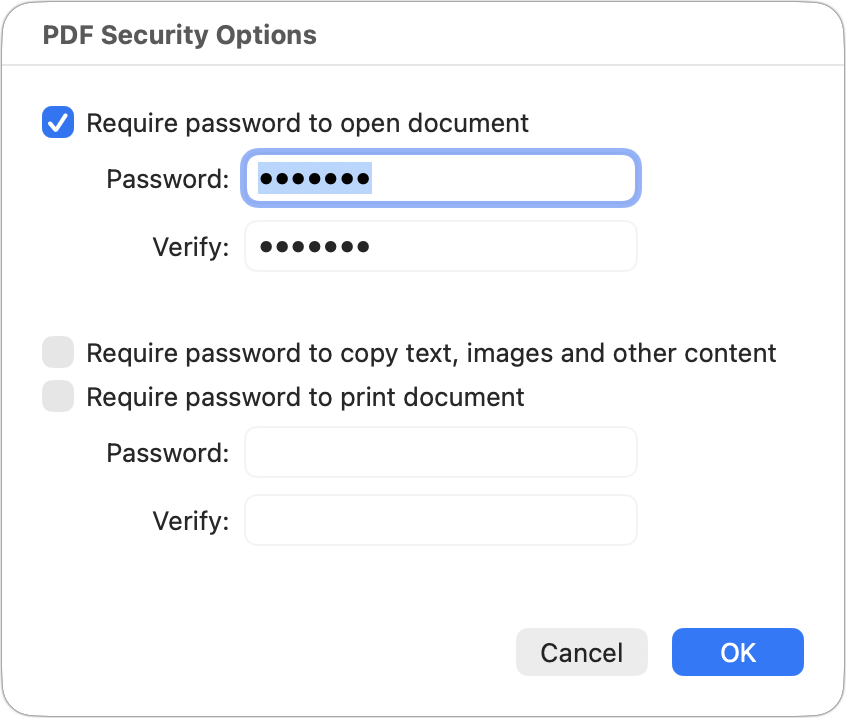
- Password-protected PDF: For documents that could be printed, create a password-protected PDF. From nearly any app, choose File > Print, click the PDF menu at the bottom, and choose Save As PDF. In the Save dialog that appears, click Security Options, select “Require password to open document,” and enter a strong password (online services can remove weak passwords). Share the file however you like, but send the password through a different channel, preferably via an expiring link.
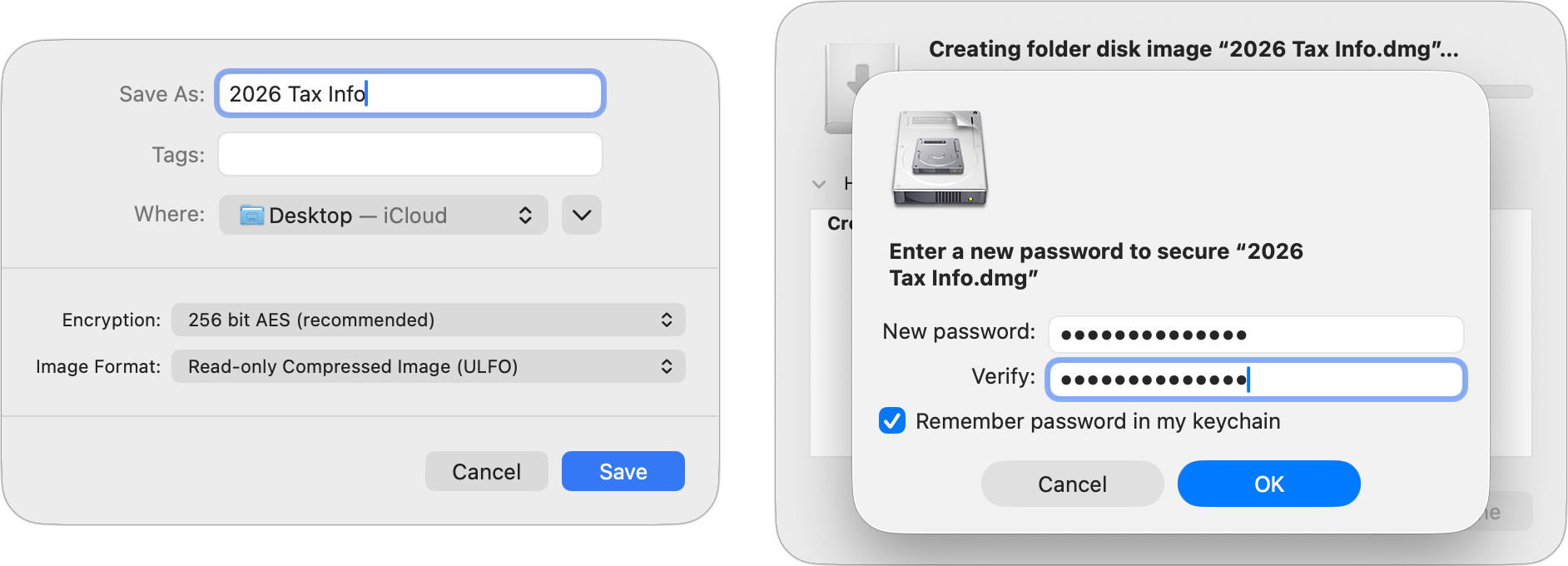
- Password-protected disk image: For Mac users sharing files that can’t easily become PDFs, or for sharing collections of files, create a password-protected disk image. In Disk Utility, create a new compressed disk image (File > New Image > Image from Folder), choose an encryption option (256-bit for more sensitive information), and enter a strong password. Again, share the password separately, ideally via an expiring link.
- Password-protected Zip archive: A password-protected Zip archive serves the same purpose and may be easier for Windows users to extract. Apps like Keka and BetterZip can create these. For the fastest approach, open Terminal, type
zip -er ~/Desktop/filename.zip (with a space at the end), drag in the files you want to compress, press Return, and enter your desired password when prompted.
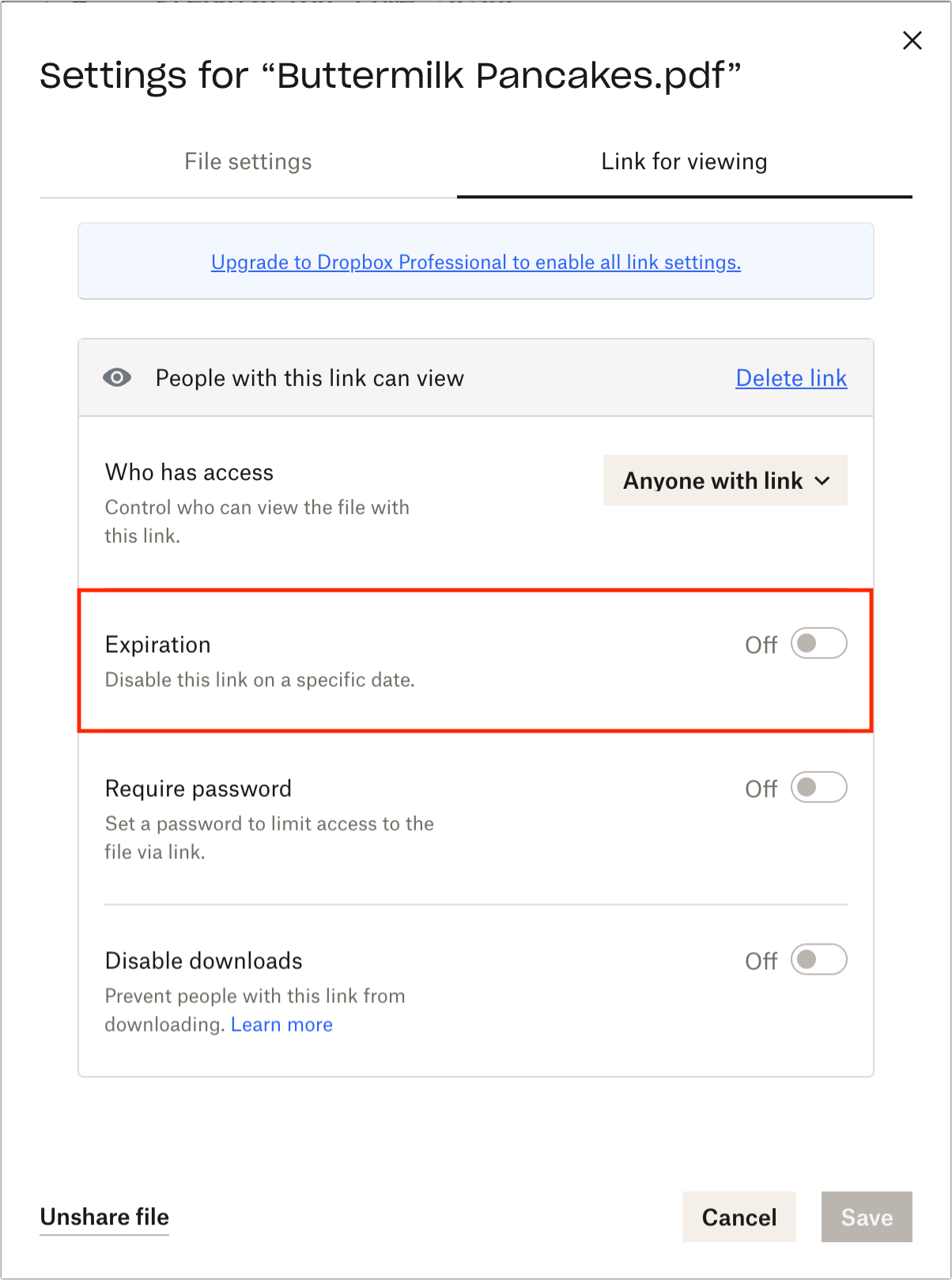
- Time-expiring cloud storage links: Some cloud storage services offer links that expire after a specified time. Dropbox Professional supports this feature, enabling you to share files while ensuring that links become useless in the event of a breach.
There’s no one-size-fits-all solution for securely sharing sensitive information. Match your approach to the sensitivity of the data, your recipient’s capabilities, and how long they need access.
(Featured image by iStock.com/metamorworks)
Social Media: Need to share passwords, financial details, or sensitive documents securely? Email alone isn’t safe enough. Learn eight practical methods—from self-destructing links to encrypted disk images—that protect your data in transit and at rest.

Recent Comments