by Steve Sorbo | Sep 4, 2026 | TCN Content, Uncategorized
Are you considering getting one of Apple’s new iPhone 18 models? While it’s tempting to unbox a new iPhone and dive right in, a methodical setup will save you from potential frustrations down the road. When you’re ready to transfer your data—and, for many people, that means much of your digital life—to the new iPhone, follow these step-by-step instructions. For visual learners, Apple also provides a video showing how to transfer your data and set up a new iPhone.
- Ensure that both your current iPhone and Apple Watch (if you have one) are running the latest versions of iOS and watchOS. These updates can take a while to install, so don’t leave them for the last minute.
- Have your login details ready: you’ll need your iPhone and Apple Watch passcodes, along with your Apple Account email address and password.
- Back up your old iPhone to iCloud or your Mac. If you back up to a Mac, make sure you encrypt the backup (and record the encrypted backup password!) so it includes passwords, Wi-Fi settings, browsing history, Health data, and call history. For safety, consider backing up to both iCloud and your Mac. iCloud backups are typically more straightforward and avoid issues like unreliable USB cables. If you don’t usually back up to iCloud, Apple offers temporary iCloud storage for 21 days when transferring to a new iPhone, with another 21 days if your new iPhone doesn’t arrive in time. To make a temporary iCloud backup, go to Settings > General > Transfer or Reset iPhone and tap Get Started under Prepare for New iPhone. The temporary backup sticks around for 7 days after you restore it to the new iPhone.
- If you have an Apple Watch, you can transfer it to the new iPhone during setup. If the automatic transfer doesn’t work for some reason, you can manually unpair the Apple Watch from the old iPhone and pair it again with the new one. If you choose the manual route with a cellular Apple Watch, you’ll be prompted to keep or remove your cellular plan; be sure to keep the plan to continue using it after you re-pair.
- If you ordered your new iPhone through Apple and linked it to your cellular carrier account at purchase, or bought it directly from your carrier, your phone number usually transfers automatically during activation. If the transfer doesn’t happen automatically and your carrier supports eSIM Quick Transfer, Setup Assistant will guide you through transferring your eSIM directly from your old iPhone.
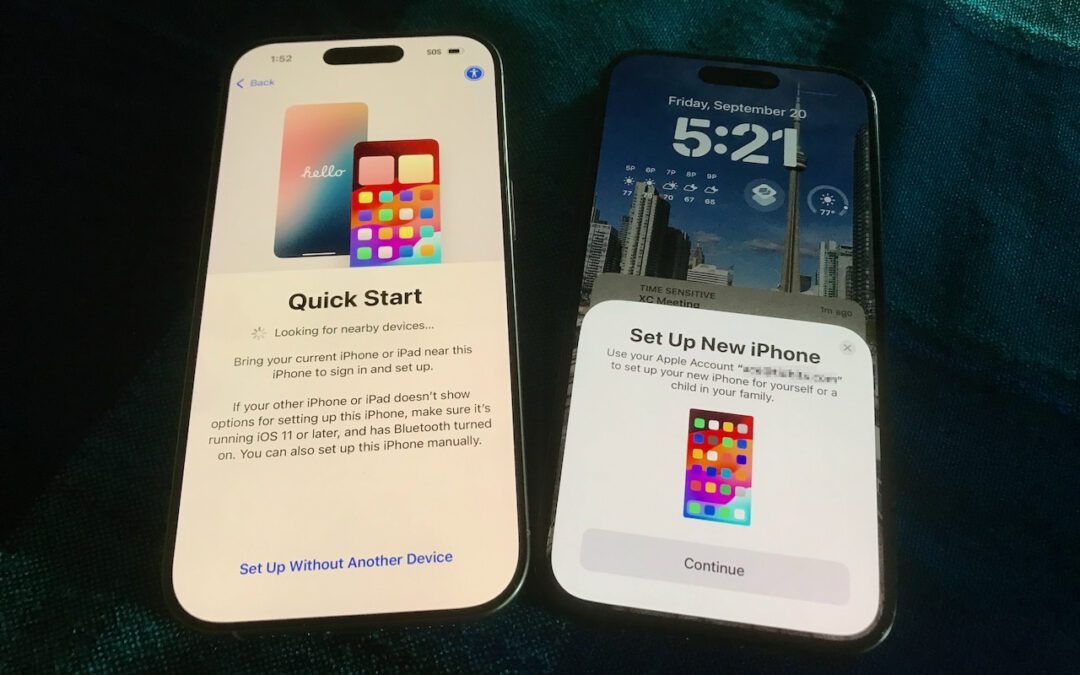
- Use Apple’s Quick Start to set up the new iPhone. Put your old iPhone nearby, follow the on-screen instructions, and use it to scan the animation that appears on the new iPhone. When Quick Start asks how you want to transfer your data, you have two main choices: iCloud or a direct transfer. Neither is especially quick, so start only when you have plenty of time. (If your old iPhone isn’t available or Quick Start fails, you can instead set up the new iPhone manually and restore from an iCloud or Mac backup.)
- Download from iCloud: Restore from your old iPhone’s iCloud backup. This approach lets you begin using the new iPhone while apps and data continue downloading in the background. After connecting the new iPhone to Wi-Fi and choosing Download from iCloud, select the correct backup—probably the most recent one you just created.
- Transfer from iPhone: Transfer your apps, data, and settings directly from the old iPhone, either wirelessly or with a wired connection—a wired connection can be useful if wireless migration proves unreliable, but there’s no way to know which will be faster. With a direct transfer, regardless of wired or wireless, both iPhones remain unavailable until the process finishes. For wireless transfers, keep them near each other and plugged into power.
- Finder or iTunes: Although Apple still supports restoring your old iPhone’s data from a backup saved to your Mac, it gets the least attention these days, and we would resort to it only if the Quick Start methods failed. When you get to the Transfer Apps & Data screen on the new iPhone, tap From Mac or PC, connect the new iPhone to your Mac, open a Finder window (or iTunes on macOS 10.14 Mojave or earlier), select the iPhone, click Restore Backup, and choose the appropriate backup.
- Complete post-transfer tasks. Some app data needs to sync, so open the Mail, Contacts, and Calendar apps to check for your information; it may take a few minutes to populate. Verify you can make and receive calls. You’ll need to add your payment cards to Apple Pay, and transfer or re-add any transit or ID cards that don’t appear in Wallet. If necessary, pair your Apple Watch with the new iPhone. Also, pair your Bluetooth accessories—you shouldn’t need to re-pair AirPods, which sync automatically via iCloud. Apps might ask you to log in again and grant notification permissions, and you might need to re-download content and in-app purchases.
- If you rely on Apple’s Passwords app for passwords, passkeys, and two-factor authentication codes, everything should sync via your iCloud account, assuming you have Passwords & Keychain enabled in iCloud. 1Password and other password managers also usually sync via an online account. Two-factor authentication apps like Authy and Google Authenticator may need additional configuration—confirm that your codes appear on the new iPhone. Regardless, verify that you can log in to key accounts before wiping the old phone.
- If your employer or school requires you to register your iPhone for access to organizational systems, verify that everything works before erasing your old phone. Authentication apps, VPNs, device-management systems, and other security services may treat the new iPhone as a new device and require you to sign in again, re-register it, or obtain approval from your IT department. Test these services on the new iPhone while the old one is still available in case you need it to approve a login or transfer an account.
Although Apple works hard to make transferring from an old iPhone to a new one as smooth as possible, some things may not transfer perfectly. We strongly recommend keeping your old iPhone for a week or so to ensure the new one can do everything the old one did. During that time, thoroughly test the new iPhone, checking each app you need. Once you’re confident the new iPhone is working well, follow Apple’s instructions for erasing the old iPhone before selling, trading it in, or giving it away.
(Featured image by Adam Engst)
Social Media: Getting a new iPhone 18? Don’t rush the setup. A little prep work now can save you from missing data, apps, and settings later. Here’s what to do before and after transferring from your old iPhone.
by Steve Sorbo | Sep 4, 2026 | TCN Content, Uncategorized
September has arrived, so Apple will soon release major upgrades for all its operating systems. iOS 27 and watchOS 27 will undoubtedly ship alongside new iPhone and Apple Watch models mid-month. iPadOS 27 will likely accompany iOS 27, as will tvOS 27 and visionOS 27. Although Apple has sometimes delayed the release of macOS until later in the year, we anticipate the company will release macOS 27 Golden Gate alongside its siblings, since the new Mac mini and Mac Studio models will ship with it.
Apple previewed these releases at its Worldwide Developers Conference in June, and many people have been testing the public betas since. Once Apple judges each operating system ready for public consumption, the question arises: when should you upgrade?
Note that we say when and not if. There’s no harm in delaying a major operating system upgrade until Apple has sanded off any rough edges that slipped through testing. But waiting too long puts you at risk from security vulnerabilities, increases compatibility annoyances, and prevents you from taking advantage of new features. Plus, when you buy a new Mac, iPhone, or iPad after these operating systems have shipped, you’ll automatically get the latest version, which could pose problems for your existing apps or compatibility with older hardware or workflows. It’s best to be prepared in case you have to replace a device unexpectedly.
Since we don’t know exactly when each operating system will appear, here’s our recommended upgrade order and how long we suggest waiting after each release. We’ve also shared a few new features that might encourage you to upgrade.
Remember, always make a backup before upgrading a Mac, iPhone, or iPad so you can revert if necessary.
iOS 27
It’s usually safe to upgrade iOS fairly quickly because Apple puts significant effort into ensuring that the new iOS version is a good experience for those who buy the just-released iPhones. However, because iPhones are so crucial to our everyday lives, it’s worth delaying iOS 27 upgrades for a week or so, in case there are unexpected bugs. After that, you can install it and enjoy the new features.
What can you look forward to? Apple says iOS 27 delivers broad improvements across the system, with performance improvements that should keep older devices feeling snappy. Liquid Glass—Apple’s translucent interface material introduced in iOS 26—gets design refinements for better readability and contrast, with a new slider to customize how tinted it appears. Network transitions are smoother, so you stay connected as you move between Wi-Fi networks and cellular service. Searching in Mail will more readily surface the most relevant results. Parents gain new child safety tools: Setup Assistant lets you choose which system apps kids can access, Ask to Browse requires parental approval for new websites, Communication Safety now blocks gore and violence in addition to nudity, and Time Allowances let you set limits across categories. Other additions include GymKit support for connecting to gym equipment, improved iCloud Shared Albums with easier access for Android and Windows users, perimenopause tracking in Health, and enhanced Flyover in Maps.

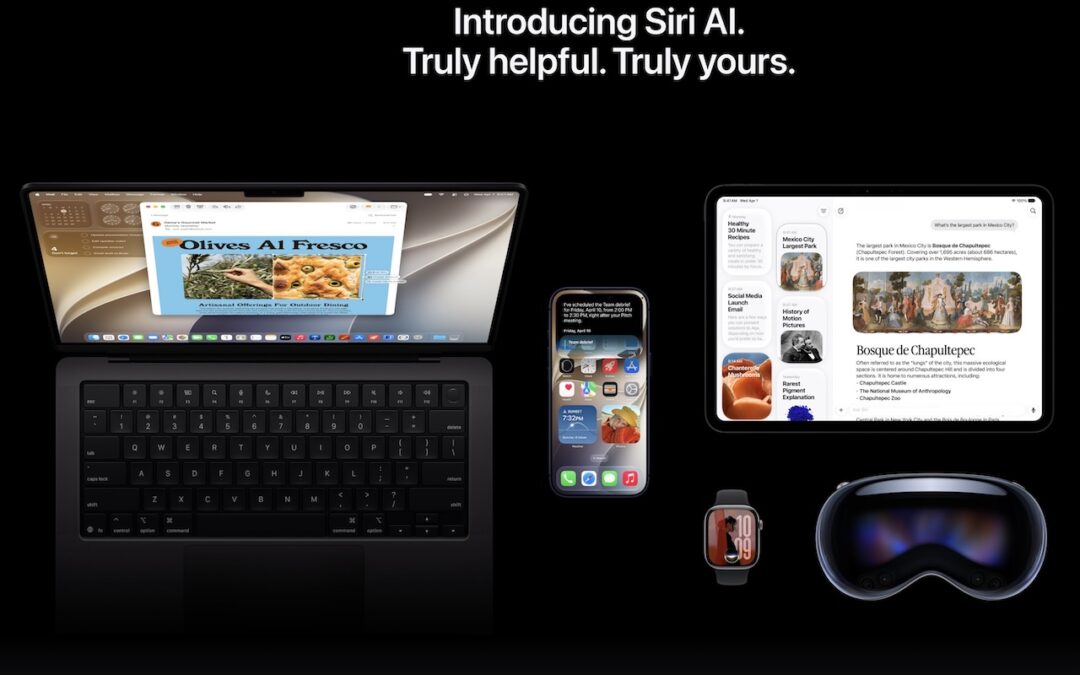
However, what Apple’s really focusing on is Siri AI and Apple Intelligence, which ship across the iPhone, iPad, Mac, Apple Watch, and Vision Pro. Apple has finally brought AI to Siri, making the virtual assistant far more capable and conversational, giving it insight into your personal context (calendar events, email, photos, notes, etc.), and letting it take actions across many more apps. With search capabilities, Siri AI can pull in world knowledge to answer nearly any topic, much like ChatGPT and Claude do now. A dedicated Siri app records your conversations and syncs them across devices. Write with Siri generates drafts or provides feedback anywhere you type. Siri mode in the Camera app brings Visual Intelligence to the viewfinder, letting you search and take action on what you see. Photos gains AI editing tools like Spatial Reframing, Extend, and an enhanced Clean Up. Safari automatically groups tabs by topic and gains Notify Me, which monitors pages for changes like price drops or restocks and alerts you when it’s time to act. Siri AI requires an iPhone 15 Pro or later; the broader iOS 27 features work on devices back to the iPhone 11 and second-generation iPhone SE.

watchOS 27
Once you upgrade your iPhone to iOS 27, there’s no reason to delay upgrading your Apple Watch to watchOS 27. Few changes other than the new app grid are likely to require notable adjustments to your usage patterns, and some may be quite welcome.
Siri AI is the most notable new feature in watchOS 27 because it brings conversational AI to your wrist. However, it may encourage new Apple Watch purchases—our experience with the beta is that it’s slow on the Apple Watch Series 9, which is the oldest model watchOS 26 supports.
Beyond Siri AI, a new dynamic app grid highlights suggested apps (most recent and most popular) with the Siri app in the center. Workout Buddy now delivers personalized motivation with new insights into your pace, distance, and duration—and works without your iPhone nearby. A new thumb-and-forefinger tap gesture lets you select Smart Stack widgets with one hand, and the Smart Stack itself surfaces more relevant widgets, such as birthday reminders and your parked car’s location. Cycle Tracking gains perimenopause and menopause support with symptom logging and educational resources. Design refinements improve Liquid Glass readability, and a new Call Context feature surfaces relevant information when you call businesses. For Siri AI, your watch must be paired with an iPhone 15 Pro or later.

iPadOS 27
Our general advice is that it’s OK to install iPadOS 27 shortly after it ships. iPadOS is largely a superset of iOS, so if you’re comfortable upgrading to iOS 27, that comfort should carry over to iPadOS 27 as well. The main caveat is if you rely heavily on a particular app, you should check with the developer to ensure it’s compatible before upgrading.
Beyond the iOS 27 features that aren’t specific to the iPhone, iPadOS 27 offers a few unique improvements. It brings Visual Intelligence to the iPad screen—tap an item with your finger or circle it with the Apple Pencil to learn more about it or take action on it. Siri AI now works with handwritten Notes, letting you turn handwritten lecture notes into a study guide. And file transfers to external drives are up to 5x faster.

tvOS 27
Regardless of when Apple releases tvOS 27, it’s safe to update within a week or two of release, depending on how much you depend on your Apple TV. Note that tvOS drops support for the Apple TV HD and first-generation Apple TV 4K, though if you have one of those and it meets your needs, don’t bother replacing it just for tvOS 27. Besides, rumors suggest a new Apple TV model with a Siri AI-capable chip may be on the horizon—the new virtual assistant is otherwise notably absent.
tvOS 27 brings a few modest refinements to the Apple TV experience. Apple redesigned the Podcasts app for improved browsing and playback. If you listen to music on your Apple TV, you might appreciate the new support for Hi-Res Lossless audio playback up to 24-bit/192kHz through Apple Music. Apple promises smoother app launches and animations throughout, faster AirPlay connectivity, and a more responsive Control Center. A new Smart Downloads feature helps manage content automatically. For accessibility, a new Larger Text option in Settings scales text size across the entire tvOS interface. Auto-transcription support in English will provide subtitles where they don’t already exist, and tvOS 27 has expanded support for Made for iPhone hearing aids.
If nothing in that list encourages you to upgrade as soon as tvOS 27 ships, let your Apple TV upgrade itself whenever it gets around to it, assuming you have automatic updates turned on in Settings > System > Software Updates.
visionOS 27
Since the Vision Pro hasn’t seen widespread adoption, most users can upgrade to visionOS 27 shortly after it comes out—it works on all Vision Pro units. Those with mobility issues or disabilities that make the Vision Pro an essential aspect of everyday life should probably wait until early adopters have given the upgrade a thumbs up.
Siri AI is, of course, available in visionOS 27, and Visual Intelligence on the Vision Pro lets you ask Siri about anything by looking at it. You can now turn panoramic photos into spatial scenes and use them as custom Environments—joining the new Thórsmörk Environment featuring an Icelandic aurora. New curved windows in Safari, Freeform, and other apps wrap around you for a more comfortable view. Spatial previewing lets you bring 3D models from your Mac into your space to preview and edit them in real time. System improvements include a redesigned Control Center, notifications you can expand just by looking at them, and Wi-Fi that connects up to three times faster. Accessibility gains include an updated Dwell Control that lets you confirm selections by glancing at a marker instead of waiting for a timer.

macOS 27 Golden Gate
For most of us, the trickiest upgrade decision is when to install macOS 27 Golden Gate. For those still using Intel-based Macs, the decision is easy: never, since Golden Gate runs only on Macs with Apple silicon. But even for people whose Macs have M-series chips and whose mission-critical apps are likely newer, it’s worth upgrading cautiously. The problem is that new macOS features are seldom more compelling than keeping your Mac working the way it is now. Happily, Golden Gate still includes the full Rosetta 2 translation environment that powers Intel-based apps on Apple silicon, but that support will dwindle in the future.
What capabilities does macOS 27 Golden Gate promise? Once again, Apple is pushing Siri AI the hardest, with the dedicated Siri app syncing your conversations across devices and Visual Intelligence letting you ask Siri about anything on your screen by taking a screenshot. The rest of the Apple Intelligence improvements from iOS and iPadOS also appear in macOS, as do the new Child Safety features.

Users will appreciate Golden Gate’s refinements to Liquid Glass, which was more controversial on the Mac than on the iPhone. Along with the new transparency slider, macOS will feature a uniform toolbar across the top of apps, sidebars will extend to the edges of windows, and colored icons will return to sidebars. Apple is also promising performance improvements, better Spotlight search suggestions, improved support for ultrawide external displays, app resizing in iPhone mirroring, natural language event creation in Calendar, and updated video podcast playback.
We always encourage caution when upgrading to a new version of macOS. Wait at least a month or two before upgrading your primary Mac to Golden Gate, especially if you rely on older Mac apps. Even once you’re confident your apps will work adequately, workflow or intra-office compatibility concerns may arise if some people upgrade and others don’t.
In short, please don’t upgrade to Golden Gate without checking with us first. With luck, the bug fixes and app updates needed to give you the green light will appear by the end-of-year break, which provides welcome downtime to install and explore the new features.
(Featured image by Apple)
Social Media: Apple is gearing up to release macOS 27 Golden Gate, iOS 27, iPadOS 27, watchOS 27, tvOS 27, and visionOS 27. We briefly examine the features worth upgrading for and suggest when to upgrade each of your Apple devices.

Recent Comments