by Steve Sorbo | Nov 7, 2025 | Uncategorized
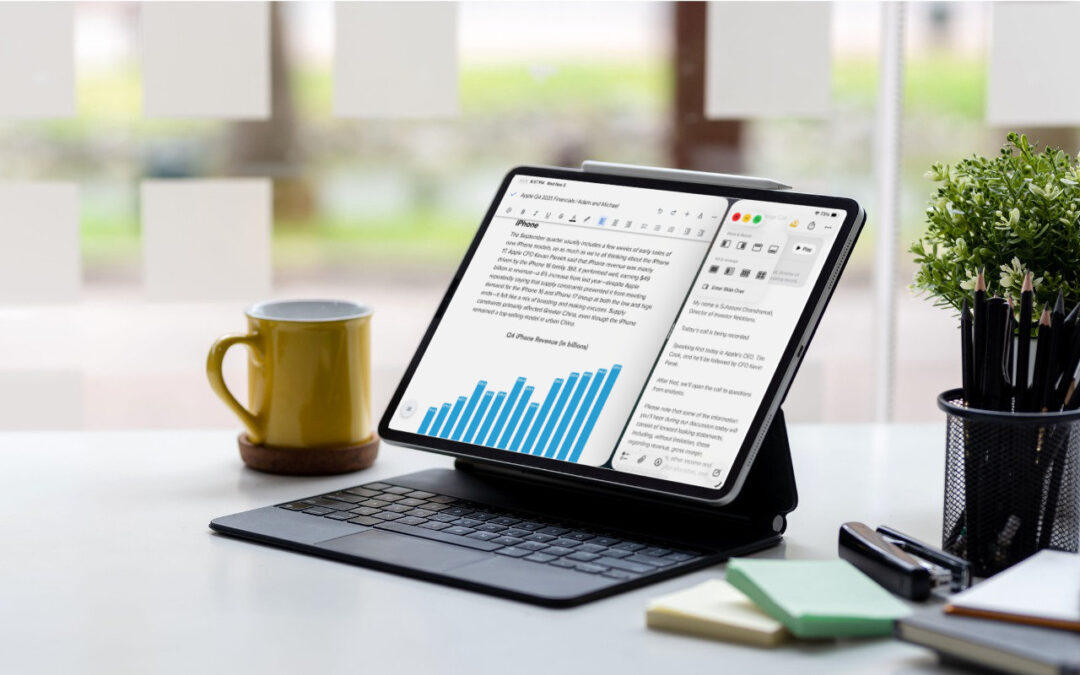
When the iPad debuted, it was essentially a large iPhone. But classic productivity tools rapidly made their way to the iPad, and over the years, Apple has introduced multitasking features, such as Slide Over and Split View, to make it easier to work back-and-forth between apps—imagine writing in Pages while referring to a Web page, or entering data from a PDF into a Numbers spreadsheet.
In iPadOS 26, Apple acknowledged that many of those efforts fell short of user expectations and completely revamped the iPad’s multitasking, basing it mainly on the windowing approach we’re all accustomed to on the Mac. Even better, if you prefer the traditional one-app-at-a-time approach, you can stick with that entirely.
Here’s how to get started with windowed apps in iPadOS 26.
Turn on Windowed Apps
When you upgrade to iPadOS 26, you’re prompted to turn on windowed apps, but you can always turn the feature on or off later in Settings > Multitasking & Gestures.

Switch Between Apps
Switching between windowed apps relies on approaches familiar from the Mac and previous versions of iPadOS. You can:
- Switch from the Home Screen: If you’re not already there, swipe up from the bottom of the screen, and then tap an app icon on the Home Screen. Swipe right to see more Home Screen pages or get to the App Library, which holds all apps.
- Switch from the Dock: Either swipe up from the bottom edge of the screen to return to the Home Screen or swipe up just far enough to reveal the Dock, then tap the desired app. Tap the rightmost icon on the Dock to reveal the App Library.
- Switch by swiping: Just as on the iPhone, swiping right or left on the bottom of the screen switches you between recent apps. Or you can swipe right or left with four or five fingers.
- Switch using Exposé: Swipe up from the bottom of the screen, pause in the center, and lift your finger to activate Exposé, which shows all open apps (and windows, if an app has more than one open). Swipe right or left to see more. Tap an app to switch to it. If you have an external keyboard, you can press the Exposé key or Globe-Up Arrow to enter Exposé.

Work with Windows
By default, even in windowed apps mode, apps open full-screen. But now you can do much more, just like you do on the Mac. iPadOS windows now have the same traffic light buttons as macOS windows, and they work the same way. If you don’t see them in a full-screen app, swipe down from the top of the screen to see the controls in the menu bar.
- Resize windows: Drag any window corner to resize. You’ll see a handle only in the bottom-right corner, but any corner works. Or touch and hold the traffic light buttons and choose a Move & Resize option. When windows are arranged, you can drag the slider between them to adjust their sizes.

- Move windows: Drag the top edge of a window. You can drag it partially off-screen to make more room.
- Close windows: Tap the traffic light buttons to expand them, and then tap the red Close button to close the window for good.
- Minimize windows: Tap the traffic light buttons, and then tap the yellow Minimize button to hide the window. You can also start dragging a window, and then flick it into the Dock.
- Reveal hidden windows: Touch and hold the app’s icon in the Dock, and then choose a window from the Open Windows part of the menu. Alternatively, choose Show All Windows and then tap the desired window.
- Zoom windows: Tap the traffic light buttons, and then tap the green Zoom button. Or just drag a corner of the window to expand it until it occupies the entire screen.
- Arrange windows: Touch and hold the traffic light buttons, and then choose a Fill & Arrange option. Alternatively, to put two windows side by side, start dragging a window and flick it to the side of the screen. Then flick another window to the other side.
- Open new windows: Touch and hold the app’s icon in the Dock, and choose New Window.
Too much to remember? Although most of these techniques are nearly identical to how things work on the Mac, there’s another Mac-inspired interface element to help: the menu bar.
Use the Menu Bar
To reveal the menu bar for the app you’re in, swipe down from the center of the screen. (This gesture works differently on the Home Screen, where swiping down from the middle reveals Notification Center instead.) If you’re using a trackpad or other pointing device, you can also move your pointer to the top of the screen.
Every app will have a menu bar, but only those updated for iPadOS 26 will have custom menus; everything else will use standard menus like File, Edit, Format, View, Window, and Help. Apps tend to offer roughly the same menu items as they have on the Mac.
Using the menu bar works just like it does on the Mac: tap a menu to open it, and then tap an item to choose it. For those getting used to windowed apps in iPadOS 26, the big win is the Window menu, which lays out all the options discussed above.

Use Slide Over
In the initial release of iPadOS 26, Apple removed Slide Over, which allowed the user to keep a window floating over other apps and move it off-screen and back easily. After an outcry from iPad users accustomed to using it as a place to stash reference materials and other windows they wanted quick access to, Apple brought Slide Over back in iPadOS 26.1.
To put a window into Slide Over, swipe down to reveal the menu bar, tap the traffic light buttons, and choose Enter Slide Over. Once a window is in Slide Over, you can flick it to either the right or left side of the screen to hide it—a little handle briefly reminds you it’s there—and swiping in from that side of the screen reveals the Slide Over window again. Slide Over windows can be resized like any other window by dragging a corner. Only one app can be in Slide Over at a time; choosing Enter Slide Over in a different app replaces the current Slide Over app. You can also touch and hold the traffic light buttons in the Slide Over app and choose Exit Slide Over to make it a standard window again.

If iPadOS 26’s new approach to multitasking feels like it will improve your iPad productivity, and you don’t already have them, consider adding a keyboard and trackpad. The combination of faster typing, more precise pointing, and Mac-like multitasking can go a long way toward improving your iPad workflows.
(Featured image based on an original by iStock.com/AmnajKhetsamtip)
Social Media: iPadOS 26 finally brings Mac‑style multitasking to the iPad. Learn how to enable windowed apps, use the new menu bar, work with windows, and master Slide Over (back in iPadOS 26.1) for faster workflows.

by Steve Sorbo | Oct 16, 2025 | Uncategorized
Apple’s fall harvest has yielded the new M5 chip, leading to updates for the entry-level 14-inch MacBook Pro, the iPad Pro lineup, and the Vision Pro. All three benefit from the M5’s significant performance boosts, but remain mostly unchanged otherwise. Availability starts on October 22. We anticipate that Apple will release M5 versions of the iMac, Mac mini, and MacBook Air in the coming months, along with M5 Pro and M5 Max chips in early to mid-2026.
With the M5 chip, Apple continues to focus on boosting AI performance. Its new 10-core GPU promises up to four times the peak GPU compute performance of the previous M4 chip—an impressive leap. The GPU also provides enhanced graphics capabilities and ray tracing that deliver results up to 45% faster than the M4. The 10-core CPU, with six efficiency cores and four performance cores, provides up to 15% faster multithreaded performance than the M4, a more typical performance increase between chip generations. Additionally, Apple increased unified memory bandwidth from 120 GBps to 153 GBps, which speeds up many different operations.
14-inch MacBook Pro
The most mainstream of the updated devices is the entry-level 14-inch MacBook Pro, which benefits from the improved performance of the M5 chip. Apple claims improvements in various tasks ranging from 20% to 80% compared to the M4 model it replaces. Even more compelling is the comparison with the M1-based 13-inch MacBook Pro, where the M5 MacBook Pro is 2 to 7 times faster.

Apple also increased SSD performance by up to 2x, which we suspect should give the new M5 model read/write speeds comparable to those of the M4 Pro and M4 Max models of the MacBook Pro.
The final update is that the M5 MacBook Pro can now be equipped with 4 TB of storage, a $1,200 option previously reserved for the M4 Pro and M4 Max models. They remain for sale, and although Apple didn’t share any benchmarks, we suspect they will continue to outperform the M5 model at most tasks.
Otherwise, the new M5 MacBook Pro continues to feature three Thunderbolt 4 ports, an HDMI port, an SDXC card slot, and MagSafe 3 charging. Its 14.2-inch Liquid Retina XDR display with ProMotion remains unchanged, as does the physical design. Pricing is also the same, starting at $1,599 for 16 GB of unified memory and 512 GB of storage.
For now, the M5 model of the 14-inch MacBook Pro is notably more capable than the M4 models of the MacBook Air, which was less true of the M4 MacBook Pro it replaces. That said, you won’t go wrong with the more affordable MacBook Air or the higher performance of the M4 Pro and M4 Max models of the MacBook Pro.
11-inch and 13-inch iPad Pro
The M5 models of the 11-inch and 13-inch iPad Pro deliver similar performance improvements over the previous M4 models, with Apple highlighting up to 2x faster AI image generation and up to 2.3x faster AI video upscaling. The enhancements are even more pronounced when compared to the M1 iPad Pro models, where benchmarked tasks are 2x to 7x faster. Additionally, the M5 iPad Pro models feature up to 2x faster storage, although they are limited to 2 TB.

Apple didn’t stop there. The 256 GB and 512 GB configurations have 50% more unified memory, increasing from 8 GB to 12 GB, while the 1 TB and 2 TB configurations have 16 GB. The new models also feature enhanced external display support, enabling them to drive external 4K displays at up to 120 Hz with Adaptive Sync, which reduces latency and enhances gaming performance. Lastly, Apple introduced fast charging that provides 50% power in 30 minutes with an appropriate charger.
Two other notable changes probably won’t be evident to most users. The M5 models of the iPad Pro utilize Apple’s new C1X cellular modem and N1 wireless network chip, which enable Wi-Fi 7, Bluetooth 6, and Thread networking. Apple claims faster cellular and Wi-Fi performance, along with lower power consumption, but official battery life estimates remain unchanged.
Otherwise, the new iPad Pro models remain nearly identical to their predecessors. They retain the same Ultra Retina XDR display, cameras, ports, and accessory ecosystem (Magic Keyboard and Apple Pencil). The case and industrial design are the same.
Pricing for the 11-inch iPad Pro starts at $999 for Wi-Fi models and $1,199 for Wi-Fi + Cellular models. The 13-inch iPad Pro starts at $1,299 with Wi-Fi and $1,499 for Wi-Fi and cellular connectivity.
Creative professionals already using a previous generation of the iPad Pro may consider upgrading, but for most people, we recommend either the low-cost iPad or the mid-range iPad Air.
Vision Pro
In the first hardware update to its Vision Pro “spatial computer,” Apple replaced the M2 chip with the more powerful M5. This upgrade boosts performance, allowing the Vision Pro to render 10% more pixels, resulting in a sharper image with crisper text and more detailed visuals. The M5 also increases the Vision Pro’s maximum refresh rate to 120 Hz from 100 Hz, helping to reduce motion blur. Battery life receives a slight boost, providing an additional 30 minutes of general use (up to 2.5 hours) and video playback (up to 3 hours). The only other change is a new Dual Knit Band, which Apple says is more comfortable.

Apart from the M5 and Dual Knit Band, the Vision Pro remains unchanged in form, function, and philosophy. Nor did Apple lower the Vision Pro’s price, which is still $3,499. Although these changes undoubtedly improve the Vision Pro experience a bit, they won’t change anyone’s purchasing decision.
(Featured image by Apple)
Social Media: Apple has brought its new M5 chip to the MacBook Pro, iPad Pro, and Vision Pro, boosting performance but changing little else. The updates maintain existing designs and price points.

by Steve Sorbo | Oct 3, 2025 | Uncategorized
When describing its new Liquid Glass design language, Apple spoke only generally about how users could change the look of icons and widgets on their iPhone and iPad home screens to be dark, clear, or tinted, without specifying how to do that. The trick is to touch and hold an empty spot on the Home screen to enter jiggle mode, tap Edit in the upper-left corner, and select Customize to bring up a set of controls: choose from Default, Dark, Clear, and Tinted. For Tinted, set the color ➊ and opacity ➋ using the sliders, and use the buttons at the top of the Customize panel to change the brightness ➌, expand icons and remove names ➍, and use either the suggested image color ➎ or pick a color with the eye dropper ➏. The effectiveness of a Liquid Glass-enabled Home Screen will depend on how much you rely on color to identify icons at a glance.

(Featured image by Apple)
Social Media: Apple’s new Liquid Glass design lets you make iPhone and iPad icons and widgets dark, clear, or tinted. Discover how to access these customization options and see if they enhance your Home Screen.

by Steve Sorbo | Oct 3, 2025 | Uncategorized
If a Mac running macOS 26 Tahoe experiences certain kinds of problems, it might automatically restart and launch a new Recovery Assistant. It will prompt you to unlock your disk if needed and to connect to a Wi-Fi network—an Internet connection is required. Apple doesn’t specify precisely what Recovery Assistant will do to recover your device, but it will either indicate that it succeeded, that it was unable to recover the device, or that it found no problems. In any case, you’ll need to restart your Mac, after which you may receive a notification to recover your iCloud data; initiate this process in System Settings. While we generally favor Macs being able to fix their own problems, we cannot stress enough how much more important it is to have a current backup than to rely solely on any recovery system.

(Featured image based on an original by iStock.com/Armastas)
Social Media: macOS 26 Tahoe brings a new Recovery Assistant, which automatically detects and attempts to resolve Mac problems. Just remember: automated recovery can be helpful, but backups are still essential.

by Steve Sorbo | Oct 3, 2025 | Uncategorized
Apple does a good job providing accessibility options for users who experience issues with vision, hearing, motor control, and other accessibility needs. Nearly everyone will benefit from these features at some point in their lives. To encourage support for Apple’s accessibility features and assist users in finding compatible apps, the App Store now includes Accessibility Nutrition Labels that indicate supported features. Developers aren’t required to support or list these features, so it may take some time before many apps display this information. Still, it’s a welcome step forward!

(Featured image by iStock.com/findfootagehq)
Social Media: New App Store Accessibility Nutrition Labels show which apps support Apple’s accessibility features—a win for anyone who needs these capabilities now or in the future.

Recent Comments