
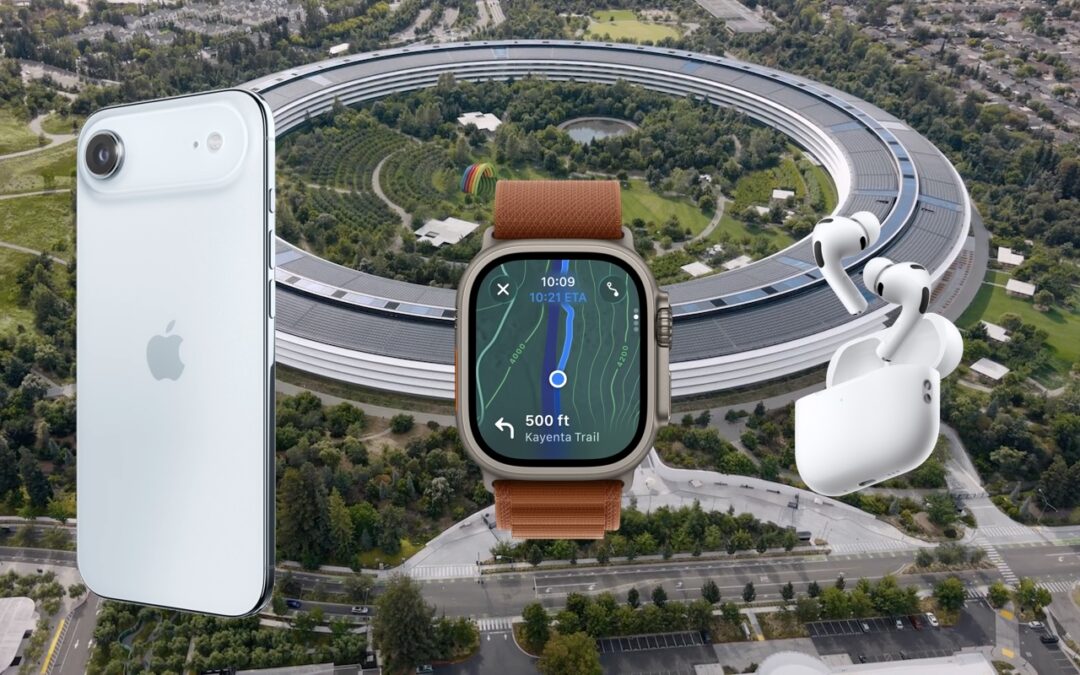
Apple Unveils New iPhone 17 Lineup, Updated Apple Watches, and AirPods Pro 3
In the tech world, September brings the fruits of Apple’s harvest: new iPhones, Apple Watches, and AirPods. At its recent Awe Dropping event, Apple introduced the new iPhone 17 lineup, the ultra-thin iPhone Air, the Apple Watch SE 3, Apple Watch Series 11, Apple Watch Ultra 3, and the AirPods Pro 3.
These are updates to mature product lines, so the changes from last year’s versions may not be enough to persuade you to upgrade. However, this year’s releases are attractive for anyone wanting to replace an old iPhone, Apple Watch, or set of AirPods that is showing its age or suffering from weak battery life. Pre-ordered products will be delivered and become available in stores on September 19.
After the announcement, Apple revealed on its website that all its next-generation operating systems—macOS 26 Tahoe, iOS 26, iPadOS 26, watchOS 26, and visionOS 26, and likely tvOS 26 and HomePod Software 26—will ship on September 15. Wait a week or two before upgrading essential devices to avoid any last-minute bugs, and hold off on Tahoe for a few months or until you’re confident your necessary Mac apps are compatible. Regardless of when you upgrade, make a backup right before, in case an unexpected problem forces you to erase and restore.
Let’s look at the new products.
iPhone Air and iPhone 17 Lineup
As with the last few years, the best bang for your iPhone buck comes from the new iPhone 17, which gains even more features previously exclusive to the Pro models and is available in black, white, mist blue, sage, and lavender. Apple replaced the Plus model with the ultra-thin iPhone Air, available in space black, cloud white, light gold, and sky blue. Lastly, the company enhanced the iPhone 17 Pro and iPhone 17 Pro Max to make them even more compelling to professional photographers and videographers. These models come in three anodized aluminum colors: silver, deep blue, and cosmic orange.
Notable features shared by all the new models include:
- Center Stage front camera: Powered by a new square sensor, the new selfie camera automatically reframes shots to keep multiple people in view without rotating the phone. The 18-megapixel sensor also promises higher-resolution photos and stabilized video. You can even now record video using both the front and rear cameras at the same time.
- A19 and A19 Pro: The latest generation of Apple silicon boosts CPU and GPU performance, with the A19 Pro adding neural accelerators to each GPU core for faster AI processing. The A19 powers the iPhone 17 and iPhone Air; the iPhone 17 Pro models rely on the A19 Pro.
- Enhanced scratch and crack resistance: Apple made much of its new Ceramic Shield 2 coating, which reportedly provides three times better scratch resistance for the front glass. The iPhone Air and iPhone 17 Pro models also feature Ceramic Shield 2 for the back glass, where Apple says it’s four times more resistant to cracks.
- Better battery life: All the iPhone 17 models have improved battery life compared to last year’s models, and although the iPhone Air has less internal space for the battery, it still offers the same battery life as last year’s iPhone 16 Plus.
- Brighter displays: All models now support 3000 nits of brightness outdoors, making them easier to read in sunlight.
- More storage: 256 GB has become the new standard in storage levels. You can upgrade to 512 GB on the iPhone 17, choose 512 GB or 1 TB on the iPhone Air and iPhone 17 Pro models, and go up to 2 TB on the iPhone 17 Pro Max.
- N1 wireless chip: All new models now rely on an Apple-designed N1 chip that provides Wi-Fi 7, Bluetooth 6, and Thread networking. You won’t notice this—wireless should just work.
More specifically, the iPhone 17 gains a new 6.3-inch display, up from the 6.1-inch screen in the iPhone 16. The display also supports ProMotion adaptive refresh rates up to 120 Hz and includes always-on functionality. Additionally, the display can scale its refresh rate down to 1 Hz to preserve battery life. The iPhone 17’s Dual Fusion camera system is also a significant upgrade from the previous generation, moving from a 12-megapixel Ultra Wide camera to a 48-megapixel Ultra Wide camera that delivers more detail in landscapes and macro photos.

Thanks to a titanium frame, the iPhone Air measures just 5.6 mm thick, making it the thinnest iPhone ever. However, its 6.5-inch screen places it between the iPhone 17 and 17 Pro (6.3-inch) and the iPhone 17 Pro Max (6.9-inch) — it’s slim but not small. To make space for the internal components and battery, Apple replaced the traditional asymmetrical camera bump with a wider “plateau” that runs across the entire back of the iPhone Air. The biggest compromise in the iPhone Air, which may drive many potential buyers toward the iPhone 17 or 17 Pro, is the single 48-megapixel Fusion camera system, which lacks the Ultra Wide camera found in other models or the Telephoto camera in the iPhone 17 Pro. Its photos are likely fine, but they won’t match the quality of those taken with other iPhones if you want to zoom in or out. Lastly, the iPhone Air uses Apple’s new C1X cellular modem chip, which improves upon the C1 introduced in the iPhone 16e. We still don’t know how it compares to the Qualcomm chips in the iPhone 17 models.

The iPhone 17 Pro and Pro Max trade last year’s titanium frames for aluminum that provides better thermal conductivity with only a 7-gram weight gain. Heat dissipation was a focus this year, with Apple also adding a vapor chamber—that’s right, there’s water inside. All three of the iPhone 17 Pro’s Fusion cameras are now 48 megapixels, up from 12 megapixels for the Telephoto camera in last year’s models. You can now enjoy 4x optical-quality zoom with 48-megapixel shots and 8x optical-quality zoom with 12-megapixel images. Professionals will also appreciate ProRes RAW capture and Genlock synchronization support.

In terms of prices, the iPhone 17 starts at $799, the iPhone Air at $999, the iPhone 17 Pro at $1099, and the iPhone 17 Pro Max at $1199. If those prices are too steep for your budget, the iPhone 16e ($599), iPhone 16 ($699), and iPhone 16 Plus ($799) remain for sale.

Should you upgrade? Probably not from one of last year’s models or an iPhone 15 Pro, all of which support Apple Intelligence. With an older iPhone, the decision largely depends on whether you want a larger screen and a better camera (all three have the helpful Camera Control that debuted last year). Also consider how weak your current battery is—that’s often what prompts people to upgrade. You can’t go wrong with an iPhone 17, and even though the iPhone 17 Pro is pricey, you’ll get the best cameras and top performance. Even if it sacrifices some photo quality, the iPhone Air certainly makes a design statement.
Apple Watch SE 3, Apple Watch Series 11, Apple Watch Ultra 3
Last year saw only the release of the Apple Watch Series 10, featuring a thinner case and larger screen, while this year brings new models across all three Apple Watch lines: the Apple Watch SE 3, the Apple Watch Series 11, and the Apple Watch Ultra 3.
- Apple Watch SE 3: The new entry-level model improves on its predecessor with a welcome always-on display. Its new S10 chip enables features like double-tap and wrist flick gestures, along with on-device Siri processing. It provides sleep apnea notifications, and the addition of temperature sensing allows cycle tracking. Fast charging and the ability to play media through the built-in speaker round out the major upgrades, along with 5G cellular capabilities for better connectivity. It’s available in midnight and starlight colors, starting at $249 (cellular adds $50). The Apple Watch SE 3 is a solid option with many fewer compromises than in the past, though it still lacks the ECG app, blood oxygen monitoring, and hypertension detection. It also has a smaller, less-bright display and a shorter battery life (18 versus 24 hours).

- Apple Watch Series 11: There are few changes from last year’s Series 10. A new ceramic coating improves scratch resistance, and 5G connectivity for cellular-enabled models may provide better wireless performance with less battery drain. The battery life is now rated at up to 24 hours. Apple also touted the new hypertension detection and sleep score, but both are features of watchOS 26 and will be available on some earlier models as well. The Apple Watch Series 11 is available in aluminum (jet black, silver, rose gold, and space gray) and titanium (natural, gold, and slate) finishes starting at $399 (cellular adds $100).

- Apple Watch Ultra 3: The most technologically impressive change is support for Messages, Find My, and Emergency SOS via satellite, much like the iPhone 14 and later. There are caveats—you’ll need a cellular plan for Messages and Find My via satellite to work, and sending and receiving SMS/MMS messages requires a powered-on iPhone connected to the Internet, though it doesn’t need to be nearby. It also supports 5G cellular. Another enhancement is a larger display that’s easier to see at off angles and can refresh once per second to show a ticking seconds hand. It also offers up to 42 hours of battery life and up to 72 hours in Low Power Mode. The Apple Watch Ultra 3 is available in natural or black titanium, starting at $799.

It’s difficult to recommend upgrading from an Apple Watch Series 9 or Series 10—the Series 11 is just too similar. However, the Apple Watch SE 3 offers real-world improvements over previous Apple Watch SE models and may also be sufficient for many users upgrading from an old Series 4 or similar. The main reason to upgrade to the Apple Watch Ultra 3 is for satellite connectivity; if you frequently go off-grid, it might be worth trading in an older Apple Watch Ultra.
AirPods Pro 3
The smallest new product Apple announced might be one of the most popular: the upgraded AirPods Pro 3. Apple’s premium earbuds have gained many fans due to their excellent noise cancellation, which effectively blocks out sounds like airplane engines, construction machines, and more—they even let you enjoy loud concerts without worrying about your hearing.
The new AirPods Pro 3 feature an internal redesign and new foam-infused eartips to provide twice the noise cancellation of the AirPods Pro 2 and four times that of the original AirPods Pro. Apple also slightly reduced their size, improved stability, and now offers five sizes of eartips, all designed to make the AirPods Pro 3 more comfortable. Those who exercise with AirPods will appreciate the new IP57 sweat and water resistance, along with heart rate tracking during workouts. The AirPods Pro 3 can even detect your movements and automatically start up to 50 workout types in the Fitness app on your iPhone. Finally, Apple boosted battery life to 8 hours with noise cancellation active (up from 6 hours) and up to 10 hours in Transparency mode.

The most impressive AirPods demo during Apple’s event was Live Translation, which enables real-time translation of face-to-face conversations in English, French, German, Portuguese, and Spanish initially, with Italian, Japanese, Korean, and Chinese coming later this year. If the other person isn’t wearing supported AirPods, you can use your iPhone as a horizontal display to show your speech in their language. Live Translation is powered by computational audio on an Apple Intelligence-enabled iPhone running iOS 26, and it also works on the AirPods Pro 2 and AirPods 4 with Noise Cancellation.
The AirPods Pro 3 remain priced at $249 with a wireless charging case. If noise cancellation is important to you, they’re an easy upgrade, especially if you’re coming from regular AirPods or the original AirPods Pro.
(Featured image by Apple)
Social Media: Apple’s September harvest brings the new iPhone 17 lineup and the iPhone Air, three new Apple Watch models, and the AirPods Pro 3, plus release dates for iOS 26 and macOS 26 Tahoe. Get the details and our upgrade advice.






Recent Comments