by Steve Sorbo | Jun 6, 2025 | Uncategorized
As digital threats become increasingly sophisticated, individuals need protection just as much as businesses do. According to the Federal Trade Commission, Americans lost $12 billion to fraud in 2024, with a significant portion coming from digital scams. While we’d all like to think we’re too savvy to fall for such schemes, even security experts can become victims: Troy Hunt, creator of the Have I Been Pwned site that tracks data breaches, recently fell prey to a sophisticated phishing attack.
As cyber threats evolve and become more convincing, personal cyber insurance is becoming increasingly common, either as a standalone policy or as an add-on to a standard homeowner’s or renter’s policy. It can help you recover from cyberattacks, online fraud, ransomware, identity theft, social media hijacking, cyberbullying, and similar threats.
The financial impact of these incidents can be significant. The average loss from identity theft is between $500 and $1,500; however, sophisticated scams can result in far greater damages. For example, an individual lost $30,000 to a “pig-butchering” scheme, though they fortunately recovered $25,000 through their cyber insurance policy.
What Personal Cyber Insurance Covers
Although the specifics vary by policy, personal cyber insurance typically protects in three key areas:
-
-
- Identity theft recovery: Coverage for expenses related to restoring your identity, including legal fees, lost wages, and document replacement
- Fraud reimbursement: Recovery of money stolen through cyber attacks, including unauthorized charges, stolen bank funds, and deceptive transfer fraud
- Cyber extortion coverage: Payment for ransom demands and professional negotiation services if your data is held hostage
-
-
- Data breach response: Professional IT services to recover compromised data and restore systems
- Device recovery: Assistance with cleaning infected devices and replacing damaged smart home systems
- Credit monitoring: Ongoing surveillance of your credit reports and financial accounts
-
- Cyberbullying support: Coverage for counseling, private tutoring, and reputation management
- Legal assistance: Access to legal professionals specializing in cyber-related incidents
- Identity restoration: Dedicated help with replacing documents and clearing fraudulent records
However, as with other forms of insurance, it’s important to be aware of common exclusions that cyber insurance won’t cover:
- Prior incidents: Cyber policies won’t cover known compromises that occurred before the policy’s start date.
- Intentional acts: Self-inflicted losses or intentional policy violations are not covered.
- Business-related incidents: Coverage is for personal activities only unless otherwise specified.
- Cryptocurrency scams: Most policies don’t cover cryptocurrency losses.
- Poor security practices: Failing to maintain basic security measures may void coverage.
- Physical device damage: Standard damage to devices is typically covered by homeowner’s or renter’s insurance.
Getting Personal Cyber Insurance
For many people, the easiest way to get personal cyber insurance is as an endorsement (an add-on) to an existing homeowner’s or renter’s policy. That’s the case with State Farm, for instance. These endorsements are often quite affordable, with fees as low as an additional $25 per year, and they provide coverage up to $100,000.
Those who need a dedicated cyber insurance policy can look into the broker-sold Cyberboxx Home, which NFP sells directly as DigitalShield in many states, and Allstate Identity Protection, which focuses on identity theft. Prices start around $65 per year.
For most people, the most straightforward and economical approach is adding an endorsement to an existing policy. Contact your insurance broker and see what they can provide—even if your policy doesn’t offer what you want, they may be able to put together similar coverage for you. Of course, if you don’t yet have an insurance policy or are looking to switch providers, it’s worth reviewing exactly what’s covered, along with costs and coverage limits, when comparing policies or insurers.
Don’t Ignore Key Security Practices
Having cyber insurance doesn’t allow you to skimp on security. Even if an insurance policy recompenses you for lost money, having your identity stolen or being tricked into transferring funds to a scammer will be a huge hassle. Worse, being sufficiently negligent could prevent you from receiving coverage.
To reduce the chance that you’ll need to file a cyber insurance claim—and to ensure your policy remains valid—follow these essential security practices, which we’ve recommended many times:
- Use strong, unique passwords with a password manager.
- Enable two-factor authentication wherever available.
- Keep all devices and software updated.
- Maintain backups of important data.
- Be cautious with unexpected links or attachments.
- Monitor financial accounts regularly.
While personal cyber insurance can’t prevent attacks, it provides crucial financial protection in our increasingly digital world. As scammers ramp up the sophistication of their tactics, having a safety net becomes ever more important.
(Featured image by iStock.com/inkoly)
Social Media: With Americans losing $12 billion to fraud in 2024, personal cyber insurance is becoming essential. Learn what it covers, what to look for in a policy, and how it complements good security practices.

by Steve Sorbo | Jun 6, 2025 | Uncategorized
Is your child heading off to college soon? Now is a good time to consider getting them a new Mac, especially if their current computer is old or unreliable, is shared with other family members, or was a school loaner. If you haven’t been keeping up with Apple’s Mac lineup, you might be unsure which model is the best choice.
First, check with the college before making a purchase. Although less common than in the past, some college departments have specific requirements based on the software used by students in their classes. Generally, these requirements focus on processor type, amount of RAM, and storage space. Current Macs should meet or exceed all of these requirements. A more significant issue arises if the college requires a Windows machine; in that case, determine whether the requirement is based on specific Windows-only software or simply a preference by the IT staff to maintain a uniform support environment. Second, see if the college offers educational pricing—most do—to save a few hundred dollars off the prices listed below. Regardless, Apple often has a Back to School offer.
Choose a laptop instead of a desktop Mac. Students lead mobile lives and need to work in various locations on campus, so having to head back to the dorm to use an iMac or Mac mini will be limiting. Plus, they often need to work during breaks, so they need a Mac that’s easy to carry home. A student accustomed to taking notes on an iPad with a keyboard and Apple Pencil might manage to use that alongside a desktop Mac, but most students should opt for laptops.
In the past, deciding on the best model for a given student was more challenging, but Apple’s speedy and power-efficient M-series chips make the decision easier. We see three primary scenarios:
- Most students: Buy Apple’s MacBook Air, the company’s lightest and least expensive laptop. Within the MacBook Air lineup, there are three options. The most affordable is the 13-inch M1 MacBook Air from 2020, which costs $649 and is exclusively available at Walmart. Purchase it only if budget is the primary concern. The other options include the 13-inch or 15-inch M4 MacBook Air models introduced in March 2025. The 13-inch M4 MacBook Air features a 13.6-inch screen, much faster performance than the M1, a memory ceiling of 32 GB, and up to 2 TB of storage, starting at $999. For those interested in a larger display, the 15-inch M4 MacBook Air is a great choice, beginning at $1,199. Otherwise, it’s nearly identical to its smaller sibling.
- Better specs: If performance is more important than price—especially if your student will be working on processor-intensive tasks like video editing—consider the 14-inch MacBook Pro. It features a powerful M4, M4 Pro, or M4 Max chip, and the M4 Pro and M4 Max models can be configured with significantly more memory. While its 14.2-inch screen is physically slightly smaller than that of the 15-inch MacBook Air, it offers a somewhat higher resolution. The price starts at $1,599 but increases quickly with the M4 Pro and M4 Max chips. (There’s also a 16-inch MacBook Pro, which is available only in M4 Pro and M4 Max configurations and exceeds the needs of most students.)
- Windows compatibility: The only downside of the transition to Apple silicon is that it’s more challenging to run Windows using virtualization software like Parallels Desktop (available at half price for students) or VMware Fusion (free for personal use). If Windows compatibility is a bonus but not essential, either of those with the Arm version of Windows 11 should work for most apps. However, if Windows compatibility is crucial, your options are a used Intel-based MacBook Pro or—much as we hate to say it—a PC laptop that runs Windows natively.

No matter which laptop you choose, you’ll need to select a processor, memory size, and storage capacity:
- Processor: With the 13-inch M1 MacBook Air, you’re limited to the M1 chip with an 8-core CPU and a 7-core GPU. The 13-inch M4 MacBook Air models always come with a 10-core CPU, but you can pay $100 to upgrade from an 8-core GPU to a 10-core GPU. The 15-inch M4 MacBook Air comes standard with a 10-core GPU. Although the performance difference isn’t likely noticeable with everyday apps, it might be worth upgrading for $100, just in case. The 14-inch MacBook Pro offers a choice between the M4, M4 Pro, and M4 Max; the decision ultimately comes down to balancing potential performance needs against increased costs. Few students will need—or even notice—an M4 Pro, and even fewer will need an M4 Max.
- Memory: The 13-inch M1 MacBook Air from Walmart comes with only 8 GB of memory, which is sufficient for most college students. The M4 MacBook Air models start at 16 GB and offer options for 24 or 32 GB. With the 14-inch MacBook Pro, the memory capacity varies with the chip. The M4 chip offers 16, 24, or 32 GB, similar to the MacBook Air. The M4 Pro comes standard with 24 GB, but you can choose to upgrade to 48 GB. The M4 Max has a standard memory spec of 36 GB, with upgrade options to 48, 64, or 128 GB. Students can typically stick with 16 GB or choose 24 GB for more demanding tasks—few will require 32 GB or more.
- Storage: For all MacBook Air models, 256 GB is the minimum storage option, and you can upgrade to 2 TB on all devices sold by Apple. The 14-inch MacBook Pro starts at 512 GB and provides upgrades up to an impressive 8 TB. Choose the storage capacity based on two factors: budget (storage can get expensive quickly) and anticipated usage (audio and particularly video production can consume a lot of space, as can large quantities of photos, but most other uses don’t require as much). Keep in mind that connecting an external Thunderbolt SSD or hard drive is an easy way to offload large files that don’t always need to be readily available. Large files can also be kept in cloud-based storage.
For most students, the best choice for a Mac that is likely to last throughout four years of college is the 13-inch or 15-inch M4 MacBook Air, equipped with a 10-core GPU, 16 GB of memory, and 512 GB of storage. While the 15-inch model has a larger screen, it’s also heavier and takes up more space in a backpack, so consider portability when making your final decision. Be sure to budget for AppleCare+ as well; it’s almost guaranteed that some mishap will occur with a student laptop, and AppleCare+ covers up to two incidents of accidental damage each year.
We recommend talking with your child to learn more about what they think they’ll need—and make sure to compare it to the college’s recommendations—but if you have any questions afterward, feel free to reach out to us.
(Featured image by iStock.com/Zbynek Pospisil)
Social Media: Which Mac is best for a college student in 2025? Our short answer is either the 13-inch or 15-inch M4 MacBook Air. However, students with substantial processing needs (such as audio or video editing) might want to consider the 14-inch MacBook Pro.

by Steve Sorbo | May 2, 2025 | Uncategorized
Most phishing attacks are easy to identify, but we’ve just seen one that’s more likely to evade detection. Those who own personal or business Internet domain names—to personalize their email or provide an online presence for their website—may receive fake messages claiming that a domain has been deactivated due to a payment issue. Because scammers can determine when domain names are due to expire and the name of the company hosting the domain, the urgency triggered by a message that appears to be from the domain host and arriving near the renewal date may cause someone to click a link they shouldn’t. This particular one wasn’t even that well crafted and still caused the recipient brief concern until they manually went to DreamHost and verified that nothing was wrong with their domain payment. Stay alert out there!

(Featured image by iStock.com/weerapatkiatdumrong)
Social Media: Phishing scams are becoming more sophisticated. A message that seems to come from an Internet domain host and arrives around the time of a domain renewal could deceive even experienced users.
by Steve Sorbo | May 2, 2025 | Uncategorized
For file transfers, Apple users routinely rely on tools like AirDrop, Messages, email, cloud services, and public sharing websites, but these solutions can fall short when dealing with very large files, sharing across platforms, or confidential data. For such scenarios, Blip offers a reliable solution that works across Macs, iPhones, iPads, Android devices, Windows, and Linux machines. It transfers files of any size directly between devices, with no intermediate servers, encrypting its traffic for security. It handles uncompressed folders, offers high transfer speeds, and automatically resumes interrupted transfers—particularly valuable features when working with large media files or project folders. Blip is free for personal use or $25 per month for commercial use, making it easy to determine if it will be helpful for your business.

(Featured image by iStock.com/Makhbubakhon Ismatova)
Social Media: Looking for a better way to transfer large files across devices and platforms? Blip offers secure, direct file transfers between Apple devices and other platforms, with no size limits and automatic resumption of interrupted transfers.
by Steve Sorbo | May 2, 2025 | Uncategorized
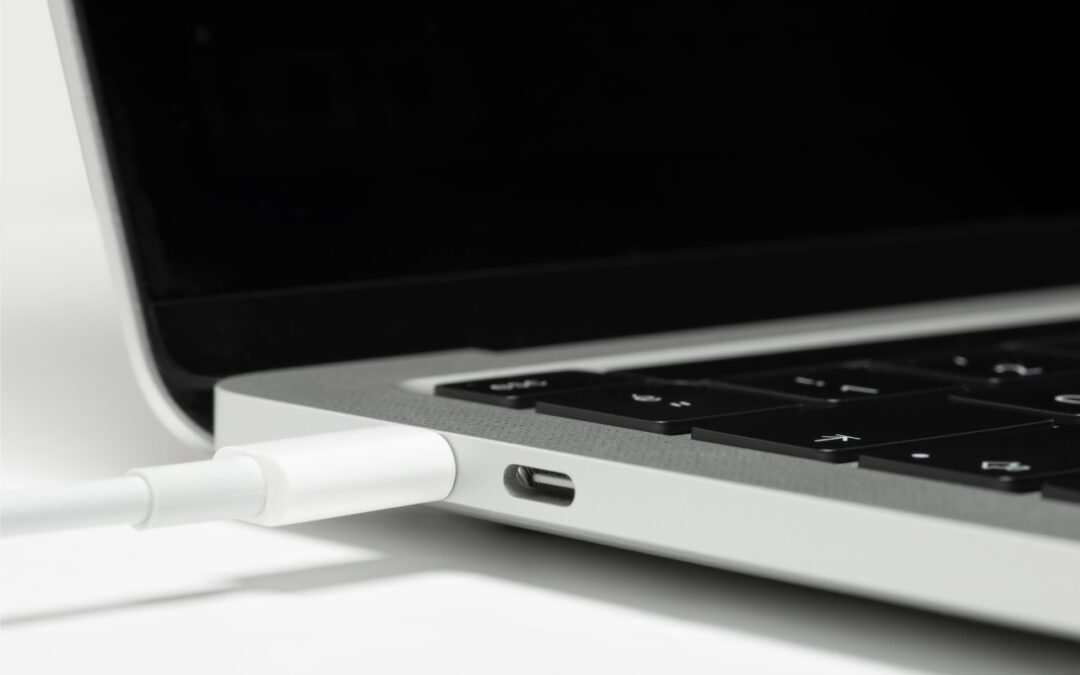
Booting from an external SSD (hard disks are too slow) provides a convenient way to test specific versions of macOS or troubleshoot problems with your Mac’s internal storage. However, a little-known gotcha has caused untold hair loss among those trying to boot from an external drive. Macs with Apple silicon cannot start up from external drives connected to their DFU (device firmware update) USB-C port. The only way to determine which port this is on a given Mac is to look it up on Apple’s website. If your Mac won’t boot from an external drive, connect it to a different USB-C port.

(Featured image by iStock.com/ardasavasciogullari)
Social Media: If your Apple silicon Mac won’t boot from an external drive, the issue may be related to which USB-C port you’re using—the special DFU port cannot be used for booting from external drives. Learn how to identify that port on your Mac.

Recent Comments