
by Steve Sorbo | Mar 7, 2025 | Uncategorized
Ever since Apple launched the iTunes Store in 2003 with online accounts known as Apple IDs—now referred to as Apple Accounts—many users have ended up with multiple accounts. This situation arose partly because the early Apple IDs were tied to accounts users created with iTools and its successor, .Mac, which later evolved into MobileMe and then iCloud. Especially after Apple introduced the App Store in 2008, it was common for individuals with several Apple IDs to have their purchases scattered across different accounts.
Throughout that time, users have clamored to be able to merge accounts. Apple’s response was to let devices have a primary Apple Account for iCloud and other key features, plus another specifically for Media & Purchases. Others worked around the limitation by adding the second account to a Family Sharing group. That sufficed for most people but was never ideal, and we continue to field questions from people who want to merge the accounts.
It now appears that climate change has caused hell to freeze over, as Apple recently published three support articles detailing how to migrate apps, music, TV shows, books, and other digital purchases from one of your Apple Accounts to another:
It’s important to note that migrating purchases from a secondary account to a primary account is not exactly the same as merging them. iCloud data, account balances, and personalized recommendations in Apple’s media apps won’t transfer from the secondary account to the primary, nor will TestFlight betas for those who test apps for developers. Additionally, you will not be able to edit App Store reviews created with your secondary Apple Account after migration. The secondary account doesn’t go away, which also prevents certain other uses.
Normally, we’d tell you how to perform the migration, but because there are so many details and caveats, we recommend that you carefully read and follow Apple’s documentation linked above instead, especially since Apple may update it with new information as the feature gets more use. It explains:
- Why you might want to migrate purchases
- What happens when you migrate purchases
- What doesn’t migrate with your purchases
- What happens to your secondary account after migration
- Who can migrate purchases
- What to do before you migrate purchases
- How to migrate purchases
- What to do after migrating purchases
- Why you might not be able to migrate purchases
- What to do if you decide to undo a migration
- How to undo a migration of purchases
- What happens if you undo a migration of purchases
- What to do after you undo a migration of purchases
We’re happy to walk you through a migration, but if you can’t migrate purchases, you should call Apple Support. The list of reasons why a migration may not work is long and technical, and Apple Support may have access to internal data that will explain the problem.
If you have long chafed at having to maintain multiple Apple Accounts because of a decision you made many years ago, now’s your chance to clean up the mess. Good luck!
(Featured image based on an original by iStock.com/metamorworks)
Social Media: After decades of users asking to be able to merge Apple Accounts, Apple has just published documentation on how to migrate purchases from one of your Apple Accounts to another. Hallelujah!
by Steve Sorbo | Feb 20, 2025 | Uncategorized
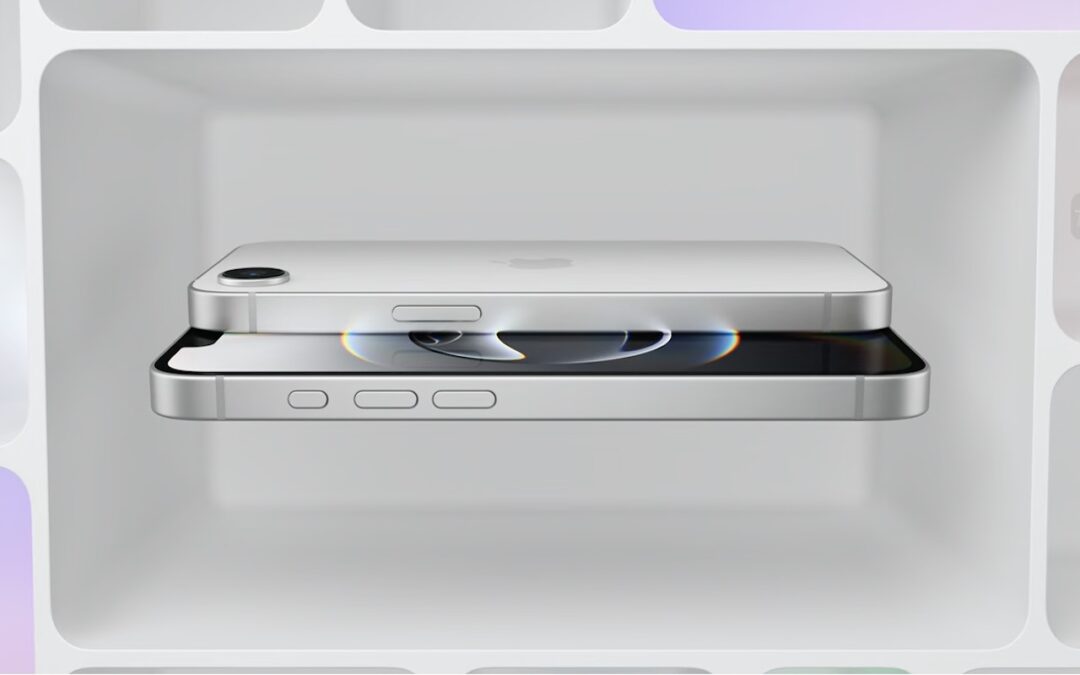
We know iPhones can get pricey—a top-of-the-line 1 TB iPhone 16 Pro Max costs $1,599, and that’s before AppleCare. To make the lineup more affordable, Apple has long sold the iPhone SE and kept previous years’ models available. Until February 18, you could buy a 64 GB iPhone SE for $429 or a 128 GB iPhone 14 for $599. Apple has now simplified the low-end choices by dropping those two older models in favor of the new iPhone 16e, which also starts at $599 for 128 GB of storage. It’s available in black or white.

Physically, the iPhone 16e is a cross between the iPhone 14 and the iPhone 16. Its case dimensions match those of the iPhone 14, and it has the older notch design instead of the iPhone 16’s Dynamic Island. However, the iPhone 16e incorporates the iPhone 16’s Action button and uses USB-C.
What the iPhone 16e doesn’t do is replace the third-generation iPhone SE in terms of price or size. At $599, it’s $170 more than the 64 GB iPhone SE and $120 more than the comparable 128 GB model. That’s a significant increase for the most affordable iPhone. Moreover, while the iPhone SE’s compact size made it popular among those with smaller hands and pockets, the iPhone 16e is significantly taller, wider, thicker, and heavier. Anyone moving from an iPhone SE will feel the difference.
In exchange for its higher price and larger size, the iPhone 16e delivers significantly more technology than the iPhone SE. It replaces Touch ID with Face ID, boasts a much larger, brighter screen, sports notably improved front and rear cameras, and is powered by an A18 chip that is 40% faster than the iPhone SE’s A15 Bionic and supports Apple Intelligence features. The Action button can be customized to perform nearly any function and will soon also provide access to Visual Intelligence. The iPhone 16e also offers satellite connectivity for Messages, Roadside Assistance, and Emergency SOS in areas without cellular coverage, and it can alert emergency services after a car crash. Finally, it’s even more water- and dust-resistant.

Screenshot
However, it’s also worth comparing the iPhone 16e to the iPhone 16, which starts at $799. That $200 premium gets you a lot, including a brighter screen, the Dynamic Island instead of a notch, a Camera Control button, a more advanced dual-camera system featuring a 12-megapixel Ultra Wide camera, a slightly more powerful A18 chip, 25-watt MagSafe charging with support for MagSafe accessories, and Ultra Wideband for precise Find My locating. Additionally, the iPhone 16’s camera system provides macro and spatial photography, as well as video features like cinematic mode, action mode, spatial videos, and macro recording. It may also deliver better optical image stabilization.
The only area where the iPhone 16e outperforms the iPhone 16 is in battery life. In Apple’s benchmarks, the iPhone 16e provides 12% to 18% longer runtime. The enhanced endurance is partly due to the power efficiency of Apple’s new C1 wireless communications chip. Apple also said it redesigned the internals of the iPhone 16e to accommodate a larger battery. The longer battery life may be especially welcome for those who expect to keep their iPhones for years.
Apple’s new C1 chip is a big deal, and the company wants to use it in future iPhone models to improve battery life and wireless performance. However, it’s worth keeping in mind that the C1 may suffer teething pains that Apple will address in software updates. Although Apple undoubtedly believes the C1 will work well, there’s no telling what will happen in the real world, and the company’s engineers may need to tweak it to address performance or reliability issues.
If you’re in the market for a new iPhone, what should you choose? The iPhone 16e is the best option for those on a tight budget since it’s the most affordable. (Last year’s iPhone 15, which is still available, starts at $699 and doesn’t support Apple Intelligence.) However, if you can afford that extra $200, the iPhone 16 is significantly more capable thanks to its superior rear camera system, Camera Control button, MagSafe compatibility, and Dynamic Island. For all the differences, check Apple’s iPhone comparison tool.
Finally, those seeking a smaller, lighter iPhone are out of luck. Their best hope lies with the rumored iPhone 17 Air, which is expected to arrive in September and could be thinner and lighter while maintaining the same height and width.
(Featured image by Apple)
Social Media: Apple has unveiled the iPhone 16e for $599 and discontinued the iPhone SE and iPhone 14. It’s much more capable than the models it replaces, but the iPhone 16 may be worth $200 more. Read our buying advice here:

by Steve Sorbo | Feb 7, 2025 | Uncategorized
Apple has launched the new Apple Invites iPhone app for planning social events with friends and family. Apple Invites requires iOS 18 on the iPhone, and you can also use it at iCloud.com/invites on the Mac and iPad. Event creation is limited to iCloud+ subscribers (those who pay for extra iCloud storage), but anyone can RSVP for an event, even if they don’t have the app, an Apple Account, or an Apple device. Creating an event is straightforward: simply name the event, set a date and optional time, specify a location, add a description, and pick a background. You can then invite people directly or by sharing a public link. Guests can RSVP whether they’re attending, not attending, or are unsure, and they can change their name and provide a custom response. Apple Invites may not change the world, but it’s a nice alternative to ad-infested invitation services.

(Featured image by iStock.com/Jacob Wackerhausen)
Social Media: The new Apple Invites app for iPhone simplifies inviting friends and family to social events for iCloud+ subscribers. Anyone can RSVP, even if they don’t use Apple devices.

by Steve Sorbo | Feb 7, 2025 | Uncategorized
In iOS 18, iPadOS 18, and macOS 15 Sequoia, Apple removed a standard feature of the Calculator app that allowed users to press the = button multiple times to repeat the last mathematical operation. Following user complaints, the company reinstated this feature in iOS 18.3, iPadOS 18.3, and macOS 15.3. Now, to calculate the compound interest from investing $1,000 at 5%, you can multiply 1000 by 1.05 and press = repeatedly to see how your investment would grow. (To open the history sidebar on the Mac, choose View > Show History; on the iPhone, tap the hamburger button in the upper-left corner.)

(Featured image by iStock.com/drasko)
Social Media: Did you know that Apple’s Calculator app can repeat the last operation when you press = multiple times, which is helpful for tasks like calculating compound interest? Although this feature had briefly disappeared, it’s back now.
by Steve Sorbo | Feb 7, 2025 | Uncategorized
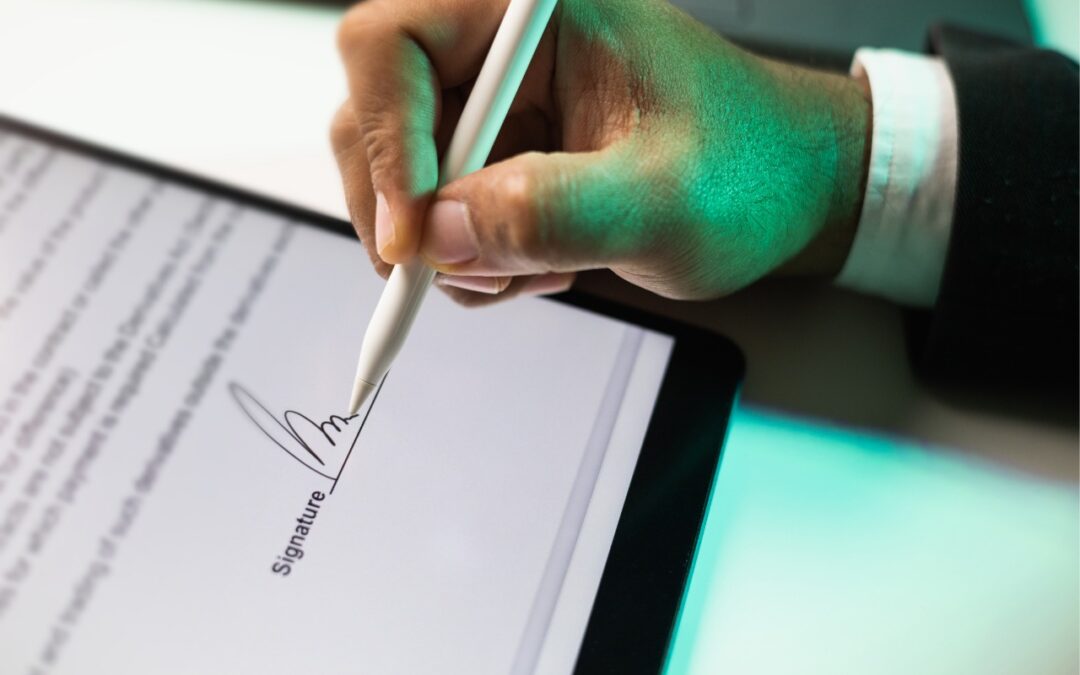
You can now work directly with PDFs received in the Mail app using a little-known feature in iOS 18 and iPadOS 18. Tap a PDF attachment in a message and use the Markup and Form Fill buttons at the bottom to access the PDF markup and filling tools. After modifying your PDF, tapping the Done button gives you options for what to do with the PDF: include it in a reply, create a new message with it, save it to Files, or discard the changes.

(Featured image by iStock.com/chanakon laorob)
Social Media: Have you ever needed to sign or annotate a PDF you received in the Mail app on your iPhone? With iOS 18 and iPadOS 18, you can manage PDFs directly in Mail. Once you’re finished, you can attach the modified PDF to a reply or a new message.

Recent Comments