
by Steve Sorbo | Nov 1, 2024 | TCN Content
iPhones and iPads are highly personal devices, but you might want to let someone else use a particular app on yours without letting them poke through Messages, Mail, and Photos. For example, a child could play a game, a volunteer could check in attendees, or a friend could take photos. To allow this, Apple created Guided Access, which you turn on in Settings > Accessibility—give it an easily remembered passcode and decide if you want to let the display auto-lock. Then, to turn on Guided Access, open the app you want to share and triple-click the side or top button. Options let you control buttons, the accelerometer, software keyboards, touch input, and a time limit. To end a Guided Access session, triple-click the side or top button, enter the Guided Access passcode, and tap End.

(Featured image by iStock.com/Userba011d64_201)
Social Media: If you’d like to allow a child, friend, or colleague to enjoy a specific app on your iPhone or iPad while keeping them focused and preventing access to everything else on the device, check out Apple’s Guided Access feature.

by Steve Sorbo | Nov 1, 2024 | TCN Content
We’ve seen an uptick in fake invoices from scammers using PayPal. Because they’re being sent through PayPal itself, spam filters won’t catch them, and they have few of the usual markers of phishing email (but look for sketchy names and email addresses at the top). Some are even forged to appear as if they come from Apple. Never pay a PayPal invoice that you can’t tie directly to something you’ve ordered, and don’t call the number listed—the scammer will try to convince you that the invoice is real. If you receive one of these invoices, click the “Report this invoice” link at the bottom to help protect others who might have received it, and forward the message to phishing@paypal.com. Don’t mark the invoice as spam, though, since that will train your email client to be suspicious of legitimate messages from PayPal.

(Featured image by iStock.com/Moostocker)
Social Media: Beware of PayPal invoice scams that might even appear to come from Apple. Should you receive one, report it to PayPal to help protect other people, but don’t mark the message as spam.
by Steve Sorbo | Nov 1, 2024 | TCN Content
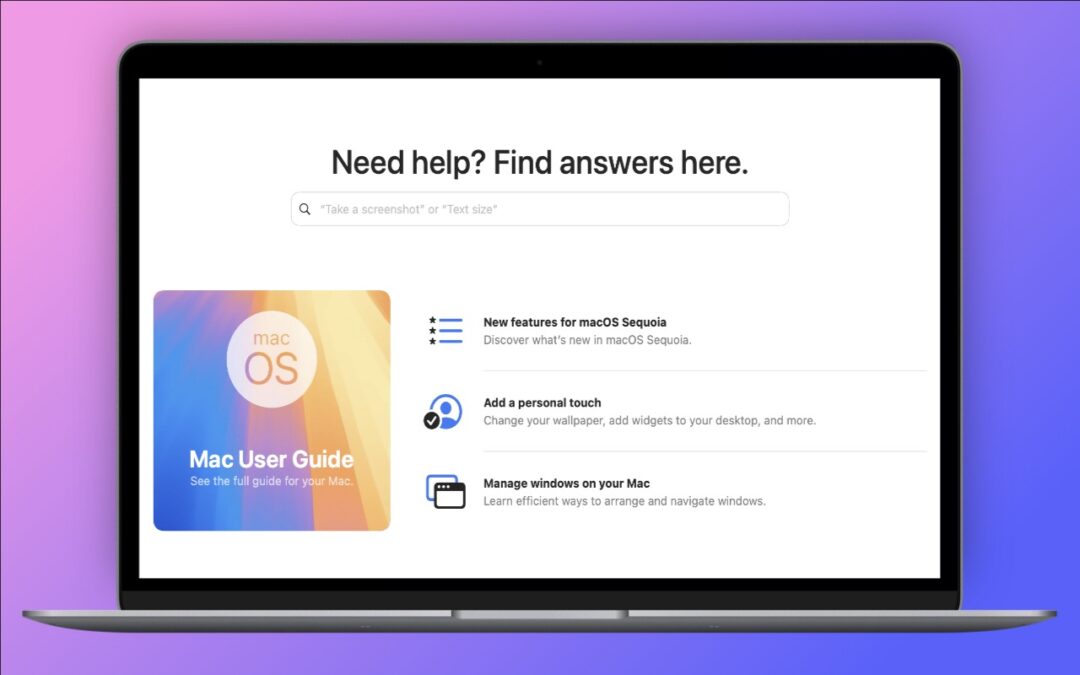
Apple has included the Tips app with the iPhone and iPad since iOS 8 in 2014 and on the Mac since macOS 10.14 Mojave in 2018. Initially, it didn’t contain much useful content, and many longtime users ignored it. However, Apple has significantly increased the amount of information in Tips over time, adding device-specific tips, full device and app user guides, highlights of new features, and more. Many tips even include short demonstration videos. Tips is worth exploring or referring to the next time you have a question. Be sure to encourage anyone you know who’s new to the iPhone, iPad, or Mac to take a look—it even helps them practice key gestures!

(Featured image by Adam Engst)
Social Media: If you haven’t explored Apple’s Tips app on the iPhone, iPad, or Mac recently, check it out. Apple has added a lot more content, including device and app user guides, highlights of new features, and interactive practice guides.

by Steve Sorbo | Nov 1, 2024 | TCN Content
The holiday season is fast approaching, but we’re asked to recommend tech gear year-round. Here are some recommendations if you’re looking for a geeky gift for that special someone or need to supplement your tech toolkit with new or updated equipment. We don’t have personal experience with all these items, and there are undoubtedly many worthy alternatives—next time we chat, let us know about peripherals you’ve particularly liked. Where possible, we provide links to the manufacturer’s product page and to Amazon, where prices are sometimes lower.
External SSD
All Macs now use solid-state storage internally, and the pricing of external solid-state drives now makes them attractive for both additional storage and silent backups. SSDs also provide the ultimate performance for demanding workflows. The Samsung and Crucial SSDs are good general-purpose drives; look at the OWC Envoy Pro FX for high-performance tasks.
External Hard Disk Drive
For extensive backups and massive archives, you need a large external hard drive. They come in sizes up to 20 TB, and you can pay less than $20 per terabyte, although $20–$30 per terabyte is more common. It’s impossible to recommend specific models without knowing how much storage you need, but check out products from these manufacturers. Because hard drive prices fluctuate wildly, visit diskprices.com to identify current deals on new drives.
- Seagate: Seagate offers a collection of desktop and portable drives under its own name and the LaCie brand. Apart from some of the larger LaCie drives, most are aimed at consumers.
- Western Digital: Although some suggest that Western Digital drives are less reliable than Seagate’s, many people like the company’s wide variety of external hard drives.
- OWC: Other World Computing sells desktop and portable drives with an emphasis on RAID storage and professional uses. OWC also offers enclosures into which you can install bare drives purchased elsewhere, which can save money if you want to upgrade the drive over time.
External Displays
You can find a wide array of displays that work with a Mac, with Apple’s Studio Display leading the pack in both features and price. It’s a 5K display that provides unparalleled sharpness at its standard pixel-doubled resolution of 2560×1440. There’s little direct competition—LG offers the main 5K display that’s cheaper. If that still exceeds your budget, check out the 27-inch 4K displays from Alogic and Asus, which connect via USB-C. Dell and BenQ also make high-quality screens that connect using Thunderbolt. Note that these third-party displays don’t include webcams and generally feature subpar speakers compared to the Apple Studio Display, so building a comparable display would require a separate webcam (or an iPhone using Continuity Camera) and speakers.
Laptop Chargers
Although all MacBooks come with a power adapter, you might want additional chargers that stay plugged in wherever you work or take up less space in your laptop bag. Plus, Apple’s chargers, though high quality, are expensive and large. Consider these alternatives, keeping in mind that fast charging requires higher wattages than standard charging (70W for the M3 MacBook Air, 96W for the 14-inch MacBook Pro, and 140W for the 16-inch MacBook Pro). Extra ports are often welcome, and the OneAdaptr chargers work in 200 countries.
USB Hubs
There are lots of reasons to want a USB hub, and your needs will push you toward one product or another. We chose three options: the Anker 555 provides many different types of ports, the Anker 10-port hub provides numerous USB Type-A ports, and the Satechi 4-port hub offers USB-C ports.
Thunderbolt Docks
USB hubs are sufficient for many situations, but for more demanding setups, you’ll want a Thunderbolt dock that enables you to connect multiple external displays, hard drives, and Gigabit Ethernet, all while using high-wattage charging. The Sonnet and CalDigit docks boast the most ports in horizontal and vertical form factors, respectively, and the OWC dock trades some ports for portability.
Non-Apple Pointing Devices
Some people dislike trackpads, and others aren’t fond of Apple’s Magic Mouse. Luckily, there are plenty of alternatives. Although most Bluetooth mice will work with the Mac, additional software may be necessary to control tracking speed, extra buttons, or scroll wheels. Unusual pointing devices like the Kensington trackball and Contour RollerMouse may be appreciated by those suffering from hand or wrist pain from mousing.
Non-Apple Mac Keyboards
All Macs other than the Mac mini come with a keyboard, of course, but if you’re not a fan of the feel and minimal key travel of Apple’s keyboards, you might consider an alternative. You’ll need to decide if you want a full-size keyboard with a numeric keypad or a compact keyboard that takes up less space on your desk—there are also various sizes in between. Also, keyboards use different switches under their keycaps, so it may require experimentation to find what you like best. It’s worth buying a keyboard aimed at the Mac market to ensure it has or can be configured with the correct keys. The recommendations below should get you started; also check out other products from these manufacturers.
iPad Keyboards
Apple makes some of the best keyboards for the iPad, but they don’t work with all older models. The company makes the Magic Keyboard for the M4 iPad Pro models, the Magic Keyboard that works with the iPad Air and earlier iPad Pro models, and the Magic Keyboard Folio for the 10th-generation iPad. If you want to spend less, leave out the trackpad, or have a different case design, look into the alternatives.
Small Device External Batteries
Although Apple continuously works to improve battery life for the iPhone, iPad, Apple Watch, and AirPods, there will always be situations—travel, camping, non-stop use—where an external battery is a lifesaver. That’s especially true for older devices whose batteries don’t last as long as they used to.
MagSafe Chargers for the iPhone
Wired charging will always be faster and more efficient than wireless charging, but the convenience of MagSafe charging for the iPhone is compelling. As a bonus, MagSafe chargers can also power wireless charging cases for the AirPods Pro, and some, like the KUXIU X55, feature a puck for recharging the Apple Watch.
Let us leave you with a final piece of advice. For many of these product categories, you’ll find a dizzying array of alternatives at bargain basement prices from no-name Chinese manufacturers. While it’s impossible to make blanket assertions, we recommend sticking with reputable companies that have been serving Apple users for years. Even if their products are somewhat more expensive, they’re less likely to cut corners on manufacturing quality and safety and more likely to provide support in the event of problems.
(Featured image by iStock.com/Gatot Adriansyah)
Social Media: If you’re looking for a geeky gift for the Apple user on your holiday list or need to bolster your tech toolkit with new or updated gear, read our recommendations for a wide variety of peripherals.
by Steve Sorbo | Nov 1, 2024 | TCN Content
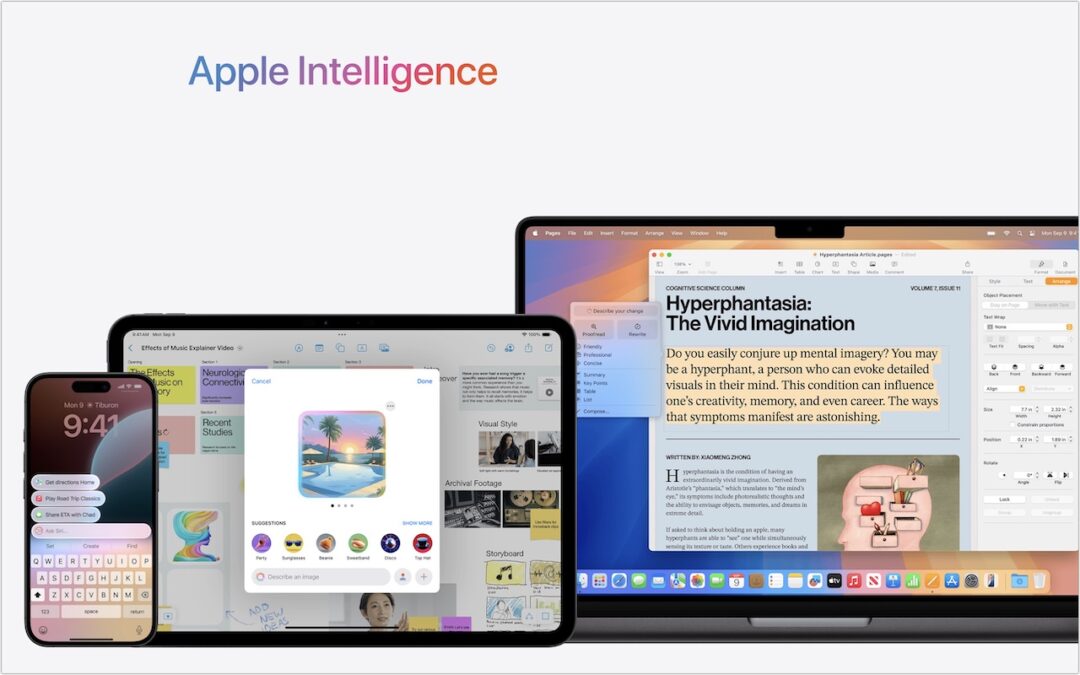
Is it time to make your Apple devices smarter? Apple has just released macOS 15.1 Sequoia, iOS 18.1, and iPadOS 18.1 with an initial collection of Apple Intelligence features and a promise of more coming in December. The company is making a big deal about Apple Intelligence, calling it out as a key feature of the recent updates to the iPad mini, iMac, Mac mini, and MacBook Pro.
You may need some of that new hardware to take advantage of Apple Intelligence. Its features work only on a Mac with Apple silicon, an iPad with an A17 Pro or M-series chip, or an iPhone 15 Pro or any iPhone 16. Intel-based Macs and older iPhones and iPads can’t play.
Although we have no problem with recommending that you upgrade your iPhone and iPad to iOS 18.1 and iPadOS 18.1, we recommend more caution when it comes to upgrading your Mac to macOS 15.1 Sequoia. There aren’t any general showstoppers, but you shouldn’t upgrade until you’re confident your particular workflows are fully compatible.
What will Apple Intelligence do for you if you upgrade? Here’s what you need to know.
Writing Tools Everywhere
The Apple Intelligence Writing Tools will help you craft and polish your prose—or just make your email sound more professional. Writing Tools provides three core functions:
- Proofread: The Proofread tool will significantly reduce spelling, punctuation, and grammar mistakes in your text. While it may not match up with a human proofreader, using it will make your text cleaner.

- Rewrite: If you’re unhappy with the tone of your text, use the Rewrite tool to improve it or make it friendlier, more professional, or shorter. Even if you don’t adopt the complete rewrite, some of its phrases or word choices might take your writing up a notch.
- Summarize: A straight summary might be useful for condensing text, and specialized summaries can list key points, make a list, or create a table. These features are probably most useful when working with text you’ve been given and need to edit into shape.
Writing Tools are available in nearly all apps that accept text. Either look for an Edit > Writing Tools menu or Control-click a text selection and look in the Writing Tools submenu. Right now, Apple apps like Mail and Notes provide proofreading controls that let you see (and revert) each change independently. With the Rewrite and Summary tools and Proofread in other apps, you have to compare the original and the rewrite manually, with your only options being to replace the selected text or copy the suggested revision.
Photos Enhancements
Photos benefits from Apple Intelligence in three ways as well:
- Clean Up: Many a great photo suffers from a random bystander or distracting telephone pole. Clean Up removes people and objects from your photos, either identifying them automatically or working from your manual selection. It’s not perfect, but Clean Up is a hugely welcome addition to Photos.

- Descriptive search: We’ve been able to search for objects in photos for several years now, but with Apple Intelligence, you’ll be able to find photos and videos based on more extensive and natural descriptions, like “Halloween in 2014.”
- Descriptive memory movies: The Memories feature in Photos automatically creates movies based on photos it thinks you might want to see together. With Apple Intelligence, you can describe the photos you’d like it to include.
Notification Summaries
Apple has long been sensitive about how distracting our devices can be due to numerous apps posting notifications throughout the day. Apple Intelligence tries to help by summarizing lengthy individual notifications and groups of notifications. Notification summaries probably won’t rock your world, but it can be nice to have a sense of what’s going on with a group of notifications before you wade into an involved conversation. If you don’t like the summaries for particular apps, turn them off in Settings > Notifications > Summarize Previews.

Mail (and Messages) Enhancements
Speaking of summaries, in Mail, the most welcome Apple Intelligence change is to replace each first-line snippet in message lists with summaries of the message or conversation content. It makes scanning email for important messages easier.

Other Apple Intelligence changes include moving priority messages—those that require a quick reply—to the top of the message list and the option to summarize long messages or conversations using a Summarize button at the top of the message pane. Both Mail and Messages also offer a Smart Reply feature that suggests reasonable replies. They’re like tapback responses on steroids.
Audio Recording, Transcription, and Summarization
Apple Intelligence offers major advances for the Notes and Phone apps: audio recording, transcription, and summarization. Be aware that the Phone app alerts participants when you start recording—just joke, “For quality assurance…” before tapping the record button.
The big win comes with Notes (on the iPhone, iPad, and Mac), which can record a meeting and provide a transcript for later searching and summarization. The clearer the audio, the better. It stumbles on many names and doesn’t differentiate between speakers, but transcripts can be hugely helpful. You can keep a transcript in its recording (left), where you can jump around in the audio by tapping the associated text, or you can use the ••• button to export it to its enclosing note (middle) or tap a button to get a summary (right).

Siri Enhancements
Apple has promised a lot for Siri but hasn’t delivered much. A new interface replaces the animated circle with a glowing light and the option to type your query rather than speak it. However, the only functional improvement from Apple Intelligence so far seems to be Siri’s awareness of the iPhone, iPad, and Mac user guides. If you’re unsure how to accomplish a built-in task, try asking Siri.

What’s Coming Next
Welcome though they may be, the initial wave of Apple Intelligence features won’t set the world on fire. But Apple has big plans for Apple Intelligence, with new features slated for release in December 2024 and more coming in 2025. Things you can look forward to in a few months include:
- ChatGPT will make its promised appearance, bringing world knowledge into Writing Tools and Siri.
- You can jazz up your conversations in Messages with original Genomoji merely by describing the emoji you’d like to see. “Penguin on a surfboard,” anyone?
- The Image Playground feature will let you generate original images in various styles, though none are photorealistic on purpose—no deepfakes from Apple.
- Image Wand will enhance your Apple Pencil sketches by turning them into polished images, and if you circle an empty space, Image Wand will create an image from the surrounding area.
- Writing Tools will let you describe a specific change you want to apply to your text, like adding more descriptive words to a blog post. We hope Apple puts more thought into the workflow so it’s easier to compare the before and after.
- The Camera Control button on the iPhone 16 line will tap Apple Intelligence to help users learn about objects and places in the iPhone’s viewfinder.
Further out, Apple says that Priority Notifications will surface your most important notifications, and Siri will learn how to draw from your personal context, take action in numerous apps, and gain awareness of onscreen information. We’re still curious to see how Apple will integrate a more intelligent Siri into the HomePod and Apple TV.
(Featured image by Apple)
Social Media: Apple Intelligence is here! These initial features won’t upend your Apple experience, but welcome additions include notification summaries in Messages, message list summaries in Mail, Clean Up in Photos, and audio transcripts and summaries in Notes.

Recent Comments