
by Steve Sorbo | May 1, 2026 | Uncategorized
The Camera Control on iPhone 16 and later models lets you open the Camera app and take a photo with the press of a button. But it’s more than just a simple button—it features a touch-sensitive surface that lets you adjust a variety of settings without having to tap the screen.
To access the controls, you either lightly press the Camera Control or swipe along it. From there, lightly double-press to enter a setting, swipe to adjust it, and lightly double-press again to go back. A full press takes a photo no matter where you are in the controls.

While the Camera Control’s default configuration provides access to everything it can do, that can be overwhelming for people who want to take quick snapshots without inadvertently changing settings like exposure and depth. We recommend taking a spin through the options in Settings > Camera > Camera Control to configure it for your needs. Here’s what each option does and when you might want to change it.
Launch Camera
Although most people use Apple’s Camera app, you can configure the Camera Control to open other camera apps as well. (Plus, if you want to disable the Camera Control entirely, select None.) Apps must be specifically designed to work with the Camera Control, so not all third-party camera apps will appear in this list.

Click to Open Camera
By default, a single click on the Camera Control opens the Camera app. If you often find yourself accidentally opening the camera—perhaps when pulling it from a pocket—you can switch to Double Click, which requires two presses to launch the app.
Require Screen On
The Require Screen On switch provides another way to reduce inadvertent camera activations. When selected, pressing the Camera Control opens the Camera app only if the screen is already on. If it’s not, the first press of the Camera Control turns on the screen and a second press opens the Camera app. Leave this switch off if you want one-click access to the camera even when the iPhone’s screen is off—ideal for the fastest shots.
Customize Controls
Along with launching the Camera app and taking a photo, the Camera Control lets you access and adjust numerous camera-related settings using its touch-sensitive surface. If you often find yourself accidentally enmeshed in camera settings when you just want to take a photo, consider turning off Camera Adjustments entirely.
But for those who like tweaking settings, the Camera Control provides a shortcut that doesn’t require tapping the screen. In the Customize screen, you choose which settings appear when you lightly press the Camera Control while using the camera.
Above the list of controls, you’ll find a gesture setting that determines how you access them—via a light press, a long swipe, or both. You can choose one or both, but turning both off blocks access to the controls entirely.

The available controls include:
- Exposure: Brightens or darkens the overall scene
- Depth: Adjusts background blur intensity
- Zoom: Switches between zoom levels
- Cameras: Switches between the front camera and the rear cameras
- Styles: Changes the active Photographic Style
- Tone: Adjusts the mood by lightening or deepening tones
You can turn each setting on or off and drag them into your preferred order. If you rarely use Tone but frequently take selfies, for instance, you might turn off Tone and move Cameras to the top of the list. Fewer options mean faster access to the ones you actually use.
Don’t feel shy about using only one or two controls, or about turning off the adjustments completely. There’s nothing worse than missing a great photo because you’ve inadvertently gotten lost in the controls.
One final note: enabling the Clean Preview switch hides the Camera app’s on-screen buttons and overlays—like the shutter button, zoom controls, and mode switcher—while you’re making adjustments using the Camera Control, giving you an unobstructed view of the scene.
Lock Focus and Exposure
When enabled, this option lets you lock both focus and exposure. Lightly press and hold the Camera Control, and then keep your finger on it to maintain those focus and exposure settings as you reframe the shot. (You’ll see AE/AF LOCK at the top of the viewfinder.) This option can be useful when shooting a subject against a bright background or in changing light conditions—the camera won’t readjust as you reframe. Release your finger to unlock. If you’ve never needed this feature, leave it off to simplify Camera Control behavior.
Launch Visual Intelligence
There are two more settings at the bottom of the Camera Control settings screen. Outside of actively shooting a photo, pressing and holding the Camera Control provides access to Visual Intelligence, the Apple Intelligence feature that lets you point the camera at an object and learn more about it. It can be a quick way to ask ChatGPT about something you see or do a Google search for similar items, but if you don’t find it useful, turn it off.

Accessibility Options
This option is a shortcut to Settings > Accessibility > Camera Control, where you can adjust the pressure sensitivity and timing for the light press, light double-press, and double-click gestures. If you find the Camera Control too sensitive or not responsive enough, these options let you fine-tune it to match your preferences.
Overall, we like how the Camera Control makes it easier to take photos quickly, but from what we’ve seen, many people get confused by the many possible adjustments. If that’s you, turn them off so the Camera Control becomes a straightforward shutter button.
(Featured image by Adam Engst)
Social Media: The Camera Control on the iPhone 16 and later is more than a shutter button—it’s a touch-sensitive shortcut to zoom, exposure, depth, and more. Here’s how to configure it so it works for you or doesn’t get in your way.

by Steve Sorbo | May 1, 2026 | Uncategorized
Silicon Valley thinks everyone wants to delegate writing to AI, which is why Apple Intelligence constantly suggests replies for you in Messages and Mail. But there’s an excellent way to supercharge your typing speed without sounding like a chirpy chatbot or resorting to teenage texting abbreviations: text expansion.
Text expansion speeds up typing words or phrases that you use regularly, and it’s especially helpful for character combinations that your fingers find awkward—just try touch-typing “Hyundai IONIQ 5” or “acetaminophen.” Apple has long offered text expansion capabilities in macOS, iOS, and iPadOS, and third-party utilities take them even further.
Configuring and Using Text Expansion
To configure the built-in text expansion on the Mac, look in System Settings > Keyboard > Text Replacements; in iOS and iPadOS, go to Settings > General > Keyboard > Text Replacement. In each, a text replacement consists of a shortcut and a replacement phrase.

Then, in almost any app, type the shortcut, followed by a space or a punctuation character, and its phrase will replace it. If text expansion doesn’t work in a Mac app like Mail or Safari, make sure Edit > Substitutions > Text Replacement is selected.
If you’re signed into the same Apple Account on all your devices, text expansions sync between them automatically. So, you can type omw and tap the Space bar to have “On my way!” typed out for you, regardless of what device you’re using.

Tip: To create replacements more quickly, you can export a list of text replacements, edit the list, and re-import it; Apple provides instructions. This export/import capability also lets you share text replacements with someone else.
What Text to Expand
Replacements can be as short or long as you like—up to about 1900 characters—and can contain anything you can type from the keyboard, including spaces, returns, symbols, accented characters, and emoji. It can be hard to know where to start, but once you try text expansion, possibilities quickly become obvious. A few common categories include:
- Your email address, phone number, and postal address
- Boilerplate text for common email replies (“To subscribe to our mailing list…”)
- Email signoffs (“Sincerely, your close personal Internet friend…”)
- Frequently shared URLs or email addresses (https://www.apple.com/feedback/)
- Long scientific, medical, or technical terms (esophagogastroduodenoscopy)
- Proper nouns with unusual spelling, capitalization, or accents (Zoë Saldaña)
- Words you consistently misspell or mistype (teh)
- Unix commands with arguments (ls -la)
Shortcuts are usually shorter than their replacements, but you can also use text expansion to simplify entering individual characters that are hard to access.
- Commonly used emoji (🙄 or 👍)
- Special characters (½ or →)
One helpful convention is to start shortcuts for special characters with a colon. For example, :roll for 🙄 or :tu for 👍. The colon prefix makes these shortcuts easy to remember and prevents accidental expansions. Make sure not to create shortcuts that you’ll also want to type normally. It might seem like a good idea to use mm for “Mickey Mouse,” but that will get in the way of writing about 35mm film.
Third-Party Text Expansion
With such a useful feature built into macOS and iOS, why would you want to spend money on a third-party utility like TextExpander (macOS and iOS), Typinator (macOS and iOS), or TypeIt4Me (macOS)?
Apple’s built-in text expansion works well for most everyday uses, but it has some limitations—its interface is cramped, it doesn’t work in every app, and you can’t include formatted text or images in your expansions. Third-party utilities fill those gaps.
They can include styled text and graphics in expansions, insert the current date and time, respect case when expanding abbreviations, include the contents of the clipboard in expanded text, automatically fix common typos, and much more.
So think about which bits of text you might want to expand automatically, and give Apple’s built-in text expansion feature a try today! If it seems constraining after a while, a third-party app can take text expansion to the next level.
(Featured image generated by Adam Engst with ChatGPT)
Social Media: Tired of typing the same email address, phone number, or tricky words over and over? Text expansion on Mac and iOS can save you keystrokes every day.
by Steve Sorbo | May 1, 2026 | Uncategorized
Securing your home network might seem uninteresting or unimportant—after all, who would bother to target you? The answer is that criminal hackers are interested in your router for a range of disturbing purposes, including attacks on your employer if you connect to a corporate network. It’s time to get serious about home network security, a fact underscored by recent news of hacking by the Russian military.
In April 2026, the U.S. Department of Justice announced Operation Masquerade, which disrupted a campaign by a hacking unit of Russia’s GRU that compromised thousands of home and small-office routers. The attackers exploited known vulnerabilities in TP-Link routers to hijack DNS settings and redirect victims to fake Web pages that harvested passwords, authentication tokens, emails, and other sensitive information.
The attack was opportunistic: the GRU cast a wide net, compromising routers indiscriminately, then filtered for targets of intelligence value. Your data may not be interesting to Russian intelligence, but the same vulnerabilities can be exploited by criminal hackers seeking financial data, credentials for identity theft, or devices to conscript into botnets.
Unlike corporate networks with dedicated IT staff, home routers tend to be installed once and forgotten—sometimes for a decade or more. That old router your AV installer set up with a default password has become a security liability for you, for your employer, and for the world. Here are actions you can take to fix that, in rough order of importance.
Replace Unsupported Routers
Routers can last many years, but manufacturers eventually stop releasing firmware updates. Once that happens, known vulnerabilities go unpatched, and the router becomes ripe for attack. Check your manufacturer’s end-of-life lists (easily found with a search) to see if your model is still supported. If it’s not receiving security updates, replace it regardless of how well it still works.
When shopping for a replacement, look for routers with automatic firmware updates from a well-known manufacturer with a track record of long-term security support, such as Asus, Eero, Google Nest, Netgear, or Ubiquiti. Avoid bargain-basement devices from unknown manufacturers—any initial savings aren’t worth the security risk.
Keep Firmware Updated
Router firmware updates patch security vulnerabilities, and the GRU attack exploited a known vulnerability that had an available fix. Enable automatic firmware updates if your router supports them—many modern routers do. If yours doesn’t support automatic updates, set a monthly reminder to check manually. Because new vulnerabilities are discovered regularly, keeping a router secure is an ongoing process, not a one-time task.
Change Default Passwords
Every router ships with default administrator credentials—often printed on a sticker on the device itself. These defaults are widely known and easily found online. Change the admin password immediately after setup to something strong and unique, and store it in your password manager.
Similarly, change the default Wi-Fi network name (SSID) and password. Use WPA3 for wireless traffic encryption if available; most modern routers support compatibility mode that lets older devices connect while newer ones benefit from stronger security. Never use WEP or leave your network open.
Turn Off Remote Management
Many routers offer a remote login option that allows access to the administrative interface from elsewhere on the Internet (rather than within the router’s own network). Unless you specifically need this capability, deactivate it to reduce your exposure to external attacks. This setting is different from the app-based management provided by some modern routers, which uses a secure account and an outbound connection initiated by the router to enable remote access. App-based management is safe as long as your account password is strong, unique, and protected with two-factor authentication.
Check DNS Settings
As seen in the recent attacks targeting some TP-Link routers, attackers who gain access often change DNS servers to redirect you to malicious websites without your knowledge. Verify that your router’s DNS settings are either obtained automatically from your ISP or point to a reputable service such as Cloudflare (1.1.1.1), Google (8.8.8.8), or Quad9 (9.9.9.9). Unfamiliar IP addresses in these settings are a red flag that your router may have been compromised.
Optional Security Improvements
If you make sure you are using a router that’s still receiving security updates, are installing those updates, and have changed the default admin and Wi-Fi passwords, you’ve achieved an entirely acceptable level of security. With a little more time and effort, you can increase security further:
- Disable WPS (Wi-Fi Protected Setup): If your router supports this push-button pairing feature, turn it off to protect against known vulnerabilities that haven’t been patched for over a decade.
- Segment your network: If you have Internet of Things (IoT) devices—such as cameras, smart TVs, or smart home gear—consider creating a separate network for them. If one is compromised, network separation prevents it from accessing your computers or phones. However, some devices need to be set up or controlled by an app on the same network, so you may need to keep such devices on your main network.
- Consider your ISP gateway: Many ISPs provide gateways that combine the modem and router hardware. If you use an ISP-provided router, make sure you can control the necessary security settings. If you instead prefer to use your own router, make sure to turn off its routing (switch to “bridge mode”) and Wi-Fi features to avoid creating another entry point to your network.
- Monitor your network: Periodically review which devices are connected to your network if your router’s admin interface or companion app makes that possible. Unfamiliar devices could indicate unauthorized access (though it’s more likely you didn’t realize some device connects to Wi-Fi because they seldom identify themselves well).
- Back up your network settings: To simplify reconfiguring your router or setting up a new one, create a backup of key settings. It could be as simple as a set of screenshots.
Home network security isn’t complicated, but it does require some thought at setup and occasional attention. If you’d like help with your network or a pointer to the routers we currently recommend, get in touch.
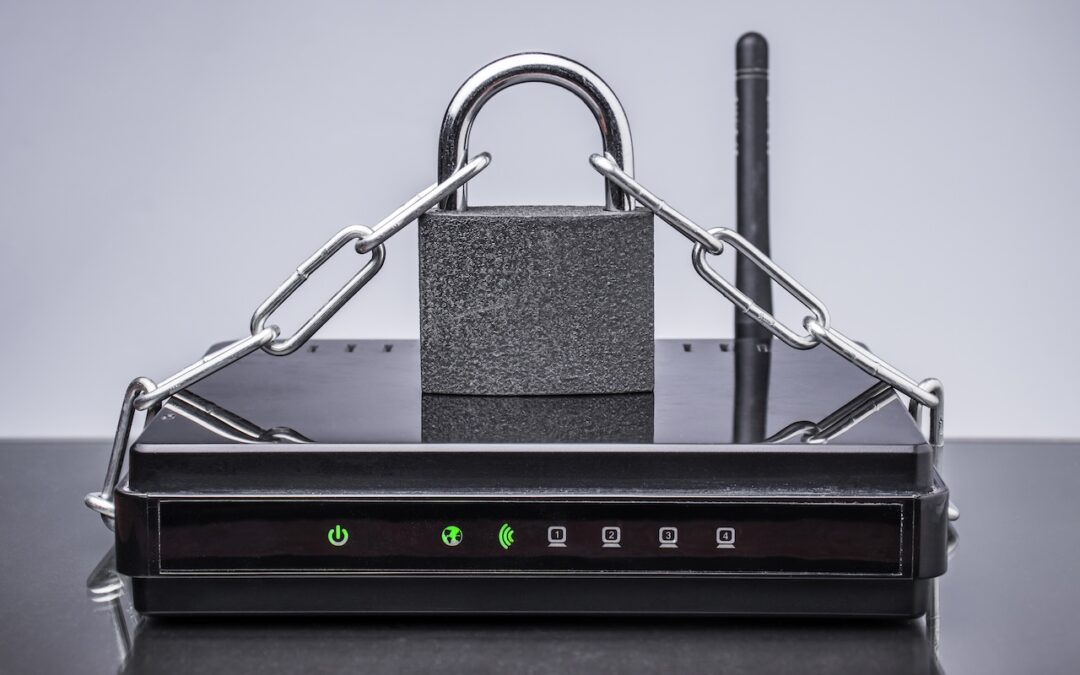
(Featured image by iStock.com/Igor Nikushin)
Social Media: Russian military intelligence recently exploited vulnerable home routers to steal passwords worldwide. You can keep your home network secure by replacing unsupported hardware, enabling automatic updates, and changing default passwords.

by Steve Sorbo | Apr 3, 2026 | Uncategorized
We’ve warned before about scams that trick users into pasting malicious commands into Terminal. Attackers create fake CAPTCHA pages—often resembling Cloudflare’s “are you a human” tests—that instruct visitors to open Terminal, paste a command, and press Return. Because the user executes the command themselves, macOS’s security protections are bypassed. Malwarebytes recently documented a macOS infostealer called Infiniti Stealer that spreads this way, stealing Keychain passwords, browser credentials, and cryptocurrency wallets. These attacks have become common enough that Apple has added a warning in macOS 26.4 Tahoe that appears when a user pastes a potentially dangerous command from Safari into Terminal. The protection is still in its early days—in our testing, the warning dialog appeared only once, with subsequent attempts producing only a beep. Worse, if you allow the first paste, Terminal keeps allowing pastes without further warnings. It’s a step in the right direction, but don’t count on it yet. The core advice remains: never paste commands into Terminal from websites unless you trust the site and fully understand what it does. No legitimate CAPTCHA ever requires Terminal commands!

(Featured image by iStock.com/thomaguery)
Social Media: Fake CAPTCHAs that trick users into pasting malware commands into Terminal are now common enough that Apple added a warning in macOS 26.4 Tahoe. Remember: no legitimate verification ever requires Terminal commands!

by Steve Sorbo | Apr 3, 2026 | Uncategorized
Yes, we know we’re still on macOS 26. In 2025, Apple announced macOS 27 would be the last version to support Rosetta for most Intel-based apps. (Beyond that, Apple will maintain a subset of Rosetta functionality for older, unmaintained gaming titles.) This fact has become relevant because in the just-released macOS 26.4, when you launch apps that rely on Rosetta for Intel compatibility, macOS may start warning you that they won’t open in a future version of macOS. These warnings are just reminders—nothing will change until you upgrade to macOS 28, probably in late 2027 or 2028, giving you plenty of time to find replacements. To identify Intel-based apps now, open System Information from the Utilities folder in your Applications folder, select Applications in the sidebar, and click the Kind column header to sort all your Intel apps together. iMazing’s free Silicon app does the same thing with a nicer interface.

(Featured image based on an original by iStock.com/Kurgenc)
Social Media: Running macOS 26.4? You may start seeing warnings about Intel-based apps not opening. They won’t stop working until macOS 28, but now’s the time to find replacements. Here’s how to identify which apps need attention.

Recent Comments