
by Steve Sorbo | Aug 7, 2026 | TCN Content, Uncategorized
We’ve all ended up with a collection of random USB-C cables that arrived with devices, were purchased while traveling, or were left by visitors. But you can’t look at a cable to determine its data speed, how much power it can carry, or whether it’s hampering display quality. You could buy a hardware tester, but for most people, the free WhatCable is all you need. Just launch it and plug in a cable to learn what the cable can do and whether it might be causing performance or charging problems. If you need even more information, the £9.99 WhatCable Pro lets you name individual cables, troubleshoot flaky cables, and see what each port, cable, dock, adapter, and device supports and what was actually negotiated.

(Featured image by iStock.com/monticelllo)
Social Media: Not sure if your USB-C cable is delivering power and data as it should? USB-C cables look similar but may work differently. Use the free WhatCable app to see what each of your cables supports.
by Steve Sorbo | Aug 7, 2026 | TCN Content, Uncategorized
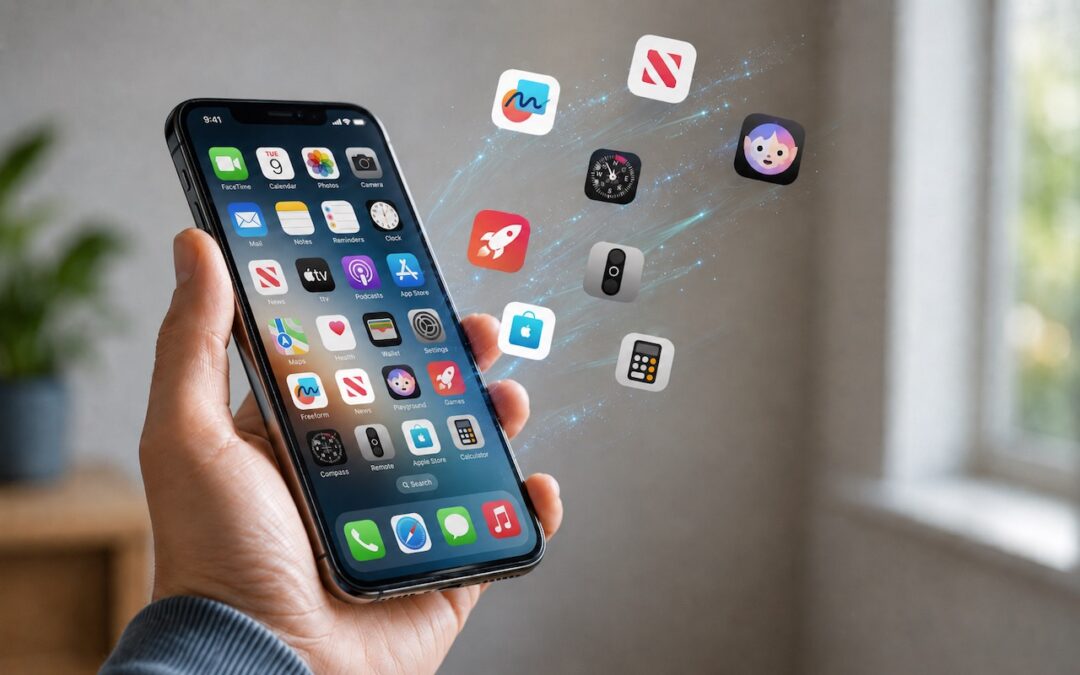
Automatic offloading of seldom-used apps can be a good strategy for recovering space on an iPhone whose storage is almost full, and iOS can do this for you in Settings > Apps > App Store > Offload Unused Apps. When you open an app that was offloaded, iOS will re-download it from the App Store so you can use it—assuming you have Internet access. But what if you have little or no connectivity when you need an offloaded app? For instance, if you have a New York State Parks Empire Pass, you might find yourself unable to use it if the necessary NY State Parks Explorer app has been offloaded and connectivity is weak at the park. We can also imagine app offloading causing problems if you need to use a local transit app after an international flight but haven’t yet arranged local cellular service. If you’re concerned about this possibility, disable Offload Unused Apps and make sure to download any that have been offloaded already.

(Featured image generated by Adam Engst with ChatGPT)
Social Media: Automatic offloading of unused apps saves iPhone storage, but it’s inconvenient if you need an app that has been offloaded and there’s no connectivity to redownload it. Plan ahead!
by Steve Sorbo | Aug 7, 2026 | TCN Content, Uncategorized
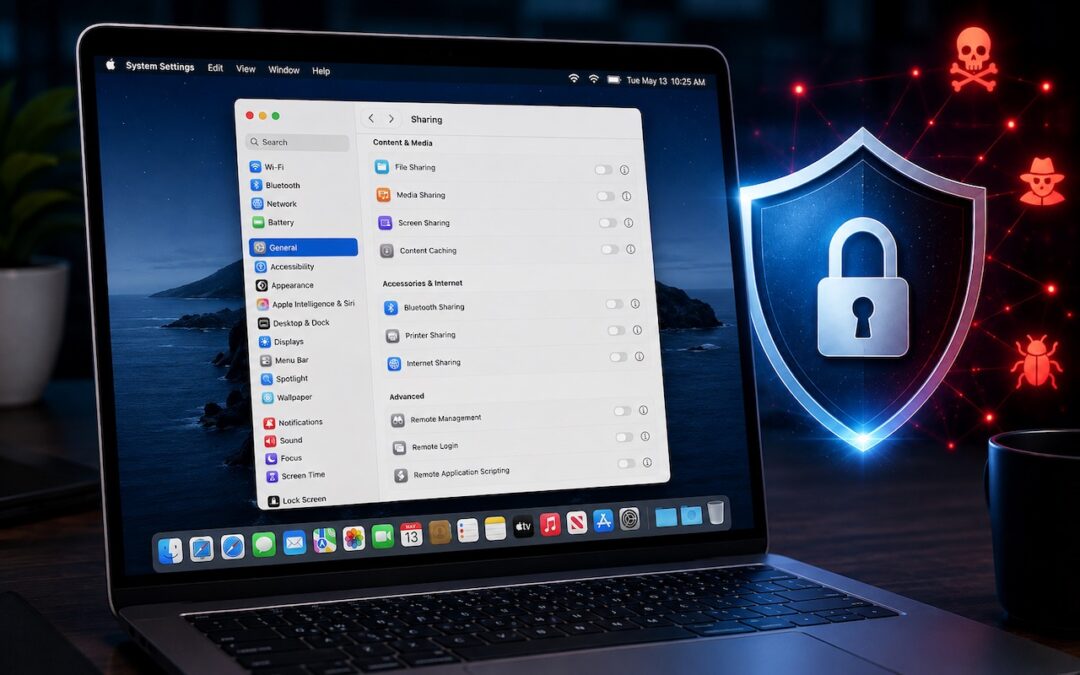
Apple just released macOS 26.6.1 Tahoe, macOS 15.7.9 Sequoia, and macOS 14.8.9 Sonoma solely to patch a vulnerability in Screen Sharing that could allow unauthenticated connections from attackers on the network. Yes, you should update, but also take a moment to visit System Settings > General > Sharing and turn off any sharing services you aren’t actively using. Many security breaches stem from simple oversight, and it’s easy to turn on a service and forget to turn it off later. All these services let you limit access to particular users, but passwords can be stolen, accounts can be compromised, and server software can have bugs. The most important services to turn off when not in active use are File Sharing, Screen Sharing, Remote Management, Remote Login, and Remote Application Scripting. We also caution against leaving Printer Sharing and Internet Sharing on unnecessarily.

(Featured image generated by Adam Engst with ChatGPT)
Social Media: Apple patched a Screen Sharing flaw that let attackers connect without authentication. Update now—and while you’re thinking about it, turn off any sharing services you’re not actively using.

by Steve Sorbo | Nov 1, 2024 | TCN Content
iPhones and iPads are highly personal devices, but you might want to let someone else use a particular app on yours without letting them poke through Messages, Mail, and Photos. For example, a child could play a game, a volunteer could check in attendees, or a friend could take photos. To allow this, Apple created Guided Access, which you turn on in Settings > Accessibility—give it an easily remembered passcode and decide if you want to let the display auto-lock. Then, to turn on Guided Access, open the app you want to share and triple-click the side or top button. Options let you control buttons, the accelerometer, software keyboards, touch input, and a time limit. To end a Guided Access session, triple-click the side or top button, enter the Guided Access passcode, and tap End.

(Featured image by iStock.com/Userba011d64_201)
Social Media: If you’d like to allow a child, friend, or colleague to enjoy a specific app on your iPhone or iPad while keeping them focused and preventing access to everything else on the device, check out Apple’s Guided Access feature.

by Steve Sorbo | Nov 1, 2024 | TCN Content
We’ve seen an uptick in fake invoices from scammers using PayPal. Because they’re being sent through PayPal itself, spam filters won’t catch them, and they have few of the usual markers of phishing email (but look for sketchy names and email addresses at the top). Some are even forged to appear as if they come from Apple. Never pay a PayPal invoice that you can’t tie directly to something you’ve ordered, and don’t call the number listed—the scammer will try to convince you that the invoice is real. If you receive one of these invoices, click the “Report this invoice” link at the bottom to help protect others who might have received it, and forward the message to phishing@paypal.com. Don’t mark the invoice as spam, though, since that will train your email client to be suspicious of legitimate messages from PayPal.

(Featured image by iStock.com/Moostocker)
Social Media: Beware of PayPal invoice scams that might even appear to come from Apple. Should you receive one, report it to PayPal to help protect other people, but don’t mark the message as spam.
by Steve Sorbo | Nov 1, 2024 | TCN Content
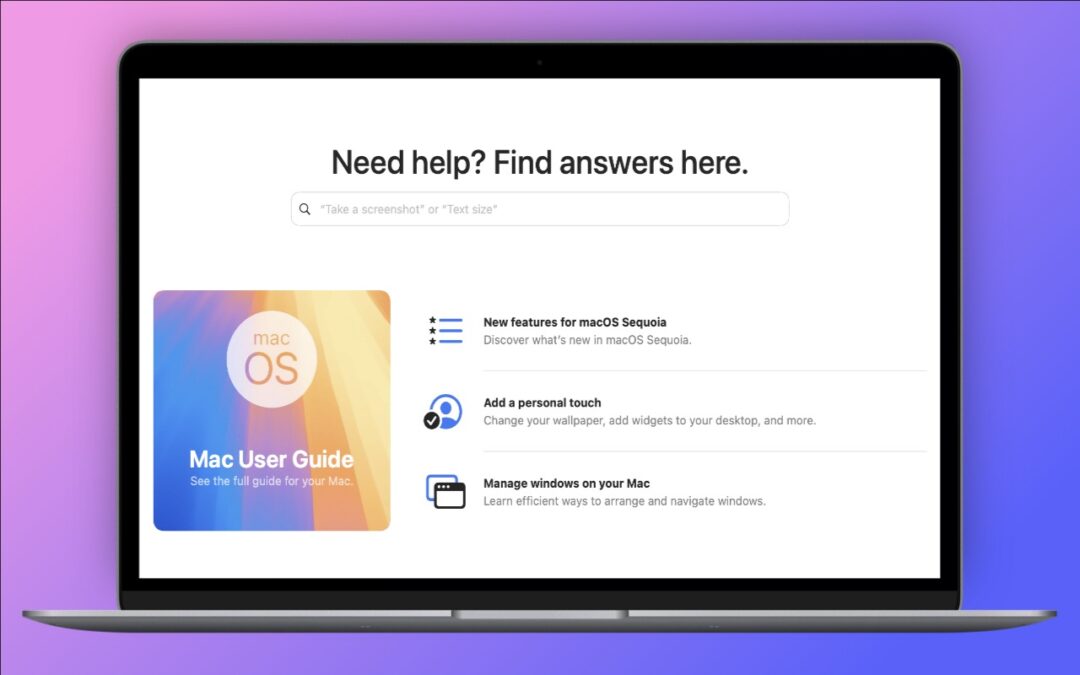
Apple has included the Tips app with the iPhone and iPad since iOS 8 in 2014 and on the Mac since macOS 10.14 Mojave in 2018. Initially, it didn’t contain much useful content, and many longtime users ignored it. However, Apple has significantly increased the amount of information in Tips over time, adding device-specific tips, full device and app user guides, highlights of new features, and more. Many tips even include short demonstration videos. Tips is worth exploring or referring to the next time you have a question. Be sure to encourage anyone you know who’s new to the iPhone, iPad, or Mac to take a look—it even helps them practice key gestures!

(Featured image by Adam Engst)
Social Media: If you haven’t explored Apple’s Tips app on the iPhone, iPad, or Mac recently, check it out. Apple has added a lot more content, including device and app user guides, highlights of new features, and interactive practice guides.

Recent Comments