
by Steve Sorbo | Oct 16, 2025 | Uncategorized
Apple’s fall harvest has yielded the new M5 chip, leading to updates for the entry-level 14-inch MacBook Pro, the iPad Pro lineup, and the Vision Pro. All three benefit from the M5’s significant performance boosts, but remain mostly unchanged otherwise. Availability starts on October 22. We anticipate that Apple will release M5 versions of the iMac, Mac mini, and MacBook Air in the coming months, along with M5 Pro and M5 Max chips in early to mid-2026.
With the M5 chip, Apple continues to focus on boosting AI performance. Its new 10-core GPU promises up to four times the peak GPU compute performance of the previous M4 chip—an impressive leap. The GPU also provides enhanced graphics capabilities and ray tracing that deliver results up to 45% faster than the M4. The 10-core CPU, with six efficiency cores and four performance cores, provides up to 15% faster multithreaded performance than the M4, a more typical performance increase between chip generations. Additionally, Apple increased unified memory bandwidth from 120 GBps to 153 GBps, which speeds up many different operations.
14-inch MacBook Pro
The most mainstream of the updated devices is the entry-level 14-inch MacBook Pro, which benefits from the improved performance of the M5 chip. Apple claims improvements in various tasks ranging from 20% to 80% compared to the M4 model it replaces. Even more compelling is the comparison with the M1-based 13-inch MacBook Pro, where the M5 MacBook Pro is 2 to 7 times faster.

Apple also increased SSD performance by up to 2x, which we suspect should give the new M5 model read/write speeds comparable to those of the M4 Pro and M4 Max models of the MacBook Pro.
The final update is that the M5 MacBook Pro can now be equipped with 4 TB of storage, a $1,200 option previously reserved for the M4 Pro and M4 Max models. They remain for sale, and although Apple didn’t share any benchmarks, we suspect they will continue to outperform the M5 model at most tasks.
Otherwise, the new M5 MacBook Pro continues to feature three Thunderbolt 4 ports, an HDMI port, an SDXC card slot, and MagSafe 3 charging. Its 14.2-inch Liquid Retina XDR display with ProMotion remains unchanged, as does the physical design. Pricing is also the same, starting at $1,599 for 16 GB of unified memory and 512 GB of storage.
For now, the M5 model of the 14-inch MacBook Pro is notably more capable than the M4 models of the MacBook Air, which was less true of the M4 MacBook Pro it replaces. That said, you won’t go wrong with the more affordable MacBook Air or the higher performance of the M4 Pro and M4 Max models of the MacBook Pro.
11-inch and 13-inch iPad Pro
The M5 models of the 11-inch and 13-inch iPad Pro deliver similar performance improvements over the previous M4 models, with Apple highlighting up to 2x faster AI image generation and up to 2.3x faster AI video upscaling. The enhancements are even more pronounced when compared to the M1 iPad Pro models, where benchmarked tasks are 2x to 7x faster. Additionally, the M5 iPad Pro models feature up to 2x faster storage, although they are limited to 2 TB.

Apple didn’t stop there. The 256 GB and 512 GB configurations have 50% more unified memory, increasing from 8 GB to 12 GB, while the 1 TB and 2 TB configurations have 16 GB. The new models also feature enhanced external display support, enabling them to drive external 4K displays at up to 120 Hz with Adaptive Sync, which reduces latency and enhances gaming performance. Lastly, Apple introduced fast charging that provides 50% power in 30 minutes with an appropriate charger.
Two other notable changes probably won’t be evident to most users. The M5 models of the iPad Pro utilize Apple’s new C1X cellular modem and N1 wireless network chip, which enable Wi-Fi 7, Bluetooth 6, and Thread networking. Apple claims faster cellular and Wi-Fi performance, along with lower power consumption, but official battery life estimates remain unchanged.
Otherwise, the new iPad Pro models remain nearly identical to their predecessors. They retain the same Ultra Retina XDR display, cameras, ports, and accessory ecosystem (Magic Keyboard and Apple Pencil). The case and industrial design are the same.
Pricing for the 11-inch iPad Pro starts at $999 for Wi-Fi models and $1,199 for Wi-Fi + Cellular models. The 13-inch iPad Pro starts at $1,299 with Wi-Fi and $1,499 for Wi-Fi and cellular connectivity.
Creative professionals already using a previous generation of the iPad Pro may consider upgrading, but for most people, we recommend either the low-cost iPad or the mid-range iPad Air.
Vision Pro
In the first hardware update to its Vision Pro “spatial computer,” Apple replaced the M2 chip with the more powerful M5. This upgrade boosts performance, allowing the Vision Pro to render 10% more pixels, resulting in a sharper image with crisper text and more detailed visuals. The M5 also increases the Vision Pro’s maximum refresh rate to 120 Hz from 100 Hz, helping to reduce motion blur. Battery life receives a slight boost, providing an additional 30 minutes of general use (up to 2.5 hours) and video playback (up to 3 hours). The only other change is a new Dual Knit Band, which Apple says is more comfortable.

Apart from the M5 and Dual Knit Band, the Vision Pro remains unchanged in form, function, and philosophy. Nor did Apple lower the Vision Pro’s price, which is still $3,499. Although these changes undoubtedly improve the Vision Pro experience a bit, they won’t change anyone’s purchasing decision.
(Featured image by Apple)
Social Media: Apple has brought its new M5 chip to the MacBook Pro, iPad Pro, and Vision Pro, boosting performance but changing little else. The updates maintain existing designs and price points.
by Steve Sorbo | Oct 3, 2025 | Uncategorized
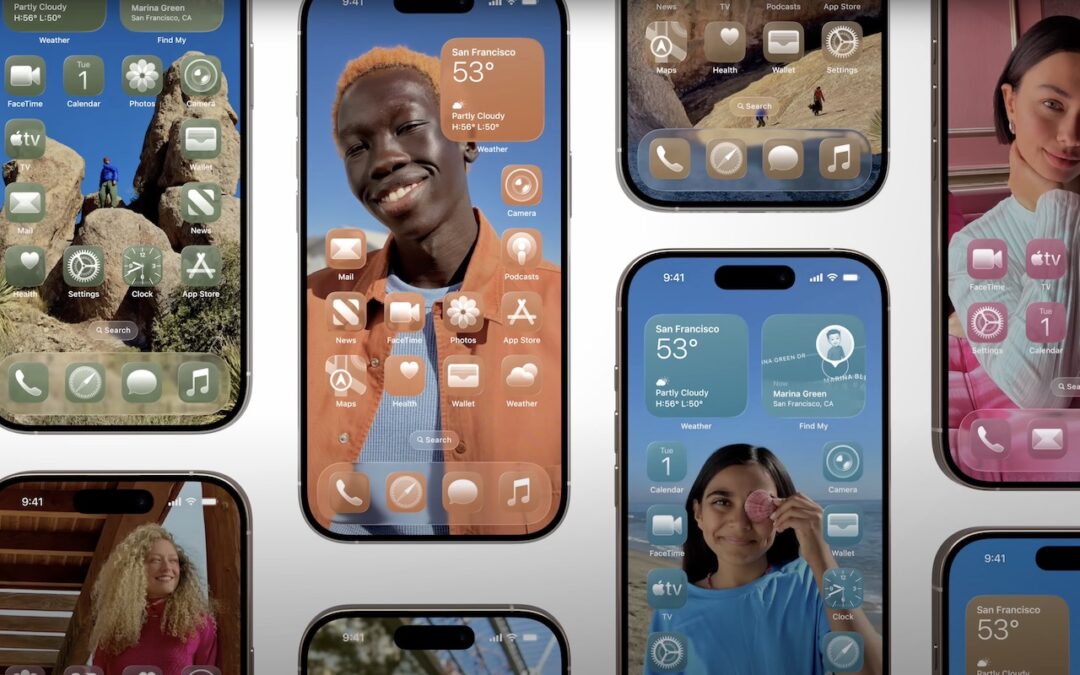
When describing its new Liquid Glass design language, Apple spoke only generally about how users could change the look of icons and widgets on their iPhone and iPad home screens to be dark, clear, or tinted, without specifying how to do that. The trick is to touch and hold an empty spot on the Home screen to enter jiggle mode, tap Edit in the upper-left corner, and select Customize to bring up a set of controls: choose from Default, Dark, Clear, and Tinted. For Tinted, set the color ➊ and opacity ➋ using the sliders, and use the buttons at the top of the Customize panel to change the brightness ➌, expand icons and remove names ➍, and use either the suggested image color ➎ or pick a color with the eye dropper ➏. The effectiveness of a Liquid Glass-enabled Home Screen will depend on how much you rely on color to identify icons at a glance.

(Featured image by Apple)
Social Media: Apple’s new Liquid Glass design lets you make iPhone and iPad icons and widgets dark, clear, or tinted. Discover how to access these customization options and see if they enhance your Home Screen.
by Steve Sorbo | Oct 3, 2025 | Uncategorized
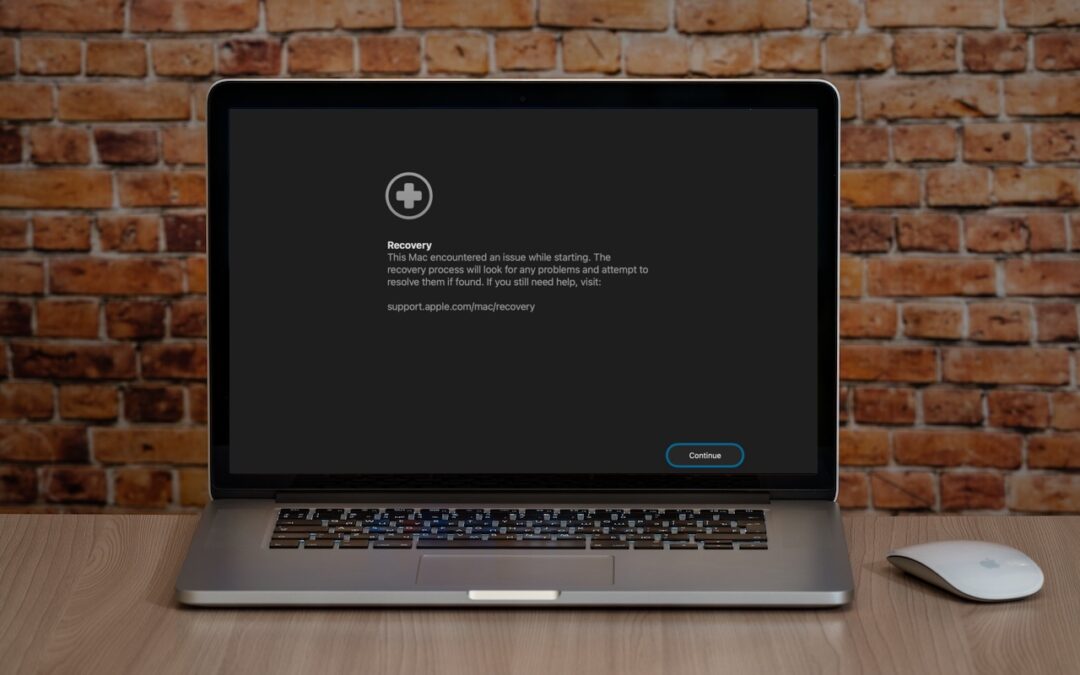
If a Mac running macOS 26 Tahoe experiences certain kinds of problems, it might automatically restart and launch a new Recovery Assistant. It will prompt you to unlock your disk if needed and to connect to a Wi-Fi network—an Internet connection is required. Apple doesn’t specify precisely what Recovery Assistant will do to recover your device, but it will either indicate that it succeeded, that it was unable to recover the device, or that it found no problems. In any case, you’ll need to restart your Mac, after which you may receive a notification to recover your iCloud data; initiate this process in System Settings. While we generally favor Macs being able to fix their own problems, we cannot stress enough how much more important it is to have a current backup than to rely solely on any recovery system.

(Featured image based on an original by iStock.com/Armastas)
Social Media: macOS 26 Tahoe brings a new Recovery Assistant, which automatically detects and attempts to resolve Mac problems. Just remember: automated recovery can be helpful, but backups are still essential.

by Steve Sorbo | Oct 3, 2025 | Uncategorized
Apple does a good job providing accessibility options for users who experience issues with vision, hearing, motor control, and other accessibility needs. Nearly everyone will benefit from these features at some point in their lives. To encourage support for Apple’s accessibility features and assist users in finding compatible apps, the App Store now includes Accessibility Nutrition Labels that indicate supported features. Developers aren’t required to support or list these features, so it may take some time before many apps display this information. Still, it’s a welcome step forward!

(Featured image by iStock.com/findfootagehq)
Social Media: New App Store Accessibility Nutrition Labels show which apps support Apple’s accessibility features—a win for anyone who needs these capabilities now or in the future.

by Steve Sorbo | Oct 3, 2025 | Uncategorized
One small way Apple’s Passwords app lagged behind top password managers like 1Password was in its lack of a password history. It’s sometimes helpful—such as when trying to figure out why a seemingly correct password isn’t being accepted—to see previous passwords for a site and when they were changed. In macOS 26 Tahoe, iOS 26, and iPadOS 26, the Passwords app adds that feature. Click or tap View History to review the history of a particular site’s passwords.

(Featured image by iStock.com/designer491)
Social Media: Apple’s Passwords app can now show your password history in macOS 26 Tahoe, iOS 26, and iPadOS 26, helping you track down why that “correct” password isn’t working.

by Steve Sorbo | Oct 3, 2025 | Uncategorized
Although it’s easy to joke about how little we use our iPhones for actual phone calls, telephony remains a core feature that everyone depends on to some degree. In iOS 26, Apple put significant effort into improving the phone experience, delivering the most notable upgrade to the Phone app in years. Here’s what you’ll find.
Unified View
The Phone app has traditionally featured a toolbar with buttons for Favorites, Recents, Contacts, Keypad, and Voicemail, along with a separate Search field. iOS 26 retains this layout as Classic view (below, left) and introduces a new Unified view (below, right) that aims to simplify the interface by reducing the toolbar to four buttons: Calls, Contacts, Keypad, and Search, with the Calls screen combining favorites and recent calls. You can switch between these views by tapping the Filter button in the top-right corner and choosing the preferred layout. The Filter menu also lets you specify which calls appear below, including voicemail.

Call Screening
A new Call Screening feature, configurable in Settings > Apps > Phone > Screen Unknown Callers, intercepts incoming calls from unknown numbers and prompts the caller to “state their name and reason for calling” before the iPhone even rings. If the caller responds, you’ll see a transcript or snippet of their response, allowing you to decide whether to answer or ignore the call. In our experience, it mainly causes spammers and telemarketers to hang up instantly, which is equally effective.

Unknown Call Lists
The Phone app has long been able to silence calls from unknown numbers—those not in your contacts or numbers you haven’t called—and send them directly to voicemail. This feature, now called Unknown Callers, remains available in Settings > Apps > Phone > Call Filtering, as does the previous Silence Junk Callers option, now called Spam. What’s new is that when these options are turned on, lists for Unknown Callers and Spam appear in the Filter menu, so they don’t clutter your Calls list. You can delete calls from unknown callers, mark their numbers as known, or add them to Contacts so they aren’t silenced next time.

Spam Voicemail Reporting
With most spam calls going to voicemail, your inbox may fill up with unwanted messages. You’ve always been able to delete them, but now, when you view a voicemail from an unknown number, a Report Spam button appears. Tap it to report the voicemail to Apple and delete it. We don’t know if reporting spam voicemails will make any difference, but it’s more satisfying than just deleting them.

Hold Assist
The Phone app’s new automatic Hold Assist feature is somewhat hard to test, but we hope it works when you need it. When Hold Assist Detection is enabled in Settings > Apps > Phone, Apple says that if you’re placed on hold by a customer service agent, the Phone app can detect hold music, silence it, and notify you when the agent comes back on the line. You can also manually tap the More button, tap Hold Assist, and then see a transcript of the hold message while you wait. Tap Pick Up when you’re ready to talk.

Live Translation in Calls
If you need to call someone who speaks a different language (as long as it’s English, French, German, Portuguese, or Spanish), the new Live Translation feature might be helpful. Once you’re on the call, tap the More button, then tap Live Translation, and choose the languages for From and To. We highly recommend testing this feature before you actually need it, as it can take a few minutes to download a new language for the first time. After that, tap Start Translation to hear spoken translations and have your voice translated for your caller. You’ll also see a transcript of both sides of the conversation.

Type to Siri During Calls
If you desperately need to use Siri during a phone call, you can now activate Type to Siri. Make sure it’s turned on in Settings > Apple Intelligence & Siri > Talk & Type to Siri, and then double-tap the bottom edge of the iPhone to open a Siri text entry field.

Screen Sharing and SharePlay in Calls
When you’re on a call with someone using iOS 26, iPadOS 26, or macOS 26, you can now initiate Screen Sharing or SharePlay with that person during the call. Access these features from the More button. Screen Sharing can be helpful for explaining how to perform an action on the caller’s device or troubleshoot a problem, and SharePlay lets you and the caller listen to the same audio or watch the same video in a supported app.
Call History
When you view a contact from within the Phone app (not the Contacts app), a Call History option appears, and tapping it shows your call history with that number, which could go back years.

Phone App Comes to macOS, iPadOS, and visionOS
Wait, did we just say you could be on a call with someone using the Phone app on a Mac or iPad? Exactly! With macOS 26, iPadOS 26, and even visionOS 26, the Phone app has expanded to the iPhone’s sibling platforms. It looks and works very similarly, with the benefit of displaying more information at once. To use one of these Phone apps, your iPhone must be on the same Wi-Fi network and signed in to the same Apple Account.

(Featured image based on an original by iStock.com/sergeyryzhov)
Social Media: iOS 26 supercharges the Phone app with call screening, live translation, and hold music detection. But that’s not all! You can make calls from a Mac or iPad, share your screen during calls, see a contact’s call history, and more.

Recent Comments