by Steve Sorbo | Aug 1, 2025 | Uncategorized
Although Macs are highly reliable, unusual problems can still rear their ugly heads. Often, these issues are caused by software you’ve installed or accessories you’ve connected. If you’re experiencing Mac misbehavior that isn’t easily fixed by restarting, updating software, or unplugging a dodgy device, try safe mode. (Seriously, before checking if safe mode will help with a problem, you should always restart, ensure you’re running the latest version of macOS and any involved apps, and unplug non-essential peripherals.)
Safe mode is one of macOS’s key troubleshooting tools, though many users don’t know when or how to use it. By starting up your Mac with minimal required software and services, safe mode can help identify and resolve various system issues.
How to Enter Safe Mode
The process for entering Safe Mode varies depending on whether you have a Mac with Apple silicon or an Intel-based Mac.
For Macs with Apple silicon:
- Shut down your Mac.
- Press and hold the power button until the startup options appear.

- Select your startup disk.
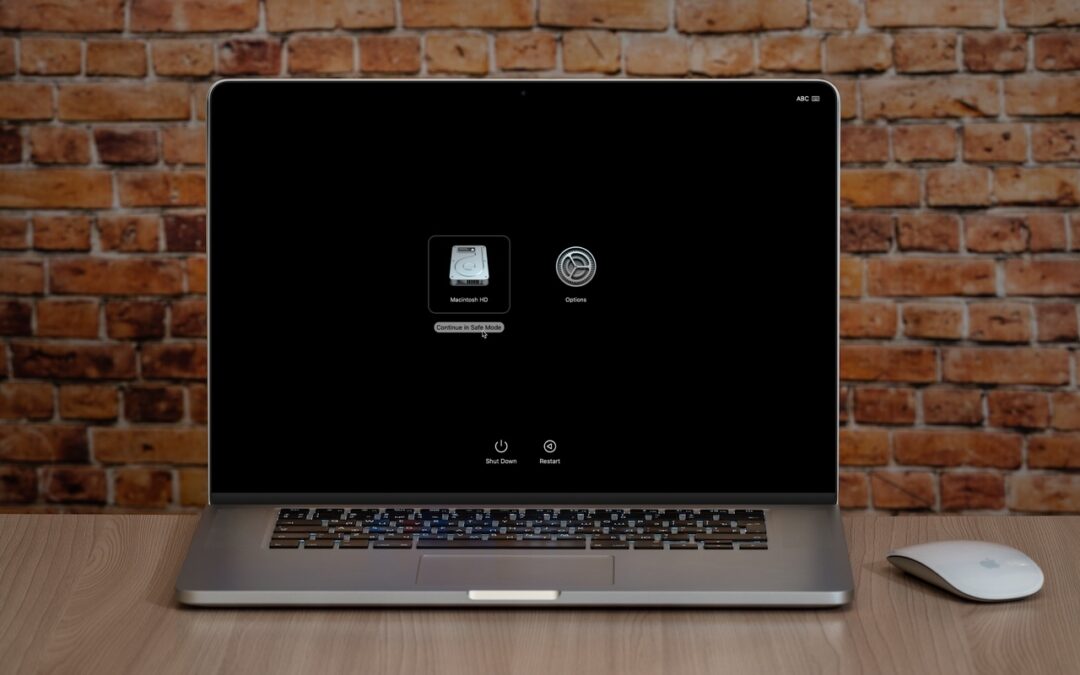
- Hold the Shift key and click Continue in Safe Mode.
- Log in (you may need to do this twice). You’ll see “Safe Boot” in red in the menu bar on the login screen.

For Intel-based Macs:
- Restart your Mac.
- Press and hold the Shift key until you see the login window.
(If you have a firmware password, you must remove it in Recovery before starting up in safe mode.)
To verify that you’re in safe mode, click the Apple menu while holding the Option key, select System Information, and look for “Boot Mode: Safe” under Software. To exit safe mode, just restart your Mac normally.

What Safe Mode Does
When your Mac boots in safe mode, it performs several important functions designed to eliminate troubleshooting variables:
- Prevents non-essential software from loading, including third-party login items, kernel extensions, system extensions (the modern replacement for kernel extensions), and fonts not installed by macOS
- Clears some system caches, including font caches and the kernel cache
Apple also says that safe mode performs a basic check of your startup disk, but research from the community suggests that this check is no different from the one performed during a normal boot. If you suspect disk-related problems, use the First Aid feature of Disk Utility to conduct a more comprehensive (and much slower) test.
This minimal environment helps identify whether the problems are caused by software that loads during startup or by core system components. Safe mode also prevents many customizations and modifications from taking effect, making it easier to determine if third-party software is the cause of the issues.
However, the downside of using safe mode is that some macOS features may not work. According to Apple, these include “video capture, graphics performance, file sharing, Wi-Fi, accessibility, audio devices, and devices connected via USB, Thunderbolt, or FireWire.” In practice, some of these will work fine, but the main point is that you might not be able to do everything you want while in safe mode. It’s designed for troubleshooting, not regular use.
When to Use Safe Mode
Safe Mode is beneficial in several common scenarios:
- Identifying extension conflicts: If your Mac is misbehaving, booting in safe mode can help determine if third-party kernel or system extensions are the cause.
- Troubleshooting startup problems: If your Mac doesn’t start normally, safe mode might help you get in and address the issue.
- Installing updates: Although this is less necessary in recent versions of macOS, if a macOS update fails to install properly, trying again in safe mode often resolves the issue.
- Fixing update issues: Problems that appear after a macOS update—likely caused by outdated third-party software incompatible with the new version of macOS—can often be resolved by starting in safe mode.
- Performance problems: If your Mac is running slowly, safe mode can help identify whether login items or extensions are causing the issue.
- General diagnostics: Safe mode is a worthwhile initial step for diagnosing issues before attempting more complex solutions.
What Comes After Safe Mode
Once you’re in safe mode, it’s up to you to reproduce the problem you experienced earlier. Then, there are two possibilities:
- The problem persists in safe mode: While this result is not ideal, safe mode has still provided you with more troubleshooting information by eliminating third-party login items, extensions, and fonts from consideration, along with clearing certain caches. Since those aren’t the cause, try testing in a clean user account, disconnecting remaining peripherals, and reinstalling macOS.
- The problem goes away in safe mode: Great! First, restart your Mac to see if the problem has disappeared, as would be the case if it were related to corrupt caches. If the problem returns after restarting, you can narrow down the cause to third-party login items, extensions, or fonts. Remove third-party log-in items in System Settings > General > Login Items & Extensions. (We recommend taking a screenshot with Command-Shift-5 first, so you can remember how you were set up.) You can also disable extensions in System Settings > General > Login Items & Extensions by toggling their switches. Restart and test again. If that still doesn’t fix it, try testing in a clean user account to rule out any software issues tied to your main account.
The beauty of safe mode is that it’s easy to enter and entirely non-destructive. It may not help identify all possible problems, but it’s always worth trying after the simple steps of restarting your Mac, updating associated software, and unplugging non-essential peripherals.
(Featured image based on an original by iStock.com/Armastas)
Social Media: Having Mac problems? Before trying more complex solutions, restart in safe mode—your Mac’s stripped-down troubleshooting environment. It disables non-essential software and clears system caches to help identify and resolve common issues.

by Steve Sorbo | Jul 3, 2025 | Uncategorized
Here’s a new scam to watch for. A client reported running across a suspicious website masquerading as a human verification test. Instead of asking him to click pictures or solve a math equation, this one asked him to copy some text from the page and paste it into Terminal. The text was actually an encoded script that—if pasted into Terminal and executed—would have downloaded and installed malware designed to steal user data. Infected users could lose their login password, browser history and cookies, cryptocurrency wallet information, keychain data, Notes data, and a wide variety of personal files. The moral of the story: never paste unsolicited commands into Terminal. They may seem innocuous or even unintelligible, but they’re fully capable apps that can wreak havoc on your Mac.

(Featured image by iStock.com/stevanovicigor)
Social Media: A clever new scam masquerades as a CAPTCHA test, asking users to paste text into Terminal to prove they’re human. Instead, it installs malware designed to steal passwords, browser data, and other sensitive information.
by Steve Sorbo | Jul 3, 2025 | Uncategorized
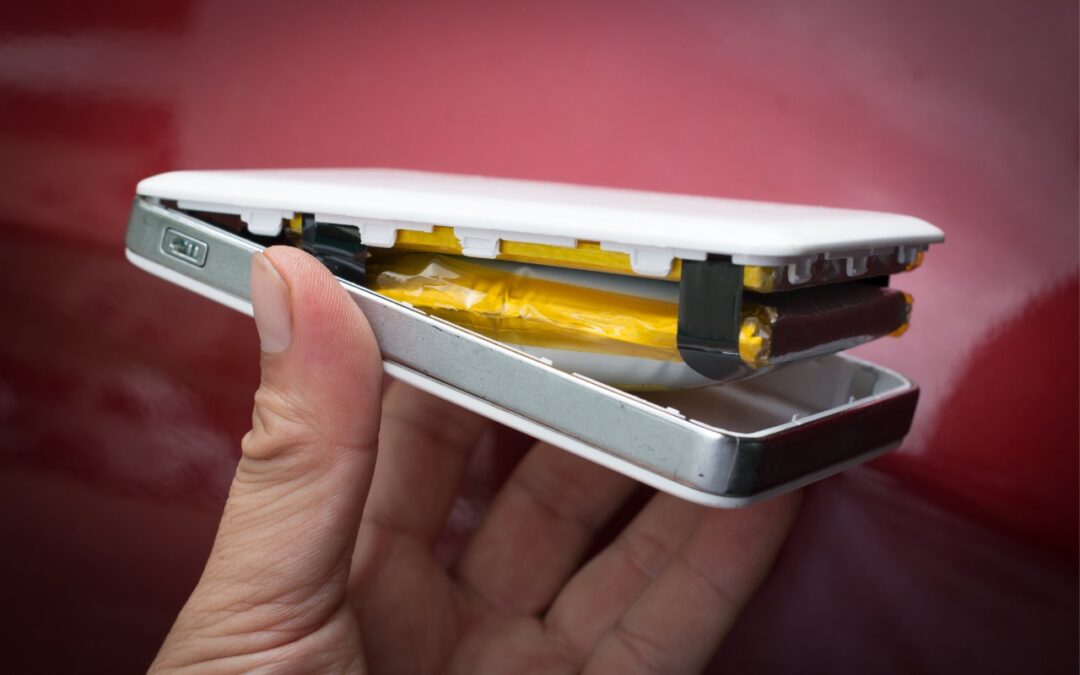
We recommend sticking with well-known brands when buying accessories, and a recent example illustrates why this is important. Anker, a highly regarded accessory manufacturer, has initiated voluntary recalls of power bank models sold from 2016 to the present due to the risk of overheating, melting, smoke, and fire. In mid-June, the company recalled 1.1 million PowerCore 10000 power banks; it has now issued another recall for more recent models of its Power Bank, MagGo Power Bank, and Zolo Power Bank. If you own one of these products—even if it’s working fine—go to Anker’s product recalls page for more information and a serial number checker. If your power bank is affected, stop using it immediately and contact your municipal household hazardous waste collection center for disposal guidance—neither the trash nor standard recycling boxes at retail stores are acceptable. Anker will give you a free replacement or a gift card for use on the Anker website.

Screenshot
(Featured image by iStock.com/Pradit_Ph)
Social Media: Anker has issued major recalls for six power bank models due to fire risk. If you own an Anker power bank, check if yours is affected, even if it seems to be working fine. The company is offering free replacements or gift cards.
by Steve Sorbo | Jul 3, 2025 | Uncategorized
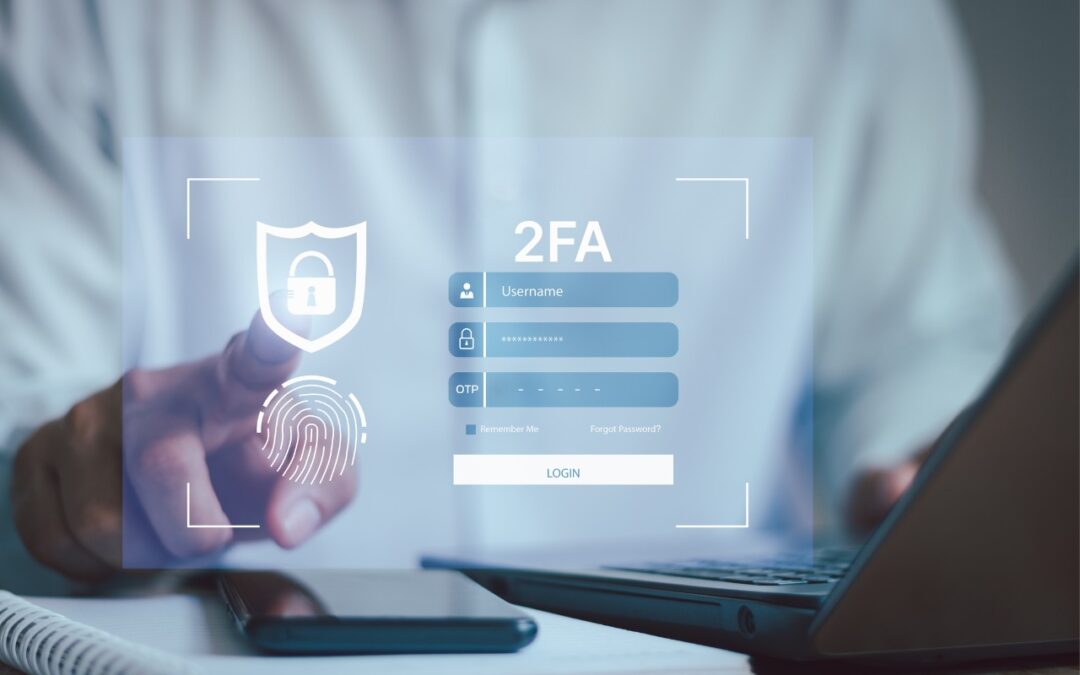
Data breaches keep coming, and the latest one revealed by Cybernews involves 16 billion passwords. There’s no way to know for sure if your passwords are included, though it’s always worth checking Have I Been Pwned and paying attention to monitoring features in password managers. Some media reports claim that passwords from accounts at Apple, Facebook, and Google were leaked, but this is likely overblown. While some accounts at those companies were compromised by infostealers, there were no centralized breaches. Our advice remains the same: use a password manager to ensure that each of your accounts has a strong, unique password and turn on two-factor authentication whenever possible.

(Featured image by iStock.com/tsingha25)
Social Media: Another day, another breach—this time involving 16 billion passwords. Despite alarming headlines about Apple, Facebook, and Google accounts, there’s no need to panic. Our advice? Use unique passwords and enable 2FA.
by Steve Sorbo | Jul 3, 2025 | Uncategorized
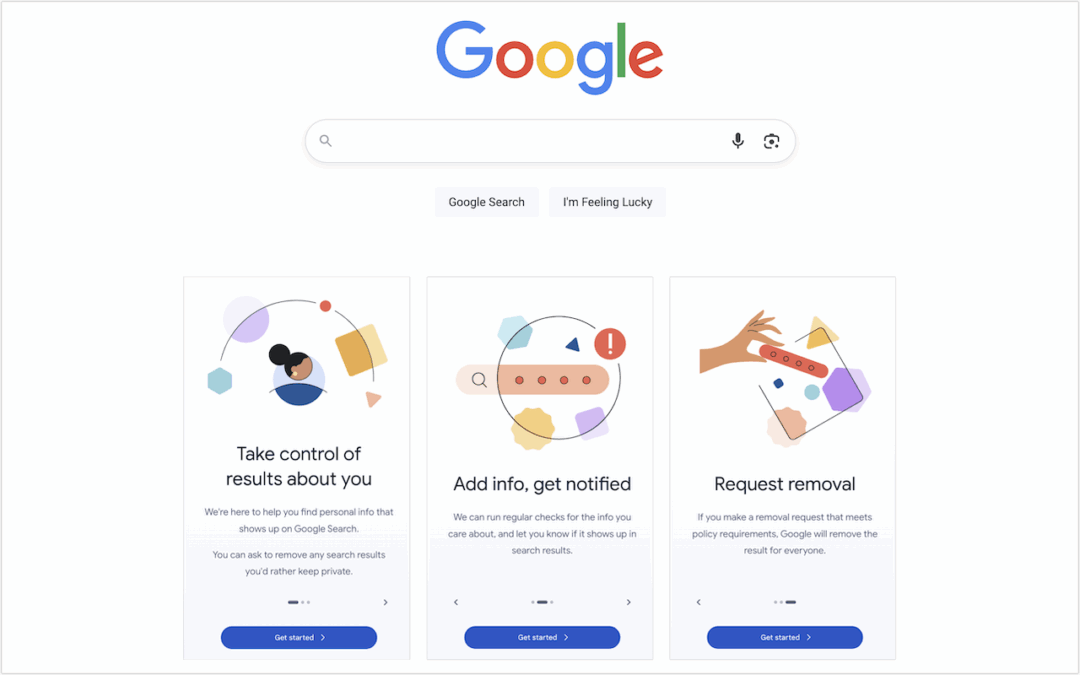
Google has created a free service that lets you see what of your personal and professional information has been published on the Web. Once you provide your name, address, phone numbers, and email addresses to Google’s Results About You website, Google will inform you if that info appears in search results. (Don’t worry, you’re not telling Google anything it doesn’t already know.) It may take a few days or weeks for the initial results to come back, and Google will keep adding more results over time. You can review each page with your information and, if it’s data you would prefer to keep private and it meets Google’s policy requirements, request its removal from the search results. This only removes your data from Google’s search results; to remove it from the Web entirely, you’ll need to contact the website hosting the information.

(Featured image by Google)
Social Media: Curious about how your personal information shows up in Google searches? Google’s Results About You service helps you monitor and manage your digital footprint.
by Steve Sorbo | Jul 3, 2025 | Uncategorized
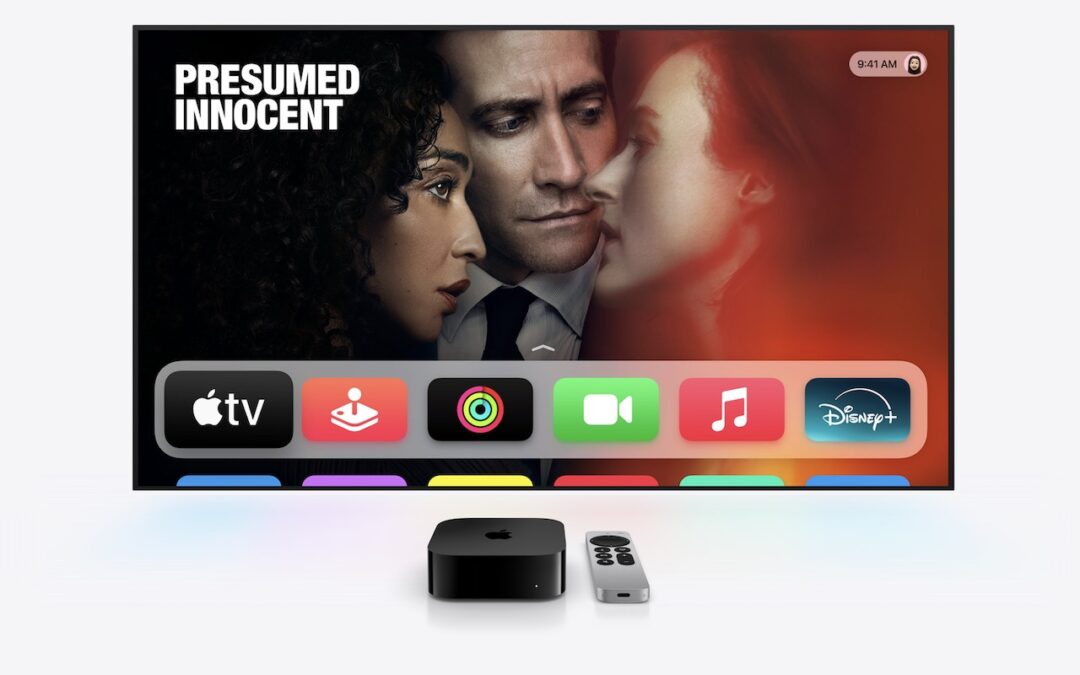
If you own a smart TV or are shopping for a new one, you should be aware of a troubling trend: modern TVs have evolved from simple screens into sophisticated surveillance devices. You can protect your privacy by using an Apple TV as your streaming device rather than relying on built-in smart TV features.

If you have an older non-smart TV that meets your needs, you’re in luck—an Apple TV provides streaming capabilities while avoiding the privacy concerns that plague modern TVs. For everyone else, here’s what you need to know about how TV manufacturers are monetizing your viewing habits and how an Apple TV protects you.
Data Mining: How TV Makers Profit from Your Viewing Habits
Arguably, the longevity of large-screen TVs has contributed to this trend. In the past, TV manufacturers focused on selling as many TVs as possible. Consumers see less need to upgrade when a modern 55-inch TV offers little beyond what a 15-year-old TV of the same size can provide. Sure, it might be a bit brighter, have better color accuracy, or provide higher refresh rates, but for most people watching streaming video in a dark room, such changes aren’t very noticeable.
In response, TV manufacturers have lowered prices to boost sales and turned to alternative revenue streams, including collecting and selling viewer data and displaying ads. Data can be sold to companies like Nielsen, a data and marketing measurement firm, and leveraged to provide advertisers with targeted audiences. Smart TV ad revenue is estimated to reach $46 billion worldwide this year, up 20% after another 20% increase in 2024. These ads appear on the smart TV’s home screen and in free, ad-supported streaming channels.
TV manufacturers track viewing habits using a technology called automatic content recognition (ACR). Software loaded on the smart TV captures frame-by-frame screenshots of content, creates a fingerprint for each frame, and then matches the fingerprint against an online database to determine what you’re watching. It works with all types of viewing, from standard TV to gaming. Since that data is tied to your specific household, companies can create audience segments and either use it for their own advertising or sell it to third parties. One analyst suggests you’re worth about $20 per year.
Wait, it gets worse! Many smart TVs feature microphones to enable voice commands, and some also include cameras to support video calling capabilities. Manufacturers can use captured audio and video to monitor viewer engagement—are you actually watching the show, or is it just playing in the background? That data also feeds into the profile that the TV manufacturers maintain about you.
If all this feels creepy to you, you’re not alone. Most annoyingly, apart from the opportunity to buy a cheap TV, there’s essentially no ongoing benefit to you in having your viewing habits packaged and resold. At most, you might get to ignore slightly more targeted ads.
Protect Your Viewing Privacy with an Apple TV
If you currently have a smart TV or are looking to replace an older TV, there’s an easy solution: use an Apple TV instead of the smart TV’s built-in apps or a similarly problematic media streaming box from the likes of Amazon, Google, and Roku. Although Apple isn’t perfect when it comes to privacy, the Apple TV provides a complete streaming solution that doesn’t share your viewing data with advertisers and data brokers. Here’s how:
- No ACR tracking: Apple has confirmed that the Apple TV doesn’t use ACR at all.
- No built-in advertising: Unlike Roku OS and Samsung’s webOS, the Apple TV doesn’t display ads on the home screen or in the screensaver.
- Privacy-first setup process: During setup, you’re given the opportunity to disable Siri, location services, and analytics.
- Limited data collection: Even when you do allow Apple to collect data, it’s done in ways that guarantee anonymity and used only in aggregate. No personal information is ever shared with Apple.
- Strong third-party app tracking controls: tvOS apps must ask for permission to track you, just like iOS apps. You can (and should) always reject such requests or prevent them from asking at all by going to Settings > Privacy > Tracking > Allow Apps to Request to Track.
Even with an Apple TV, you’ll need to take a few additional steps to protect your privacy since smart TVs can still track content playing through HDMI connections:
- Disable ACR tracking: Turn off ACR in your TV’s settings to prevent it from analyzing what you’re watching. This setting can be tricky to find since TV manufacturers deliberately make it difficult and use different names. Consumer Reports provides instructions for many TV models and streaming media devices.
- Consider blocking Internet access: For maximum privacy, you can prevent your TV from connecting to your Wi-Fi network and accessing the Internet, though this comes with trade-offs. While it ensures that no data leaves your TV, you’ll miss out on bug fixes, security updates, and certain features like picture calibration. You may also encounter connection error messages, and some TVs require occasional Internet connectivity for validation purposes. You may have to connect periodically to keep it working.
By turning off ACR, disconnecting the smart TV from the Internet, and using an Apple TV instead of a smart TV’s built-in apps or other streaming devices, you can enjoy your favorite shows without feeling like you’re being watched.
(Featured image by Apple)
Social Media: While you’re watching TV, your smart TV is watching you. Find out how manufacturers track your viewing habits and learn simple steps to protect your privacy with an Apple TV.

Recent Comments