
by Steve Sorbo | Feb 7, 2025 | Uncategorized
Apple has launched the new Apple Invites iPhone app for planning social events with friends and family. Apple Invites requires iOS 18 on the iPhone, and you can also use it at iCloud.com/invites on the Mac and iPad. Event creation is limited to iCloud+ subscribers (those who pay for extra iCloud storage), but anyone can RSVP for an event, even if they don’t have the app, an Apple Account, or an Apple device. Creating an event is straightforward: simply name the event, set a date and optional time, specify a location, add a description, and pick a background. You can then invite people directly or by sharing a public link. Guests can RSVP whether they’re attending, not attending, or are unsure, and they can change their name and provide a custom response. Apple Invites may not change the world, but it’s a nice alternative to ad-infested invitation services.

(Featured image by iStock.com/Jacob Wackerhausen)
Social Media: The new Apple Invites app for iPhone simplifies inviting friends and family to social events for iCloud+ subscribers. Anyone can RSVP, even if they don’t use Apple devices.

by Steve Sorbo | Feb 7, 2025 | Uncategorized
In iOS 18, iPadOS 18, and macOS 15 Sequoia, Apple removed a standard feature of the Calculator app that allowed users to press the = button multiple times to repeat the last mathematical operation. Following user complaints, the company reinstated this feature in iOS 18.3, iPadOS 18.3, and macOS 15.3. Now, to calculate the compound interest from investing $1,000 at 5%, you can multiply 1000 by 1.05 and press = repeatedly to see how your investment would grow. (To open the history sidebar on the Mac, choose View > Show History; on the iPhone, tap the hamburger button in the upper-left corner.)

(Featured image by iStock.com/drasko)
Social Media: Did you know that Apple’s Calculator app can repeat the last operation when you press = multiple times, which is helpful for tasks like calculating compound interest? Although this feature had briefly disappeared, it’s back now.
by Steve Sorbo | Feb 7, 2025 | Uncategorized
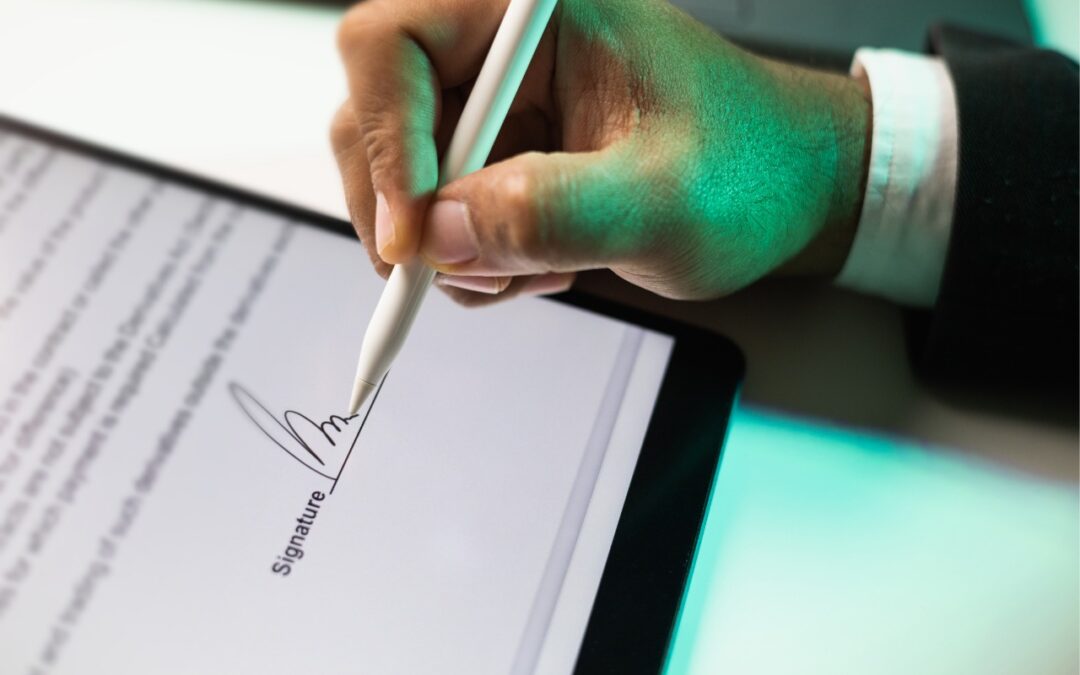
You can now work directly with PDFs received in the Mail app using a little-known feature in iOS 18 and iPadOS 18. Tap a PDF attachment in a message and use the Markup and Form Fill buttons at the bottom to access the PDF markup and filling tools. After modifying your PDF, tapping the Done button gives you options for what to do with the PDF: include it in a reply, create a new message with it, save it to Files, or discard the changes.

(Featured image by iStock.com/chanakon laorob)
Social Media: Have you ever needed to sign or annotate a PDF you received in the Mail app on your iPhone? With iOS 18 and iPadOS 18, you can manage PDFs directly in Mail. Once you’re finished, you can attach the modified PDF to a reply or a new message.
by Steve Sorbo | Feb 7, 2025 | Uncategorized
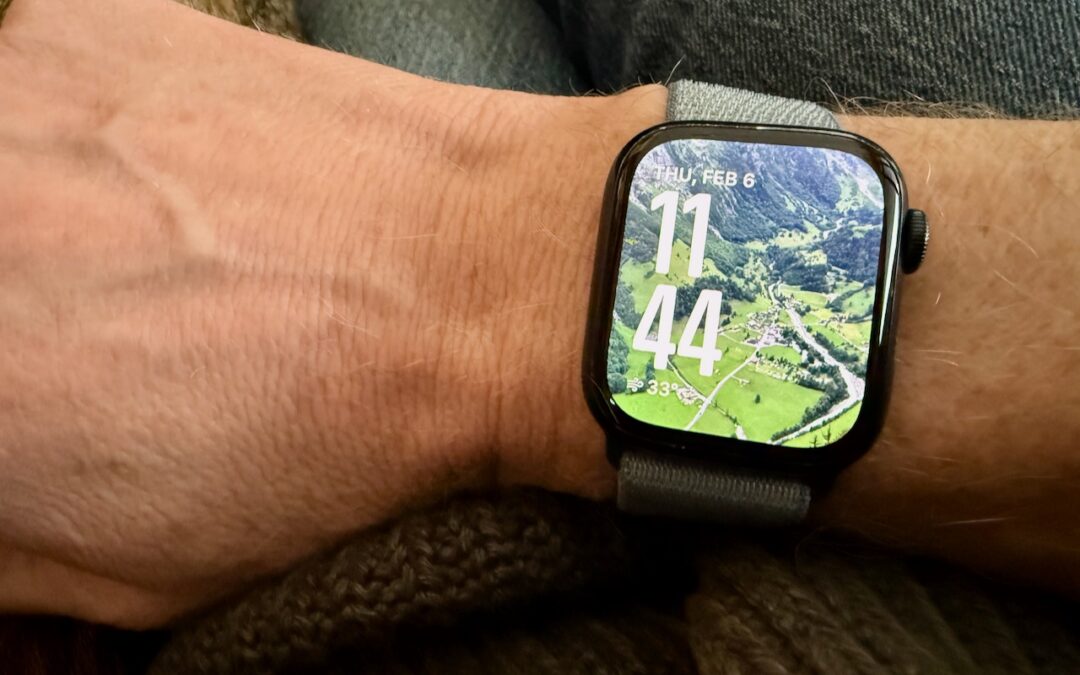
We’re taking a brief break from helping you become more productive to recommend a feature that could spark moments of joy for Apple Watch users. In watchOS 11, the new Photos watch face can display a photo from a shuffled set of images each time you raise your wrist (or tap the screen). Like the Lock Screen customization feature on the iPhone and iPad, the Photos face can dynamically select images of your favorite people, nature, and cities from your photo library. (You can also choose photos manually.) The time appears in an appropriate spot and size. Before the Photos face, we often relied on the complication-heavy Modular face, but we now find being surprised by lovely images from our photo library to be delightful. To add the Photos face to your Apple Watch, open the Watch app on your iPhone, tap Face Gallery, and tap the Photos face. Then, choose where the content will come from, select the time size, and add any desired complications. Once it’s on the Apple Watch, you can tweak style settings there too.

(Featured image by Adam Engst)
Social Media: Let’s take a step back from how technology can enhance productivity to appreciate watchOS 11’s new Photos watch face. The way it unearths photos from your photo library on every wrist raise is delightful.

by Steve Sorbo | Feb 7, 2025 | Uncategorized
The devastating losses caused by the Los Angeles wildfires have underscored the need to protect data from catastrophic events. A traditional offsite backup—periodically moving a hard drive to another location—might not have sufficed in areas affected by wildfires, where many structures were destroyed. An online backup using a service like Backblaze or CrashPlan is often a better solution, although it can become costly for multiple Macs, and some individuals and organizations are uncomfortable storing their data online, even with encryption.
What about a safe? Would storing one or more backup drives in a safe provide adequate protection? Possibly, but the details are critical. Some safes are designed solely to guard against theft, focusing on preventing thieves from opening the door. However, paper ignites at 451ºF (it chars around 387ºF), and most house fires reach temperatures between 800ºF and 1200ºF, so you may think that all you need to do is look for a “fireproof” safe. That’s a good start, but paper is actually much more resilient than magnetic and optical media.
Fireproof safes come with ratings that indicate the internal temperature they can maintain, with the most common being:
- Class 350: Safes maintain an internal temperature of 350ºF, suitable only for paper.
- Class 150: Safes keep the interior below 150ºF, which should protect magnetic media.
- Class 125: Safes maintain temperatures under 125ºF, appropriate for optical media.
It is also important to determine how long the safe can maintain that temperature. Generally speaking, a fireproof safe is rated for 1 or 2 hours, indicating it can maintain the specified internal temperature for at least that duration. Time ratings represent minimums, not maximums, so the actual protection time may be longer.
In most cases, the protection time is likely to be longer. That’s because safes are tested in furnaces at temperatures that can be two to three times hotter than the average house fire. For example, Underwriters Laboratory (one of several independent testing labs) conducts tests at 1700ºF or 1850ºF. Additionally, while a house fire may burn for several hours, the average fire will consume everything near the safe within 20 minutes and then move on.
Wildfires are a different story. In extreme conditions, wildfire temperatures can range from 1500ºF to 2200ºF, approaching or exceeding the testing conditions. Wildfires also last longer, so a safe in a destroyed building may remain in embers for hours or even days before it can be recovered.
While temperature over time is the main factor to consider when researching a fireproof safe, also look for two other variables being mentioned as well:
- Water resistance: Where there’s fire, there’s usually water. Thousands of gallons of water, some of which will undoubtedly affect the safe. Not all fireproof safes are waterproof, so verify whether a specific safe can withstand being doused by firefighters.
- Impact protection: If the floor collapses, a safe on an upper story could fall a considerable distance. If you are considering such a location, ensure the safe can withstand the impact. To simulate realistic fire conditions, the test may involve withstanding a 30-foot drop onto a concrete floor, followed by reheating.
Finally, remember that if your safe is in a fire, the heat will cause its insulation to swell up, rendering the lock useless, regardless of its type. Typically, you will need to hire a locksmith to access the safe using instructions from the manufacturer.
If you’re going to trust your data to a fireproof safe, do your research to ensure that whatever you buy will meet your needs for fire, water, and impact protection. It won’t be cheap—depending on the size and other factors, a good fireproof safe can cost many hundreds or even thousands of dollars. However, this is one area where you definitely shouldn’t cut corners.
(Featured image based on originals by iStock.com/phive2015 and Hanna Plonsak)
Social Media: If the wildfires in Los Angeles have you considering a fireproof safe to safeguard backups and important documents, make sure to research temperature ratings over time and be mindful of water and impact resistance.
by Steve Sorbo | Feb 7, 2025 | Uncategorized
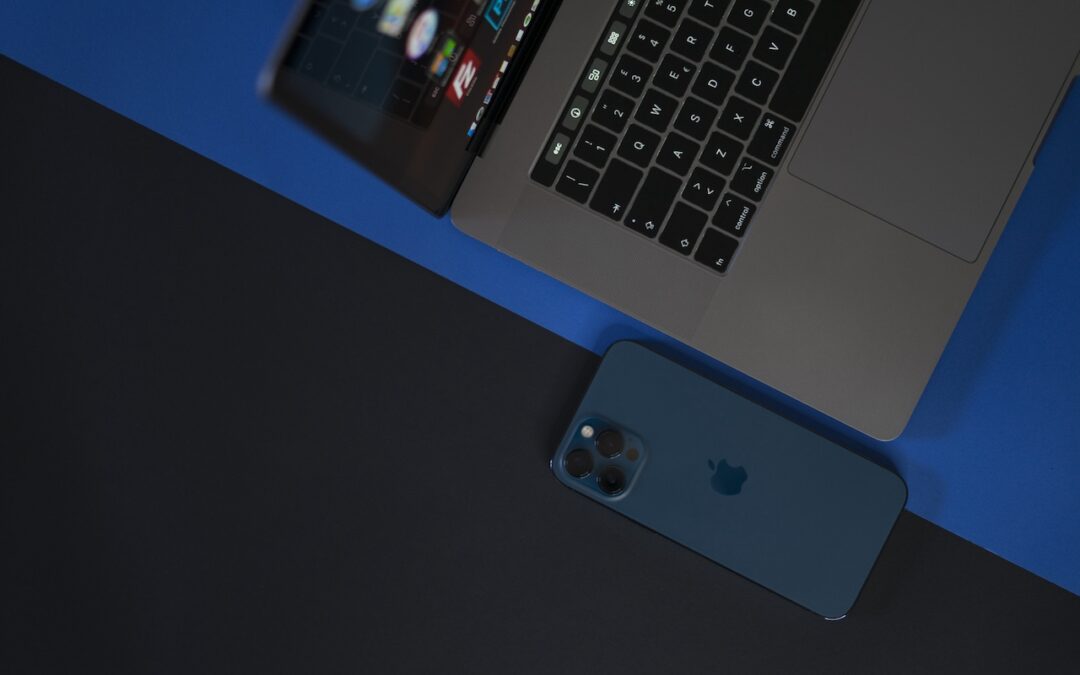
One of the flashiest features of macOS 15 Sequoia and iOS 18 is iPhone Mirroring, which allows you to use your iPhone in a window on your Mac. You might think, “But I can just pull my iPhone out of my pocket if I need to use it!” While that may be true, not everyone has their iPhone so readily accessible, even if it’s close by.
iPhone Mirroring Benefits
iPhone Mirroring provides a handful of benefits, including:
- Centralized notification management: Once you’ve set up iPhone Mirroring, notifications from your iPhone can also appear on your Mac, ensuring you stay informed while maintaining focus on your work.
- Increased productivity with a keyboard: Typing on a physical keyboard is faster and more efficient than using the iPhone’s virtual keyboard, making iPhone Mirroring a helpful tool for entering and editing lengthy texts.
- Reduced physical distractions: Keeping your iPhone out of sight helps you avoid being distracted by it. With iPhone Mirroring, you can access important apps and notifications without letting the physical iPhone capture your attention.
- Simplified file transfer: Certain apps allow file transfer between the iPhone and Mac using a straightforward drag-and-drop method.
- Access to iPhone-only apps on the Mac: Many apps are available only for iOS, and iPhone Mirroring lets you interact with them directly from your Mac, removing the need to switch devices.
iPhone Mirroring Requirements
A few requirements must be met before you can begin using iPhone Mirroring:
- Your iPhone must have iOS 18 or later, and your Mac needs macOS 15 Sequoia or later.
- Both devices must have Wi-Fi and Bluetooth turned on.
- The devices should be in close proximity and signed into the same Apple Account.
- Handoff must be enabled for the iPhone in Settings > General > AirPlay & Continuity and on the Mac in System Settings > General > AirDrop & Handoff.
Mac App Limitations
Once everything is set up correctly, launch the iPhone Mirroring app on your Mac. A few splash screens explain the basics during the first launch, and afterward, your iPhone will appear in a window. You can move it anywhere you wish and treat it like any other Mac app, with one notable exception—resizing. It does not have a green zoom button, and you cannot resize it by dragging the window edge, but it does offer three size options you can choose from the View menu.

iPhone Hardware Limitations
Using iOS and iPhone apps works pretty much as you’d expect, but there are some limitations. Notably, the iPhone camera and microphone aren’t available, although audio from the iPhone plays through the Mac. Face ID and Touch ID are also not accessible for obvious reasons, which may block access to apps and features protected by biometric authentication. There’s no way to access Notification Center or Control Center, nor to switch apps by swiping the Home indicator—presumably because those three swipes are special due to being at the edge of the iPhone screen. You cannot access the Lock Screen or perform any action that requires a physical button. Finally, you can use only one Continuity feature at a time, so other Continuity features like Universal Clipboard and AirDrop won’t function while you are using iPhone Mirroring.
Core iPhone Interactions
You’ll pick up the basic iPhone interactions quickly. Clicking is like tapping, Control-click acts like touch-and-hold, and swiping on a trackpad behaves like swiping on the iPhone screen. If your Mac has a mouse without swipe gestures instead of a trackpad, click and drag to swipe or use a scroll wheel (hold Shift to scroll horizontally with a scroll wheel). Buttons in the iPhone Mirroring window’s title bar take you back to the Home Screen and open the App Switcher—those actions involve swipes that would be difficult or impossible. Even easier are the keyboard shortcuts in the View menu for Home Screen (Command-1), App Switcher (Command-2), and Spotlight (Command-3).
File Transfer
Although the lack of Universal Clipboard prevents copying between your Mac and a mirrored iPhone, you can transfer files from apps that support it, like Files and Photos. Simply drag and drop between the Mac and the iPhone Mirroring app in either direction. With Files and Photos, it’s usually easier to use iCloud Drive in the Finder and the Mac version of Photos, but other apps may not be as well integrated.
Ending and Restarting Mirroring
Switching back to using the iPhone directly is simple—just unlock it to disconnect from the Mac. When you’re done, lock the iPhone and click the Connect or Resume button to resume.

Dealing with Multiple Macs and iPhones
Connecting an iPhone to multiple Macs is not an issue, although only one can use it at a time. To remove access for a Mac, use the iPhone to navigate to Settings > General > AirPlay & Continuity > iPhone Mirroring, tap Edit, and then tap the red delete button. If you have more than one iPhone available for iPhone Mirroring, you can select which one to use in System Settings > Desktop & Dock, just below the “Use iPhone widgets” setting—the menu appears only when the Mac detects multiple iPhones nearby.
On final note. In iPhone Mirroring > Settings, you can choose whether to require your Mac login for every connection or to authenticate automatically. Set it to “Ask every time” if your Mac is shared with others, if others know your Mac password, or if you want to enhance protection against potential malicious software. It’s more secure but slightly more inconvenient.

In the end, if you frequently find yourself reaching for your iPhone while working on your Mac or wish it were more accessible, try iPhone Mirroring. It’s an easy, effective way to work between the devices and reduce unnecessary interruptions.
(Featured image by iStock.com/Diego Antonio Maravilla Ruano)
Social Media: The new iPhone Mirroring app in macOS 15 Sequoia lets you use your iPhone running iOS 18 in a window on your Mac. It’s a welcome feature that offers the possibility of increased productivity and fewer distractions.

Recent Comments