by Steve Sorbo | Sep 3, 2024 | Uncategorized
We’ve written in the past about how Apple-only companies can protect themselves from ransomware (strong security, isolated backups, monitoring software), but realistically, it’s primarily a threat to computers running Windows and Linux. If you, or anyone you know, is targeted by ransomware, look to the No More Ransom website, developed by Europol’s European Cybercrime Centre and the Dutch police, for advice and tools. The advice boils down to: “Don’t pay the ransom because it proves to the criminals that ransomware works, and there’s no guarantee it will solve your problem.” On the tools side, the Crypto Sheriff helps identify the type of ransomware in play, and No More Ransom provides decryption tools for 180 different forms and variants of ransomware. There are no guarantees, but anyone who has fallen prey to ransomware should start with No More Ransom.

(Featured image based on original by iStock.com/Suebsiri)
Social Media: Ransomware primarily affects Windows and Linux computers, but if you, or anyone you know, falls prey to it, visit the No More Ransom website for advice and decryption tools.
by Steve Sorbo | Sep 3, 2024 | Uncategorized
Are you planning to upgrade to a new iPhone 16? It’s exciting, we know, but it’s best to proceed deliberately when setting up your new iPhone to avoid causing yourself headaches. Follow these instructions when you’re ready to transfer your data—and, for many people, much of your digital life—to the new iPhone. Apple also has a series of videos you can watch.
- Update your old iPhone to the latest version of iOS. If you have an Apple Watch, update it to the latest version of watchOS. This process can take some time, so it may be best done overnight before you move data to your new iPhone.
- Make sure you know your Apple ID and password, and if you have an Apple Watch, its passcode. You will likely have to enter them at least once during this process.
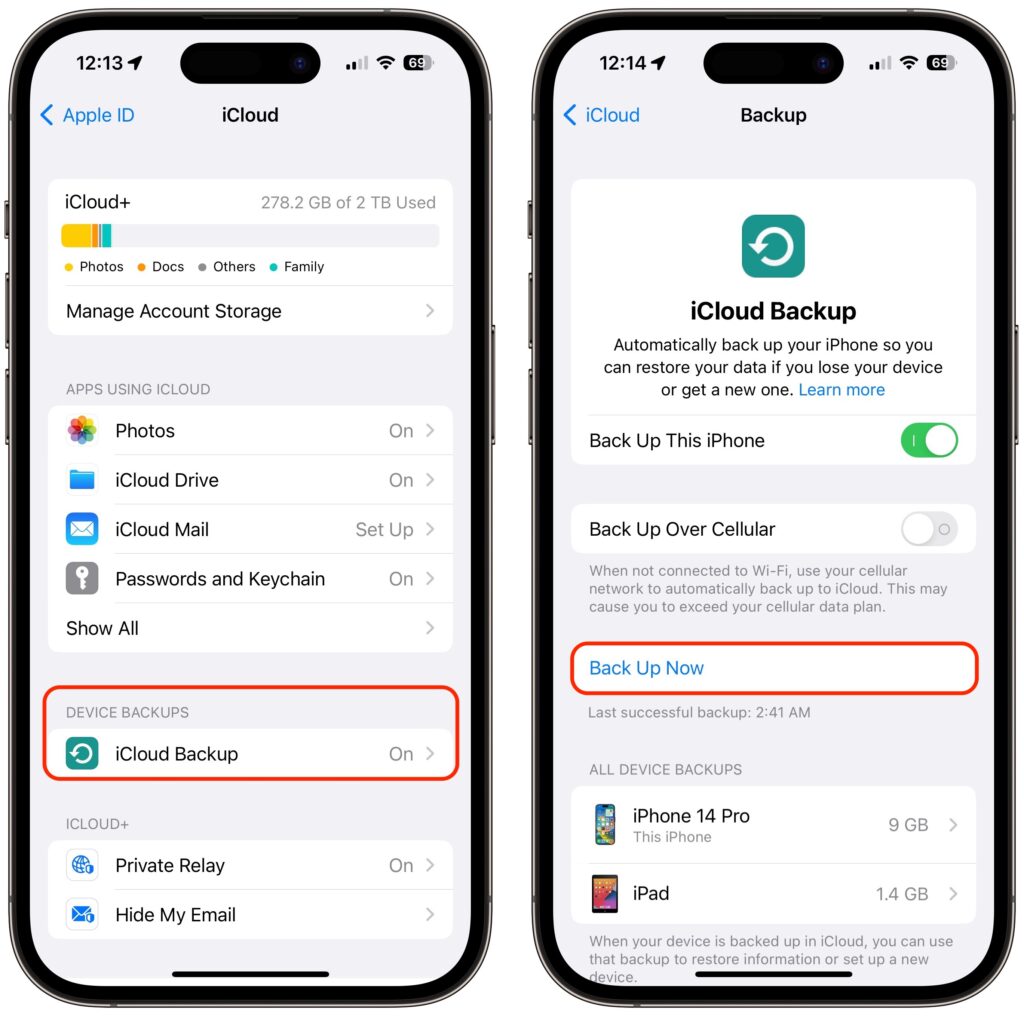
- Back up your old iPhone to iCloud or your Mac. (If you back up to a Mac, be sure to encrypt the backup, or else it won’t include saved passwords, Wi-Fi settings, browsing history, Health data, and call history.) Or back up to both, for safety’s sake. We prefer iCloud backups because they’re easier and don’t introduce additional variables, like flaky USB cables. If you don’t usually back up to iCloud, Apple will give you temporary iCloud storage to make a backup when moving to a new iPhone. To initiate an iCloud backup, go to Settings > Your Name > iCloud > iCloud Backup and tap Back Up Now.
- If you have an Apple Watch, you don’t need to unpair it from your old iPhone at this point in the process. (Later, if the automatic transfer has not worked, you can unpair it manually and pair it again later. If you end up taking the manual route and have a cellular Apple Watch, you’ll be asked if you want to keep or remove your plan. If you’re keeping your Apple Watch to re-pair with your new iPhone, keep the plan.)
- You shouldn’t need to worry about transferring a SIM card. If you ordered your new iPhone through Apple and connected to your cellular carrier account during purchase, activating the new iPhone should cause it to take over your phone number. The same should be true if you’ve purchased directly through your carrier. Besides, it’s likely that iPhone 16 models sold in the US will rely on eSIM and lack SIM trays like the iPhone 15, so only non-US users might need to transfer the SIM card from the old iPhone to the new one. Even then, it’s better to contact your carrier and get them to activate the new SIM in the new iPhone because old SIMs don’t always support all current cellular features, such as full 5G support.
- Transfer your data, settings, apps, and purchased content in one of these three ways. None of them will be quick, despite the first one’s name, so initiate the transfer only when you have plenty of time:
- Quick Start: With the Quick Start feature, content from your old iPhone copies directly from your old iPhone to your new one. We recommend this technique because it’s more likely to preserve app logins, something that’s less true when restoring from an iCloud backup. Put your iPhones next to each other (plugged into power), use the old iPhone to scan the animation on the new one, and then follow the rest of the steps.
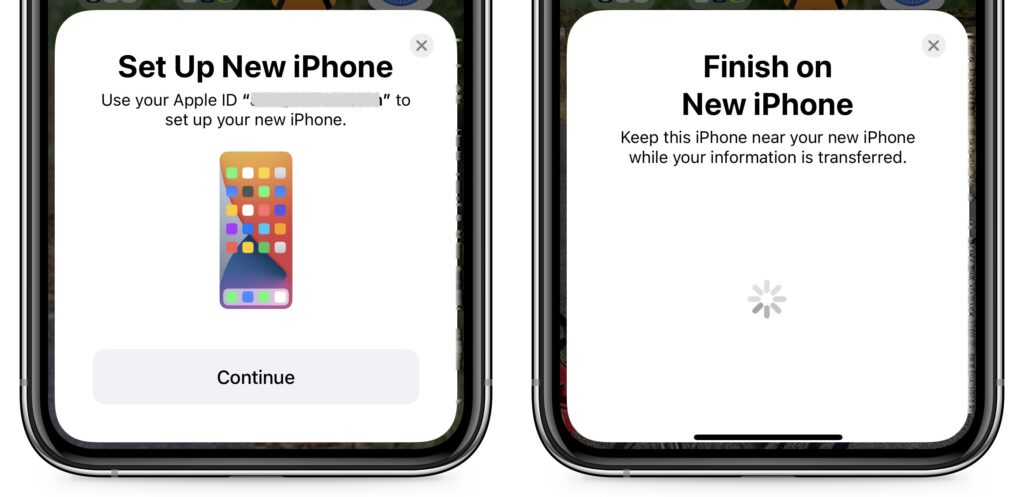
- iCloud: With this technique, the new iPhone will download your content from your old iPhone’s iCloud backup. Once you’ve joined a Wi-Fi network on the new iPhone and tapped the Restore from iCloud Backup button, you’ll have to select the correct backup—likely the most recent one you just made. Keep your new iPhone plugged into power the entire time to ensure that all your content syncs during this step.
- Finder or iTunes: With this approach, you’ll restore your old iPhone’s content from a backup made to your Mac. Connect your new iPhone to your Mac using an appropriate cable, open a Finder window (or iTunes on an old Mac), select your device in the left-hand sidebar, click Restore Backup, and choose the appropriate backup—likely the most recent one.
- Perform post-transfer tasks. Ensure that you can make and receive a phone call. If necessary, pair your Apple Watch with the new iPhone. You’ll also need to pair your Bluetooth accessories—including AirPods—with your new iPhone. Plus, some app data needs to sync to your new iPhone, so open the Mail, Contacts, and Calendar apps and check if they have your data. It could take a few minutes for them to fill up. Apps may request notification permissions again, and you may need to download content and in-app purchases.
- If you use two-factor authentication with an app like 1Password, Authy, or Google Authenticator, ensure you can get your 2FA codes using your new iPhone. 1Password and Authy are good about providing access to 2FA codes from multiple devices—just log in to your account from each device—but Google Authenticator may require some additional setup since it didn’t initially offer any way to transfer codes to a new phone.
- Finally, if necessary, set up single sign-on for work or school. If your workplace or school uses a security system like Duo, you’ll likely want to activate your new iPhone and deactivate the old one. Using any device, navigate to a standard single sign-in login screen from your organization, look for a link for managing your logins, click that link, and follow the prompts.
Although Apple works hard to make the process of transferring from an old iPhone to a new one as painless as possible, some things may fail to transfer seamlessly. For that reason, we strongly recommend holding onto your old iPhone for a week or so to ensure the new one can do everything the old one could. During that time, put the new iPhone through its paces with an eye toward checking every app you need.
(Featured image by iStock.com/valiantsin suprunovich)
Social Media: It’s exciting to get a new iPhone, but take a few minutes to read our advice on what you need to do before—and after—transferring your data from your old iPhone.
by Steve Sorbo | Sep 3, 2024 | Uncategorized
A few months ago, news broke about the latest massive data breach, this time from a company called National Public Data, a company that collects vast amounts of personal data about individuals from public data sources, including addresses, employment history, criminal records, and Social Security numbers. NPD then sells access to that data to employers conducting background checks, landlords screening potential tenants, banks verifying loan information, and more.
Unfortunately, NPD’s data security was lax, with the company publishing its own passwords in a file that was freely available from its homepage. How many people are affected remains unclear, though it seems likely to be hundreds of millions, if not the three billion reported by some outlets. Precisely what is included in the breach varies by person, but it includes names, physical addresses, phone numbers, dates of birth, and Social Security numbers for many. Email addresses may be included as well.
Put bluntly, this is terrible. It’s bad enough when a firm to which you’ve entrusted your data suffers a breach, but no one affected by the NPD breach had a relationship with the company. NPD was just hoovering up everything it could find and reselling it. NPD is far from alone in this field—numerous other companies do the same thing, and some of them have also suffered data breaches.
What can you do? Honestly, not much. Your data appeared in the breach through no fault of your own, so apart from generally trying to keep the amount of your personal data available online to a minimum (watch social media in particular), nothing you do will make a big difference.
You might be tempted by services that promise to “scrub the Internet!” of your data at people-search sites, but a Consumer Reports study found that they were largely ineffective, working for only about a third of the profiles tested. (The study was admittedly fairly small.) The best of the services was effective less than 70% of the time, and manually opting out at each site was slightly more effective. Plus, the study only looked at sites that offer opt-out options—with companies like NPD, there’s no way to know if they have your data or will remove it if asked.
However, several sites will now tell you if your data was included in the NPD breach, including npdbreach.com and npd.pentester.com. Keep in mind that both come from companies that also offer data removal services, although neither were included in the Consumer Reports study.

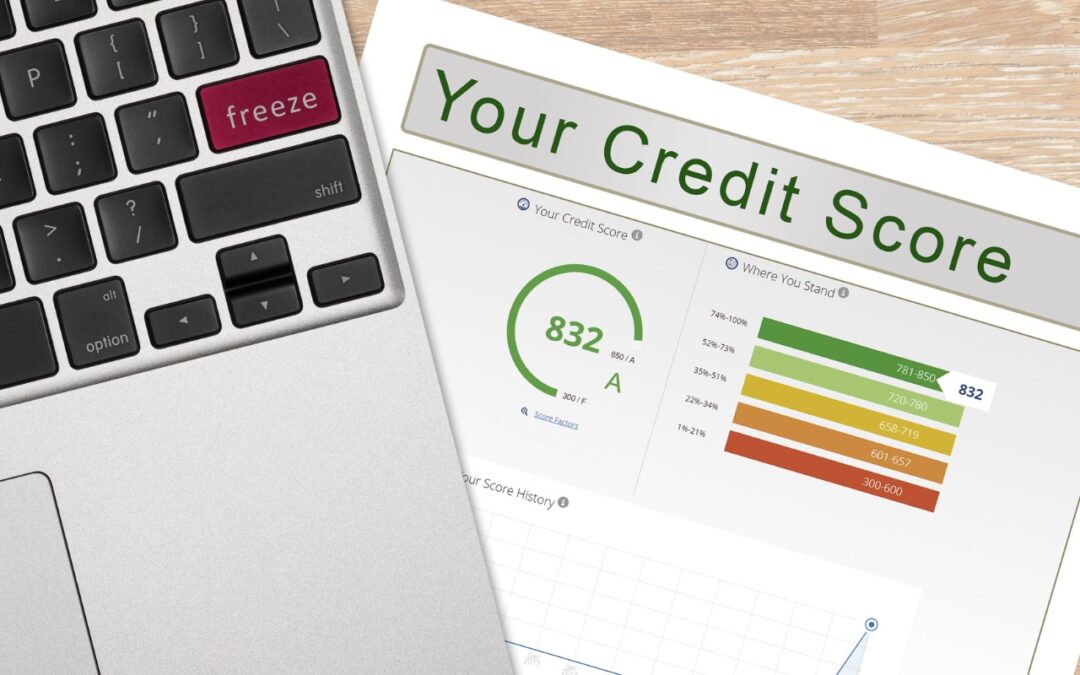
Breached companies will often offer free credit monitoring services to affected customers. That’s highly unlikely to happen with NPD because it has no business relationship with the people whose data it lost. But there’s a better approach anyway: placing a freeze on your credit reports. Doing so is free and prevents an identity thief from opening new financial accounts in your name by blocking access to your credit file from prospective creditors. Freezing your credit report has no impact on your credit score.
However, before you freeze your credit reports, check them to ensure they’re accurate. You can get free weekly credit reports from all three credit bureaus at AnnualCreditReport.com, authorized by the federal government, which also offers other useful information about protecting yourself from identity theft. If you discover any mistakes, work with the credit bureau to resolve them.

Once you’ve checked your credit reports, you can freeze them, which you need to do with each of the three credit bureaus:
Security freezes remain in place indefinitely, and many people can leave them that way. However, you’ll need to remove the freeze temporarily if you plan to rent a new apartment or house, take out a loan, apply for a credit card, set up a new mobile phone plan or utility account, apply for a new job, or undergo a background check. All three services provide such a capability online, or you can contact them via phone or postal mail, as mentioned above. It can be hard to think about removing a freeze proactively, so if something that might involve checking your credit score fails unexpectedly, remember the freezes. You might even make an annual reminder in your calendar so you don’t go too long without remembering.
It’s a shame that data breaches have become a fact of life, but that’s unavoidable without significantly stronger privacy regulations that prevent large companies from unnecessarily storing personal data and punishing them when they don’t protect it effectively.
(Featured image by iStock.com/BackyardProduction)
Social Media: Hundreds of millions of people had their names, addresses, and Social Security numbers revealed in the massive NPD breach. There isn’t much you can do to protect yourself, but we explain the one thing everyone should do.
by Steve Sorbo | Sep 3, 2024 | Uncategorized
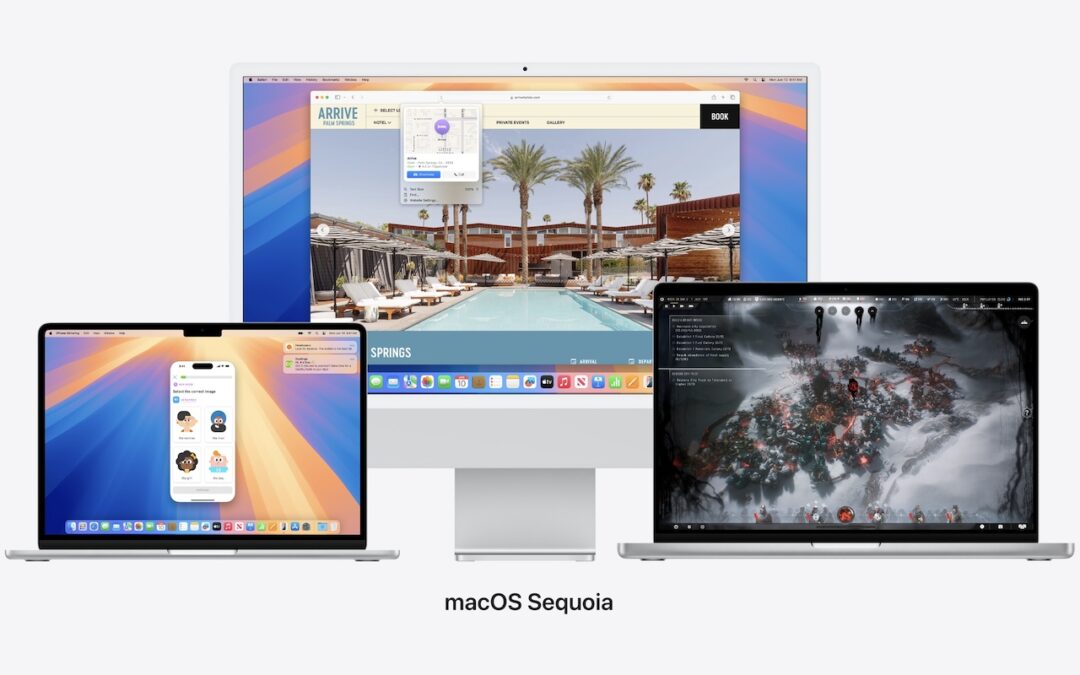
The calendar has flipped over to September, so Apple will soon release major upgrades for all its operating systems. iOS 18 and watchOS 11 will undoubtedly ship alongside new iPhone and Apple Watch models mid-month. iPadOS 18 is likely to accompany iOS 18, as are tvOS 18 and visionOS 2. Although Apple has sometimes delayed the release of macOS until later in the year, we anticipate that Apple will release macOS 15 Sequoia earlier this year, probably with its siblings. That’s because the company has already said it will release the initial Apple Intelligence features in iOS 18.1, iPadOS 18.1, and macOS 15.1; those will probably debut in October or November.
Apple previewed these releases at its Worldwide Developers Conference in June, and many people have been testing the public betas since. Once Apple judges each of its operating systems to be ready for public consumption, the question arises—when should you upgrade?
Note that we say when and not if. There’s no harm in delaying a major operating system upgrade until Apple has sanded off any rough edges that slipped through testing. But waiting too long puts you at risk from security vulnerabilities, increases compatibility annoyances, and prevents you from taking advantage of new features. Plus, when you buy a new Mac, iPhone, or iPad after these operating systems have shipped, you’ll get the latest version, which could pose problems for your existing apps or compatibility with older hardware or workflows. It’s best to be prepared if you have to replace a device unexpectedly.
Given that we don’t know precisely when each operating system will come out, here’s our recommendation for the general upgrade order that we anticipate and how long we suggest waiting after the release appears. We also share a few new features that might encourage you to upgrade, assuming you have a device that’s new enough to take advantage of them.
Remember, always make a backup before upgrading a Mac, iPhone, or iPad so you can revert if necessary.
iOS 18
It’s usually safe to upgrade iOS fairly quickly because Apple puts significant effort into ensuring that the new iOS version is a good experience for those who buy the new iPhones that come with it. However, because iPhones are so crucial to our everyday lives, it’s worth delaying the upgrade to iOS 18 for a week or two, just in case. After that, you can install it and enjoy the new features.
Even before the Apple Intelligence features start appearing in iOS 18.1, there’s plenty to look forward to in iOS 18. Messages via satellite will let you stay in touch even when there’s no cellular or Wi-Fi service. You’ll be able to personalize your Home Screen layout more by placing apps and widgets wherever you want. App icons and widgets get a new Dark look, and you can even tint them all a certain color. Keep prying eyes out of sensitive apps by requiring Face ID to open them. You can now rearrange and resize controls in Control Center, plus create groups of controls accessible with a single continuous swipe. You can even swap out the flashlight and camera icons on the Lock Screen for other controls. Photos has been redesigned (and simplified after public outcry during the beta). Messages lets you use bold, italics, underline, and strikethrough, but more interesting is the ability to send tapback responses with any emoji or sticker—it’s a great way to respond quickly to messages. Maps gains topo maps and trail networks, including all US national parks, and a new Passwords app extracts your logins and passwords from the Settings app.

As noted, Apple Intelligence features will start shipping with iOS 18.1 and will continue appearing in new versions throughout 2025. They include a smarter Siri, categorization in Mail, writing tools that correct your grammar and summarize long texts, and generative AI image creation—you’ll even be able to make your own emoji. Apple says these features will require an iPhone 15 Pro or iPhone 15 Pro Max; it’s likely that all the upcoming iPhone 16 models will be compatible, though Apple could hold out Apple Intelligence as a reason to buy a Pro model.
watchOS 11
Once you upgrade your iPhone to iOS 18, there’s no reason to delay upgrading your Apple Watch to watchOS 11. Few of the changes are likely to require significant adjustments in your usage patterns, and some may be quite welcome.
When you wear your watch overnight, the new Vitals app displays your heart rate, respiratory rate, wrist temperature, blood oxygen (on units that have it enabled), and sleep duration, showing a typical range and identifying outlier metrics. You can now adjust Activity ring goals for every day of the week or put your rings on pause if you need to take a break for any reason. The Activity app now shows your training load so you can adjust the intensity of your workouts. The Smart Stack interface now includes Live Activities and has been improved to be more intelligent, suggesting widgets based on time, date, location, and daily routines. Finally, Apple enhanced the Photos watch face to select photos automatically, optimizing the subject’s position with the frame and creating a sense of depth. Its Dynamic mode shows a new image on every raise of your wrist.

iPadOS 18
Our general advice is that it’s OK to install iPadOS 18 shortly after it ships. For the most part, iPadOS is a superset of iOS, so if you’re comfortable upgrading to iOS 18, think of iPadOS 18 similarly. The main caveat is when you rely heavily on a particular app. In that case, check with the developer to ensure your app is compatible before upgrading.
Along with most of the features in iOS 18 that aren’t specific to the iPhone (like Messages via satellite), iPadOS 18 finally gains a Calculator app that goes well beyond the basics, offering the Math Notes feature that solves equations written with the Apple Pencil. The Notes app gains live audio transcription, styled highlighting, collapsible sections, and Smart Script, which refines your handwriting to be smoother, straighter, and more legible. You can also paste in typed text, correct spelling inline, touch and drag to reflow text, and scratch out writing to delete it. A new tab bar at the top of the screen promises to provide easier navigation in apps and quick access to app sidebars.

tvOS 18
Regardless of when Apple releases tvOS 18, it’s safe to update within a week or two of release, depending on the level to which you depend on your Apple TV.
tvOS 18 introduces several notable features to enhance the Apple TV experience. InSight provides real-time information about actors, characters, and music from Apple TV+ content, similar to Amazon Prime Video’s X-Ray feature. Apple updated the Enhance Dialogue to provide greater vocal clarity for a broader range of speakers. Subtitles have also received enhancements and now automatically appear when you mute the TV or skip back, or when content is in a different language. People with projectors will appreciate the added support for the 21:9 aspect ratio. New screensaver options include Snoopy and Woodstock, Portraits, and scenes from Apple TV+ shows.
If nothing in that list encourages you to upgrade as soon as tvOS 18 ships, let your Apple TV (the fourth-generation model and later) upgrade itself when it gets around to it, assuming you have automatic updates turned on in Settings > System > Software Updates.

visionOS 2
Since the Vision Pro has been out for less than a year and hasn’t seen widespread adoption, most people can upgrade to visionOS 2 shortly after it comes out. People with mobility issues or disabilities that make the Vision Pro an essential aspect of everyday life should probably wait until early adopters have given the upgrade a thumbs up.
The promised new features should enhance the overall Vision Pro experience. New hand gestures let you open the Home View and Control Center more easily. You can also personalize the Home View in a manner similar to moving icons around on the iPhone Home Screen. The Mac Virtual Display feature now supports an ultra-wide display equivalent to two 4K monitors, making it more useful for travelers who need a lot of screen real estate on the road. Beta testers have praised the new capability to convert 2D photos to 3D spatial photos. SharePlay in Photos lets you and other Vision Pro users on a FaceTime call share and interact with spatial photos, videos, and panoramas. There’s a new Bora Bora environment, and whatever environment you’re in, your Magic Keyboard or MacBook keyboard appears in front of you to ease typing. Finally, the Guest User feature now saves your most recent guest’s eye and hand data so they can skip the setup on subsequent uses.

macOS 15 Sequoia
For most of us, the hardest upgrade decision revolves around upgrading your Mac to macOS 15 Sequoia. Most people should be able to upgrade because Apple dropped support only for two MacBook Air models from 2018 and 2019; otherwise, everything that can run macOS 14 Sonoma can upgrade to Sequoia. (If you have one of those MacBook Airs, consider this an excuse to upgrade—you’ll love the current MacBook Air.) The problem with upgrading macOS is that Apple’s changes are seldom more compelling than keeping your Mac working the way it is now. It can take a few months before the apps you use every day all work without compromise.
What capabilities does Sequoia promise? The big one is iPhone mirroring, which will let you view and interact with your iPhone right on your Mac screen. iPhone notifications can appear on your Mac, and later this year, you’ll be able to drag and drop files, photos, and videos between your Mac and iPhone. New window tiling features make it easy to arrange windows in side-by-side tiles on your desktop by dragging or using keyboard or menu shortcuts. Those who do video calls all day will appreciate background replacements and a presenter preview that shows exactly what you’ll share before displaying it to everyone. The new Passwords app appears on the Mac and syncs securely across all your Apple devices. And you’ll enjoy the same updates to Mail, Maps, Messages, Notes, and Photos as are in iOS and iPadOS.

We always encourage caution when upgrading to a new version of macOS. Wait at least a month or two before upgrading your primary Mac to Sonoma. App compatibility is less of a long-term problem with iOS and iPadOS, but many people rely on older Mac apps that may not work in the latest version of macOS. Even once you’re confident that your apps will work adequately in Sequoia, there may be workflow or intra-office compatibility concerns if some people upgrade and others don’t. And, of course, unanticipated bugs could crop up at inconvenient times—important work takes place on Macs!
Please do not upgrade to Sequoia without first checking with us. With luck, the bug fixes and app updates necessary to give the green light will have appeared by the end-of-year break, which provides some welcome downtime during which you can install and spend some time exploring the new features.
(Featured image by Apple)
Social Media: Apple is gearing up to release macOS 15 Sequoia, iOS 18, iPadOS 18, watchOS 11, tvOS 18, and visionOS 2. We briefly examine the features worth upgrading for and suggest when to upgrade each of your Apple devices.
by Steve Sorbo | Aug 1, 2024 | Uncategorized
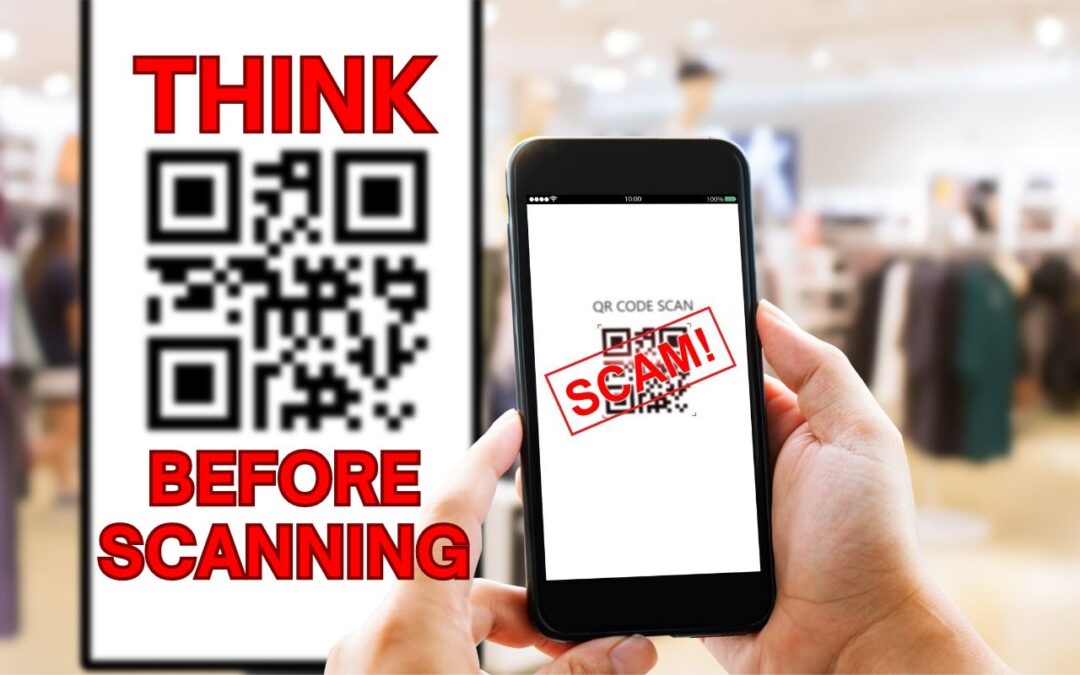
QR codes, those square, blocky codes you scan with your iPhone’s camera to load a Web page, have become ubiquitous. So much so that we seldom pause before scanning any QR code we see. But if you think about it, that’s the same as clicking random links in emails or texts, which is a terrible idea from a security perspective. “Quishing” (QR code phishing) isn’t commonplace yet, but some sources say there are thousands of cases per month. To avoid falling victim to a quishing scam, only scan QR codes from trusted sources, try to verify what a code will do once scanned, and evaluate the yellow URL preview Safari provides (when using other browsers, all you see is Open in Browser Name). Finally, always install iOS security updates promptly because they often address vulnerabilities that could be exploited with malicious data.

(Featured image based on an original by iStock.com/B4LLS)
Social Media: QR codes—those blocky squares you scan with your iPhone camera—are an easy way to open a Web page. Unfortunately, scammers also use them to trick people into visiting malicious websites, so read our tip about scanning these codes safely.
by Steve Sorbo | Aug 1, 2024 | Uncategorized
iOS, iPadOS, and macOS all let you specify whether any given app should show no notifications, temporary banners, or persistent alerts: look in Settings > Notifications and System Settings > Notifications. Temporary banners appear briefly and then automatically disappear, which is appropriate for notifications requiring no acknowledgment. But what if you see a temporary banner only as it’s disappearing and can’t read it in time? You can find a historical list of notifications in Notification Center. To open it from the Lock Screen on an iPhone or iPad, swipe up from the middle of the screen. From any other screen, swipe down from the center of the top of the screen. On the Mac, click the date and time in the upper right corner. If your Mac has a trackpad, you can also swipe with two fingers from the right edge.

(Featured image based on an original by iStock.com/Shutthiphong Chandaeng)
Social Media: If a temporary banner disappears from your iPhone, iPad, or Mac before you have a chance to read it, you can find it in Notification Center.

Recent Comments