by Steve Sorbo | Oct 2, 2026 | TCN Content, Uncategorized
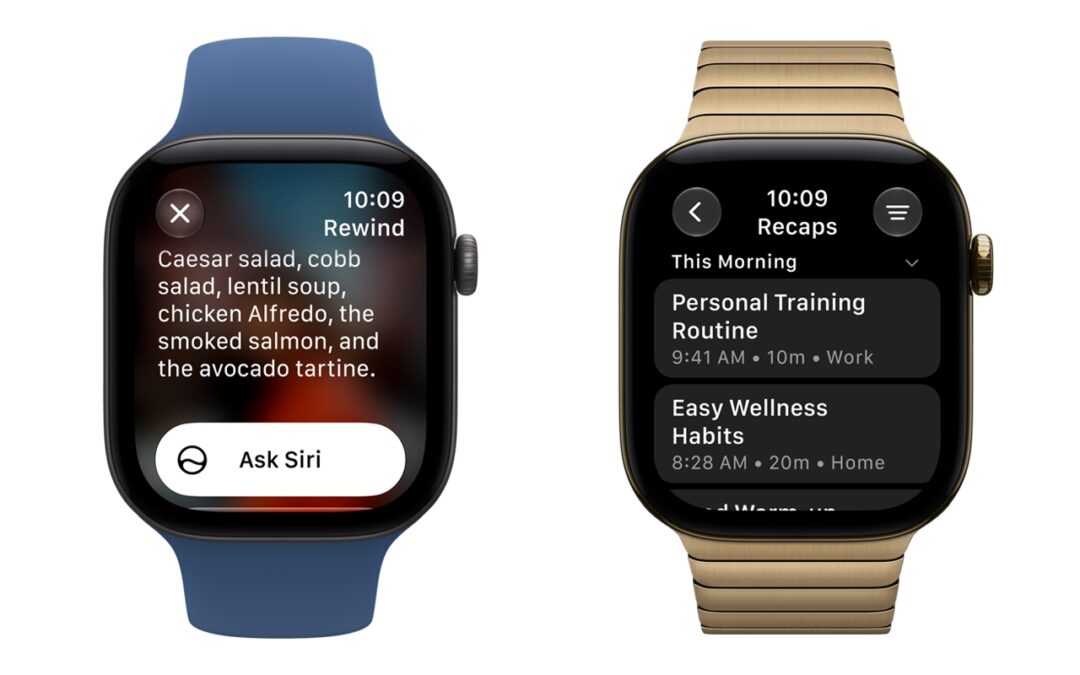
The new Live Rewind and Siri Recap features in the Apple Watch Series 12 and Apple Watch Ultra 4 sound convenient enough. Live Rewind lets you recall anything said in a conversation in the past 15 seconds, while Siri Recap takes notes throughout the day to create an Apple Intelligence summary.
That’s fine unless a meeting covers sensitive information like a personnel dispute, trade secrets, legal advice, or patient information. Before a watch turns workplace conversations into saved notes, employees need to know when that’s appropriate and where the notes may go.
Apple says it will release both features in beta later in 2026, giving businesses time to set rules and tell employees when they can use them.
Understand What the Features Will Do
Apple describes two different ways to help people remember conversations:
- Live Rewind: Double-pressing the Digital Crown will display text from the previous 15 seconds of conversation. You’ll be able to ask Siri about it or save the snippet to the Siri app.
- Siri Recap: When enabled, this feature will generate a title and key points from conversations for later review. It’s intended to provide a summary, without identifying which person said what.
Both features require opting in, and Apple says users will be able to control when and where Siri Recap runs or turn it off from Control Center. Live Rewind will play a chime even when the watch is silenced, accompanied by an on-screen animation and microphone indicator.
Apple says these features won’t create stored audio recordings: protected hardware processes the audio and then deletes it. Saved text will be end-to-end encrypted when synced through iCloud in the Siri app.
These are sensible protections, but they don’t cover every concern a business might have.
Decide Which Conversations Are Appropriate
Start with situations your employees actually encounter. A discussion about arranging the break room carries different expectations from a performance review or a client explaining an unreleased product.
We recommend a short written policy that addresses the following:
- Permitted uses: Identify the kinds of conversations for which employees may use these features. Consider starting with explicitly approved, non-sensitive meetings.
- Confidential discussions: Establish where the features must remain off, such as personnel meetings, legal consultations, and discussions involving client secrets.
- Notice and permission: Tell employees how to explain the intended use and obtain permission before a conversation begins. Give participants an easy way to decline.
- Personal devices: Apply the policy to employees’ own watches and phones as well as company equipment. Explain whom to contact about accessibility needs or exceptions.
A chime is no substitute for asking permission, and a colleague’s Apple Watch isn’t proof that note-taking is active.
Have legal counsel review how applicable privacy and consent rules affect your policy. Employees also shouldn’t assume that a missing audio file makes every use acceptable.
Plan for the Notes That Remain
According to Apple’s support documentation, unsaved Siri Recap summaries will automatically disappear after 7 days. Users will also be able to save or export summaries and Live Rewind snippets to other apps. Deleting an item in Siri will remove it from synced devices. Don’t assume that will retrieve copies already exported or shared.
Decide which accounts and apps may hold work-related notes, who may receive them, and how long they should be retained. Include a process for reporting accidental capture of confidential information, making it clear whom to notify when violations occur.
Apple warns that generated summaries and snippets may omit or misunderstand important details, and that sensitive-information filtering may not catch everything. Require employees to verify commitments, deadlines, and prices before acting on a summary or adding it to an official record.
Healthcare Businesses Need a Closer Review
A patient conversation requires more scrutiny than an ordinary staff meeting. A medical practice considering these features should involve its privacy or compliance lead and IT adviser before allowing employees to use them around patient information.
HHS guidance explains that a cloud provider maintaining electronic protected health information on behalf of a HIPAA covered entity is a business associate—even if it cannot decrypt the information—and must comply with the HIPAA requirements that apply to business associates. Appropriate business associate agreements and other HIPAA safeguards are still required.
Apple’s current iCloud terms also pose a contractual problem. Under Requirements for Use of the Service, they prohibit covered entities, business associates, and their representatives from using the service to create, receive, maintain, or transmit protected health information.
Before approving any proposed use, ask:
- Where will patient information travel? Apple says Siri Recap will use Private Cloud Compute to produce summaries. Review processing, syncing, and exports separately rather than assuming everything stays on the watch.
- Do the applicable agreements permit this use? Identify which services are involved and whether the necessary contractual protections exist for those specific services.
- Can the organization control the resulting notes? Consider access, retention, correction, employee departures, and accidental sharing from personal accounts.
- Who will verify clinical details? Don’t treat an automatically generated memory aid as an approved clinical documentation system.
Until those questions are resolved, we recommend keeping these features off for work conversations involving patient information. Address patients’ own use separately through an appropriate notice and discussion process.
Prepare Now, Test after Release
Apple currently lists Apple Watch Series 12 or Apple Watch Ultra 4, a supported paired iPhone, Apple Intelligence, and Siri AI as requirements for these features, with additional language and regional restrictions.
For now, appoint someone to update your device and confidentiality policies. Ask your IT provider to confirm which management controls will be available when these features launch, especially for personally owned devices.
If your business approves a trial, begin with a small group and non-sensitive conversations. Check how activation, saved notes, exports, and deletion behave before expanding access. Employees should have a clear answer to “May I use this here?” before their watches can offer to help.
(Featured image by Apple)
Social Media: Apple’s upcoming Live Rewind and Siri Recap features will help people remember conversations, but workplaces should prepare rules for sensitive information before the features arrive.

by Steve Sorbo | Oct 2, 2026 | TCN Content, Uncategorized
If you’ve kept Outlook for Mac in its older, familiar interface, you may need to switch soon to keep receiving email. Microsoft says legacy Outlook for Mac will stop connecting to Exchange Online mailboxes starting in October 2026. Those are the mailboxes commonly used for business email through Microsoft 365.
Before switching to the current Outlook for Mac, back up any data stored only on your Mac and check whether the features you rely on will still be available.
What Is Changing?
Legacy Outlook connects to Exchange Online through Exchange Web Services, usually abbreviated EWS. Microsoft is retiring that connection method. The current Outlook for Mac remains supported.
Microsoft’s updated EWS retirement plan describes a phased process beginning in October 2026. Your IT administrator may be able to keep legacy Outlook connected temporarily after October 2026, but Microsoft will shut down that connection method completely on April 1, 2027. (Yes, April Fools’ Day.)
If your administrator extends access, agree on a firm date to finish the move.
Check Whether You’re Using Legacy Outlook
Updating Outlook doesn’t always move you out of the legacy experience. Look for an enabled Legacy Outlook switch in the Outlook window. Microsoft’s instructions for the current experience say to turn that switch off to move to the redesigned Outlook.

You can also check the Help menu. If it includes Revert to Legacy Outlook, you’re already using the newer interface. If neither control appears, ask IT which version and mode you’re using.

Does the Deadline Apply to You?
Microsoft lists different deadlines depending on your Outlook license and where your email is hosted:
- Microsoft 365 business email: Legacy Outlook users with Exchange Online mailboxes need to move to the current Outlook.
- Microsoft 365 Personal or Family: Legacy Outlook support ends in October 2026. The Exchange Online cutoff doesn’t set a disconnection date for third-party accounts such as Gmail or iCloud.
- Exchange Subscription Edition on your organization’s servers: Microsoft lists legacy support through October 9, 2029, with security updates and technical assistance on a best-effort basis.
- Office LTSC 2024: Microsoft lists the same limited support through October 9, 2029. Even with that license, legacy Outlook will lose access to Exchange Online as EWS shuts down.
For the complete license-by-license breakdown, see Microsoft’s support timeline table. If you’re unsure where your work email is hosted, ask your IT provider.
Protect Your Local Data
Start with a current backup of your Mac. Then look for anything stored only in Outlook on that computer, particularly folders under On My Computer. Pay special attention to local calendars, contacts, and previously imported archives. Signing in to the same account elsewhere won’t recover locally stored information.
For an additional safety copy, legacy Outlook can export messages, contacts, and other items to an .olm archive. Microsoft’s instructions start with Export on the Tools tab; some versions offer it in the File menu. Save the completed archive somewhere included in your backups.

The migration announcement says local tasks and notes aren’t transferred. Microsoft’s current feature comparison also lists the in-app Notes and Tasks modules as upcoming and Public Folders as unavailable. If you rely on those features, arrange another way to access the information before switching.
Switch and Test Your Usual Tasks
Once you’ve backed up your data and checked the features you need, turn off the Legacy Outlook switch. If it’s missing, check for an update with Help > Check for Updates. On a company-managed Mac, contact IT if the switch or update is unavailable.
If your local folders haven’t appeared, look for Import On My Computer Data in the File menu, or an Import Now button under On My Computer. Microsoft documents both ways to start the import. Follow the prompts, then check the imported contents. Menu wording can vary by version; if neither option appears, get help before deleting or recreating your Outlook profile.

After switching and completing any local import, work through these steps:
- Accounts: Confirm that expected folders and recent messages appear. Send a test message and verify that you receive a reply.
- Calendars and contacts: Review upcoming appointments and confirm access to shared calendars and important contacts.
- Local archives: Find several older messages and open their attachments. Keep your original data and backups until you’ve verified the migration.
- Features you use: Check your signatures, important rules, shared mailbox access, and essential add-ins.
If something fails, tell your help desk or IT provider what you were trying to do and what happened. For example, name the shared mailbox you can’t open and include any error message. Microsoft directs personal-account users to Help > Contact Support.
If your organization offers Outlook on the Web, confirm that you can sign in and use it as a fallback if the desktop app has problems. However, note that it won’t replace access to information stored locally on your Mac.
Contact us if you need help moving local archives or setting up shared accounts.
(Featured image by iStock.com/Rawf8)
Social Media: Microsoft says legacy Outlook for Mac will stop connecting to Exchange Online mailboxes starting in October 2026. Check which Outlook experience you’re using, protect local archives, and test essential features when you switch.

by Steve Sorbo | Oct 2, 2026 | TCN Content, Uncategorized
If you use Shared Albums to collect job-site photos or share progress with clients, new options in macOS 27, iOS 27, and iPadOS 27 change image quality and whose iCloud storage the photos use.
New permanent shared albums preserve the full resolution of your photos and videos, but count against the album owner’s iCloud storage, including photos and videos uploaded by other participants. That means a busy project album can fill your account even when you haven’t added anything yourself. Apple’s Shared Albums limits explain the new rules.
What Changed and What Didn’t
Previously, Shared Albums reduced most photos to 2048 pixels on the long edge and delivered videos at up to 720p resolution. The new albums preserve original formats and full resolution, making them more useful when you need to inspect a detail in a job-site photo or provide images for a client’s publication. Apple documents the quality differences.
The storage rules now depend on the album:
- New permanent albums: On an iPhone or iPad running version 27, open Photos, tap Collections, scroll to Shared Albums, tap Shared, and tap the Add button. Name the album, leave Make Album Temporary turned off, and tap Done. New albums created on a Mac or Apple Vision Pro running version 27, or on iCloud.com, use the same storage rules: everything added, including contributions from other people, counts against the creator’s iCloud storage. Apple shows how to create an album.

- Existing older albums: Updating your device does not upgrade albums created in version 26 or earlier. Their shared copies remain stored in iCloud without counting against anyone’s allowance. To check one on an iPhone or iPad, open the album and tap More. On a Mac, Control-click the album in the sidebar. If you see Upgrade Shared Album, leave it alone to keep the old storage and image-quality rules.
- Older albums you upgrade: To change a Shared album deliberately, open it in Photos on an iPhone or iPad running version 27, tap the More button, then tap Upgrade Shared Album. On a Mac, select the album under Shared Albums in the Photos sidebar, Control-click the Shared Album, then click Upgrade Shared Album. Photos and videos already in the album remain exempt; anything added afterward counts against the owner’s storage and will be shared at full resolution. Upgrading does not restore detail lost from older uploads. See Apple’s upgrade instructions.

- Temporary albums: Follow the new-album steps above, but turn on Make Album Temporary before tapping Done. These albums don’t use your iCloud storage and can hold up to 5000 items, but they expire after 30 days. Save anything you need to keep. If you later turn off Make Album Temporary in Manage Shared Album, its contents begin counting against the owner’s storage. Apple explains temporary albums.

Why a Shared Album Can Disrupt Other Work
If you create a renovation album and invite subcontractors to contribute, their uploads use your storage allowance, not theirs. Buying more storage for a contributor will not give your album more space.
A full iCloud account can also cause trouble beyond the project photos. Apple says that running out of storage prevents iCloud backups, stops new uploads to iCloud Photos, and keeps iCloud Drive and other iCloud apps from updating across devices. It also prevents sending and receiving messages through an iCloud email address.
Permanent Shared Albums in version 27 also require iCloud Photos to be enabled. Apple includes that requirement in its iPhone and iPad setup instructions. If you turn on iCloud Photos to use the new albums, your photo library also starts uploading to iCloud. Review its size before enabling it, especially on a device containing years of photos.
What to Check When Storage Fills Up
Before deleting anything or changing a subscription, work through these checks:
- Identify which storage is full. On an iPhone, Settings > General > iPhone Storage shows the device’s capacity. Settings > Your Name > iCloud shows cloud storage. On a Mac, open System Settings > Your Name > iCloud. Deleting an unused app from the phone won’t free space for an album stored in iCloud. Apple explains the distinction.

- Check the album owner’s account. On the owner’s iPhone or iPad, open Settings > Your Name > iCloud, then tap Storage or Manage Account Storage. On a Mac, open System Settings > Your Name > iCloud, then click Manage. Review which apps and features consume the most space. Apple provides these storage-checking instructions.
- Ask what changed recently. Look for a new permanent album, an older album that was upgraded, a temporary album made permanent, a batch of videos, or iCloud Photos turned on for the first time. Any of these can explain an increase the owner didn’t cause directly.
- Check the cause of an upload failure. Apple’s Shared Albums troubleshooting guide specifically recommends checking the owner’s available iCloud storage. Also check the Internet connection and whether other participants can access the album. If only one person can’t contribute, review their Can Add Photos permission. Participants using older software may have read-only access to new or upgraded albums; they can use iCloud.com or update their devices.
- Choose how to make room. You can increase the owner’s iCloud+ allowance or remove content you no longer need after preserving required project records. Optimize Storage frees space on the device, not in iCloud, because the full-resolution originals stay there. Apple explains how iCloud Photos handles storage.
If you contact us for help, include the exact warning, the album’s owner, whether it’s temporary or permanent, and any recent album changes.
Set Up the Next Project to Avoid Surprises
Before creating an album, agree on who will own it and provide the storage. For business projects, follow your organization’s account policy and consider what happens when the employee who created the album leaves.
Ask contributors to upload useful selections. A few clear photos of an installation may serve the project better than every shot taken that afternoon. Agree on when videos are necessary and where completed project records will be retained.
Before deleting any shared album, save and verify the material your business needs. Deleting the album removes it for participants too; copies already saved to their own libraries remain. Apple describes the deletion effects.
For long projects, review storage use periodically, so syncing doesn’t stall.
(Featured image by iStock.com/fadfebrian)
Social Media: Photos in Apple’s Shared Albums never used to count against your iCloud storage. New permanent albums preserve full-resolution photos but use your allowance. Here’s what changed and what to check when project photos stop syncing.

by Steve Sorbo | Feb 6, 2026 | Uncategorized
When business slows down, it’s tempting to reduce IT spending. But that approach often backfires, creating bigger problems—and larger bills—down the road.
Beyond the productive work you accomplish on your Macs, your technology infrastructure enables you to communicate with clients, send invoices, manage schedules, and get paid. A downturn is precisely when you need those systems working reliably, not when you should neglect them.
The smart approach isn’t to stop spending on IT. It’s to protect the essentials while trimming optional expenses. Let’s look at what’s critical and what’s not.
The Hidden Costs of Cutting Back
When IT spending gets cut, three things typically go wrong:
- Small problems become big problems: Deferring maintenance—putting off updates, delaying hardware replacements, and ignoring broken workflows—doesn’t save money, it just pushes the expense to a later date, when it will almost certainly cost more. Beyond the fact that prices only increase over time, emergency troubleshooting, rush purchases, and downtime during business hours always cost more than planned maintenance.
- Security risks persist: Attackers don’t slow down just because revenues have. When budgets tighten, businesses often cut the very things that stave off disasters: software updates, security monitoring, and tested backups. One phishing attack that leads to wire fraud, one malware infection that steals passwords, or one unpatched vulnerability can wipe out years of “savings.”
- Productivity losses add up quietly: When Wi-Fi is flaky, Macs are slow, and file sharing doesn’t work reliably, employees waste time waiting and working around problems. During a downturn, you typically have fewer people doing more work, which is the worst time to tolerate daily friction.
What to Protect First
Spending on some aspects of IT is more important than others. These are the services that keep your business running smoothly and help you recover when something goes wrong:
- IT support and consulting: We’re biased, of course, but we’ve seen what happens when clients go out on their own and then come back. Proactive support catches issues early, keeps your systems running, and ensures you have someone to call who already knows your setup when things break.
- Software subscriptions: Adobe Creative Cloud, Microsoft 365, accounting software, and similar subscriptions often seem cuttable. But letting subscriptions lapse means missing security updates and losing access to files in proprietary formats. It also means employees will spend time learning new tools rather than being productive with familiar ones. Before canceling, understand what you’ll lose.
- Backup services: Cloud backup services like Backblaze or CrashPlan may seem unnecessary if you have local backups, but they protect against burglaries, fires, or burst pipes that can destroy local backups.
- Networking equipment: Dodgy Wi-Fi access points and aging routers waste everyone’s time. If your team can’t reliably stay connected, nothing else matters. If you need to replace networking gear, choose quality products that will last for years.
- Hardware replacement budget: It’s tempting to squeeze another year out of aging Macs, but don’t keep them going beyond the point where they stop receiving security updates. User productivity will also decline as older Macs slow down and experience more issues.
Where to Cut Without Breaking Things
Many businesses have unnecessary costs hiding in plain sight. Here’s where to look:
- Unused software licenses: Audit what you’re paying for versus what employees actually use. Many companies have up to 30% of seats unused across various apps. Reclaim those seats, and establish a simple rule: every subscription needs an owner and a regular review.
- Duplicate tools: It’s surprisingly common for businesses to pay for multiple apps that do the same thing—multiple chat platforms, overlapping backup utilities, and so on. Pick one and consolidate.
- Vendor contracts up for renewal: Before agreements for Internet service, phone plans, hosting, or equipment leases auto-renew, check whether you still need the same service level. Many vendors will negotiate rather than lose a customer, and some plans can be downgraded to match actual usage.
- Projects that don’t solve real problems: Pause any “nice to have” work that isn’t about reducing costs, lowering risk, or helping you serve customers better: things like migrating to a new CRM, redesigning a website that’s working fine, or building custom tools when off-the-shelf options exist. A downturn forces prioritization—use it.
The goal isn’t to spend more on IT—it’s to spend smarter. Protect the services that keep you running, cut the ones that don’t, and avoid creating tomorrow’s emergency by skipping today’s maintenance. If you’re unsure where to cut and where to hold the line, we’re happy to help you sort through the options. A short conversation now can prevent an expensive surprise later.
(Featured image by iStock.com/Userba011d64_201)
Social Media: Freezing IT spending during a slowdown often leads to higher costs later. Here’s practical, real-world advice on reducing costs while protecting the services that keep your business running.

by Steve Sorbo | Jan 2, 2026 | Uncategorized
The AI hype train continues to gain momentum, with breathless reports of rapid user growth, billion-dollar deals, and sky-high company valuations. At the same time, it’s easy to highlight AI pilot failures, problematic uses, and worries about job losses.
As always, reality lies between the extremes. AI is just another technological tool, like spreadsheets, email, and the searchable Web. Like them, casual usage won’t automatically increase an organization’s productivity. At best, many people have begun using AI chatbots as a smarter search engine, and while that’s a fine start, it’s unlikely to make a notable difference. Many others are technology skeptics who are uncomfortable with any new technology, let alone one as fuzzy as AI. Even those who are interested and capable are often overwhelmed by their existing work and don’t have time to learn yet another tool.
So how do you set up an organization to make effective—even transformative—use of AI?
Get Buy-In from Management
Ideally, the desire to adopt AI would come from the top of the organization, with leadership discussing and modeling the kind of usage they want to see. But what’s absolutely essential is lower-level management creating the culture, resources, and time necessary for employees to experiment with AI.
Evangelize from the Bottom, Don’t Mandate from the Top
Although management must be on board, a CEO memo mandating immediate AI adoption won’t have the desired effect. Unlike many other technologies, AI solutions tend to be highly specific rather than one-size-fits-all. Frontline employees know where they’re wasting time with inefficient workflows, and they have first-hand knowledge of what customers want, so they’re more likely to be able to leverage AI tools when they are involved in the development and deployment. Solutions created without their participation likely won’t benefit the business’s bottom line, customers, or employees.
Centralize Testing and Support
A top-down approach does make sense for tool analysis and testing. The explosive growth of the AI market means that there are numerous similar options for any desired workflow. To save time, avoid future chaos, and reduce tool jumping, it can be helpful to have a single IT team evaluate the numerous possible tools, make recommendations, suggest best practices, establish basic data handling and privacy guidelines, and provide support.
Adopt a Documentation Mindset
A key to automating workflows with AI is being able to document the necessary tasks clearly first. Some organizations already have a documentation mindset, where they write everything down, define processes, and record decisions. If that’s not the case for your organization, it’s better to focus on building such documentation before creating automation tools that are unlikely to deliver the desired results. Consider using AI to help with documentation, such as by interviewing people who understand the workflows and using AI to extract an outline from the transcript of the recording.
Think of AI Tools Like a Junior Employee
The hard part of using AI is defining your goals and determining where AI can make a difference. It’s much like training a new hire. What are you trying to achieve by hiring them? What do they need to learn to do their job? What level of excellence do you expect? What common mistakes and pitfalls should they avoid? You can only automate something if you have a clear idea of what success entails and precisely what’s necessary to achieve it.
The Bottom Line
Ultimately, successful AI implementation comes down to defining what you want to achieve, giving people the time they need to explore possibilities, and providing guidance rather than mandates.
(Featured image by iStock.com/FabrikaCr)
Social Media: Casual AI use won’t impact your organization. To see real productivity gains with AI projects, avoid top-down mandates and instead empower frontline teams, document workflows, and centralize support.

Recent Comments