by Steve Sorbo | Jul 3, 2025 | Uncategorized
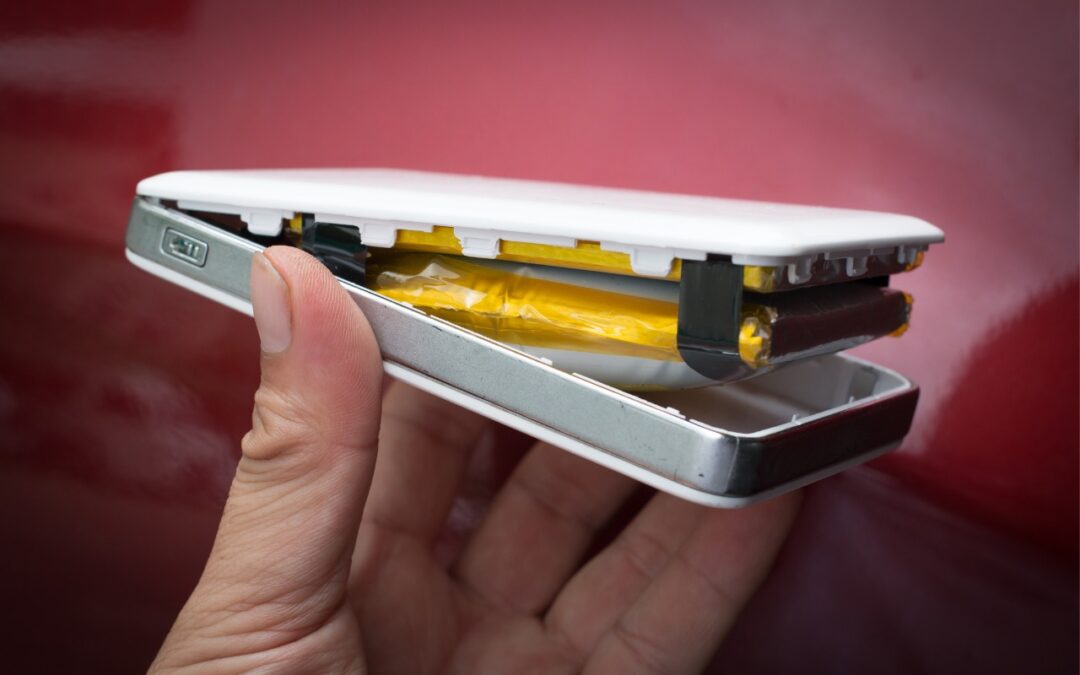
We recommend sticking with well-known brands when buying accessories, and a recent example illustrates why this is important. Anker, a highly regarded accessory manufacturer, has initiated voluntary recalls of power bank models sold from 2016 to the present due to the risk of overheating, melting, smoke, and fire. In mid-June, the company recalled 1.1 million PowerCore 10000 power banks; it has now issued another recall for more recent models of its Power Bank, MagGo Power Bank, and Zolo Power Bank. If you own one of these products—even if it’s working fine—go to Anker’s product recalls page for more information and a serial number checker. If your power bank is affected, stop using it immediately and contact your municipal household hazardous waste collection center for disposal guidance—neither the trash nor standard recycling boxes at retail stores are acceptable. Anker will give you a free replacement or a gift card for use on the Anker website.

Screenshot
(Featured image by iStock.com/Pradit_Ph)
Social Media: Anker has issued major recalls for six power bank models due to fire risk. If you own an Anker power bank, check if yours is affected, even if it seems to be working fine. The company is offering free replacements or gift cards.
by Steve Sorbo | Feb 7, 2025 | Uncategorized
The devastating losses caused by the Los Angeles wildfires have underscored the need to protect data from catastrophic events. A traditional offsite backup—periodically moving a hard drive to another location—might not have sufficed in areas affected by wildfires, where many structures were destroyed. An online backup using a service like Backblaze or CrashPlan is often a better solution, although it can become costly for multiple Macs, and some individuals and organizations are uncomfortable storing their data online, even with encryption.
What about a safe? Would storing one or more backup drives in a safe provide adequate protection? Possibly, but the details are critical. Some safes are designed solely to guard against theft, focusing on preventing thieves from opening the door. However, paper ignites at 451ºF (it chars around 387ºF), and most house fires reach temperatures between 800ºF and 1200ºF, so you may think that all you need to do is look for a “fireproof” safe. That’s a good start, but paper is actually much more resilient than magnetic and optical media.
Fireproof safes come with ratings that indicate the internal temperature they can maintain, with the most common being:
- Class 350: Safes maintain an internal temperature of 350ºF, suitable only for paper.
- Class 150: Safes keep the interior below 150ºF, which should protect magnetic media.
- Class 125: Safes maintain temperatures under 125ºF, appropriate for optical media.
It is also important to determine how long the safe can maintain that temperature. Generally speaking, a fireproof safe is rated for 1 or 2 hours, indicating it can maintain the specified internal temperature for at least that duration. Time ratings represent minimums, not maximums, so the actual protection time may be longer.
In most cases, the protection time is likely to be longer. That’s because safes are tested in furnaces at temperatures that can be two to three times hotter than the average house fire. For example, Underwriters Laboratory (one of several independent testing labs) conducts tests at 1700ºF or 1850ºF. Additionally, while a house fire may burn for several hours, the average fire will consume everything near the safe within 20 minutes and then move on.
Wildfires are a different story. In extreme conditions, wildfire temperatures can range from 1500ºF to 2200ºF, approaching or exceeding the testing conditions. Wildfires also last longer, so a safe in a destroyed building may remain in embers for hours or even days before it can be recovered.
While temperature over time is the main factor to consider when researching a fireproof safe, also look for two other variables being mentioned as well:
- Water resistance: Where there’s fire, there’s usually water. Thousands of gallons of water, some of which will undoubtedly affect the safe. Not all fireproof safes are waterproof, so verify whether a specific safe can withstand being doused by firefighters.
- Impact protection: If the floor collapses, a safe on an upper story could fall a considerable distance. If you are considering such a location, ensure the safe can withstand the impact. To simulate realistic fire conditions, the test may involve withstanding a 30-foot drop onto a concrete floor, followed by reheating.
Finally, remember that if your safe is in a fire, the heat will cause its insulation to swell up, rendering the lock useless, regardless of its type. Typically, you will need to hire a locksmith to access the safe using instructions from the manufacturer.
If you’re going to trust your data to a fireproof safe, do your research to ensure that whatever you buy will meet your needs for fire, water, and impact protection. It won’t be cheap—depending on the size and other factors, a good fireproof safe can cost many hundreds or even thousands of dollars. However, this is one area where you definitely shouldn’t cut corners.
(Featured image based on originals by iStock.com/phive2015 and Hanna Plonsak)
Social Media: If the wildfires in Los Angeles have you considering a fireproof safe to safeguard backups and important documents, make sure to research temperature ratings over time and be mindful of water and impact resistance.

by Steve Sorbo | Sep 3, 2024 | TCN Content
An uninterruptible power supply, or UPS, provides essential protection from power surges, spikes, brownouts, and outages. But if you’re not at your Mac when the power goes out, the UPS may run out of battery before you (or the power) return. Happily, if you connect your Mac to your UPS with a USB cable, macOS can detect the outage and shut your Mac down safely, regardless of what else is happening. Make sure open documents are saved whenever you step away from your Mac, or you could lose changes. In System Settings > Energy Saver > UPS Options, you can trigger the shutdown in three ways: after using the UPS battery for a specified amount of time, when the time remaining on the UPS battery hits a specific number, or when the UPS battery level drops below a particular percentage. There’s no harm in setting all three. Remember that it can take a minute or two for your Mac to shut down, so err on the short side for safety’s sake. Apple supports most UPS models from major manufacturers such as APC, CyberPower, and Tripp Lite.

(Featured image by Adam Engst)
Social Media: If you connect your Mac to your UPS with a USB cable, you can use Energy Saver to shut your Mac down automatically in the event of a power failure… before the UPS battery runs out.

by Steve Sorbo | Aug 1, 2024 | Uncategorized
Apple’s prices for Thunderbolt, USB-C, and Lightning cables often seem unnecessarily high. $69 for a Thunderbolt 4 cable or $19 for a simple USB-C to Lightning cable? Unfortunately, when it comes to cables, you often get what you pay for. Happily, other reputable hardware manufacturers like Anker, Belkin, and OWC sell quality cables for less than Apple. When possible, get cables with braided covers, which tend to last longer because the braided design makes them less prone to kinks, less likely to tangle, and more resistant to abrasion.
Stay away from bargain-priced cables from no-name Chinese manufacturers, and if you see a supposedly genuine Apple cable selling for a too-good-to-be-true price, consider the possibility that it’s counterfeit. Apple created a detailed page that explains how to identify counterfeit or uncertified Lightning accessories.

Why spend more on cables? Inexpensive cables are likely to wear out sooner, but the main concern is that many modern cables carry power along with data. A short circuit could result in hardware damage and, in extreme cases, could generate sparks, smoke, or even fire. While fires are extremely unusual, it’s easy to find reports online.
When it comes to damaging hardware, USB-C is much less of a problem than a decade ago, thanks to Google engineer Benson Leung. After a bad USB-C cable fried his Chromebook, he embarked on a one-man crusade to identify good and bad USB-C cables. Due in part to his efforts, Amazon started prohibiting listings of USB-C cables and adapters that weren’t compliant with the USB-C specs. You may still encounter bad cables Amazon hasn’t identified or dodgy cables sold through other retailers, but the danger is lower than it used to be, particularly with cables from name brands.
Although Apple has now standardized on USB-C cables for charging, Lightning cables remain common for older iPhones and iPads. Both are readily available in gas stations and drugstores, but you’ll do best if you stick with cables from brand-name companies. They cost more, but do you trust a cable sold next to tabloids and Twinkies? It will probably work in a pinch if you need to fill in for a lost or forgotten cable on a trip, but don’t rely on it afterward.
Even the best cables will fail if you mistreat them. Follow this advice to ensure a long life for heavily used cables:
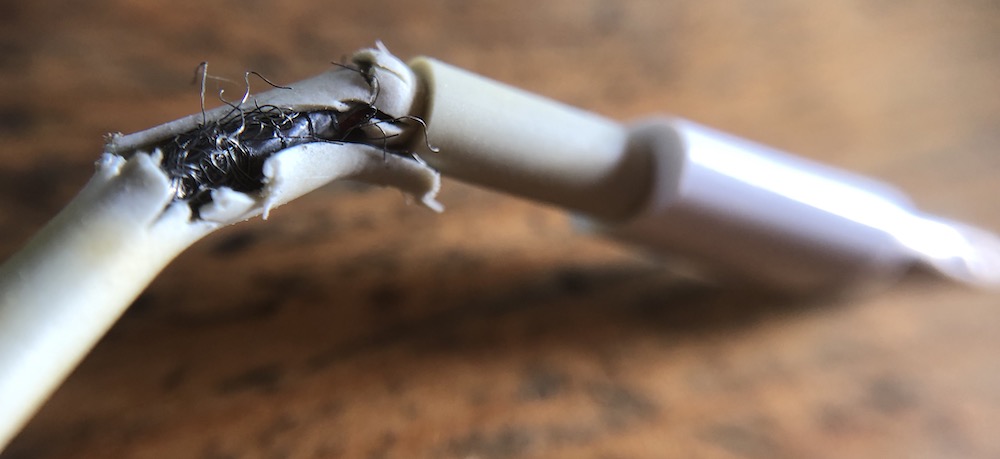
- Don’t create sharp bends in the cable, especially near the connector. Sharp bends can eventually break the insulation and reveal the wires inside. Even before that, if the wires get too close, they can heat up and melt the insulation.
- When unplugging your device, pull from the plug instead of farther down on the cord to avoid stress on the connection point.

- When coiling your cables, avoid wrapping them tightly around something that’s not round. A tight wrap can cause kinks that degrade the wires inside.
- Don’t put heavy objects on cables or sandwich them between a desk and the wall. Anything that compresses the cable can cause damage.
- iPhones are fairly water resistant, but try to keep the charging port and cable plug clean and away from liquids. Pocket crud or a droplet in the wrong place could cause a short circuit. Because of their metal jackets, USB-C cables are less susceptible than Lightning to such problems, but it’s still worth being careful.
- If a cable’s insulation ever breaks so you can see the wires inside, discard it immediately. It’s always worth maintaining a collection of a few cables of every type you use so you can replace damaged cables right away.
In the end, the advice is simple. Spend a little more on quality products from reputable manufacturers so you don’t have to worry about a $3 non-compliant USB-C cable damaging your pricey iPhone or worse. What’s worse? Your house burning down.
(Featured image by Adam Engst)
Social Media: It’s tempting to buy cheap USB-C and Lightning cables, but non-compliant, counterfeit, and defective cables can damage your hardware or even cause fires. Read on for more about keeping your cables working in the long run.

by Steve Sorbo | Jul 1, 2024 | Uncategorized
Long ago, to get ready for a trip, we’d mostly make sure we had our plane tickets, books and magazines to read, and a snack. Prepping for travel in today’s tech-heavy world comes with a new set of tasks, most of which shouldn’t be left to the last minute.
Identify Devices, Chargers, and Cables to Bring
Resist the temptation to bring every piece of tech you have. Do you really need your iPad and MacBook Air if you’re not planning to work on vacation? Is a point-and-shoot camera worthwhile if you take most of your photos with your iPhone?
Once you’ve selected your preferred devices, think about charging. At a minimum, you’ll need chargers for all your devices every night. You may not find many power outlets or be able to access them easily, so a compact power strip is often helpful, especially if it comes with USB Type-A and USB-C ports. Multi-device wireless chargers can also reduce the number of wall chargers and cables. If you’re traveling abroad, a power adapter is essential—you can find units that support multiple devices.

Make sure to pack the right charging cables for your devices. Increasingly, that means USB-C cables, but remember that most public charging ports in airplanes and hotels will still be USB Type A, so bring an appropriate cable or adapter for such situations.
Portable battery packs can be a lifesaver, such as for late-night transit navigation after you’ve run down your iPhone’s battery taking photos and videos during the day. Unless the battery pack has integrated cables, ensure that you carry the right cables with you every day.
Prep Updates, Backups, Apps, and Entertainment
We always encourage staying up to date on operating system updates for security reasons. It’s especially important to update before leaving on a trip where you may be in less secure situations. Don’t leave those updates for the night before you leave! The device you’re updating won’t be usable while the update installs, which may be stressful, and in the rare case where something goes wrong, you’ll need extra time to recover. Always update your devices and apps at least a few days before leaving.
It’s also important to make backups before you leave. It’s easy for a device to be damaged, lost, or stolen while you’re traveling, and a backup is essential for recovery. For Macs, make sure your Time Machine and other local backups are current. For iPhones and iPads, iCloud backups are best while traveling because you can continue to back up while away, and if you have to replace a lost iPhone on the road, you can restore from your iCloud backup wherever you are.
You may find a new set of apps helpful on your trip, and some may be essential for checking in for flights, going through customs, and more. If you’re flying, configure your airline’s app to know about your flight and add your boarding passes to Apple’s Wallet app. Paper copies of travel documents are worthwhile in the event of your iPhone being damaged, lost, or stolen. Travel guides for specific locations and itinerary planners like TripIt may also be helpful, though you can also track your travel and itinerary in Notes, which you can share with fellow travelers. An app like Flighty can help you track your flights and better react to delays.

Even if you prefer Apple Maps or Google Maps, having the other available when you travel is worth it. One or the other may work better in certain places or with certain types of navigation, like city transit. Connectivity isn’t always guaranteed while traveling, so download maps ahead of time in both Apple Maps and Google Maps.
If you’re heading to a country where you don’t speak the language, make sure you can quickly access Apple’s Translate app. Also get Google Translate so you can find out which you prefer. Both translate text you enter, text you focus on with the camera, and the contents of conversations.
It’s always best to load enough ebooks, podcasts, and videos on your iPhone or iPad so you don’t run out of something to do during downtime when there’s no connectivity. With ebooks, if you’re not already using Libby to access your public library, give it a try. It’s easy to download episodes in most podcast apps. And nearly all streaming apps like Amazon Prime Video, Apple TV+, Disney+, Hulu, and Netflix allow downloading. That said, leave plenty of free space for taking photos and videos on your travels.
Investigate Cellular Connectivity Options
Cellular Internet access isn’t usually an issue when you travel within your home country as long as you don’t have a data cap. But when traveling internationally, you need to plan for how you’ll get cell service. Your carrier may have an international roaming plan, but those are often massively overpriced. Instead, look to an international roaming provider such as Airalo, Airhub, and Nomad.
Factors to consider when choosing an international roaming provider include the provider’s network coverage at your destination, how much data you’ll need, whether you’ll also need voice and SMS support, the duration of your trip, and whether your iPhone supports eSIM technology.
Protect Tech You Leave Home
Don’t forget the tech you’re leaving behind. Shut down your Macs and unplug anything not protected by an uninterruptible power supply. That way, a power surge or lightning strike won’t hurt anything.
Unplug your Time Machine and other local backup drives and hide them in a secure location—you don’t want to lose both your Mac and your backups in the event of a burglary.
If you use HomeKit, set up automations to turn lights on and off to make it seem like you’re home. Make sure you can remotely access home monitoring systems like security cameras. Consider a motion sensor like the Kini to report on doors or items that shouldn’t move (unauthorized access) or should move regularly (a scheduled pet sitter).
We know that can sound like a lot, but you want to avoid the aggravation of arriving at your destination only to discover that you forgot a necessary cable or can’t get Internet access. An excellent way to remember everything is to use an app like Packing Pro, which lets you develop (and reuse) lists of items and tasks.
Have a great trip!
(Featured image based on an original by iStock.com/Diamond Dogs)
Social Media: Planning a vacation this summer? A little tech prep can help ensure that your devices don’t let you down while you’re away. We have advice for what to bring, essential apps, and more.

Recent Comments