
by Steve Sorbo | Mar 7, 2025 | Uncategorized
Apple has updated the iPad and iPad Air and introduced a new keyboard for the iPad Air.
The primary change to the 11th-generation iPad ($349) is the move from the previous model’s A14 Bionic chip to the A16, which is nearly 30% faster but still won’t support Apple Intelligence or some recent games. Apple also increased the base storage from 64 GB to 128 GB, dropped the Nano-SIM slot from the cellular models, and updated the wireless capabilities to support current protocol versions. Although the screen remains the same 10.9-inch diagonal size, Apple now refers to it as the “11-inch iPad.” It remains an excellent and affordable entry-level device.
The 7th generation of Apple’s flagship 11-inch ($599) and 13-inch ($799) iPad Air sees only a single change—swapping the previous model’s M2 chip for the M3 to increase performance, particularly for gaming and video creation. Separately, Apple introduced a less expensive Magic Keyboard for iPad Air that adds a 14-key function row and sports a larger trackpad, though it lacks the previous model’s backlit keys and trackpad haptics. The keyboard costs $269 for the 11-inch iPad Air or $319 for the 13-inch model.

(Featured image by Apple)
Social Media: Apple’s latest iPad and iPad Air updates make them faster and more appealing without increasing prices. If you’re in the market for an iPad, the iPad remains a steal and the iPad Air offers all the performance most people will ever need.

by Steve Sorbo | Oct 1, 2024 | TCN Content
Control Center has been a part of our iPhone and iPad experience for over a decade, first appearing in iOS 7 in 2013. It provides direct access to important controls so we don’t have to hunt through Settings or apps. On the whole, it has been a welcome addition.
Although Control Center has changed a bit over the years, it provided relatively minimal customization options until iOS 18 and iPadOS 18. Previously, in Settings > Control Center, you could choose which controls appeared and in what order, though a few essential controls always appeared at the top.
With this year’s operating system updates for the iPhone and iPad, Apple decided to give us nearly free rein to personalize Control Center, even allowing us to add multiple pages of controls. While some people will go wild and utterly reimagine what Control Center can do for them, we expect most to employ more modest tweaks that make it slightly easier to use.

Here’s what you can do in iOS 18 and iPadOS 18:
Learn the basics of getting around in Control Center:
- Open Control Center: Swipe down from the upper-right corner of the screen.
- Move between Control Center pages: During the initial swipe to open Control Center, keep swiping down to navigate to later Control Center pages, represented by tiny icons on the right side of the screen. Once Control Center is open, swipe up or down anywhere on the screen to move between pages or tap the icons.
- Use controls: Tapping an icon in Control Center usually either toggles a setting (like Orientation Lock and Silent Mode) or opens an app (like Magnifier or Wallet). Many display additional options when you touch and hold them (tap the Focus icon to toggle Do Not Disturb; touch and hold it to access more options, each of which offers even more settings). A few controls allow direct manipulation (like Now Playing, Volume, and Brightness).

Add, organize, and remove items from Control Center:
- Enter and leave editing mode: Tap the + icon in the upper-left corner, or touch and hold on any empty part of the Control Center screen, much like you enter wiggle mode on the Home Screen. You can swipe between screens in editing mode as well. When you’re done, tap any empty area to leave editing mode.
- Add a control: In editing mode, tap Add a Control at the bottom of the screen, search or browse for available controls, and tap the one you want to add to the current screen. Note that many apps now provide controls, vastly increasing the actions available from Control Center.

- Move a control: Touch and hold a control and drag it to the desired location. While holding the control, drag it to the bottom or top of the screen to move it to a different page.
- Add a new page: When you’re in editing mode, a new empty page always appears at the bottom. To make it stick around after you exit editing mode, add or move a control to it.
- Resize a control: If a control has a curved resize handle on the lower-right corner of its icon, drag that handle to make the control larger or smaller. Most offer only 1-slot, 2-slot, and 4-slot sizes, with the latter two adding the name—we’re partial to the 2-slot size because we have trouble recognizing little icons. (Control Center would benefit from an option to display names under 1-slot icons as it does on the Add a Control screen.) A few controls, notably Now Playing, are more malleable—it offers two 4-slot sizes, an 8-slot size, a 16-slot size, and a full-page 32-slot size.

- Delete a control: To remove a control, tap the – button in the upper-left corner of the icon.
- Reset the layout to the default: It’s easy to go overboard and end up with a mad scientist layout. To return to the default set of controls, go to Settings > Control Center > Reset Control Center.
Take advantage of extra Control Center tips and settings:
- Check privacy status alerts: In the middle of the screen, you may see one or more small icons and an app name ➊. That indicates the app has permission to do things like track your location, use the camera, or record with the mic. Tap that area to see more details.
- Power down the device: Touch and hold the power button at the upper-right corner of the screen ➋. It’s similar to holding the physical side button and one of the volume buttons for a few seconds, except the physical buttons also provide sliders for viewing your Medical ID and making an Emergency SOS call. Even if you cancel the power-off action, you must enter your passcode to re-enable FaceID.

- Turn off Control Center access in apps: If you accidentally invoke Control Center in apps because you want to swipe near the top right of the screen, go to Settings > Control Center and turn off Access Within Apps.
It’s easy to become overwhelmed with Control Center’s customization possibilities. There’s no harm in sticking with the default layout, but our initial advice is to think about what you use Control Center for now and make sure those actions are well-represented by icons on the first page. Also, if you have trouble remembering what particular icons do, resize them to the 2-slot size so you can see their names. Later on, you can look through the full list of available controls and add those that seem appealing.
(Featured image by iStock.com/yacobchuk)
Social Media: The new Control Center in iOS 18 and iPad OS 18 is vastly more customizable and has more options. Our article tells you what’s on offer and how to use it.

by Steve Sorbo | Jun 8, 2021 | TCN Content
At its Worldwide Developer Conference keynote on June 7th, Apple shared details about what we can expect to see later this year in macOS 12 Monterey, iOS 15, iPadOS 15, watchOS 8, tvOS 15, and HomePod Software 15. It was a firehose of announcements, but one thing became clear: Apple wants to spread its technologies across its entire ecosystem of devices. Although each platform—Mac, iPhone, iPad, Apple Watch, Apple TV, and HomePod—retains its unique qualities, nearly every feature that the company announced works across as many platforms as make sense.
Before we get into the ten features that we think you’ll most like when everything ships in September or October, we should note that Apple was surprisingly silent on one topic: future Apple silicon chips. Many observers had expected Apple to announce an M1X or M2 chip that would power professional laptop and desktop Macs. We’ll have to satisfy ourselves with the impressive performance of the M1-based Macs we have now and wait a little longer for whatever comes next.
On to the hot new features!
Account Recovery and Legacy Contacts Simplify Recovering Account Data
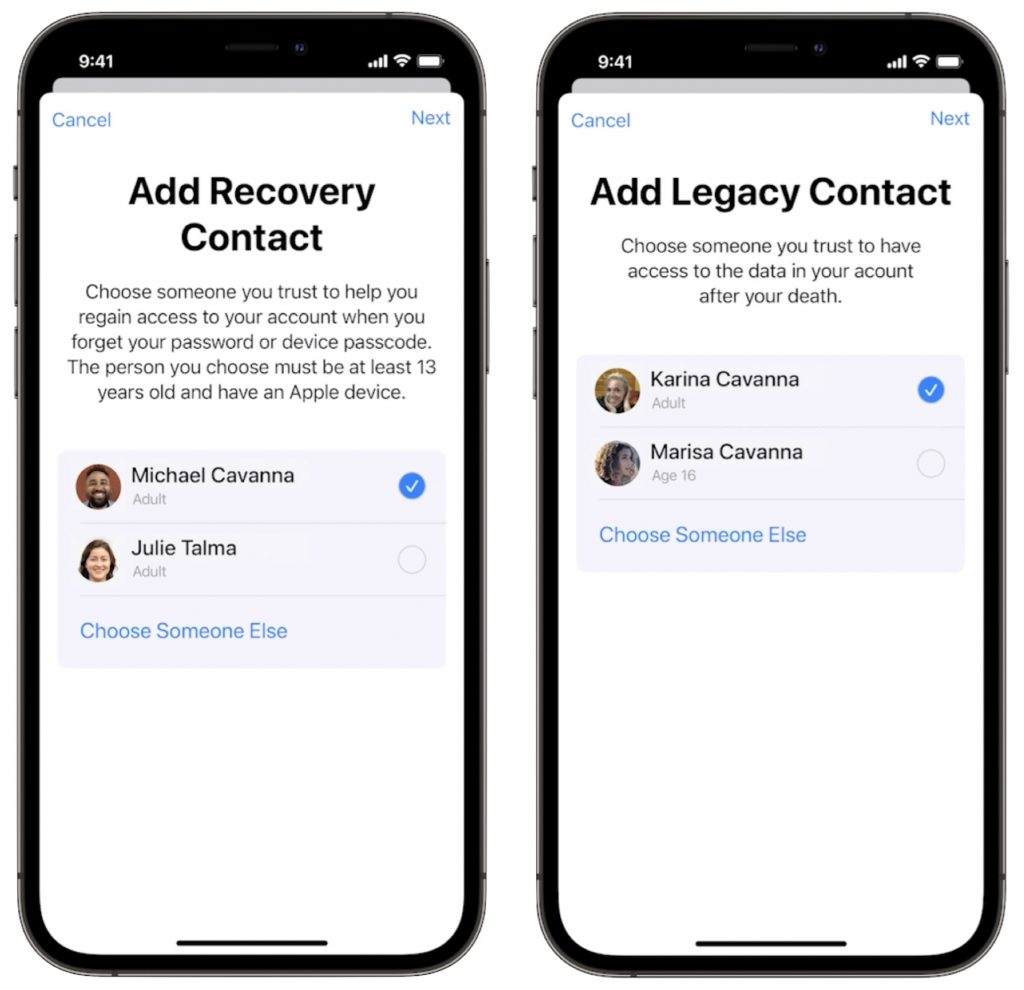
It’s all too common that people forget their Apple ID passwords and can’t access their accounts. Apple hopes to make that a little less stressful with Account Recovery Contacts. Specify someone as your Account Recovery Contact, and they’ll be able to help you reset your password and regain access to your account, with no need to call us or Apple for assistance.
Also welcome will be the addition of Legacy Contacts. Once this feature is available, everyone should make sure they have appropriate family members or friends set as Legacy Contacts. Then, in the event of your untimely death, your Legacy Contacts can access your account and personal information. Using Legacy Contacts will be far easier than having to provide the legal paperwork to Apple to request access to a deceased family member’s accounts.
FaceTime Gains Features That Make It Competitive with Zoom
During the last year, we’ve all spent vastly more time in videoconferencing apps for work, school, and socializing. Alas, Apple’s FaceTime has been a weak entry in that market. With the features Apple is now promising, however, it should compete well with the likes of Zoom, Skype, and Google Meet. FaceTime will finally get a standard grid view, blur your backgrounds with Portrait mode, and offer two microphone modes: Voice Isolation to cut down on background noise (for standard meetings) and Wide Spectrum to leave ambient sound unfiltered (for performances, say). FaceTime will even be able to alert you when you’re talking but muted.
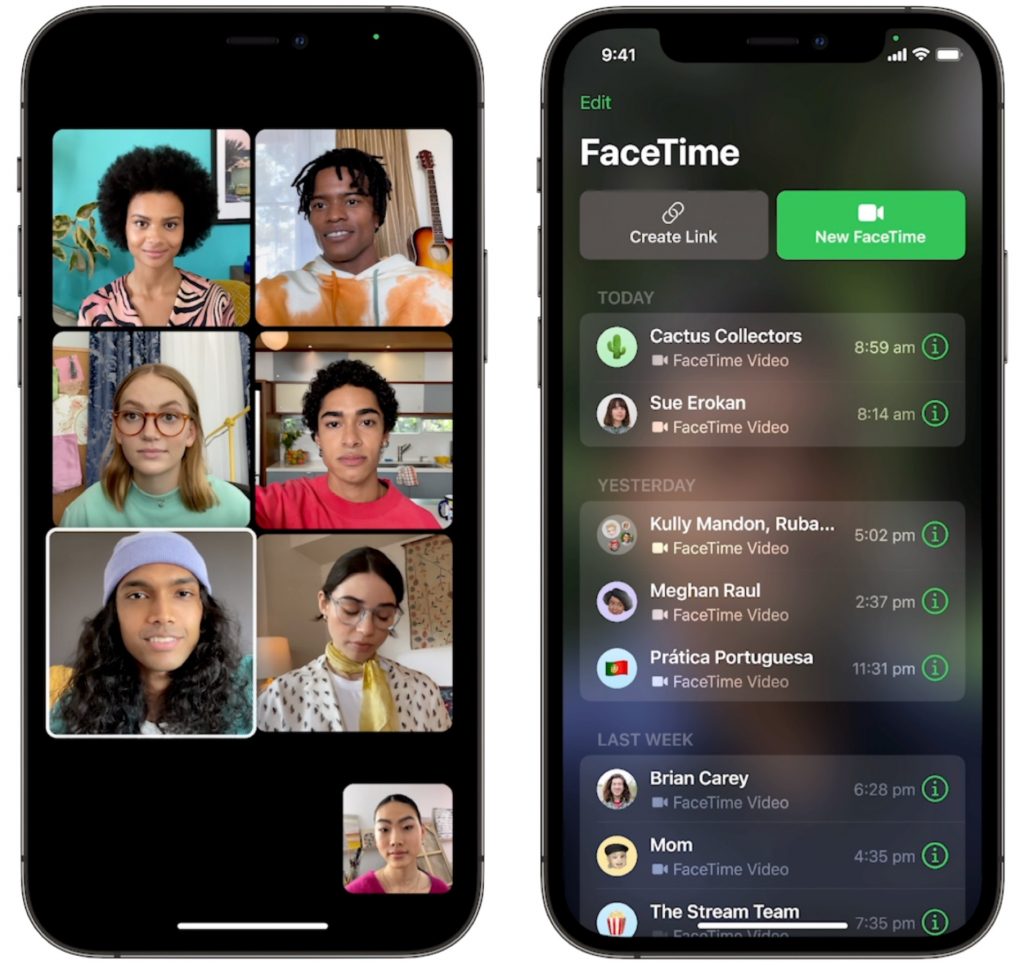
More important yet is the fact that you’ll finally be able to invite Windows and Android users to FaceTime calls using standard Web links. Non-Apple users will have to use a Chrome-based browser like Google Chrome, Microsoft Edge, or Brave. Plus, when you create an event in Calendar, you’ll be able to make a Web link for the call that you can share. And when it’s time for the call, a Join button makes it easy to get in.
Universal Control Lets Macs and iPads Share a Keyboard and Pointing Device
With Sidecar in macOS 10.15 Catalina and iOS 13, Apple made it so you could use an iPad as a secondary screen for a Mac. In macOS 12 Monterey and iPadOS 15, Apple is taking that concept further. With Universal Control, if you merely set a Mac and an iPad next to each other, you’ll be able to use the Mac’s keyboard and mouse or trackpad to work between the two devices (in fact, Universal Control supports up to three). No setup is required—just move your pointer to the edge of the Mac screen and push it “through” the edge to move it to the iPad screen. You can even drag and drop content between devices.

Live Text Lets You Work with Text in Images
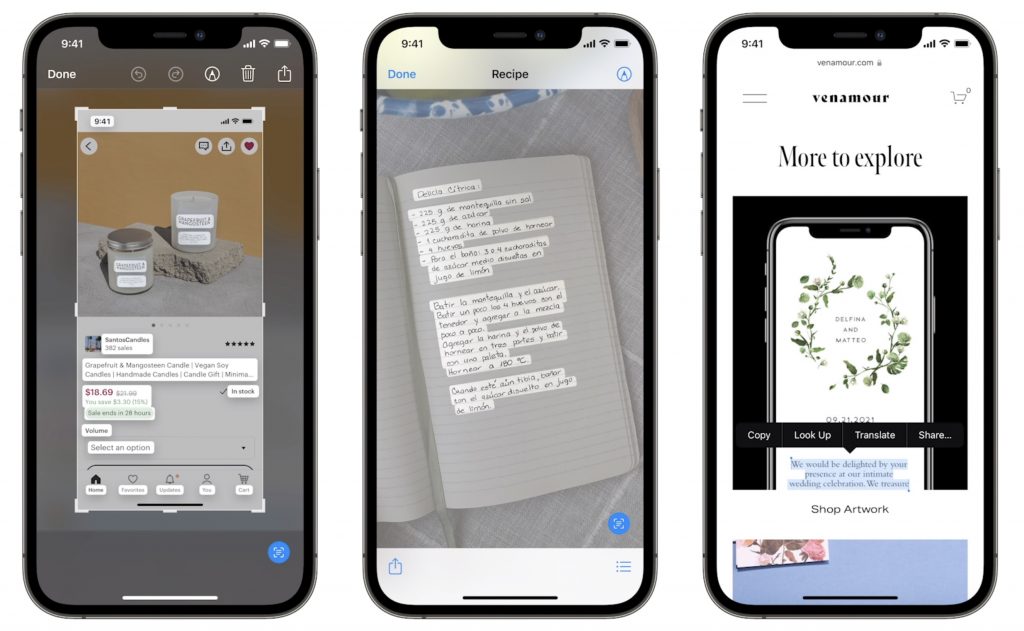
Have you ever taken a photo of something just to capture a phone number or address? We have, for sure. Apple’s new Live Text feature treats text in images just like text you type, so you can use functions like copy and paste, lookup, and translate. Live Text will work in Photos, of course, but also in Quick Look, Safari, and Screenshot, and in live Camera previews on the iPhone. It’s an impressive use of image recognition technologies.
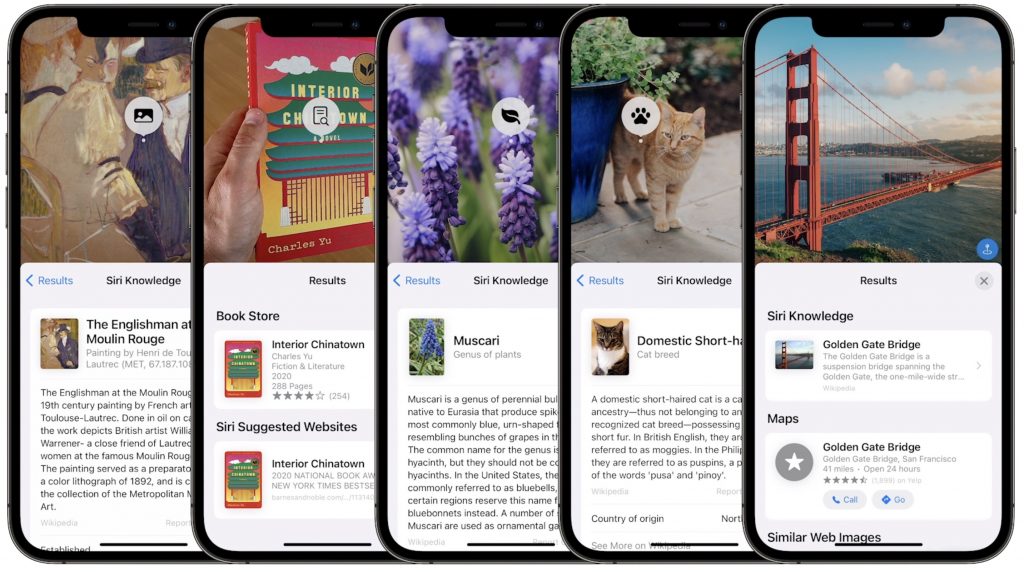
Along the same lines, in Photos, you’ll also be able to use the information button on any photo to highlight recognized objects and scenes and get additional information about them. Apple says you’ll be able to learn more about popular art and landmarks, plants and flowers, books, and pet breeds.
Siri Gets Faster, More Reliable, More Private, and More Useful
Thanks to the ever-increasing power of the Neural Engine in Apple devices, Apple says it will bring all processing of Siri requests onto your device. That may not sound like a big deal, but it means that Siri should work faster, more reliably, and more privately. It will be faster because there’s no need to send speech to and from Apple’s servers for processing. It will make Siri work more reliably when your iPhone doesn’t have strong cell service and enable offline support for many types of requests. And Apple won’t know what you’re saying at all.
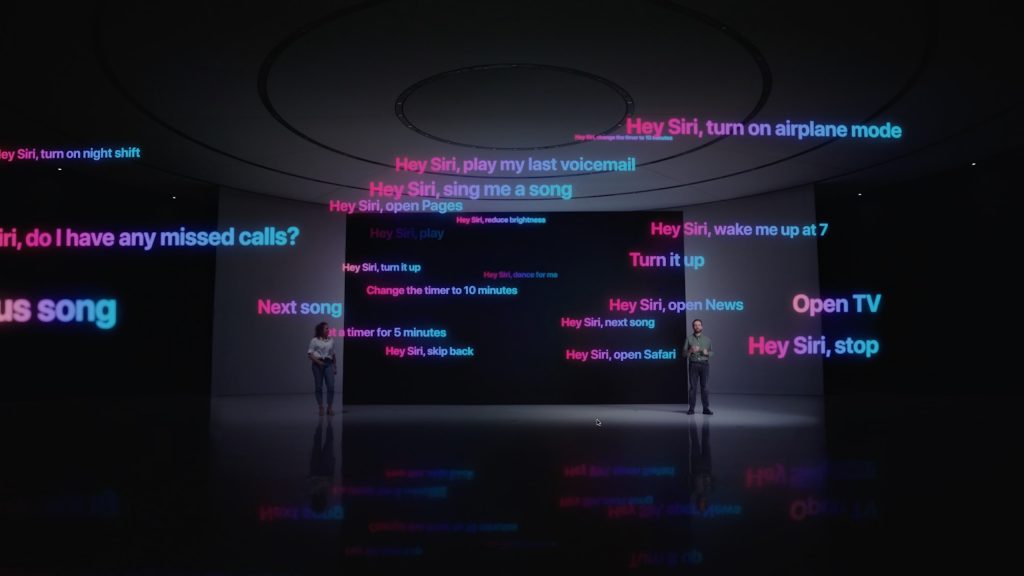
Other Siri improvements will include the capability to announce reminders when you’re wearing AirPods, improved conversation context so you can refer to what you just asked, and support for controlling HomeKit devices at specific times. HomeKit developers will even be able to add Siri support to their products through a HomePod.
Improved Multitasking Controls Come to the iPad
The big problem with Apple’s multitasking options on the iPad has been remembering how to use them. With iPadOS 15, Apple hopes to solve that with a new menu that will appear at the top of apps, with buttons for entering full screen, Split View, or Slide Over.

Apple also added a new multiwindow shelf that appears at the bottom of the screen at launch and provides a Dock-like view of all the open windows in that app. If you ignore it, it fades away quickly, but it should help you remember which windows you have open and access them quickly.

The iPad Finally Gets the App Library and Home Screen Widgets
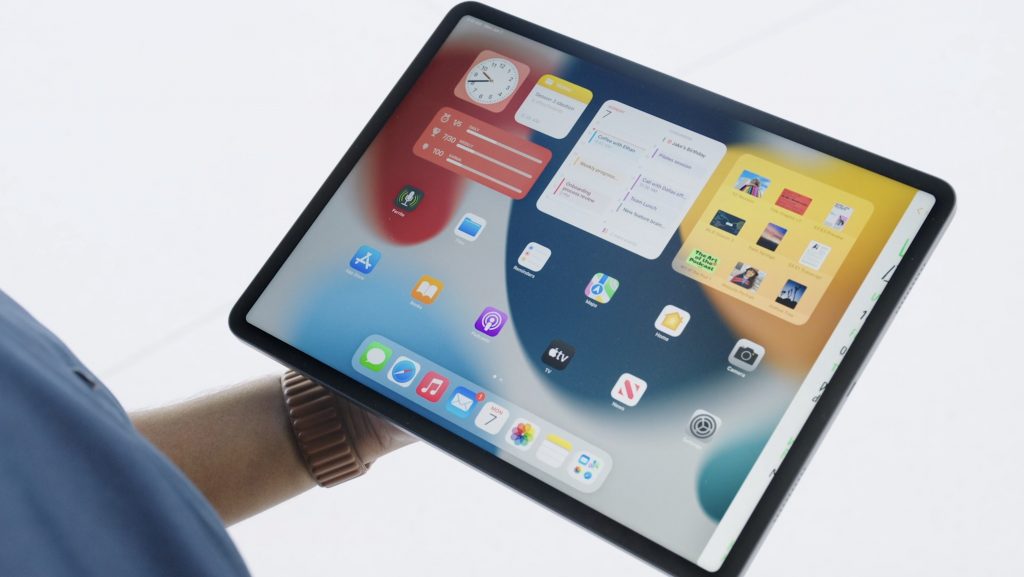
Last year, in iOS 14, Apple introduced the App Library and Home Screen widgets. The App Library holds all your apps so you can declutter your life by removing them from the Home Screen. And Home Screen widgets let you add app-specific widgets that provide at-a-glance information. Sadly, iPadOS 14 didn’t include those features.
iPadOS 15 rectifies that oversight, adding both the App Library and Home Screen widgets, complete with some larger widget sizes for the larger iPad screen. They’ll work just like on the iPhone. It’s about time!
Locate Lost AirPods Pro and AirPods Max with Find My Network Support
As it stands now, you can theoretically find AirPods using the Find My app. However, it shows only the last position of the AirPods at a general level, and you have to get within range of them to play a sound. In the future, however, the AirPods Pro and AirPods Max will support the Find My network, so other people’s devices can report their location generally, and once you get within Bluetooth range, you can play a sound to locate them.
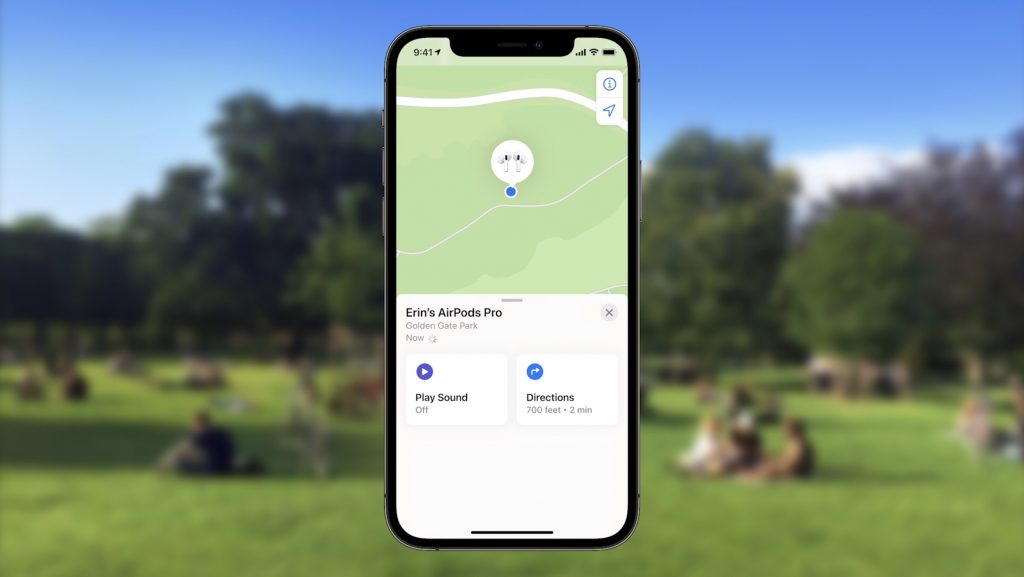
Hopefully, that will happen less often thanks to new separation alerts that, when enabled, will alert you when you leave an Apple device, AirTag, or Find My-compatible item behind.
Private Relay Protects Safari Traffic for iCloud+ Subscribers
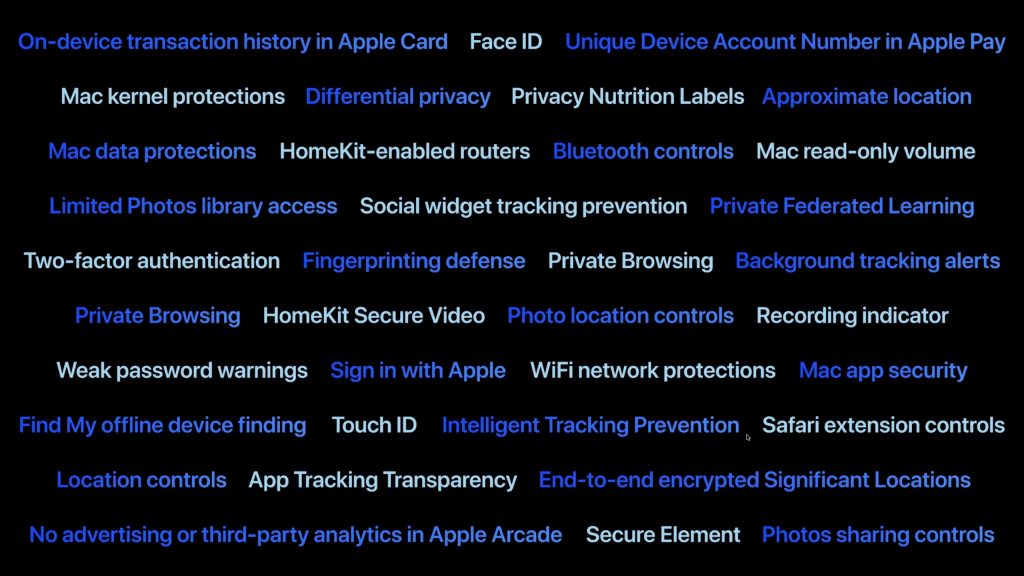
Apple has been adding lots of privacy-protecting features over the past few years, but Private Relay goes even further to ensure that even your ISP can’t track where you go on the Web and sell that data to advertisers. Private Relay encrypts your Safari traffic and passes it through two Internet relays. No one—not even Apple—can then use your IP address, location, and browsing activity to create a detailed profile of you. Everyone who pays for extra iCloud storage will transition to the new iCloud+ for the same cost and will get Private Relay for no additional fee.
While we’re talking about iCloud, Apple also says that you’ll be able to get custom domain names for iCloud Mail addresses and invite family members to use the same domain with their iCloud Mail accounts.
Use AirPlay to Send Audio or Video to Your Mac
Many people have discovered how neat it is to use AirPlay to display photos or videos from an iPhone or iPad on a TV attached to an Apple TV. Macs could also broadcast their displays to an Apple TV. But what you couldn’t do is use AirPlay to send audio or video from another Apple device to a Mac. With macOS 12 Monterey, that will become possible, enabling you to use a Mac’s large screen to play a video, share a Keynote presentation, and more.

Apple’s upcoming operating system releases boast many other new features, and we plan to explore more of them once everything ships in a few months. We’ll let you know when it’s time to update!
(Featured image by Apple)
Social Media: At its Worldwide Developer Conference keynote, Apple announced a boatload of new features that we’ll see in macOS 12 Monterey, iOS 15, iPadOS 15, and watchOS 8 later this year. Here are the ten features we think you’ll most like:



Recent Comments