by Steve Sorbo | Jun 8, 2021 | TCN Content
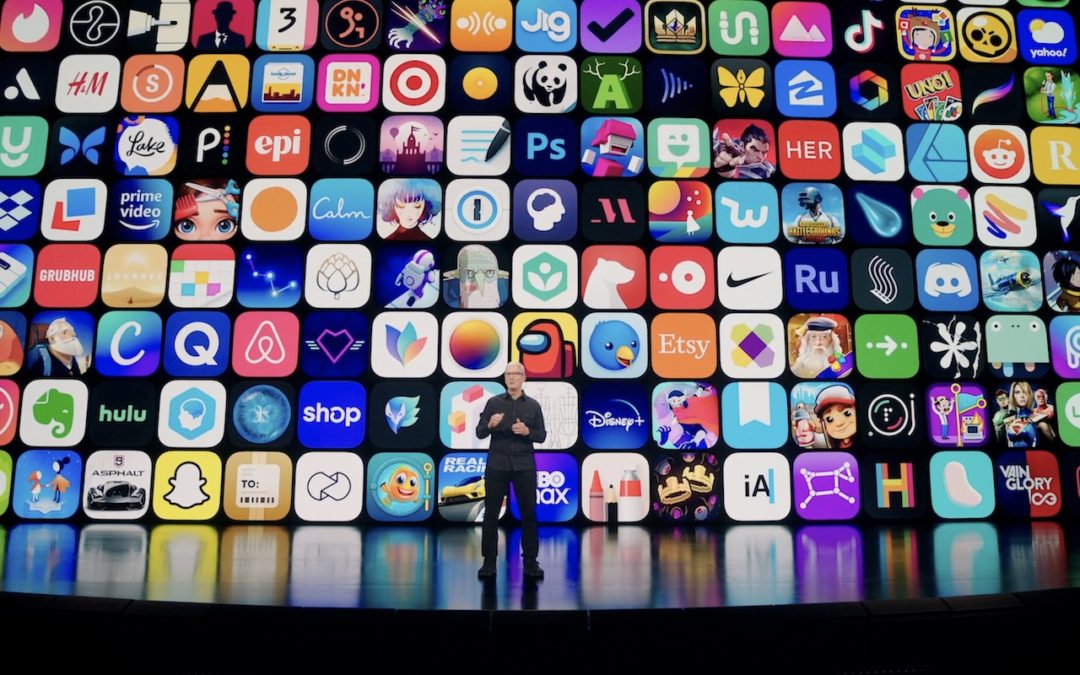
At its Worldwide Developer Conference keynote on June 7th, Apple shared details about what we can expect to see later this year in macOS 12 Monterey, iOS 15, iPadOS 15, watchOS 8, tvOS 15, and HomePod Software 15. It was a firehose of announcements, but one thing became clear: Apple wants to spread its technologies across its entire ecosystem of devices. Although each platform—Mac, iPhone, iPad, Apple Watch, Apple TV, and HomePod—retains its unique qualities, nearly every feature that the company announced works across as many platforms as make sense.
Before we get into the ten features that we think you’ll most like when everything ships in September or October, we should note that Apple was surprisingly silent on one topic: future Apple silicon chips. Many observers had expected Apple to announce an M1X or M2 chip that would power professional laptop and desktop Macs. We’ll have to satisfy ourselves with the impressive performance of the M1-based Macs we have now and wait a little longer for whatever comes next.
On to the hot new features!
Account Recovery and Legacy Contacts Simplify Recovering Account Data
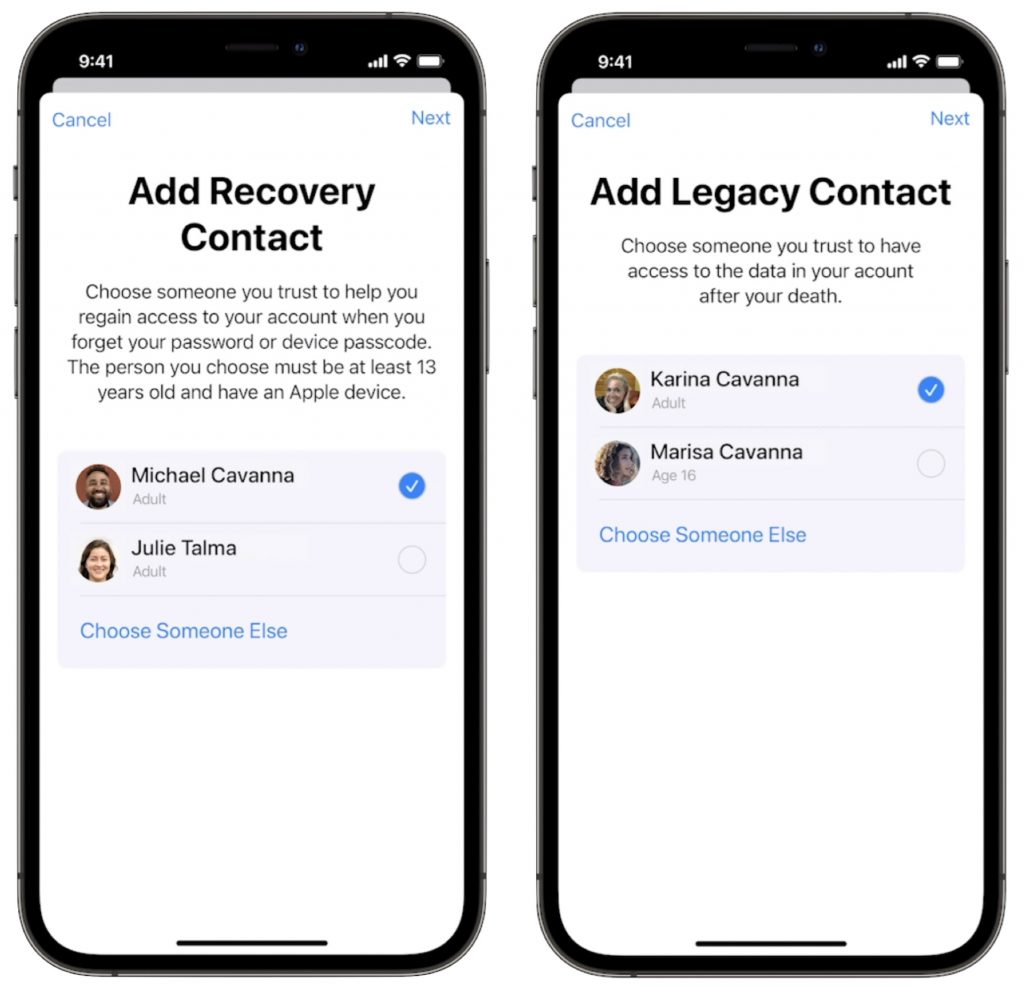
It’s all too common that people forget their Apple ID passwords and can’t access their accounts. Apple hopes to make that a little less stressful with Account Recovery Contacts. Specify someone as your Account Recovery Contact, and they’ll be able to help you reset your password and regain access to your account, with no need to call us or Apple for assistance.
Also welcome will be the addition of Legacy Contacts. Once this feature is available, everyone should make sure they have appropriate family members or friends set as Legacy Contacts. Then, in the event of your untimely death, your Legacy Contacts can access your account and personal information. Using Legacy Contacts will be far easier than having to provide the legal paperwork to Apple to request access to a deceased family member’s accounts.
FaceTime Gains Features That Make It Competitive with Zoom
During the last year, we’ve all spent vastly more time in videoconferencing apps for work, school, and socializing. Alas, Apple’s FaceTime has been a weak entry in that market. With the features Apple is now promising, however, it should compete well with the likes of Zoom, Skype, and Google Meet. FaceTime will finally get a standard grid view, blur your backgrounds with Portrait mode, and offer two microphone modes: Voice Isolation to cut down on background noise (for standard meetings) and Wide Spectrum to leave ambient sound unfiltered (for performances, say). FaceTime will even be able to alert you when you’re talking but muted.
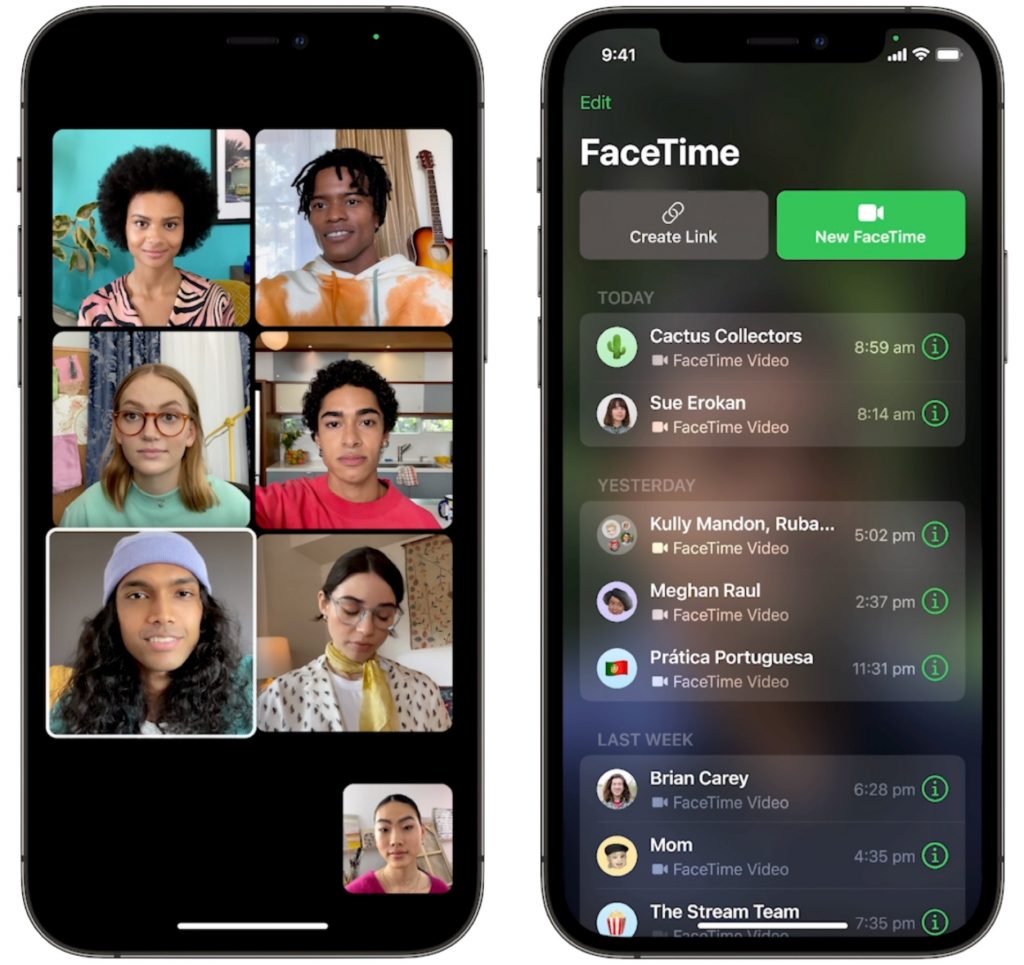
More important yet is the fact that you’ll finally be able to invite Windows and Android users to FaceTime calls using standard Web links. Non-Apple users will have to use a Chrome-based browser like Google Chrome, Microsoft Edge, or Brave. Plus, when you create an event in Calendar, you’ll be able to make a Web link for the call that you can share. And when it’s time for the call, a Join button makes it easy to get in.
Universal Control Lets Macs and iPads Share a Keyboard and Pointing Device
With Sidecar in macOS 10.15 Catalina and iOS 13, Apple made it so you could use an iPad as a secondary screen for a Mac. In macOS 12 Monterey and iPadOS 15, Apple is taking that concept further. With Universal Control, if you merely set a Mac and an iPad next to each other, you’ll be able to use the Mac’s keyboard and mouse or trackpad to work between the two devices (in fact, Universal Control supports up to three). No setup is required—just move your pointer to the edge of the Mac screen and push it “through” the edge to move it to the iPad screen. You can even drag and drop content between devices.

Live Text Lets You Work with Text in Images
Have you ever taken a photo of something just to capture a phone number or address? We have, for sure. Apple’s new Live Text feature treats text in images just like text you type, so you can use functions like copy and paste, lookup, and translate. Live Text will work in Photos, of course, but also in Quick Look, Safari, and Screenshot, and in live Camera previews on the iPhone. It’s an impressive use of image recognition technologies.
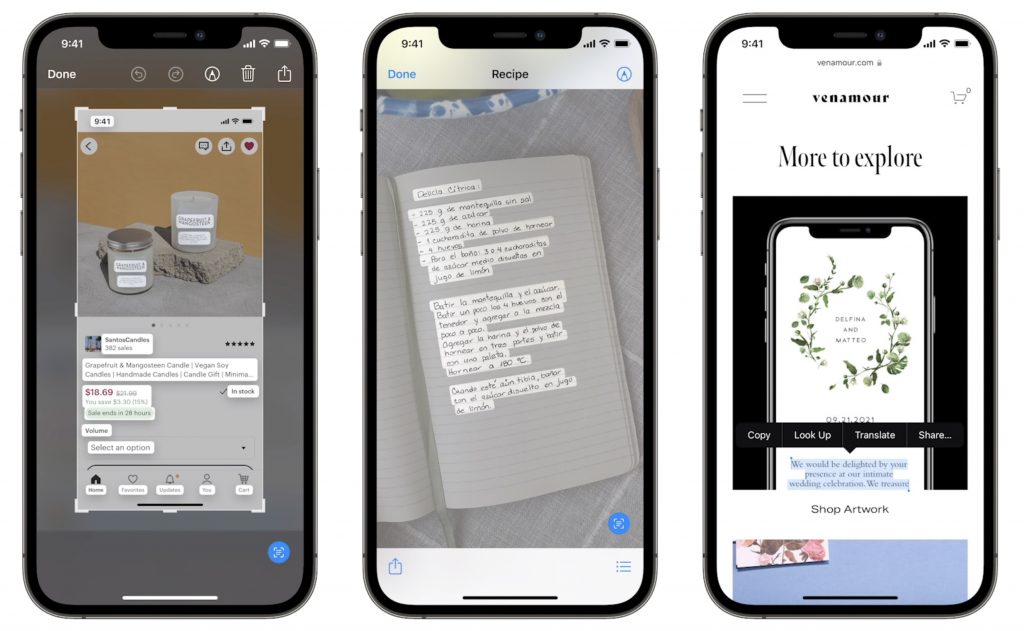
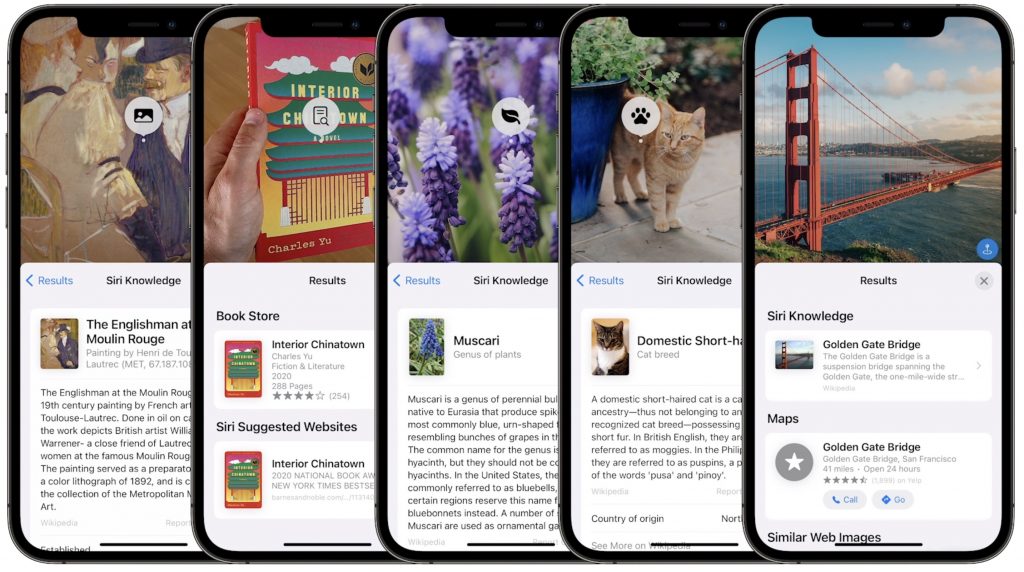
Along the same lines, in Photos, you’ll also be able to use the information button on any photo to highlight recognized objects and scenes and get additional information about them. Apple says you’ll be able to learn more about popular art and landmarks, plants and flowers, books, and pet breeds.
Siri Gets Faster, More Reliable, More Private, and More Useful
Thanks to the ever-increasing power of the Neural Engine in Apple devices, Apple says it will bring all processing of Siri requests onto your device. That may not sound like a big deal, but it means that Siri should work faster, more reliably, and more privately. It will be faster because there’s no need to send speech to and from Apple’s servers for processing. It will make Siri work more reliably when your iPhone doesn’t have strong cell service and enable offline support for many types of requests. And Apple won’t know what you’re saying at all.
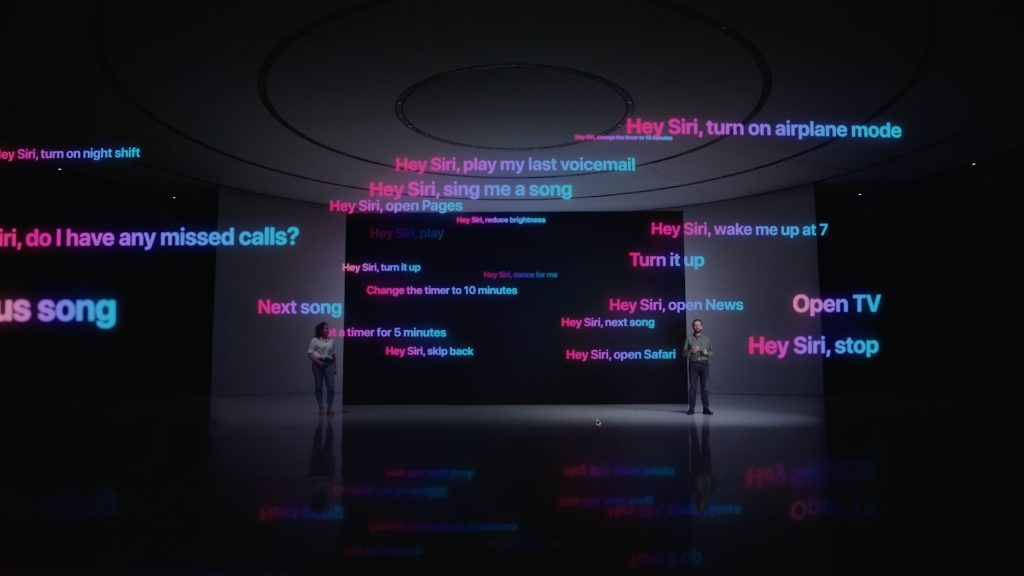
Other Siri improvements will include the capability to announce reminders when you’re wearing AirPods, improved conversation context so you can refer to what you just asked, and support for controlling HomeKit devices at specific times. HomeKit developers will even be able to add Siri support to their products through a HomePod.
Improved Multitasking Controls Come to the iPad
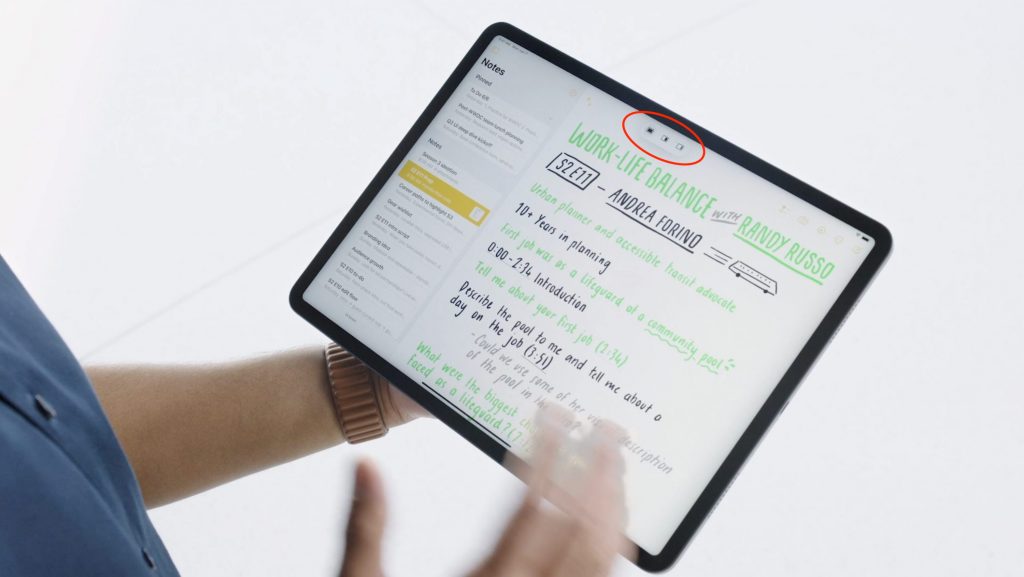
The big problem with Apple’s multitasking options on the iPad has been remembering how to use them. With iPadOS 15, Apple hopes to solve that with a new menu that will appear at the top of apps, with buttons for entering full screen, Split View, or Slide Over.
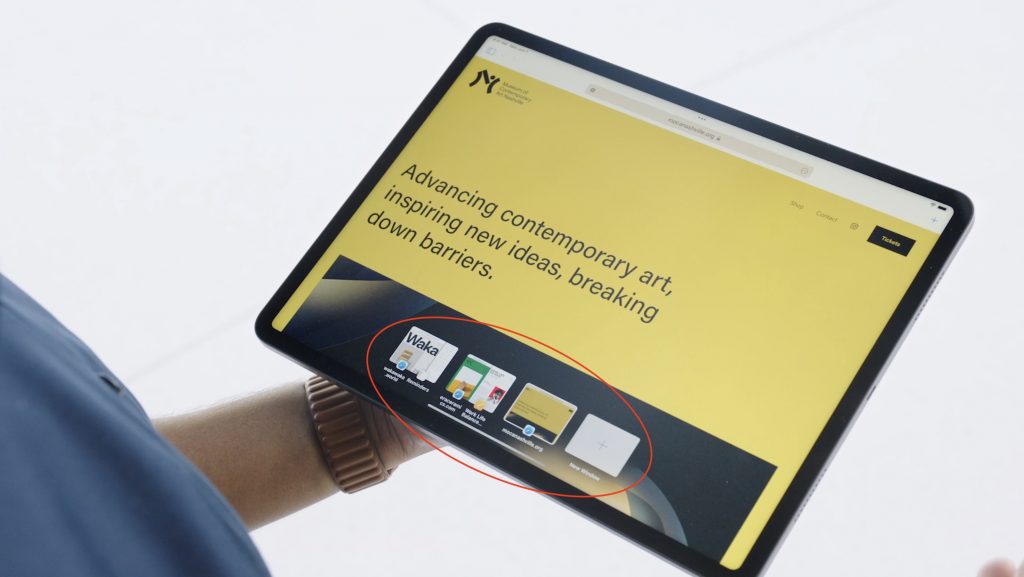
Apple also added a new multiwindow shelf that appears at the bottom of the screen at launch and provides a Dock-like view of all the open windows in that app. If you ignore it, it fades away quickly, but it should help you remember which windows you have open and access them quickly.
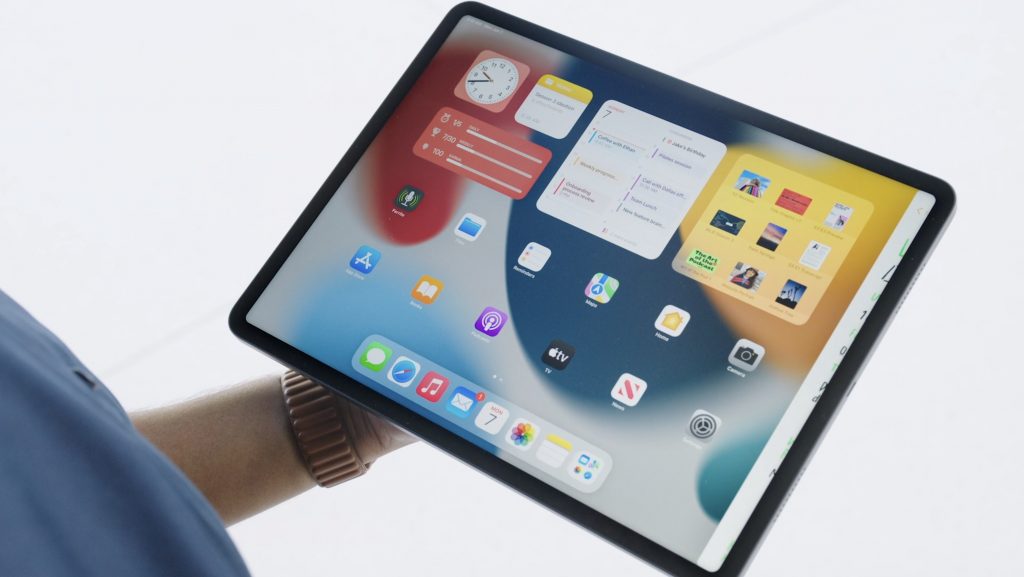
The iPad Finally Gets the App Library and Home Screen Widgets
Last year, in iOS 14, Apple introduced the App Library and Home Screen widgets. The App Library holds all your apps so you can declutter your life by removing them from the Home Screen. And Home Screen widgets let you add app-specific widgets that provide at-a-glance information. Sadly, iPadOS 14 didn’t include those features.
iPadOS 15 rectifies that oversight, adding both the App Library and Home Screen widgets, complete with some larger widget sizes for the larger iPad screen. They’ll work just like on the iPhone. It’s about time!
Locate Lost AirPods Pro and AirPods Max with Find My Network Support
As it stands now, you can theoretically find AirPods using the Find My app. However, it shows only the last position of the AirPods at a general level, and you have to get within range of them to play a sound. In the future, however, the AirPods Pro and AirPods Max will support the Find My network, so other people’s devices can report their location generally, and once you get within Bluetooth range, you can play a sound to locate them.
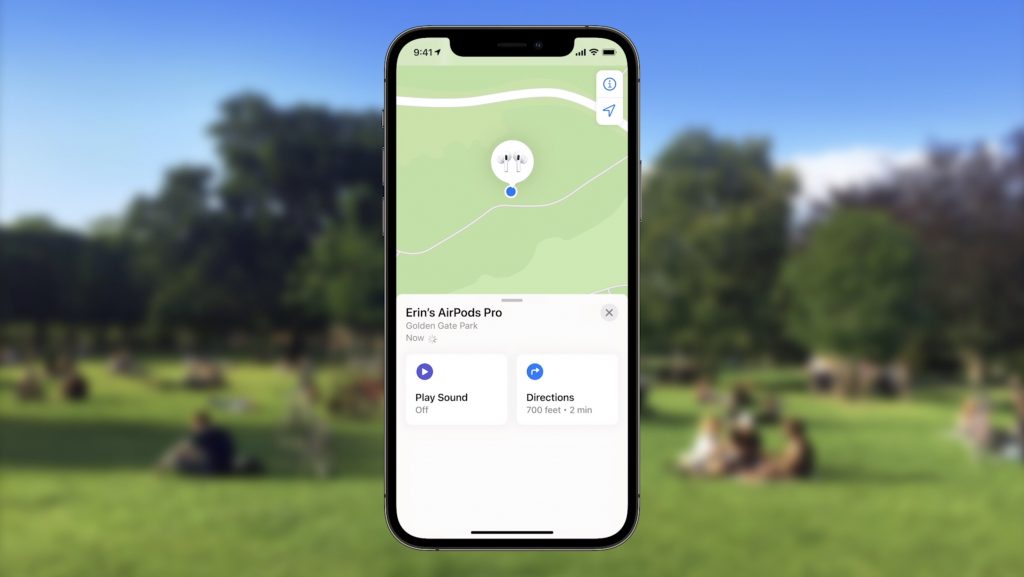
Hopefully, that will happen less often thanks to new separation alerts that, when enabled, will alert you when you leave an Apple device, AirTag, or Find My-compatible item behind.
Private Relay Protects Safari Traffic for iCloud+ Subscribers
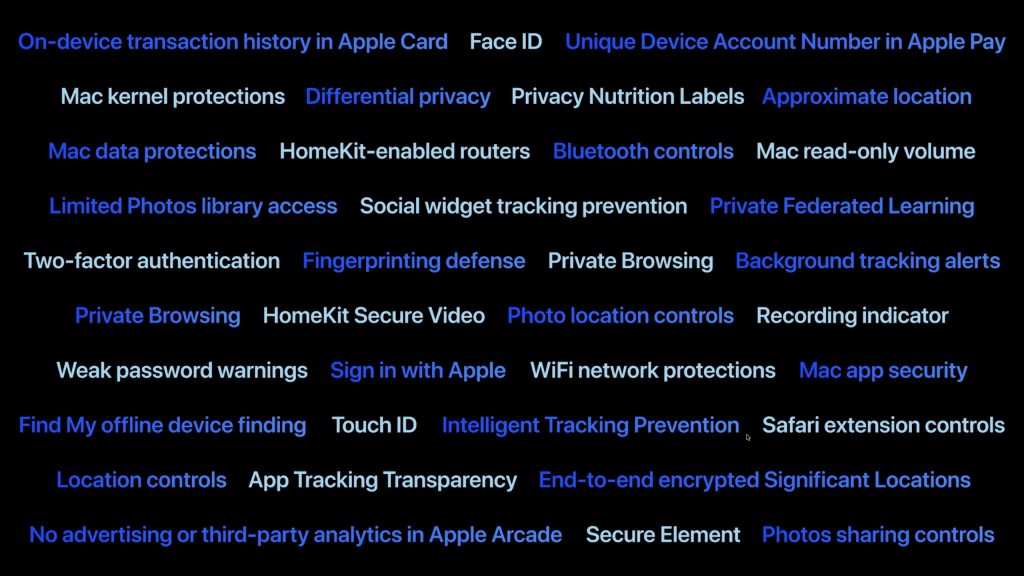
Apple has been adding lots of privacy-protecting features over the past few years, but Private Relay goes even further to ensure that even your ISP can’t track where you go on the Web and sell that data to advertisers. Private Relay encrypts your Safari traffic and passes it through two Internet relays. No one—not even Apple—can then use your IP address, location, and browsing activity to create a detailed profile of you. Everyone who pays for extra iCloud storage will transition to the new iCloud+ for the same cost and will get Private Relay for no additional fee.
While we’re talking about iCloud, Apple also says that you’ll be able to get custom domain names for iCloud Mail addresses and invite family members to use the same domain with their iCloud Mail accounts.
Use AirPlay to Send Audio or Video to Your Mac
Many people have discovered how neat it is to use AirPlay to display photos or videos from an iPhone or iPad on a TV attached to an Apple TV. Macs could also broadcast their displays to an Apple TV. But what you couldn’t do is use AirPlay to send audio or video from another Apple device to a Mac. With macOS 12 Monterey, that will become possible, enabling you to use a Mac’s large screen to play a video, share a Keynote presentation, and more.

Apple’s upcoming operating system releases boast many other new features, and we plan to explore more of them once everything ships in a few months. We’ll let you know when it’s time to update!
(Featured image by Apple)
Social Media: At its Worldwide Developer Conference keynote, Apple announced a boatload of new features that we’ll see in macOS 12 Monterey, iOS 15, iPadOS 15, and watchOS 8 later this year. Here are the ten features we think you’ll most like:

by Steve Sorbo | Feb 3, 2020 | TCN Content
Spearfishing. It’s no longer just a tropical ocean sport that could provide seafood for dinner. In today’s tech world, spearfishing is when someone targets you specifically, usually with the goal of taking over your online accounts. Once that’s done, the attacker will try to siphon money from your bank account, impersonate you in an attempt to deceive family or colleagues into sending money, or attempt to ruin your reputation.
You’re probably thinking, “No one would ever target me. I’m not interesting enough.” It is true that the people who should worry the most about spearfishing attacks are high profile or have a high net worth, but modern online criminals aren’t that fussy. In particular, they’re more likely to go after older people. Why older people? Older people tend to be relatively well off and less likely to notice the symptoms of a spearfishing attempt. You should also be concerned if you’re a politician or journalist, have ever been involved in an ugly divorce or legal battle, or can easily think of people who have it in for you.
As we’ve said many times, it’s imperative that you use a secure password manager like 1Password or LastPass to create, store, and enter a strong, unique password for each of your online accounts. Plus, we strongly recommend using two-factor authentication—where you have to enter a one-time code in addition to your password—on all accounts that support it, particularly important ones like your email and banking accounts. But even if you do all that, you may be vulnerable to another tactic favored by spearfishers—the cell phone SIM takeover.
Here’s how it works. Every cell phone, including every iPhone, has inside it a SIM card that gives it a phone number. Swap that SIM into a different phone and it will adopt the SIM card’s number. The problem is that support reps at cellular carriers like AT&T, Sprint, T-Mobile, and Verizon can also move your phone number from one SIM card to another. That makes it possible for you to lose your iPhone, buy a new one, and have your phone number associated with the new one. It also lets you port the phone number to a different carrier, if you wish to switch.
All an attacker has to do is call your cellular provider, pretend to be you, say that they’ve lost their iPhone, and ask to have the number ported to a new device (one they control). It’s likely that the support person will ask a few simple questions to verify your identity, but a clever attacker will likely know your address and be able to learn details like your mother’s maiden name, first-grade teacher’s name, and favorite color, all thanks to Facebook. Criminals can acquire even information like your Social Security number through other data breaches.
Once the attacker controls your cell phone number, they can try to reset the password on various accounts, receiving any verification codes that would normally have been texted to your phone. They’ll probably focus on your email account first because, with control over it, they can reset passwords elsewhere even more easily. And once the attacker has access to your accounts, it’s game over, and you’ll be faced with the difficult and complex task of retaking control and mitigating damage.
How can you protect yourself from such an attack? Whenever possible, it’s better to generate authentication codes with an app such as 1Password, Authy, or LastPass. That removes some of your exposure, but for better or worse, your cell phone number is still the most basic form of identity for many things.
The most important thing to do, then, is to set up an additional PIN or passcode that the carrier will ask for before making any changes to your account. You’ll also have to provide it when logging in to your cellular account online. Such a PIN or passcode is different from a two-factor authentication code that changes continuously—you set your PIN or passcode just like you do for your iPhone or ATM card. And, of course, make sure to store that PIN or passcode in your password manager alongside your other credentials so you don’t forget it.
Learn more about how each of the major carriers supports PINs and passcodes at the links below, and if your carrier isn’t listed, call the company’s support line:
Don’t put this off—if you don’t already have a PIN or passcode on your cellular account, set it up right away.
(Featured image by Gerd Altmann from Pixabay)
Social Media: It’s shockingly easy for someone to take over your cell phone number. Once they’ve done that, they can reset passwords on many of your online accounts. Read on to learn how to protect your cell number with a PIN or passcode.
by Steve Sorbo | Feb 3, 2020 | TCN Content
A common question we hear is, “Why is my iPhone/iPad battery draining so fast?” Luckily, Apple provides tools that help you see exactly how your iPhone uses its battery over the last 24 hours and—with less detail—over each of the last 10 days. Plus, you can tweak settings that will improve battery life, both in the here-and-now and for as long as you have your iPhone. To access these tools, go to Settings > Battery.
Useful Battery-Related Options
Before we get into what you can learn from the Battery screen, there are two options worth noting:
- First, on the main screen, you’ll find the Low Power Mode switch. If you’re worried about running out of power before you can recharge on a particular day, enable Low Power Mode. iOS automatically offers to enable it if your battery drops to 20%, and that’s a good idea unless you can plug in soon. Low Power Mode mostly disables background activity like mail fetching and photo syncing. (If you want to enable Low Power Mode regularly, make that easy by adding it to Control Center via Settings > Control Center > Customize Controls.)
- Second, tap Battery Health, and in that screen, enable Optimized Battery Charging. It lets iOS 13 learn from your schedule to ensure that your iPhone spends less time fully charged unnecessarily, which can cause the battery to age more quickly. Leave this option off if you don’t charge on a regular schedule.

About That Maximum Capacity Percentage
Whenever we hear complaints about iPhone batteries, the first place we look is in the Battery Health screen to make sure the battery is healthy. Apple says that iPhone batteries are designed to retain up to 80% of its original capacity after 500 charges. The higher the Maximum Capacity number, the better. Usually, anything above 90% is OK, although we start to hear of problems when the Maximum Capacity is in the upper 80s, and numbers below 85% are fairly likely to cause problems. The only solution to a battery with a low Maximum Capacity is replacement; contact us for our advice on the best way to do that.
Identifying Battery Hogs
Assuming the battery’s Maximum Capacity is high enough, the next place to look for what might be causing excessive battery drain is in the Battery Usage By App section of the Battery screen; look below the graphs, and tap Show Activity for more details.
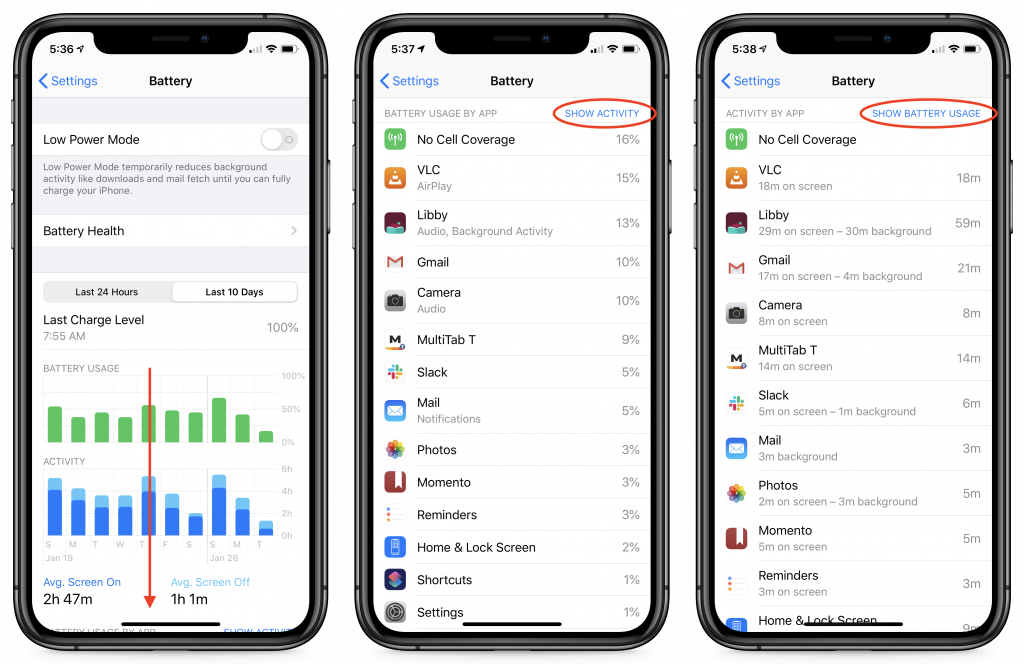
Scrutinize the entries at the top because they’ve used the lion’s share of your power. In the screenshot above, No Cell Coverage (which causes the iPhone to waste power searching for cell towers) was the worst offender. You can’t do anything about that (unless it’s indicative of putting the iPhone somewhere it can’t receive a signal or a failing cellular radio).
For the apps underneath, make sure they’re not working too much in the background unnecessarily. “Unnecessarily” is key—if you see Photos at the top of your list and Show Activity reveals a lot of background activity, it’s probably related to it uploading or downloading a lot of images from iCloud Photos. But if you can’t imagine why a particular app is sucking down precious power, it’s time to force quit the app or power cycle the iPhone. And if the problem continues, it might be time to reset the iPhone and restore from backup, just to clean things up.
Analyzing Battery Usage
For figuring out which app might be causing unusual battery drain, it’s usually best to keep the time frame in the Last 24 Hours, but if you’re trying to track down a pattern of app behavior, it can be useful to switch to the Last 10 Days using the toggle above the graphs.
Most people don’t realize these graphs aren’t just pretty pictures. You can tap in the graphs to select 1-hour chunks of time in the Last 24 Hours graphs, or 1-day chunks in the Last 10 Days graphs. When you do that, the Battery Usage By App list changes to focus on just the apps used in the selected time period. That’s helpful for tracking down exactly what was happening when the battery drain took place.
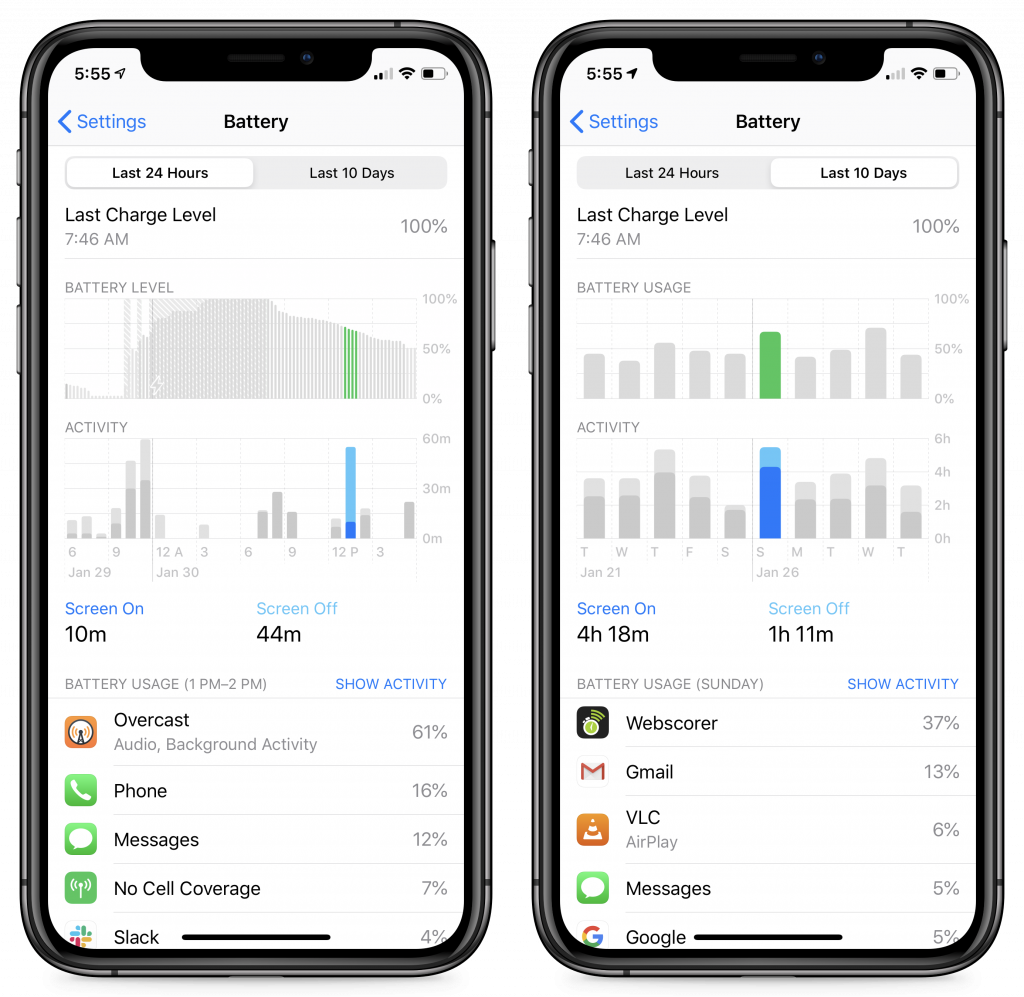
We’d like to say that you can use these tools to figure out nearly anything that’s causing your battery to drop precipitously, but there are issues that the Battery screen doesn’t expose. For instance, after you upgrade to a new version of iOS or switch to a new iPhone, background tasks will likely work hard for a while indexing all the content on the device. Most issues like that should go away quickly, though.
Regardless, it’s worth looking in the Battery screen whenever you feel that your battery life isn’t what it should be. Whether it’s a rogue app or the revelation that you need a new battery, it will provide some guidance. And if you’re still in the dark, let us know, and we’ll see what we can do to help.
(Featured image by Tyler Lastovich from Pexels)
Social Media: Is your iPhone battery draining faster than you think it should? iOS 13’s Battery screen can shed light on the situation, whether it’s a dying battery or a rogue app. Learn more here:


Recent Comments