
by Steve Sorbo | Apr 3, 2026 | Uncategorized
The discovery of two sophisticated iPhone exploit kits—DarkSword and Coruna—within weeks of each other signals a troubling shift. Unlike previous spyware attacks that targeted high-profile users, these exploit kits have been deployed via compromised legitimate websites, so anyone who visits an infected site could fall victim, with no additional clicks or downloads required. This suggests that exploit brokers are now selling tools to multiple buyers, including financially motivated hacking organizations.
Making matters worse, the complete DarkSword exploit code was published to GitHub, making it easy for any hacker to deploy. Security researchers warn that the exploits “will work out of the box” with no iOS expertise required—anyone could copy and paste the code and have it running on a server within hours.
Because it ultimately operates with elevated system privileges, DarkSword can silently harvest alarming amounts of data from vulnerable iPhones, including passwords stored in the keychain, photos, call logs, contacts, browsing history, chat message history, and more. It takes a smash-and-grab approach: collecting and exfiltrating data quickly, then disengaging. Coruna is more targeted and persistent, focusing on stealing cryptocurrency wallet credentials and scanning notes for financial information.
Protection Is Simple
Happily, it’s easy to protect yourself against these and future vulnerabilities: keep your devices up to date. We’ve been beating that drum for years, but DarkSword and Coruna are sufficiently worrying that Apple published a dedicated support page urging users to update, saying: “Keeping your software up to date is the single most important thing you can do to maintain the security of your Apple products.”
If your iPhone is running the latest version of iOS it supports, you’re already protected. But if you’ve been putting off updates—or are still running an earlier version of iOS 18 to avoid iOS 26’s Liquid Glass interface redesign—your iPhone may be vulnerable. Happily, Apple has taken the unprecedented step of releasing an update to an older operating system—iOS 18.7.7—to protect users who don’t wish to upgrade to iOS 26. (You may have to scroll down in the Software Update screen to find it under Also Available.)

Check and Update Your Device
To check your iOS version, go to Settings > General > About and look at the iOS Version line.
DarkSword targets iPhones running iOS 18.4 through iOS 18.7.2. If you’re running iOS 18.7.3 or later, or have upgraded to iOS 26.3 or later, you’re protected. Although none of the DarkSword security reports specifically mention the iPad, it’s best to assume that the corresponding versions of iPadOS are similarly affected.
Coruna can compromise older iPhones and iPads running iOS 13.0 through iOS 17.2.1. Apple recently released iOS 15.8.7 and iOS 16.7.15 to address these vulnerabilities on devices that cannot run newer iOS versions. Devices running iOS 13 or iOS 14 must be upgraded to iOS 15.8.7. Devices running a vulnerable version of iOS 17 should update to the latest version of iOS their device supports.
You can update using Settings > General > Software Update to the latest version of iOS your device supports:
- iPhone 11 and later (and other devices that support iOS 26): Update to either iOS 18.7.7 or iOS 26.4 or later.
- iPhone XR, XS, and XS Max: Update to iOS 18.7.7, the latest version these devices support, which includes the DarkSword fixes.
- Older devices that can’t run iOS 18 (iPhone 6s through iPhone X, plus various older iPads and 7th-generation iPod touch): Update to iOS 15.8.7 or iOS 16.7.15, depending on your device. Devices still running iOS 13 or 14 will need to upgrade to iOS 15.8.7.
If you cannot upgrade for some reason, Apple says that enabling Lockdown Mode in Settings > Privacy & Security > Lockdown Mode in iOS 16 and later will block DarkSword attacks. However, Lockdown Mode significantly degrades the iPhone experience by blocking most message attachment types, disabling certain Web technologies, limiting incoming FaceTime calls, and more. For most people, upgrading to the most recent version of iOS available is the better option.
These discoveries make it clear that installing security updates promptly is more important than ever. Sophisticated exploits that were once reserved for targeted attacks against activists and journalists are now being deployed more broadly. Check your iOS version today, update all your devices, and encourage family members and colleagues to do the same.
(Featured image by iStock.com/sqback)
Social Media: Two major iPhone exploit kits—DarkSword and Coruna—can steal passwords, messages, and photos from everyday users who visit an infected website. Check your iOS version and update immediately to protect yourself.

by Steve Sorbo | Mar 6, 2026 | Uncategorized
In iOS, iPadOS, and macOS 26, Apple added an option in the Messages app to filter messages from unknown people and those marked as spam by the carrier. To enable filtering, open Messages, tap the Filter  button in the upper-right corner, tap Manage Filtering, and turn on Screen Unknown Senders and Filter Spam. Once those are enabled, the Filter menu gains two new options: Unknown Senders and Spam. If a text from an unknown person comes in, the main app icon will get a red badge, but you won’t see the new message in the usual list. Instead, use the Filter menu—which also gets a blue badge—to switch to Unknown Senders or Spam and look in those lists. The Phone app works similarly—enable call filtering in Settings > Apps > Phone under Call Filtering, and unknown callers will appear in separate lists accessible via the Filter button in the Phone app’s Recents or Calls views. To move a conversation out of Unknown Senders, tap Mark as Known.

(Featured image by iStock.com/Liubomyr Vorona)
Social Media: Missing texts from unknown numbers? iOS 26 filters them into hidden lists. Here’s where to find them in the Messages app—and how to mark senders as known so you don’t miss important messages. PS: The same applies to calls in the Phone app.

by Steve Sorbo | Mar 6, 2026 | Uncategorized
Sadly, not all websites and apps support Apple Pay, so we’ve become accustomed to manually entering our credit card information into fields, like animals. No longer! In iOS 26, the Wallet app now supports AutoFill. If you need to add a card—those set up with Apple Pay are already available—open Wallet, tap the three-dot menu in the top-right corner, tap AutoFill, then tap Add Card. You can scan the card with your camera or enter details manually. Then, whenever you’re checking out on a website or in an app that doesn’t support Apple Pay, tap a payment field. You may be able to select a saved card from the suggestions above the keyboard, or you may have to tap in the field to bring up the text menu, and tap AutoFill > Credit Card (below left). When you invoke AutoFill from above the keyboard, your card number, expiration date, and security code will be automatically entered. Using the menu requires tapping the blue text for the field you want to fill (below right).

(Featured image by iStock.com/BongkarnThanyakij)
Social Media: Tired of typing credit card numbers into websites and apps that don’t support Apple Pay? iOS 26 lets you save cards in Wallet and use AutoFill to enter your payment details anywhere—here’s how to set it up and use it.

by Steve Sorbo | Mar 6, 2026 | Uncategorized
Apple kicked off March 2026 with a flurry of product updates, refreshing its budget iPhone, mid-range iPad, and entire MacBook lineup. The announcements bring real upgrades across the board, with improved chips, faster storage, and better connectivity.
iPhone 17e Adds MagSafe
The iPhone 17e replaces last year’s iPhone 16e and maintains its $599 entry-level price. The most notable addition is MagSafe support—something conspicuously absent from its predecessor. The iPhone 17e now supports 15-watt MagSafe and Qi wireless charging, opening it up to the full ecosystem of MagSafe accessories.

Apple doubled the base storage to 256 GB and dropped the 512 GB price from $899 to $799. The new model runs on the A19 chip—the same processor powering the iPhone 17, though with one fewer GPU core. Apple’s C1X cellular modem promises up to twice the speed of the iPhone 16e’s C1 chip while using 30% less energy.
Other improvements include Ceramic Shield 2 for better scratch resistance, the next-generation portrait mode with post-capture focus and depth adjustments, and a new pink color option alongside black and white.
For users seeking the most affordable iPhone, the iPhone 17e is a solid value at $599 and a real improvement over the iPhone 16e. However, for $200 more, the base iPhone 17 offers a larger, brighter 6.3-inch screen, Camera Control, an additional Ultra Wide camera, better battery life, Always-On display with ProMotion, and Dynamic Island—making it the better choice for users who can stretch their budget.
iPad Air Gets M4 and More Memory
The updated iPad Air brings the M4 chip to Apple’s mid-range tablet while maintaining prices at $599 for the 11-inch model and $799 for the 13-inch version.

The M4 features an 8-core CPU and 9-core GPU, delivering up to 30% faster performance than the M3 version and up to 2.3x faster than M1 models. More significant is the increase in unified memory—the iPad Air now comes with 12 GB of RAM, 50% more than the previous generation’s 8 GB, and memory bandwidth has increased to 120 GB/s. These improvements particularly benefit AI workloads and demanding apps like Final Cut Pro and Pixelmator Pro.
Connectivity receives an upgrade with Apple’s N1 and C1X chips. The N1 wireless networking chip enables Wi-Fi 7 and Bluetooth 6, while the C1X cellular modem in the Wi-Fi + Cellular models delivers up to 50% faster data performance with 30% lower energy consumption than the M3 model’s modem.
Starting storage remains at 128 GB, with options up to 1 TB. The iPad Air continues to be available in two sizes and four colors: blue, purple, starlight, and space gray.
The M4 iPad Air makes sense for users upgrading from pre-M1 iPads or anyone wanting a capable tablet without the premium price of the M5-based iPad Pro models, which start at $999 and $1,299.
MacBook Air Gains M5 and Doubles Storage
The MacBook Air receives the M5 chip along with doubled starting storage of 512 GB. The 13-inch model now starts at $1,099, and the 15-inch model at $1,299. Although those prices are the same as the previous generation’s 512 GB configurations, they’re $100 higher than the previous entry-level pricing to create a little more room between the MacBook Air and Apple’s new entry-level $599 MacBook Neo laptop.

The M5 chip features a 10-core CPU and 8-core or 10-core GPU, delivering 1.5x to 4x improvements over the M4 depending on the task. Memory bandwidth increases to 153 GB/s, enabling smoother multitasking and faster app launches. Storage configurations now include a 4 TB option for the first time in a MacBook Air, and the new SSDs deliver up to 2x the read/write performance of the M4 generation.
Apple has integrated its N1 wireless chip for Wi-Fi 7 and Bluetooth 6. The MacBook Air continues to feature the 12-megapixel Center Stage camera, two Thunderbolt 4 ports, MagSafe 3 charging, and up to 18 hours of battery life. It’s available in sky blue, midnight, starlight, and silver.
The MacBook Air remains compelling for most laptop users. If you configure it comparably to the M5 14-inch MacBook Pro, it’s $400 cheaper, slightly smaller, and 26% lighter. Anyone limping along with an Intel-based Mac laptop will experience dramatic improvements if they upgrade to the M5 MacBook Air, and it’s also well worth considering an upgrade if an older M1 or M2 MacBook Air has started to feel slow.
MacBook Pro Introduces M5 Pro and M5 Max
The MacBook Pro gains significant performance upgrades with the new M5 Pro and M5 Max chips, along with doubled starting storage. For models with the M5 Pro chip, pricing starts at $2,199 for the 14-inch MacBook Pro and $2,699 for the 16-inch MacBook Pro. The M5 Max models start at $3,599 (14-inch) and $3,899 (16-inch).

The M5 Pro offers either a 15-core or 18-core CPU and up to a 20-core GPU, now supporting up to 64 GB of unified memory with 307 GB/s bandwidth (up from the M4 Pro’s 48 GB ceiling). The M5 Max comes with an 18-core CPU, up to a 40-core GPU, and supports up to 128 GB of unified memory with 614 GB/s bandwidth. Compared with the previous M4 Pro and M4 Max, Apple claims up to 30% faster multithreaded CPU performance for the M5 Pro and 15% faster for the M5 Max. Both chips also deliver 4x faster peak GPU performance, in part thanks to new Neural Accelerators built into every GPU core. Ray tracing performance improves by up to 35% compared to the previous generation of chips.
As with the other product refreshes, Apple doubled starting storage: M5 Pro models now start at 1 TB, while M5 Max models start at 2 TB. The new SSDs also deliver up to 2x faster read/write performance. Like the MacBook Air, all models gain the N1 wireless chip for Wi-Fi 7 and Bluetooth 6.
Otherwise, the MacBook Pro retains its premium hardware from the previous generation, including the Liquid Retina XDR display, three Thunderbolt 5 ports, HDMI with 8K support, SDXC card slot, 12-megapixel Center Stage camera, and MagSafe 3 charging. Battery life remains up to 24 hours, and both sizes continue to be available in space black and silver.
For professionals pushing boundaries in motion design, visual effects, video editing, machine learning, and data-intensive workflows, these new MacBook Pro models offer real-world improvements that may justify an immediate upgrade from recent generations. Others with M3 or M4 Pro/Max machines may not see enough benefit to justify upgrading, but anyone on older hardware will appreciate the leap.
(Featured image by Apple)
Social Media: Apple’s March 2026 refresh brings MagSafe to the iPhone 17e, the M4 chip to the iPad Air, the M5 to the MacBook Air, and the new M5 Pro and M5 Max to the MacBook Pro—plus doubled storage on most models. Here’s what’s new and who should upgrade.
by Steve Sorbo | Feb 6, 2026 | Uncategorized
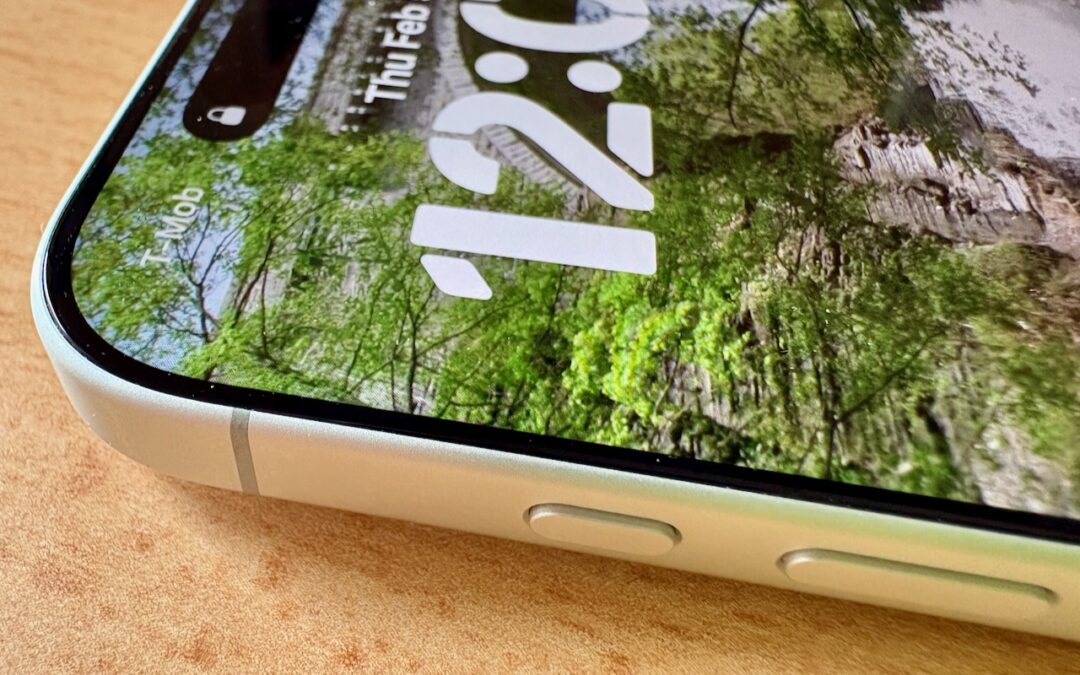
Starting with the iPhone 15 Pro and Pro Max, Apple replaced the Ring/Silent switch on the top-left edge of the iPhone with the Action button, making the new button standard across the iPhone 16 and iPhone 17 lineups in subsequent years. The Action button is a dedicated hardware button you can configure to perform one of many different tasks. Although Apple prompts everyone setting up a new iPhone to configure the Action button, our experience is that many people haven’t integrated it into their everyday usage.

Taking advantage of the Action button isn’t hard, but there are obstacles. The Ring/Silent switch had only one function, whereas the Action button offers so many options that it’s easy to fall prey to decision paralysis. Also, because the Action button is configurable, it behaves differently even if you leave it set to Silent Mode. The Ring/Silent switch was a physical switch that also showed its state with an orange indicator. With the Action button, you can’t tell at a glance if Silent Mode is on, and activating it requires a relatively long press-and-hold. Finally, the Action button’s ultimate power lies in its Controls and Shortcuts options, but many users are unaware of the wide-ranging possibilities these unlock.
So let’s look at how to make the most of the Action button. To configure the Action button, go to Settings > Action Button and swipe through the choices. The choice on screen when you exit Settings will be active. Although there are no bad choices here, many of the options Apple provides can be activated just as easily through Control Center or Siri, so you might not want to dedicate the Action button to them.
- Silent Mode: Toggle call and alert sounds on and off. This is the default setting, but unless you regularly need to toggle the ringer, it’s not worth dedicating the Action button to such a seldom-used option. You can toggle Silent Mode in Control Center just as easily.
- Focus: Activate or switch Focus modes such as Do Not Disturb. We recommend using Focus sparingly because it can block desired notifications, but if you’re a fan, the Action button might be a good way to switch between them. Focus modes are also easy to select in Control Center and turn on with “Siri, turn on Do Not Disturb.”
- Camera: Launch the Camera app. If your iPhone has the Camera Control (as do all Action button-equipped models except the iPhone 15 Pro/Pro Max and iPhone 16e), the Camera Control is the best way to open the Camera, but the Action button might still be helpful for opening the Camera app to a specific mode: Photo, Selfie, Video, Portrait, or Portrait Selfie.
- Visual Intelligence: Launch Apple’s AI-powered object recognition feature. Again, pressing and holding the Camera Control (if available) is a better way to access Visual Intelligence.
- Flashlight: Turn the flashlight on or off. This may be a good choice if you use the flashlight regularly, but if so, you’re probably already accustomed to tapping its icon on the iPhone’s Lock Screen. If your hands are too full, try “Siri, turn on the flashlight.”
- Voice Memo: Start recording audio in the Voice Memos app. If you use Voice Memos heavily, you may like this use of the Action button. Alternatively, just say, “Siri, record a voice memo.”
- Recognize Music: Use Shazam to identify music that’s playing nearby or on your iPhone. Another way to invoke Shazam quickly is to ask, “Siri, what’s playing?”
- Translate: Starts listening to translate between the default languages you set up in the Translate app. This use of the Action button is a great shortcut if you’re traveling in another country and need quick translations, but most people don’t need it every day.
- Magnifier: Launch the Magnifier app to make it easier to see tiny text and small objects. Those with low vision may particularly appreciate this use of the Action button, but the Magnifier app is also easily accessed from a Control Center button or by saying, “Siri, open Magnifier.”
- Controls: Invoke any Control Center control. Here’s where things get interesting! Starting with iOS 18, iPhone apps can create controls in Control Center. With the Controls option, you can choose any available control, so you could have the Action button start a ChatGPT conversation, add a task to TickTick, create a new event in BusyCal, or myriad other options. We strongly encourage you to scroll through the available controls to see if any catch your interest.

- Shortcut: Activate any custom Shortcut for personalized actions. The previous Controls choice is brilliant, but what if you want even more options? With Shortcuts, you can create custom actions that can even leverage multiple apps to do exactly what you want. For instance, you could create a shortcut that takes a photo of an expense receipt and sends it to a specific email address, all triggered by a long press on the Action button. The sky is the limit here.

- Accessibility: Quick access to accessibility features like VoiceOver, Zoom, Speak Screen, Apple Watch Mirroring, Live Captions, Conversation Boost, and more. Don’t assume these options are only for people with disabilities; many have broader utility.
- No Action: The final option is No Action, which is useful only if you accidentally press the Action button frequently and don’t want it to do anything.
So there you have it! If you’re not currently using the Action button, take a spin through the available options to see which can make a difference in your everyday iPhone experience.
(Featured image by Adam Engst)
Social Media: Your iPhone’s Action button can do much more than toggle Silent Mode. Try it for quick translations or voice memos—or explore the many options in Controls and Shortcuts to trigger nearly any action with a long press.

Recent Comments