by Steve Sorbo | Jan 3, 2025 | Uncategorized
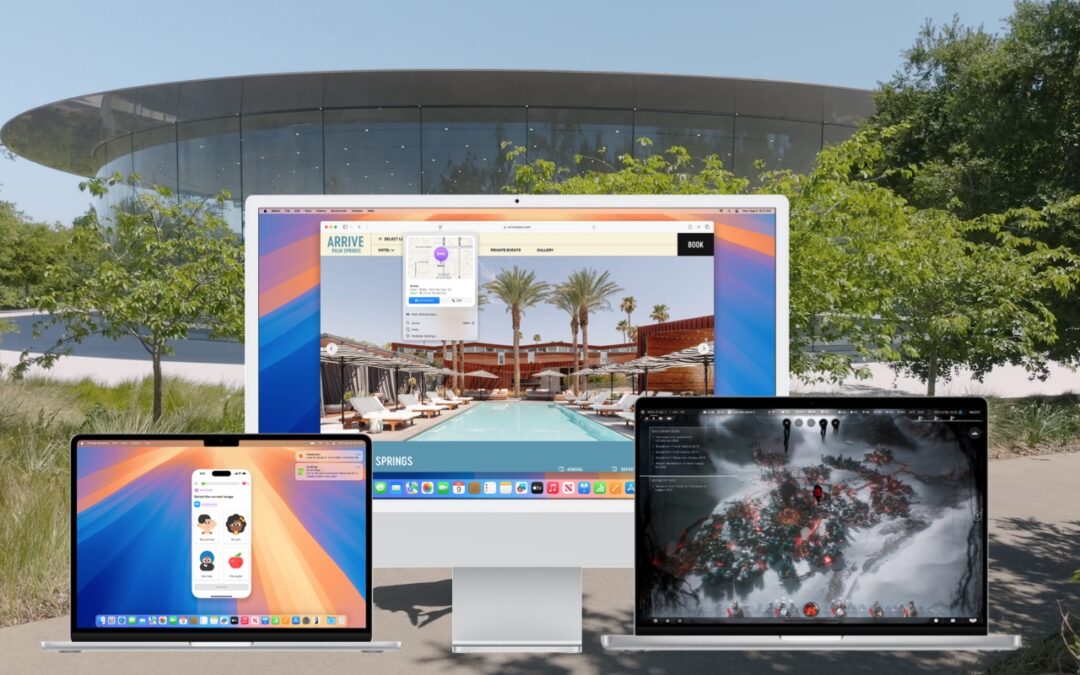
While we typically advise caution when considering upgrades to the latest major macOS release, we believe Apple has sufficiently refined macOS 15 Sequoia to warrant an upgrade for those interested. You don’t need to upgrade immediately, but there are no significant reasons for most people to delay further.
The big win in upgrading now is that Apple has released betas of most of its promised Apple Intelligence features for Macs with Apple silicon. In other posts, we’ve looked at the artificial intelligence-driven features that arrived in macOS 15.1 and macOS 15.2, including:
- Writing Tools for proofreading, rewriting, summarizing, and composing text
- Clean Up in Photos for removing background objects, plus natural language searches
- Audio recording in Notes, with transcription and summarization
- Summaries replacing snippets in Mail message lists, plus summarization of long messages or threads
- A Smart Reply feature in Mail and Messages for quick replies
- Notification summaries that reduce distractions from chatty apps
- Integration of ChatGPT with Siri
- Image Playground for generating custom images based on your descriptions
Sequoia has been quite stable, with two caveats. First, there have been some networking issues related to Apple’s built-in firewall and VPNs; we don’t yet know if macOS 15.2 resolves these. Second, macOS 15.2 introduced a new bug that causes problems for backup apps trying to make bootable backups on Apple silicon Macs. Although that’s annoying and will likely be fixed shortly, Apple has been deprecating bootable backups for years in the name of security. The modern approach is to install macOS from macOS Recovery, then use Migration Assistant to restore from Time Machine or a data-only backup.
Apple will continue to release macOS updates in 2025. If past performance is any indication, you can expect macOS 15.3 in January, 15.4 in March, and 15.5 in May with a few new features, plus a few security and bug fix updates in between.
That said, you can put off the Sequoia upgrade as long as you’re running macOS 13 Ventura or macOS 14 Sonoma and are staying current with Apple’s security updates. Earlier macOS versions no longer receive security fixes, rendering them more vulnerable to attack. Possible reasons to continue delaying include:
- You’re too busy. The upgrade process will take a few hours, plus some additional time to configure everything properly afterward. When you are ready to upgrade, aim for when a little downtime will be convenient.
- You rely on incompatible software. The jump from Ventura or Sonoma to Sequoia isn’t a big one, so most modern apps should have been updated by now. But if a necessary app is known to have issues, you’ll either need to wait for an update or switch to an alternative that works.
Sequoia may not transform your experience of using a Mac, but it has new features you might appreciate beyond Apple Intelligence. The most noticeable is probably iPhone mirroring, which lets you use your iPhone in a window on your Mac. Also potentially interesting are its new window tiling features that let you quickly arrange windows, the standalone Passwords app, Highlights and Distraction Control in Safari, and collapsible headers in Notes.
Before You Upgrade
Once you’ve decided to upgrade to Sequoia, you have three main tasks:
- Update apps: Make sure all your apps are as up-to-date as possible. If you regularly put off updates, now’s the time to let them complete so you have Sequoia-compatible versions.

- Clear space: Sequoia may need as much as 25 GB of free space to upgrade, and the Sequoia installer itself is nearly 15 GB, so we recommend making sure you have at least 50 GB free. Don’t cut this close—you should always have at least 10–20% free space for virtual memory, cache files, and breathing room. Check in Sonoma or Ventura by choosing System Settings > General > Storage; in earlier versions of macOS, choose About This Mac from the Apple menu and click Storage. System Settings provides quick ways to free up space. Another easy option for iCloud Drive users is to Control-click large folders and choose Remove Download to “evict” the local versions of those files temporarily; Box, Dropbox, and Google Drive have similar features.

- Make a backup: Never, ever install an update to macOS without ensuring you have at least one current backup first. In an ideal world, you’d have an updated Time Machine backup, a data-only duplicate, and an Internet backup. That way, if something goes wrong, you can quickly revert.

Upgrading
After completing those tasks, ensure you won’t need your Mac for a few hours. There’s no telling exactly how long the upgrade will take, so never start an upgrade if you need the Mac soon.
To initiate the upgrade, open System Settings > General > Software Update in Sonoma or Ventura (System Preferences > Software Update in previous versions of macOS), click the Upgrade Now button, and follow the instructions. If you’d like more guidance, check out Joe Kissell’s ebook Take Control of Sequoia.

After You Upgrade
Part of the reason to set aside plenty of time for your Sequoia upgrade is that there are usually cleanup tasks afterward. We can’t predict precisely what you’ll run into, depending on what version of macOS you’re running now and what apps you use, but here are a few situations we’ve noticed in the past:
- macOS may need to update its authentication setup by asking for your Apple ID password, your Mac’s password, and, if you have another Mac, its password. Don’t worry that malware has compromised your Mac—these authentication prompts are fine.
- Some apps may have to ask for various permissions even though you previously granted them. Again, that’s fine.
- If you use your Apple Watch to unlock your Mac and apps (and you should; it’s great!), you may need to re-enable that in System Settings > Touch ID & Password (or Login Password on a non-Touch ID-enabled Mac). In older versions of macOS, it was in System Preferences > Security & Privacy > General.
- If you use Gmail, Google Calendar, or other Google services, you may need to log in to your Google account again.
- Websites that usually remember your login state may require you to log in again. However, if you’re using a password manager like Apple’s Passwords or 1Password, that’s easy.
- You may have to re-enable text message forwarding to your Mac. You do this on your iPhone in Settings > Messages > Text Message Forwarding.
With all that housekeeping done, it’s time to check out all the new features in Sequoia!
(Featured image by Apple)
Social Media: When should you upgrade to macOS 15 Sequoia There’s no need to install it today, but we think it’s safe for those who want to take advantage of the new features and integration with Apple’s other operating systems.

by Steve Sorbo | Dec 2, 2024 | Uncategorized
Alongside this year’s crop of operating systems comes Safari 18, the latest version of Apple’s Web browser. Most of what you do in Safari depends on the websites you use, of course, but Apple has added a handful of features aimed at improving your overall browsing experience, including Highlights, Distraction Control, a redesigned Reader, and Video Viewer.
We’ll focus on the Mac with macOS 15 Sequoia, but these features other than Video Viewer are also available on the iPhone and iPad with iOS 18 and iPadOS 18. Macs still running macOS 13 Ventura or macOS 14 Sonoma can get Safari 18 but miss out on the Highlights feature. Regardless of platform or macOS version, you access all these new features from the Page menu at the left of Safari’s address bar, which takes over from the previous Show Reader View button in Safari 17.
Highlights
Sometimes, when you visit a website, you just want a quick bit of information, like a restaurant’s address or a store’s hours. For those running Sequoia, once you turn on Safari 18’s Highlights feature, the Page menu icon in Safari’s address bar will show a purple sparkle if it detects information on the page that it can call out for you. Click it to learn more.

It can be hard to predict what Highlights will call out. It’s fairly reliable at showing location and business information extracted from Maps, and it may display biographical information about people on pages about them. For long articles, it may provide a quick summary you can use to see if it’s worth reading more. Apple says Highlights will also offer quick links to learn more about people, music, movies, and TV shows.

Distraction Control
Every website wants you to SUBSCRIBE TO A NEWSLETTER! and WATCH OUR VIDEO! and SHARE THIS ARTICLE! It’s exhausting. In Safari 18, Apple has added a feature that can help you turn down the volume on websites that constantly try to lure you into doing something other than what you intend. Distraction Control lets you remove annoying parts of a Web page. It works on nearly anything on the first use, but Apple warns that “hiding distracting items will not permanently remove ads and other content that updates frequently.” (That’s what most people want, of course, but such a capability would anger advertisers and publishers whose business models rely on ads.)
To clean up a Web page, click the Page menu and choose Hide Distracting Items. Then, move the pointer over areas of the screen you want to remove—if Safari can identify an item as a discrete object, it will gain a blue outline. Click it to make it disappear in a cloud of digital dust. Additional clicks will remove more items; Safari keeps count in the location bar. Click the Done button in the location bar to save your changes, or click Cancel if you were just testing. As you can see in the right-hand sidebar of the Yahoo page in the image below, the result is a cleaned-up view with much less distraction.

Redesigned Reader
Another way to eliminate distractions when reading on the Web is to use Safari’s Reader mode. When you click the Page menu and select Show Reader, Safari reformats the text and images in an article, removing extraneous ads and gewgaws. Once you’re in the redesigned Reader, click the Page menu icon again to access the customization options that let you choose from four color themes, nine different font faces, and various zoom levels

With Apple Intelligence on a Mac with Apple silicon, Reader also offers to summarize long articles. It may also provide a table of contents if the article contains appropriate headings, but it’s hard to predict when that will work.
Video Viewer
Finally, those who watch a lot of Web video will appreciate Safari 18’s new Video Viewer, available only on the Mac. Whenever you’re watching a video embedded in a Web page, clicking the Page menu reveals a new Video Viewer command. Choose that to expand the current video to fill the Safari window, overwriting whatever else might have been on the page so you can focus on the video.
Once you’re in the Video Viewer, switching to another tab in Safari or another app whose window obscures at least half the Video Viewer window causes Safari to switch to Picture in Picture, moving the video to a small window that floats above all other apps. You can resize that window and move it to any screen corner while it’s open, and it remembers its size and location for subsequent uses. Although multiple tabs and windows can use Video Viewer simultaneously, only one can be in Picture in Picture at a time.

Even if these changes aren’t world-changing for everyone, they make Safari an ever more capable Web browser, so it’s worth giving them a try to see if they’ll improve your Web experience.
(Featured image based on an original by iStock.com/Kanoke_46)
Social Media: Safari 18 debuts some notable new features, including Highlights, Distraction Control, a redesigned Reader, and—on the Mac—a new Video Viewer that supports Picture in Picture.
by Steve Sorbo | Nov 1, 2024 | TCN Content
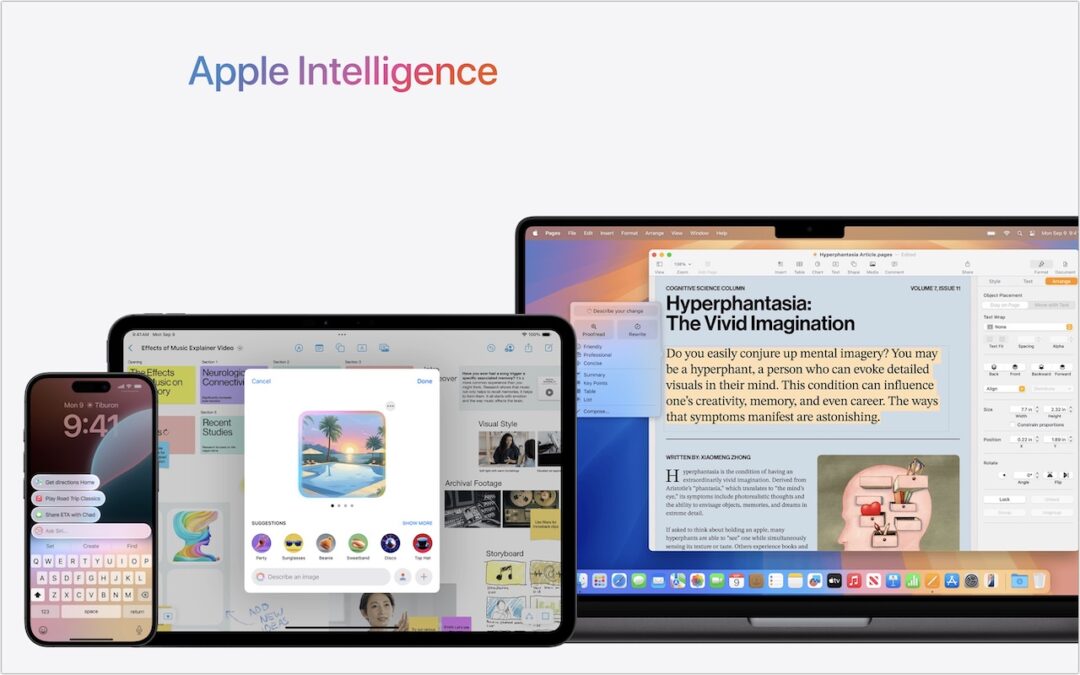
Is it time to make your Apple devices smarter? Apple has just released macOS 15.1 Sequoia, iOS 18.1, and iPadOS 18.1 with an initial collection of Apple Intelligence features and a promise of more coming in December. The company is making a big deal about Apple Intelligence, calling it out as a key feature of the recent updates to the iPad mini, iMac, Mac mini, and MacBook Pro.
You may need some of that new hardware to take advantage of Apple Intelligence. Its features work only on a Mac with Apple silicon, an iPad with an A17 Pro or M-series chip, or an iPhone 15 Pro or any iPhone 16. Intel-based Macs and older iPhones and iPads can’t play.
Although we have no problem with recommending that you upgrade your iPhone and iPad to iOS 18.1 and iPadOS 18.1, we recommend more caution when it comes to upgrading your Mac to macOS 15.1 Sequoia. There aren’t any general showstoppers, but you shouldn’t upgrade until you’re confident your particular workflows are fully compatible.
What will Apple Intelligence do for you if you upgrade? Here’s what you need to know.
Writing Tools Everywhere
The Apple Intelligence Writing Tools will help you craft and polish your prose—or just make your email sound more professional. Writing Tools provides three core functions:
- Proofread: The Proofread tool will significantly reduce spelling, punctuation, and grammar mistakes in your text. While it may not match up with a human proofreader, using it will make your text cleaner.

- Rewrite: If you’re unhappy with the tone of your text, use the Rewrite tool to improve it or make it friendlier, more professional, or shorter. Even if you don’t adopt the complete rewrite, some of its phrases or word choices might take your writing up a notch.
- Summarize: A straight summary might be useful for condensing text, and specialized summaries can list key points, make a list, or create a table. These features are probably most useful when working with text you’ve been given and need to edit into shape.
Writing Tools are available in nearly all apps that accept text. Either look for an Edit > Writing Tools menu or Control-click a text selection and look in the Writing Tools submenu. Right now, Apple apps like Mail and Notes provide proofreading controls that let you see (and revert) each change independently. With the Rewrite and Summary tools and Proofread in other apps, you have to compare the original and the rewrite manually, with your only options being to replace the selected text or copy the suggested revision.
Photos Enhancements
Photos benefits from Apple Intelligence in three ways as well:
- Clean Up: Many a great photo suffers from a random bystander or distracting telephone pole. Clean Up removes people and objects from your photos, either identifying them automatically or working from your manual selection. It’s not perfect, but Clean Up is a hugely welcome addition to Photos.

- Descriptive search: We’ve been able to search for objects in photos for several years now, but with Apple Intelligence, you’ll be able to find photos and videos based on more extensive and natural descriptions, like “Halloween in 2014.”
- Descriptive memory movies: The Memories feature in Photos automatically creates movies based on photos it thinks you might want to see together. With Apple Intelligence, you can describe the photos you’d like it to include.
Notification Summaries
Apple has long been sensitive about how distracting our devices can be due to numerous apps posting notifications throughout the day. Apple Intelligence tries to help by summarizing lengthy individual notifications and groups of notifications. Notification summaries probably won’t rock your world, but it can be nice to have a sense of what’s going on with a group of notifications before you wade into an involved conversation. If you don’t like the summaries for particular apps, turn them off in Settings > Notifications > Summarize Previews.

Mail (and Messages) Enhancements
Speaking of summaries, in Mail, the most welcome Apple Intelligence change is to replace each first-line snippet in message lists with summaries of the message or conversation content. It makes scanning email for important messages easier.

Other Apple Intelligence changes include moving priority messages—those that require a quick reply—to the top of the message list and the option to summarize long messages or conversations using a Summarize button at the top of the message pane. Both Mail and Messages also offer a Smart Reply feature that suggests reasonable replies. They’re like tapback responses on steroids.
Audio Recording, Transcription, and Summarization
Apple Intelligence offers major advances for the Notes and Phone apps: audio recording, transcription, and summarization. Be aware that the Phone app alerts participants when you start recording—just joke, “For quality assurance…” before tapping the record button.
The big win comes with Notes (on the iPhone, iPad, and Mac), which can record a meeting and provide a transcript for later searching and summarization. The clearer the audio, the better. It stumbles on many names and doesn’t differentiate between speakers, but transcripts can be hugely helpful. You can keep a transcript in its recording (left), where you can jump around in the audio by tapping the associated text, or you can use the ••• button to export it to its enclosing note (middle) or tap a button to get a summary (right).

Siri Enhancements
Apple has promised a lot for Siri but hasn’t delivered much. A new interface replaces the animated circle with a glowing light and the option to type your query rather than speak it. However, the only functional improvement from Apple Intelligence so far seems to be Siri’s awareness of the iPhone, iPad, and Mac user guides. If you’re unsure how to accomplish a built-in task, try asking Siri.

What’s Coming Next
Welcome though they may be, the initial wave of Apple Intelligence features won’t set the world on fire. But Apple has big plans for Apple Intelligence, with new features slated for release in December 2024 and more coming in 2025. Things you can look forward to in a few months include:
- ChatGPT will make its promised appearance, bringing world knowledge into Writing Tools and Siri.
- You can jazz up your conversations in Messages with original Genomoji merely by describing the emoji you’d like to see. “Penguin on a surfboard,” anyone?
- The Image Playground feature will let you generate original images in various styles, though none are photorealistic on purpose—no deepfakes from Apple.
- Image Wand will enhance your Apple Pencil sketches by turning them into polished images, and if you circle an empty space, Image Wand will create an image from the surrounding area.
- Writing Tools will let you describe a specific change you want to apply to your text, like adding more descriptive words to a blog post. We hope Apple puts more thought into the workflow so it’s easier to compare the before and after.
- The Camera Control button on the iPhone 16 line will tap Apple Intelligence to help users learn about objects and places in the iPhone’s viewfinder.
Further out, Apple says that Priority Notifications will surface your most important notifications, and Siri will learn how to draw from your personal context, take action in numerous apps, and gain awareness of onscreen information. We’re still curious to see how Apple will integrate a more intelligent Siri into the HomePod and Apple TV.
(Featured image by Apple)
Social Media: Apple Intelligence is here! These initial features won’t upend your Apple experience, but welcome additions include notification summaries in Messages, message list summaries in Mail, Clean Up in Photos, and audio transcripts and summaries in Notes.

by Steve Sorbo | Oct 1, 2024 | TCN Content
Although we’re still fans of 1Password, and there are plenty of other good password managers out there, like BitWarden and Dashlane, Apple has finally removed the last hurdle to using its built-in password management capabilities.
Starting in macOS 15 Sequoia, iOS 18, iPadOS 18, and visionOS 2, Passwords is now a real app rather than being trapped inside Safari, System Settings, and Settings. If you have resisted using a password manager or don’t wish to continue subscribing to an alternative, give Apple’s Passwords a try. It makes creating, maintaining, and entering passwords faster, easier, and more secure than doing it by hand. Those already using a password manager can export their accounts and import into Passwords.
What You’ll Find in Passwords
We’ll focus on the Mac version here, but the other versions are nearly identical apart from their screen sizes.

The left-hand sidebar, reminiscent of Reminders, provides categories of accounts:
- All: Select All to see all your accounts, regardless of what shared group they may be in.
- Passkeys: If you have any passkeys for large websites like Apple, Google, and others, they’ll appear here.
- Codes: Passwords can create, store, and enter two-factor authentication codes for sites that support them. If you need to look one up manually because Passwords couldn’t autofill it, you’ll find the associated account here.
- Wi-Fi: This category contains stored passwords for all the known Wi-Fi networks on your device. Because known Wi-Fi networks aren’t synced between devices, the number of these will vary between your devices.
- Security: If you have any accounts with weak passwords, accounts you previously shared and stopped sharing, or accounts whose passwords were leaked in a security breach, they’ll appear here. Edit these accounts and click the Change Password button to start the process; when the password changes, they’ll disappear from this category.
- Deleted: Any accounts you delete stay here for 30 days before being deleted for good. You can delete any of these accounts immediately or restore them to their previous group.
- Shared Groups: If you use Family Sharing, you automatically get a Family Passwords group to simplify sharing important accounts with your family members. But you can also share accounts with other groups of Apple device owners. To move an account to a group, choose it from the Group pop-up menu.
The middle pane lists the accounts in the selected category. You can sort the list using the menu with vertical arrows, search for a specific account, and manually add a new one with the + button. Otherwise, scroll through the list and click an account to view it in the right-hand pane.
At the top of the right-hand pane is an AirDrop button and an Edit button. Click AirDrop to share an account with someone nearby or Edit to make changes or set up a two-factor verification code. If you want to copy information, click the User Name, Password, Verification Code, or Website item to get a Copy menu. The password becomes visible when you mouse over it. Clicking Website also offers an Open Website option and lets you add more sites where the password should autofill.
Setup Requirements
Most people shouldn’t need to do anything to start using Passwords. However, if you have trouble, check the following items:
- Turn on Password AutoFill: If your device isn’t entering passwords for you, turn on AutoFill Passwords and Passkeys in Settings/System Settings > General > AutoFill & Passwords. Also, ensure that Passwords is enabled in the AutoFill From section if multiple password managers are installed.
- Turn on iCloud Keychain: If you want your passwords to sync securely among your devices, which makes life a lot easier, go to Settings/System Settings > Your Name > iCloud > Passwords and turn on Sync This Device.
- Set up iCloud Passwords for other browsers: Apart from Safari, Chromium-based Web browsers (Arc, Brave, Google Chrome, Microsoft Edge, etc.) can access and autofill your saved passwords if you install Apple’s iCloud Passwords Chrome extension. (There’s also now an iCloud Passwords add-on for Firefox.) The overall experience is not as seamless as in Safari, requiring a once-per-launch code, and you have to create new accounts in Safari or manually in Passwords, but it works.

- Configure settings: Choose Passwords > Settings (or look in Settings > Apps > Passwords for iOS 18 and iPadOS 18) to access options. Generally speaking, it’s fine to keep them all turned on.

If you have additional questions, check Apple’s documentation for detailed instructions for all the platforms on which Passwords runs. But realistically, Passwords is easy to use, and although the app itself is new, the underlying password management features and syncing have been in place for years, so they’re stable and reliable.
(Featured image by iStock.com/designer491)
Social Media: Apple’s new Passwords app in macOS 15, iOS 18, iPadOS 18, and visionOS 2 makes the company’s longstanding password storage and syncing features more straightforward and easy to use. It’s password management for the rest of us!
by Steve Sorbo | Sep 3, 2024 | Uncategorized
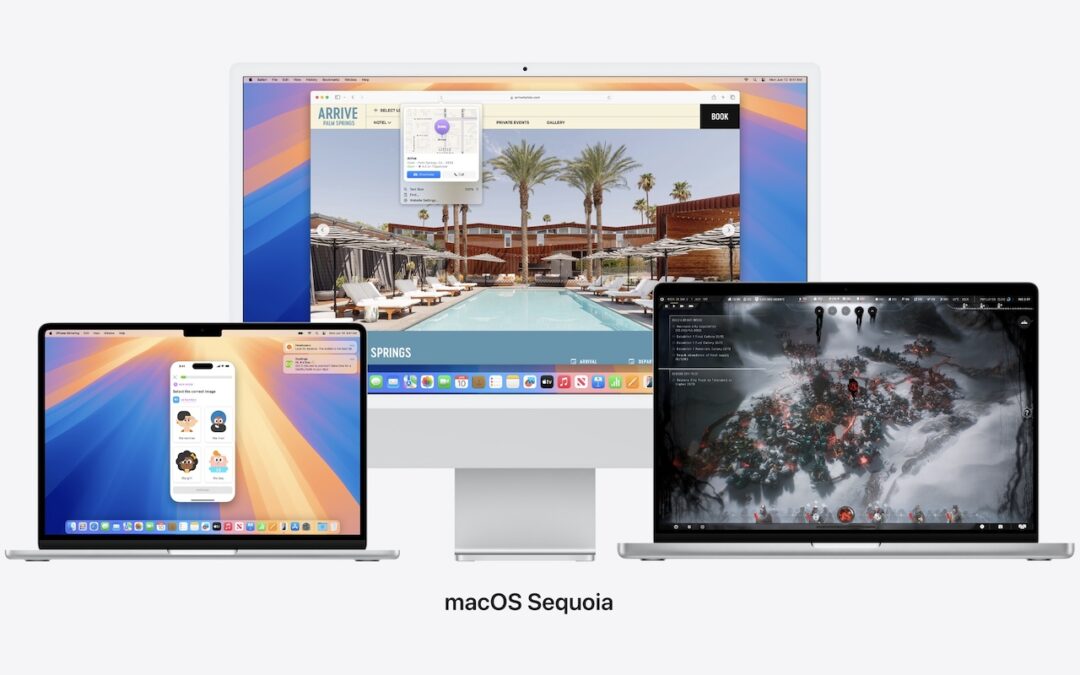
The calendar has flipped over to September, so Apple will soon release major upgrades for all its operating systems. iOS 18 and watchOS 11 will undoubtedly ship alongside new iPhone and Apple Watch models mid-month. iPadOS 18 is likely to accompany iOS 18, as are tvOS 18 and visionOS 2. Although Apple has sometimes delayed the release of macOS until later in the year, we anticipate that Apple will release macOS 15 Sequoia earlier this year, probably with its siblings. That’s because the company has already said it will release the initial Apple Intelligence features in iOS 18.1, iPadOS 18.1, and macOS 15.1; those will probably debut in October or November.
Apple previewed these releases at its Worldwide Developers Conference in June, and many people have been testing the public betas since. Once Apple judges each of its operating systems to be ready for public consumption, the question arises—when should you upgrade?
Note that we say when and not if. There’s no harm in delaying a major operating system upgrade until Apple has sanded off any rough edges that slipped through testing. But waiting too long puts you at risk from security vulnerabilities, increases compatibility annoyances, and prevents you from taking advantage of new features. Plus, when you buy a new Mac, iPhone, or iPad after these operating systems have shipped, you’ll get the latest version, which could pose problems for your existing apps or compatibility with older hardware or workflows. It’s best to be prepared if you have to replace a device unexpectedly.
Given that we don’t know precisely when each operating system will come out, here’s our recommendation for the general upgrade order that we anticipate and how long we suggest waiting after the release appears. We also share a few new features that might encourage you to upgrade, assuming you have a device that’s new enough to take advantage of them.
Remember, always make a backup before upgrading a Mac, iPhone, or iPad so you can revert if necessary.
iOS 18
It’s usually safe to upgrade iOS fairly quickly because Apple puts significant effort into ensuring that the new iOS version is a good experience for those who buy the new iPhones that come with it. However, because iPhones are so crucial to our everyday lives, it’s worth delaying the upgrade to iOS 18 for a week or two, just in case. After that, you can install it and enjoy the new features.
Even before the Apple Intelligence features start appearing in iOS 18.1, there’s plenty to look forward to in iOS 18. Messages via satellite will let you stay in touch even when there’s no cellular or Wi-Fi service. You’ll be able to personalize your Home Screen layout more by placing apps and widgets wherever you want. App icons and widgets get a new Dark look, and you can even tint them all a certain color. Keep prying eyes out of sensitive apps by requiring Face ID to open them. You can now rearrange and resize controls in Control Center, plus create groups of controls accessible with a single continuous swipe. You can even swap out the flashlight and camera icons on the Lock Screen for other controls. Photos has been redesigned (and simplified after public outcry during the beta). Messages lets you use bold, italics, underline, and strikethrough, but more interesting is the ability to send tapback responses with any emoji or sticker—it’s a great way to respond quickly to messages. Maps gains topo maps and trail networks, including all US national parks, and a new Passwords app extracts your logins and passwords from the Settings app.

As noted, Apple Intelligence features will start shipping with iOS 18.1 and will continue appearing in new versions throughout 2025. They include a smarter Siri, categorization in Mail, writing tools that correct your grammar and summarize long texts, and generative AI image creation—you’ll even be able to make your own emoji. Apple says these features will require an iPhone 15 Pro or iPhone 15 Pro Max; it’s likely that all the upcoming iPhone 16 models will be compatible, though Apple could hold out Apple Intelligence as a reason to buy a Pro model.
watchOS 11
Once you upgrade your iPhone to iOS 18, there’s no reason to delay upgrading your Apple Watch to watchOS 11. Few of the changes are likely to require significant adjustments in your usage patterns, and some may be quite welcome.
When you wear your watch overnight, the new Vitals app displays your heart rate, respiratory rate, wrist temperature, blood oxygen (on units that have it enabled), and sleep duration, showing a typical range and identifying outlier metrics. You can now adjust Activity ring goals for every day of the week or put your rings on pause if you need to take a break for any reason. The Activity app now shows your training load so you can adjust the intensity of your workouts. The Smart Stack interface now includes Live Activities and has been improved to be more intelligent, suggesting widgets based on time, date, location, and daily routines. Finally, Apple enhanced the Photos watch face to select photos automatically, optimizing the subject’s position with the frame and creating a sense of depth. Its Dynamic mode shows a new image on every raise of your wrist.

iPadOS 18
Our general advice is that it’s OK to install iPadOS 18 shortly after it ships. For the most part, iPadOS is a superset of iOS, so if you’re comfortable upgrading to iOS 18, think of iPadOS 18 similarly. The main caveat is when you rely heavily on a particular app. In that case, check with the developer to ensure your app is compatible before upgrading.
Along with most of the features in iOS 18 that aren’t specific to the iPhone (like Messages via satellite), iPadOS 18 finally gains a Calculator app that goes well beyond the basics, offering the Math Notes feature that solves equations written with the Apple Pencil. The Notes app gains live audio transcription, styled highlighting, collapsible sections, and Smart Script, which refines your handwriting to be smoother, straighter, and more legible. You can also paste in typed text, correct spelling inline, touch and drag to reflow text, and scratch out writing to delete it. A new tab bar at the top of the screen promises to provide easier navigation in apps and quick access to app sidebars.

tvOS 18
Regardless of when Apple releases tvOS 18, it’s safe to update within a week or two of release, depending on the level to which you depend on your Apple TV.
tvOS 18 introduces several notable features to enhance the Apple TV experience. InSight provides real-time information about actors, characters, and music from Apple TV+ content, similar to Amazon Prime Video’s X-Ray feature. Apple updated the Enhance Dialogue to provide greater vocal clarity for a broader range of speakers. Subtitles have also received enhancements and now automatically appear when you mute the TV or skip back, or when content is in a different language. People with projectors will appreciate the added support for the 21:9 aspect ratio. New screensaver options include Snoopy and Woodstock, Portraits, and scenes from Apple TV+ shows.
If nothing in that list encourages you to upgrade as soon as tvOS 18 ships, let your Apple TV (the fourth-generation model and later) upgrade itself when it gets around to it, assuming you have automatic updates turned on in Settings > System > Software Updates.

visionOS 2
Since the Vision Pro has been out for less than a year and hasn’t seen widespread adoption, most people can upgrade to visionOS 2 shortly after it comes out. People with mobility issues or disabilities that make the Vision Pro an essential aspect of everyday life should probably wait until early adopters have given the upgrade a thumbs up.
The promised new features should enhance the overall Vision Pro experience. New hand gestures let you open the Home View and Control Center more easily. You can also personalize the Home View in a manner similar to moving icons around on the iPhone Home Screen. The Mac Virtual Display feature now supports an ultra-wide display equivalent to two 4K monitors, making it more useful for travelers who need a lot of screen real estate on the road. Beta testers have praised the new capability to convert 2D photos to 3D spatial photos. SharePlay in Photos lets you and other Vision Pro users on a FaceTime call share and interact with spatial photos, videos, and panoramas. There’s a new Bora Bora environment, and whatever environment you’re in, your Magic Keyboard or MacBook keyboard appears in front of you to ease typing. Finally, the Guest User feature now saves your most recent guest’s eye and hand data so they can skip the setup on subsequent uses.

macOS 15 Sequoia
For most of us, the hardest upgrade decision revolves around upgrading your Mac to macOS 15 Sequoia. Most people should be able to upgrade because Apple dropped support only for two MacBook Air models from 2018 and 2019; otherwise, everything that can run macOS 14 Sonoma can upgrade to Sequoia. (If you have one of those MacBook Airs, consider this an excuse to upgrade—you’ll love the current MacBook Air.) The problem with upgrading macOS is that Apple’s changes are seldom more compelling than keeping your Mac working the way it is now. It can take a few months before the apps you use every day all work without compromise.
What capabilities does Sequoia promise? The big one is iPhone mirroring, which will let you view and interact with your iPhone right on your Mac screen. iPhone notifications can appear on your Mac, and later this year, you’ll be able to drag and drop files, photos, and videos between your Mac and iPhone. New window tiling features make it easy to arrange windows in side-by-side tiles on your desktop by dragging or using keyboard or menu shortcuts. Those who do video calls all day will appreciate background replacements and a presenter preview that shows exactly what you’ll share before displaying it to everyone. The new Passwords app appears on the Mac and syncs securely across all your Apple devices. And you’ll enjoy the same updates to Mail, Maps, Messages, Notes, and Photos as are in iOS and iPadOS.

We always encourage caution when upgrading to a new version of macOS. Wait at least a month or two before upgrading your primary Mac to Sonoma. App compatibility is less of a long-term problem with iOS and iPadOS, but many people rely on older Mac apps that may not work in the latest version of macOS. Even once you’re confident that your apps will work adequately in Sequoia, there may be workflow or intra-office compatibility concerns if some people upgrade and others don’t. And, of course, unanticipated bugs could crop up at inconvenient times—important work takes place on Macs!
Please do not upgrade to Sequoia without first checking with us. With luck, the bug fixes and app updates necessary to give the green light will have appeared by the end-of-year break, which provides some welcome downtime during which you can install and spend some time exploring the new features.
(Featured image by Apple)
Social Media: Apple is gearing up to release macOS 15 Sequoia, iOS 18, iPadOS 18, watchOS 11, tvOS 18, and visionOS 2. We briefly examine the features worth upgrading for and suggest when to upgrade each of your Apple devices.

Recent Comments