by Steve Sorbo | Jun 3, 2024 | Uncategorized
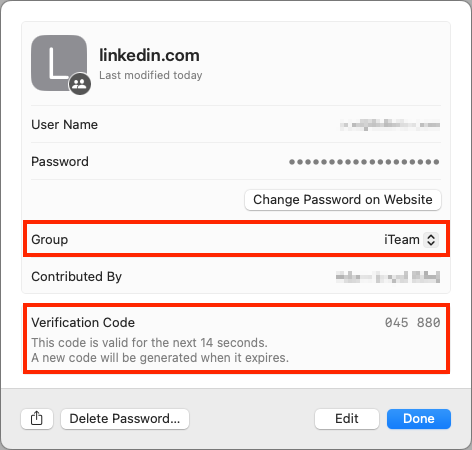
When your team or family shares access to a single account (such as for banking or social media, which seldom offer multi-user access), using two-factor authentication via SMS is awkward—whose phone receives the 2FA codes? One solution is to use an authentication app. Authentication apps are more secure, and multiple people can add 2FA support to the same account by scanning the QR code at setup or adding the 2FA setup URL later. (In both 1Password and Apple’s iCloud Keychain, edit the login to see and copy the setup URL.) An even better solution is to use a password manager that supports both 2FA codes and password sharing. That way, one person can set up the account with 2FA and add its login to a shared vault or collection. 1Password, Bitwarden, Dashlane, iCloud Keychain, and others provide such features.
(Featured image by iStock.com/May_Chanikran)
Social Media: For better results when a team or family group needs to share 2FA codes to log in to a website, try to use an authentication app instead of SMS, or better yet, use a password manager that can both generate 2FA codes and share logins with a group.

by Steve Sorbo | May 1, 2024 | Uncategorized
Apple’s iCloud Keychain Password Management Is All Many People Need
We constantly recommend using a password manager like 1Password, BitWarden, or Dashlane. But many people resist committing to yet another app or paying for yet another service. Isn’t Apple’s built-in iCloud Keychain password management good enough?
The answer now is yes, thanks to two recent changes:
- In iOS 17.3, Apple added Stolen Device Protection, which leverages biometric authentication—Face ID or Touch ID—to protect users against thieves who would surreptitiously learn someone’s passcode, steal their iPhone, and then take over their digital lives. One of the worst aspects of that attack was that the iPhone passcode was sufficient to access the user’s stored passwords, so the thief could get into everything.
- Until mid-2023, Apple’s built-in password management worked only in Safari, which was problematic for users who rely on other browsers. Then Apple updated its iCloud Passwords extension for Google Chrome to work not just in Windows, but also in Mac browsers based on Google Chrome running in macOS 14 Sonoma. There’s also now an iCloud Passwords add-on for Firefox.
If you aren’t yet using a password manager, try iCloud Keychain.
Passwords Basics
Apple integrated iCloud Keychain into macOS, iOS, and iPadOS at a low level, so you mostly interact with your passwords in Safari. But first, make sure to enable iCloud Keychain so your passwords sync between your devices. On the Mac, you do that in System Settings > Your Name > iCloud > Passwords & Keychain. On an iPhone or iPad, it’s in Settings > Your Name > iCloud > Passwords and Keychain.
If you’re using a browser other than Safari, install the iCloud Passwords extension or add-on and activate it by clicking it in the toolbar and entering the verification code when prompted.

When it comes to website accounts, there are two main actions: creating a login and logging in to a site:
- Create a new login: When you need to create an account on a new website, after you enter whatever it wants for email or username, Safari creates a strong password for you. Unfortunately, the iCloud Passwords extension or add-on on the Mac can’t generate passwords—you can either create a strong password manually or switch to Safari temporarily to let it create one. When you submit your credentials, you’ll be prompted to save them.

- Autofill an existing login: The next time you want to log in to a site for which you’ve saved credentials, Safari or your other browser on the Mac displays a pop-up with logins matching the domain of the site you’re on. On the iPhone or iPad, you might get an alert at the bottom of the screen or have to pick a choice in the QuickType bar above the keyboard.

For basic usage, that’s it! However, iCloud Keychain can make mistakes. The site shown above asks for both an email address and a username and wants the email address for logging in, but iCloud Keychain remembered the username instead. Happily, Apple makes it easy to fix such unusual missteps. On the Mac, open System Settings > Passwords, or on the iPhone or iPad, open Settings > Passwords. Here’s where you find and edit your saved logins.

Open the desired login by double-clicking it on the Mac or tapping it on the iPhone or iPad, then click or tap Edit and make any desired changes.

iCloud Keychain provides additional features and options:
- A search field at the top of the Passwords window or screen helps you find logins if scanning the full list is frustrating.
- You can use commands in the + menu to create new passwords and shared groups. On the Mac, commands in the ••• menu let you import and export passwords; the iPhone and iPad use that menu to bulk-select passwords for deletion and show generated passwords.
- Shared groups let you share a subset of passwords with family or colleagues. Choosing New Shared Group triggers an assistant that walks you through naming the group, adding people from Contacts, and choosing which passwords to share. You can move passwords between groups at any time.
- The Security Recommendations screen displays logins exposed in known breaches and points out logins with weak passwords. Check those and update them as necessary.
- In Password Options, you can turn off autofill, but why would you? Another option automatically deletes verification codes you receive in Messages after it inserts them with autofill.
- On websites that support two-factor authentication, you can set up a login to autofill the verification code. During setup on the site, you’ll get a QR code you can scan with an iPhone or iPad if you’re using a Mac; if you’re using an iPhone or iPad, touch and hold the QR code and choose Add Verification Code in Passwords. Once you finish configuring the login, you’ll have to enter the six-digit verification code on the site to link it with the login.

Overall, iCloud Keychain provides the password management features that most people need, and it’s a massive security improvement over keeping a document of your passwords on your desktop.
(Featured image by iStock.com/loooby)
Social Media: Apple’s iCloud Keychain password manager keeps improving, and we now recommend it, especially for those not already using a third-party password manager. Here’s how to use iCloud Keychain to store and enter secure passwords.

by Steve Sorbo | May 1, 2024 | Uncategorized
One of the ways companies protect critical account information is by remembering the devices you use to log in as “trusted devices” or “authorized devices.” Those logins will usually have been protected by two-factor authentication or another mechanism that guarantees the device is being used by you, its owner. Subsequent logins from those devices may be more convenient for you due to requiring only a username and password, and trusted devices may automatically receive two-factor authentication codes. That’s how Apple ensures you are who you say you are when you log in to your Apple ID on a previously unseen device.
Although trusted devices can help increase your security, they can also reduce it. If an attacker were to gain access to one of your trusted devices, they would have a better chance of breaking into your accounts or masquerading as you when setting up new accounts. As a result, it’s important to audit your trusted devices occasionally and make sure you still control all of them. The first time you do this, you may be shocked to see that a Mac you last used years ago could still be receiving Apple ID verification codes. Removing unused trusted devices from an account makes it more secure with no downside.
We can’t provide a comprehensive list of services that track trusted devices, but many of you use two high-profile ones: Apple and Google. In addition, most password managers with online accounts also rely on trusted devices—we’ll look at 1Password here, but if you use another password manager, look through its settings to see if it maintains a list of trusted devices.
Remove Trusted Apple Devices
Apple gives you access to the list of all your current Apple devices in System Settings > Your Name on the Mac and in Settings > Your Name on the iPhone and iPad. (You can also log in to appleid.apple.com, click Sign-in and Security in the sidebar, and click Account Security.) Some of the devices shown may not be trusted devices—there isn’t much to worry about with a HomePod, and some old Macs may not be logged in. Click or tap any device to learn more about it—the 27-inch iMac in the screenshot below is trusted and can receive Apple ID verification codes.
Unfortunately, Apple doesn’t display the date the device was last used, which can help identify ancient devices. So look for any devices that you don’t immediately recognize as being in use—particularly Macs, iPhones, and iPads—and remove them from your account. Don’t worry about inadvertently removing a device you do use—at worst, you’ll have to log in to your Apple ID again the next time you use it.

Remove Trusted Google Devices
You can quickly load Google’s list of trusted devices by logging in to your Google account at myaccount.google.com/device-activity. To navigate there manually, go to your Google Account at myaccount.google.com, click Security in the sidebar, scroll down to find the Your Devices tile, and click Manage All Devices. Google says it keeps track of sessions (whenever you sign in) on trusted devices for only 28 days, but the sessions shown on “unknown device(s)” below are far older than that. Google helps by displaying the location and date of most sessions.
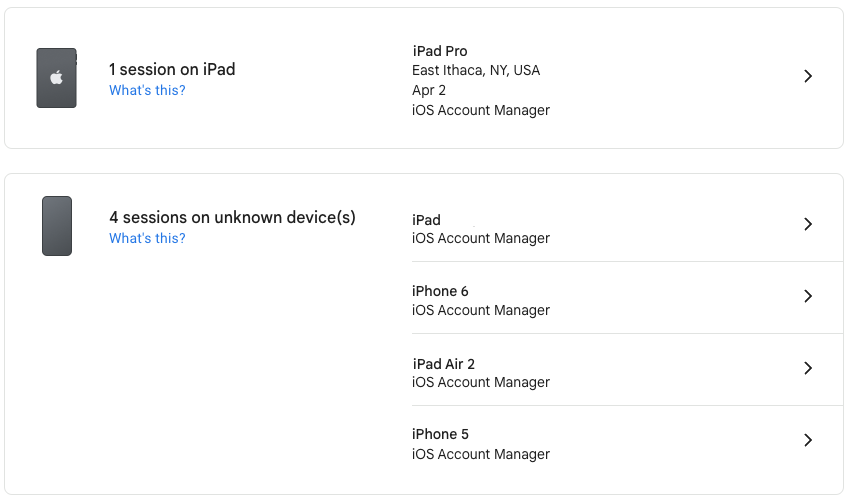
Click a session to learn more about it, including the date you first signed in on that device. For devices you no longer use, click Sign Out to remove access to your Google Account.

Remove Trusted 1Password Devices
To remove old trusted devices from 1Password, start by logging in to 1Password.com, clicking your name at the top right, and choosing My Profile—you can also navigate directly to my.1password.com/profile. As you can see, 1Password provides information about each trusted device and browser, showing its IP address, location, operating system version, and last access time.
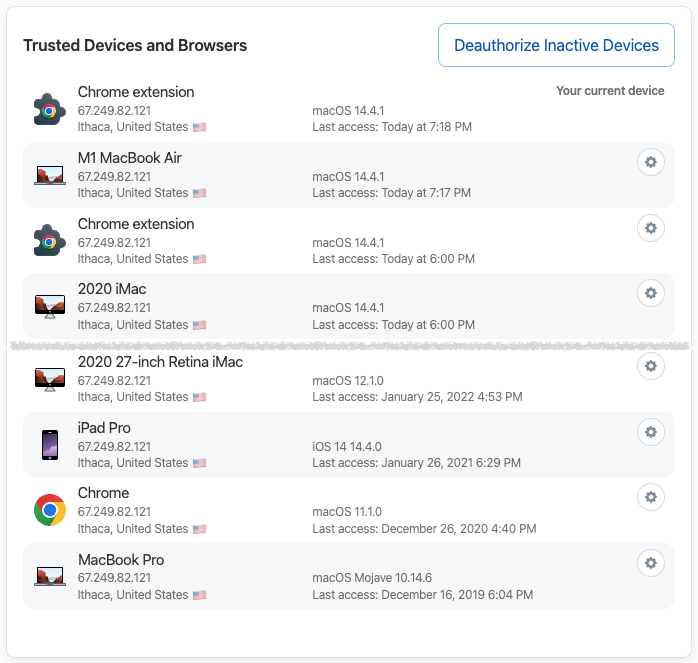
It’s easiest to click Deauthorize Inactive Devices, at which point 1Password will ask if you want to deauthorize all devices that haven’t been used in the last 60 days. If you prefer a more targeted approach, click the gear next to a device or browser you want to remove and click Deauthorize Device in the dialog that appears.

Again, the only harm that could come from deauthorizing a device you still use is that you will have to log in to 1Password again.
After you’ve audited your Apple, Google, and password-manager trusted devices—and any other accounts you may have that maintain such lists—there’s no need to check again right away. Once a month or once a quarter would be sufficient for most people.
That said, if you ever notice any unusual account activity, look at your trusted device lists to ensure you recognize everything. If there’s a device you don’t recognize or one that was used at an unfamiliar place or at a time when you were otherwise occupied, immediately remove it and change that service’s password.
(Featured image by iStock.com/Ildo Frazao)
Social Media: We all accumulate “trusted devices” in our Apple, Google, and password manager accounts, but it’s important to remove devices you no longer use because they could be security risks.
by Steve Sorbo | Mar 1, 2024 | Uncategorized
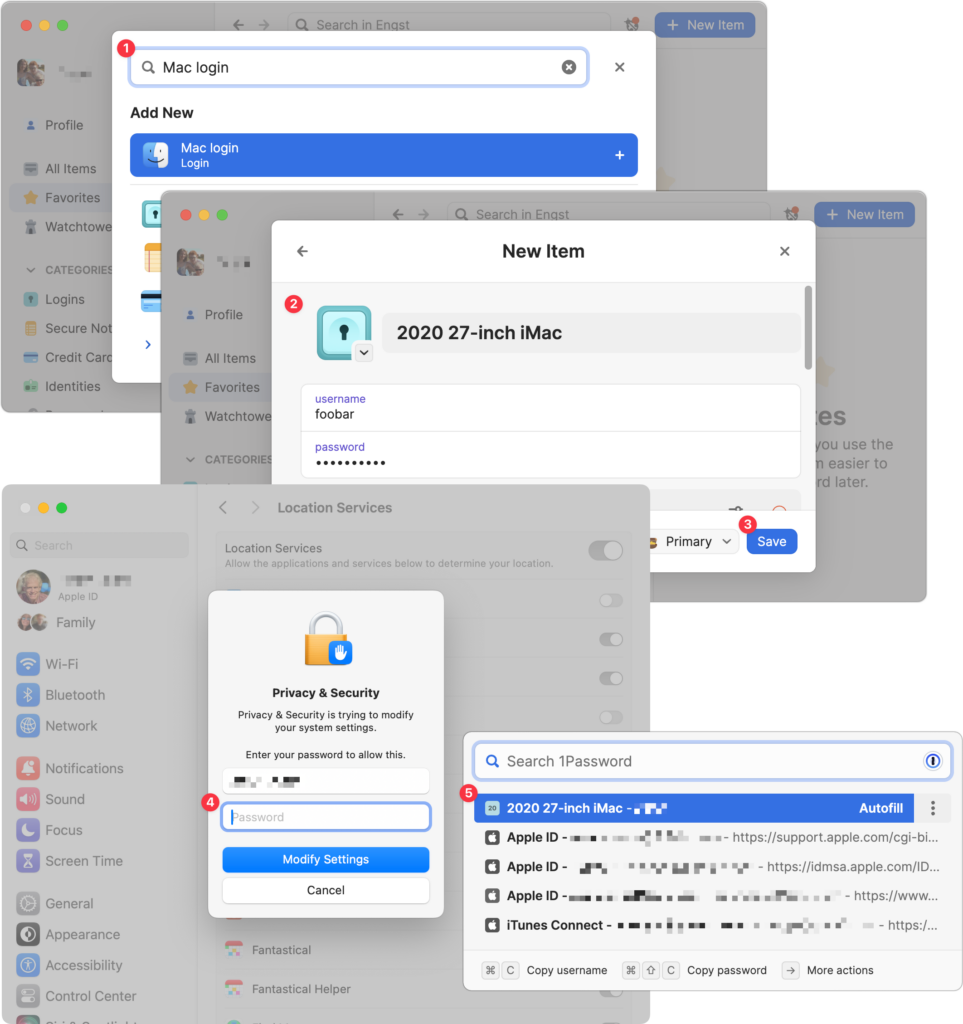
We think of 1Password as being helpful for entering passwords on websites and in iPhone and iPad apps. But its Universal Autofill feature has a hidden capability that lets 1Password enter your Mac login password when you have to provide it to change certain system settings, install apps, format drives in Disk Utility, and more. (But it won’t work to log in at startup before 1Password is running.) To turn this feature on, click the New Item button in 1Password, search for and select “Mac login” ➊, give it a name that will sort alphabetically to the top, like “2020 27-inch iMac” ➋, enter your password, and click Save ➌. From then on, whenever you’re prompted for your Mac login password ➍, press Command-\ (Backslash, located above the Return key), and then click the desired login or press Return to select the topmost item ➎.
(Featured image based on an original by iStock.com/ipuwadol)
Social Media: 1Password is tremendously helpful for entering website passwords, but a little-known feature also enables it to enter your Mac login password for changing system settings, installing apps, and more.
by Steve Sorbo | Mar 1, 2024 | Uncategorized
Does your organization or some financial website require you to create a new password periodically? This practice was recommended long ago, but some organizations haven’t kept up with current recommendations that discourage such policies. If you’re bound by a password expiration policy, you can use this article to encourage your IT department or financial institution to update its approach to password security.
The rationale behind password expiration policies was that if an attacker were to steal a password database and decrypt some passwords, they would work for only a limited period, lessening the risk of unauthorized access. Even if an attacker gained access to an account, they could remain undetected only if they didn’t change the password, and that access wouldn’t last indefinitely.
Over time, security experts realized that the problem wasn’t so much how long an attacker could remain undetected but allowing users to set weak passwords that could be decrypted. It turns out that users often choose weaker passwords when they know they will have to change them, perhaps by tweaking a previous password for easier memorization. This fact hasn’t been lost on attackers, making it easier for them to figure out future passwords. In other words, attempting to increase security by requiring users to change passwords paradoxically reduces security.
The National Institute for Standards and Technology (NIST) is a US government agency that develops cybersecurity standards and best practices for the federal government that large corporations and other institutions tend to follow. In 2017, NIST changed its guidelines to say, “Verifiers SHOULD NOT require memorized secrets to be changed arbitrarily (e.g., periodically).” In a FAQ, NIST explains:
Users tend to choose weaker memorized secrets when they know that they will have to change them in the near future. When those changes do occur, they often select a secret that is similar to their old memorized secret by applying a set of common transformations such as increasing a number in the password. This practice provides a false sense of security if any of the previous secrets have been compromised since attackers can apply these same common transformations.
Of course, if there’s evidence of unauthorized access or a breach of the password database, all passwords should be invalidated and everyone should be required to create a new password immediately—that’s entirely different than requiring passwords to be changed on a schedule.
Interestingly, NIST also doesn’t recommend password composition requirements—such as requiring the password to contain a letter, number, and special character—because users tend to devise predictable techniques to meet such requirements, such as appending an exclamation point to every password. Instead, NIST encourages longer passwords because a long password that’s easily remembered and typed can be stronger than a shorter password composed of random characters. Password managers can generally create both types.
If you’re forced to change a website password periodically, it’s easiest to use a password manager to generate and enter a new strong password, and you won’t have to memorize the new password. For the very few passwords you must remember and type manually, aim for longer passwords that won’t trip up your fingers while typing or require numerous switches of iPhone uppercase and numeric keyboards. To aid memorization, perhaps consider choosing words for your password from categories with many possibilities. For instance, if your initial password is gouda-purple-1989-New-York, the next one could be cheddar-black-2011-Des-Moines. Both are strong in their own right, but only you would know the categories used for each portion.
(Featured image based on an original by iStock.com/designer491)
Social Media: Security experts no longer recommend password expiration policies that require users to change their passwords periodically. Here’s why.

Recent Comments