by Steve Sorbo | Oct 19, 2026 | TCN Content
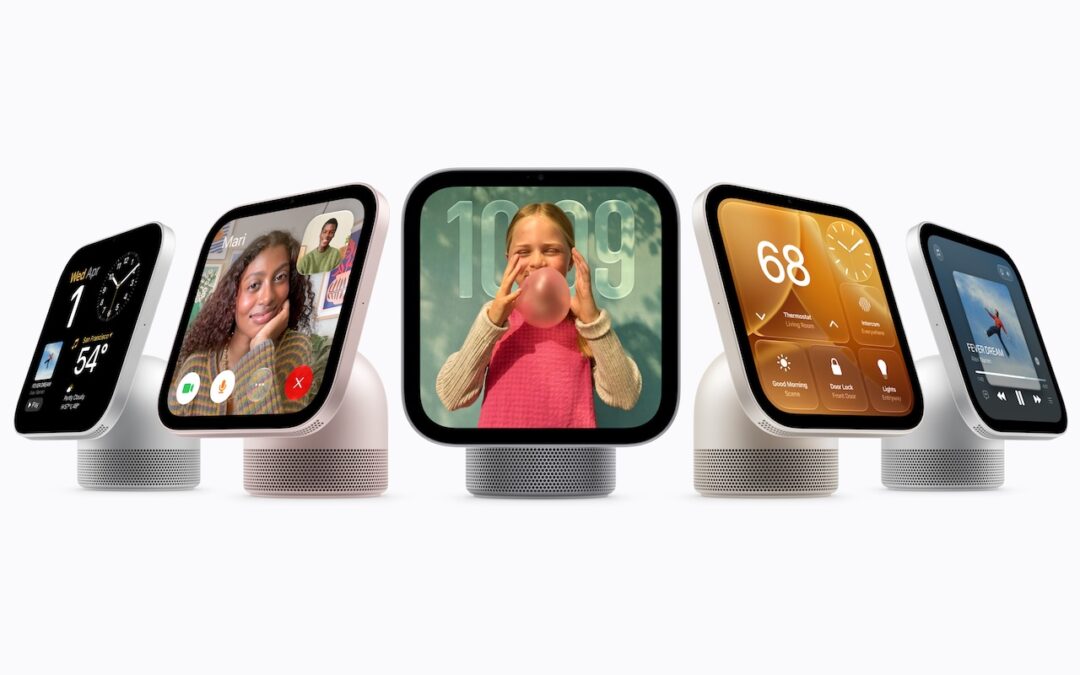
Apple is reinvesting in the home in a big way. At its Welcome Home product launch on October 13, 2026, the company introduced the long-rumored HomeView—a touchscreen smart speaker for the whole family—alongside an updated HomePod mini and a next-generation Apple TV. Apple is also partnering with LG and Schneider Electric on a line of home automation products.
Here are the ship dates for the new products:
- HomePod mini 2: Friday, October 30, 2026
- HomeView and Apple TV 4K: Friday, November 13, 2026
- Home Collection: Begins shipping in December
Introducing HomeView
The headline product is the Apple HomeView, a home hub that plays music, controls home automation devices, and makes FaceTime calls. It’s a curious mix of an iPad mini and a HomePod, with a 7-inch display on a domed speaker base. It’s Apple’s answer to Amazon’s Echo Show and Google’s Nest Hub.

The most interesting thing about the HomeView is that it recognizes up to six people by face, and each gets a personalized Home Screen. Apple customers have wanted multiple user accounts on the iPad for years, and this will only increase that demand.

The HomeView has no App Store. It comes with 15 built-in apps, including:
- Calendar
- FaceTime
- Find My
- Messages
- Reminders
Third-party apps are limited to CarPlay-enabled audio and video apps, such as Spotify, which run from a paired iPhone. Like the Apple Watch, the HomeView also supports multiple “faces,” each with different sets of widgets, shortcuts, and stylings.
The HomeView leans heavily on Apple’s new Siri AI, which isn’t available in the European Union, so Apple isn’t selling it there. At launch, the HomeView will be available in the United States, United Kingdom, Canada, Australia, New Zealand, India, Singapore, and South Africa.
The HomeView costs $299 in either of two versions: tabletop and wall-mounted. The wall-mounted version lacks the built-in subwoofer and requires a separate Schneider Home mount: $59.95 for USB-C or $79.95 for AC wired, both available now, or $129.95 for Power over Ethernet (PoE), which arrives in early 2027.

The HomeView makes the most sense for families heavily invested in Apple Home who want a shared control panel for their home automation devices.
It could also work in a small office as a conference-room FaceTime station or a front-desk control panel, but Apple isn’t positioning it for business use yet.
Buy, Skip, or Wait? Wait. Almost everyone can afford to hold off on this one—it’s a product sure to mature and gain more functionality over time.
Fourth-generation Apple TV 4K
At $299, the new Apple TV 4K costs more than nearly any other streaming box on the market, and, puzzlingly, it still doesn’t support 120 Hz video.
Apple TV prices have been climbing steadily, and Apple has blamed soaring demand for memory and storage chips from AI data centers. In June, Apple raised Apple TV prices from $129 to $199 for the 64 GB model and from $149 to $249 for the 128 GB model. Apple has now consolidated to a single 128 GB model, simplifying the lineup.
Beyond the expected speed boost from the A19 chip, the most interesting addition is a set of three far-field microphones for hands-free Siri. It can also drive up to four HomePods for surround sound, either the second-generation HomePod or the new HomePod mini 2. You can mix and match speakers as long as each pair matches—for example, two full-size HomePods in front and two HomePod mini 2 units in the rear. Original HomePod minis and first-generation HomePods aren’t supported.
Since nearly every smart TV and streaming stick now supports the Apple TV app and AirPlay, the Apple TV 4K is increasingly a device for people who want the best tvOS experience, tight Apple Home integration, or an Apple Home hub. If you already own a second-generation or later Apple TV 4K, there’s little reason to upgrade—Apple says Siri AI is coming to your existing box, starting in beta with tvOS 27.2.
Here’s another welcome upgrade for existing Apple TV owners: a new, improved Siri Remote with built-in Find My. It’s included with the new Apple TV but is available as a separate $59 purchase for owners of existing Apple TV HD and 4K models. Precision Finding requires an iPhone Duo, iPhone Air, or iPhone 17 or later (not the 17e). With any other iPhone, you’ll have to make the remote play a sound to find it.
Buy, Skip, or Wait? Skip. The price is hard to justify unless you’re a die-hard Apple TV fan, and the best upgrades are coming to older models.
HomePod mini 2
The HomePod mini 2 offers modest upgrades over the original at a higher price of $149. It will support Siri AI in a future update, while the original will not. It ships in blue, green, midnight, pink, and white.

Beyond serving as surround speakers for the new Apple TV 4K, the HomePod mini 2 can be a Mac’s default speaker, alone or in a stereo pair (the Mac needs Wi-Fi 6E or later).

Another neat feature: the top surface pulses in rhythm with the music, a feature Apple calls Sound Glow.
Buy, Skip, or Wait? Buy, if you’re in the market for a smart speaker, but don’t rush to replace your existing HomePod minis unless Siri AI, Apple TV surround sound, or Mac speaker support matters to you.
Apple Home Collection
Apple has long left smart home hardware to other companies, first through its Works with Apple Home certification, which offered a small assortment of accessories at relatively high prices. Then it embraced the cross-platform Matter standard, which greatly expanded compatible accessories at lower prices, but at the cost of ambiguous accessory reliability and quality.

Apple is now swinging back in the other direction with the new Apple Home Collection. It’s a lineup of cameras, a lock, and thermostats built with LG Electronics and Schneider Electric and sold through Apple’s online and retail stores:
- LG Video Doorbell (Wired): Dual cameras (2.5K facing out, full HD facing down to catch packages), a built-in spotlight, and a chime that plays through a HomeView, HomePod, or HomePod mini. $249.95.
- LG Indoor Cam: Tilts automatically and turns away from the room when someone in the household comes home, so it isn’t recording you while you’re there. $199.95.
- LG Outdoor Cam and Floodlight Cam: Low-light color night vision. The Floodlight Cam adds dual floodlights that turn on when motion is detected. $299.95 and $399.95.
- LG Smart Deadbolt Lock: Unlocks automatically as you approach with your iPhone or Apple Watch, which use Apple’s Ultra Wideband chip to tell when you’re near. It also offers a PIN pad, a hidden backup key, and tap-to-unlock, and it keeps working locally if your Internet connection goes down. $349.95 (US and Canada only).
- LG and Schneider Home Smart Thermostats: Both offer Adaptive Temperature, and in the contiguous US, with a compatible utility plan, they can shift heating and cooling to times when electricity is cheaper or cleaner. $199.95 each, with $39.95 room sensors and optional $24.95 C-wire adapters (US and Canada only).

As usual, privacy is Apple’s key selling point. Apple says Home app data is end-to-end encrypted so that neither Apple nor its partners can read it, and camera footage is analyzed on your home hub or in Apple’s Private Cloud Compute rather than on a manufacturer’s servers. You don’t have to wonder whether someone is watching your security camera footage without your knowledge.
There are strings attached. The cameras are sold only in the US, Canada, and the UK, and they need an iCloud+ plan to store 10 days of event history: 50 GB covers one camera, 200 GB covers up to five, and 2 TB covers unlimited cameras. Those plans cover recording only. Apple’s new AI video summaries need at least the $9.99-per-month 2 TB plan for a single camera, and summaries on five cameras require the $59.99-per-month 12 TB plan—there’s no option beyond that. You’ll also need a home hub (HomeView, HomePod, HomePod mini, or Apple TV 4K) for many features. Apple says the collection starts shipping in December, but some accessories won’t arrive until early 2027, and it hasn’t said which. US customers can pay extra for professional installation by ADT through Apple Retail.
Buy, Skip, or Wait? Wait. If your home already runs on Apple Home and you’ve put off cameras or a smart lock because of privacy worries, the Home Collection is the most trustworthy option Apple users have had. The prices are on the high side, though, and smart home devices are hard to swap out once mounted, so it’s worth waiting for early camera reviews before you commit.
(Featured image by Apple)
Social Media: Apple’s Welcome Home event brought the HomeView smart display, a $299 Apple TV 4K, the HomePod mini 2, and Apple-branded cameras, locks, and thermostats. Here’s what’s worth buying now—and what to skip.
by Steve Sorbo | Jul 3, 2026 | Uncategorized
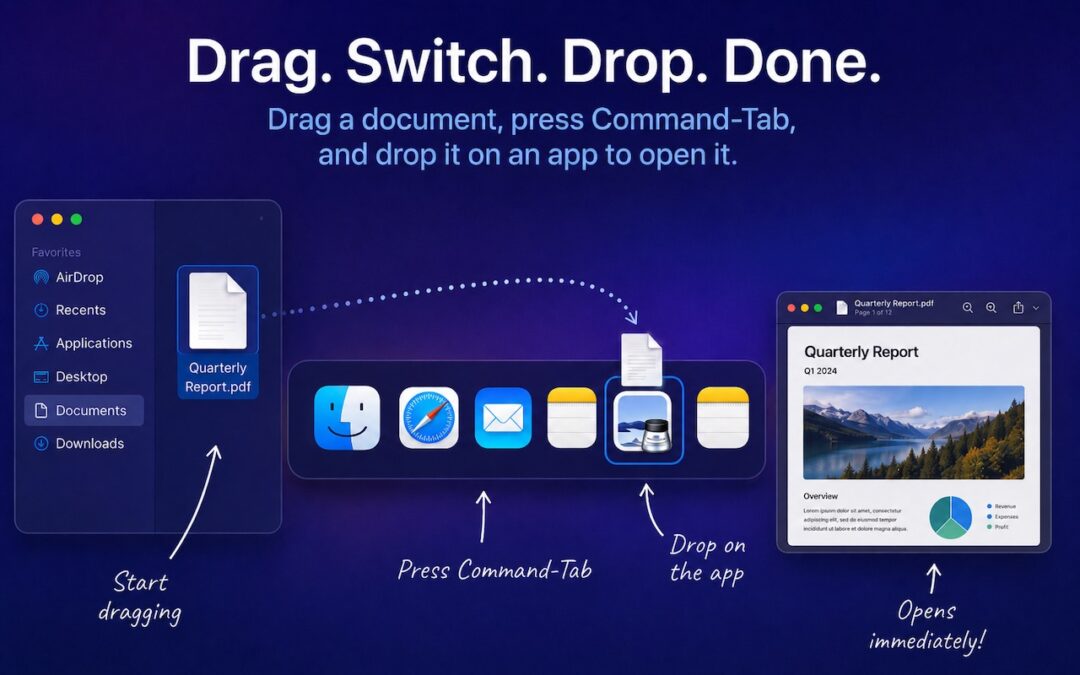
You undoubtedly know about pressing Command-Tab to bring up the macOS App Switcher and mousing to the app you want to switch to. Keyboard jockeys probably even know to keep holding Command down while pressing Tab or right-arrow to cycle to the right (press Shift-Tab, the grave accent/tilde key, or left-arrow to cycle to the left), before releasing the Command key to switch. But did you know you can start dragging something—say a document from the Finder—with your right hand, press Command-Tab with your left hand, and then drop the document on an app in the App Switcher to open it? Go ahead, give it a try!

(Featured image generated by Adam Engst with ChatGPT)
Social Media: Did you know you can open a file quickly by dragging it onto an app in the macOS App Switcher? Start dragging, press Command-Tab, and drop. It’s one of the App Switcher’s many tricks.

by Steve Sorbo | Jun 5, 2026 | Uncategorized
Apple’s Dictation feature is a great way to avoid slow typing on the iPhone and iPad, and it can be welcome on the Mac as well. But it struggles with proper nouns—it guesses wildly at unfamiliar names and often fails to capitalize common words that are part of a name (so you get “New York Public library”). Apple doesn’t provide a user-editable dictionary, but there’s a backdoor solution: create entries in Contacts. When you create a fake contact for a troublesome word or phrase, Dictation learns to recognize it correctly across all your Apple devices. Put the word or phrase in the First Name field and add an emoji like 🙉 in the Last Name field so these fake contacts sort to the bottom of your Contacts list and don’t clutter the display. For stubborn words, you may need to train Dictation by dictating a few practice sentences in Notes and correcting mistakes when iOS offers alternatives. This trick works for place names, organization names, technical terms, or any word that Dictation consistently gets wrong.
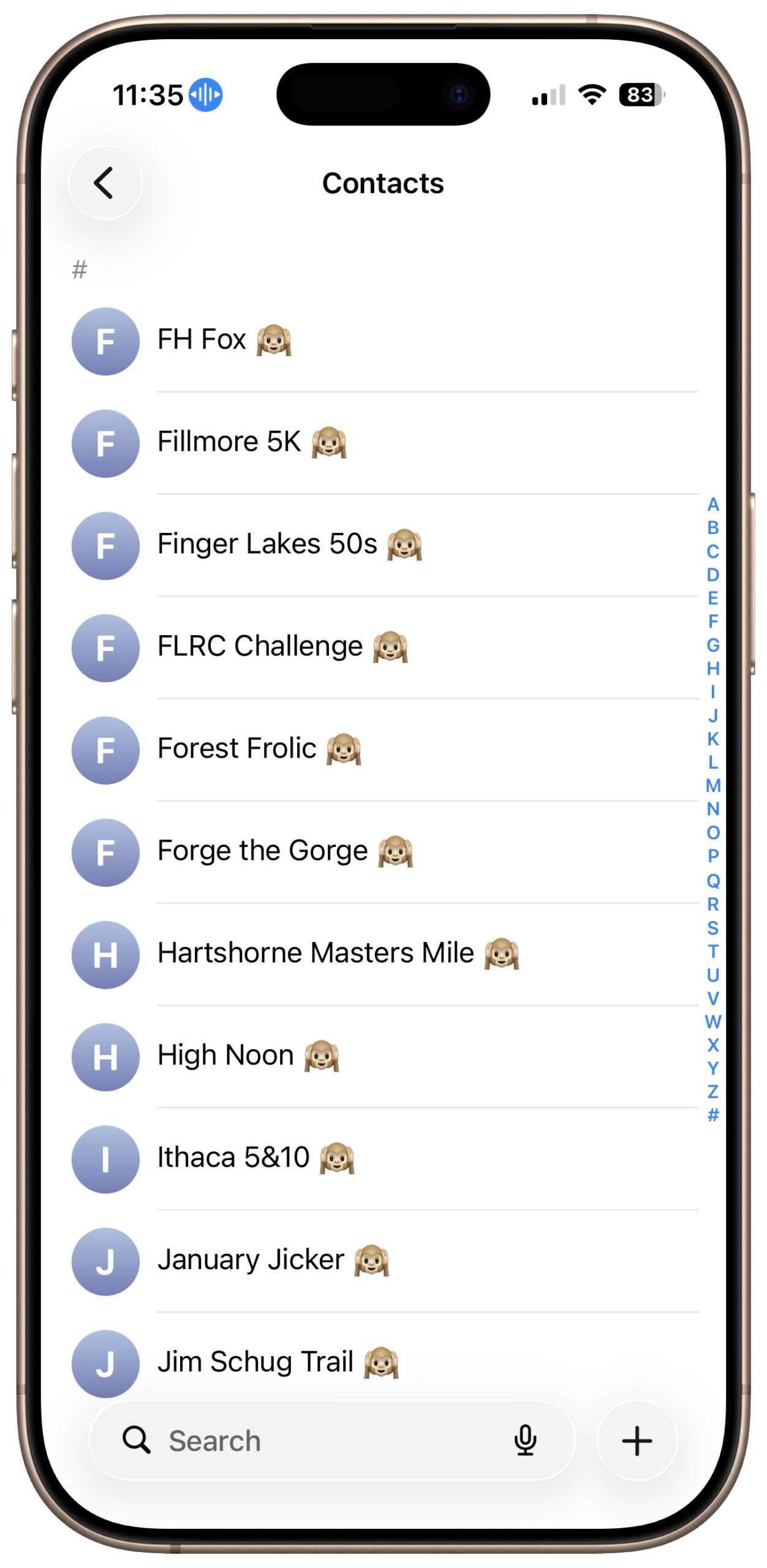
(Featured image by iStock.com/Jacob Wackerhausen)
Social Media: Frustrated when Dictation on the iPhone mangles what you meant to say? Create fake contacts for troublesome words, and Dictation will learn to recognize them correctly across all your Apple devices.

by Steve Sorbo | May 1, 2026 | Uncategorized
Silicon Valley thinks everyone wants to delegate writing to AI, which is why Apple Intelligence constantly suggests replies for you in Messages and Mail. But there’s an excellent way to supercharge your typing speed without sounding like a chirpy chatbot or resorting to teenage texting abbreviations: text expansion.
Text expansion speeds up typing words or phrases that you use regularly, and it’s especially helpful for character combinations that your fingers find awkward—just try touch-typing “Hyundai IONIQ 5” or “acetaminophen.” Apple has long offered text expansion capabilities in macOS, iOS, and iPadOS, and third-party utilities take them even further.
Configuring and Using Text Expansion
To configure the built-in text expansion on the Mac, look in System Settings > Keyboard > Text Replacements; in iOS and iPadOS, go to Settings > General > Keyboard > Text Replacement. In each, a text replacement consists of a shortcut and a replacement phrase.

Then, in almost any app, type the shortcut, followed by a space or a punctuation character, and its phrase will replace it. If text expansion doesn’t work in a Mac app like Mail or Safari, make sure Edit > Substitutions > Text Replacement is selected.
If you’re signed into the same Apple Account on all your devices, text expansions sync between them automatically. So, you can type omw and tap the Space bar to have “On my way!” typed out for you, regardless of what device you’re using.

Tip: To create replacements more quickly, you can export a list of text replacements, edit the list, and re-import it; Apple provides instructions. This export/import capability also lets you share text replacements with someone else.
What Text to Expand
Replacements can be as short or long as you like—up to about 1900 characters—and can contain anything you can type from the keyboard, including spaces, returns, symbols, accented characters, and emoji. It can be hard to know where to start, but once you try text expansion, possibilities quickly become obvious. A few common categories include:
- Your email address, phone number, and postal address
- Boilerplate text for common email replies (“To subscribe to our mailing list…”)
- Email signoffs (“Sincerely, your close personal Internet friend…”)
- Frequently shared URLs or email addresses (https://www.apple.com/feedback/)
- Long scientific, medical, or technical terms (esophagogastroduodenoscopy)
- Proper nouns with unusual spelling, capitalization, or accents (Zoë Saldaña)
- Words you consistently misspell or mistype (teh)
- Unix commands with arguments (ls -la)
Shortcuts are usually shorter than their replacements, but you can also use text expansion to simplify entering individual characters that are hard to access.
- Commonly used emoji (🙄 or 👍)
- Special characters (½ or →)
One helpful convention is to start shortcuts for special characters with a colon. For example, :roll for 🙄 or :tu for 👍. The colon prefix makes these shortcuts easy to remember and prevents accidental expansions. Make sure not to create shortcuts that you’ll also want to type normally. It might seem like a good idea to use mm for “Mickey Mouse,” but that will get in the way of writing about 35mm film.
Third-Party Text Expansion
With such a useful feature built into macOS and iOS, why would you want to spend money on a third-party utility like TextExpander (macOS and iOS), Typinator (macOS and iOS), or TypeIt4Me (macOS)?
Apple’s built-in text expansion works well for most everyday uses, but it has some limitations—its interface is cramped, it doesn’t work in every app, and you can’t include formatted text or images in your expansions. Third-party utilities fill those gaps.
They can include styled text and graphics in expansions, insert the current date and time, respect case when expanding abbreviations, include the contents of the clipboard in expanded text, automatically fix common typos, and much more.
So think about which bits of text you might want to expand automatically, and give Apple’s built-in text expansion feature a try today! If it seems constraining after a while, a third-party app can take text expansion to the next level.
(Featured image generated by Adam Engst with ChatGPT)
Social Media: Tired of typing the same email address, phone number, or tricky words over and over? Text expansion on Mac and iOS can save you keystrokes every day.

by Steve Sorbo | Mar 6, 2026 | Uncategorized
Sometimes you just don’t want your phone to ring, chirp, or even vibrate. Maybe you’re asleep, in an important meeting, having dinner with family, meditating, playing a game, or simply enjoying some quiet time.
Apple’s Focus feature on the iPhone, iPad, and Mac can silence those interruptions, but Focus is considerably more complex than the straightforward Do Not Disturb feature it replaced in 2021. Misconfiguring Focus such that it activates unexpectedly can cause you to miss important calls, messages, and other notifications.
What Focus Does
Focus lets you create customized notification environments that block unwanted interruptions while allowing important ones through. You can have a Focus for different situations—when you’re at work, eating dinner, at the gym, and more—each with its own rules about when it activates and which people and apps can reach you.
When a Focus is active, it can:
- Silence notifications from selected people and apps
- Allow specific people and apps to break through
- Change your Lock Screen appearance
- Hide certain Home Screen pages
- Automatically reply to messages explaining you’re unavailable
- Filter content in apps like Mail, Calendar, and Messages
- Make a certain profile or tab group active in Safari
Focus can share your settings across all your Apple devices, which saves you from having to configure it on each device but can also create confusing interactions.
The Built-In Focus Modes
Apple provides three essential Focus modes that cover most people’s needs:
- Do Not Disturb: A general-purpose Focus for when you need to ensure your iPhone doesn’t interrupt you. It’s ideal for doctor appointments, workouts, movies, and similar situations. You can schedule it, but it’s often best to activate it manually from Control Center for a specific amount of time or until you leave the current location.
- Sleep: This Focus activates according to the Sleep schedule you set on the iPhone (in either Settings > Focus > Sleep or in the Health app) to minimize nighttime interruptions. It lets you choose a specific Lock Screen, Home Screen, and Apple Watch face to limit distractions at night.
- Driving: Automatically activates when your iPhone connects to a car’s Bluetooth system or detects driving motion. (The Bluetooth connection may be best if you’re frequently a passenger and want to use your iPhone while being driven.) It blocks nearly all notifications to keep your attention on the road and can send custom automatic replies to people who text you.
For further customization, you can create additional Focus modes—Apple suggests modes for Gaming, Mindfulness, Personal, Reading, and Work. For instance, if you take a spin class every Tuesday at noon and yoga on Thursdays at 7 AM, you could create a Focus for Working Out that would automatically activate during those times.
Configuring a Focus
To set up a Focus, go to Settings > Focus on your iPhone or iPad, or System Settings > Focus on your Mac. Select the Focus you want to configure or create a new one, then:
- Choose allowed people: Decide whether to allow or silence notifications from specific people. You can also specify whether phone calls from certain groups (Allowed People, Favorites, Contacts, or Contacts groups) can break through.

- Choose allowed apps: Similarly, allow or silence specific apps. You can also enable Time Sensitive Notifications, which lets urgent alerts (like delivery notifications or security alerts) come through even from disallowed apps.

- Set a schedule: Have the Focus turn on at certain times, locations (on when you arrive, off when you leave), or when using specific apps (but not when apps are in the background). App-based triggers are useful for presentations, live performances, and games. A Smart Activation option on the iPhone can automatically turn on a Focus based on your location, app usage, and time of day.

- Add Focus Filters: Customize how Calendar, Mail, Messages, Safari, and others behave when the Focus is active—for example, showing only certain Safari tab groups and your work email accounts during a Professional Focus.

- Intelligent Breakthrough & Silencing: If you have Apple Intelligence enabled, this option “intelligently” allows priority notifications to interrupt you and silences others. It doesn’t override your explicit settings for allowing or silencing notifications.
The Complexity Problem
While Focus is powerful, its complexity can create unpredictable behavior. Here are common pitfalls to avoid:
- Unexpected activation: With automatic schedules based on time, location, and apps, it’s hard to predict when a Focus might turn on. You may not realize notifications are being silenced until you’ve missed something important. This is especially important if your routine is interrupted. Perhaps you normally work out at noon, but today you are at a professional conference or dealing with a family emergency.
- Cross-device confusion: By default, Focus syncs across all your Apple devices via the Share Across Devices option. Syncing means a Focus activated on your iPhone—such as Sleep—might also silence notifications on your Mac when you’re working late and need to communicate with colleagues. Consider turning off Share Across Devices unless you’re certain you want synchronized behavior.
- Unpredictable AI: Focus includes two features that rely on machine learning—Smart Activation and Intelligent Breakthrough & Silencing—to make contextual decisions about when Focus should activate and which notifications are important enough to bypass it. We recommend against using them because they make an already unpredictable scenario even more unpredictable.
- Silenced notifications indicator: When a Focus is active, people who text you in Messages see that your notifications are silenced. While this can be helpful, it can also confuse others when a Focus activates unexpectedly.

- The forgotten Focus: A Focus that activates automatically when you go to a specific location or open a particular app might remain active longer than you expected. For instance, what if a Focus activates when Mail is your frontmost app, but you have to leave unexpectedly and your Mac doesn’t sleep automatically, so Mail remains the active app over the weekend? That might be particularly confusing when a Focus Filter hides certain accounts or data.
Practical Recommendations
To get the benefits of Focus without the confusion:
- Keep it simple: Start with Do Not Disturb, Sleep, and Driving. These three cover the needs of most people and have the most predictable behavior. If you created Focus modes you’re not using, delete them.
- Be conservative with triggers: If you add schedules or triggers based on location or apps, keep them to a minimum. The more triggers you add, the harder it becomes to predict when a Focus will be active.
- Allow more calls: These days, unexpected calls from people you know well are fairly uncommon, and those that do happen are more likely to be important. So consider allowing calls from family and close friends (perhaps via Favorites or a Contacts group) and enabling Allow Repeated Calls, which lets someone through if they call twice within three minutes.
- Check Focus status when troubleshooting: If you or someone you know is missing notifications, check whether a Focus is unexpectedly active. The easiest place to check is Control Center.
- Review Share Across Devices: If you experience unexpected Focus behavior, turn off Share Across Devices and configure each device’s Focus settings independently.
- Control notifications directly: Rather than rely on Focus, limit notifications to just those that are actually important to you. Many apps are unnecessarily chatty.
Focus is a powerful tool for managing the constant stream of notifications from our devices, but it requires careful configuration. When in doubt, keep it simple: Sleep to protect your sleeping hours, Driving to block distractions in the car, and Do Not Disturb for ad hoc appointments and performances may be all you need.
(Featured image by iStock.com/DragonImages)
Social Media: Apple’s Focus can silence distractions when you need quiet time, but its complexity can cause you to miss important notifications. Learn how to configure it safely—and avoid the pitfalls that lead to missed calls and messages.

Recent Comments