
by Steve Sorbo | Feb 1, 2024 | Uncategorized
Have you ever selected a bunch of files and accidentally opened them all by double-clicking one? Or perhaps inadvertently pressed Command-I to get info, ending up with oodles of open Info windows? Here’s a quick way to recover. You can close all the windows in any well-written app with judicious use of the Option key. Press it while clicking the File menu and Close Window becomes Close All Windows. Command-W closes one window; Command-Option-W closes all of that app’s windows. If you’re a mouse person, Option-click the red close button in any window to close all the rest.

(Featured image based on an original by iStock.com/ANGHI)
Social Media: Next time you inadvertently open a large number of windows, you can use these Option-key tricks to close them all quickly.

by Steve Sorbo | Feb 1, 2024 | Uncategorized
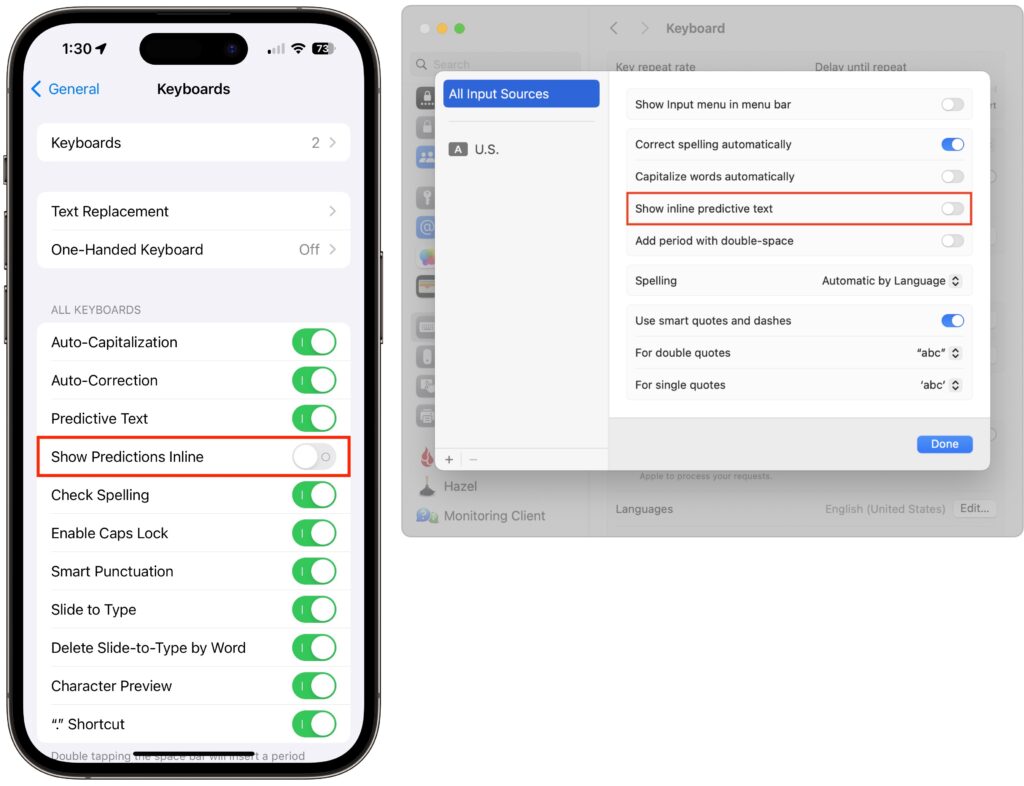
In a slight nod to the hype surrounding generative AI, Apple added inline text prediction capabilities to the iPhone, iPad, and Mac. They can be helpful, particularly on the iPhone and iPad, where it’s often much easier to tap the Space bar than to finish typing a word or sentence. But that’s less true on the Mac, where a fast typist can be slowed down or derailed by the suggestions, and some people dislike having an AI finish their thoughts. The feature is easily turned off. On the iPhone and iPad running at least iOS/iPadOS 17.2, go to Settings > General > Keyboard and switch off Show Predictions Inline. (Leave Predictive Text on to continue to get suggestions above the keyboard.) On the Mac running macOS 14.2 Sonoma or later, open System Settings > Keyboard, click Edit under the Text Input header, turn off “Show inline predictive text,” and click Done.
(Featured image based on an original by iStock.com/Armastas)
Social Media: If you’re not a fan of the new inline text predictions on your iPhone, iPad, or Mac, you can easily turn them off and get back to typing only the words you want to appear.

by Steve Sorbo | Jan 2, 2024 | Uncategorized
Remembering to update your contacts with new email addresses, phone numbers, and postal addresses can be hard. But if you’ve received that information in Mail or Messages, Siri’s data detection capabilities can help. Open Contacts on the Mac and press the Down arrow to cycle through your contacts. When you see one with information in light gray and a parenthetical like (Siri Found in Mail), click the ⓘ button to the right ➊ to see some context in the source message. If the information is correct, click Add to Contact ➋ to keep it.

(Featured image based on an original by iStock.com/Brett_Hondow)
Social Media: Want an easy way to add email addresses, phone numbers, and postal addresses to Contacts? If you’ve received that information in Mail or Messages, Siri can help.

by Steve Sorbo | May 1, 2018 | TCN Content
If your Mac is anything like ours, you end up with lots of apps open, each with one or more windows that obscure the Desktop. For those people who like to save in-progress documents to the Desktop and keep current project folders there, all those windows get in the way. macOS has a solution. Open System Preferences > Mission Control, and in the Keyboard and Mouse Shortcuts section, from the Show Desktop pop-up menu, choose a keyboard shortcut. Try the right-hand modifier keys—we’re fond of Right Option—because they’re easy to press and aren’t likely to be used for other purposes. Then, whenever you want to see and work with the icons on your Desktop, hit that key, and do what you want. If you like, you can press that key again to bring the windows back.


by Steve Sorbo | May 1, 2018 | TCN Content
Don’t get us wrong—email is great. But sometimes there’s too much of it at work, as colleagues share information too broadly or chime in unnecessarily, and as marketing offers and other junk fills your inbox. Over the past few years, lots of organizations—including small and large firms, non-profits, academic departments, student project teams, and government agencies—have moved their internal communications to the group messaging service Slack, which is free but includes paid plans with additional features. It’s also possible to make public groups that anyone can join.
Slack, which has apps for macOS, iOS (iPhone and iPad), Windows, and Android, isn’t conceptually all that different from Apple’s Messages app. You type short messages and other people in the conversation can reply. You can share graphics or other files in the discussion, and search through past messages. Slack supports person-to-person voice calls, and if you switch from a free to a paid team, group calls, video conferencing, and screen sharing.
What sets Slack apart from simple messaging apps is that it lets you segment discussions into “channels,” which can either be public, such that everyone in the team can see them, or private, so only invitees can participate. Plus, you can have “direct message” conversations with individuals or small groups.

The beauty of Slack channels is that they’re easy to create and they bring together all communications relevant to a particular workgroup, project, or topic. You might have a private #marketing channel for everyone in that department, a private #annual-report channel for the people who need to put together that document, and a public #facilities channel to talk about burnt-out lightbulbs and stuck doors. That’s way better than organization-wide mailing lists, since you can pay attention to just those channels that matter to you, and ignore the others.
How do you keep up on discussions? Slack has flexible notifications, letting you choose at the top level to be notified about everything; just direct messages, mentions, and keywords; or nothing. You can also choose to be notified of replies to threads you’re in. Then you can override those defaults for any channel or conversation you’re in, which lets you make sure that important messages get through and water cooler chatter doesn’t interrupt you. Plus, if you leave your computer, Slack can repoint notifications to your mobile devices automatically, with separate settings to make sure you aren’t overly nagged while at your kid’s soccer game.
Slack provides tons of other features that can prove useful in organizations of any size. You can share and comment on files of any type, which is far more effective than sending attachments around in email. You can create “posts” and get others to edit them collaboratively—a boon when trying to craft the perfect bit of text for some purpose. And you can integrate hundreds of Internet services into Slack so it can act as a single dashboard for many other apps.

There’s no question that setting up Slack for your team is a major step, but the fact that it has become so popular—77% of Fortune 100 companies use it—shows that it can make your organization’s internal communications faster, more targeted, and more effective. It’s not hard to set up and maintain, but give us a call to talk about the best ways to begin.
Social Media: Is email overwhelming your organization? Look to Slack to make your internal communications, faster, more transparent, and more efficient. Here’s the scoop.

Recent Comments