
by Steve Sorbo | Apr 4, 2025 | Uncategorized
We hate to encourage paranoia, but all is not well with Google Search. Recently, we’ve heard of multiple instances where people were nearly taken advantage of due to relying on the top result in a Google search. In one case, a user called a purported HP support phone number directly from the search results but ended up speaking with a scammer. In another, a user thought they were downloading the latest version of Dropbox but got malware instead. In neither case could we reproduce the error, but they may have resulted from “SEO poisoning,” a malicious technique in which cybercriminals manipulate search engine optimization (SEO) strategies to elevate harmful websites in search results. In short, don’t assume that a site at the top of Google search results is guaranteed safe when downloading software or contacting a company. It’s best to navigate directly to a company’s official website before trusting that corporate information and software downloads are legitimate.

(Featured image based on an original by iStock.com/Armastas)
Social Media: You know that the phrase “I read it on the Internet, so it must be true” is absurd, but you should extend that skepticism to Google search results. We’ve seen two recent instances of malicious content bubbling to the top of searches. Trust but verify.
by Steve Sorbo | Apr 4, 2025 | Uncategorized
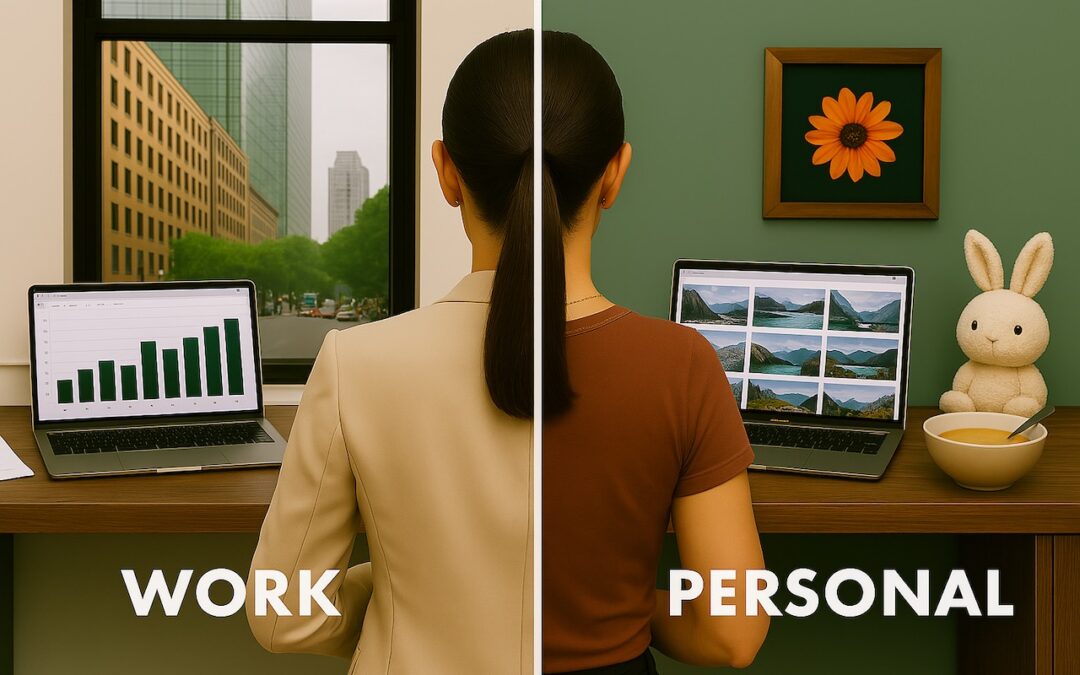
As more of our lives shift online, it becomes increasingly important to establish boundaries between different aspects of our digital activities. Many people maintain separate work and personal email addresses for this reason. But you don’t have to stop there.
Modern Web browsers offer profiles, a powerful but often overlooked feature. Whether you’re juggling work and personal browsing or managing multiple projects, browser profiles can make your digital life more organized and efficient.
Why Use Browser Profiles?
The overarching reason to use browser profiles is to make it easier to focus on one thing at a time. Imagine you’re working on a bathroom remodel at home while negotiating a new contract with an important client at work. You probably don’t want to be distracted by tabs showcasing countertop surfaces when you should be estimating client deliverable dates. That’s especially true if you use the same Web apps—Gmail, Google Docs, Slack, Trello—to manage both personal and professional projects.
By setting up separate browser profiles, you can keep your work and personal browsing completely separate. That includes different bookmarks, sets of tabs, and account logins for the same websites. When you open Google Docs in your personal profile, you will find sheets that track the timeline for your bathroom remodel in your personal account; switch to your work profile to view only documents in your work account.
Other common uses for browser profiles include separating clients—particularly when managing accounts for them—keeping research projects or hobbies distinct, and maintaining a clean browser environment for testing.
What’s Stored in a Browser Profile?
Each browser profile maintains its own distinct set of browsing data and settings. While specifics may vary slightly among browsers, options include:
- Bookmarks/favorites: Saved websites, possibly in hierarchical folders
- Browsing history: The chronological list of websites you have visited
- Saved passwords: Login credentials for websites if you rely on the browser rather than an independent password manager
- Extensions and their settings: Which browser extensions are installed and how they’re configured
- Cookies and site data: These store website preferences, login status, and site-specific information
- Stored forms and autofill data: Saved addresses, payment methods, and other form data
- Browser settings and preferences: Search engine preferences, home page and startup settings, theme and appearance options, and privacy and security settings
- Open tabs and windows: Including tab groups and recently closed tabs
When you switch between profiles, you get a completely fresh browser environment with its own set of everything listed above. You can log in to the same website using different accounts in various profiles, and your activity in one profile won’t impact or be visible in another.
Setting Up and Switching Between Profiles
Getting started with profiles is simple. Here’s how to create and switch between them in Safari (in macOS 14 Sonoma and later), Google Chrome, and Firefox. Before you get started, though, a few tips:
- Give profiles descriptive names and distinct colors so they’re easy to identify.
- Keep the number of profiles manageable because too many can become confusing.
- If you create profiles for clients or projects, periodically review and tidy up unused ones.
- Keep in mind that profiles are intended for organization and efficiency, not security—anyone with access to your Mac can switch to any profile.
- Chrome and Firefox profiles are stored on a particular computer—they won’t sync with another copy of those browsers on another computer.
Safari
Safari profiles share more data than those in Google Chrome and Firefox, and unlike the other two, Safari profiles automatically sync between devices. All bookmarks and saved passwords are accessible to all profiles, although you can choose a separate primary bookmark folder for each profile. Note that Safari stores its current settings in a permanent Personal profile that becomes visible only after you create a new one. To create a new profile in Safari:
- Choose Safari > Settings > Profiles.
- If this is your first new profile, click Start Using Profiles. Otherwise, click + to create a new profile.
- Enter a name, and choose a symbol and color.
- Select a folder within your bookmarks to hold the profile’s primary bookmarks.
- Click Create Profile.

- Choose how new windows and tabs open.
- Click the Extensions tab, and select the extensions you want to use with the profile.
Every window in Safari is associated with a profile, so switching between them can be as simple as clicking another window or using the Window menu. At most, you have to open a new window for the desired profile:
- Choose File > New Profile Window. If you have three or more profiles, the command becomes File > New Window > New Profile Window.
- With the sidebar closed, click the profile button and choose New Profile Window to create a new window. When viewing the Start page, you can choose Switch to Profile Window to change the profile for the current window.

Google Chrome
Google Chrome has had browser profile support for many years. Like Safari, you start with a default profile. To create a new profile in Chrome:
- Choose Profiles > Add Profile. Click to continue without an account or sign in with a different Google account.
- Enter a name and pick an icon for the profile.

- If desired, choose Chrome > Settings to adjust settings and active extensions for the new profile.
Every window is associated with a profile, so switching is often just a matter of clicking the desired window or choosing it from the Window menu. To open a window for a different profile:
- Choose Profiles > MyProfile.
- Click the profile icon in the toolbar and choose the profile you want.
Once you have multiple Chrome profiles, the app will ask you which to open on each launch. From this screen, you can also remove a profile by clicking the vertical dot menu and choosing Delete. If you deselect “Show on startup,” Chrome will open the last used profile at startup. You can always access this screen by clicking the profile icon in the toolbar and choosing Manage Chrome Profiles.

Firefox
Although Firefox was the first browser to support profiles, they remain poorly integrated into its interface and can be confusing because each opens in another instance of Firefox— a new Firefox icon appears in the Dock for each. To create a new profile in Firefox:
- Type
about:profiles in the address bar to open the About Profiles page.
- Click Create a New Profile.
- Name your profile and optionally select a custom location for profile storage.
- On the About Profiles page, in the listing for your new profile, click “Launch profile in new browser” to open a new instance of Firefox with it.

- Configure this new instance of Firefox as desired.
Opening a new profile instance can be tricky since it’s essentially like opening another app, but there’s only one Firefox icon in your Applications folder. While there are command-line tricks to make switching easier, this is the simplest approach:
- Type
about:profiles in the address bar to open the About Profiles page.
- In the listing for the profile, click “Launch profile in new browser.”
To simplify this process, open the About Profiles page in each profile and drag its proxy icon to the Bookmarks toolbar. That way, you can click the bookmark in the toolbar for quick access to About Profiles.
Once multiple profile instances are open, you can switch between them by clicking their windows or Dock icons.
Be Careful with External Links
Browser profiles struggle with one scenario: opening links from other apps. Imagine you’re busy in your Work profile but take a quick break to check your personal email. You receive a link from your bathroom designer with possible lighting options, so you click it. Since your browser is using your Work profile, the link opens there, and you have to transfer it manually to your Personal profile or risk muddying your organization.
However, this is a minor obstacle, given how beneficial browser profiles can be for organizing your online activities, whether you’re juggling multiple projects or simply keeping your work and personal browsing distinct.
(Featured image generated by ChatGPT)
Social Media: Tired of juggling work and personal tabs in one browser? Learn how browser profiles can keep your online life organized and distraction-free, plus get step-by-step tips for setting them up in Safari, Chrome, and Firefox.

by Steve Sorbo | Mar 7, 2025 | Uncategorized
If you have Control- or right-clicked on text in a Web browser in the last year or two, you may have seen an oddly named command: Copy Link to Highlight. When you choose it, it puts a URL on your clipboard, not just to that page, as Copy Link Address would, but also to the selected text. You can use this URL to make a link or share it directly, and when someone follows it, their browser scrolls to the selected text, simplifying navigation on a long page. For example, compare this link to Apple’s long Apple Watch faces page with this one that points directly to the Unity watch face most of the way down. All Web browsers can follow these links, but Google Chrome was the first to let you make them, and you’ll also find the feature in Arc, Microsoft Edge, and Vivaldi. Apple recently got on board with Safari 18’s Copy Link with Highlight command. The Link to Text Fragment extension adds the feature to other Chromium browsers and Firefox.

(Featured image by iStock.com/Arkadiusz Warguła)
Social Media: You can now create a link directly to text anywhere on a Web page with the handy Copy Link to Highlight command in many Web browsers. Here’s how to invoke the command and an example of why it’s so useful.

by Steve Sorbo | Dec 2, 2024 | Uncategorized
Alongside this year’s crop of operating systems comes Safari 18, the latest version of Apple’s Web browser. Most of what you do in Safari depends on the websites you use, of course, but Apple has added a handful of features aimed at improving your overall browsing experience, including Highlights, Distraction Control, a redesigned Reader, and Video Viewer.
We’ll focus on the Mac with macOS 15 Sequoia, but these features other than Video Viewer are also available on the iPhone and iPad with iOS 18 and iPadOS 18. Macs still running macOS 13 Ventura or macOS 14 Sonoma can get Safari 18 but miss out on the Highlights feature. Regardless of platform or macOS version, you access all these new features from the Page menu at the left of Safari’s address bar, which takes over from the previous Show Reader View button in Safari 17.
Highlights
Sometimes, when you visit a website, you just want a quick bit of information, like a restaurant’s address or a store’s hours. For those running Sequoia, once you turn on Safari 18’s Highlights feature, the Page menu icon in Safari’s address bar will show a purple sparkle if it detects information on the page that it can call out for you. Click it to learn more.

It can be hard to predict what Highlights will call out. It’s fairly reliable at showing location and business information extracted from Maps, and it may display biographical information about people on pages about them. For long articles, it may provide a quick summary you can use to see if it’s worth reading more. Apple says Highlights will also offer quick links to learn more about people, music, movies, and TV shows.

Distraction Control
Every website wants you to SUBSCRIBE TO A NEWSLETTER! and WATCH OUR VIDEO! and SHARE THIS ARTICLE! It’s exhausting. In Safari 18, Apple has added a feature that can help you turn down the volume on websites that constantly try to lure you into doing something other than what you intend. Distraction Control lets you remove annoying parts of a Web page. It works on nearly anything on the first use, but Apple warns that “hiding distracting items will not permanently remove ads and other content that updates frequently.” (That’s what most people want, of course, but such a capability would anger advertisers and publishers whose business models rely on ads.)
To clean up a Web page, click the Page menu and choose Hide Distracting Items. Then, move the pointer over areas of the screen you want to remove—if Safari can identify an item as a discrete object, it will gain a blue outline. Click it to make it disappear in a cloud of digital dust. Additional clicks will remove more items; Safari keeps count in the location bar. Click the Done button in the location bar to save your changes, or click Cancel if you were just testing. As you can see in the right-hand sidebar of the Yahoo page in the image below, the result is a cleaned-up view with much less distraction.

Redesigned Reader
Another way to eliminate distractions when reading on the Web is to use Safari’s Reader mode. When you click the Page menu and select Show Reader, Safari reformats the text and images in an article, removing extraneous ads and gewgaws. Once you’re in the redesigned Reader, click the Page menu icon again to access the customization options that let you choose from four color themes, nine different font faces, and various zoom levels

With Apple Intelligence on a Mac with Apple silicon, Reader also offers to summarize long articles. It may also provide a table of contents if the article contains appropriate headings, but it’s hard to predict when that will work.
Video Viewer
Finally, those who watch a lot of Web video will appreciate Safari 18’s new Video Viewer, available only on the Mac. Whenever you’re watching a video embedded in a Web page, clicking the Page menu reveals a new Video Viewer command. Choose that to expand the current video to fill the Safari window, overwriting whatever else might have been on the page so you can focus on the video.
Once you’re in the Video Viewer, switching to another tab in Safari or another app whose window obscures at least half the Video Viewer window causes Safari to switch to Picture in Picture, moving the video to a small window that floats above all other apps. You can resize that window and move it to any screen corner while it’s open, and it remembers its size and location for subsequent uses. Although multiple tabs and windows can use Video Viewer simultaneously, only one can be in Picture in Picture at a time.

Even if these changes aren’t world-changing for everyone, they make Safari an ever more capable Web browser, so it’s worth giving them a try to see if they’ll improve your Web experience.
(Featured image based on an original by iStock.com/Kanoke_46)
Social Media: Safari 18 debuts some notable new features, including Highlights, Distraction Control, a redesigned Reader, and—on the Mac—a new Video Viewer that supports Picture in Picture.

by Steve Sorbo | Jul 1, 2024 | Uncategorized
Although most Mac users rely on Apple’s Safari for Web browsing, plenty of people prefer Google Chrome for its cross-platform compatibility, massive collection of extensions, and tight integration with the Google ecosystem. Chrome is by far the most popular browser in the world, with about 65% of the market, compared to Safari’s 18%. Still others opt for alternative browsers based on the same open-source Chromium engine, such as Arc, Brave, Microsoft Edge, Opera, and Vivaldi.
Unfortunately, Chrome’s dominance makes it a target for attackers in two ways. First, attackers may attempt to find vulnerabilities that would let them steal data or compromise credentials. Second, although Google reviews extensions submitted to the Chrome Web Store, researchers have discovered malicious extensions with millions of downloads. To keep your copy of Chrome secure, we recommend two things: relaunch the browser regularly and be careful with extensions.
Relaunch Chrome to Install Updates
Google Chrome and all the other Chromium-based browsers update themselves automatically. Sort of. While the browser is running, it downloads the latest update but doesn’t install it until you quit and relaunch. Since both macOS and most apps are highly reliable, many people go weeks or even months without relaunching, leaving Chrome vulnerable to recent security exploits. You can check if you’re running the latest version or need to install an update by choosing Chrome > About Google Chrome. (Some extensions, like 1Password, even refuse to run when an update is required.)

In other words, it’s important that you quit and relaunch Chrome and any other Chromium browsers regularly—we recommend a weekly schedule to match Google’s schedule for security updates. There’s no need to worry about losing your open tabs as long as you set Chrome to “Continue where you left off” in Chrome > Settings > On Startup. All the Chromium-based browsers have a similar setting. (While we’re on the topic, remember that it’s also a good idea to restart your Mac occasionally!)

There is one exception among the alternative browsers: Arc. Its developers have figured out how to download and install updates automatically. The feature is still being rolled out to all users, but when enabled, it installs updates when the Mac wakes from sleep rather than forcing the user to quit and relaunch.
Be Careful with Chrome Extensions
Chrome extensions can be both a blessing and a curse. There are vastly more Chrome extensions than Safari extensions, so Chrome and the Chromium browsers enjoy added features that Safari lacks. On the downside, in 2023, researchers discovered dozens of malicious extensions with tens of millions of combined downloads. Google has removed all of them, but many had been on the Chrome Web Store for 6 months or more.
There are over 100,000 extensions in the Chrome Web Store, so while malicious extensions are real, most extensions are legitimate. But if Google can miss them for months or years, how can you reduce the chances of installing something evil? Here’s what we do:
- Reduce the number of extensions you install: The fewer extensions you install, the less likely one is to be malicious or cause other problems. Regularly uninstall any extensions you don’t use from Window > Extensions (the location may vary slightly in the Chromium browsers).
- Only install from the Chrome Web Store: Stick to extensions that have at least gone through Google’s reviews for the Chrome Web Store and avoid direct downloads for extensions.
- Read reviews before installing: Although reviews are no guarantee, if you see people complaining about unusual behavior, that may be a clue that the extension is doing something sketchy.
- Evaluate extension metadata: In general, avoid extensions that aren’t used by many people, that don’t have many reviews, or that aren’t updated frequently. Those aren’t guaranteed signals of a malicious extension but may be a hint to be cautious.
- Review permissions before installing: When you click the Add to Chrome button in the Chrome Web Store, a prompt explains what permissions will be granted to the extension. If they seem unnecessarily broad, cancel the installation.
Don’t stress too much about this. Maintaining good Chrome security comes down to relaunching the browser once a week and being careful about which extensions you use—it’s easy.
(Featured image based on an original by iStock.com/ArtemisDiana)
Social Media: If you use Google Chrome or another Chromium browser instead of Safari, you can stay secure by following two simple rules regarding updates and extensions.

Recent Comments