
by Steve Sorbo | Jun 6, 2025 | Uncategorized
As digital threats become increasingly sophisticated, individuals need protection just as much as businesses do. According to the Federal Trade Commission, Americans lost $12 billion to fraud in 2024, with a significant portion coming from digital scams. While we’d all like to think we’re too savvy to fall for such schemes, even security experts can become victims: Troy Hunt, creator of the Have I Been Pwned site that tracks data breaches, recently fell prey to a sophisticated phishing attack.
As cyber threats evolve and become more convincing, personal cyber insurance is becoming increasingly common, either as a standalone policy or as an add-on to a standard homeowner’s or renter’s policy. It can help you recover from cyberattacks, online fraud, ransomware, identity theft, social media hijacking, cyberbullying, and similar threats.
The financial impact of these incidents can be significant. The average loss from identity theft is between $500 and $1,500; however, sophisticated scams can result in far greater damages. For example, an individual lost $30,000 to a “pig-butchering” scheme, though they fortunately recovered $25,000 through their cyber insurance policy.
What Personal Cyber Insurance Covers
Although the specifics vary by policy, personal cyber insurance typically protects in three key areas:
-
-
- Identity theft recovery: Coverage for expenses related to restoring your identity, including legal fees, lost wages, and document replacement
- Fraud reimbursement: Recovery of money stolen through cyber attacks, including unauthorized charges, stolen bank funds, and deceptive transfer fraud
- Cyber extortion coverage: Payment for ransom demands and professional negotiation services if your data is held hostage
-
-
- Data breach response: Professional IT services to recover compromised data and restore systems
- Device recovery: Assistance with cleaning infected devices and replacing damaged smart home systems
- Credit monitoring: Ongoing surveillance of your credit reports and financial accounts
-
- Cyberbullying support: Coverage for counseling, private tutoring, and reputation management
- Legal assistance: Access to legal professionals specializing in cyber-related incidents
- Identity restoration: Dedicated help with replacing documents and clearing fraudulent records
However, as with other forms of insurance, it’s important to be aware of common exclusions that cyber insurance won’t cover:
- Prior incidents: Cyber policies won’t cover known compromises that occurred before the policy’s start date.
- Intentional acts: Self-inflicted losses or intentional policy violations are not covered.
- Business-related incidents: Coverage is for personal activities only unless otherwise specified.
- Cryptocurrency scams: Most policies don’t cover cryptocurrency losses.
- Poor security practices: Failing to maintain basic security measures may void coverage.
- Physical device damage: Standard damage to devices is typically covered by homeowner’s or renter’s insurance.
Getting Personal Cyber Insurance
For many people, the easiest way to get personal cyber insurance is as an endorsement (an add-on) to an existing homeowner’s or renter’s policy. That’s the case with State Farm, for instance. These endorsements are often quite affordable, with fees as low as an additional $25 per year, and they provide coverage up to $100,000.
Those who need a dedicated cyber insurance policy can look into the broker-sold Cyberboxx Home, which NFP sells directly as DigitalShield in many states, and Allstate Identity Protection, which focuses on identity theft. Prices start around $65 per year.
For most people, the most straightforward and economical approach is adding an endorsement to an existing policy. Contact your insurance broker and see what they can provide—even if your policy doesn’t offer what you want, they may be able to put together similar coverage for you. Of course, if you don’t yet have an insurance policy or are looking to switch providers, it’s worth reviewing exactly what’s covered, along with costs and coverage limits, when comparing policies or insurers.
Don’t Ignore Key Security Practices
Having cyber insurance doesn’t allow you to skimp on security. Even if an insurance policy recompenses you for lost money, having your identity stolen or being tricked into transferring funds to a scammer will be a huge hassle. Worse, being sufficiently negligent could prevent you from receiving coverage.
To reduce the chance that you’ll need to file a cyber insurance claim—and to ensure your policy remains valid—follow these essential security practices, which we’ve recommended many times:
- Use strong, unique passwords with a password manager.
- Enable two-factor authentication wherever available.
- Keep all devices and software updated.
- Maintain backups of important data.
- Be cautious with unexpected links or attachments.
- Monitor financial accounts regularly.
While personal cyber insurance can’t prevent attacks, it provides crucial financial protection in our increasingly digital world. As scammers ramp up the sophistication of their tactics, having a safety net becomes ever more important.
(Featured image by iStock.com/inkoly)
Social Media: With Americans losing $12 billion to fraud in 2024, personal cyber insurance is becoming essential. Learn what it covers, what to look for in a policy, and how it complements good security practices.

by Steve Sorbo | May 2, 2025 | Uncategorized
When discussing digital security, we typically focus on preventive measures, such as using strong passwords with a password manager, enabling multi-factor authentication, keeping systems up to date, maintaining regular backups, and training employees to recognize potential security threats. While these practices are essential, they don’t guarantee complete protection.
No one is immune to online attacks—the most security-conscious organizations and individuals can still become victims. Even security experts occasionally click something they shouldn’t have or forget to keep a little-used system up to date. A single employee opening a convincing phishing email, a momentary lapse in judgment, or a zero-day vulnerability can lead to devastating consequences.
According to the FBI’s Internet Crime Complaint Center (IC3), cybercrime-related losses from 2020 through 2024 are estimated at $50.5 billion, with IC3 receiving 4.2 million complaints. Most concerning is the rising trend in the frequency and severity of these attacks.

Given these statistics and the reality that perfect security is impossible, many are looking to protect themselves from possible financial losses. Just as fires and accidents make home and auto insurance necessary, these ever-increasing threats from phishing, malware, and other forms of digital attack make cyber insurance an important consideration for both companies and individuals. We’ll focus on businesses here and explore personal cyber insurance in a future article.
What Is Business Cyber Insurance
Cyber insurance for businesses helps companies recover from security breaches and online attacks. Unlike traditional business insurance policies, cyber insurance focuses on the risks of using technology to operate or to store sensitive data online. Businesses of all sizes are vulnerable, but small and medium-sized businesses are often targeted because they lack the robust security infrastructure of larger enterprises.
Industries that are especially at risk include healthcare, financial services, retail, and professional services, but no sector is immune. You may have cause for additional concern if your company collects customer information, processes payments, or maintains a significant online presence, but realistically, every business that uses email or conducts online banking is vulnerable.
What’s Covered
A business cyber policy typically includes two core types of coverage:
- First-party coverage: This coverage responds to direct costs incurred by your company, including legal expenses, data breach response and notification costs, ransomware payments and recovery expenses, business interruption losses, data restoration, system replacement, and crisis management.
- Third-party coverage: Also known as liability insurance, this coverage protects you against claims from others affected by the breach, including legal defense costs, settlements, regulatory fines and penalties, and PCI-related fines associated with credit card processing.
What’s Not Covered
However, it’s essential to be aware of common exclusions to business cyber insurance, the most important of which are:
- Weak security processes: Insurance doesn’t exempt you from maintaining a strong security stance—if you aren’t requiring strong passwords, providing security training, and correcting known vulnerabilities, the policy won’t cover you. Insurers will likely require verification of minimum cybersecurity practices before providing coverage.
- Prior breaches: Just as health insurance may not cover pre-existing conditions, cyber insurance typically does not cover events that occurred before the policy was taken out.
- Insider attacks or misconduct: Deliberate or fraudulent acts by company leadership or employees generally aren’t covered. Employees are a company’s greatest resource, but they can also be its greatest weakness.
Shopping for Business Cyber Insurance
How much will business cyber insurance cost? It varies based on your company size and revenue, industry sector, type and amount of sensitive data stored, security practices, coverage limits and deductibles, and claims history. That said, small businesses with yearly revenues under $1 million typically have annual premiums ranging from $500 to $2,000. Mid-sized firms often pay between $2,000 and $10,000, and large companies can expect premiums in the tens of thousands.
It’s common—and entirely understandable—to hesitate to purchase cyber insurance due to concerns about the cost. However, the potential financial impact of an incident is often significant. IBM’s 2024 Cost of Data Breach Report found that the average cost of a data breach was $4.9 million globally, but $9.4 million in the United States. Although IBM doesn’t break out costs by company size, those costs are likely for larger companies. Nonetheless, a Financial Times report notes that users at small and medium-sized businesses were twice as likely to encounter threats as those at large companies.
Choosing the right cyber insurance broker is as important as selecting the policy itself, and you’ll want to involve your security team in the search. Look for someone specializing in cyber coverage who has technical expertise in cybersecurity practices, strong relationships with underwriters, and a track record of providing active claims support. A good broker will not only find competitive pricing but also help tailor coverage to your specific risks and ensure you’re prepared to meet underwriting requirements.
When comparing cyber insurance options, pay attention to the details. Confirm that the policy addresses risks specific to your situation and provides sufficient financial protection for your potential exposure. Pay close attention to exclusions—there will be more than those listed above. Research the insurer’s claims process and reputation for responsiveness, as timely support during an incident is crucial. Finally, inquire about additional risk management services offered by the insurer that may provide valuable preventative resources to complement your coverage.
Start Researching Cyber Insurance Now
Unfortunately, the frequency and risk of cyber attacks are on the rise. Proactive security measures are key, but a single mistake or oversight could have dire outcomes. Cyber insurance provides an important safety net in the event of a breach or attack that evades your best efforts.
We won’t pretend that finding and purchasing cyber insurance is simple, but we can help with finding a good cyber insurance broker, evaluating the policy, answering application questions, and ensuring that your company meets the necessary security requirements.
(Featured image by iStock.com/Who_I_am)
Social Media: Cyber insurance can protect your business from crippling financial losses after a security breach. Learn what’s covered, what’s not, and how to shop for the right policy for your company.
by Steve Sorbo | May 2, 2025 | Uncategorized
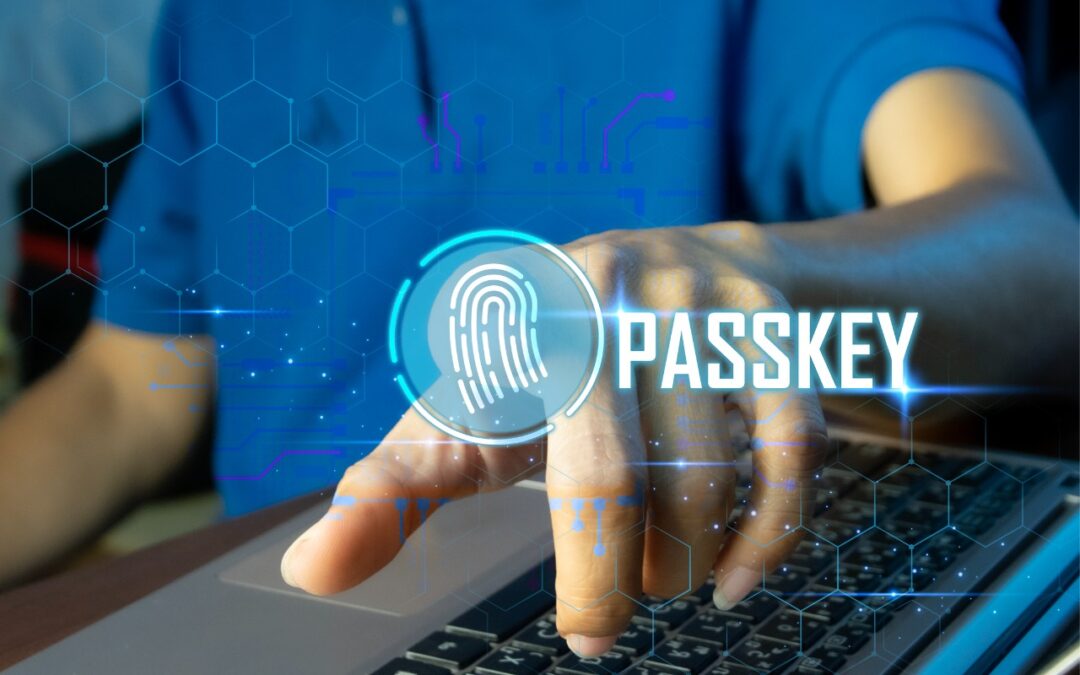
No one likes passwords. Users find managing them annoying, and website managers worry about login credentials being stolen in a data breach. The industry has developed a better solution: passkeys.
Passwords versus Passkeys
Traditional multi-factor authentication involves three methods of authentication, at least two of which are required for protection. They include something you know (a password), something you have (usually a code from an authenticator app or text message), and something you are (biometric authentication). Most systems primarily use the first two, but that leaves room for attack because someone could acquire your password and an authentication code through nefarious means.
Passkeys change the model. Instead of how passwords and codes use words and numbers that can be copied and shared, passkeys are pairs of cryptographic keys: a public key and a private key. Websites keep the public key, and the private key is stored securely within a device or encrypted vault, such as in the Secure Enclave in Apple’s chips or a 1Password vault. Authenticating with a website requires providing the private key that matches the account’s public key, something that Apple users with modern devices can usually initiate with Touch ID or Face ID.
Instead of generating security with something you have and something you know, passkeys rely on possession (do you have the device?) and presence (are you physically in front of the device?). This approach is fundamentally more secure than passwords because the private key can’t be phished, copied, or used remotely, and you must be physically present to unlock your device. Nor can you be tricked into providing a passkey to a malicious website. (Neither approach protects against physical coercion.)
Where Can You Use Passkeys?
In practice, since you use passkeys primarily to sign into websites, passkeys are stored alongside account details in your password manager. For Apple users, Safari (in iOS 16 or macOS 13 Ventura and later) with Apple’s Passwords app provides the most integrated passkey experience. However, most independent password managers, such as 1Password, Bitwarden, and Dashlane, also enable you to store, share, and enter passkeys and can take over for or work alongside Apple’s Passwords. They provide consistent passkey functionality across all major Web browsers, although experiences may vary slightly due to differences in how they handle authentication prompts and platform integration.
You’ll also find robust support in the Password Manager built into Google Chrome and other Chromium-based browsers, including Arc, Brave, Edge, Opera, and Vivaldi. Firefox’s native passkey support is more limited, but third-party password managers work well with Firefox.
Although website support for passkeys was initially slow, an increasing number of sites now support them. That includes the big three of Apple, Google, and Microsoft, of course, as well as Amazon, Best Buy, Discord, eBay, GitHub, Intuit, Netflix, Notion, PayPal, Robinhood, Stripe, Target, Walmart, and WhatsApp.
Setting Up Passkeys
The process of setting up passkeys varies a little by website, but is generally remarkably easy. You may be prompted to create a passkey while signing in, or you may need to navigate to the security options associated with your account.
Google offers both approaches. Setting up a passkey for a Google Account can be as simple as agreeing to do so while logging in. If you’re already logged in, Google’s Passkeys and security keys page lets you make one. Once you click Create a Passkey, you’ll be prompted to save it in either Apple’s Passwords or another password manager like 1Password. That’s it.

Note that if you use both Passwords and another password manager, you can save the passkey in only one, and only that one can use it to sign in later. However, most sites that support passkeys let you add multiple passkeys, so you could save separate passkeys in different password managers.
Signing in with Passkeys
Similarly, using a passkey to sign in is trivially simple. You navigate to the website’s login page, enter your username, choose the passkey sign-in option if necessary, and then authenticate.

Exactly how you authenticate depends on the device you’re using and your password manager. On the Mac, Passwords will ask you to use Touch ID if available (above) or a dialog otherwise (below, left). 1Password, once unlocked for the session, presents a dialog with a Sign In button (below right).

On the iPhone and iPad, an authentication dialog appears at the bottom of the screen asking if you want to sign in with your passkey. Tap Continue and authenticate with Face ID or Touch ID (with a fallback to your passcode if necessary).
Unsurprisingly, Apple makes it particularly easy to sign in to Apple websites like iCloud.com using a passkey. As soon as you navigate to such a site in Safari, the device prompts you to sign in using your current Apple Account username and an implicit passkey.
When using other browsers or another Mac that lacks access to your passkey, selecting the passkey sign-in option displays a QR code that you need to scan with an iPhone or iPad that has the passkey stored on it.
Managing and Sharing Passkeys
As noted, passkeys are stored in accounts managed by a password manager. In fact, passkeys are currently stored alongside passwords in each account. There’s nothing to see or edit, although you can delete passkeys like any other data. Although deleting the passkey on your device guarantees that it can’t be used to sign in again, it’s best to also delete the passkey at the website where you created it to avoid confusion.

Passkeys are automatically synced among all your devices by the password manager so you can take advantage of them everywhere, but note that syncing is specific to just one password manager—for instance, iCloud Keychain doesn’t sync with 1Password or other third-party managers. The authentication method varies by device, but the overall experience remains the same.
You can also share passkeys with other people in your family or workgroup, just as you would with password-only accounts. They can log in to your passkey-protected accounts because they can prove possession (they have the passkey) and presence (they’re authenticating). In essence, you’re saying, “This person is authorized to act as the account holder.”
Passkey Concerns
Although passkeys are a big step forward in usability and security compared to passwords, they’re not without limitations or concerns, which have slowed adoption:
- Account recoverability: Because passkeys are tied to devices, if a user loses all their devices and doesn’t have a cloud backup option (such as registering a new iPhone to an existing Apple Account or adding a new device to a 1Password account), it’s impossible to recover an account. This is primarily a concern for those who have only a single device and no one with whom to share.
- Sharing hurdles: If you want to give someone else passkey access to an account—perhaps a shared bank account—you must log in on their device and then create an additional passkey that is stored on their device.
- Lack of portability: Although passkeys can be synced between devices using the same platform (iCloud Keychain, 1Password account, etc.), there’s no way to export a passkey from one platform and import it into another. You have to recreate passkeys from scratch for each platform. Vendors are working on the problem, but as you can imagine, enabling export/import opens up security concerns.
- User confusion: People are, understandably, still unfamiliar with passkeys, leading many to avoid them on principle. It hasn’t helped that using passkeys is slightly different on every website. The industry is working to standardize the user experience, but we’re not there yet.
- Passwords still exist: No major websites allow passkey-only accounts. Since all accounts still have passwords that can be stolen, passkeys aren’t increasing security nearly as much as they could.
- Enterprise support: Large organizations want to know if a passkey was generated on a secure device, if it can be revoked or rotated, and if the user employing the passkey has truly been verified. Support for these requirements is still evolving.
- Digital inheritance: When passkey-only accounts become commonplace in the future, passkeys may be more challenging to manage in situations involving the user’s death. For now, the solution is to share passkey-protected accounts with family members in advance using a password manager. The industry would do well to establish standards around this inevitability.
Nonetheless, the perfect shouldn’t be the enemy of the good. Passkeys improve on passwords in both usability and security, and the best way to get to an easier, more secure future is to start using passkeys wherever possible today.
(Featured image by iStock.com/tanit boonruen)
Social Media: Passkeys are finally gaining mainstream traction, with support from Apple, Google, Microsoft, and numerous major websites. Find out why they’re more secure than passwords and how to start using them.
by Steve Sorbo | Apr 4, 2025 | Uncategorized
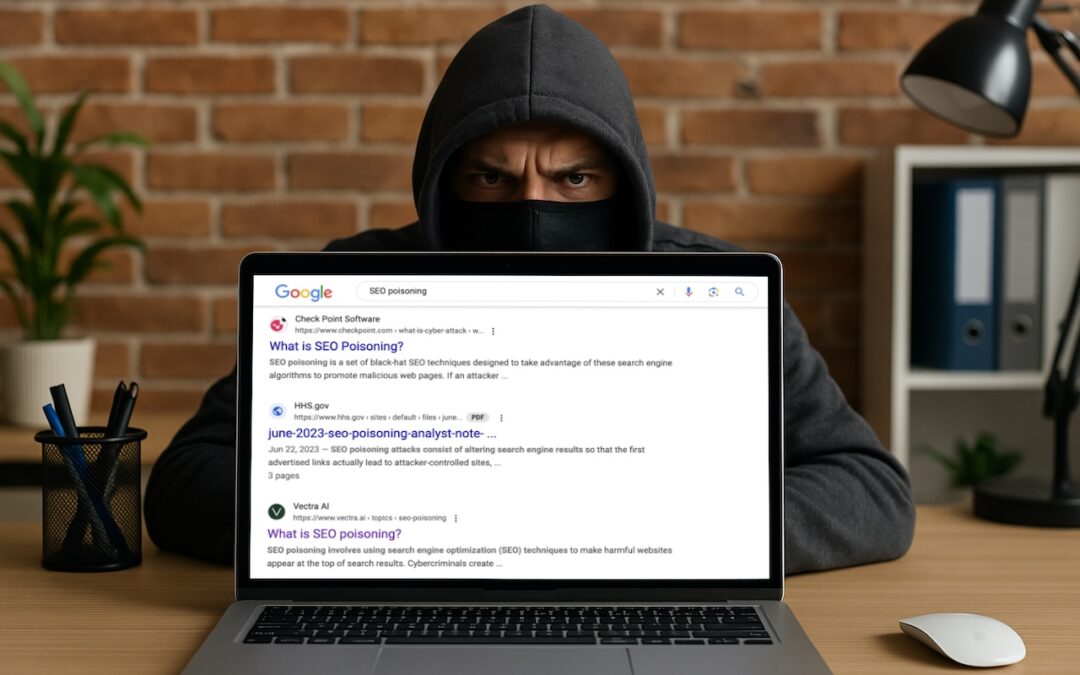
We hate to encourage paranoia, but all is not well with Google Search. Recently, we’ve heard of multiple instances where people were nearly taken advantage of due to relying on the top result in a Google search. In one case, a user called a purported HP support phone number directly from the search results but ended up speaking with a scammer. In another, a user thought they were downloading the latest version of Dropbox but got malware instead. In neither case could we reproduce the error, but they may have resulted from “SEO poisoning,” a malicious technique in which cybercriminals manipulate search engine optimization (SEO) strategies to elevate harmful websites in search results. In short, don’t assume that a site at the top of Google search results is guaranteed safe when downloading software or contacting a company. It’s best to navigate directly to a company’s official website before trusting that corporate information and software downloads are legitimate.

(Featured image based on an original by iStock.com/Armastas)
Social Media: You know that the phrase “I read it on the Internet, so it must be true” is absurd, but you should extend that skepticism to Google search results. We’ve seen two recent instances of malicious content bubbling to the top of searches. Trust but verify.

by Steve Sorbo | Apr 4, 2025 | Uncategorized
When we think about digital and device security, we mostly think about the fixed locations where people spend most of their time—home, school, and work. But what about when you’re traveling? Some security concerns remain the same when you’re on the road, but new ones crop up.
We’ll assume that you already keep your devices up to date, use FileVault on Macs, have at least a six-digit iOS passcode, have strong password habits, and use multi-factor authentication wherever possible. Other options are more specific to travel.
As with our more general article about increasing security last month, we’ve divided our list of suggestions into two parts: things that everyone should do and measures that only people who worry about being specifically targeted should employ.
Sensible Travel Security Precautions for Everyone
These suggestions are appropriate for everyone who travels, and they’re aimed primarily at avoiding relatively common problems: loss, theft, data loss, and generalized snooping:
- Focus on physical security: As a tourist, you may be targeted by thieves, so it’s important to keep your iPhone in a secure pocket whenever you’re not using it. Carry an iPad or laptop in a bag that can’t be snatched, or leave them locked or at least concealed in your hotel room.
- Enable Find My for all your devices: You should have already done this, but if not, enable Find My to improve your chances of finding a device you lose or accidentally leave behind. It might help if the device is stolen, but local police cooperation for recovering stolen items can vary widely. Don’t attempt to recover a stolen device yourself.
- Put AirTags in your luggage and laptop bags: AirTags can help you track down lost luggage—you can now share their locations with airlines—and prevent you from accidentally leaving bags behind. An AirTag may also help with locating a stolen item, but always work with local law enforcement.
- Enable biometric authentication and Stolen Device Protection: Using Face ID or Touch ID wherever possible and having Stolen Device Protection enabled on your iPhone in Settings > Face/Touch ID & Passcode is even more important when traveling.
- Use a VPN or iCloud Private Relay: Because you may be using Wi-Fi networks whose security you know nothing about, it’s best to use a VPN like Mullvad VPN, NordVPN, or ProtonVPN to encrypt all your traffic. At a minimum, use iCloud Private Relay, which requires an iCloud+ subscription and won’t encrypt traffic from most non-Apple apps.
- Use iCloud Photos or another backup option: To ensure you don’t lose precious vacation photos, use iCloud Photos so all your photos are uploaded to the cloud whenever you have access. This will almost certainly require an iCloud+ subscription for sufficient storage space. If Wi-Fi and cellular are too slow or unavailable, consider an external SSD to which you can manually export photos and videos for backup. To speed up the process, you could create a shortcut that automatically copies all photos taken that day.
- Use iCloud Backup: It’s best to use iCloud Backup to back up your entire iPhone every night. That way, if your iPhone is lost or destroyed, you may be able to buy a replacement and restore from backup in relatively little time. You will probably need an iCloud+ subscription to have enough backup space.
- Practice dealing with a lost or stolen device: If the worst happens and you lose one of your devices while traveling, you need to know what to do. Immediately go to Find My on another device or iCloud.com and mark the device as lost. If there’s a chance of getting it back, stop there. However, if you believe the device was stolen, your data is at risk, and tracking it is no longer useful, use Erase This Device in Find My to wipe it. Activation Lock will remain enabled to prevent anyone from reusing the device.
Increasing Travel Security for People Who May Be Targeted
Not all travel is fondue and gamelans. If you’re a journalist, activist, government employee, or corporate executive with access to sensitive data, you could be a target while traveling. This is particularly true if you are headed to countries like China, Russia, or others with authoritarian governments and powerful intelligence agencies. Along with the suggestions above, we recommend:
- Be aware of local laws and government practices: It’s important to read up on regional laws regarding data access and potential government capabilities at your destination. Knowing what to expect can help you reduce your risks and take appropriate precautions.
- Use caution with cellular access: Even if your carrier allows roaming, consider using a dedicated eSIM for international travel, separate from your personal one. That way, you can use local cellular networks without revealing your home number. Be aware that your traffic may be monitored.
- Enable Lockdown Mode: If you’re concerned about your iPhone or iPad being targeted by local law enforcement or government intelligence agencies, turn on Lockdown Mode in Settings > Privacy & Security > Lockdown Mode. To increase security, it blocks most attachment types in Messages, complex Web technologies, incoming FaceTime calls from unknown callers, non-secure Wi-Fi network connections, and incoming invitations to Apple services. Plus, it excludes location information from shared photos, requires approval to connect accessories, and more.
- Reduce and protect your use of cloud services: While using a VPN is essential, you should still avoid using cloud services much if government entities might have access to stored files. If you need to upload files, encrypt them first using the free and open-source Cryptomator.
- Know how to disable Face ID and Touch ID: If you find yourself in a situation where you believe you may be compelled to unlock your iPhone or iPad with your face or fingerprint, press and hold the side or top button and either volume button to display the power off slider. This temporarily disables biometric authentication, requiring your passcode for the next unlock.
- Use dedicated travel devices and accounts: If you’re traveling to a potentially hostile part of the world, we strongly recommend carrying only devices—preferably iPhones or iPads, which are more secure than Macs—configured to contain none of your personal data or regular accounts. Keep them with you at all times, assume they could be confiscated, and be aware you might be compelled to share passcodes or other account information. Create a separate Apple Account for such devices.
Best of luck in your travels! With just a little preparation, you can reduce the chances that something bad will happen during a vacation. If you’re traveling on business to somewhere more concerning, putting in additional effort could prevent truly problematic things from happening.
(Featured image by iStock.com/metamorworks)
Social Media: Security at home is one thing, but what about when you’re on the road? Many of the same precautions apply, but depending on your level of concern and where you’re going, additional techniques can help keep you and your data safe.

Recent Comments