
by Steve Sorbo | Mar 1, 2024 | Uncategorized
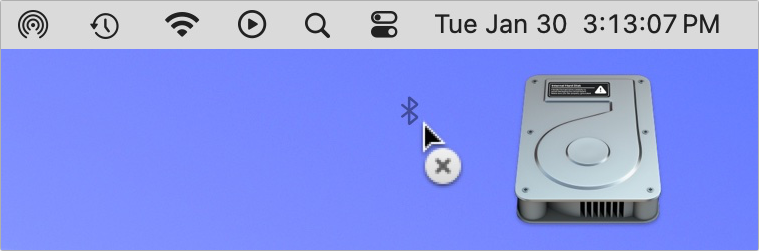
Is your Mac’s menu bar overwhelmed with icons? They’re helpful little critters, but finding one can be difficult when you have too many and they’re in no particular order. The hidden trick to cleaning up your menu bar relies on the Command key.
- Rearrange the menu bar icons in an order that makes sense to you by Command-dragging them around. You can’t move the Control Center icon or put anything to its right, but every other icon is movable.
- Delete unnecessary Apple-provided status icons by holding down Command and dragging them off the menu bar. (To put one back, select the “Show icon-name status in menu bar” checkbox in its System Settings screen.) You can’t remove the clock, Control Center, or the Siri icon this way, though you can turn off Siri in System Settings > Siri & Spotlight. Command-dragging to delete doesn’t work for non-Apple apps; instead, look for a preference in the app itself.
(Featured image by iStock.com/Valentyna Yeltsova)
Social Media: If your Mac’s menu bar is a mess, you can use the Command key to rearrange the icons and remove those you never use.

by Steve Sorbo | Mar 1, 2024 | Uncategorized
On the iPhone and iPad, to send a photo to a Messages chat, tap the ⊕ button and then tap Photos in the list that appears to reveal the photo picker. That’s not difficult, but it requires an extra step you can avoid with this tip. If you’re running iOS 17 or iPadOS 17, instead of tapping the ⊕ button, touch and hold it for a second to bring up the photo picker immediately.

(Featured image based on an original by iStock.com/oatawa)
Social Media: It’s not hard to add a photo to a conversation in Messages, but with this tip, it’s even faster and easier!

by Steve Sorbo | Mar 1, 2024 | Uncategorized
Does it feel like your Apple devices are always asking you to install operating system updates? You’re not wrong—from September 2022 to January 2024, we saw the following releases in Apple’s previous set of operating systems:
- macOS 13 Ventura: 20 releases
- iOS 16: 25 releases
- iPadOS 16: 20 releases
- watchOS 9: 15 releases
- tvOS 16: 12 releases
Apple issued many of those at the same time, but since you might not use all your devices every day, it can seem as though you spend all your time installing updates. As annoying as updating can be, we encourage you to do so soon after you’re notified for three reasons.
Reason One: Fewer Bugs
First, as has always been the case, updates fix bugs. You may not have experienced all the bugs that Apple fixes, but when one blocks something you want to do, the fix comes as a huge relief.
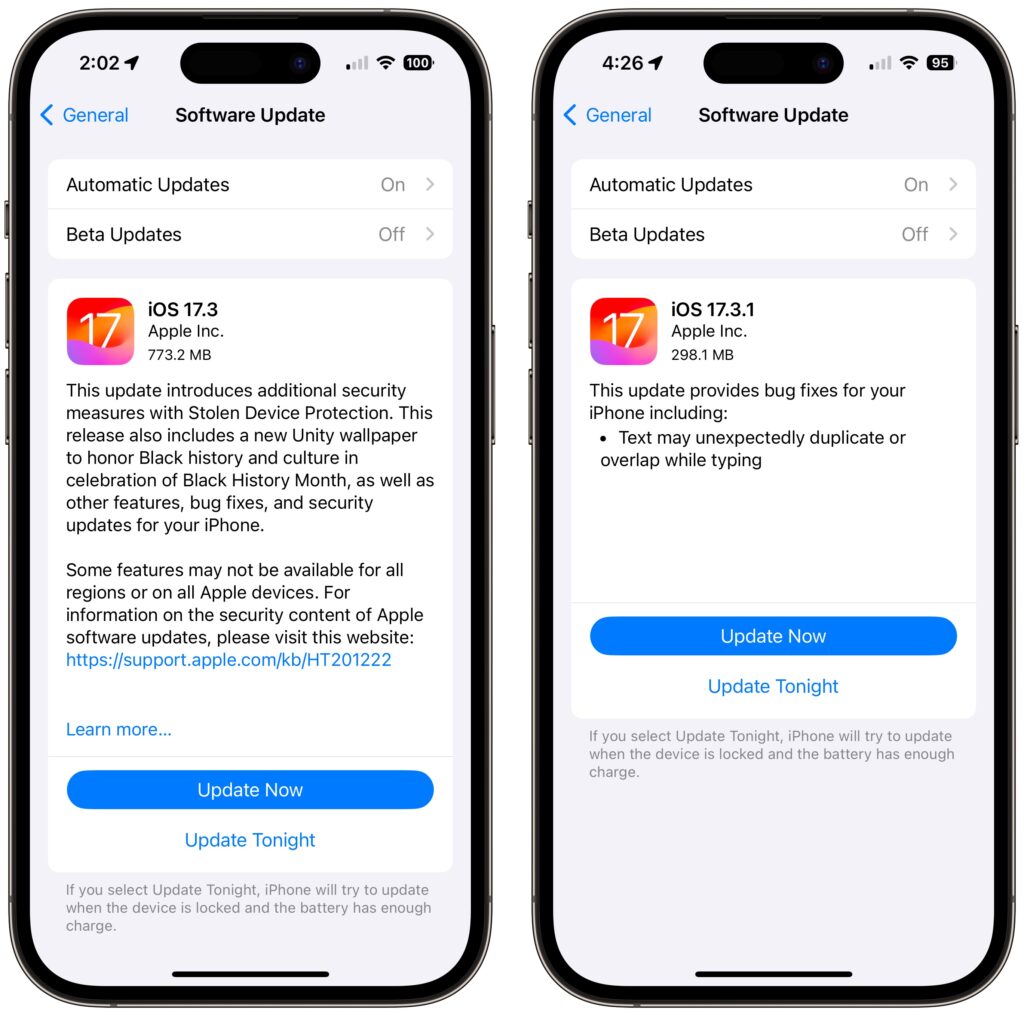
For instance, in a set of releases in January 2024, Apple inadvertently introduced a bug that caused text in many apps, including Mail, Notes, and Safari, to appear to be duplicated and overlap. It was only cosmetic, and switching to another window or resizing the window would make it look right again. But the bug was hugely disconcerting, so Apple fixed it two weeks later in macOS 14.3.1 Sonoma, iOS 17.3.1, iPadOS 17.3.1, and Safari 17.3.1 (which brought the fix to macOS 13 Ventura and macOS 12 Monterey).
Reason Two: Better Security
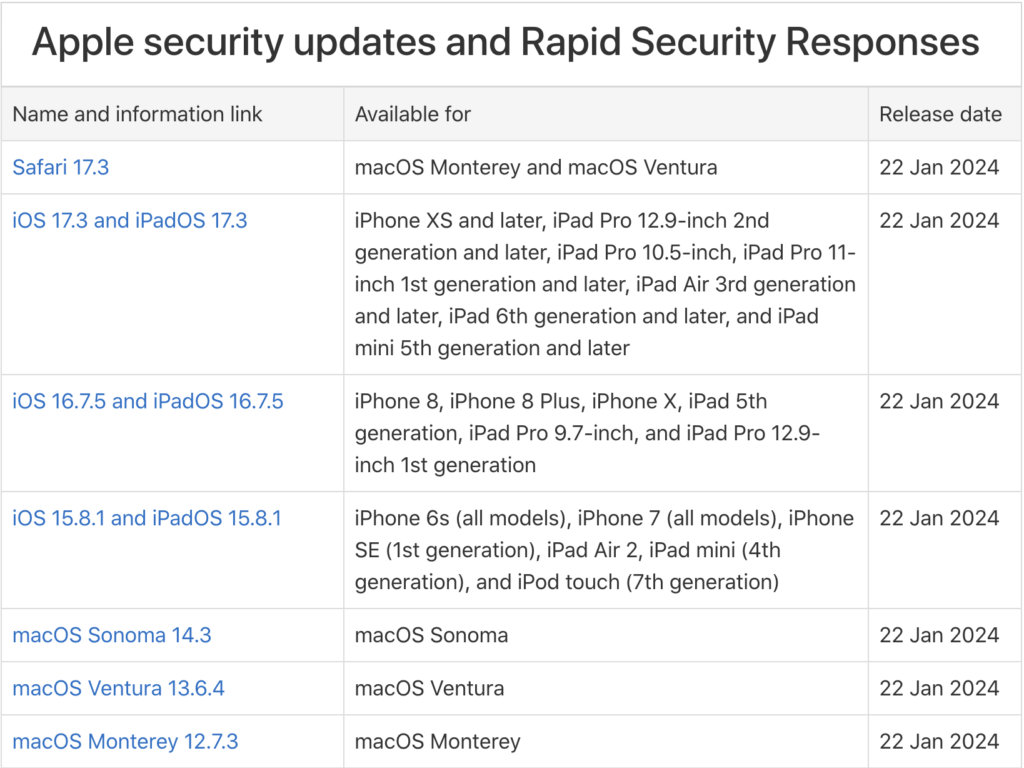
Second, many of the bugs Apple fixes won’t impact your experience of using your device, but they make it possible for attackers to steal information, install malware, spy on your communications, or even take over your entire device. Nearly all of Apple’s operating system updates contain security fixes to address newly discovered vulnerabilities, and some releases only have security fixes. Apple continues to release security updates for the last two versions of macOS and older versions of iOS and iPadOS as appropriate.
It’s easy to think that you won’t be impacted by security vulnerabilities, but remember that as soon as Apple releases an update outlining what it has fixed, attackers know what vulnerabilities exist in unpatched systems. Apple has to react swiftly to some reported vulnerabilities because blocking them can literally be a matter of life or death when it comes to, for instance, iPhone-using dissidents, activists, or journalists working in opposition to repressive governments that employ spyware against their enemies. (All spyware relies on previously unidentified vulnerabilities.)
However, some security vulnerabilities are more likely to impact regular users. For instance, in macOS 14.2.1, Apple fixed a bug in Screen Sharing. If you were sharing your full screen with someone else and had multiple Spaces, Screen Sharing could show the other person random windows in other Spaces, which could range from embarrassing (adult pictures) to seriously problematic (passwords or financial details).
Reason Three: New Features
Third, on the positive side, many operating system releases introduce welcome new features. When Apple unveils its next set of operating systems at the Worldwide Developer Conference in June, some of the promised features won’t appear with the initial releases. New features that shipped in later releases of macOS 14 Sonoma, iOS 17, iPadOS 17, and watchOS 10 include:
- watchOS’s double-tap gesture for tapping the default button in many apps
- AirDrop transfers continuing over the Internet when you move out of AirDrop range
- Adding NameDrop to share contact info when you bring two devices near each other
- Additional options to control when the iPhone screen shuts off in StandBy
- The option to choose a specific album for the Lock Screen’s Photo Shuffle wallpaper
- HomeKey support for Matter locks
- Expanded Favorites in the Music app
- A new automatic Favorite Songs playlist in the Music app
- The addition of Apple’s Journal app
- A Translate option for the Action button in the iPhone 15 Pro models
- 10-day precipitation forecasts in the Weather app
- Sharing of eligible passes in the Wallet app via NameDrop-like proximity
- A catch-up arrow in Messages that lets you jump to the first unread message
- Multiple timers in the Clock app on the Mac
- Stolen Device Protection for the iPhone
- Collaborative playlists in Apple Music
- Support for streaming content to TVs in select hotel rooms using AirPlay
Just Update It
Updates provide both a carrot (user-facing bug fixes and new features) and a stick (security fixes). That’s why we recommend updating soon after Apple pushes out a new release and why devices under management usually receive updates quickly. Even if a security breach is unlikely, the liability of allowing devices to remain unpatched is too high for most organizations. Installing updates is an easy way to reduce worry about things like compromised accounts and ransomware.
There are three types of operating system releases:
- Minor bug fix and security updates: Install these as soon as convenient, usually within a few days. Examples of these include macOS 14.3 to 14.3.1.
- Interim feature updates: Because these include bug fixes and security updates alongside the new features, you’ll also want to install these within a few days. An example is iOS 17.2.1 to iOS 17.3.
- Major version upgrades: Because Apple always releases security updates for the two versions of macOS before the current one, you can wait a month or three before installing a major upgrade, such as from macOS 13 to macOS 14. However, once you’ve verified that your apps and workflow are compatible with the new version, we recommend upgrading because skipping a major version of macOS often results in a more difficult upgrade experience.
In each of these cases, if you’re worried about how an update might impact your workflow, check online forums for discussions of each update and feel free to ask us what we recommend for your particular situation.
(Featured image by iStock.com/Fokusiert)
Social Media: We know it seems like your Apple devices are constantly asking you to install an update. Other than for major upgrades, we recommend updating shortly after updates appear so you can take advantage of bug fixes, security updates, and new features.
by Steve Sorbo | Mar 1, 2024 | Uncategorized
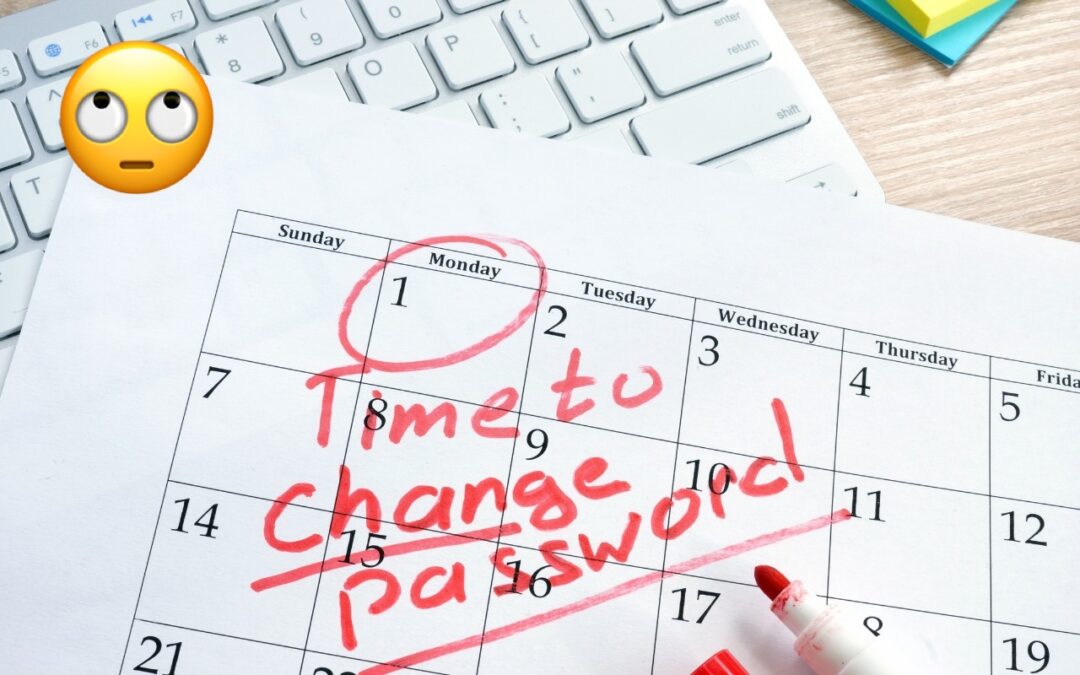
Does your organization or some financial website require you to create a new password periodically? This practice was recommended long ago, but some organizations haven’t kept up with current recommendations that discourage such policies. If you’re bound by a password expiration policy, you can use this article to encourage your IT department or financial institution to update its approach to password security.
The rationale behind password expiration policies was that if an attacker were to steal a password database and decrypt some passwords, they would work for only a limited period, lessening the risk of unauthorized access. Even if an attacker gained access to an account, they could remain undetected only if they didn’t change the password, and that access wouldn’t last indefinitely.
Over time, security experts realized that the problem wasn’t so much how long an attacker could remain undetected but allowing users to set weak passwords that could be decrypted. It turns out that users often choose weaker passwords when they know they will have to change them, perhaps by tweaking a previous password for easier memorization. This fact hasn’t been lost on attackers, making it easier for them to figure out future passwords. In other words, attempting to increase security by requiring users to change passwords paradoxically reduces security.
The National Institute for Standards and Technology (NIST) is a US government agency that develops cybersecurity standards and best practices for the federal government that large corporations and other institutions tend to follow. In 2017, NIST changed its guidelines to say, “Verifiers SHOULD NOT require memorized secrets to be changed arbitrarily (e.g., periodically).” In a FAQ, NIST explains:
Users tend to choose weaker memorized secrets when they know that they will have to change them in the near future. When those changes do occur, they often select a secret that is similar to their old memorized secret by applying a set of common transformations such as increasing a number in the password. This practice provides a false sense of security if any of the previous secrets have been compromised since attackers can apply these same common transformations.
Of course, if there’s evidence of unauthorized access or a breach of the password database, all passwords should be invalidated and everyone should be required to create a new password immediately—that’s entirely different than requiring passwords to be changed on a schedule.
Interestingly, NIST also doesn’t recommend password composition requirements—such as requiring the password to contain a letter, number, and special character—because users tend to devise predictable techniques to meet such requirements, such as appending an exclamation point to every password. Instead, NIST encourages longer passwords because a long password that’s easily remembered and typed can be stronger than a shorter password composed of random characters. Password managers can generally create both types.
If you’re forced to change a website password periodically, it’s easiest to use a password manager to generate and enter a new strong password, and you won’t have to memorize the new password. For the very few passwords you must remember and type manually, aim for longer passwords that won’t trip up your fingers while typing or require numerous switches of iPhone uppercase and numeric keyboards. To aid memorization, perhaps consider choosing words for your password from categories with many possibilities. For instance, if your initial password is gouda-purple-1989-New-York, the next one could be cheddar-black-2011-Des-Moines. Both are strong in their own right, but only you would know the categories used for each portion.
(Featured image based on an original by iStock.com/designer491)
Social Media: Security experts no longer recommend password expiration policies that require users to change their passwords periodically. Here’s why.
by Steve Sorbo | Mar 1, 2024 | Uncategorized
The near-ubiquity of videoconferencing is a lasting effect of the pandemic. The ease of gathering a group virtually usually more than makes up for the downsides. Despite that, many people still appear in video calls with low-resolution, poorly lit video that makes the call less effective.
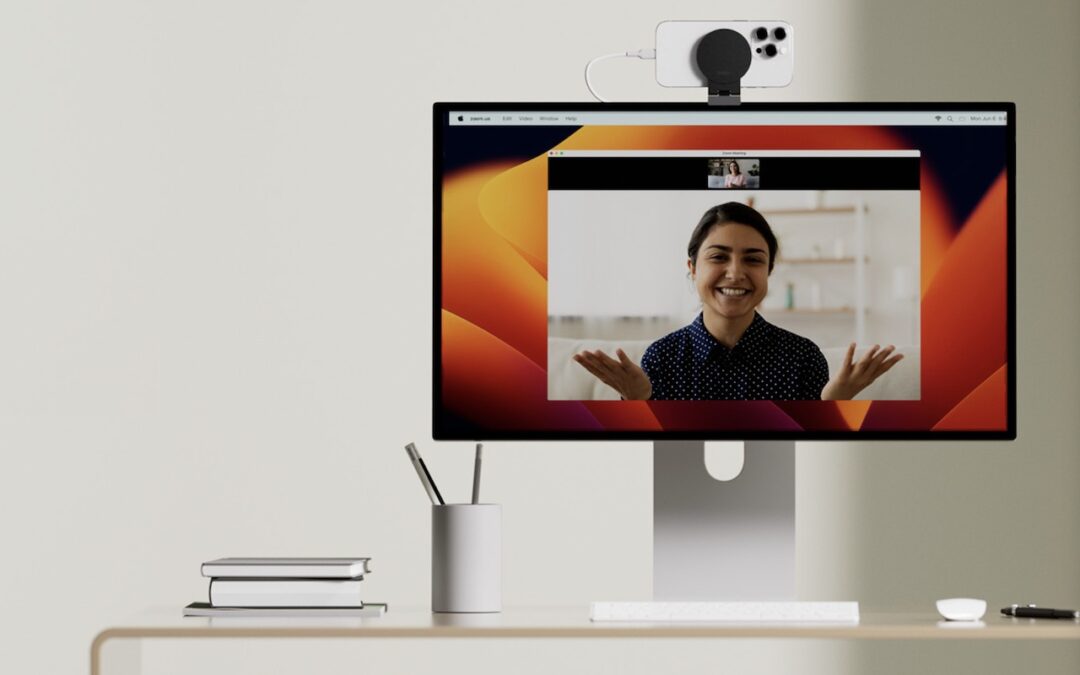
A better webcam is an easy way to improve your video, and the best readily available webcam may already be in your pocket. That’s because you can use your iPhone and its high-quality cameras as a wired or wireless Mac webcam, thanks to Apple’s Continuity Camera technology.
Your Apple gear likely meets the Continuity Camera system requirements. You need an iPhone XR or later (all iPhones introduced in 2018 or later) running at least iOS 16 and a Mac running macOS 13 Ventura or later. Both must be signed in to the same Apple ID.
You’ll want a mount that holds your iPhone in landscape orientation (horizontally) at the top of your Mac’s screen, with its rear cameras facing you. The first such mounts for laptops and desktops came from Belkin, but numerous manufacturers now sell inexpensive alternatives that have different industrial designs and support iPhones that can’t use MagSafe. Continuity Camera can drain your battery, so it’s worth plugging in a charger cable or getting a screen mount that also holds a MagSafe charger; look on Etsy for options, such as this one.
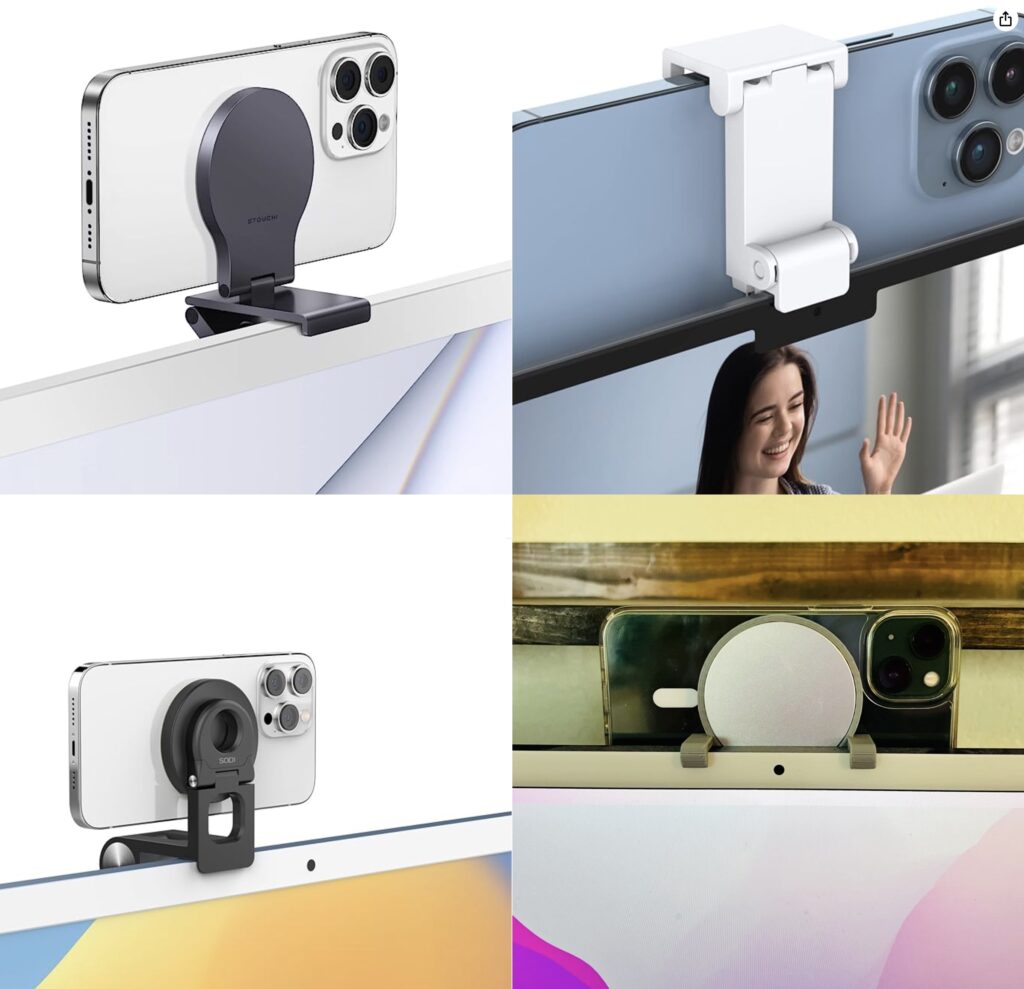
Although the samples above show the iPhone’s cameras in the upper-right corner, you can rotate the iPhone to position the cameras in the lower-left corner, which may put them more in line with your eyes and improve eye contact.
(Technically, you can put the iPhone anywhere—a tripod behind your screen would also work—and it doesn’t have to be in landscape orientation. However, apps detect the iPhone as a webcam automatically only when it’s in landscape orientation, and if it’s below or to the side of your screen, the video angle will likely be problematic. You can also take your iPhone off its mount and walk around with it as long as you stay in Bluetooth range of your Mac.)
When the iPhone is locked and in position, its camera and microphone become available to videoconferencing apps like FaceTime, Zoom, and Webex. Your app may start using the iPhone as a camera automatically, but if not, look for a menu or icon that lets you choose the desired camera. Similarly, you can use the iPhone’s mic as your audio input for the call, although the Mac’s built-in mic, AirPods, or other mic may offer equally good or better audio quality.
For the most part, the iPhone acts like a standard webcam. After you end the call, remove it from the mount to use it normally again. Should you need to check something on your iPhone during the call, you can remove it from the mount and either tap the Pause button or just unlock it—your video (and audio, if you’re using the iPhone as a mic too) will pause. To resume, lock and remount your iPhone. You may want to warn the other people on your call first in case something goes wrong and you get disconnected.
Receiving a phone call is a similar situation. Answering the call on the iPhone pauses the audio and video for the videoconference until you end the call, lock the iPhone, and mount it again. You may also be able to answer the call on the Mac, but that also pauses the audio and video, and you may need to choose the iPhone as your camera again afterward.
Ultimately, using your iPhone as a webcam is remarkably easy—Continuity Camera just works in our experience. The only tricky part is finding the screen mount and charger that work best with your Mac and usage patterns.
(Featured image by Belkin)
Social Media: Many of us spend significant chunks of the workday on video calls, and the best way to improve your onscreen look is with a better webcam, which you can probably find in your pocket. Learn how to use your iPhone as your Mac’s webcam here.

Recent Comments