
by Steve Sorbo | Mar 1, 2024 | Uncategorized
Generative AI chatbots like ChatGPT, Microsoft’s Bing/CoPilot, and Google’s Gemini are the vanguard of a significant advance in computing. Among much else, they can be compelling tools for finding just the right word, drafting simple legal documents, starting awkward emails, and coding in unfamiliar languages. Much has been written about how AI chatbots “hallucinate,” making up plausible details that are completely wrong. That’s a real concern, but worries about privacy and confidentiality have gotten less attention.
To be sure, many conversations aren’t sensitive, such as asking for a recommendation of bands similar to The Guess Who or help writing an AppleScript. But increasingly, we’re hearing about people who’ve asked an AI chatbot to analyze or summarize some information and then pasted in the contents of an entire file. Plus, services like ChatPDF and features in Adobe Acrobat let you ask questions about a PDF you provide—it can be a good way to extract content from a lengthy document.
While potentially useful from a productivity standpoint, such situations provide a troubling opportunity to reveal personally sensitive data or confidential corporate information. We’re not talking hypothetically here: Samsung engineers inadvertently leaked confidential information while using ChatGPT to fix errors in their code. What might go wrong?
The most significant concern is that sensitive personal and business information might be used to train future versions of the large language models used by the chatbots. That information could then be regurgitated to other users in unpredictable contexts. People worry about this partly because early large language models were trained on text that was publicly accessible online but without the knowledge or permission of the authors of that text. As we all know, lots of stuff can unintentionally end up on the Internet.
Although the privacy policies for the best-known AI chatbots say the right things about how uploaded data won’t be used to train future versions, there’s no guarantee that companies will adhere to those policies. Even if they intend to, there’s room for error—conversation history could accidentally be added to a training model. Worse, because chatbot prompts aren’t simple database queries, there’s no easy way to determine if confidential information has made its way into a large language model.
More down to earth, because chatbots store conversation history (some let you turn off that feature), anything added to a conversation is in an uncontrolled environment where at least employees of the chatbot service could see it, and it could be shared with other partners. Such information could also be vulnerable should attackers compromise the service and steal data. These privacy considerations are the main reason to avoid sharing sensitive information with chatbots.
Adding emphasis to that recommendation is the fact that many companies operate under master services agreements that specify how client data must be handled. For instance, a marketing agency tasked with generating an ad campaign for a manufacturer’s new product should avoid using any details about the product in AI-based brainstorming or content generation. If those details were revealed in any way, the agency could be in violation of its contract with the manufacturer and be subject to significant legal and financial penalties.
In the end, although it may feel like you’re having a private conversation with an AI chatbot, don’t share anything you wouldn’t tell a stranger. As Samsung’s engineers discovered, loose lips sink chips.
(Featured image by iStock.com/Ilya Lukichev)
Social Media: Privacy concerns are starting to crop up around conversations held with AI chatbots. For safety’s sake, never share anything with a chatbot that you wouldn’t tell a stranger.

by Steve Sorbo | Feb 1, 2024 | Uncategorized
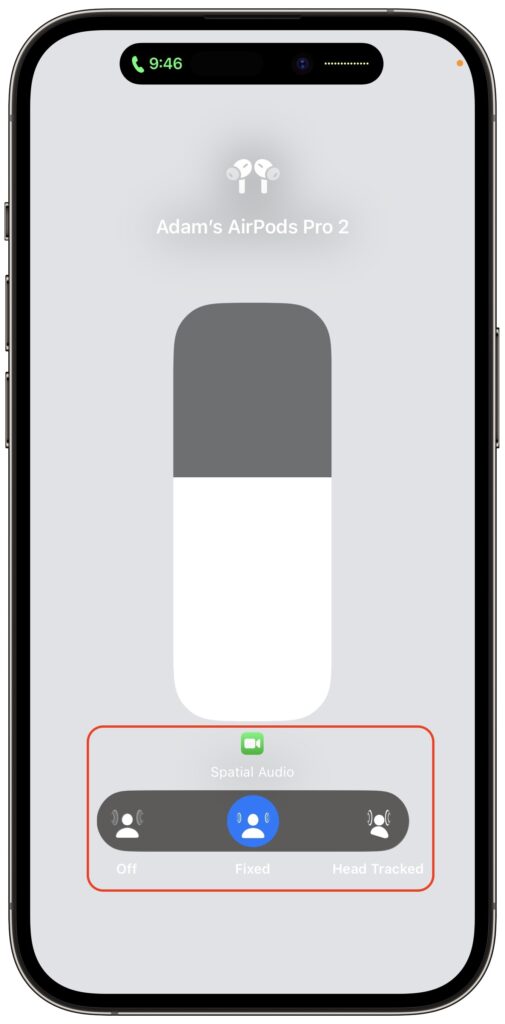
If you listen to a FaceTime Audio call using AirPods and hear the other person’s voice moving annoyingly from side to side as you turn your head, the problem is likely head-tracked spatial audio. In general, spatial audio attempts to make sounds seem to come from all around you, and its dynamic head-tracking option adjusts the audio for each ear to simulate how the sound would change as your head moves. Dynamic head tracking may be desirable for music or movies, but with a FaceTime Audio call, having the other person flip back and forth between your ears can be highly disconcerting. To stop this behavior on an iPhone or iPad, open Control Center, touch and hold the volume control, and tap either Off or Fixed instead of Head Tracked. Spatial audio isn’t an option on Mac FaceTime calls.
(Featured image by iStock.com/1550539)
Social Media: If you’ve ever experienced a weird situation where sound on a FaceTime Audio call moves back and forth between your AirPods, it’s because of spatial audio’s dynamic head tracking. Learn how to turn it off.

by Steve Sorbo | Feb 1, 2024 | Uncategorized
Have you ever selected a bunch of files and accidentally opened them all by double-clicking one? Or perhaps inadvertently pressed Command-I to get info, ending up with oodles of open Info windows? Here’s a quick way to recover. You can close all the windows in any well-written app with judicious use of the Option key. Press it while clicking the File menu and Close Window becomes Close All Windows. Command-W closes one window; Command-Option-W closes all of that app’s windows. If you’re a mouse person, Option-click the red close button in any window to close all the rest.

(Featured image based on an original by iStock.com/ANGHI)
Social Media: Next time you inadvertently open a large number of windows, you can use these Option-key tricks to close them all quickly.

by Steve Sorbo | Feb 1, 2024 | Uncategorized
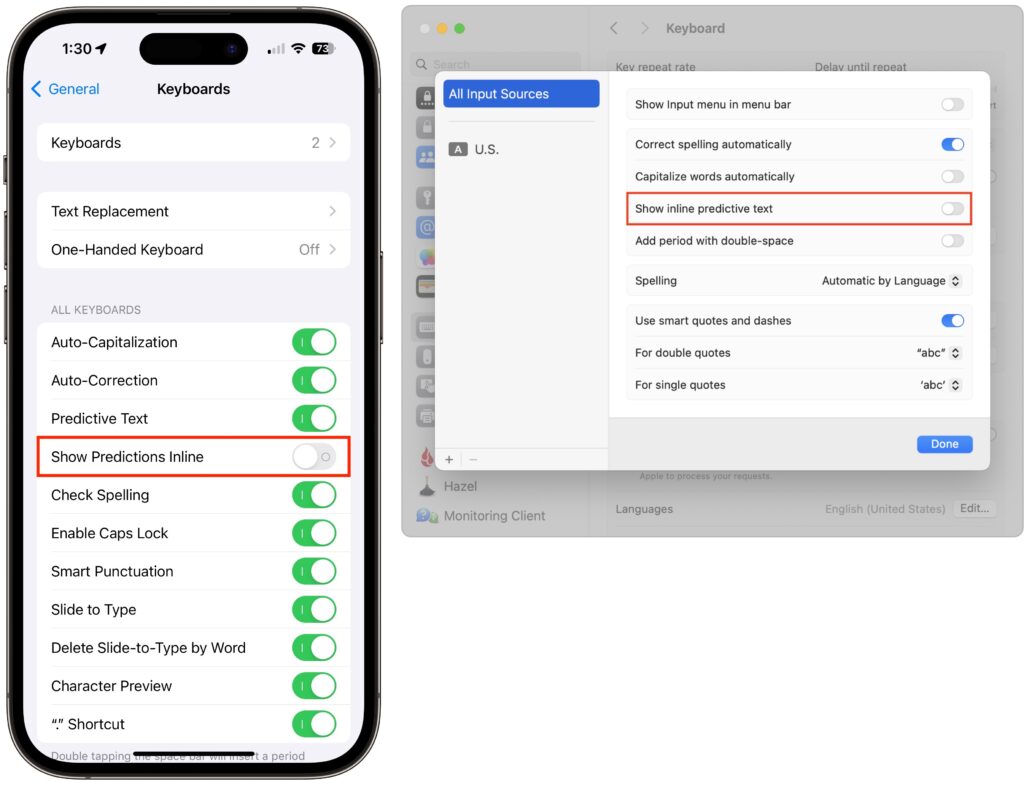
In a slight nod to the hype surrounding generative AI, Apple added inline text prediction capabilities to the iPhone, iPad, and Mac. They can be helpful, particularly on the iPhone and iPad, where it’s often much easier to tap the Space bar than to finish typing a word or sentence. But that’s less true on the Mac, where a fast typist can be slowed down or derailed by the suggestions, and some people dislike having an AI finish their thoughts. The feature is easily turned off. On the iPhone and iPad running at least iOS/iPadOS 17.2, go to Settings > General > Keyboard and switch off Show Predictions Inline. (Leave Predictive Text on to continue to get suggestions above the keyboard.) On the Mac running macOS 14.2 Sonoma or later, open System Settings > Keyboard, click Edit under the Text Input header, turn off “Show inline predictive text,” and click Done.
(Featured image based on an original by iStock.com/Armastas)
Social Media: If you’re not a fan of the new inline text predictions on your iPhone, iPad, or Mac, you can easily turn them off and get back to typing only the words you want to appear.

by Steve Sorbo | Feb 1, 2024 | Uncategorized
When Apple introduced tvOS 17 last September, an eagerly awaited feature was its support for FaceTime calls, using Continuity Camera on an iPhone or iPad to equip an Apple TV with the necessary camera and microphone. FaceTime on the Apple TV requires a second-generation Apple TV 4K or later and an iPhone running iOS 17 or an iPad running iPadOS 17.
The feature works pretty well. Setting up Continuity Camera is simple—you launch the FaceTime app on the Apple TV, select your user profile, confirm on the iPhone or iPad, and then position the iPhone or iPad in landscape orientation so the rear camera faces you. You can start FaceTime calls from the Apple TV or move a call in progress from an iPhone or iPad to the Apple TV. The video quality is excellent, the audio is surprisingly good even across the room, and Center Stage zooms and pans to keep you in the picture. You can also add reactions like hearts and fireworks with hand gestures. Or not.
But that’s not what we’re here to talk about today. Apple also said that other videoconferencing apps like Zoom and Webex would be coming to the Apple TV, which could make the Apple TV a compelling addition to offices and conference rooms everywhere. It’s also perfect for joining Zoom-based exercise classes or community meetings from the comfort of your living room. In December 2023, Zoom was the first out of the gate, shipping its Zoom for Home TV app for tvOS 17.
With Zoom available, the Apple TV becomes an interesting option for businesses and organizations that want to display video meetings on a large screen. In the past, it was possible to use AirPlay to share an iPhone or iPad screen to an Apple TV, but it was difficult to position the iPhone or iPad effectively, and there was no way to use the higher-quality rear-facing camera.
To get started, launch the Zoom app on the Apple TV. It first prompts you to connect your iPhone via Continuity Camera. Select the Apple ID account that matches the one logged in on the iPhone, bring the iPhone close, tap the notification that appears, and tap Accept. Then, turn the iPhone around and set it down on the base of the TV with the rear camera facing you.

Next, you’ll be prompted to pair it with your account, which you can do most easily by navigating to https://zoom.us/pair on another device and entering a code.

Once you’re connected to your account, you can create a new meeting or join an existing meeting.

Here’s where things get tricky. It’s easy to start a meeting—select New Meeting on the main screen—but inviting people is more arduous. Starting from the Contacts screen or choosing Invite from the More pop-up menu requires that you laboriously enter an email address to invite someone via email. Instead, we recommend that you first add people on the Personal Contacts screen in your account on the Zoom website. After that, you can select several people and invite them to the meeting. Unfortunately, in our testing, the email invitations didn’t always arrive.

The remaining option is to swipe up on the clickpad during a meeting to select the green shield button in the upper-left corner. That displays the meeting details, and a Join by Laptop button (the second screenshot below) shows the necessary URL, meeting ID, and passcode to share in another channel, like Messages or the phone. There’s no other way to share a link to a meeting that we could find.
Joining someone else’s meeting is difficult. Most Zoom meetings are shared via a link, and once you click or tap it in email, Messages, a calendar event, or on a website, the meeting starts. The Apple TV breaks that model—there’s no apparent way to load a Zoom link. FaceTime sidesteps this limitation by making it easy to move a call from the iPhone to the Apple TV—just put the iPhone close to the Apple TV, and a notification will suggest the move. Zoom offers no such option.
Instead, to join a Zoom call, you must manually enter the meeting ID and passcode. If you’ve been sent only the link, you’ll have to request the passcode separately (the numeric meeting ID can be extracted from the URL). Entering characters with the Siri Remote is slow and awkward, so we recommend using Siri, which recognizes spoken numbers well (hold down the Siri button on the side of the remote). You could also use an iPhone or iPad as a remote control for the Apple TV since you can type more effectively or use copy and paste on those devices. But if you’re already using your iPhone for Continuity Camera, for instance, you’ll need another device. Zoom does provide a Meeting History, which is helpful for recurring meetings, but you must still enter the passcode each time.

Once you start a call, touch the clickpad on the Siri Remote to display the Zoom menu at the bottom of the screen. You can then navigate using the clickpad (press the center to activate the selected command) and the Back button. Available options let you mute yourself, turn your video off and on, switch between the usual Zoom views, display Zoom reactions, manage participants, invite more people, turn on captions, and control the Continuity Camera video effects (Center Stage, Portrait Mode, and Apple’s gestural Reactions). Center Stage does an excellent job of following you around as you move. Portrait Mode just makes the background a little fuzzy; it’s not a strong effect. If you press the Back button to leave the Zoom app, your video pauses for others on the call.

Two common Zoom actions don’t translate fully to the Apple TV: chat and screen sharing. Incoming chat messages appear on the Apple TV in the corner, but only for 6 seconds, and longer messages are truncated after a handful of lines. There’s no way to keep them onscreen longer or get back to them. There’s no way to reply to chat messages. Zoom on the Apple TV does provide an option to share the screen, but that’s the screen of another device—there’s no app or desktop to share on the Apple TV, and no, you can’t share video.
Overall, the Zoom app for Apple TV feels like a 1.0. Most of the features that make sense are present, but fully adapting to a platform that lacks a keyboard or any way to follow links will take Zoom some time. If the company could add the capability to move an in-progress call from an iPhone or iPad to an Apple TV as FaceTime can, that would help a lot. Another possible concern is the need to have the Apple ID on the Apple TV match the one on the iPhone—all the possible logins could get confusing in a larger office.
Regardless, Zoom on the Apple TV works well enough to try out. Just make sure to run through the initial setup well before your meeting is due to start.
(Featured image based on an original by iStock.com/gorodenkoff)
Social Media: Have you wanted to put Zoom meetings on a large-screen TV? You can now do that with tvOS 17 and the new Zoom app for Apple TV. It takes some getting used to due to the lack of a keyboard and any way to follow links, but it does work.

Recent Comments