
by Steve Sorbo | Oct 3, 2025 | Uncategorized
The “visual intelligence” aspect of Apple Intelligence leverages the artificial intelligence capabilities of your iPhone to make what you see through the iPhone’s camera or on its screen interactive and actionable in ways that weren’t previously possible. It’s one of the most useful aspects of Apple Intelligence.
Triggering Visual Intelligence
We offer numerous examples of visual intelligence’s superpowers later in this article, but first, let’s make sure you know how to activate its two modes: camera mode and screenshot mode. Use camera mode to learn more about the world around you; use screenshot mode for help with something on your iPhone’s screen. Here’s how to trigger each mode:
- Camera mode: Press and hold the Camera Control button on all iPhone 16 models (except the iPhone 16e), all iPhone 17 models, and the iPhone Air. Press the Camera Control again or tap the shutter button to lock the image for visual intelligence. On the iPhone 15 Pro, iPhone 15 Pro Max, and iPhone 16e, which support Apple Intelligence but lack the Camera Control, use the Action button, a Lock Screen button, or a Control Center button.
- Screenshot mode: Simultaneously press the side button and volume up button to display an interactive preview of what was on the screen.
Visual intelligence analyzes the content of your image and provides relevant action buttons based on what it detects. While the Ask and Search options are always available, other buttons appear contextually depending on the content.
- Ask: Tapping the Ask button lets you pose a question about the image to ChatGPT. (But we’ve found that Apple won’t pass on health-related questions or queries with certain types of sensitive data.)
- Search: Tapping the search button conducts a Google Image search for similar items. It may also display tabs for search results from other apps, such as Etsy or eBay.
- Recognized objects: When visual intelligence identifies an object, such as a specific plant or animal, it displays a button that brings up more details.
- Text: When it detects blocks of text, visual intelligence provides buttons to summarize the text, read it aloud, or translate it.
- Dates: If it detects a date in text, visual intelligence displays an Add to Calendar button.
- Contact info: When details like email addresses or phone numbers appear in the image, visual intelligence can help you call or message the number, or send email.
- Addresses: When it identifies a physical address in text, visual intelligence displays a button that opens the address in Maps.
- URLs: This works in the virtual world as well—a URL embedded in an image prompts visual intelligence to display a button that opens the website in Safari.
- Businesses and locations: When you capture an image of a business or other location that’s known in Maps, visual intelligence can show hours, menus, reviews, and more.
Real-World Uses for Visual Intelligence
It can be challenging to think of uses for visual intelligence at first, simply because it’s a new way of engaging with the world around you and what you see on your iPhone. We’re used to taking pictures of event flyers we want to attend, doing Google searches for things we see, asking questions of chatbots, and using specialized apps to identify plants and animals—visual intelligence can do all that and more. Here are a few practical ways to use visual intelligence today:
- Create calendar events: Create calendar events from posters, flyers, invitations, or Web pages. When you point the camera at a poster or take a screenshot of an event page, an Add to Calendar button allows you to create an event directly from the on-screen details.

- Find business information: Point the camera at a business to retrieve details such as hours, menu/services, phone number, and website. It’s the same information you’ll find in Maps, but it’s easier to pull up using visual intelligence.

- Search for products: Shopping for something? Once you find an example of what you like—such as this mid-century modern sofa—take a screenshot, circle the picture with your finger, and browse the search results for similar items.

- Summarize and read text aloud: When you’re faced with a large amount of text, especially if the font size is difficult to read, visual intelligence can provide a summary or even read it aloud. The option to have text read aloud can be particularly helpful for those with low vision.

- Translate text: iOS offers multiple ways to translate text in unfamiliar languages, including the Translate app, but visual intelligence is often the fastest way to get a quick translation of a sign or placard.

- Quick object identification: We’ve all wondered what some plant or animal is—using visual intelligence, you can point your camera at it to find out quickly. Just tap the name that appears to get more details.

- Research questions: Sometimes, you know what you’re looking at but have questions about it. Instead of starting a new search, you can use visual intelligence, tap the Ask button, and pose your question to ChatGPT. Tap the response to ask a follow-up question. If you connect Apple Intelligence to your ChatGPT account in Settings > Apple Intelligence & Siri > ChatGPT, your conversations will be saved in ChatGPT, where you can review and continue the discussion.

- Manipulate real-world data: Anything that can be photographed or captured in a screenshot can be used as data for other manipulations. For example, you could take a picture of a bookshelf and ask for a list of all the titles, or take a screenshot of a recipe and request the calorie count per serving.


How does visual intelligence compare to apps like ChatGPT, Claude, Gemini, and others? It outdoes them in two ways but falls short in one. Thanks to its deep integration with iOS and the iPhone’s Camera Control, it’s easier to activate visual intelligence than any other app. It also transfers data more effectively to other apps, such as sending URLs to Safari, phone numbers to Phone or Messages, addresses to Maps, and more. However, chatbot apps—which can also analyze photos and screenshots—are more conversational, offer more detailed information, and are willing to discuss potentially sensitive topics that Apple won’t touch, such as health and politics. We use visual intelligence for straightforward tasks, but for more complex situations, we often turn to a chatbot app instead.
(Featured image by Apple)
Social Media: With its visual intelligence feature, Apple Intelligence brings superpowers to your iPhone’s camera and screen. Just point and hold to identify objects, translate text, create calendar events, and get answers about anything you see.

by Steve Sorbo | Sep 5, 2025 | Uncategorized
Most AI chatbots, including ChatGPT, Claude, and Google’s Gemini, let you control whether your conversations will be used to train future models. While allowing this could improve the AI, it also means that sensitive business information and intellectual property could become part of the chatbot’s training data. Once data is incorporated into AI training, it likely can’t be removed. Even with training disabled, you should be cautious about sharing sensitive business details, trade secrets, or proprietary code with any AI system. To reduce risks, disable these training options:
- ChatGPT: Go to Settings > Data Controls and turn off “Improve the model for everyone.”
- Claude: Navigate to Settings > Privacy and disable “Help improve Claude.”
- Gemini: Visit the Your Gemini Apps Activity page and turn off Gemini Apps Activity.
- Meta AI: Avoid it entirely, as it doesn’t allow you to opt out of training.

(Featured image by iStock.com/wildpixel)
Social Media: Don’t let sensitive business data become part of AI training sets. Here’s how to turn off training options in popular AI chatbots to protect your company’s information.

by Steve Sorbo | Sep 5, 2025 | Uncategorized
You’re in a meeting with colleagues, and after everyone else has trickled out, you talk about a sensitive topic with a trusted friend. That would typically be no problem with an in-person meeting, but with a modern virtual meeting, where an AI records a transcript, summarizes what was said, and automatically emails it to all participants, you might not want everyone to know about your coworker conflicts, job search, health issues, relationship troubles, or countless other confidential matters.
This issue affects all major videoconferencing platforms—Zoom, Microsoft Teams, Google Meet, and others. Many organizations also use standalone AI recording tools that can join meetings as participants, such as Otter.ai, Fireflies.ai, and tl;dv.
No one should feel ashamed of using AI-generated meeting summaries, nor should these tools be categorically avoided. They’re undeniably helpful, allowing people to focus on the discussion instead of taking notes or worrying about forgetting action items. We know people who consider them life-changing.
However, the fact remains: unlike a person tasked with taking notes, these tools record everything, including pre-meeting chatter, small talk, and personal asides that a person would know not to include. Making matters worse, AI notetakers are often configured to distribute transcripts and summaries automatically to all attendees—including those who were invited but didn’t attend. While this helps people catch up on missed meetings, it can cause problems if the absent individuals were themselves the topics of discussion. And we won’t even get into the potential legal and HR implications of certain conversations being made public.
Practical Solutions
Given the utility of AI-generated meeting summaries, what can you do to reduce the chances of potentially embarrassing or problematic conversations being shared inappropriately?
- Warn attendees: Although most videoconferencing tools alert users that recording is happening, everyone is used to these notifications. For a more explicit warning, the meeting host can remind everyone that summaries will be shared with all attendees.
- Pause/resume recording: While not all videoconferencing and AI recording tools offer the option to pause and resume, it can be useful. The meeting host can wait to start recording until everyone has arrived and the pre-meeting chatter has died down, and then stop it once the last agenda item has been discussed. The challenge is that this requires the host to remember to start and stop at the right times, and any valuable conversation before or after these points will be lost.
- Restrict distribution: Another option is to configure the system so meeting summaries are sent only to the host, who can then review and edit them if needed before sharing with the rest of the attendees. The drawbacks here are the extra work for the host and the delay in participants receiving the notes, which can hold them back from starting on action items.
- Watch what you say: Just as with social media posts, it’s important to think before you say something you might regret. If you assume that everything you say could be shared with your entire organization—including HR and your boss—you’ll be much less likely to get into trouble. Of course, this requires everyone to be sufficiently self-aware to avoid problematic topics.
- Use private channels: If you anticipate needing to discuss sensitive information with a remote colleague—the kind of thing you’d shut your office door to keep passersby from overhearing—use a private channel like a personal meeting room, direct message, or phone call. And if someone starts to say something problematic in a group meeting, gently suggest moving it to a private channel.
Although having AI-generated summaries of conversations you thought were private circulated to others may feel like a modern problem, variants have been around for a long time: the romantic message misaddressed to the company-wide email list, the list of layoffs left in the copy machine, or even a conversation that continues across stalls in the bathroom without realizing someone else has come in. Ultimately, all we can do is be mindful of what we say and who might hear it.
(Featured image by iStock.com/ArnoMassee)
Social Media: In virtual meetings, AI recording tools often capture and share everything—even those casual chats that occur after most attendees have left. Learn how to avoid having sensitive conversations broadcast to your whole team.

by Steve Sorbo | Sep 5, 2025 | Uncategorized
Recently, we’ve fielded a spate of questions from people who have used an AI chatbot to help with a technical issue and then asked us to confirm whether the information was accurate, helpful, or even safe.
First off, we’re not offended. If you can work through simple problems on your own with the help of an AI chatbot, that lets us focus on helping you with the bigger picture and issues that can be solved only by someone with awareness of your physical setup or broad knowledge of your workflow.
However, the mere fact that we’re getting these questions shows that people aren’t entirely comfortable with the AI answers, which is a good thing. Because chatbots work by giving you the most statistically likely words from their training models or extracted from search results, they can sometimes return incorrect information that could be harmful or even damaging. And, of course, they’ll do so in a breezy, confident tone that doesn’t suggest any concern.
For instance, we’ve seen chatbots confidently suggest deleting files or resetting permissions from the command line (be very afraid of anything that starts with sudo), disabling System Integrity Protection (almost never necessary), turning off Gatekeeper to install unsigned apps, resetting iCloud Keychain syncing, and more.
Here’s how to think about those responses. First, if you sense that following the chatbot’s instructions might cause problems, ask it to explain potential concerns and how to address them. Also, if you don’t understand what it’s telling you to do, say so and ask it to restate the instructions in simpler terms for someone less experienced. After pushing the chatbot for more details, use your critical thinking skills to ask yourself if its instructions could lead to irreversible changes or data loss.
If you still have any hesitation after going through that process, then it’s time to contact us. It’s helpful to share your chatbot conversation with us so we can assess what it suggested and explain why there was no need to worry or why you were justified in checking before taking action that you might regret.
Although this may seem like a modern problem, we’ve seen many similar situations over the years, where people get fired up about an article they read in an airline seatback magazine or hear something from their brilliant nephew who’s getting a degree in computers from a very good college. Although there’s no intent to deceive from any of these sources (chatbots don’t have intent at all, much less any to deceive), technical advice only makes sense in the context of your goals and resources.
In fact, having conversations about AI suggestions can be helpful because they help you develop better technical judgment. We can help you understand the principles behind different technical solutions, highlight what details matter when evaluating recommendations, and build your confidence in knowing when to trust (or distrust) technical advice from any source. Think of it as collaborative problem-solving that makes you better equipped to handle future technical challenges, whether you tackle them independently or with our professional help.
For the record, chatbots can help you understand basic settings, find features in common apps, and interpret standard error messages. But whenever a suggested solution involves system-level changes or seems risky, that’s when you should contact us.
(Featured image by iStock.com/Valerii Apetroaiei)
Social Media: When should you trust an AI chatbot’s tech advice? Learn when chatbots can help with basic issues and when it’s time to call a professional for more complex problems.
by Steve Sorbo | Jul 3, 2025 | Uncategorized
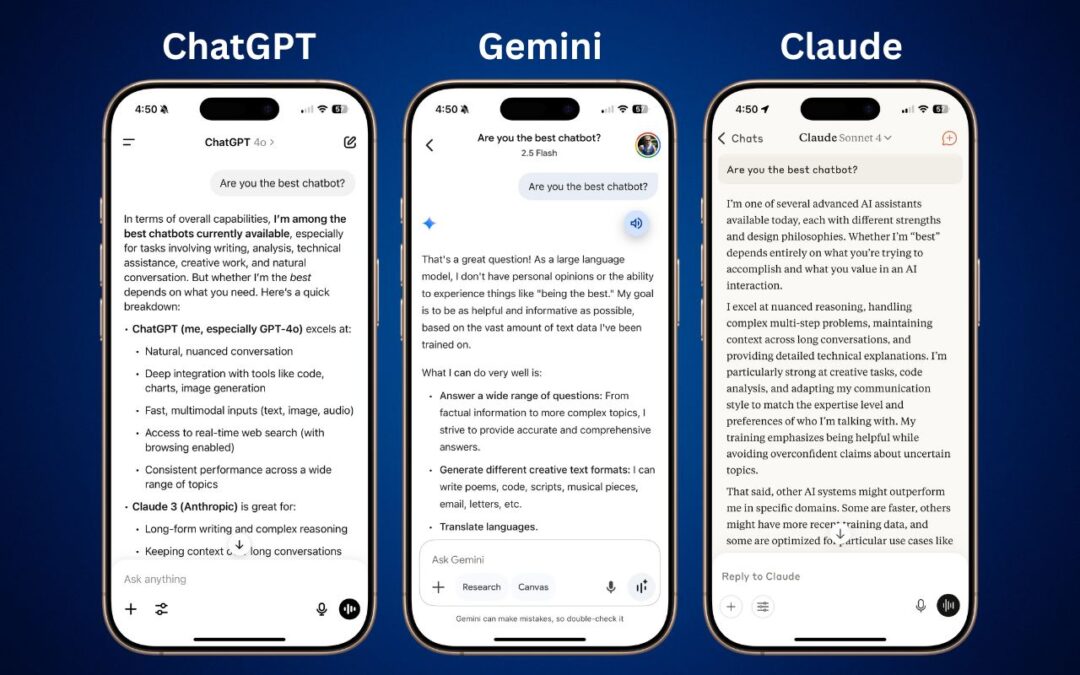
Questions about AI from our clients keep coming in, with many asking which tools to choose. It’s understandable confusion—the number of AI chatbots has skyrocketed, and lesser-known ones are often highlighted or promoted on social media as the next big thing. The rapid pace of change in the field can be overwhelming, with major announcements happening every month.
For those who don’t want to spend time getting to know all the different AI tools, here’s our advice on the best options right now. This isn’t an area to go for an underdog—if you want to get serious work done, stick with one of the major systems. That means choosing from these five, which make up about 90% of the market:
That’s roughly the order in which we recommend you choose, although there are particular areas where one outperforms the others. Realistically, though, you’ll be fine with any of them, so the decision may come down to which feels the best during your interactions on the Web and through the system’s mobile app.
Although you can test all five chatbots for free, you’ll get much better results if you pay for an account to unlock unlimited access to all models and features. The free accounts use older, less advanced models and will cut you off if you try to use them too much in a day. All these chatbots cost $20 per month, other than the full version of Microsoft 365 Copilot, which is $30 per month and requires an annual commitment.
Let’s explore different usage scenarios that could make one chatbot a better fit for your needs.
General Purpose Usage: ChatGPT and Gemini
If you’re unsure about what you want to do with a chatbot but want to explore all options, the best overall choice is ChatGPT, with Gemini as a close runner-up. Both excel at generating text and images, can include content from real-time Web searches in their responses, offer a voice mode that lets you speak and hear responses, provide a choice between fast and advanced models, and can conduct in-depth research.
Writing and Editing: ChatGPT and Claude
ChatGPT is regarded by many as the top choice for writing, thanks to its fluency across different styles. It provides excellent rewriting and summarizing capabilities, and its GPT-4.1 model is currently the favored option in the AI-enhanced Lex word processor, which merits honorable mention for those who do a lot of writing. Claude also performs well with writing, especially when you’re interested in a deep understanding of structure, tone, and intent. If your writing mostly happens in Microsoft Word and Outlook, the Copilot add-on offers useful integration. Likewise, if you live in Google Docs, you might prefer Gemini for its integration.

Research and Current Information: Perplexity and ChatGPT
Many people think of—and interact with—chatbots as souped-up search engines. That’s not entirely helpful because chatbots can do vastly more than search the Web, but incorporating current information from the Web is essential for many tasks. Although most chatbots can now access the Web, you’ll get the best results from Perplexity and ChatGPT, with Gemini being a close second. Claude had the weakest search in our experience.

Image and Video Generation: ChatGPT
ChatGPT shines here as the front end for OpenAI’s DALL-E 3. What makes it stand out from most other chatbots is its prompt understanding—how well it translates your request into a desired image—and its ability to do “inpainting.” Before DALL-E 3, most artbots refined images by changing the prompt and starting over each time, which often led to frustrating results when all you wanted was a specific change. With inpainting, you can ask ChatGPT to modify an image—such as changing a person’s hair color—without affecting the rest of the picture. Although generating videos with a chatbot is mostly a gimmick right now, using Sora through ChatGPT will also provide the best results.

Voice Mode: ChatGPT and Gemini
One of the most impressive tricks of chatbots is their ability to engage in natural conversations with you about nearly any topic. ChatGPT’s Voice Mode is generally regarded as the best, and its speech can be highly realistic, down to pauses, occasional “um” insertions, and varied inflection. Gemini is also good, and both are noticeably better than Claude at this time. When you use voice mode in the chatbot’s iPhone app, you can turn on the camera and ask it questions about what it sees.

Coding and Data Analysis: Claude and ChatGPT
Here’s where Claude takes top honors. Many developers say that Claude does the best job of helping you write code, providing a nuanced understanding of existing code and top-notch capabilities for solving complex coding problems. ChatGPT also performs well with coding if your needs tend more toward smaller and more specialized development environments like AppleScript, shell scripts, and Shortcuts.

Deep Research: Perplexity, ChatGPT, and Gemini
Most chatbot responses are quick and relatively brief, but if you want a much more detailed answer on a topic, enable a “deep research” option. That causes the chatbot to break the task into smaller steps, perform each one in order, and assemble the result into a detailed report. It might take 10–15 minutes or longer. Perplexity, ChatGPT, and Gemini are the top tools in this area and are worth trying for a range of possibilities, from gift ideas and travel plans to background information on home projects.

Choosing Your AI Assistant
If you’re just getting started with AI chatbots, we recommend beginning with ChatGPT. It’s the most well-rounded option, excelling in most categories and providing a solid foundation for exploring what AI can do for you. It’s also easy to start with Perplexity even without subscribing to the Pro plan, especially if you want to use the chatbot primarily as a research assistant. Gemini and Microsoft Copilot may be better options if you’re heavily invested in the Google or Microsoft ecosystems, though Copilot costs more than the others. Claude isn’t quite as consumer-focused as the others, but it may be your best option if you plan to do extensive coding and data analysis.
Keep in mind that these tools are advancing rapidly, with new features and capabilities emerging on a monthly basis. The best approach is to choose one that feels comfortable and learn how to use it well, rather than constantly switching between options. All are quite capable, and the differences are often less important than your familiarity with their particular quirks and capabilities.
(Featured image by Adam Engst)
Social Media: Want to harness AI but feel overwhelmed by all the choices? Skip the lesser-known options and focus on the major players. Here’s our guide to choosing the right chatbot for your needs, whether they involve writing, research, coding, or more.

Recent Comments