
by Steve Sorbo | Jun 6, 2025 | Uncategorized
Since ChatGPT launched in late 2022, people have been using AI chatbots to brainstorm, speed up research, draft content, summarize lengthy documents, analyze data, assist with writing and debugging code, and translate text into other languages. Recently, the major chatbots have gained Web search capabilities, allowing them to access live information beyond their training model data.
Using a chatbot effectively requires new approaches to thinking and working, especially when it comes to searching for information. Just as with a human assistant, you need to play to their strengths when figuring out the best ways to get the results you want. Incorporate these tips into your chatbot conversations, and you’ll see significantly better outcomes.
- Be specific and complete: Decades of search engine use push us toward short, focused search phrases with keywords that will appear in the results. In contrast, chatbots thrive on specificity and detail. For instance, prompting a chatbot with “iCloud photos syncing” won’t generate nearly as useful a response as “Tell me what might prevent iCloud from syncing photos between my Mac and iPhone.” Also, don’t shy away from negative prompting—tell the chatbot what not to include or consider in its response. You can even be specific about formatting the output as a bullet list, table, or graph.

- Every prompt is a conversation: We are accustomed to standalone searches, where, if the search fails, you must start over. You’ll achieve much better results with chatbots if you consider everything a conversation. Even responses to specific, detailed prompts may not fully address your question or could lead you to think of additional ones. Ask follow-up questions, clarify what you want to find out or accomplish, provide feedback, or redirect the conversation as needed. (For the ultimate chatbot conversational experience, try voice mode in the ChatGPT or Claude apps, where they talk back to you. It’s excellent for capturing ideas, refining your thinking, or just doing a brain dump.)
- Edit your last prompt: If the most recent response from a chatbot is entirely unsatisfactory, you may have better luck editing and resubmitting it rather than informing the chatbot that it has made a mistake. There’s usually an edit link or pencil button that appears when you hover over it.

- Context can help: Most chatbots maintain libraries of previous conversations, allowing you to search through them to find old ones easily. Because chatbot responses improve with more context, it can be helpful to return to one of those conversations when you want to explore that topic further. Similarly, if you’re asking a chatbot to create something similar to something you’ve already done, provide the previous work as an example.
- Ask it to role-play: Another way to increase context is to ask the chatbot to “act as” a particular type of professional, such as an editor, coach, marketer, or software developer. In essence, you’re asking the chatbot to respond in the context of a certain role. Conversely, it can be helpful to ask it to tailor its response as if you were a high school student, someone with a basic understanding of the topic, or an expert in the field.
- Know when to start over: Although context is key, chatbots have a limited memory, so long conversations can overwhelm what’s called the “context window.” If you notice the chatbot hallucinating, starting to repeat itself, or going off into the weeds, try saying, “Please summarize what we’ve discussed in a prompt I can use to continue working on this topic.” Then, copy that prompt into a new chat before continuing the conversation.
- Force Web searches as necessary: Most chatbots make it explicit when they are searching the Web, which means you can also tell when they aren’t searching and are thus relying on potentially outdated training data. If you want to ensure that you’re getting the latest information, tweak your prompt to start with something like “Search for…”
- Test its limits: Since every chatbot response is based on just what you say in the prompt, it won’t necessarily go as deep as you would like. Try asking it to critique its own output, generate multiple options, or present the best argument for different perspectives. You can even request it to be more cautious or more creative. It’s fine to challenge a chatbot in ways that would be socially inappropriate with another person.
- Save and reuse effective prompts: When you identify prompts that work particularly well for recurring tasks—such as generating meeting summaries, analyzing data, or drafting specific types of content—save them for reuse so you don’t have to start over each time.
- Don’t believe everything you read on the Internet. While chatbots are incredibly confident and often truly astonishing in what they can produce, it’s your responsibility to verify important facts and details (just as with human-created information, which isn’t necessarily any more trustworthy). The statistical models they use can lead to completely fabricated information. Although this is less true with Web searches, even there, they can combine information in ways that simply aren’t accurate.
- Try deep research: Bonus tip! Many chatbots offer a so-called deep research mode, which allows the chatbot to go off for 5 or 10 minutes to gather information, analyze it over multiple steps, and produce a much more comprehensive response. Deep research is too slow for a conversation, but it can provide a good foundation when you’re exploring a new topic that requires a lot of detail.
While AI chatbots are powerful tools, they work best when you think of them as collaborative partners rather than magical solutions. The key is experimentation—try different approaches, refine your prompting style, and don’t hesitate to push the limits of what they can do. Start with these fundamentals, but remember that becoming proficient is an ongoing process.
(Featured image by iStock.com/Memorystockphoto)
Social Media: Getting the most out of ChatGPT and Claude requires a different approach than using a traditional search engine. Learn ten essential tips for better prompting, from being conversational to leveraging context and even role-playing.

by Steve Sorbo | May 2, 2025 | Uncategorized
Are employees at your company surreptitiously using artificial intelligence tools like ChatGPT, Claude, Copilot, and Gemini for everyday business tasks? It’s likely. An October 2024 Software AG study found that half of all employees use “shadow AI” tools to enhance their productivity, and most would continue using them even if explicitly banned by their employer.
Increased productivity is a good thing, but unsanctioned and unregulated AI use poses risks. A February 2025 TELUS Digital survey found that 57% of enterprise employees admit to entering high-risk information into publicly available chatbots. This includes personal data about employees or customers, product or project details, and confidential financial information like revenues, profit margins, budgets, and forecasts.
A clear AI policy will help a business minimize the risks of using AI tools. These risks include leaks of confidential information, compliance failures, accidental copyright violations, and reputational damage. As AI becomes a routine part of knowledge work, every business—even small firms—must establish an AI policy to maximize the benefits of using AI while safeguarding the company, its employees, and its clients.
Risks Addressed by a Formal AI Policy
Unauthorized AI use can create several types of problems:
- Data security: Employees routinely paste sensitive data—including customer information, financial records, and unreleased products—into public AI tools, thereby losing control over how that data is used. That can make security audits nearly impossible and drive IT staff crazy. Notably, the free versions of ChatGPT (by default, it can be turned off) and Google’s Gemini can incorporate user data into their training models, making it possible that the information could be included in a discussion with someone else.
- Legal and compliance risks: Sharing protected information with non-compliant AI systems could result in penalties during regulatory audits, even if no actual data breach or harm occurs. For instance, using such systems to summarize patient records could violate HIPAA, while using them to analyze customer data could run afoul of the California Consumer Privacy Act (CCPA).
- Unintentional discrimination: Without clear guidelines, the use of AI can lead to unintentional discrimination in hiring, customer service, and decision-making. This may violate ethical standards and expose the company to legal liability.
- Employee confusion: The lack of a coherent AI policy leads to inconsistent practices and uncertainty about acceptable tools and proper procedures, resulting in reduced productivity and increased anxiety about AI use.
Essential Elements of an AI Policy
The specifics of an AI policy vary by the type and size of company, but at minimum, most AI policies should include the following:
- Permitted AI uses and tools: Clear guidelines on the types of tasks employees may undertake with AI assistance and a list of approved AI platforms for business activities
- Data privacy and legal compliance: Rules for safeguarding confidential, personal, and proprietary information when using AI, coupled with rules that ensure adherence to relevant industry-specific regulations and privacy laws
- Human oversight and transparency: Requirements that employees thoroughly review AI-generated content before use and disclose AI involvement when appropriate in client-facing or public materials
- Risk reporting and incident response: Clear instructions for reporting AI-related errors, security incidents, or potential misuses
- Ownership and intellectual property clarifications: Statements affirming that work products created with AI assistance belong to the company. These statements should also address any intellectual property considerations.
Building Your AI Policy
If your company doesn’t already have an established process for generating policies, AI tools can themselves provide a starting point when used thoughtfully. Here’s an approach:
- Prompt an AI tool like ChatGPT or Claude to generate a basic AI policy template. Be explicit about your company’s size, industry, and other relevant details, and be sure to specify that it must cover the elements listed above—you can paste them in. Iterate as necessary until the template has all the required sections.
- Review the generated template carefully, removing generic content and noting areas that need company-specific details.
- Ask for feedback on the draft from key stakeholders, including:
- Leadership to align with company goals and values
- IT team to verify technical feasibility and security measures
- Legal counsel to ensure compliance with relevant regulations
- Department heads to confirm that it will be practical to implement the policy
- Incorporate the feedback to create a policy that reflects your company’s specific needs while maintaining necessary protections.
Remember: An AI-generated template is for starting the conversation. The final policy must be tailored to your organization’s specific needs and thoroughly vetted by relevant stakeholders.
The rise of AI tools in the workplace isn’t just a trend—it’s a fundamental shift in how work gets done. Whether your employees are already using AI tools without oversight or are hesitant to use them due to uncertainty, now is the time to establish a formal AI policy. Start with the template approach outlined above, engage your stakeholders, and develop guidelines that work for your organization. A well-crafted AI policy will help your business harness the benefits of AI while minimizing its risks.
(Featured image by iStock.com/girafchik123)
Social Media: Shadow AI is commonplace in workplaces, with half of employees using unauthorized AI tools and many sharing sensitive data. Learn why your business needs a formal AI policy to harness the benefits of AI while safeguarding against its significant risks.

by Steve Sorbo | Apr 4, 2025 | Uncategorized
As we’ve been covering Apple’s staged rollout of Apple Intelligence, one announced feature that has remained tantalizingly in the future is the enhanced version of Siri that would have onscreen awareness, understand your personal context, and be able to interact with apps. The company has quietly admitted that this new version of Siri isn’t ready yet and now says it anticipates rolling it out in the coming year. That probably means in conjunction with some version of iOS 19 and macOS 16, expected to debut in September 2025 and receive updates through early 2026. In short, don’t expect this new Siri anytime soon. We’d prefer to see Apple get Siri to succeed at all the tasks it’s supposed to handle now—too many of the things we try to do with Siri fail.

(Featured image based on an original by iStock.com/Bogdan Malizkiy)
Social Media: If, like us, you’ve been eager to try the Apple Intelligence-enhanced version of Siri that Apple announced at its Worldwide Developer Conference in 2024, we’re sorry to say that we all have longer to wait.
by Steve Sorbo | Feb 7, 2025 | Uncategorized
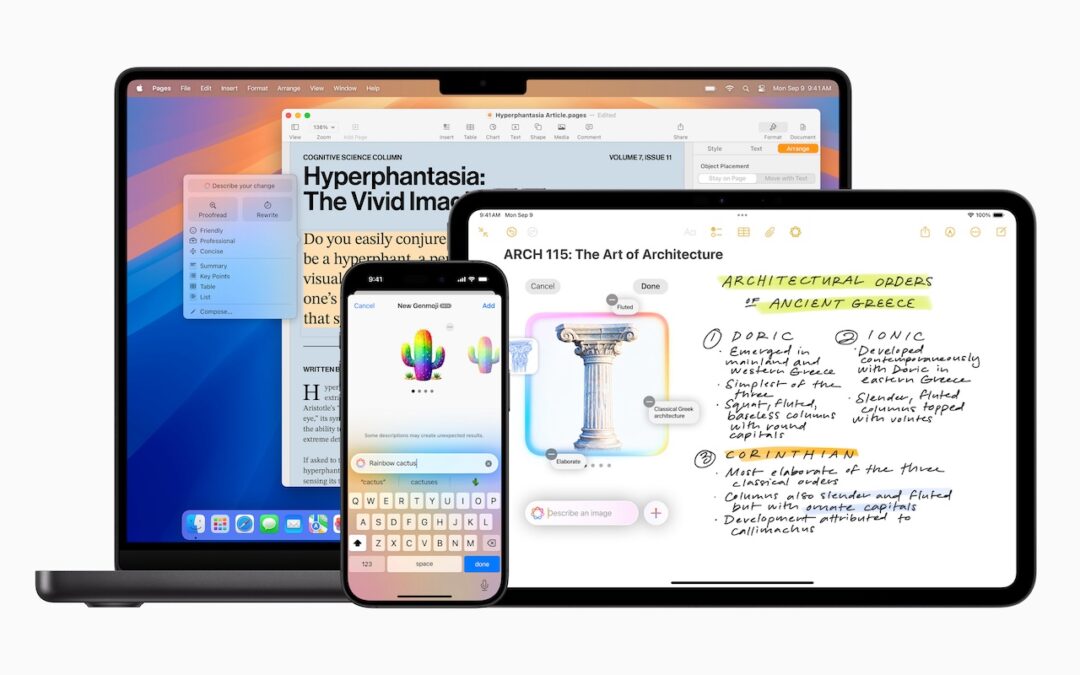
Apple unveiled Apple Intelligence in October 2024 and expanded its extensive collection of AI-powered features with its December updates. The company’s January 2025 releases of macOS 15.3 Sequoia, iOS 18.3, and iPadOS 18.3 enhanced the feature set in several notable ways. Remember, Apple Intelligence features operate only on a Mac with Apple silicon, an iPhone 15 Pro or any iPhone 16, or an iPad with an A17 Pro or M-series chip.
Although Apple still considers Apple Intelligence to be in beta, the January operating system releases enabled it by default. From Apple’s perspective, this makes sense because so many features depend on Apple Intelligence, and the company aims to ensure a consistent user experience for everyone. Those features include:
- Photos: Clean Up, natural language searching, and improved Memory movie creation
- Text and Writing: Writing Tools with ChatGPT integration for any app
- Communication: Priority messages in Mail, Smart Reply and summaries in both Mail and Messages
- Notes and Phone: Audio transcription summaries
- Creative Tools: Genmoji and Image Playground for image generation, Image Wand for Apple Pencil sketches
- Focus: Intelligent Breakthrough & Silencing and Reduce Interruptions Focus
- Notifications: Summaries for busy apps and conversations
- Siri: Enhanced capabilities, but primarily ChatGPT integration
- Camera: Visual Intelligence lookups (iPhone 16 only)
Apple Intelligence requires up to 7 GB of storage space (we see it occupying 5 GB in macOS 15.3 and 5.75 GB in iOS 18.3), so if your Mac, iPhone, or iPad is low on space, you may want to turn it off to free up room for photos, movies, and apps. Do that in the Apple Intelligence & Siri section of System Settings or Settings. However, you might not notice recovered space until your device decides to reclaim it. To check your space usage on a Mac, navigate to System Settings > General > Storage > macOS, and on an iPhone or iPad, go to Settings > General > iPhone/iPad Storage > iOS/iPadOS.

Assuming you intend to keep it enabled, what can you expect from this third update to Apple Intelligence features?
Changes to Notification Summaries
Notification summaries have proven to be Apple Intelligence’s most controversial feature. They have generated blatantly incorrect news summaries and misidentified spouses, resulting in complaints from major publications and widespread mockery. In response, Apple has temporarily turned off notification summaries for all apps in the App Store’s News & Entertainment category.
Apple also italicized all the text in notification summaries to better distinguish them from standard notifications. Previously, the only indicator of a summarized notification was a tiny icon.
Finally, Apple made it easier to manage settings for notification summaries from the Lock Screen. On an iPhone, for instance, you can swipe right to reveal an Options button, tap it, and then tap Turn Off AppName Summaries. You can also report a concern with a summary—Apple solicits feedback as part of the Apple Intelligence beta.

Visual Intelligence Adds Scheduling and Plant and Animal Identification
Apple Intelligence enhances the new Camera Control button on iPhone 16 models, enabling it to respond based on what’s in the viewfinder. Initially, it could only ask ChatGPT about what it saw or conduct a Google image search. Now, when you press and hold the Camera Control, Visual Intelligence can also detect whether you’re pointing at a poster or flyer and suggest creating a calendar event. Additionally, if it identifies a plant or animal within the frame, it will recognize it and provide more information with a tap.

Genmoji Become Available on the Mac
iOS 18.2 and iPadOS 18.2 introduced the custom emoji Apple calls Genmoji, but macOS 15.2 did not include this feature. With macOS 15.3, the Mac has now caught up. The functionality remains the same—you describe what you want to see in a few words, and the Genmoji can be based on a picture of a person. The Genmoji you create are essentially stickers, but you can use them just like regular emojis.
To create one, open the emoji picker, type a few words of description, and click Create New Emoji. You can then experiment with different descriptions and scroll through Apple Intelligence’s variants before clicking Add to save your Genmoji and insert it wherever you’re typing.

We expect at least one more major release related to Apple Intelligence, likely in early March, coinciding with the .4 operating system updates. If Apple’s engineers meet their targets, these releases will enable Siri to access and leverage your personal information for more context-aware responses. Siri will also be able to perform actions within apps. Additionally, Apple has promised priority notifications to ensure that we are quickly alerted to the most critical messages while minimizing distractions from less important ones.
In the meantime, explore the Apple Intelligence features currently available and see if they enhance your Apple experience.
(Featured image by Apple)
Social Media: Apple’s third update to Apple Intelligence introduces changes to notification summaries (including disabling controversial news headline summaries), enhancements to Visual Intelligence on the iPhone 16, and Genmoji creation on the Mac.

by Steve Sorbo | Jan 3, 2025 | Uncategorized
The first set of Apple Intelligence features appeared in macOS, iOS, and iPadOS in October. Apple has now debuted the second set in the December releases of macOS 15.2 Sequoia, iOS 18.2, and iPadOS 18.2. Apple still considers them to be in beta, which is a nice way of saying that they may not work perfectly. However, they usually do what they promise.
Remember, Apple Intelligence features work only on a Mac with Apple silicon, an iPad with an A17 Pro or M-series chip, or an iPhone 15 Pro or any iPhone 16. Intel-based Macs and older iPhones and iPads can’t play. If you’ve been holding off on upgrading, this is a fine time to make the jump. Regardless, you must turn on Apple Intelligence, which you do on the Mac in System Settings > Apple Intelligence & Siri and in Settings > Apple Intelligence & Siri on the iPhone and iPad.
What can you look forward to with this second set of Apple Intelligence features?
Image Playground Helps Make Fun Images
With Image Playground, Apple is dipping its toe into AI-driven image generation. The standalone Image Playground app lets you create amusing images with text descriptions, either starting from scratch or from a photo. You can choose from two styles: Animation, which Apple describes as “a modern 3-D animated look,” and Illustration, which “offers images with simple shapes, clear lines, and colorblocking.” (A third Sketch style will appear in a future release, and you can use ChatGPT in Writing Tools to create images in many other styles.) You can also create images directly in Messages, Freeform, Keynote, and other apps.
Once you’ve entered a few words of description or selected a person, you can embellish the image by tapping the buttons for suggested themes, costumes, accessories, and places. Each addition causes Image Playground to generate a new image, and swiping left on that image pushes it to try again. Tap the ••• button to save or share an image you like. Saved images become available on all your devices.

Genmoji Spice Up Chats on the iPhone
Less ambitious but potentially more fun are Genmoji, which are custom emoji that you create with text descriptions. Want to emote about the cold to a fellow musician? Create an emoji featuring two cellos wearing scarves.
To do this, switch to the emoji keyboard, tap the Genmoji button to the right of the search field, and describe your desired emoji. As with Image Playground, you can keep swiping left on the generated image to create more variations. When you get what you like, tap it to insert it into your chat or document.

Remember that a single emoji sent by itself in Messages is quite large; two or three emoji are medium-sized, and inserting any more than that or adding text causes them to display at the smallest size.
Created Genmoji are added to your emoji collection on all your devices, but they’re actually stickers. You can remove them by tapping the ⊕ button in Messages, tapping Stickers, and using touch-and-hold on a Genmoji to access the Remove button. You can’t create Genmoji in macOS right now, but Apple has promised that feature for a future release.
Image Wand Cleans Up Apple Pencil Sketches
In iPadOS 18.2, the Notes app now offers an Apple Intelligence-powered Image Wand tool for those taking notes with an Apple Pencil. Make a rough sketch with your Apple Pencil, select Image Wand, draw a circle around your sketch, and Image Wand will turn it into a polished image. If your circle also contains text, Image Wand considers it when building the final image.

Visual Intelligence Explains What You See
When you upgrade to iOS 18.2 on an iPhone 16, the Camera Control button gains a new capability: Visual Intelligence. Press and hold it (whenever the Camera app isn’t already open, since that will trigger video recording), and Visual Intelligence presents Ask and Search buttons on either side of the shutter button. Tapping Ask causes ChatGPT to describe the image and lets you pose follow-up queries, and tapping Search performs a Google reverse image search; tap any of the results to load it. (If you can’t immediately tap Ask or Search, press the Camera Control button again or tap the shutter button to freeze the image temporarily.)

Siri Channels ChatGPT
Perhaps the most anticipated enhancement to Apple Intelligence is the integration of ChatGPT into Siri. Unfortunately, if your goal is to converse fluidly with ChatGPT, you may be better off using OpenAI’s ChatGPT app, perhaps triggered by the Action button or a widget. The problem is that unless you explicitly direct a Siri query by starting with “Ask ChatGPT,” Siri may try to answer with its own Web search or trigger a command, leading to inexplicable and unhelpful responses. Even when you get Siri to ask ChatGPT for a response, there’s no option to have it read back to you aloud, as with ChatGPT’s Advanced Voice Mode.
If you want to use ChatGPT through Siri, turn the feature on in Settings > Apple Intelligence & Siri > ChatGPT. While you’re there, you’ll probably want to turn off Confirm ChatGPT requests, which otherwise ask if you want to use ChatGPT every time it comes up. Although it may not be obvious, once you’re in a conversation with ChatGPT, you can keep talking as long as the Siri animation continues around the edge of the screen. Unfortunately, you cannot scroll back to any previous response while Siri is channeling ChatGPT; for full transcripts, you must revert to the ChatGPT app or website.

ChatGPT Enhances Writing Tools
The final place ChatGPT appears in Apple Intelligence is in Writing Tools, which may be more useful than its Siri integration. The new Compose option leverages ChatGPT to generate content wherever you’re writing, and you can also use it to create images using ChatGPT’s image-generation capabilities. Writing Tools also now allows users to request their own changes to selected text (including recasting it as a haiku, for example) instead of relying solely on the canned options to make the text friendlier, more professional, or more concise.
To do this, bring up Writing Tools in any app (by choosing Edit > Writing Tools > Show Writing Tools or Control-clicking selected text and choosing from the Writing Tools menu). Tap Compose and describe what you want ChatGPT to create. If it’s not quite what you want, which is likely, keep asking for refinements or go in a different direction.

What’s Next for Apple Intelligence?
Although this second wave of Apple Intelligence features largely fulfills Apple’s main promises, a few major additions remain for 2025. Most notable are significant changes to Siri that will enable it to take your personal context—your email, messages, and photos, for instance—into account. Siri will also gain onscreen awareness to include what you see in its responses. Finally, Apple is giving Siri access to hundreds of new actions in Apple and third-party apps, which should make it more capable of acting on your behalf. The other notable upcoming change is Priority Notifications, which will evaluate the notifications from all your apps and help you focus on the most important ones.
We also hope Apple will continue to refine and improve the existing Apple Intelligence features. While they’re well integrated into the overall Apple experience, they seldom measure up to ChatGPT, Claude, Gemini, and other leading AI systems.
(Featured image by Apple)
Social Media: We look at the latest wave of Apple’s AI features and help you start using them for discussions with ChatGPT, creating images, making custom emoji, learning about your environment, and more.

Recent Comments