
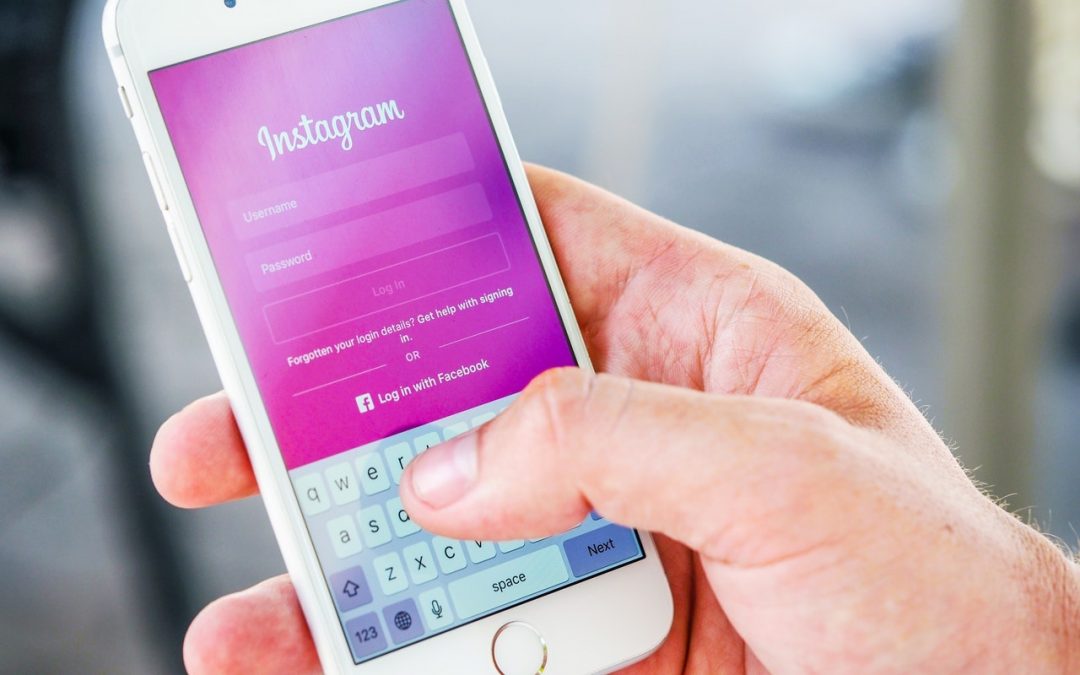
Moment Helps You Gauge Your iPhone Use and Offers Parental Oversight Option
Smartphone addiction is real. Do you check your iPhone before you get out of bed? During family dinners? Right before you go to sleep? Constantly during the day even when you’re on vacation? If you—or your family members—feel that you’re disappearing into your phone too often or at inappropriate times, it may be time to do something about it.
To start, you might want to quantify the problem, and for that, you can turn to a free iPhone app called Moment. Written by developer Kevin Holesh, Moment is designed to track three key pieces of data:
- How often you pick up your iPhone every day
- How much time you spend on your iPhone
- Which apps you use the most
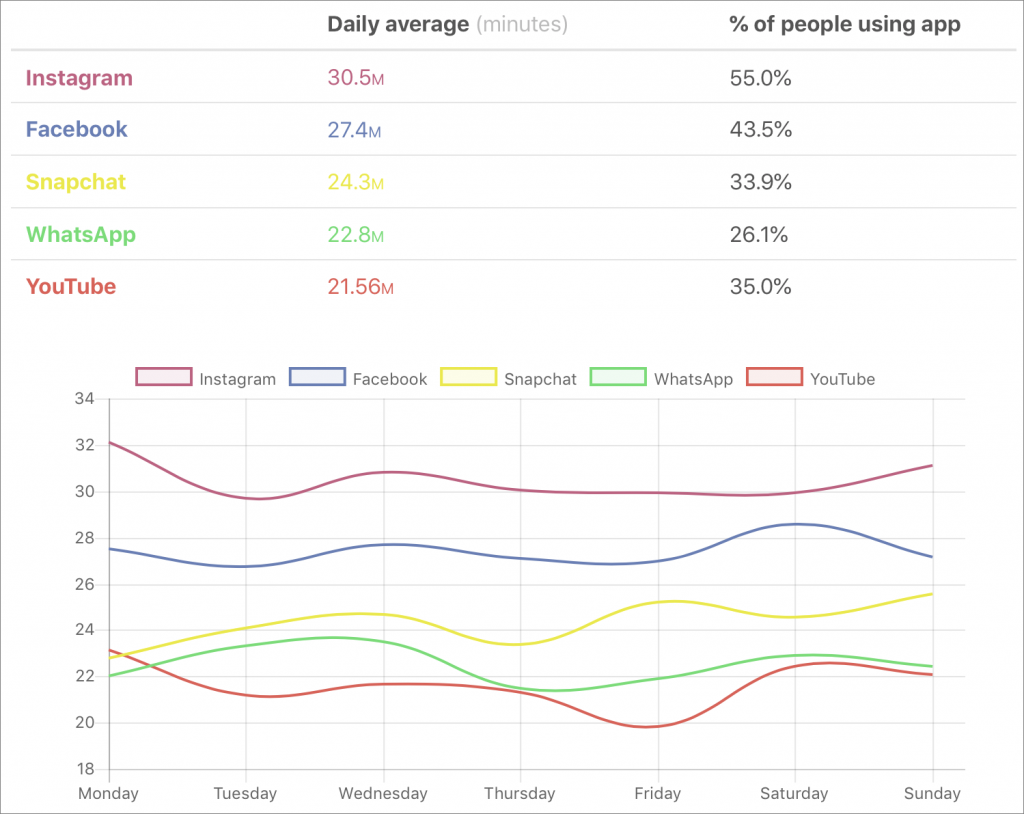
It then uses that information to paint a picture (well, not literally) of your iPhone use. Most people underestimate how much time they spend on their iPhones by about 100% (the average Moment user uses their iPhone for nearly 4 hours per day!). Knowing how much time you spend is the first step toward using your phone intentionally, rather than as a conduit to a constant stream of social media updates (look at the stats shown below), email messages, and quick-hit entertainment.
To get started, use the App Store app to install Moment, and then launch the app. It starts tracking your usage immediately, although once per week you’ll need to take screenshots of Settings > Battery so Moment can figure out how long you use each app. Then ignore Moment for a few days so it can gather some data.
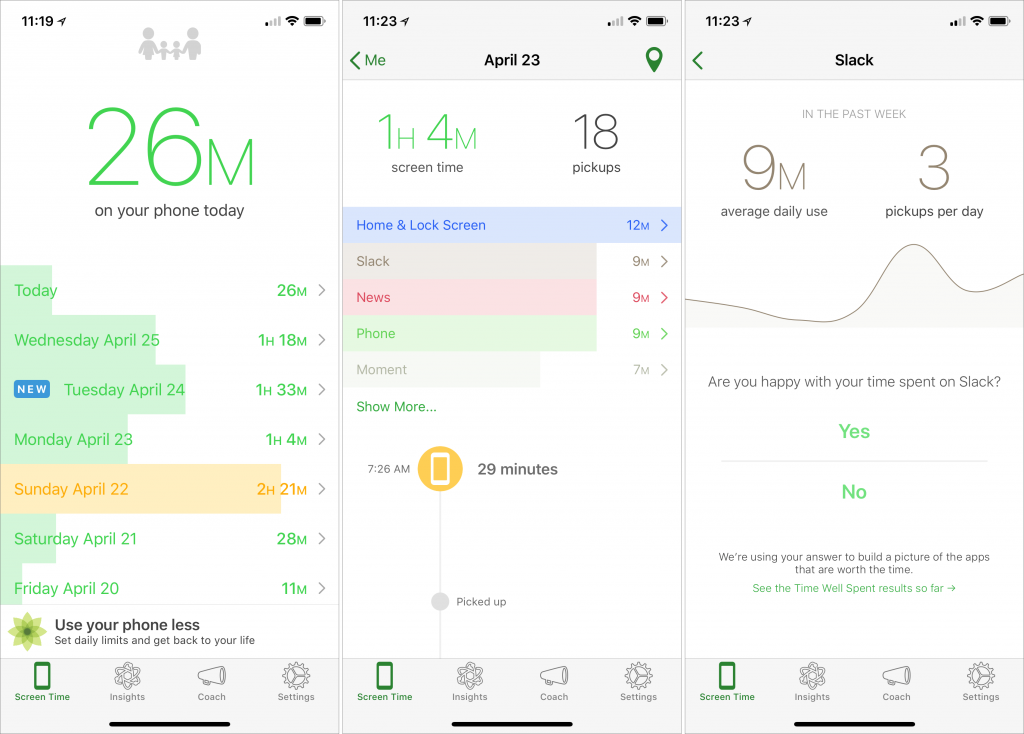
On the main Screen Time screen, Moment shows how much time you’ve spent on your phone today, along with a scrolling bar graph of how much time you spent every day since you installed Moment. Don’t get too hung up on these raw numbers, though, since Moment tracks every second the screen is on. You probably aren’t concerned about time spent reading an ebook or working out with an app that talks you through a routine.
To view both a breakdown by app and a timestamp for each time you picked up your iPhone, tap any day’s entry, and to see how much you use a particular app on average, tap it in the day view. You can answer a Yes/No question about whether you’re happy with how much you use the app, which informs the Time Well Spent aggregate data about which apps people are and are not concerned about.
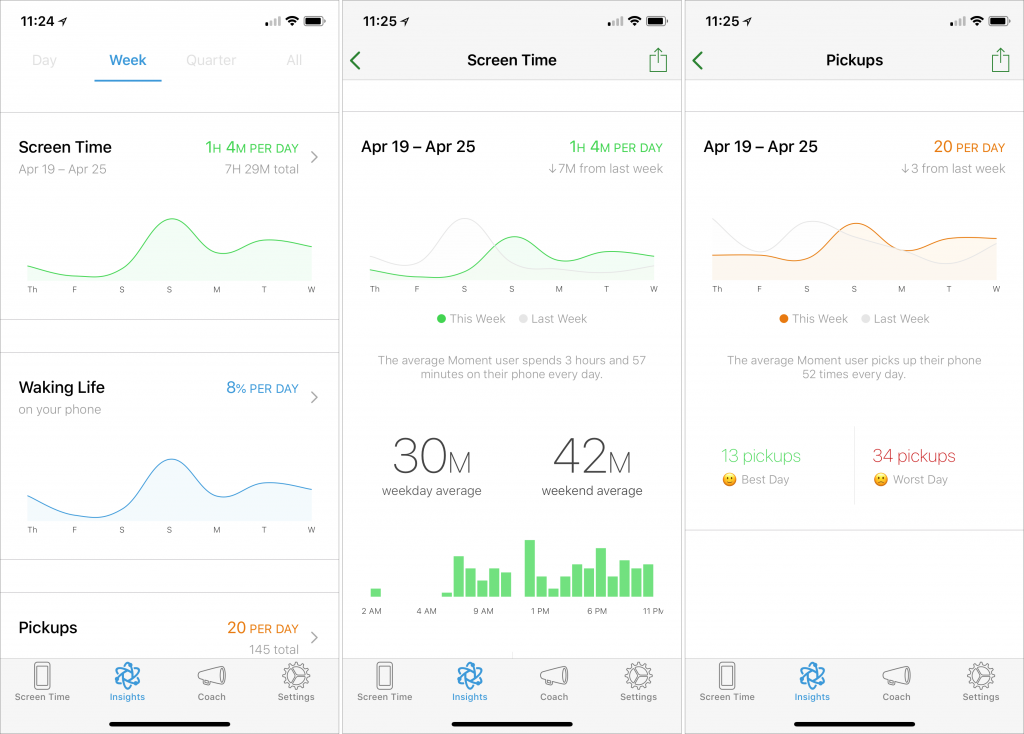
All that is helpful, but for a more useful overview, tap Insights and then Week. You’ll see graphs of your usage patterns for screen time, waking life, pickups, most used app, and sleep (this depends on your first and last pickups of the day, so take its data with a grain of salt). Tap any graph to see more detail, but wait until you’ve used Moment for a while.
Everything we’ve described so far is free, but Moment offers additional features for a one-time $3.99 in-app purchase. They let you exclude certain apps from the app-use detection, if you don’t want to be dinged for using apps that are necessary or otherwise positive. You can receive quick reminders about your usage, and set daily time limits. There is even a 14-day Phone Bootcamp course that helps you rethink your relationship with your phone.
More interesting for parents is Moment Family, a subscription service ($26.99 for 6 months or $44.99 for 12 months) that allows you to monitor your entire family’s screen time with Moment, set phone-free dinner times, and enforce daily limits.
So if you’re perturbed by the amount of time you spend using your iPhone every day, give Moment a try. On its own, it won’t solve your problem but by showing you exactly how often you turn to your phone—and for what apps—it can help you regain control over your usage patterns. And if others in your family have trouble putting their iPhones down at dinner or to do homework, Moment Family could be the answer.
Social Media: Bothered by how much you find yourself using your iPhone for social media? Use the Moment app to quantify the problem. An added subscription can also help an entire family reduce excessive iPhone use.

Recent Comments