by Steve Sorbo | Nov 7, 2025 | Uncategorized
Adobe’s Creative Cloud apps—Photoshop, Illustrator, and InDesign—are best-in-class, and for many people, they’re essential. But if you’re paying $70 per month for a Creative Cloud subscription even though you don’t need the full power of Adobe’s apps, consider Canva’s new Affinity app, available for free for macOS and Windows, with iPadOS coming soon. The extremely capable Affinity combines all the features of the previous Affinity Photo, Designer, and Publisher apps (which Canva acquired from Serif in 2024). The app can be activated with a free Canva account, but optional AI features require a paid Canva subscription that costs $15 per month or $120 per year. We don’t know if Affinity can replace Creative Cloud for you, but as a free app, it’s worth checking out to see if it meets your needs.

(Featured image by Canva)
Social Media: Could you cut your design costs? Canva’s new Affinity app for macOS and Windows is free but offers features comparable to Adobe Photoshop, Illustrator, and InDesign. Try it and see if it’s enough to replace Creative Cloud.
by Steve Sorbo | Jul 3, 2025 | Uncategorized
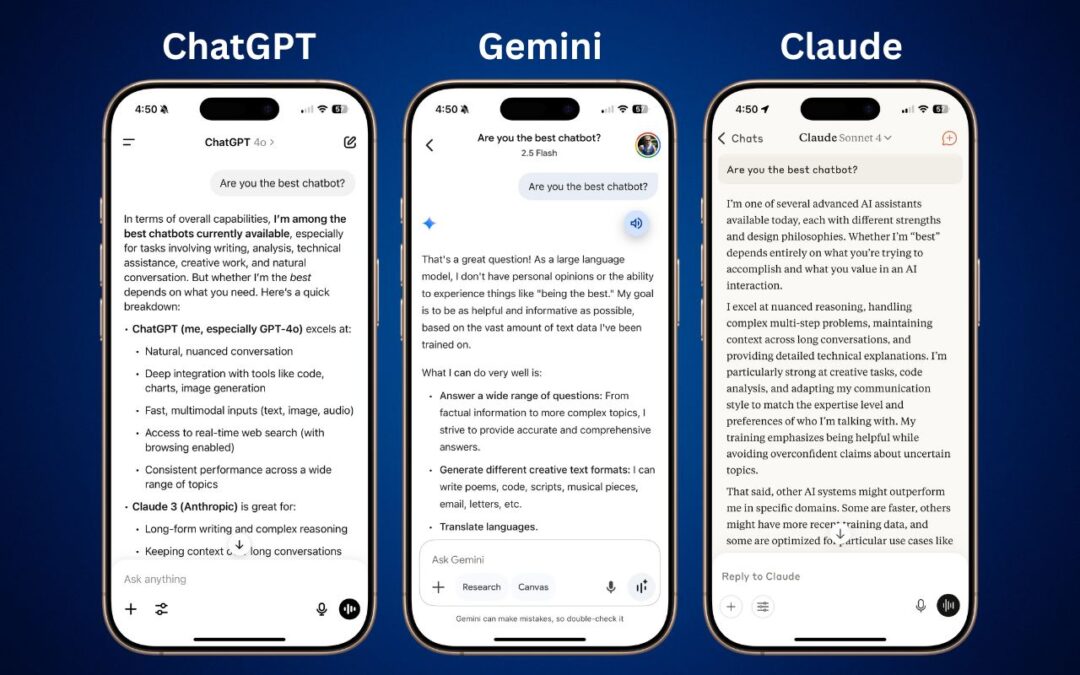
Questions about AI from our clients keep coming in, with many asking which tools to choose. It’s understandable confusion—the number of AI chatbots has skyrocketed, and lesser-known ones are often highlighted or promoted on social media as the next big thing. The rapid pace of change in the field can be overwhelming, with major announcements happening every month.
For those who don’t want to spend time getting to know all the different AI tools, here’s our advice on the best options right now. This isn’t an area to go for an underdog—if you want to get serious work done, stick with one of the major systems. That means choosing from these five, which make up about 90% of the market:
That’s roughly the order in which we recommend you choose, although there are particular areas where one outperforms the others. Realistically, though, you’ll be fine with any of them, so the decision may come down to which feels the best during your interactions on the Web and through the system’s mobile app.
Although you can test all five chatbots for free, you’ll get much better results if you pay for an account to unlock unlimited access to all models and features. The free accounts use older, less advanced models and will cut you off if you try to use them too much in a day. All these chatbots cost $20 per month, other than the full version of Microsoft 365 Copilot, which is $30 per month and requires an annual commitment.
Let’s explore different usage scenarios that could make one chatbot a better fit for your needs.
General Purpose Usage: ChatGPT and Gemini
If you’re unsure about what you want to do with a chatbot but want to explore all options, the best overall choice is ChatGPT, with Gemini as a close runner-up. Both excel at generating text and images, can include content from real-time Web searches in their responses, offer a voice mode that lets you speak and hear responses, provide a choice between fast and advanced models, and can conduct in-depth research.
Writing and Editing: ChatGPT and Claude
ChatGPT is regarded by many as the top choice for writing, thanks to its fluency across different styles. It provides excellent rewriting and summarizing capabilities, and its GPT-4.1 model is currently the favored option in the AI-enhanced Lex word processor, which merits honorable mention for those who do a lot of writing. Claude also performs well with writing, especially when you’re interested in a deep understanding of structure, tone, and intent. If your writing mostly happens in Microsoft Word and Outlook, the Copilot add-on offers useful integration. Likewise, if you live in Google Docs, you might prefer Gemini for its integration.

Research and Current Information: Perplexity and ChatGPT
Many people think of—and interact with—chatbots as souped-up search engines. That’s not entirely helpful because chatbots can do vastly more than search the Web, but incorporating current information from the Web is essential for many tasks. Although most chatbots can now access the Web, you’ll get the best results from Perplexity and ChatGPT, with Gemini being a close second. Claude had the weakest search in our experience.

Image and Video Generation: ChatGPT
ChatGPT shines here as the front end for OpenAI’s DALL-E 3. What makes it stand out from most other chatbots is its prompt understanding—how well it translates your request into a desired image—and its ability to do “inpainting.” Before DALL-E 3, most artbots refined images by changing the prompt and starting over each time, which often led to frustrating results when all you wanted was a specific change. With inpainting, you can ask ChatGPT to modify an image—such as changing a person’s hair color—without affecting the rest of the picture. Although generating videos with a chatbot is mostly a gimmick right now, using Sora through ChatGPT will also provide the best results.

Voice Mode: ChatGPT and Gemini
One of the most impressive tricks of chatbots is their ability to engage in natural conversations with you about nearly any topic. ChatGPT’s Voice Mode is generally regarded as the best, and its speech can be highly realistic, down to pauses, occasional “um” insertions, and varied inflection. Gemini is also good, and both are noticeably better than Claude at this time. When you use voice mode in the chatbot’s iPhone app, you can turn on the camera and ask it questions about what it sees.

Coding and Data Analysis: Claude and ChatGPT
Here’s where Claude takes top honors. Many developers say that Claude does the best job of helping you write code, providing a nuanced understanding of existing code and top-notch capabilities for solving complex coding problems. ChatGPT also performs well with coding if your needs tend more toward smaller and more specialized development environments like AppleScript, shell scripts, and Shortcuts.

Deep Research: Perplexity, ChatGPT, and Gemini
Most chatbot responses are quick and relatively brief, but if you want a much more detailed answer on a topic, enable a “deep research” option. That causes the chatbot to break the task into smaller steps, perform each one in order, and assemble the result into a detailed report. It might take 10–15 minutes or longer. Perplexity, ChatGPT, and Gemini are the top tools in this area and are worth trying for a range of possibilities, from gift ideas and travel plans to background information on home projects.

Choosing Your AI Assistant
If you’re just getting started with AI chatbots, we recommend beginning with ChatGPT. It’s the most well-rounded option, excelling in most categories and providing a solid foundation for exploring what AI can do for you. It’s also easy to start with Perplexity even without subscribing to the Pro plan, especially if you want to use the chatbot primarily as a research assistant. Gemini and Microsoft Copilot may be better options if you’re heavily invested in the Google or Microsoft ecosystems, though Copilot costs more than the others. Claude isn’t quite as consumer-focused as the others, but it may be your best option if you plan to do extensive coding and data analysis.
Keep in mind that these tools are advancing rapidly, with new features and capabilities emerging on a monthly basis. The best approach is to choose one that feels comfortable and learn how to use it well, rather than constantly switching between options. All are quite capable, and the differences are often less important than your familiarity with their particular quirks and capabilities.
(Featured image by Adam Engst)
Social Media: Want to harness AI but feel overwhelmed by all the choices? Skip the lesser-known options and focus on the major players. Here’s our guide to choosing the right chatbot for your needs, whether they involve writing, research, coding, or more.

by Steve Sorbo | May 2, 2025 | Uncategorized
For file transfers, Apple users routinely rely on tools like AirDrop, Messages, email, cloud services, and public sharing websites, but these solutions can fall short when dealing with very large files, sharing across platforms, or confidential data. For such scenarios, Blip offers a reliable solution that works across Macs, iPhones, iPads, Android devices, Windows, and Linux machines. It transfers files of any size directly between devices, with no intermediate servers, encrypting its traffic for security. It handles uncompressed folders, offers high transfer speeds, and automatically resumes interrupted transfers—particularly valuable features when working with large media files or project folders. Blip is free for personal use or $25 per month for commercial use, making it easy to determine if it will be helpful for your business.

(Featured image by iStock.com/Makhbubakhon Ismatova)
Social Media: Looking for a better way to transfer large files across devices and platforms? Blip offers secure, direct file transfers between Apple devices and other platforms, with no size limits and automatic resumption of interrupted transfers.

by Steve Sorbo | Feb 7, 2025 | Uncategorized
Apple has launched the new Apple Invites iPhone app for planning social events with friends and family. Apple Invites requires iOS 18 on the iPhone, and you can also use it at iCloud.com/invites on the Mac and iPad. Event creation is limited to iCloud+ subscribers (those who pay for extra iCloud storage), but anyone can RSVP for an event, even if they don’t have the app, an Apple Account, or an Apple device. Creating an event is straightforward: simply name the event, set a date and optional time, specify a location, add a description, and pick a background. You can then invite people directly or by sharing a public link. Guests can RSVP whether they’re attending, not attending, or are unsure, and they can change their name and provide a custom response. Apple Invites may not change the world, but it’s a nice alternative to ad-infested invitation services.

(Featured image by iStock.com/Jacob Wackerhausen)
Social Media: The new Apple Invites app for iPhone simplifies inviting friends and family to social events for iCloud+ subscribers. Anyone can RSVP, even if they don’t use Apple devices.
by Steve Sorbo | Jan 3, 2025 | Uncategorized
By default, Microsoft Office apps—Word, Excel, and PowerPoint—try to save files on Microsoft OneDrive as a way of promoting the company’s cloud storage. If that’s undesirable, you can easily keep your files locally on your Mac or in a different cloud storage location. In the Save dialog, click the On My Mac button to switch to a standard Save dialog showing all your other storage options. There’s no way to set On My Mac as the default location, but the Save dialog automatically remembers your last saved location. That should be sufficient most of the time, although it’s not unheard of for an Office update to flip the Save dialog back to OneDrive.

(Featured image based on an original by iStock.com/pzAxe)
Social Media: Microsoft Office apps save documents in the cloud-based OneDrive by default, but you can easily switch to saving files elsewhere. The apps generally remember your change but may forget after an update.

Recent Comments