by Steve Sorbo | Apr 4, 2025 | Uncategorized
Every company today conducts business online, by sending email, if nothing else. That’s true even if your firm operates primarily in the physical world—customers undoubtedly find you by browsing in Apple Maps, searching in Spotlight, and asking Siri for directions. If you sell products, you probably take Apple Pay.
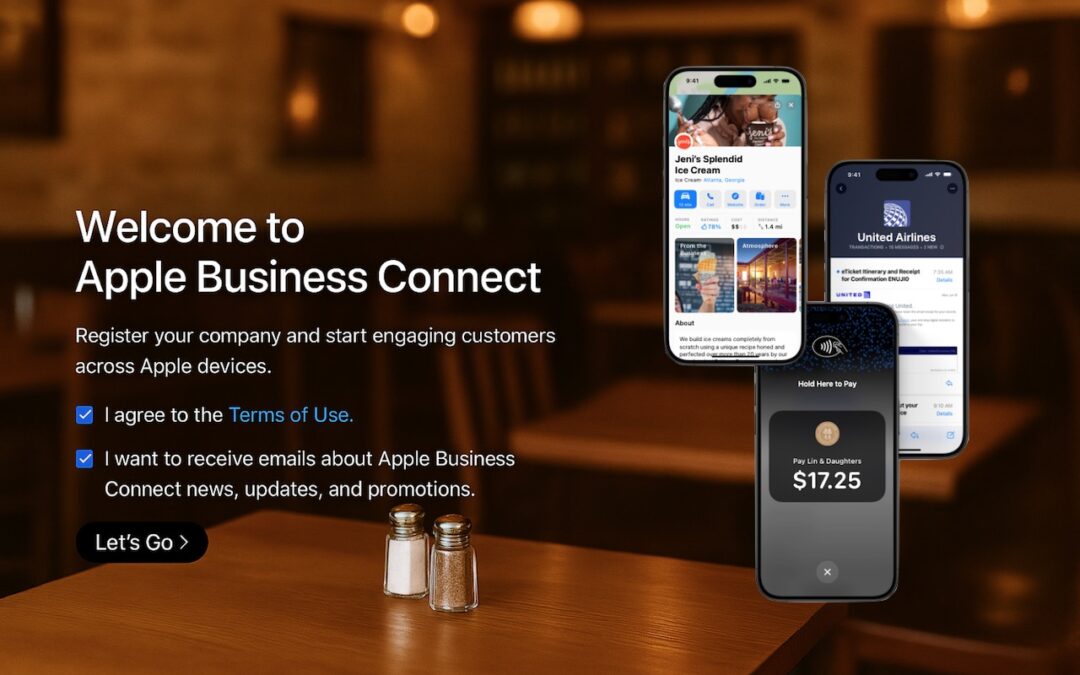
Apple Business Connect is a free program designed to help businesses enhance their brands everywhere they appear on Apple devices, including Maps, Wallet, Siri, Calendar, Messages, Spotlight searches, and more. Once you sign up for Apple Business Connect (we’ll resist the temptation to say it’s as easy as ABC) and are verified by Apple, you can:
- Set up Branded Mail: With Branded Mail, email sent from specific addresses or your entire domain will be branded with your logo in the Mail app on Apple devices, helping users identify your brand.

- Configure location information: Simple addresses don’t always connect with store entrances, so you can precisely specify the entrance to each of your locations.
- Customize Place Cards: When customers find you in Maps, add your address to Calendar, or ask for your location from Siri, Apple displays a Place Card. With Apple Business Connect, you can customize the Place Card.
- Add custom action links: Your Place Card can contain custom action links that point to your website or other Web-accessible platforms. For instance, a restaurant might add custom action links for Menu, Reservations, Takeout, etc.
- Create Showcases: A Showcase is a module on the Place Card that lets you highlight sales, deals, new items, or other promotional content. If someone is looking for you, why not promote your latest offerings?
- Get Insights: Apple records valuable information about customer search behavior, including search locations, discovery methods, and actions customers take after finding your business.
- Add Tap to Pay on iPhone: For those who don’t already have a point-of-sale system, Tap to Pay on iPhone lets you accept contactless payments on an iPhone without an extra terminal or hardware.

Apple has also announced Business Caller ID, slated to ship in 2025, which will display your brand’s name, logo, and even a specific department when you call someone using an iPhone. That should help people realize that a call from your company is legitimate and not some telemarketer, making them more likely to pick up.
Getting started with Apple Business Connect is simple, but verification can take up to a week. It’s best to work through Apple’s clear documentation for registering your business, but the basics are:
- Sign in with your Apple Account (use your Apple Business Manager account if you have one).
- Enter your company details.
- Set up a brand by giving its name, category, geographic location, and logo.
- Turn on Branded Mail by adding a domain or email address, and verifying your company.
- Add a location by specifying its address and hours.
- Create a Place Card, add a Showcase, and create custom actions.
Needless to say, Apple Business Connect only impacts how you appear to people using Apple devices and apps. For everyone else, we recommend setting up a Google Business Profile, which provides similar features, though primarily for businesses with physical locations and upsells for advertising on Google.
However, it’s absolutely worth working with Apple Business Connect to enhance how you and your brand appear to customers. If you need help setting it up, contact us.
(Featured image based on an original by Apple)
Social Media: Discover how Apple Business Connect helps businesses stand out in apps like Maps, Spotlight, Calendar, and Wallet. From custom Place Cards to branded email, Apple Business Connect can enhance your brand and help you reach your audience more effectively.

by Steve Sorbo | Feb 7, 2025 | Uncategorized
Cloud-based email services such as Google Workspace and Microsoft 365 dominate the market for organizational email for good reason. Dealing with the constant onslaught of spam and online attacks is hard, as those traumatized by running mail servers in the “good old days” can attest.
While email service providers excel at their primary functions of sending, receiving, and storing emails, they prioritize availability and uptime over backup and recovery. Depending solely on their built-in protection systems can leave organizations vulnerable to data loss. Although it’s exceedingly rare for email service providers to lose data due to system failures—all modern email systems are distributed and replicated in virtualized storage—they cannot safeguard against every risk. Here are some scenarios we’ve encountered where a separate email backup solution was useful:
- Recover from human error: This is the big one. People often accidentally delete important messages or clean out old messages too aggressively, inadvertently including critical conversations in a mass deletion. Backups ensure that these messages can be retrieved.
- Ease employee turnover: When employees leave, it’s essential to deactivate their email accounts for security reasons. However, information in their accounts may be vital for ongoing projects or legal purposes. Backups preserve this data for future access.
- Mitigate cyber threats: Phishing attacks are commonplace today. If an employee falls victim to one, their email account could be compromised and data lost. Worse still, the attacker could install malware—even ransomware, though that’s not a significant real-world concern for Apple-only installations—that could result in email data loss. While training employees to recognize and avoid phishing attacks is crucial, backups provide an essential safety net for anyone who makes a mistake.
- Facilitate data migration and archiving: Organizations often need to migrate email data from one system or user to another. While it’s rarely necessary or desirable to migrate everything—all the mail from the past year may be sufficient—it can be helpful to maintain archival access to historical communications.
In fact, both Google and Microsoft explicitly state that they store data for only a limited time and recommend employing a backup service. (The specifics may differ, but generally, you can retrieve a deleted email within 30 days, after which it may be recoverable for an additional 14 or 30 days.) Numerous companies provide email backup services, many of which are quite similar. The list below highlights some of the most common services, but we encourage you to reach out for recommendations based on your email service provider and organization size.
- CloudAlly offers unlimited data retention and extends its backup capabilities beyond email to encompass platforms such as Box, Dropbox, and Salesforce.
- CubeBackup focuses exclusively on Google Workspace and Microsoft 365. It provides a cost-effective solution by allowing users to utilize their own local or remote storage.
- Backupify and Datto SaaS Protection are from the same company and offer the same backup capabilities, but they serve different market segments. Datto further enhances its branded services with a range of business continuity and data protection tools.
- Dropsuite provides unlimited storage and also supports QuickBooks Online backup. It features a flexible backup cadence, with email backups up to 12 times per day.
- MSP360 Managed Backup is a feature-rich solution that, while more complex and potentially more expensive than those from competitors, offers extensive customization and supports a wide range of storage providers.
- Spanning goes beyond Google Workspace and Microsoft 365 with Salesforce backups. It offers highly granular restores, enabling the recovery of individual emails. Its FLEXspend feature simplifies backup expenditures when transitioning between platforms.
- SpinBackup offers disaster recovery services at an affordable price point, and its developer, Spin.ai, provides a wide range of security solutions beyond backup, including data leak and ransomware protection.
- Synology Active Backup includes free add-ons for Google Workspace and Microsoft 365 that back up cloud data to a Synology NAS. It’s an excellent solution for avoiding ongoing expenses.
As important as an email backup solution is for protecting against data loss, we urge you to proceed carefully when selecting one. If you end up with data that exists solely in a particular solution, legal retention requirements or the inability to export data in a non-proprietary format may lock you into paying for it indefinitely. Ideally, keep all data live so you can transition to a different solution to meet changing needs. Again, please contact us for help picking the most appropriate solution for your needs.
(Featured image by iStock.com/Rasi Bhadramani)
Social Media: Cloud-based email services like Google Workspace and Microsoft 365 provide excellent uptime and availability. However, an independent email backup solution is essential to protect against accidental deletion, cyber threats, and other data loss concerns.

by Steve Sorbo | Dec 2, 2024 | Uncategorized
We regularly warn Internet users about online scams and phishing attacks. Most of these are relatively easy to identify and avoid once you’re aware of telltale signs. Unfortunately, we’ve encountered a newer type of scam that’s more difficult to identify, partly because it plays on fears of legal action.
Website owners are the target of this scam email, which purports to come from a lawyer. The message states that an image on your site has been used without permission. Such a claim is all too believable for many, especially those who may not have been as careful about usage permissions in the distant past as they are today. The message includes a link to the image, a link to the purportedly infringing page, and a threat to initiate legal action if certain actions aren’t taken within five business days
Unusually, the email doesn’t ask you to take down the infringing image or pay a retroactive licensing fee. Instead, it says you must credit the image’s copyright holder and include a link. Such a simple request seems like a huge win—instead of paying a licensing fee or worrying about being sued, you can twiddle a little HTML and move on with your life.
Don’t do it! This is what’s called a “link insertion scam.” It exploits the search engine optimization principle that links on reputable sites provide legitimacy to linked sites, helping them move up in the search rankings. Unfortunately, the reverse is also true; linking to a scammer from your website will cause Google and other search engines to penalize your site in the search rankings.
Unfortunately, these copyright infringement scams look legitimate at first glance, as you can see in this example. The From and Subject lines don’t seem forged or malformed, and there are no obvious grammatical errors or indications that the writer doesn’t speak fluent English. And when you click the link in the signature, you end up at what appears to be the website of a real law firm. What should you do if you receive a message like this?

First, don’t panic. Just because the message looks legitimate doesn’t mean it comes from a real lawyer. Also, don’t call your lawyer unless they’re willing to work for free. You can save stress, time, and money by evaluating the message yourself.
A few details in the message suggest that it’s not real:
- The domain in the From line’s email address—elitejusticeadvisors.biz—sounds sketchy and doesn’t match the company name.
- The Subject line of “DMCA Copyright Infringement Notice” sounds official, but those familiar with the DMCA will know that it can be used only for a formal notice-and-takedown process, not to make demands for attribution or payment. But most people won’t know that.
- The message is addressed to the generic “Dear owner of,” whereas legitimate messages from a lawyer would be addressed to a specific entity.
- The required link URL points to a telecom news site in Sri Lanka, and it’s odd that an Arizona lawyer would be working for such a client.
- The example of the purportedly infringing image is hosted at Imgur, a consumer image-hosting site known for funny pet pictures and cringeworthy GIFs. Legal firms would always use some sort of case management site.
Those details may feel wrong, but they’re insufficient to prove it’s a scam. You’ll need to dig deeper. Here are some ways you can do that:
- Investigate the domain: Do a Web search on the domain in question: elitejusticeadvisors.biz. Because others have written about this scam, articles identifying it as a scam will appear on the first page of the results.
- Search for the lawyer and firm: The lawyer’s name is too generic to yield revealing results, but if you do a Web search on “Dean Parker Commonwealth Legal Services,” you’ll once again see that others have identified it as a scam.
- Check a state bar association directory: Most state bar associations or state courts have a searchable directory of licensed legal professionals. A quick search of the State Bar of Arizona’s member directory reveals that no “Dean Parker” is licensed in Arizona.
- See if the headshot matches a real person: If the website provides a headshot, you can copy the image (Control-click it and choose Copy Image) and paste it into the TinEye reverse image search engine. Since all the results say “generated.photos,” it’s a good bet that the image was AI-generated.

- Search for the company’s full name and address: As with the name of the lawyer, the generic-sounding name of the law firm will probably match other companies. However, if you search for the full name and address, you’ll likely turn up articles about it being fake.
- Visit the address virtually: With Apple Maps and Google Maps, you can verify that a business is present at a location (or not) and often view the offices using Google Street View. Both mapping tools show no law firm at the provided address. Additionally, the building does not have a fourth floor, as specified in the address.

- Ask ChatGPT: Now that ChatGPT has access to current Web information, it’s worth pasting the complete contents of the message into a ChatGPT conversation and asking it to tell you about the message. Start generally, but then ask if it thinks the message might be a scam, and if so, to suggest ways you could verify your suspicions.
Some of the above search suggestions identify the scam only because the scammer has reused the same company name, lawyer name, physical address, and website. If you were the first to be targeted by a new scam, the state bar association search and physical address check would be the most likely to expose it.
Let us leave you with an important caveat. You shouldn’t assume that all copyright infringement messages are scams. A legitimate DMCA takedown notice will ask you to remove the content, and a real copyright infringement message—probably from a company that specializes in such matters rather than a lawyer—will likely demand payment. In both cases, take down the offending image right away. If you really were using an image without permission, some payment may be required, and if the amount feels excessive, contact a lawyer specializing in copyright infringement cases. They may be able to negotiate a lower payment or point out issues that will make the claim go away.
(Featured image based on an original by iStock.com/Olivier Le Moal)
Social Media: If you receive what looks like a copyright infringement message complaining about an image on your website, don’t panic—it might be a scam. We help you identify such scams and explain what to do if the message turns out to be real.

by Steve Sorbo | Dec 2, 2024 | Uncategorized
Employers and their employees part ways for all sorts of reasons. People may move on because of a contract’s completion, to take a new job, or because they’re retiring. Employees may also leave due to being laid off or fired. Whatever the reason, offboarding—the process of managing an employee’s departure from an organization—is essential.
Without a systematic offboarding protocol, organizations face significant risks related to data security, device mismanagement, operational disruptions, and compliance violations. In a particularly troubling example, a fired employee allegedly hacked Disney World’s menu creation system, changing prices, adding profanity, and—most problematically—adjusting allergen information in ways that could have caused someone allergic to peanuts to order food that contained them.
Obviously, offboarding has various administrative aspects. We’ll focus on those associated with technical infrastructure, but it’s also important to consider how you’ll communicate internally about the departure and any human resources and legal matters.
Our overarching advice regarding offboarding is to establish a formal protocol so everyone knows what’s involved. That’s particularly important for departures that happen with little notice. When building your offboarding plan, consider these three parts of the process: revoking access, retrieving devices, and preserving the organization’s data.
Revoke Digital Access
When offboarding an employee, the most important thing to consider is how you’ll revoke their digital access to organizational resources such as email, a shared password manager, and core service accounts. For those who are retiring or staying to train their replacement, access revocation can proceed gradually on a schedule. This approach provides sufficient time to transition ongoing projects and communications.
However, in most cases, it’s safest to revoke access immediately, especially when an employee has been terminated involuntarily due to layoffs, performance problems, or misconduct, or when dealing with employees in high-security roles, such as IT administrators, members of the legal team, or high-ranking executives. Even if their departure isn’t contentious, the risk of data leakage is too high.
Revoking access is significantly easier if you’re using Apple Business Manager and an MDM platform. Because Apple Business Manager lets you use federated Apple Accounts, it’s simple to revoke access to iCloud and other Apple services. Plus, because Apple Business Manager makes it possible to separate personal Apple Accounts and their associated data, employees can move their personal data off an organization’s device more easily.
MDM—mobile device management—is even more important because it enables administrators to revoke access to organization-managed email accounts, VPNs, Wi-Fi networks, and cloud services. If a device isn’t returned, an MDM platform can remotely lock, wipe, or reset it. For BYOD scenarios (Bring Your Own Device, where employees use their own devices rather than organization-owned ones), a properly configured MDM allows the removal of organizational data and profiles without affecting personal data.
Using an identity provider like Google Workspace, Microsoft Entra ID, or Okta with a single sign-on system makes revoking access even more straightforward. These services tie access to an organization’s apps, resources, and devices to a single login, so deactivating a departing employee’s account in the identity provider instantly cuts off access to all connected systems. Otherwise, you’ll find yourself doing the dance of deactivating Google, then Adobe, then Slack, and so on. It’s tedious and potentially error-prone.
Finally, the combination of an MDM system with single sign-on can also help monitor employee behavior during the offboarding period for unusual activities. You’ll want to know if a terminated employee logs in to a confidential database that they have no reason to access immediately after receiving notice.
Retrieve Organization Devices
Another key aspect of your offboarding plan should revolve around retrieving organization-owned devices. Even if you can use MDM to revoke access, you need to get your devices back so they can be given to other employees or held in reserve as backups. Apple Business Manager helps here, too, since it tracks all registered devices owned by the organization and can reassign devices to new users.
The real win of Apple Business Manager in this regard is that it lets you turn off Activation Lock on all supervised devices, whether it was turned on using a federated Apple or personal Apple Account. Without Apple Business Manager, you may have to work with the employee to regain access to the device. If that’s not possible, Apple support may be able to help unlock the device if you can provide proof of purchase and ownership.
To ensure you don’t end up in such an awkward situation, follow these best practices when using Apple Business Manager:
- Make sure to purchase Apple devices through Apple Business Manager-compatible channels.
- Use Automated Device Enrollment to ensure that devices are supervised and managed by MDM out of the box.
- Rely on federated Apple IDs to ensure the organization retains control over organizational content within Managed Apple Accounts.
Preserve Organization Data and Communications
Finally, think about what the departing employee was doing. You’ll want to transfer or archive everything they worked on, including their organizational email account. In most cases, someone else will have to take over their responsibilities and may need access to emails, files, contacts, and more.
An identity provider can help by transferring ownership of cloud-based files and other data stored in Google Workspace or Microsoft 365. Without one, you’ll have to review all their online files and reassign ownership manually.
Email requires additional thought. You’ll probably want to forward the departing employee’s email to whoever is taking over. If that’s not feasible, set up an auto-reply explaining that the employee is no longer available and providing alternative contacts. In that case, it’s also worth scanning the incoming email periodically to ensure essential communications aren’t being missed.
Next Steps
If you don’t have a formal offboarding policy, we recommend developing one soon to ensure that you aren’t at risk for data security, device mismanagement, or operational disruptions. It’s one of those tasks that are easy to put off until it’s too late, at which point you have to scramble. You can find offboarding policy templates and other resources online, and we’re happy to discuss the tech-specific aspects when you’re ready.
Of course, if you’re not already using Apple Business Manager and an MDM solution, getting started with them is even more important to implement right away. Contact us to discuss what’s involved.
(Featured image by iStock.com/yacobchuk)
Social Media: Regardless of whether an employee is leaving voluntarily or being terminated, it’s essential to walk them through a systematic offboarding process to revoke their digital access, retrieve devices, and preserve organizational data. We have thoughts.

by Steve Sorbo | Oct 1, 2024 | TCN Content
Macs are much more reliable than in the past, but it remains the case that computers and apps can fail in a wide variety of ways. And they’ve become so integral to daily life that an occasional failure is almost inevitable. Unfortunately, if you aren’t prepared for that eventuality, you may lose work and suffer from unnecessary downtime. A little forethought can significantly minimize the impact of app crashes, lost connectivity, storage failures, and overall hardware hiccups.
App Failures
The most common problems occur in apps, where you have to worry about crashes and file corruption. (Cosmetic bugs and broken features are annoying, but apart from reporting them, there’s nothing you can do about them and they shouldn’t cause you to lose work.) To protect yourself from crashes and corruption, we recommend the following:
- Save new files immediately: Although many apps auto-save, not all do. Whenever you start a new file, save it immediately and frequently as you work. That way, a crash can’t cause you to lose everything you’ve done.

- Use always-on backup software: Backup software like Time Machine and Backblaze run throughout the day, making versioned backups that let you restore earlier versions of a file. Those backups can be a lifesaver if your document becomes corrupted.
- Make manual versions of critical files: For documents where losing work would threaten your continued employment, we recommend making manual versions at least daily, preferably on a cloud storage service. Append a version number to each file, and keep all the versions until you complete the project.
Connectivity Failures
As more of our work has moved online or requires access to online resources, always-available connectivity has become necessary. Many people feel incapable of getting things done without Internet access. Here are some workarounds:
- Be able to switch between Wi-Fi and Ethernet: If one method of connecting to your local network fails, switching to the other can let you get on with your work with minimal interruption. A wireless access point failure could send you to wired Ethernet, or Ethernet cable damage could make Wi-Fi the only option. One shortcut for this is to keep both network adapters active in System Settings > Network, so the Mac can use either.

- Turn on a personal hotspot: If your Internet connection goes down, the fastest way to get your Mac back online may be to connect to your iPhone’s personal hotspot. Set it up in Settings > Cellular > Personal Hotspot and choose it from your Mac’s Wi-Fi menu.

- Identify a public hotspot: Assuming you have a Mac laptop, the better part of valor may be to go somewhere with Internet access, whether a coffee shop, the public library, or the house of a friend or family member. If your problem falls outside business hours, you might even be able to access a public network from a nearby parked car.
- Purchase backup networking hardware: Organizations should maintain backups of their networking gear. In the event of hardware failure, being able to swap a backup router, access point, switch, or cable into place will minimize downtime. Make sure to record your networking configurations so you can configure the new devices quickly.
Storage Failures
Historically, the most failure-prone aspect of a Mac was its hard drive because of its moving parts and insanely tight tolerances. Flash storage used by solid-state drives is far more reliable and resilient to physical bumps and drops. However, it’s still in constant flux as macOS and apps constantly read and write data, so software bugs can result in directory errors and other forms of corruption. We recommend a three-part backup strategy to protect against storage failures—make sure to dedicate drives for backups rather than using them for general storage.
- Back up with Time Machine: Time Machine works well and is tightly integrated into macOS. Use it to create versioned backups of your data so you can restore either individual files or your entire drive.

- Make nightly duplicates: Bootable duplicates that could take over for a dysfunctional boot drive used to be an essential part of a Mac backup strategy, but the difficulty of making them and booting a Mac from an external drive has reduced their utility. Nevertheless, the fastest and easiest way to restore data is often by copying it from a duplicate. Duplicates also provide secondary backups if something were to go wrong with your Time Machine drive. Carbon Copy Cloner and SuperDuper are the most popular backup apps for duplicates.

- Maintain Internet or offsite backups: In the event of fire, flood, or theft causing the loss of both your Mac and your backup, an offsite backup is a must. The easiest and most reliable method of making a backup somewhere else is an online backup service like Backblaze or Crashplan.

Overall Mac Failures
Macs may be reliable, but they’re still vulnerable to physical damage, particularly laptops you carry with you all the time. Bumps and drops can damage a screen or internal connectors that connect the keyboard and trackpad. You can do a few things to minimize the impact of a broken Mac.
- Use the desktop/laptop approach: Although Mac laptops are powerful and expandable enough for all but the most intensive tasks, supplementing a powerful desktop Mac with a less expensive laptop gives you more flexibility and provides a backup if your primary Mac fails.
- Maintain an extra keyboard, trackpad, and display: Getting your work done requires a functional keyboard, trackpad or mouse, and monitor. If any of those accessories were to fail, having an extra one around would let you get back to work with minimal fuss.
- Keep an old or extra Mac as a backup: Those relying on a single Mac should consider keeping an older Mac around as a backup if you have to send your current Mac to Apple for repair. This approach works only if your old Mac can run your current apps. An organization might maintain a backup Mac that could be temporarily swapped in for any employee’s broken Mac.
- Borrow a Mac from a colleague, friend, or family member: If you don’t have an extra Mac that’s sufficiently capable for your work needs, perhaps someone you know does. It’s easy to create a new user account that will keep your data and theirs separate and private. Start in System Settings > Users & Groups.
- Remember Apple’s 14-day return policy: If all else fails, remember that you can buy a Mac from Apple (in person or online) and return it with its included accessories and packaging within 14 days for a full refund. It’s a generous policy that shouldn’t be abused, but it could be a lifesaver if you’re under deadline when your Mac dies.
Of course, you’re welcome to call us for advice about working around any of these tech failures, but these suggestions should get you back in the saddle quickly and with minimal loss of work.
(Featured image by iStock.com/fizkes)
Social Media: Macs may be more reliable than ever, but they still suffer from hardware and software failures. Follow our advice to minimize the impact of inevitable failures.

Recent Comments