by Steve Sorbo | Aug 1, 2024 | Uncategorized
We recently wrote an article for those who manage their own Internet domain names about using SPF, DKIM, and DMARC to prevent your domains from being used in phishing attacks and enhance the deliverability of legitimate email. But what about other domains you own but don’t use for email? To make phishing attacks more believable, spammers sometimes forge email so it appears to come from parked domains that aren’t protected. You can use SPF, DKIM, and DMARC to ensure that forged email that seems to come from your unused domains isn’t accepted. The details are too specific to go into here, but Cloudflare has an excellent article outlining what you need to do.

(Featured image based on an original by iStock.com/Igor Kutyaev)
Social Media: If you have parked domains that never send email, it’s important to set up SPF, DKIM, and DMARC so scammers can’t forge legitimate-looking email from those domains.
by Steve Sorbo | Aug 1, 2024 | Uncategorized
In the Apple world, the account that controls access to all your Apple-related online services is the Apple ID. Buying apps from the App Store, putting photos in iCloud Photos, and sharing data between iCloud-enabled apps—all these actions rely on your Apple ID. If you’re a regular Apple user, you have an Apple ID associated with your email address.
Most Apple users set up an Apple ID when they configure their first Apple device, and if you don’t have an email address that you want to use, you can create a free @icloud.com address during the process. (If you need to create a new Apple ID, you can do that at appleid.apple.com.)

There are actually two types of Apple IDs: personal Apple IDs used by individual users and managed Apple IDs given to employees by businesses and other organizations. Managed Apple IDs are popular with companies that give devices to staff members and need to ensure compliance with various usage and security policies. Let’s look at how they differ:
- Creation, ownership, and control: Individuals set up personal Apple IDs on their own and maintain full ownership over the account and control over the device. Managed Apple IDs are set up by the organization, typically through Apple Business Manager, and the organization retains ownership and control for centralized management. That control is essential when an employee leaves. Otherwise, a company may be unable to reset a returned device and give it to another employee.
- Access to Apple services: Personal Apple IDs have full access to all Apple services and features. Managed Apple IDs have much more limited access to protect the organization from unauthorized purchases and insecure behavior. Users with managed Apple IDs can’t purchase anything from the App Store, iTunes Store, or Apple Books. Nor can they access Apple Arcade, Apple Fitness+, Apple Music, Apple Music radio, Apple News+, or Apple TV+. The Find My, Health, Home, Journal, and Wallet apps aren’t available or fully functional. Plus, Apple Pay, iCloud Family Sharing, iCloud Mail, and iCloud+ services like Private Relay, Hide My Email, and custom email domains are unavailable.
- Security and management: When a device relies on a personal Apple ID, that user is responsible for maintaining security and managing apps (which will belong to the user). That’s appropriate for individuals, but for companies that need to protect corporate information, managed Apple IDs allow the IT department to enhance security by requiring passcodes, enforcing password policies, setting role-based permissions, and separating work and personal data. On the management side, managed Apple IDs make it easier to reset devices, revoke access, comply with legal and privacy regulations, integrate with corporate identity systems, and centralize app licensing.
Though some organizations may prevent it, it is technically possible to use both types of Apple IDs on the same device. For instance, you could use a managed Apple ID on an employer-provided device along with a personal ID to access the App Store, Apple Music, Apple News+, and other Apple services. To do that on an iPhone, you’d go to Settings > Your Name > Media & Purchases and either sign in with your personal Apple ID or, if necessary, tap Sign Out and sign back in.
What’s the takeaway? There are three possibilities, depending on who owns the device and the employer’s security and management policies:
- Personal device not used for work: If you’re a regular user who has purchased your own device and you either don’t use it for work or your employer doesn’t care what you do, all you need is a single personal Apple ID. Although it’s possible to create multiple Apple IDs and use them for different purposes, it’s a recipe for confusion down the road.
- Personal device used for work: If your employer has a BYOD (Bring Your Own Device) program that lets you use your own device with corporate resources, they will likely ask to use Apple’s User Enrollment to create a profile on the device that separates personal and work data and allows the use of both personal and managed Apple IDs. Although the IT department cannot access your personal data (emails, messages, photos, location, etc.), it can enforce security policies, install and configure work-related apps, and control corporate data on the device. Some people find the privacy implications of this approach troubling and opt for separate work and personal devices.
- Employer-provided device: If your employer provides a device for your use, they will likely require you to use a managed Apple ID on it. That prevents you from having to worry about security or management, but comes with some restrictions on what you can do. Talk to your IT department if you also want to use your personal Apple ID on the device.
Hopefully, we’ve clarified the situation surrounding personal and managed Apple IDs. Which makes the most sense in any given situation depends on a wide range of variables, so contact us if you need to talk through the possibilities as either an employee or employer.
(Featured image based on an original by iStock.com/dolgachov)
Social Media: There are actually two types of Apple IDs: personal and managed. Regular users have personal Apple IDs; those who use employer-provided devices are often required to use managed Apple IDs. Learn more about both.
by Steve Sorbo | Jun 3, 2024 | Uncategorized
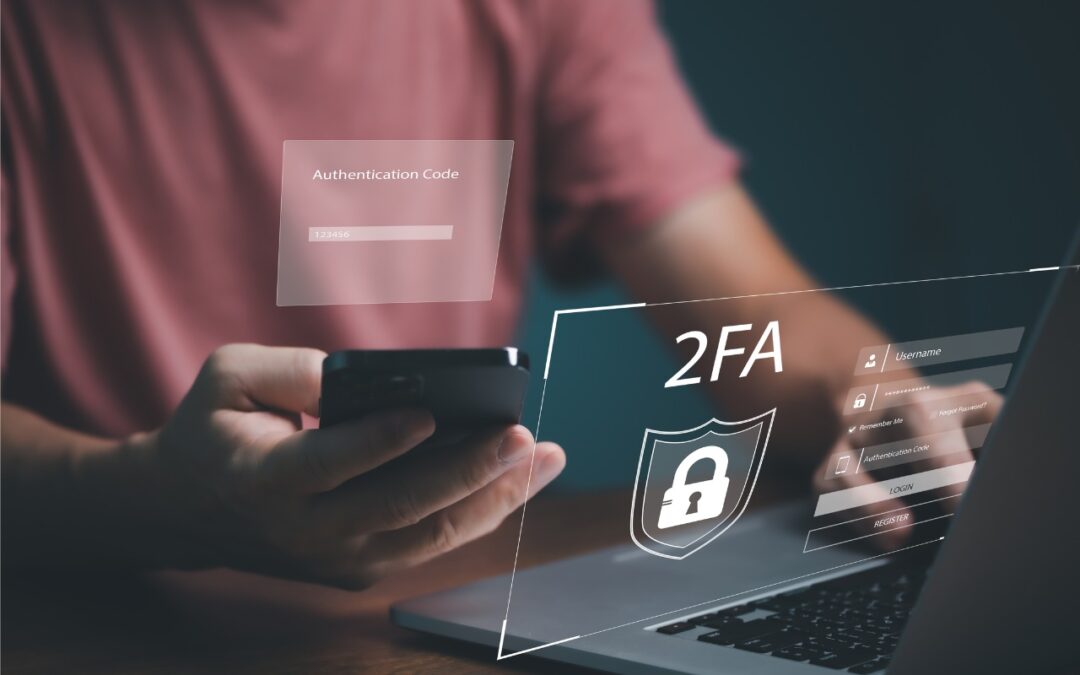
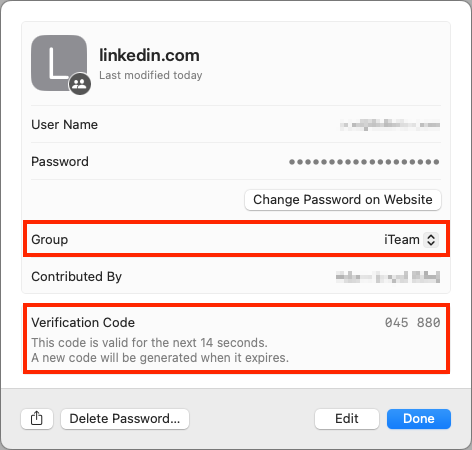
When your team or family shares access to a single account (such as for banking or social media, which seldom offer multi-user access), using two-factor authentication via SMS is awkward—whose phone receives the 2FA codes? One solution is to use an authentication app. Authentication apps are more secure, and multiple people can add 2FA support to the same account by scanning the QR code at setup or adding the 2FA setup URL later. (In both 1Password and Apple’s iCloud Keychain, edit the login to see and copy the setup URL.) An even better solution is to use a password manager that supports both 2FA codes and password sharing. That way, one person can set up the account with 2FA and add its login to a shared vault or collection. 1Password, Bitwarden, Dashlane, iCloud Keychain, and others provide such features.
(Featured image by iStock.com/May_Chanikran)
Social Media: For better results when a team or family group needs to share 2FA codes to log in to a website, try to use an authentication app instead of SMS, or better yet, use a password manager that can both generate 2FA codes and share logins with a group.

by Steve Sorbo | Apr 1, 2024 | Uncategorized
The ease of sending and receiving email makes it an attractive way to run scams like phishing attacks. One telltale mark of a phishing attack is the sender’s address not matching their purported domain; attacks that appear to come from legitimate email addresses are much more likely to fool the victim.
You can protect your organization’s email accounts from being compromised and used in phishing attacks by training your users to identify forged emails and use password managers, which won’t autofill a password on a malicious site. But how do you prevent bad guys from forging email that looks like it comes from inside your organization? You can’t, but you can reduce the chances that other email servers will accept it. In the process, you’ll enhance the deliverability of legitimate email from your domain.
The rest of this article is aimed at two types of readers. The first is the IT professional who needs an overview of email authentication technologies and pointers to helpful tools. For other readers, this article will give you an idea of what’s involved so you can talk more knowledgeably with your IT staff or better appreciate what they manage for you.
Whether your email is hosted at Microsoft 365 or Google Workspace, or managed by your Internet service provider or IT department, if your organization has its own domain for email addresses—yourname@yourcompany.com—you need to know about and set up three authentication technologies: SPF, DKIM, and DMARC:
- SPF, which stands for Sender Policy Framework, lets you specify which servers and domains are allowed to send email for your organization. It allows receiving mail servers to verify that incoming messages from your organization are actually from you.
- DKIM, or DomainKeys Internet Mail, adds a digital signature to every message sent from your organization. Receiving mail servers can use your public key to verify that messages actually came from you and were not changed in transit.
- DMARC, which expands to Domain-based Message Authentication, Reporting, and Conformance, leverages SPF and DKIM to publish policies that tell receiving mail servers what to do with messages that fail authentication: deliver, quarantine, or reject them. A message fails DMARC authentication only if it fails both SPF and DKIM—only one is necessary for the message to pass DMARC’s checks.
These three authentication technologies exist inside DNS (Domain Name System) records. The primary use of DNS is to link your human-usable domain name with the underlying IP addresses of the servers that manage your Internet presence; for example, matching www.yourcompany.com with an IP address like 192.168.1.23. However, DNS can also contain TXT records with additional information about your domain—you configure SPF, DKIM, and DMARC using TXT records.
These TXT records must be carefully constructed to work correctly—an incorrect configuration could cause email failures. You could build them manually, but it’s safer to use a tool that asks you questions and spits out a correctly formatted TXT record for you to add to your DNS configuration. If all that sounds intimidating, work with your ISP or email service provider, or ask us for help. But here are the basics.
Tools abound for creating SPF, DKIM, and DMARC records, but we recommend those from DMARCLY and EasyDMARC. We’ll use DMARCLY for the examples here, and it provides a comprehensive explanation that’s worth reading if you want more depth.
SPF
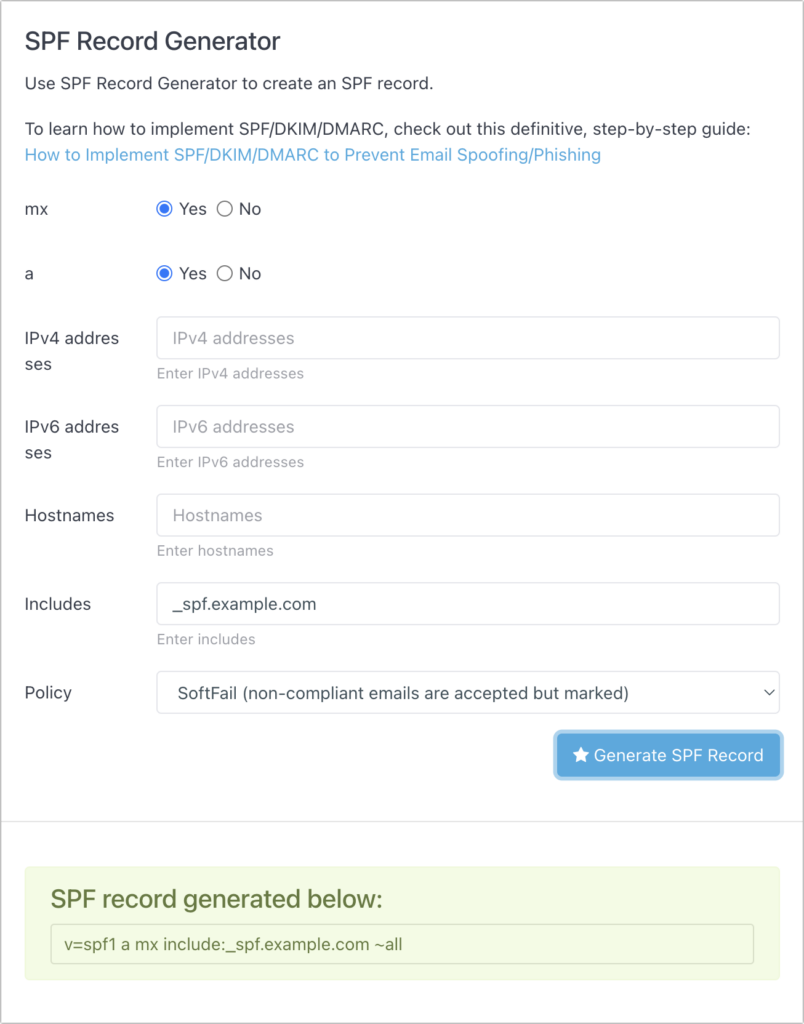
SPF is the oldest of these technologies. To get started, all you need to do in DMARCLY’s SPF Generator tool is specify the names or IP addresses of servers that are allowed to send email from your domain. The mx (mail exchanger) and a radio buttons automatically add the servers listed in your DNS records, and anything you put in the Includes field will allow email sent from anything allowed by a third party that sends email on your behalf. It’s common to put Google, Amazon SES, SendGrid, or other systems there. The IPv4, IPv6, and Hostnames fields let you specify other allowed servers, but aren’t necessary.
The Policy menu is important—you can choose from Fail, SoftFail, and Neutral. Start with Neutral, which should allow messages to be accepted (it prefixes all in the TXT record with a ?). Then bump up to SoftFail (a tilde ~ prefix) to have messages accepted but marked. When you’re confident everything is working correctly, move to Fail, which uses a - prefix.
DKIM
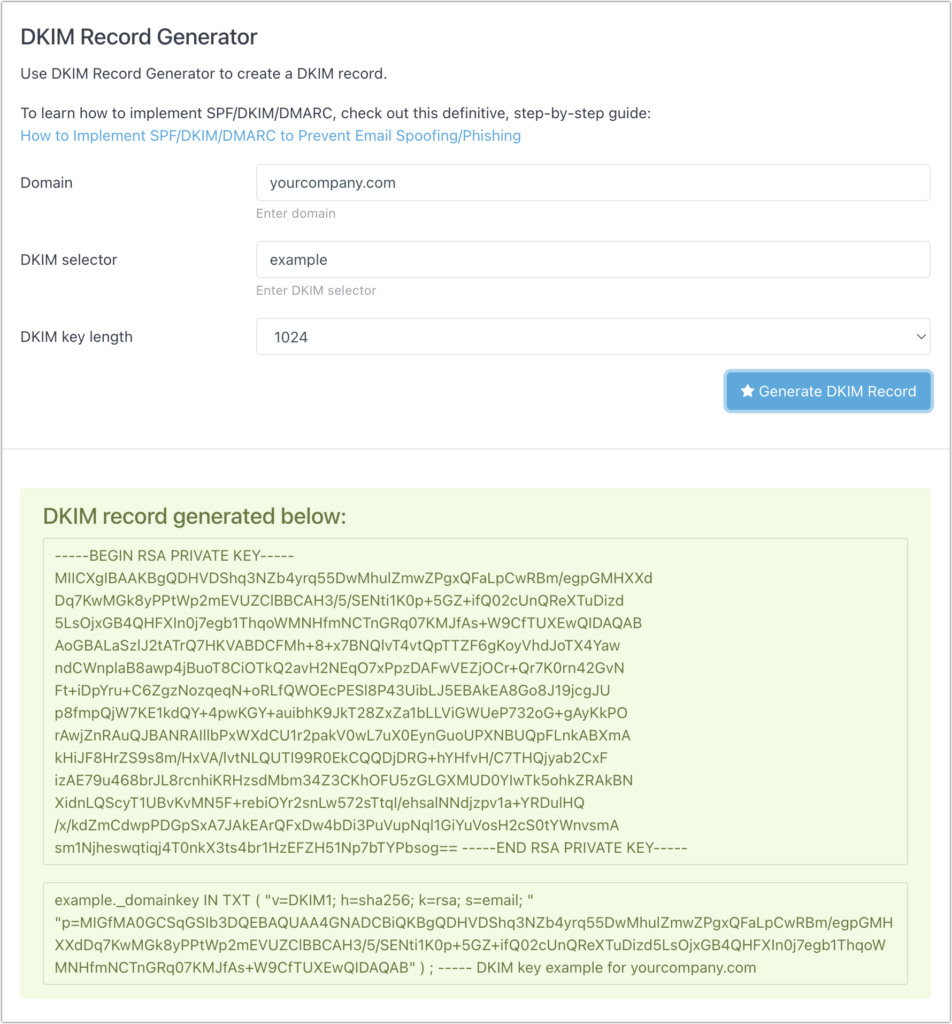
Because it relies on public key cryptography, DKIM is significantly more complicated. Although DMARCLY’s DKIM Generator tool will generate the necessary public and private keys, that’s not helpful unless you have full control over your email server and know how to install the private key to sign all your outgoing email. It’s much more likely that you’ll use a tool managed by the company that hosts your email to create your keys. That tool will automatically install the private key and give you the necessary details to add to a TXT record in your DNS settings.
DMARC
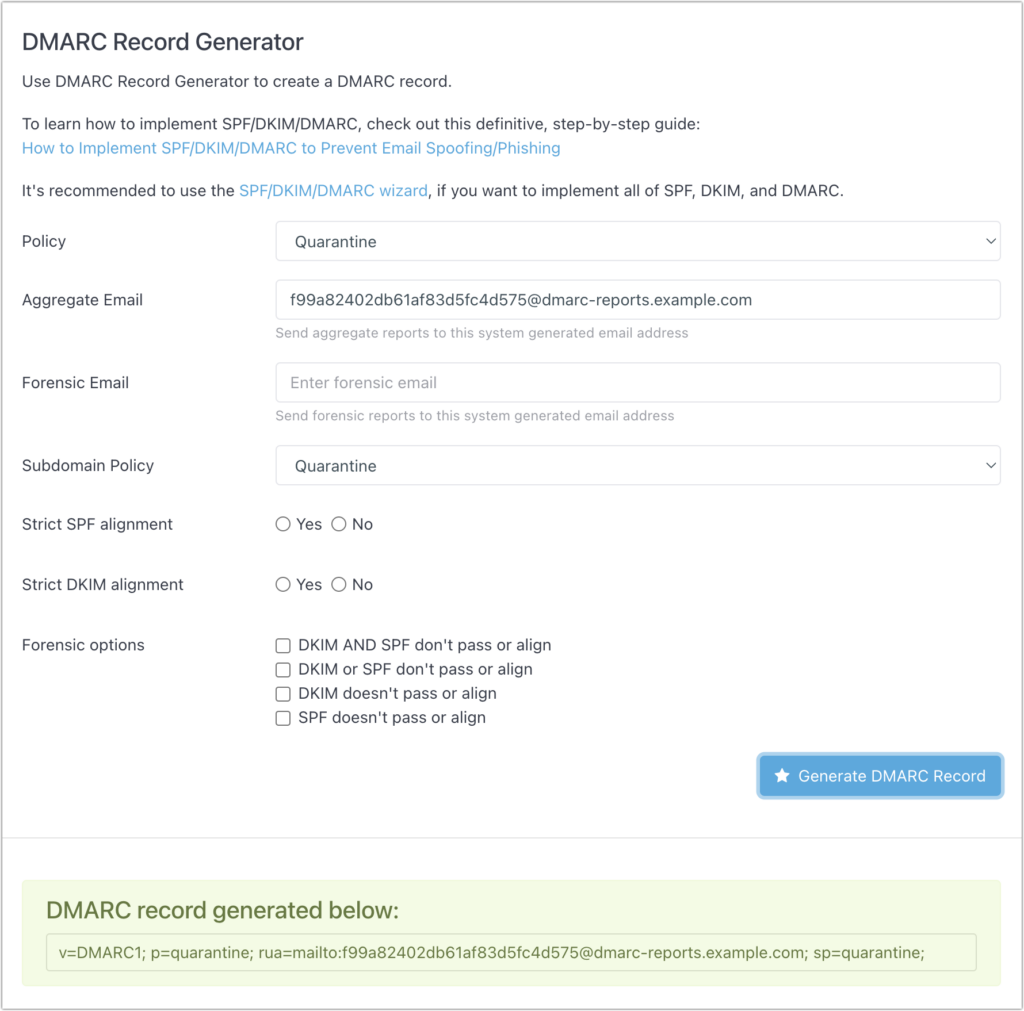
Where SPF and DKIM are all about authenticating email messages, DMARC lets you say what happens when authentication fails. DMARCLY’s DMARC Generator tool makes it easy to generate your DMARC record. For Policy and Subdomain Policy, you can choose None, Quarantine, or Reject—those specify what will happen to messages that fail both SPF and DKIM authentication. Start with None to see what happens in your reporting, move to Quarantine, and if everything seems OK, end up at Reject.
To set up reporting, enter an email address in the Aggregate Email field, but don’t put a personal address there. DMARC reports are daily XML digests that aren’t human-readable, so they should be sent to a service that will parse them and provide you with a dashboard for exploring the problems. DMARCLY and EasyDMARC both offer dashboards, as does the Cloudflare service if you use it for DNS or other tasks. To start, you can leave DMARC’s Strict Alignment and Forensic Options blank.
Configuring DNS
Once you’ve generated your SPF, DKIM, and DMARC records, you have to configure them in your DNS settings. How you do that depends on your DNS host; we’ll show what it looks like Cloudflare. Other DNS hosts should be similar.
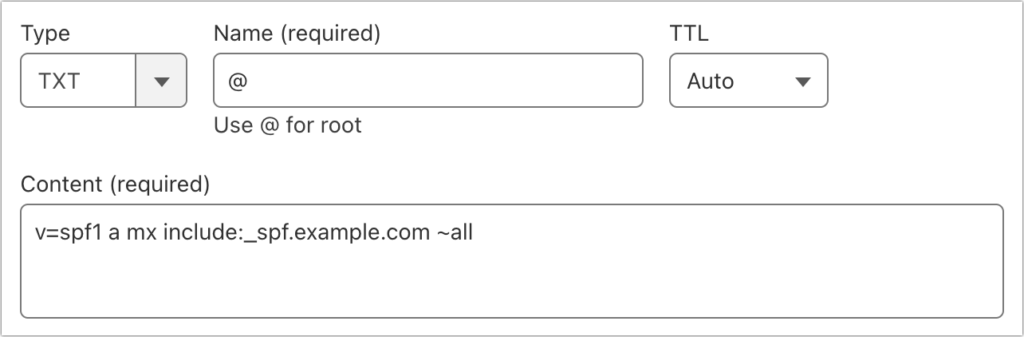
For each case, you’re creating a TXT record, but what goes in the Name and Content fields varies:
- SPF: The name for an SPF record should be the
@ character, signifying the root level of your domain. Paste the text that the SPF Generator tool created in the Content field. You can have only one SPF record for each domain, although you can set up separate SPF records for subdomains.
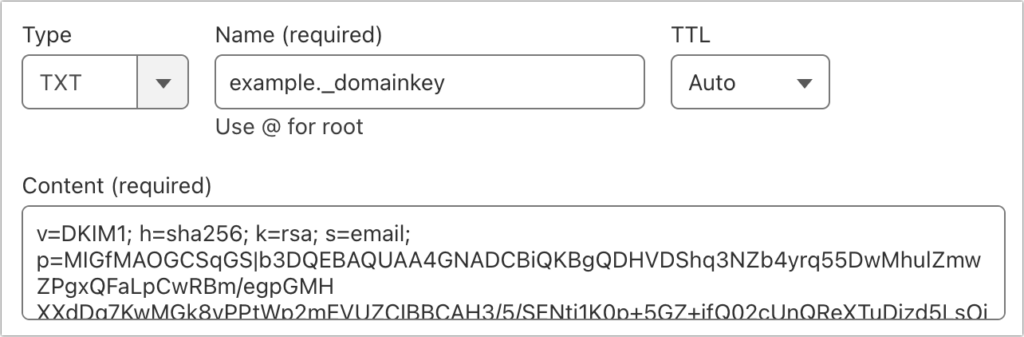
- DKIM: You can have as many DKIM records as services that send email on your behalf, so the first part of the name can vary—we show
example below. However, the ._domainkey part is required for each DKIM record. For the content, paste the text given to you by the email-sending service. Note that some email services may require you to create one or more CNAME records instead of a TXT record—just follow their instructions.
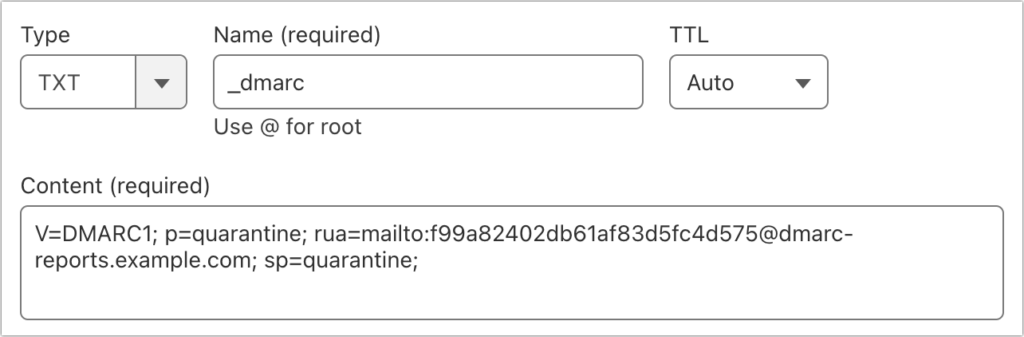
- DMARC: For DMARC, the name must be
_dmarc. Once again, you’ll paste the text given to you by the DMARC Generator tool in the Content field.
Reporting and Evaluation
After you set up SPF, DKIM, and DMARC, it’s essential to keep an eye on your email. If you’ve started with SPF in Neutral mode and DMARC in None, nothing should go wrong. You can look through the headers of test messages you send to verify. This DMARCLY article explains what to look for. If you’ve signed up for an aggregate reporting service, you’ll be able to see reports like this one from Cloudflare that show the percentage of email that passes each of the authentication technologies.
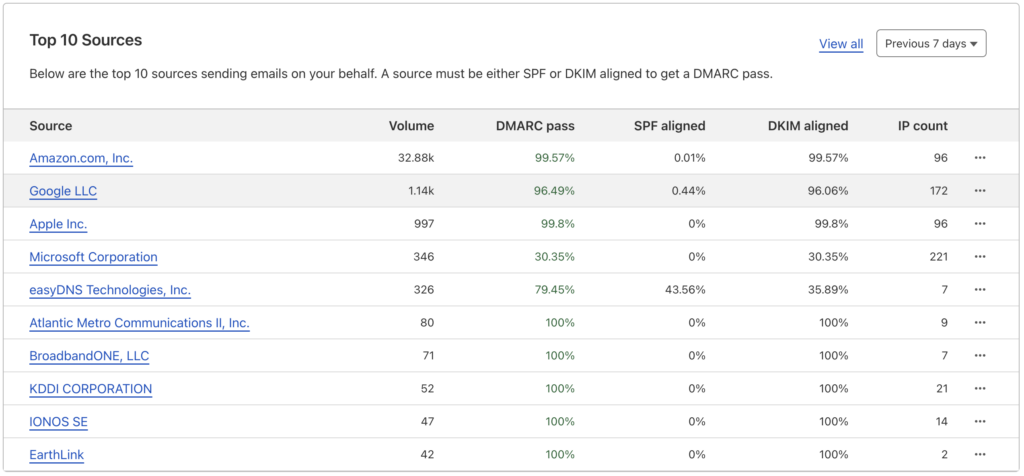
If everything looks good and most email passes, change SPF to SoftFail and DMARC to Quarantine. Make sure you can send email to some known personal addresses on Gmail, Yahoo, or iCloud. Also, tell people who send email from your domain to be on the alert if they don’t hear back from someone who typically replies quickly—if a misconfiguration is causing your email to be marked as spam, you want to know about that quickly. If you’re using a DMARC reporting service, look at those reports to see if any email services are sending a lot of messages that fail DMARC.
After you’ve run with those settings for a month or two, bump SPF up to Fail and DMARC to Reject. Continue to monitor your DMARC reporting and pay attention to any complaints from users about the messages they send not arriving.
That’s a lot, we know. Feel free to contact us if you need help with any step of the process.
(Featured image based on an original by iStock.com/Ole_CNX)
Social Media: To ensure phishers don’t forge email from your domain to use in their attacks on your organization and others, you must implement SPF, DKIM, and DMARC. We explain the basics, and we’re happy to help with the setup.

by Steve Sorbo | Mar 2, 2020 | TCN Content
As of this writing, the respiratory disease COVID-19 has caused nearly 3000 deaths and infected over 80,000 people worldwide. There are relatively few cases in North America currently, but that could increase significantly. For high-quality information about COVID-19, turn to the World Health Organization and the US Centers for Disease Control and Prevention.
For now, the Centers for Disease Control are recommending sensible precautions. They include regular hand washing or using alcohol-based hand sanitizer, covering coughs and sneezes (with your elbow), and staying home and avoiding public spaces if you’re feeling unwell. (These are smart things to do during flu season anyway, given that 10,000 people in the US have died of influenza already this season.)
What if local health officials were to declare a quarantine? Without lapsing into doomsday scenarios, it is always reasonable to make sure that you are personally ready for a natural disaster or other emergency. The Prepared has a detailed guide to help you prepare for a COVID-19 scare or quarantine.
We want to focus on how organizations—either those you run or work for—might prepare for a public health scare or possible quarantine, particularly in the context of your technology use. Here are our thoughts, and contact us if you want help with your preparedness plans.
Infection Prevention
If your organization has numerous employees or serves the public, put some thought into how you can reduce the chance of infection. That might include providing hand sanitizer dispensers, wiping down frequently touched surfaces with household cleaners, and a more frequent cleaning schedule for restrooms.
For an Apple-specific tip, try using or encouraging the use of Apple Pay to reduce the need to touch credit card terminals!
Also, it’s best to avoid shaking hands with customers and colleagues. Perhaps the Japanese custom of bowing will gain traction elsewhere in the world.
Internal Communications
In the event that public health officials discourage people from gathering, think about how your company will communicate internally with people working from home. Many organizations allow such flexibility now anyway, so it’s likely that yours has at least informal communication channels via phone and email, and chat systems like Slack.
Consider formalizing those channels if need be, and if your directory service doesn’t already contain this information, publish a list of phone numbers and email addresses so everyone can contact co-workers easily. If your organization relies on IP telephony, make sure everyone understands how to use softphones or can configure an office phone at home. If you have a switchboard, investigate how it can be operated remotely.
If your organization’s email system is usually available only from computers owned by the organization, make sure webmail access is enabled and that everyone understands how to access it. Similarly, it’s worth making sure everyone has email access from their phones.
Chat systems like Slack or Microsoft Teams can be effective ways for far-flung groups to communicate because they provide real-time communication segregated into topic- or group-specific channels. If you’re not already using such a system and would like to investigate adding it to your communications strategy, contact us for advice.
Remote Access to Organizational Services
For connectivity to office-based file servers and other systems, make sure everyone has access to your VPN and knows how to use it. (Don’t have a VPN, or virtual private network? Again, call us—a VPN is an essential way to provide remote access while ensuring security.)
Are there any specialized servers or services, such as an accounting system, that have security safeguards related to specific access points? Think about what additional access may need to be provided for an employee working from home.
Physical Environment
If most or all employees are working from home, what does that mean for your office? Do physical security systems or climate settings need to be adjusted? Do you want to set up video cameras or other remote monitoring hardware? Who’s going to water the plants? On a more serious note, if you have on-premises servers, make sure they can be administered entirely remotely, including power cycling.
It’s also worth determining who will have responsibility for the office in the event of problems, which could still occur even if no one is there. What if a water pipe in the building breaks, or there’s a burglary? Make sure it’s clear who will respond.
Business Functions
Think about the regularly scheduled aspects of running the business, with an eye toward those that might assume the presence of certain people. Can they run payroll, accounts receivable, and accounts payable remotely? Make sure that every key position has at least one backup, so if one person falls ill, the organization’s ability to function won’t be compromised.
If international travel is a significant part of your organization’s mission, you’re already figuring out how to compensate through videoconferencing and similar technologies. But if you regularly travel only within the country or your area, think about which trips are essential and which can be replaced using online conferencing tools.
Finally, consider how your clients and customers will react to the situation. It’s unfortunately likely that there will be less work taking place, so you may see decreased revenues, but certain organizations may see an increased workload. For instance, if the number of patients in hospitals skyrockets, those who support healthcare systems may struggle under the load alongside the doctors and nurses.
We certainly hope that all these preparations prove unnecessary, but they’re worthwhile regardless. Too many businesses have failed after a fire, hurricane, or earthquake renders an office uninhabitable, and such natural disasters are all too common. As the Boy Scout motto says, “Be prepared.”
(Featured image based on an original by Gerd Altmann from Pixabay)
Social Media: How would your organization react to a COVID-19 scare or quarantine? Here’s how you can use technology to respond to such an event.

Recent Comments