

Make Your Own Keyboard Shortcuts on the Mac
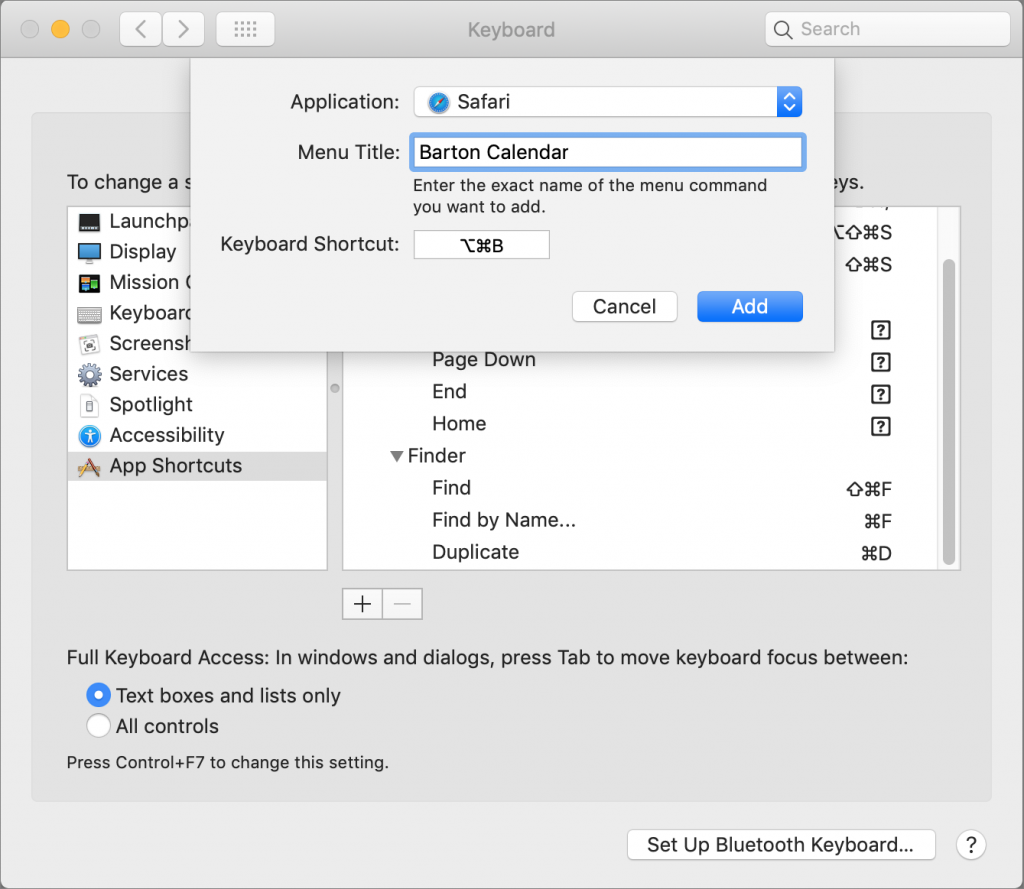
Power users like keyboard shortcuts because it’s faster to press a couple of keys than to navigate lengthy menus. If you have trouble remembering shortcuts, check out KeyCue, which displays a concise table of all currently available shortcuts. But what about menu items that lack shortcuts? Make your own in System Preferences > Keyboard > Shortcuts > App Shortcuts. Click the + button, choose an app from the Application menu, fill in the Menu Title field, click the Keyboard Shortcut field, press your desired key combination, and click Add. You can even make shortcuts for Safari bookmarks, since they appear in the Bookmarks menu. If a shortcut doesn’t work, make sure you typed its menu title exactly right, including any punctuation like three periods for an ellipsis. To edit an item, double-click its title or shortcut in the list. If you no longer want an item, select it and click the – button.
(Featured image by Ilya Pavlov on Unsplash)

Recent Comments