
by Steve Sorbo | Feb 1, 2024 | Uncategorized
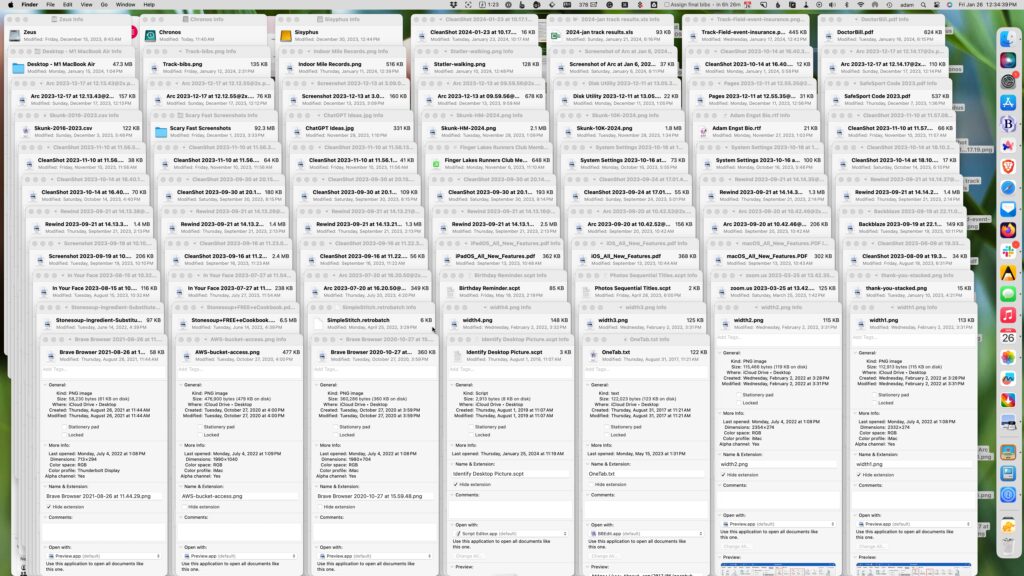
Have you ever selected a bunch of files and accidentally opened them all by double-clicking one? Or perhaps inadvertently pressed Command-I to get info, ending up with oodles of open Info windows? Here’s a quick way to recover. You can close all the windows in any well-written app with judicious use of the Option key. Press it while clicking the File menu and Close Window becomes Close All Windows. Command-W closes one window; Command-Option-W closes all of that app’s windows. If you’re a mouse person, Option-click the red close button in any window to close all the rest.
(Featured image based on an original by iStock.com/ANGHI)
Social Media: Next time you inadvertently open a large number of windows, you can use these Option-key tricks to close them all quickly.

by Steve Sorbo | Feb 3, 2020 | TCN Content
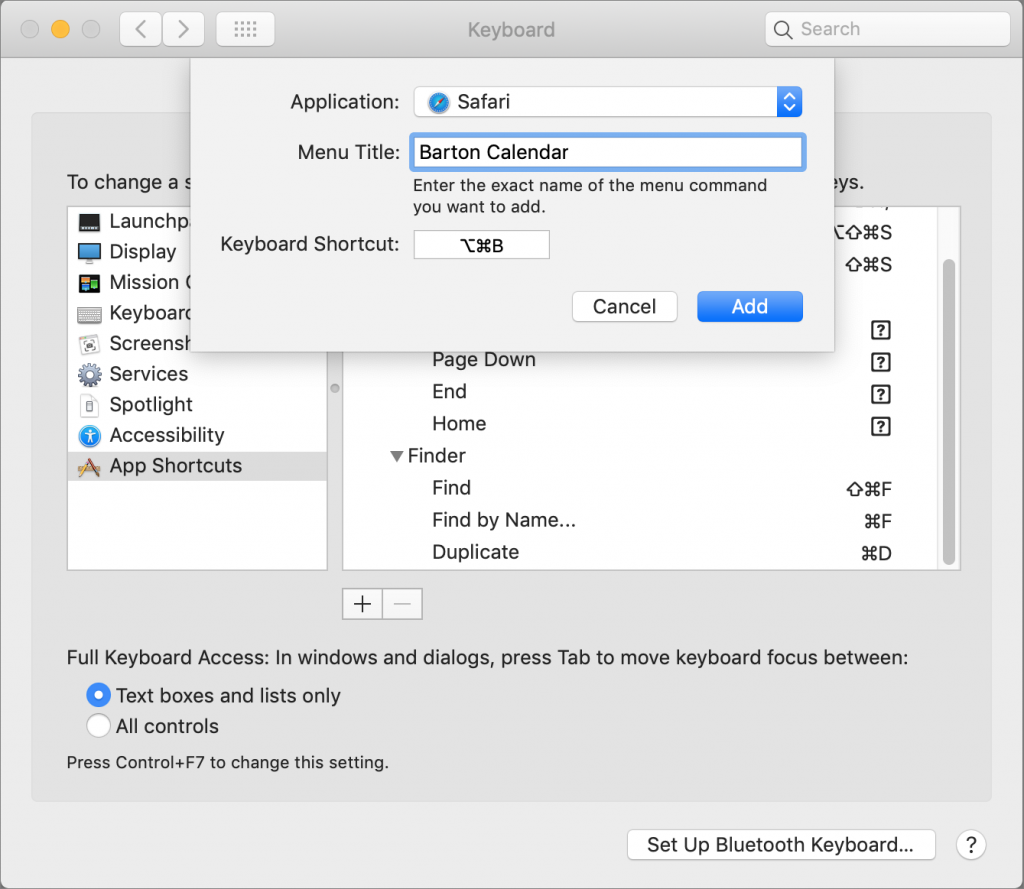
Power users like keyboard shortcuts because it’s faster to press a couple of keys than to navigate lengthy menus. If you have trouble remembering shortcuts, check out KeyCue, which displays a concise table of all currently available shortcuts. But what about menu items that lack shortcuts? Make your own in System Preferences > Keyboard > Shortcuts > App Shortcuts. Click the + button, choose an app from the Application menu, fill in the Menu Title field, click the Keyboard Shortcut field, press your desired key combination, and click Add. You can even make shortcuts for Safari bookmarks, since they appear in the Bookmarks menu. If a shortcut doesn’t work, make sure you typed its menu title exactly right, including any punctuation like three periods for an ellipsis. To edit an item, double-click its title or shortcut in the list. If you no longer want an item, select it and click the – button.
(Featured image by Ilya Pavlov on Unsplash)

by Steve Sorbo | May 1, 2018 | TCN Content
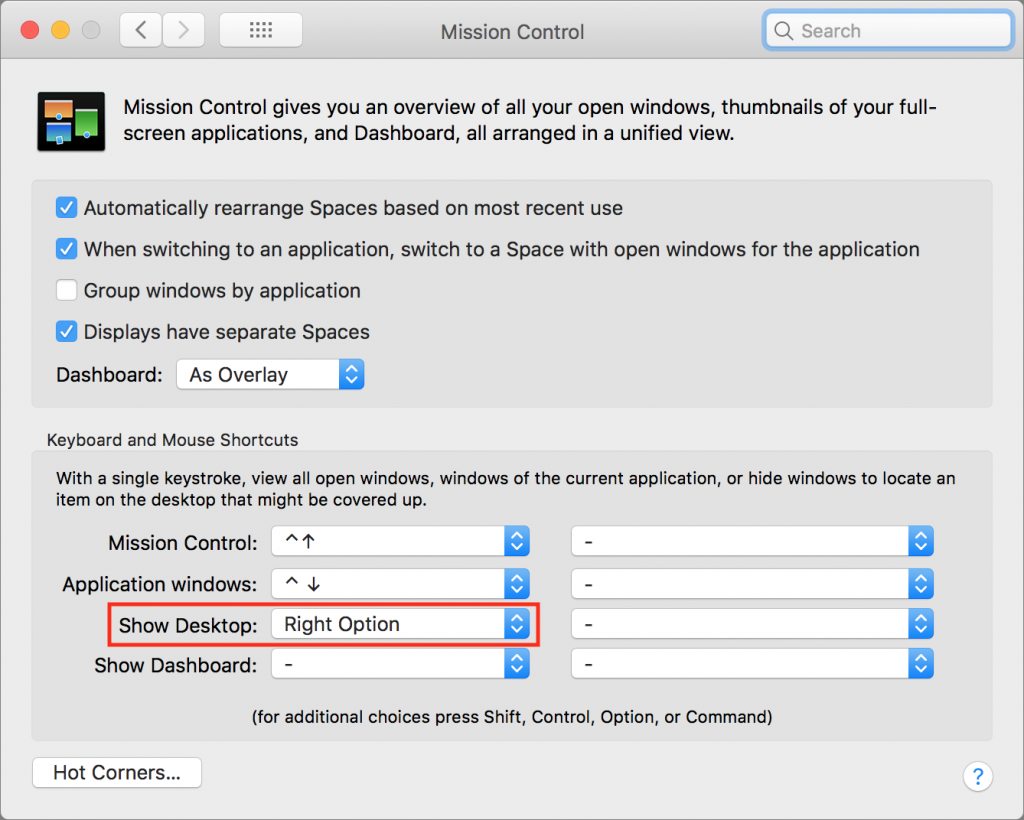
If your Mac is anything like ours, you end up with lots of apps open, each with one or more windows that obscure the Desktop. For those people who like to save in-progress documents to the Desktop and keep current project folders there, all those windows get in the way. macOS has a solution. Open System Preferences > Mission Control, and in the Keyboard and Mouse Shortcuts section, from the Show Desktop pop-up menu, choose a keyboard shortcut. Try the right-hand modifier keys—we’re fond of Right Option—because they’re easy to press and aren’t likely to be used for other purposes. Then, whenever you want to see and work with the icons on your Desktop, hit that key, and do what you want. If you like, you can press that key again to bring the windows back.

Recent Comments