
by Steve Sorbo | May 1, 2026 | Uncategorized
Safari’s compact tab bar option, which saves vertical space by placing the address bar in the current tab, went missing in the initial releases of macOS 26 Tahoe and iPadOS 26. Only Apple knows why this helpful option disappeared (Liquid Glass?), but as of macOS 26.4 and iPadOS 26.4, it’s back! On the Mac, select it in Safari > Settings > Tabs; on the iPad, look in Settings > Apps > Safari.

(Featured image based on an original by iStock.com/czekma13)
Social Media: Those who have been missing Safari’s compact tab bar are in luck—it’s back as of macOS 26.4 and iPadOS 26.4. The compact tab bar is a welcome way to save vertical space for content.
by Steve Sorbo | Apr 3, 2026 | Uncategorized
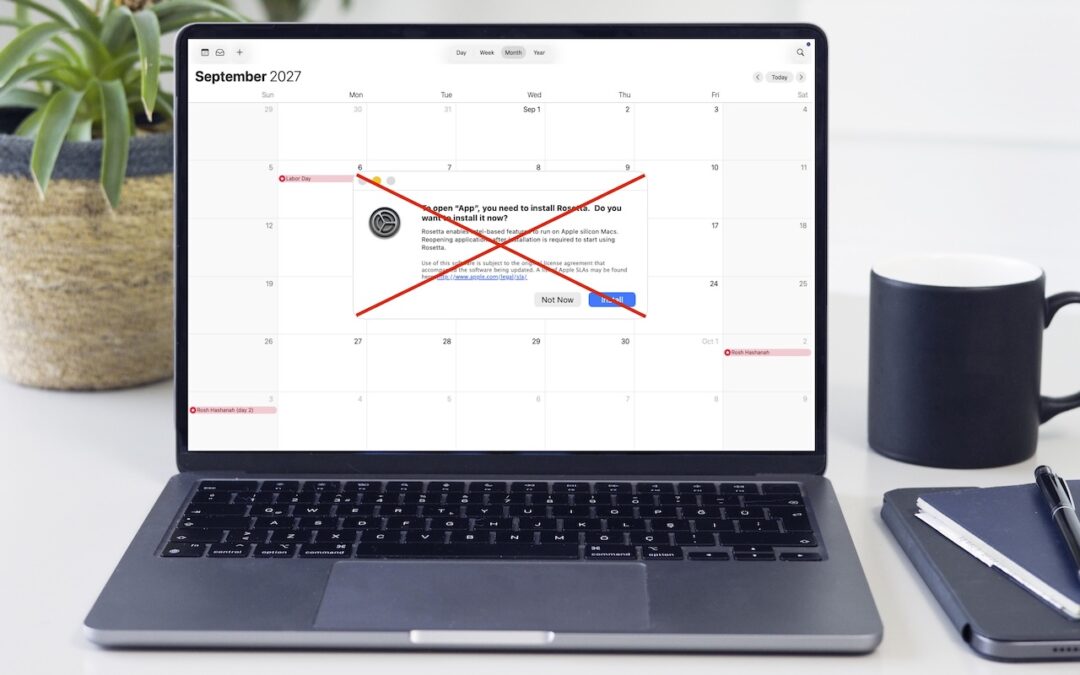
Yes, we know we’re still on macOS 26. In 2025, Apple announced macOS 27 would be the last version to support Rosetta for most Intel-based apps. (Beyond that, Apple will maintain a subset of Rosetta functionality for older, unmaintained gaming titles.) This fact has become relevant because in the just-released macOS 26.4, when you launch apps that rely on Rosetta for Intel compatibility, macOS may start warning you that they won’t open in a future version of macOS. These warnings are just reminders—nothing will change until you upgrade to macOS 28, probably in late 2027 or 2028, giving you plenty of time to find replacements. To identify Intel-based apps now, open System Information from the Utilities folder in your Applications folder, select Applications in the sidebar, and click the Kind column header to sort all your Intel apps together. iMazing’s free Silicon app does the same thing with a nicer interface.

(Featured image based on an original by iStock.com/Kurgenc)
Social Media: Running macOS 26.4? You may start seeing warnings about Intel-based apps not opening. They won’t stop working until macOS 28, but now’s the time to find replacements. Here’s how to identify which apps need attention.

by Steve Sorbo | Apr 3, 2026 | Uncategorized
The discovery of two sophisticated iPhone exploit kits—DarkSword and Coruna—within weeks of each other signals a troubling shift. Unlike previous spyware attacks that targeted high-profile users, these exploit kits have been deployed via compromised legitimate websites, so anyone who visits an infected site could fall victim, with no additional clicks or downloads required. This suggests that exploit brokers are now selling tools to multiple buyers, including financially motivated hacking organizations.
Making matters worse, the complete DarkSword exploit code was published to GitHub, making it easy for any hacker to deploy. Security researchers warn that the exploits “will work out of the box” with no iOS expertise required—anyone could copy and paste the code and have it running on a server within hours.
Because it ultimately operates with elevated system privileges, DarkSword can silently harvest alarming amounts of data from vulnerable iPhones, including passwords stored in the keychain, photos, call logs, contacts, browsing history, chat message history, and more. It takes a smash-and-grab approach: collecting and exfiltrating data quickly, then disengaging. Coruna is more targeted and persistent, focusing on stealing cryptocurrency wallet credentials and scanning notes for financial information.
Protection Is Simple
Happily, it’s easy to protect yourself against these and future vulnerabilities: keep your devices up to date. We’ve been beating that drum for years, but DarkSword and Coruna are sufficiently worrying that Apple published a dedicated support page urging users to update, saying: “Keeping your software up to date is the single most important thing you can do to maintain the security of your Apple products.”
If your iPhone is running the latest version of iOS it supports, you’re already protected. But if you’ve been putting off updates—or are still running an earlier version of iOS 18 to avoid iOS 26’s Liquid Glass interface redesign—your iPhone may be vulnerable. Happily, Apple has taken the unprecedented step of releasing an update to an older operating system—iOS 18.7.7—to protect users who don’t wish to upgrade to iOS 26. (You may have to scroll down in the Software Update screen to find it under Also Available.)

Check and Update Your Device
To check your iOS version, go to Settings > General > About and look at the iOS Version line.
DarkSword targets iPhones running iOS 18.4 through iOS 18.7.2. If you’re running iOS 18.7.3 or later, or have upgraded to iOS 26.3 or later, you’re protected. Although none of the DarkSword security reports specifically mention the iPad, it’s best to assume that the corresponding versions of iPadOS are similarly affected.
Coruna can compromise older iPhones and iPads running iOS 13.0 through iOS 17.2.1. Apple recently released iOS 15.8.7 and iOS 16.7.15 to address these vulnerabilities on devices that cannot run newer iOS versions. Devices running iOS 13 or iOS 14 must be upgraded to iOS 15.8.7. Devices running a vulnerable version of iOS 17 should update to the latest version of iOS their device supports.
You can update using Settings > General > Software Update to the latest version of iOS your device supports:
- iPhone 11 and later (and other devices that support iOS 26): Update to either iOS 18.7.7 or iOS 26.4 or later.
- iPhone XR, XS, and XS Max: Update to iOS 18.7.7, the latest version these devices support, which includes the DarkSword fixes.
- Older devices that can’t run iOS 18 (iPhone 6s through iPhone X, plus various older iPads and 7th-generation iPod touch): Update to iOS 15.8.7 or iOS 16.7.15, depending on your device. Devices still running iOS 13 or 14 will need to upgrade to iOS 15.8.7.
If you cannot upgrade for some reason, Apple says that enabling Lockdown Mode in Settings > Privacy & Security > Lockdown Mode in iOS 16 and later will block DarkSword attacks. However, Lockdown Mode significantly degrades the iPhone experience by blocking most message attachment types, disabling certain Web technologies, limiting incoming FaceTime calls, and more. For most people, upgrading to the most recent version of iOS available is the better option.
These discoveries make it clear that installing security updates promptly is more important than ever. Sophisticated exploits that were once reserved for targeted attacks against activists and journalists are now being deployed more broadly. Check your iOS version today, update all your devices, and encourage family members and colleagues to do the same.
(Featured image by iStock.com/sqback)
Social Media: Two major iPhone exploit kits—DarkSword and Coruna—can steal passwords, messages, and photos from everyday users who visit an infected website. Check your iOS version and update immediately to protect yourself.
by Steve Sorbo | Jan 2, 2026 | Uncategorized
Apple has now sufficiently refined macOS 26 Tahoe to make an upgrade worthwhile for interested users. You don’t need to upgrade immediately, but there are no strong reasons for most people to delay further.
Unlike last year, when Apple was releasing new Apple Intelligence features with each macOS 15 Sequoia update, the company launched nearly all the promised new features in Tahoe with version 26.0. There’s no need to wait for the more personalized Siri upgrade Apple promised for 2026—we won’t know how good it is until it ships.
Tahoe is now stable and polished enough for most users to upgrade with confidence, particularly on Apple silicon Macs. While there are some minor concerns—such as dissatisfaction with Liquid Glass, higher baseline resource usage, a few battery and performance issues, and the removal of Launchpad—none are deal-breakers. Of course, Apple will continue releasing macOS updates in 2026. You can expect macOS 26.3 in January, 26.4 in late March or early April, and 26.5 in May, along with several security and bug-fix updates in between.
Although Tahoe is ready for prime time, you can still delay the upgrade as long as you’re running macOS 14 Sonoma or macOS 15 Sequoia and are staying current with Apple’s security updates. Older macOS versions no longer receive security fixes, making them more vulnerable to attacks. Possible reasons to continue delaying include:
- You’re too busy: The upgrade process will take a few hours, plus some additional time to configure everything properly afterward. When you’re ready to upgrade, aim for when a little downtime won’t be a problem.
- You rely on incompatible software: Most modern apps should now be updated for Tahoe—Adobe recently qualified its Creative Cloud apps. But if a necessary app is known to have issues, you’ll need to wait for an update or find an alternative that works.
Despite the visual changes from Liquid Glass, using Tahoe remains straightforward—it’s still macOS. Even if you’re not an immediate fan of Liquid Glass, Tahoe has new features that might appeal to you. Control Center is now fully customizable, and you can make folders easier to identify by assigning them colors and badges. Spotlight has become an even better app and action launcher, and it now includes access to your clipboard history, a feature previously available only with third-party software. The Phone app has come to the Mac, allowing you to make and take phone calls on your Mac as long as your iPhone is nearby. Live Translation automatically translates text in Messages, provides translated captions in FaceTime, and offers real-time spoken translations in the Phone app.
Before You Upgrade
Once you’ve decided to upgrade to Tahoe, you have three main tasks:
- Update apps: Make sure all your apps are up to date. If you regularly delay updates, now’s the time to let them complete so you have Tahoe-compatible versions.

- Clear space: Tahoe may require up to 25 GB of free space to upgrade, and the Tahoe installer itself can take up to 17 GB, so we recommend ensuring you have at least 50 GB free. Don’t cut this close—you should always have at least 10–20% free space for virtual memory, cache files, and breathing room. Check by choosing System Settings > General > Storage; in earlier versions of macOS, choose About This Mac from the Apple menu and click Storage. System Settings provides quick ways to free up space. For iCloud Drive users, another easy way to save space is to Control-click large folders and choose Remove Download to “evict” the local versions of those files temporarily; Box, Dropbox, and Google Drive have similar features.

- Make a backup: Never install a macOS update or upgrade without first making sure you have at least one current backup. Ideally, you should have a Time Machine backup, a data-only duplicate, and an Internet backup. This way, if something goes wrong, you can easily revert.

Upgrading
After finishing those tasks, make sure you won’t need your Mac for a few hours. There’s no way to know precisely how long the upgrade will take, so don’t start an upgrade if you need your Mac soon.
To start the upgrade, go to System Settings > General > Software Update in Sequoia, Sonoma, or Ventura (System Preferences > Software Update in previous versions of macOS), click the Upgrade Now button, and follow the prompts. For more help, see Joe Kissell’s ebook Take Control of Tahoe.

After You Upgrade
One reason to set aside ample time for your Tahoe upgrade is that cleanup tasks typically follow. We can’t predict exactly what you’ll encounter—it depends on your current macOS version and the apps you use—but here are a few scenarios we’ve seen before:
- macOS may prompt for your Apple ID password and your Mac’s login password. If you have multiple Macs, you may also need to approve the upgrade from another Mac signed in to the same Apple Account. Don’t worry that malware has compromised your Mac—these authentication prompts are normal.
- Some apps may request additional permissions even if you previously granted them. Again, that’s okay.
- If you use your Apple Watch to unlock your Mac and apps (and you should; it’s great!), you may need to re-enable that feature in System Settings > Touch ID & Password (or Login Password on a Mac without Touch ID). In older versions of macOS, it was located in System Preferences > Security & Privacy > General.
- If you use Gmail, Google Calendar, or other Google services, you might need to log in to your Google account again.
- Websites that remember your login state will likely require you to log in again. However, if you’re using a password manager like Apple’s Passwords or 1Password, that’s easy.
- You might need to re-enable text message forwarding to your Mac. You do this on your iPhone by going to Settings > Apps > Messages > Text Message Forwarding.
With the housekeeping done, it’s time to check out all the new features in Tahoe!
(Featured image by Apple)
Social Media: When should you upgrade to macOS 26 Tahoe? There’s no rush to install it today, but we believe it’s safe for those who want to take advantage of the new features. Here’s what to do before, during, and after the upgrade.
by Steve Sorbo | Nov 7, 2025 | Uncategorized
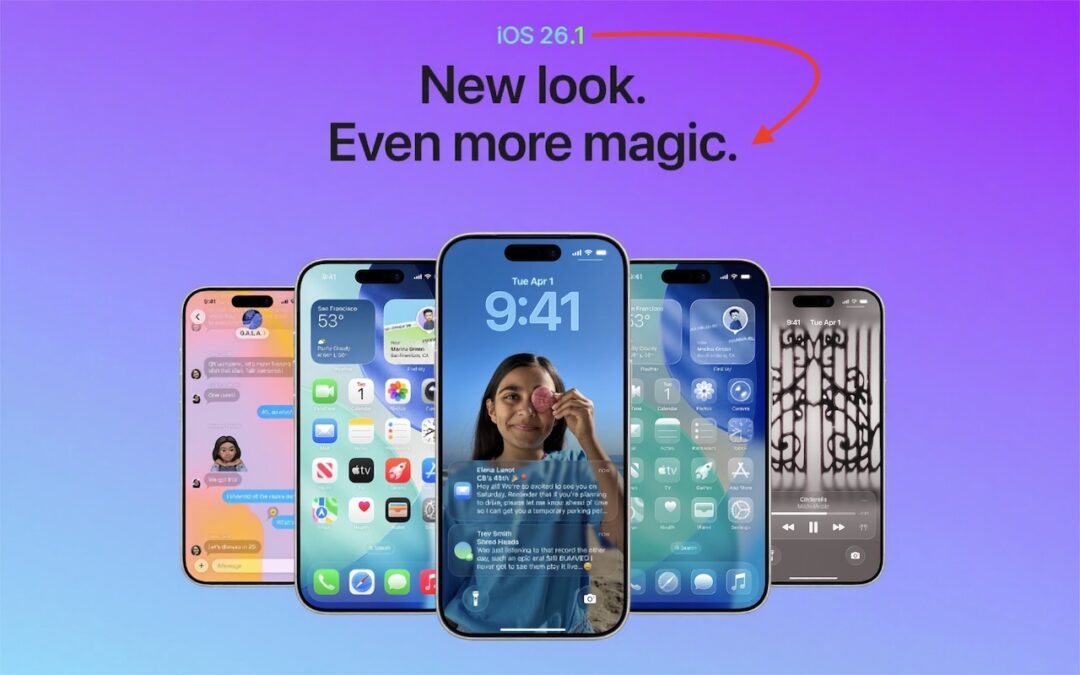
The first feature update to iOS 26 is now available—go to Settings > General > Software Update to install iOS 26.1. It doesn’t introduce any game-changers, but there are a few new options and tweaks worth knowing about.
Tinted Option for Liquid Glass
For many people, Liquid Glass’s aggressive transparency can make some interface elements, especially notifications, difficult to read. Until now, your best bet for improving readability was to turn on Settings > Accessibility > Display & Text Size > Reduce Transparency. In iOS 26.1, Apple bowed to user feedback and added a new Tinted view in Settings > Display & Brightness > Liquid Glass, which adds a subtle tint and increases the opacity of many Liquid Glass interface elements. In the screenshot below, the left image uses the default Liquid Glass Clear view, the middle one uses the Tinted view, and the right one uses Clear with Reduce Transparency. You can decide which you like best.

Disable Lock Screen Camera Swipe
For many years, a fast way to get to the Camera app has been to swipe left on the Lock Screen. With new iPhones featuring the Camera Control button for quick access to the Camera app, Apple has given us the option to disable the Lock Screen left swipe. If you find yourself accidentally opening the Camera app from the Lock Screen, you can now prevent that from happening by turning off Settings > Camera > Lock Screen Swipe to Open Camera.

Background Security Improvements
Several years ago, Apple introduced Rapid Security Responses, focused security updates that aimed to reduce update hesitancy with small downloads, automatic installation, and easy reversal. For unknown reasons, Apple used them only a couple of times before reverting to traditional operating system updates. Now, Rapid Security Responses seem to have returned under a new name: Background Security Improvements. They’re enabled by default in Settings > Privacy & Security > Background Security Improvements > Automatically Install. If you prefer to approve these updates in advance, you can turn that off. (A similar setting is available for macOS 26.1.)

Slide to Stop Alarms and Timers
In iOS 26, Apple increased the size of the buttons that appear when alarms or timers go off, but the large Stop button was easy to hit when you meant to tap Snooze (for alarms) or Repeat (for timers). Apple made that mistake much less likely in iOS 26.1 by requiring you to slide the on‑screen control to stop the alarm or timer.

Swipe Between Songs in Music
Sure, you could just tap a song in the album or playlist you’re viewing, but iOS 26.1 adds a subtle way to move to the next or previous track: swipe left (next) or right (previous) on the MiniPlayer at the bottom of the screen.

More Languages for Live Translation
iOS 26 introduced Live Translation with the AirPods 4 with Active Noise Cancellation, AirPods Pro 2, and AirPods Pro 3. Initially, it supported English (US and UK), French, German, Portuguese (Brazil), and Spanish (Spain). In iOS 26.1, Apple added Chinese (Mandarin, simplified and traditional), Italian, Japanese, and Korean. To avoid delays in getting new languages when you are out and about, download the languages you expect to need ahead of time, when you have a fast Internet connection. Go to Settings > Bluetooth and tap the ⓘ next to your AirPods. Scroll to and tap Languages, then select the desired language. For actual use, open the Translate app, tap Live, and select the two languages you want to translate between.

There are a few other tweaks that most people won’t notice, such as support for the new AutoMix transitions between songs in Music when playing over AirPlay, better FaceTime audio quality in low-bandwidth conditions, manual logging of workouts in the Fitness app, and improvements when recording audio with external USB mics.
If you’re already running iOS 26, we recommend updating to iOS 26.1—the changes (and numerous security fixes) are worthwhile. If you haven’t upgraded from iOS 18 yet, now’s a fine time to make the jump.
(Featured image based on an original by Apple)
Social Media: Struggling with Liquid Glass transparency or accidental camera launches? iOS 26.1 addresses both and adds a safer slide‑to‑stop alarm control, swiping to switch songs in Music, Background Security Improvements, and more Live Translation languages.

Recent Comments