by Steve Sorbo | Aug 7, 2026 | TCN Content, Uncategorized
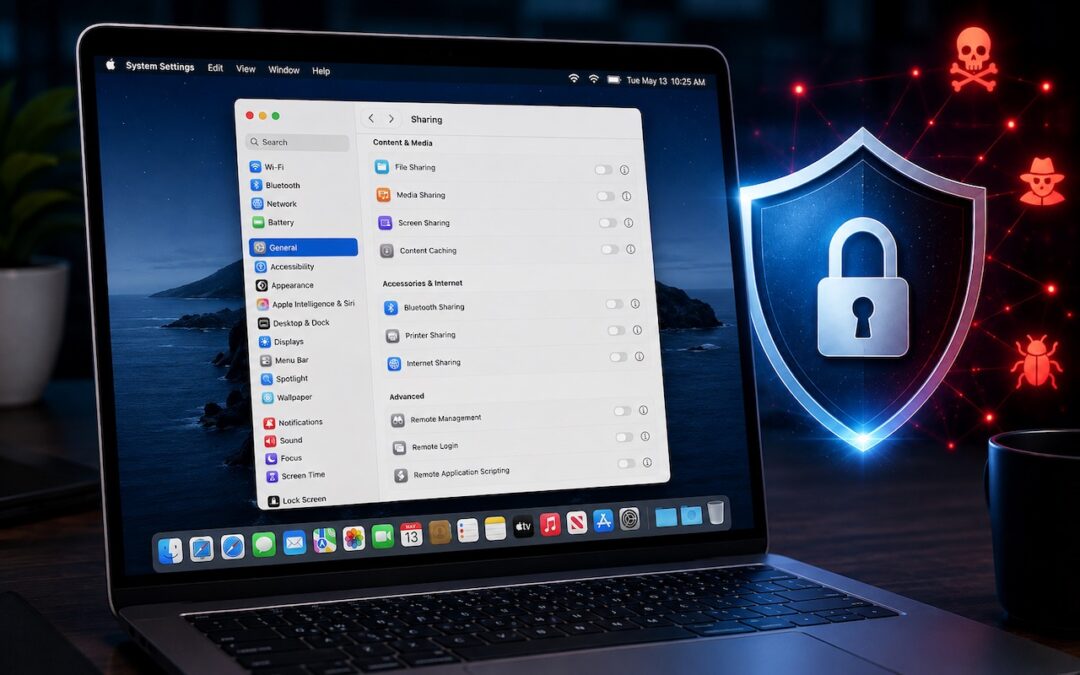
Apple just released macOS 26.6.1 Tahoe, macOS 15.7.9 Sequoia, and macOS 14.8.9 Sonoma solely to patch a vulnerability in Screen Sharing that could allow unauthenticated connections from attackers on the network. Yes, you should update, but also take a moment to visit System Settings > General > Sharing and turn off any sharing services you aren’t actively using. Many security breaches stem from simple oversight, and it’s easy to turn on a service and forget to turn it off later. All these services let you limit access to particular users, but passwords can be stolen, accounts can be compromised, and server software can have bugs. The most important services to turn off when not in active use are File Sharing, Screen Sharing, Remote Management, Remote Login, and Remote Application Scripting. We also caution against leaving Printer Sharing and Internet Sharing on unnecessarily.

(Featured image generated by Adam Engst with ChatGPT)
Social Media: Apple patched a Screen Sharing flaw that let attackers connect without authentication. Update now—and while you’re thinking about it, turn off any sharing services you’re not actively using.

by Steve Sorbo | Jul 3, 2026 | Uncategorized
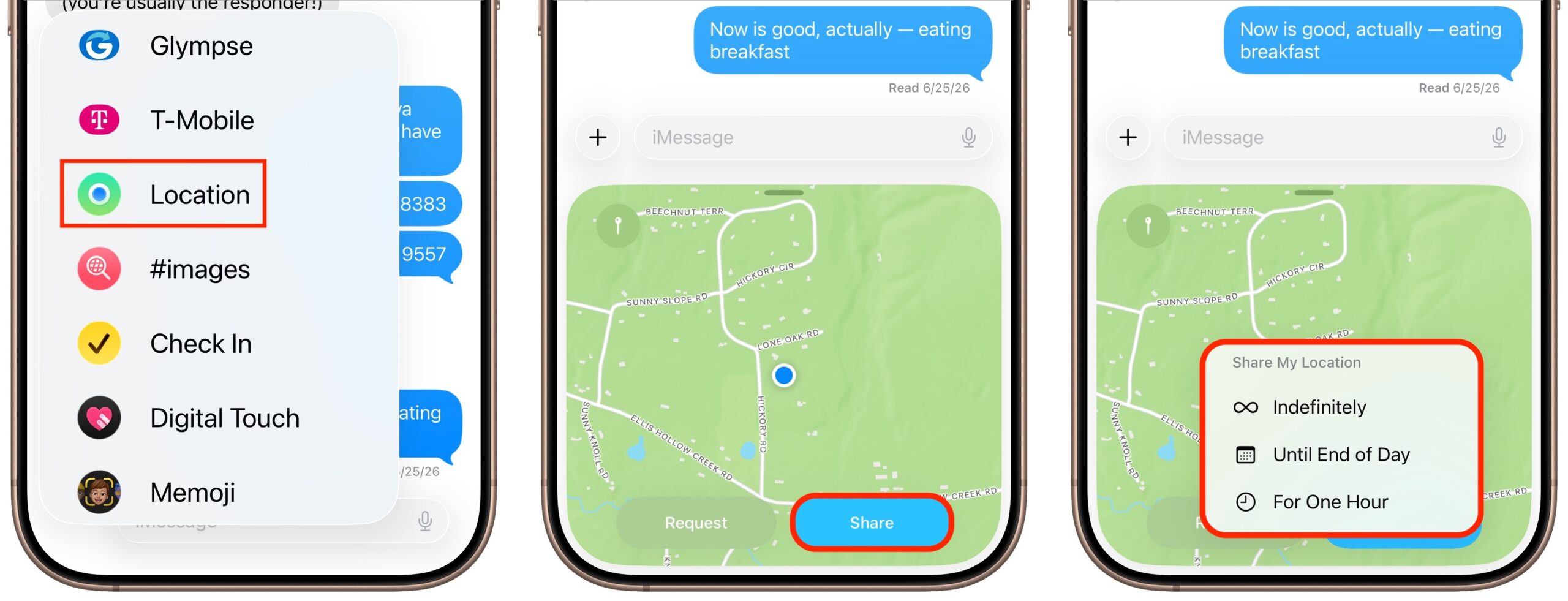
The next time you’re flying, driving, or biking to visit an iPhone-using friend or relative, try sharing your location temporarily so they can check in on your progress without constant “where are you now?” texts. In iOS 17 and later, open a Messages conversation with that person, tap the ⊕ button to the left of the message entry field, and tap Location. In the location-sharing control that appears, tap the Share button, then choose Until End of Day or For One Hour. You can also tap the Request button to ask the recipient to share their location with you. If you pick Indefinitely for the sharing duration and later wish to revoke it, open the Find My app, tap the People list, select the person, and tap Stop Sharing My Location.
(Featured image generated by Adam Engst with ChatGPT)
Social Media: Put an end to the “where are you now?” texts. iOS lets you temporarily share your location with friends and family while traveling—here’s how to set it up in Messages.

by Steve Sorbo | Jul 3, 2026 | Uncategorized
At some point, most of our communications shifted from analog to digital: letters and phone calls became emails, texts, and video calls. With analog methods, we could generally assume that our private communications would remain private. Few people were going to steam open a letter or wiretap a phone line. The Internet changed that—digital communications, if not properly protected, can be intercepted in bulk far more easily.
Not all everyday communications require strict privacy. Most of us prefer privacy, of course—few people want their dinner plans published for the world to see—but there are typically no consequences of exposure greater than mild embarrassment (McDonald’s again?). But even ordinary people regularly need to share information that could damage their relationships, finances, or careers if it fell into the wrong hands.
Passwords are the most obvious example because their entire point is secrecy. But other sensitive data includes credit card details, bank account numbers, tax documents, retirement planning materials, and health-related information. When you need to share such data, how do you do it securely?
Data at Rest and in Transit
Before exploring specific solutions, you need to think about how information is protected when it’s in transit between systems and when it’s stored somewhere:
In transit: To prevent eavesdropping, focus on communication channels that are encrypted between you and the destination:
- Between your app and a server: Nearly all Internet-enabled apps, including all Web browsers, use SSL/TLS to protect their connections to servers. A lock icon in a Web browser’s address bar indicates HTTPS encryption, or you can look for https at the start of a website’s URL.
- End-to-end encryption: Even better is end-to-end encryption, which ensures that not even the service provider can decrypt your traffic. iMessage (blue-bubble conversations), WhatsApp, and Signal provide end-to-end encryption protection (though WhatsApp archives are readable by other Meta apps). SMS messages are not encrypted at all, and RCS conversations only support encryption with the latest Apple and Google updates, plus carrier support. Both SMS and RCS appear as green-bubble conversations.
At rest: Stored data—whether on your computer, at remote email servers, or in the cloud—needs protection too. Two approaches help:
- Per-file encryption: Encrypt data before sending so even if an attacker figures out how to access the file, it can’t be decrypted without a password. Send the password through a completely different communication channel (called “out-of-band”)—for example, share an encrypted file via email but send the password via Messages.
- Time- or access-expiring links: Send a link to the information that expires after a short period or after a limited number of views, thereby shrinking the window during which a breach could occur.
Choosing the Right Solution
The best approach for any given communication depends on four factors:
- Audience: What are your recipients’ technical capabilities? Messages is easy and secure, but only Apple users can access it. Email reaches everyone but offers less protection. A password-protected PDF is probably easier for less-technical users than an encrypted disk image.
- Content type: Sharing a password differs from sharing a document, which in turn is different from sharing a collection of files.
- Importance: How problematic would it be if the sensitive information you’re sharing fell into the wrong hands? There’s a world of difference between the password for a club discussion forum and the credentials to your retirement account.
- Persistence: Does your recipient need to glance at something only once, or do they need to retain a copy permanently?
Eight Secure Sharing Methods
With all that in mind, here are eight secure methods of sharing information that you can employ in different situations:
- Use a secure portal when available: Doctors, lawyers, accountants, and other professionals who regularly receive sensitive information often use secure customer portals or services like DocuSign for sending messages, documents, and files. Use whatever system they provide unless you have good reason to doubt their IT competence.
- iMessage, Signal, or WhatsApp: For quick sharing of sensitive information, these end-to-end encrypted messaging services work well. They’re particularly useful for sending information that isn’t useful on its own—for instance, send a login URL and username via email but the password separately via Messages.
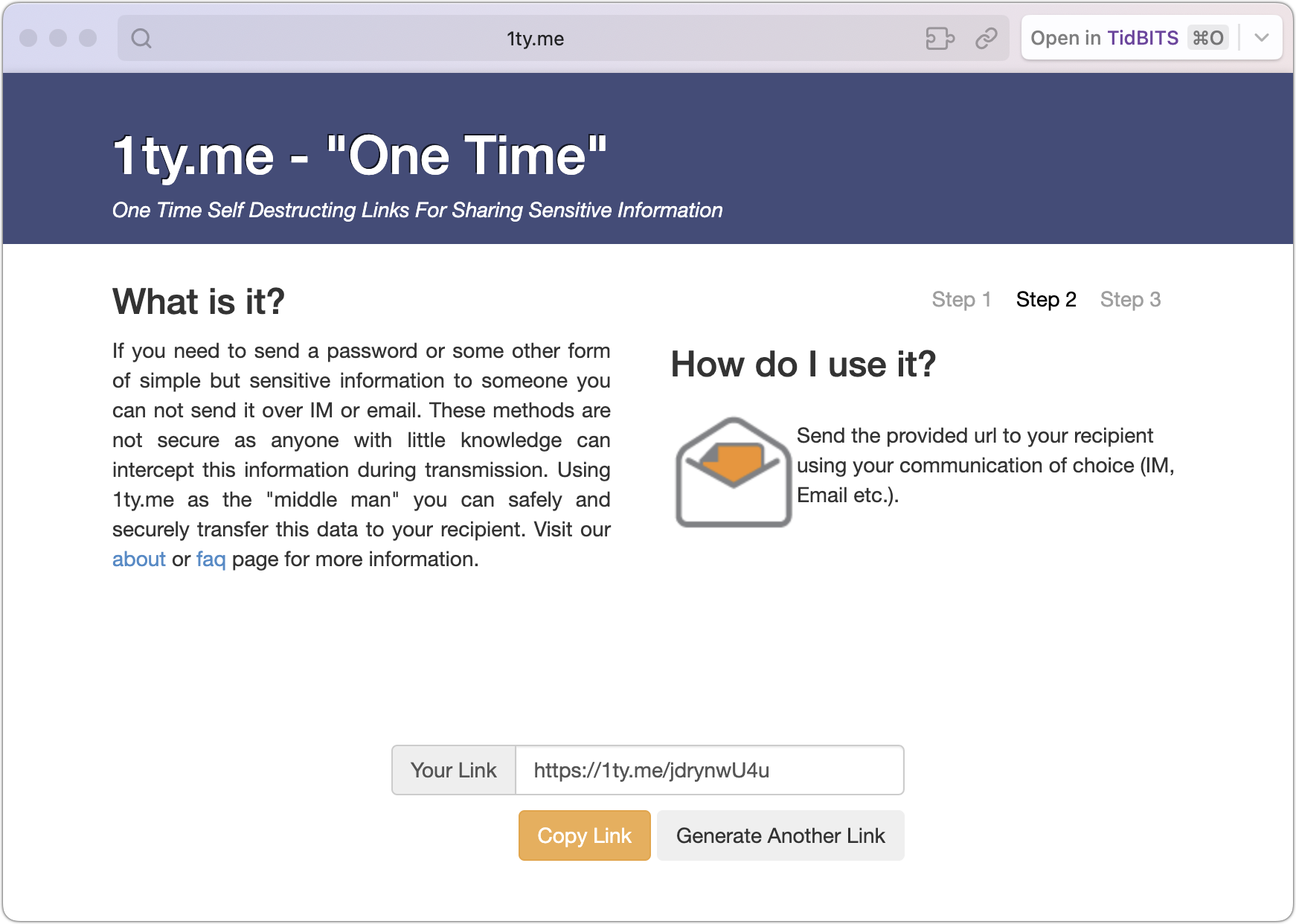
- Self-destructing links: Services like 1ty.me and One-Time Secret generate encrypted links that contain text. Once the recipient views the link, the server deletes the data, and the link self-destructs. If the recipient reports the link was already used, you know it was compromised. Be aware that some email systems automatically scan links, which could trigger premature self-destruction.
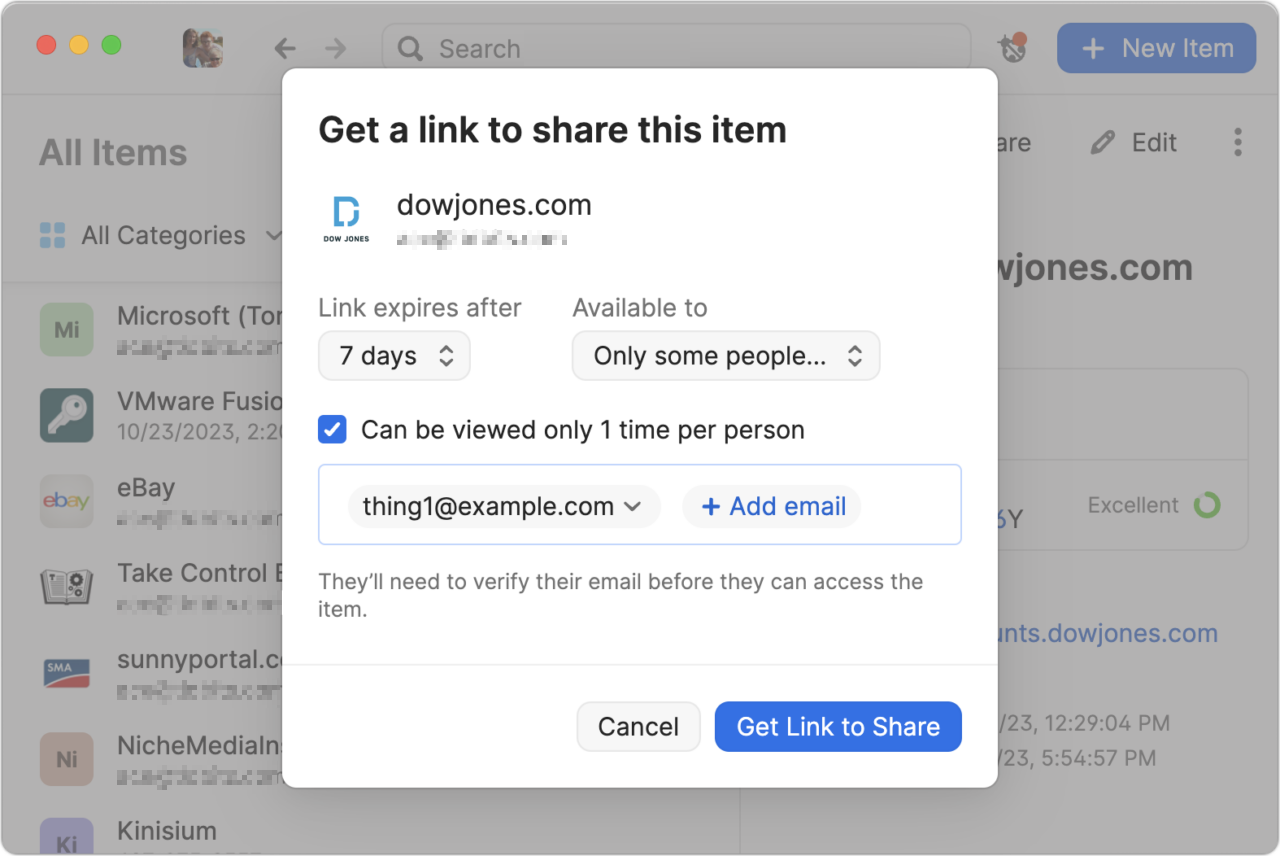
- Password manager sharing: 1Password, Bitwarden, and some other password managers (but not Apple’s Passwords) offer secure sharing features that make it easy to share credentials with someone who needs to access a particular account. You can create links with expiration dates, limit access to specific email addresses, and cause links to self-destruct after being viewed once.
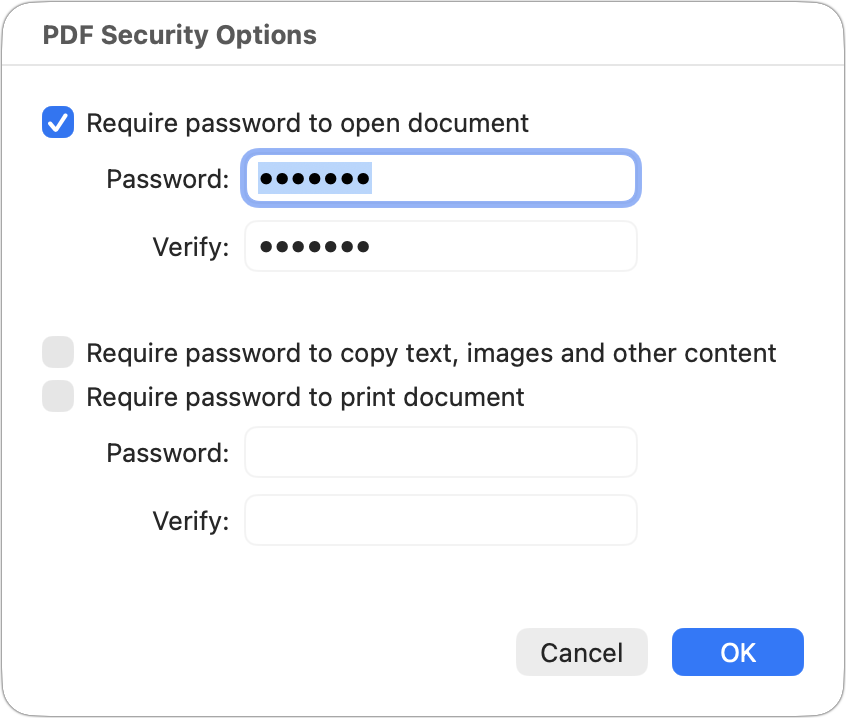
- Password-protected PDF: For documents that could be printed, create a password-protected PDF. From nearly any app, choose File > Print, click the PDF menu at the bottom, and choose Save As PDF. In the Save dialog that appears, click Security Options, select “Require password to open document,” and enter a strong password (online services can remove weak passwords). Share the file however you like, but send the password through a different channel, preferably via an expiring link.
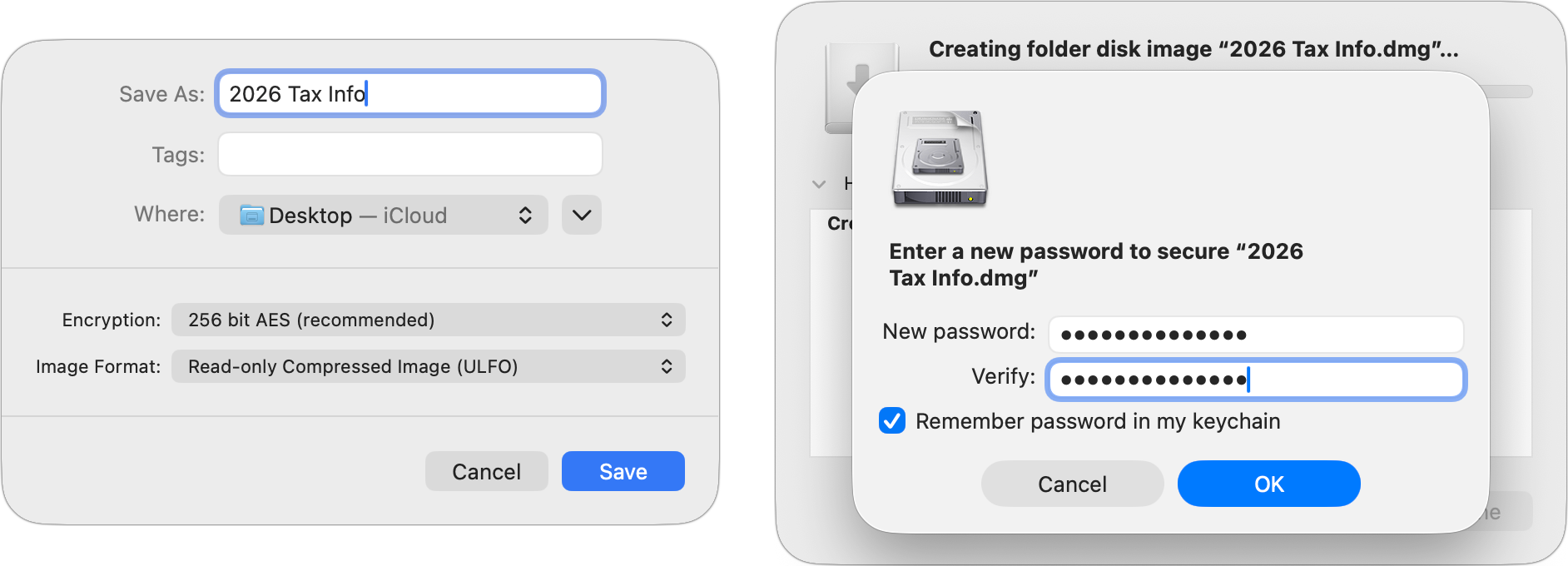
- Password-protected disk image: For Mac users sharing files that can’t easily become PDFs, or for sharing collections of files, create a password-protected disk image. In Disk Utility, create a new compressed disk image (File > New Image > Image from Folder), choose an encryption option (256-bit for more sensitive information), and enter a strong password. Again, share the password separately, ideally via an expiring link.
- Password-protected Zip archive: A password-protected Zip archive serves the same purpose and may be easier for Windows users to extract. Apps like Keka and BetterZip can create these. For the fastest approach, open Terminal, type
zip -er ~/Desktop/filename.zip (with a space at the end), drag in the files you want to compress, press Return, and enter your desired password when prompted.
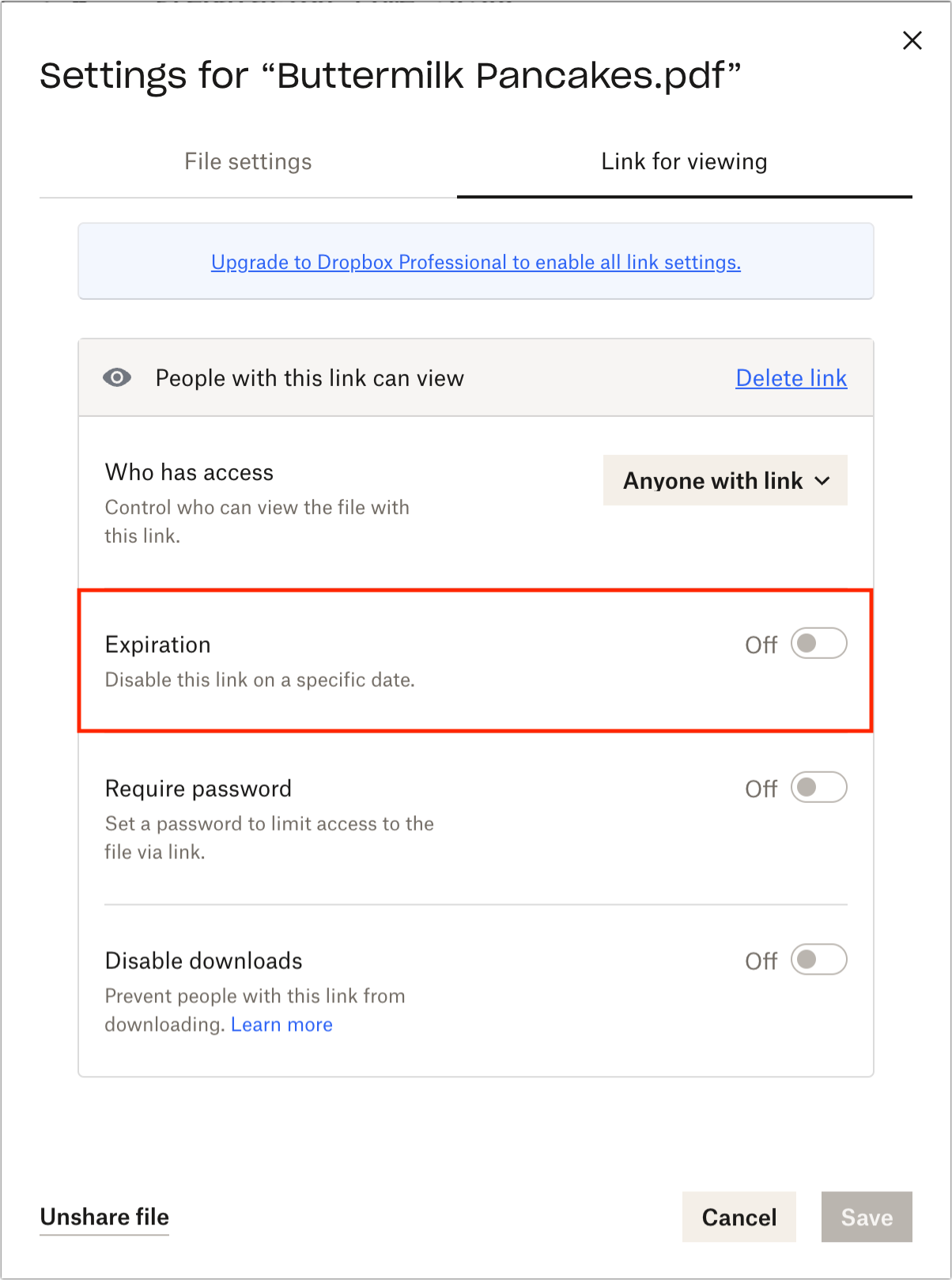
- Time-expiring cloud storage links: Some cloud storage services offer links that expire after a specified time. Dropbox Professional supports this feature, enabling you to share files while ensuring that links become useless in the event of a breach.
There’s no one-size-fits-all solution for securely sharing sensitive information. Match your approach to the sensitivity of the data, your recipient’s capabilities, and how long they need access.
(Featured image by iStock.com/metamorworks)
Social Media: Need to share passwords, financial details, or sensitive documents securely? Email alone isn’t safe enough. Learn eight practical methods—from self-destructing links to encrypted disk images—that protect your data in transit and at rest.

by Steve Sorbo | Sep 5, 2025 | Uncategorized
Most AI chatbots, including ChatGPT, Claude, and Google’s Gemini, let you control whether your conversations will be used to train future models. While allowing this could improve the AI, it also means that sensitive business information and intellectual property could become part of the chatbot’s training data. Once data is incorporated into AI training, it likely can’t be removed. Even with training disabled, you should be cautious about sharing sensitive business details, trade secrets, or proprietary code with any AI system. To reduce risks, disable these training options:
- ChatGPT: Go to Settings > Data Controls and turn off “Improve the model for everyone.”
- Claude: Navigate to Settings > Privacy and disable “Help improve Claude.”
- Gemini: Visit the Your Gemini Apps Activity page and turn off Gemini Apps Activity.
- Meta AI: Avoid it entirely, as it doesn’t allow you to opt out of training.

(Featured image by iStock.com/wildpixel)
Social Media: Don’t let sensitive business data become part of AI training sets. Here’s how to turn off training options in popular AI chatbots to protect your company’s information.

by Steve Sorbo | Sep 5, 2025 | Uncategorized
You’re in a meeting with colleagues, and after everyone else has trickled out, you talk about a sensitive topic with a trusted friend. That would typically be no problem with an in-person meeting, but with a modern virtual meeting, where an AI records a transcript, summarizes what was said, and automatically emails it to all participants, you might not want everyone to know about your coworker conflicts, job search, health issues, relationship troubles, or countless other confidential matters.
This issue affects all major videoconferencing platforms—Zoom, Microsoft Teams, Google Meet, and others. Many organizations also use standalone AI recording tools that can join meetings as participants, such as Otter.ai, Fireflies.ai, and tl;dv.
No one should feel ashamed of using AI-generated meeting summaries, nor should these tools be categorically avoided. They’re undeniably helpful, allowing people to focus on the discussion instead of taking notes or worrying about forgetting action items. We know people who consider them life-changing.
However, the fact remains: unlike a person tasked with taking notes, these tools record everything, including pre-meeting chatter, small talk, and personal asides that a person would know not to include. Making matters worse, AI notetakers are often configured to distribute transcripts and summaries automatically to all attendees—including those who were invited but didn’t attend. While this helps people catch up on missed meetings, it can cause problems if the absent individuals were themselves the topics of discussion. And we won’t even get into the potential legal and HR implications of certain conversations being made public.
Practical Solutions
Given the utility of AI-generated meeting summaries, what can you do to reduce the chances of potentially embarrassing or problematic conversations being shared inappropriately?
- Warn attendees: Although most videoconferencing tools alert users that recording is happening, everyone is used to these notifications. For a more explicit warning, the meeting host can remind everyone that summaries will be shared with all attendees.
- Pause/resume recording: While not all videoconferencing and AI recording tools offer the option to pause and resume, it can be useful. The meeting host can wait to start recording until everyone has arrived and the pre-meeting chatter has died down, and then stop it once the last agenda item has been discussed. The challenge is that this requires the host to remember to start and stop at the right times, and any valuable conversation before or after these points will be lost.
- Restrict distribution: Another option is to configure the system so meeting summaries are sent only to the host, who can then review and edit them if needed before sharing with the rest of the attendees. The drawbacks here are the extra work for the host and the delay in participants receiving the notes, which can hold them back from starting on action items.
- Watch what you say: Just as with social media posts, it’s important to think before you say something you might regret. If you assume that everything you say could be shared with your entire organization—including HR and your boss—you’ll be much less likely to get into trouble. Of course, this requires everyone to be sufficiently self-aware to avoid problematic topics.
- Use private channels: If you anticipate needing to discuss sensitive information with a remote colleague—the kind of thing you’d shut your office door to keep passersby from overhearing—use a private channel like a personal meeting room, direct message, or phone call. And if someone starts to say something problematic in a group meeting, gently suggest moving it to a private channel.
Although having AI-generated summaries of conversations you thought were private circulated to others may feel like a modern problem, variants have been around for a long time: the romantic message misaddressed to the company-wide email list, the list of layoffs left in the copy machine, or even a conversation that continues across stalls in the bathroom without realizing someone else has come in. Ultimately, all we can do is be mindful of what we say and who might hear it.
(Featured image by iStock.com/ArnoMassee)
Social Media: In virtual meetings, AI recording tools often capture and share everything—even those casual chats that occur after most attendees have left. Learn how to avoid having sensitive conversations broadcast to your whole team.

Recent Comments