by Steve Sorbo | Jul 3, 2025 | Uncategorized
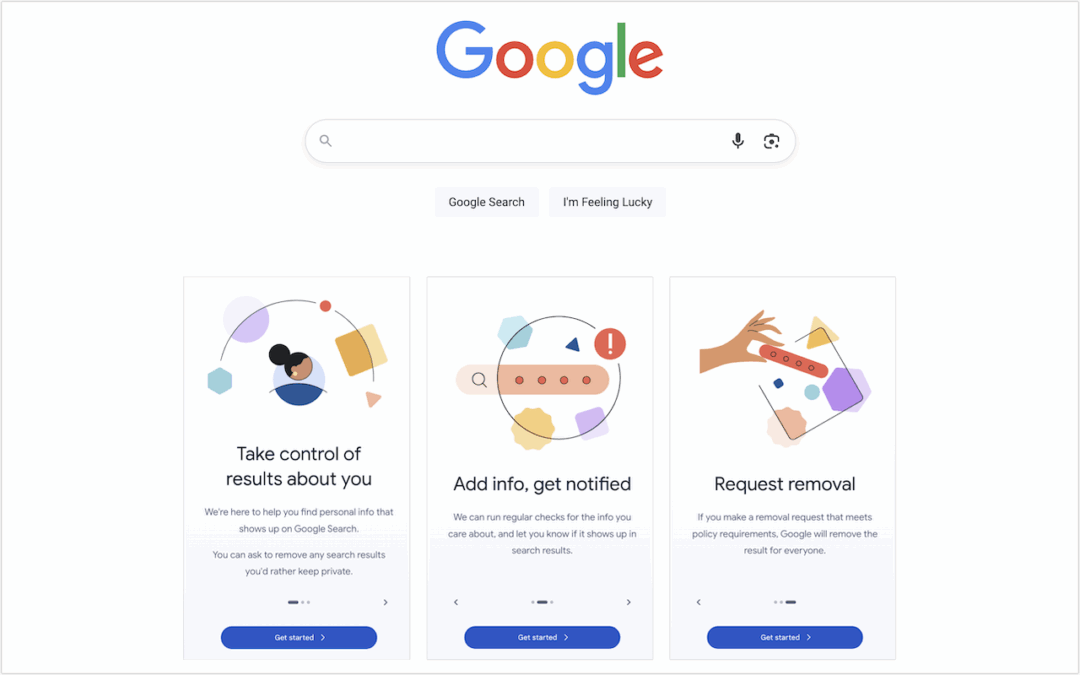
Google has created a free service that lets you see what of your personal and professional information has been published on the Web. Once you provide your name, address, phone numbers, and email addresses to Google’s Results About You website, Google will inform you if that info appears in search results. (Don’t worry, you’re not telling Google anything it doesn’t already know.) It may take a few days or weeks for the initial results to come back, and Google will keep adding more results over time. You can review each page with your information and, if it’s data you would prefer to keep private and it meets Google’s policy requirements, request its removal from the search results. This only removes your data from Google’s search results; to remove it from the Web entirely, you’ll need to contact the website hosting the information.

(Featured image by Google)
Social Media: Curious about how your personal information shows up in Google searches? Google’s Results About You service helps you monitor and manage your digital footprint.
by Steve Sorbo | Jul 3, 2025 | Uncategorized
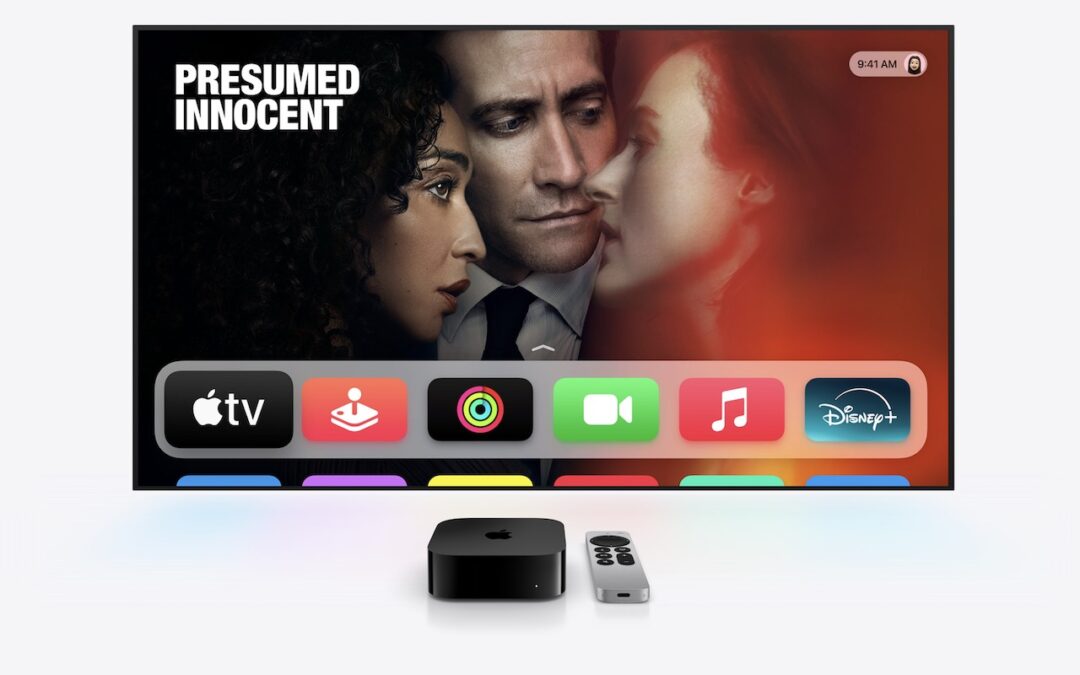
If you own a smart TV or are shopping for a new one, you should be aware of a troubling trend: modern TVs have evolved from simple screens into sophisticated surveillance devices. You can protect your privacy by using an Apple TV as your streaming device rather than relying on built-in smart TV features.

If you have an older non-smart TV that meets your needs, you’re in luck—an Apple TV provides streaming capabilities while avoiding the privacy concerns that plague modern TVs. For everyone else, here’s what you need to know about how TV manufacturers are monetizing your viewing habits and how an Apple TV protects you.
Data Mining: How TV Makers Profit from Your Viewing Habits
Arguably, the longevity of large-screen TVs has contributed to this trend. In the past, TV manufacturers focused on selling as many TVs as possible. Consumers see less need to upgrade when a modern 55-inch TV offers little beyond what a 15-year-old TV of the same size can provide. Sure, it might be a bit brighter, have better color accuracy, or provide higher refresh rates, but for most people watching streaming video in a dark room, such changes aren’t very noticeable.
In response, TV manufacturers have lowered prices to boost sales and turned to alternative revenue streams, including collecting and selling viewer data and displaying ads. Data can be sold to companies like Nielsen, a data and marketing measurement firm, and leveraged to provide advertisers with targeted audiences. Smart TV ad revenue is estimated to reach $46 billion worldwide this year, up 20% after another 20% increase in 2024. These ads appear on the smart TV’s home screen and in free, ad-supported streaming channels.
TV manufacturers track viewing habits using a technology called automatic content recognition (ACR). Software loaded on the smart TV captures frame-by-frame screenshots of content, creates a fingerprint for each frame, and then matches the fingerprint against an online database to determine what you’re watching. It works with all types of viewing, from standard TV to gaming. Since that data is tied to your specific household, companies can create audience segments and either use it for their own advertising or sell it to third parties. One analyst suggests you’re worth about $20 per year.
Wait, it gets worse! Many smart TVs feature microphones to enable voice commands, and some also include cameras to support video calling capabilities. Manufacturers can use captured audio and video to monitor viewer engagement—are you actually watching the show, or is it just playing in the background? That data also feeds into the profile that the TV manufacturers maintain about you.
If all this feels creepy to you, you’re not alone. Most annoyingly, apart from the opportunity to buy a cheap TV, there’s essentially no ongoing benefit to you in having your viewing habits packaged and resold. At most, you might get to ignore slightly more targeted ads.
Protect Your Viewing Privacy with an Apple TV
If you currently have a smart TV or are looking to replace an older TV, there’s an easy solution: use an Apple TV instead of the smart TV’s built-in apps or a similarly problematic media streaming box from the likes of Amazon, Google, and Roku. Although Apple isn’t perfect when it comes to privacy, the Apple TV provides a complete streaming solution that doesn’t share your viewing data with advertisers and data brokers. Here’s how:
- No ACR tracking: Apple has confirmed that the Apple TV doesn’t use ACR at all.
- No built-in advertising: Unlike Roku OS and Samsung’s webOS, the Apple TV doesn’t display ads on the home screen or in the screensaver.
- Privacy-first setup process: During setup, you’re given the opportunity to disable Siri, location services, and analytics.
- Limited data collection: Even when you do allow Apple to collect data, it’s done in ways that guarantee anonymity and used only in aggregate. No personal information is ever shared with Apple.
- Strong third-party app tracking controls: tvOS apps must ask for permission to track you, just like iOS apps. You can (and should) always reject such requests or prevent them from asking at all by going to Settings > Privacy > Tracking > Allow Apps to Request to Track.
Even with an Apple TV, you’ll need to take a few additional steps to protect your privacy since smart TVs can still track content playing through HDMI connections:
- Disable ACR tracking: Turn off ACR in your TV’s settings to prevent it from analyzing what you’re watching. This setting can be tricky to find since TV manufacturers deliberately make it difficult and use different names. Consumer Reports provides instructions for many TV models and streaming media devices.
- Consider blocking Internet access: For maximum privacy, you can prevent your TV from connecting to your Wi-Fi network and accessing the Internet, though this comes with trade-offs. While it ensures that no data leaves your TV, you’ll miss out on bug fixes, security updates, and certain features like picture calibration. You may also encounter connection error messages, and some TVs require occasional Internet connectivity for validation purposes. You may have to connect periodically to keep it working.
By turning off ACR, disconnecting the smart TV from the Internet, and using an Apple TV instead of a smart TV’s built-in apps or other streaming devices, you can enjoy your favorite shows without feeling like you’re being watched.
(Featured image by Apple)
Social Media: While you’re watching TV, your smart TV is watching you. Find out how manufacturers track your viewing habits and learn simple steps to protect your privacy with an Apple TV.
by Steve Sorbo | Mar 7, 2025 | Uncategorized
With so many troubling things happening in the world, some clients have inquired about ways to enhance their security. While we don’t want to encourage paranoia, there are many legitimate threats, and everyone will have their own levels of worry about each one.
The effort and inconvenience that different people are willing to endure also vary. Higher levels of security often necessitate significant effort and inconvenience. We have divided our list of suggestions—roughly organized from easiest to hardest—into two sections: actions we believe everyone should take and security measures mainly for those most concerned and willing to tolerate some fuss.
Before we delve into the details, it is important to remember that privacy and security are not the same thing. Privacy refers to the proper collection, use, and governance of personal data. Security, conversely, is concerned with protecting data from unauthorized access and malicious threats. It entails defending data against external dangers, while privacy ensures that the management and use of that data adhere to agreed-upon standards.
Security Improvements for Everyone
These actions are generally beneficial for most users. They don’t require much technical knowledge and can often be accomplished with easily accessible tools and settings:
- Keep apps and operating systems up to date: Nearly every operating system update from Apple addresses numerous security vulnerabilities, and the same is often true for major apps. Always ensure you’re running current versions to take advantage of all those security improvements.
- Enable FileVault: While all data on the internal SSDs of Macs with Apple silicon and Intel-based Macs with the T2 chip is automatically encrypted to prevent unauthorized access if the SSD is removed, it is automatically decrypted whenever the Mac boots, even before you log in. To link decryption to your user account, which makes your login password necessary to decrypt all data, enable FileVault in System Settings > Privacy & Security > FileVault. There are essentially no drawbacks.
- Improve your passcode: For nearly a decade, it has been easy to set a six-digit passcode on the iPhone and iPad, greatly enhancing security compared to the previous standard four-digit passcode (1 million possible combinations versus only 10,000). If you still use four digits, consider switching to six digits, a custom number of digits, or a custom alphanumeric passcode in Settings > Face ID/Touch ID & Passcode > Change Passcode > Passcode Options. Alphanumeric passcodes offer the highest level of security but are more challenging to type.
- Turn on biometric authentication and Stolen Device Protection: If you aren’t already using Face ID or Touch ID on your iPhone or iPad, that’s a mistake. Both provide significantly stronger security than repeatedly entering your passcode, which could be observed. Turn on biometric authentication and Apple’s Stolen Device Protection in Settings > Face/Touch ID & Passcode.
- Adopt strong password habits: If security matters at all to you, you must use a strong, unique password for each online account and never reuse a password. It’s easy and secure as long as you create and store passwords with a password manager like Apple’s Passwords or 1Password.
- Enable MFA whenever it’s available: Multi-factor authentication greatly enhances security, safeguarding you even if your password is compromised in a breach. It typically requires entering a six-digit code that you retrieve from an app or receive via text message. Apple’s Passwords and 1Password can both automatically enter MFA codes for many websites.
- Use an ad blocker: Much of today’s surveillance society relies on ads to track you. Anything you can do to block ads will enhance your privacy, so use ad blockers whenever possible. Highly regarded options include 1Blocker, AdGuard, NextDNS, and uBlock Origin.
- Enable privacy and security features in Web browsers: Safari can prevent cross-site tracking and hide your IP address, along with other privacy and security features. In Safari > Settings, review all the options in the Privacy and Security screens and enable those that are appropriate. (Keep cookies and JavaScript enabled; many sites won’t function properly without them.) If you don’t use Safari, choose Brave or Firefox instead of Google Chrome.
- Utilize secure DNS services: To enhance browsing privacy and protect against DNS leaks, configure your devices to use a privacy-focused DNS service like Cloudflare’s 1.1.1.1 or Quad9’s 9.9.9.9.
- Minimize app exposure: Be vigilant about iPhone or iPad apps that might be sharing information about you with data brokers without your knowledge. Specifically:
- Turn off Settings > Privacy & Security > Tracking > Allow Apps to Request to Track.
- Rescind location tracking permissions for all apps except those that require it, such as navigation or weather apps, in Settings > Privacy & Security > Location Services.
- Delete apps you’re not using to prevent them from spying on you.
Security Improvements for the Particularly Concerned
Implementing these actions may require extra steps, specialized knowledge, or significant changes in habits. They’re primarily for those with heightened concerns or those at greater risk, such as journalists, activists, and individuals handling sensitive data:
- Use independent search engines: Google and Microsoft are known for collecting information about their users. To keep your searches private, use a search engine that prioritizes privacy, such as DuckDuckGo, Brave Search, Kagi, or Startpage.
- Protect network traffic: While we used to recommend ensuring you were using secure HTTP (HTTPS) connections, that’s now the bare minimum. For greater privacy while browsing the Web with Safari, turn on iCloud Private Relay in Settings/System Settings > Your Name > iCloud > Private Relay. (This requires an iCloud+ subscription and won’t encrypt traffic from most non-Apple apps.) More broadly, you can safeguard all your traffic by using a trusted VPN service like Mullvad VPN, NordVPN, or ProtonVPN.
- Activate Advanced Data Protection: End-to-end encryption (E2EE) keeps your online data private from everyone, including cloud providers. However, it requires you to manage your encryption keys, which means no one can help recover your data if you lose those keys. You can enable E2EE with Apple services using Advanced Data Protection; turn it on in Settings/System Settings > Your Name > iCloud > Advanced Data Protection.
- Use encrypted messaging: The iMessage system used by Apple’s Messages app for blue bubble conversations is highly secure, particularly with Advanced Data Protection enabled. However, for the most secure messaging with E2EE, look to Signal. While WhatsApp also offers E2EE, its backups might not be encrypted, and its parent company, Meta, is one of the most egregious privacy abusers on the planet.
- Regularly review and revoke permissions: Periodically check and manage app permissions on your device to ensure that no apps have unnecessary access to sensitive information, such as your contacts or location. Work through the options in Settings/System Settings > Privacy & Security and revoke permissions for anything that seems inappropriate. Apps that require additional permissions will always prompt you again.
- Encrypt cloud-stored data: To ensure that cloud storage services like Box, Dropbox, Google Drive, and OneDrive cannot read your data, use the free and open source Cryptomator to encrypt it first.
- Use encrypted email: While it’s impossible to ensure that email will remain private because you can’t control your recipients’ actions, the most privacy-focused email services are ProtonMail and Tuta Mail. They employ E2EE for emails sent to other users of the same service and allow the encryption of email messages sent to any external recipient.
- Reduce reliance on cloud services: If you have general concerns about cloud services, consider exploring peer-to-peer alternatives that remove the need for a central provider. You can find peer-to-peer solutions for file storage, file sharing, chat and messaging, videoconferencing, collaborative documents, cloud-based notes, and more.
- Avoid social media: Posting on social media, especially on platforms owned by large corporations, allows those companies to create a comprehensive profile of you that is shared with advertisers and is vulnerable to data breaches. Further, any information you disclose about yourself could be exploited by hackers in social engineering attacks targeting your accounts. Consider replacing social media with independent forums devoted to your interests and private messaging spaces for friends and family.
Ultimately, enhancing privacy and security is your responsibility. Apple and other companies may offer tools to assist, but it’s up to you to implement them and stay vigilant against new threats. We’re also happy to provide advice and assistance.
(Featured image by iStock.com/andreusK)
Social Media: If world events have you worried about your online privacy and security, you may be interested in minimizing your exposure. We recommend some simple steps that everyone can take and other actions for those who are especially concerned.
by Steve Sorbo | Nov 1, 2024 | TCN Content
Recent news reports have revealed that a little-known company called Babel Street can track iPhone and Android user locations. Babel Street does this by leveraging data from mobile advertising data brokers. Investigators from data removal firm Atlas Privacy discovered they could use Babel Street’s Locate X tool to identify patients at a Florida abortion clinic, jurors in a New Jersey trial, attendees at a Los Angeles synagogue and a Dearborn mosque, and even children in a Philadelphia school.
Much of this is possible because people use apps that reveal their location to data brokers, who package the information and resell it to companies like Babel Street. Apple does have an advantage here—Atlas estimated they could locate roughly 80% of Android phones but only 25% of iPhones. That’s due to Apple’s App Tracking Transparency feature, introduced in iOS 14.5, which requires apps to get permission from users before tracking them for third-party advertising purposes. Unfortunately, many people unthinkingly grant such permissions, and location and identification data can also leak out in other ways.
Although it’s difficult to avoid being tracked by data brokers entirely, you can drastically reduce the likelihood and frequency of tracking, which helps ensure that any location information that does become available isn’t sufficient to identify you personally. Your employer may also consider your location to be sensitive information and want you to restrict it to the extent possible. To achieve this, you’ll need to adjust settings in several parts of Settings > Privacy & Security on your iPhone (and iPad, if you regularly use it in multiple locations).
Turn Off Allow Apps to Request to Track
You’ll find the most important setting in Settings > Privacy & Security > Tracking. At the top of the screen is a switch labeled Allow Apps to Request to Track. Make sure that is off! If it has been on in the past, apps that have requested permission will appear below.
By preventing apps from even asking if they can track you, you keep them from sharing a unique identifier associated with your iPhone with other apps and websites. Otherwise, advertisers can follow you from app to app and website to website, gathering information about you—often including your physical location—as you go about your life.
Don’t let apps persuade you to turn this setting on or allow them to track you. Apple’s rules explicitly forbid them from reducing functionality to those who refuse to allow tracking.

Allow Location Access Only for Apps That Need It
While you can turn off Allow Apps to Request to Track with a single switch, preventing apps from seeing your location requires more targeted work. Although Settings > Privacy & Security > Location Services has a big Location Services switch, turning that off will drastically reduce the utility of your iPhone. You won’t be able to get directions from Maps, tag photos with their location, share your location with family members, and much more.
Instead, for each app in the list, determine what level of location access you want to grant based on its function and description of why it needs access. Grant the minimal level of access necessary, which varies by app. Navigation apps need location access to work at all. Camera apps need it to geotag photos. Weather apps use it to provide custom weather reports and extreme weather notifications. But do you want to give a social media app access to your location at all times?

Apple provides five location access levels:
- Never: Choose Never for any app with questionable explanations of why location access is requested.
- Ask Next Time or When I Share: If you’re unsure if you want to allow or deny location access for an app, select this option. The app will prompt you the next time it wants your location, enabling you to make an informed decision based on your actions.
- While Using the App: For most apps you want to allow to see your location, choose While Using the App. It’s entirely reasonable that a location-requiring app be allowed to determine your location while you’re using it.
- While Using the App or Widgets: This option only appears for apps with widgets; choose it only if you use a widget that needs location access.
- Always: Grant Always access only to apps that generate location-related notifications when the app is not open. The most common example is a weather app that provides notifications of incoming storms.
The Precise Location option becomes available if you allow location access for an app. Turn it on only if the app needs to know your location within 15 to 200 feet (5 to 60 meters). An Uber or Lyft driver will need to know where to pick you up, for instance, so those apps should have Precise Location turned on, as should navigation and camera apps. For most others, turn off Precise Location. Your approximate location—a variable radius between 2.5 to 12 miles (4 and 20 kilometers)—is usually sufficient to locate you in the right part of the world.
Block Bluetooth and Local Network Access for Apps That Don’t Need It
Apps can use Bluetooth to infer your general location through interactions with other Bluetooth devices and movement patterns, so Apple requires apps to ask to use Bluetooth. As a result, just as with location, you should go through the apps listed in Settings > Privacy & Security > Bluetooth and revoke permission from any that don’t seem as though they should need it. Most will be legitimate—an app designed to communicate with a Bluetooth-connected device, for instance. Any app that needs access to Bluetooth and doesn’t have it should prompt you when you next open it.
Similarly, Apple now requires apps to request permission to use your local network. For the most part, these requests are reasonable—apps may need to discover network-connected devices like routers, printers, speakers, smart home gadgets, and more. Or games may need to discover other players on the network. However, because your network can reveal information about your location, it’s best to revoke access for any apps that don’t seem as though they should need it. There’s no harm in doing so; they’ll ask again if they need access.

Ultimately, all we can do is stay vigilant about what we’re allowing on our devices, encourage Apple to add even more privacy protections, and lobby our elected representatives for legal protection. It’s unconscionable that private companies can gather extensive location data on hundreds of millions of citizens.
(Featured image by iStock.com/Chayada Jeeratheepatanont)
Social Media: If you don’t like the idea of private companies being able to track your every move in the physical world, follow our advice to block iPhone and iPad apps from surreptitiously sharing this information.
by Steve Sorbo | Oct 1, 2024 | TCN Content
Do you worry about family members with whom you’re otherwise happy to share your iPhone passcode reading your private diary in a journaling app? Or perhaps you want to keep your child out of apps where they could cause mischief. A new feature in iOS 18 and iPadOS 18 lets you use Face ID or Touch ID to restrict access to specific apps, optionally hiding them in the process. Touch and hold the app’s icon on the Home Screen, and tap Require Face/Touch ID. When prompted, either tap Require Face/Touch ID to leave the app’s icon visible on the Home Screen but restrict access or tap Hide and Require Face/Touch ID to restrict access and hide the icon. Protected apps only open after you authenticate with Face ID or Touch ID; hidden apps can be accessed only from the Hidden folder in the App Library after authenticating. (To reach the App Library, swipe left repeatedly on your Home Screen, then scroll to the bottom to find the Hidden folder.)

(Featured image by iStock.com/SasinParaksa)
Social Media: Keep prying eyes—or mischievous children—out of sensitive or important apps by requiring Face ID or Touch ID access before the app opens. You can also hide such apps so they appear only after you authenticate.

Recent Comments