by Steve Sorbo | May 1, 2026 | Uncategorized
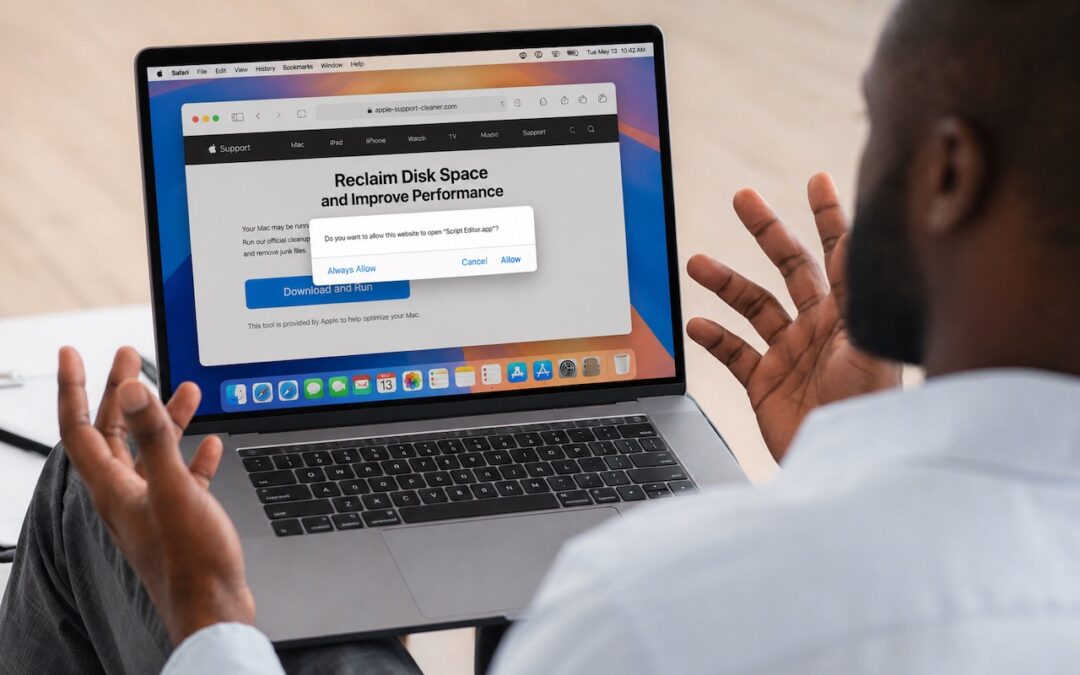
The latest scam to watch out for is fake websites that try to get you to open Script Editor directly from your browser with a pre-filled AppleScript. Don’t do this! Security researchers at Jamf Threat Labs documented an attack where a convincing Apple-themed page claiming to help “reclaim disk space” prompted users to allow Script Editor to open, then used the applescript:// URL scheme to open a seemingly legitimate script that—if the user ran it—would download and install the Atomic Stealer malware. In macOS 26.4, a new warning in Script Editor flags the script as from an unidentified developer, which should alert more users to the danger. (Yet another reason to install macOS updates!) The rule is simple: never run an AppleScript unless you wrote it yourself or acquired the code from a source you trust. If a website asks to open Script Editor—or any other app—click Cancel, and if you ever see this warning, close the script immediately. No legitimate webpage needs to run scripts on your Mac.

(Featured image based on an original by iStock.com/Prostock-Studio)
Social Media: Attackers are now using fake websites to open Script Editor with pre-filled malicious scripts. Never run an AppleScript from any source you don’t completely trust!
by Steve Sorbo | May 1, 2026 | Uncategorized
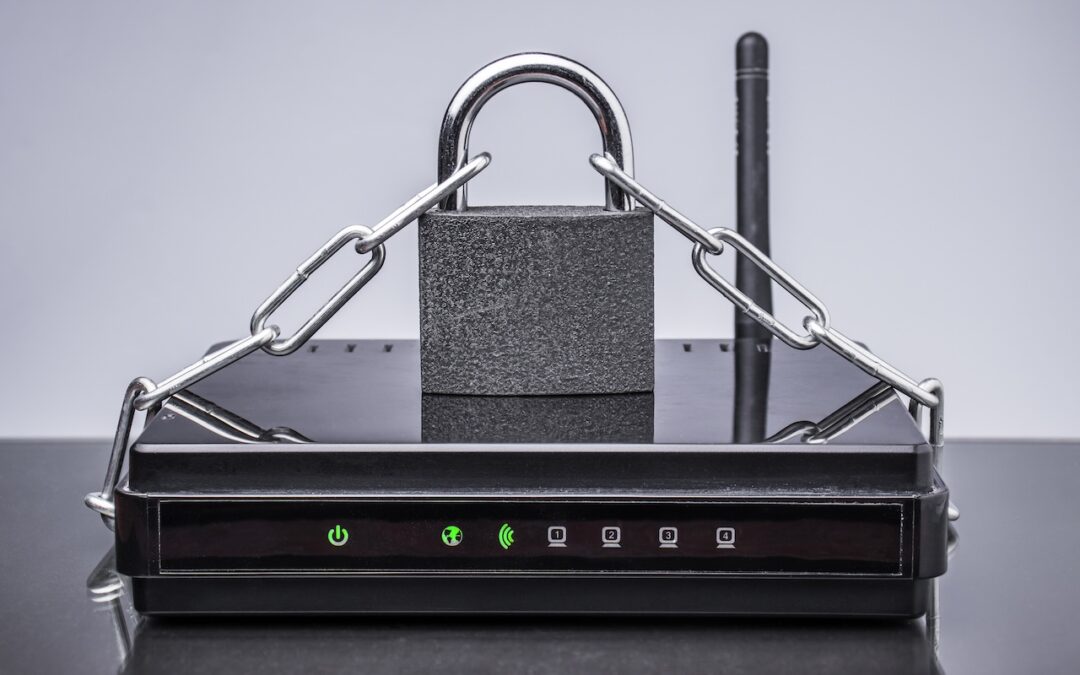
Securing your home network might seem uninteresting or unimportant—after all, who would bother to target you? The answer is that criminal hackers are interested in your router for a range of disturbing purposes, including attacks on your employer if you connect to a corporate network. It’s time to get serious about home network security, a fact underscored by recent news of hacking by the Russian military.
In April 2026, the U.S. Department of Justice announced Operation Masquerade, which disrupted a campaign by a hacking unit of Russia’s GRU that compromised thousands of home and small-office routers. The attackers exploited known vulnerabilities in TP-Link routers to hijack DNS settings and redirect victims to fake Web pages that harvested passwords, authentication tokens, emails, and other sensitive information.
The attack was opportunistic: the GRU cast a wide net, compromising routers indiscriminately, then filtered for targets of intelligence value. Your data may not be interesting to Russian intelligence, but the same vulnerabilities can be exploited by criminal hackers seeking financial data, credentials for identity theft, or devices to conscript into botnets.
Unlike corporate networks with dedicated IT staff, home routers tend to be installed once and forgotten—sometimes for a decade or more. That old router your AV installer set up with a default password has become a security liability for you, for your employer, and for the world. Here are actions you can take to fix that, in rough order of importance.
Replace Unsupported Routers
Routers can last many years, but manufacturers eventually stop releasing firmware updates. Once that happens, known vulnerabilities go unpatched, and the router becomes ripe for attack. Check your manufacturer’s end-of-life lists (easily found with a search) to see if your model is still supported. If it’s not receiving security updates, replace it regardless of how well it still works.
When shopping for a replacement, look for routers with automatic firmware updates from a well-known manufacturer with a track record of long-term security support, such as Asus, Eero, Google Nest, Netgear, or Ubiquiti. Avoid bargain-basement devices from unknown manufacturers—any initial savings aren’t worth the security risk.
Keep Firmware Updated
Router firmware updates patch security vulnerabilities, and the GRU attack exploited a known vulnerability that had an available fix. Enable automatic firmware updates if your router supports them—many modern routers do. If yours doesn’t support automatic updates, set a monthly reminder to check manually. Because new vulnerabilities are discovered regularly, keeping a router secure is an ongoing process, not a one-time task.
Change Default Passwords
Every router ships with default administrator credentials—often printed on a sticker on the device itself. These defaults are widely known and easily found online. Change the admin password immediately after setup to something strong and unique, and store it in your password manager.
Similarly, change the default Wi-Fi network name (SSID) and password. Use WPA3 for wireless traffic encryption if available; most modern routers support compatibility mode that lets older devices connect while newer ones benefit from stronger security. Never use WEP or leave your network open.
Turn Off Remote Management
Many routers offer a remote login option that allows access to the administrative interface from elsewhere on the Internet (rather than within the router’s own network). Unless you specifically need this capability, deactivate it to reduce your exposure to external attacks. This setting is different from the app-based management provided by some modern routers, which uses a secure account and an outbound connection initiated by the router to enable remote access. App-based management is safe as long as your account password is strong, unique, and protected with two-factor authentication.
Check DNS Settings
As seen in the recent attacks targeting some TP-Link routers, attackers who gain access often change DNS servers to redirect you to malicious websites without your knowledge. Verify that your router’s DNS settings are either obtained automatically from your ISP or point to a reputable service such as Cloudflare (1.1.1.1), Google (8.8.8.8), or Quad9 (9.9.9.9). Unfamiliar IP addresses in these settings are a red flag that your router may have been compromised.
Optional Security Improvements
If you make sure you are using a router that’s still receiving security updates, are installing those updates, and have changed the default admin and Wi-Fi passwords, you’ve achieved an entirely acceptable level of security. With a little more time and effort, you can increase security further:
- Disable WPS (Wi-Fi Protected Setup): If your router supports this push-button pairing feature, turn it off to protect against known vulnerabilities that haven’t been patched for over a decade.
- Segment your network: If you have Internet of Things (IoT) devices—such as cameras, smart TVs, or smart home gear—consider creating a separate network for them. If one is compromised, network separation prevents it from accessing your computers or phones. However, some devices need to be set up or controlled by an app on the same network, so you may need to keep such devices on your main network.
- Consider your ISP gateway: Many ISPs provide gateways that combine the modem and router hardware. If you use an ISP-provided router, make sure you can control the necessary security settings. If you instead prefer to use your own router, make sure to turn off its routing (switch to “bridge mode”) and Wi-Fi features to avoid creating another entry point to your network.
- Monitor your network: Periodically review which devices are connected to your network if your router’s admin interface or companion app makes that possible. Unfamiliar devices could indicate unauthorized access (though it’s more likely you didn’t realize some device connects to Wi-Fi because they seldom identify themselves well).
- Back up your network settings: To simplify reconfiguring your router or setting up a new one, create a backup of key settings. It could be as simple as a set of screenshots.
Home network security isn’t complicated, but it does require some thought at setup and occasional attention. If you’d like help with your network or a pointer to the routers we currently recommend, get in touch.
(Featured image by iStock.com/Igor Nikushin)
Social Media: Russian military intelligence recently exploited vulnerable home routers to steal passwords worldwide. You can keep your home network secure by replacing unsupported hardware, enabling automatic updates, and changing default passwords.

by Steve Sorbo | Apr 3, 2026 | Uncategorized
We’ve warned before about scams that trick users into pasting malicious commands into Terminal. Attackers create fake CAPTCHA pages—often resembling Cloudflare’s “are you a human” tests—that instruct visitors to open Terminal, paste a command, and press Return. Because the user executes the command themselves, macOS’s security protections are bypassed. Malwarebytes recently documented a macOS infostealer called Infiniti Stealer that spreads this way, stealing Keychain passwords, browser credentials, and cryptocurrency wallets. These attacks have become common enough that Apple has added a warning in macOS 26.4 Tahoe that appears when a user pastes a potentially dangerous command from Safari into Terminal. The protection is still in its early days—in our testing, the warning dialog appeared only once, with subsequent attempts producing only a beep. Worse, if you allow the first paste, Terminal keeps allowing pastes without further warnings. It’s a step in the right direction, but don’t count on it yet. The core advice remains: never paste commands into Terminal from websites unless you trust the site and fully understand what it does. No legitimate CAPTCHA ever requires Terminal commands!

(Featured image by iStock.com/thomaguery)
Social Media: Fake CAPTCHAs that trick users into pasting malware commands into Terminal are now common enough that Apple added a warning in macOS 26.4 Tahoe. Remember: no legitimate verification ever requires Terminal commands!

by Steve Sorbo | Apr 3, 2026 | Uncategorized
The discovery of two sophisticated iPhone exploit kits—DarkSword and Coruna—within weeks of each other signals a troubling shift. Unlike previous spyware attacks that targeted high-profile users, these exploit kits have been deployed via compromised legitimate websites, so anyone who visits an infected site could fall victim, with no additional clicks or downloads required. This suggests that exploit brokers are now selling tools to multiple buyers, including financially motivated hacking organizations.
Making matters worse, the complete DarkSword exploit code was published to GitHub, making it easy for any hacker to deploy. Security researchers warn that the exploits “will work out of the box” with no iOS expertise required—anyone could copy and paste the code and have it running on a server within hours.
Because it ultimately operates with elevated system privileges, DarkSword can silently harvest alarming amounts of data from vulnerable iPhones, including passwords stored in the keychain, photos, call logs, contacts, browsing history, chat message history, and more. It takes a smash-and-grab approach: collecting and exfiltrating data quickly, then disengaging. Coruna is more targeted and persistent, focusing on stealing cryptocurrency wallet credentials and scanning notes for financial information.
Protection Is Simple
Happily, it’s easy to protect yourself against these and future vulnerabilities: keep your devices up to date. We’ve been beating that drum for years, but DarkSword and Coruna are sufficiently worrying that Apple published a dedicated support page urging users to update, saying: “Keeping your software up to date is the single most important thing you can do to maintain the security of your Apple products.”
If your iPhone is running the latest version of iOS it supports, you’re already protected. But if you’ve been putting off updates—or are still running an earlier version of iOS 18 to avoid iOS 26’s Liquid Glass interface redesign—your iPhone may be vulnerable. Happily, Apple has taken the unprecedented step of releasing an update to an older operating system—iOS 18.7.7—to protect users who don’t wish to upgrade to iOS 26. (You may have to scroll down in the Software Update screen to find it under Also Available.)

Check and Update Your Device
To check your iOS version, go to Settings > General > About and look at the iOS Version line.
DarkSword targets iPhones running iOS 18.4 through iOS 18.7.2. If you’re running iOS 18.7.3 or later, or have upgraded to iOS 26.3 or later, you’re protected. Although none of the DarkSword security reports specifically mention the iPad, it’s best to assume that the corresponding versions of iPadOS are similarly affected.
Coruna can compromise older iPhones and iPads running iOS 13.0 through iOS 17.2.1. Apple recently released iOS 15.8.7 and iOS 16.7.15 to address these vulnerabilities on devices that cannot run newer iOS versions. Devices running iOS 13 or iOS 14 must be upgraded to iOS 15.8.7. Devices running a vulnerable version of iOS 17 should update to the latest version of iOS their device supports.
You can update using Settings > General > Software Update to the latest version of iOS your device supports:
- iPhone 11 and later (and other devices that support iOS 26): Update to either iOS 18.7.7 or iOS 26.4 or later.
- iPhone XR, XS, and XS Max: Update to iOS 18.7.7, the latest version these devices support, which includes the DarkSword fixes.
- Older devices that can’t run iOS 18 (iPhone 6s through iPhone X, plus various older iPads and 7th-generation iPod touch): Update to iOS 15.8.7 or iOS 16.7.15, depending on your device. Devices still running iOS 13 or 14 will need to upgrade to iOS 15.8.7.
If you cannot upgrade for some reason, Apple says that enabling Lockdown Mode in Settings > Privacy & Security > Lockdown Mode in iOS 16 and later will block DarkSword attacks. However, Lockdown Mode significantly degrades the iPhone experience by blocking most message attachment types, disabling certain Web technologies, limiting incoming FaceTime calls, and more. For most people, upgrading to the most recent version of iOS available is the better option.
These discoveries make it clear that installing security updates promptly is more important than ever. Sophisticated exploits that were once reserved for targeted attacks against activists and journalists are now being deployed more broadly. Check your iOS version today, update all your devices, and encourage family members and colleagues to do the same.
(Featured image by iStock.com/sqback)
Social Media: Two major iPhone exploit kits—DarkSword and Coruna—can steal passwords, messages, and photos from everyday users who visit an infected website. Check your iOS version and update immediately to protect yourself.

by Steve Sorbo | Apr 3, 2026 | Uncategorized
A standard piece of advice for staying safe online is to avoid opening attachments from people you don’t know or attachments that seem suspicious. It’s good advice, since PDFs and office documents can contain JavaScript and macros that present a security risk, or they could be maliciously crafted to take advantage of vulnerabilities in common apps to execute code on your computer.
But in the real world, unless the document is attached to a message that is obviously spam, it’s difficult to know whether you should be worried. If you could just look at the document, you might be able to tell, but how can you do that without opening it?
Enter Dangerzone, an open source app created by the nonprofit Freedom of the Press Foundation. The impetus for creating it came from journalists who need to review attachments from possibly untrustworthy sources while protecting themselves from hacking and retaliation from powerful corporate and government interests.
Dangerzone won’t tell you whether or not a document is safe. Instead, when you drop a document on its window, it creates a PDF image of the document that contains nothing of the original other than the visual representation of its pixels. Think of Dangerzone as a virtual photocopier—it makes a visual copy.

But Dangerzone is a highly sophisticated virtual photocopier, since it has to work with malicious documents without allowing them to cause harm. Behind the scenes, Dangerzone first creates a Linux container to keep the document away from your Mac. Within the container, it then creates a sandbox to protect the Linux kernel. Then it uses open source tools—LibreOffice and PyMuPDF—to convert the original document to a PDF, split that PDF into individual pages, and convert each page to RGB pixels—just colored dots. Then it quits the sandbox since the file has been sanitized, and if possible, it converts the RGB pixel data into a compressed, searchable PDF. Finally, it saves the PDF to the specified folder and archives the original file. You can process only one file or batch of files at a time to ensure that the entire secure conversion environment starts fresh each time.
Here are the document types that Dangerzone can convert into safe PDFs:
- PDF (.pdf)
- Microsoft Word (.docx, .doc)
- Microsoft Excel (.xlsx, .xls)
- Microsoft PowerPoint (.pptx, .ppt)
- ODF Text (.odt)
- ODF Spreadsheet (.ods)
- ODF Presentation (.odp)
- ODF Graphics (.odg)
- EPUB (.epub)
- JPEG (.jpg, .jpeg)
- GIF (.gif)
- PNG (.png)
- SVG (.svg)
- TIFF (.tif, .tiff)
- Other image formats (.bmp, .pnm, .pbm, .ppm)
You won’t want to use Dangerzone on every document you receive in email. There’s no reason to fuss with it for attachments that come from people you know, in contexts where it makes sense that they’re sending you something. But if you get an attachment out of the blue that makes you think, “Why is this person sending me a document?” run the document through Dangerzone to make sure it’s safe.
(Featured image by iStock.com/shironosov)
Social Media: Got a suspicious attachment? Dangerzone converts potentially dangerous PDFs and Office docs into safe, pixel-only copies you can view without risk. Think of it as a virtual photocopier that strips any hidden malware, JavaScript, or macros.

Recent Comments