
by Steve Sorbo | Apr 1, 2024 | Uncategorized
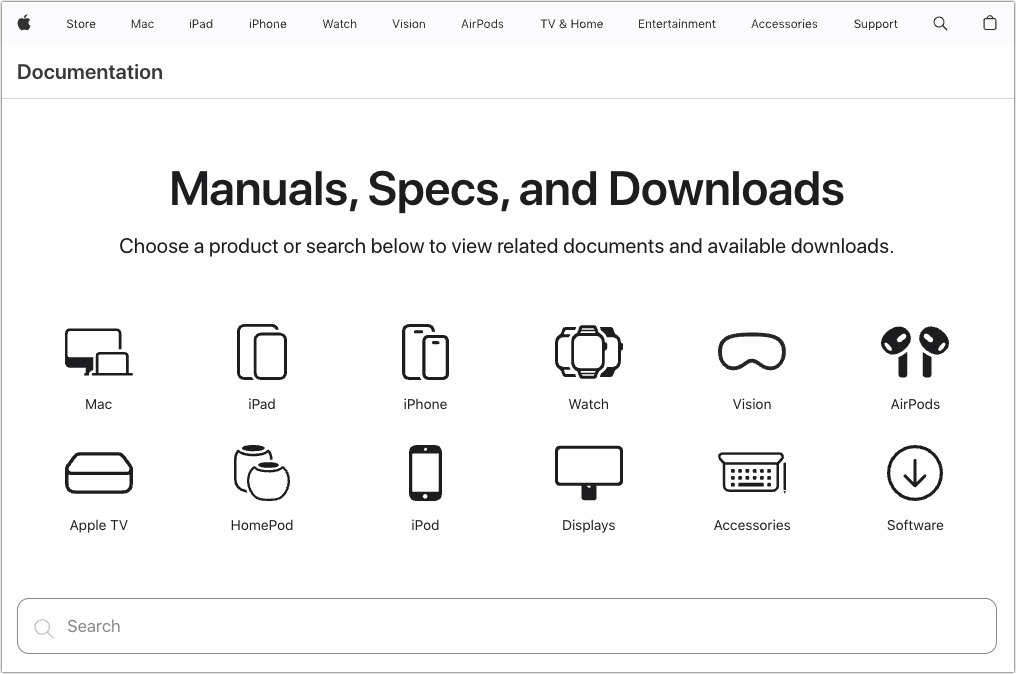
Apple publishes a multitude of manuals and tons of technical documentation for its products on its support site, but until recently, it could be challenging to find something specific because the search engine on Apple’s site is poor. For a better path into Apple’s online support materials, check out the company’s new Documentation site, which brings together manuals, specs, and some downloads for nearly all its products. The operating system User Guides are particularly helpful, and they even provide a Version pop-up menu that lets you make sure you’re getting information for the version you’re using.
(Featured image by iStock.com/Ildo Frazao)
Social Media: Do you want to read the actual manuals or specs for Apple products? You can now easily find them on Apple’s new Documentation website.
by Steve Sorbo | Apr 1, 2024 | Uncategorized
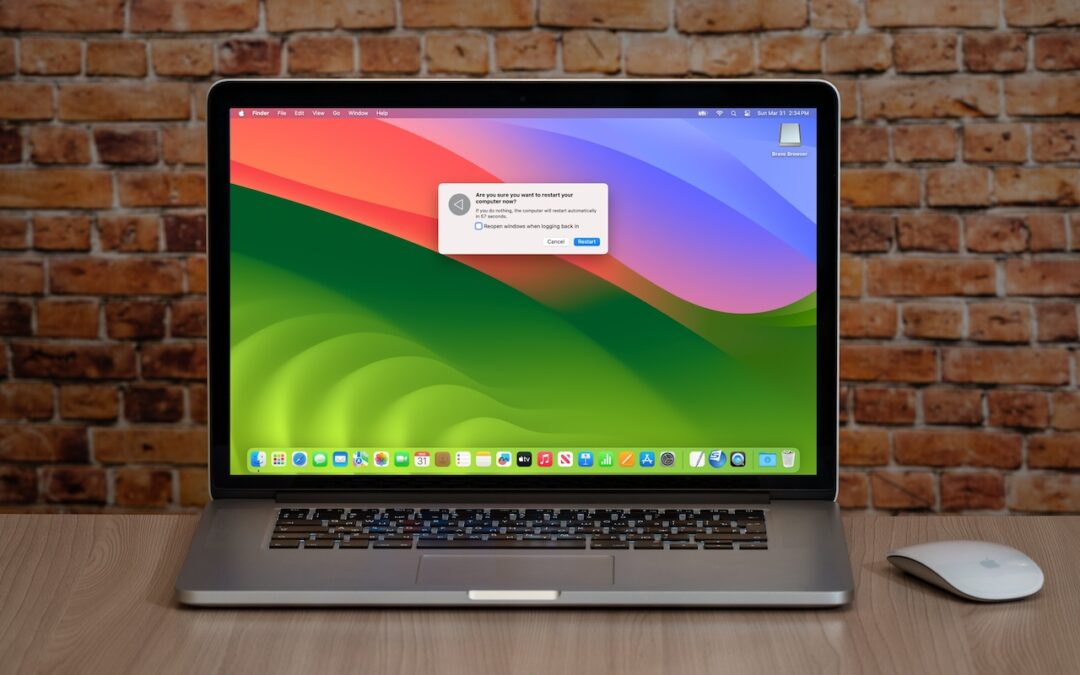
Long ago, before macOS was as stable as it is today, Mac users restarted their Macs regularly. Back then, Macs couldn’t sleep, either, so it was common for users to shut down at the end of the day and start up the next morning, effectively restarting daily.
With modern Macs using the barest trickle of power in sleep and both apps and macOS almost never crashing, many Mac users have gone to the opposite extreme, letting their Macs run for months between restarts. However, such an approach brings with it new problems, and as with so many things, there’s a happy medium.
Why are we banging this particular drum? As an off-the-cuff estimate, about a quarter of the problems reported to us can be solved by a restart. Really! Just click the Apple menu and choose Restart. As long as you save your work first or when prompted, nothing bad will happen.
Here are our top six reasons you should restart periodically:
- Improved security: Restarting itself doesn’t generally improve security (although it could theoretically clear malicious code running in memory). However, installing macOS updates requires a restart, and we strongly recommend installing security-focused updates shortly after they’re released. If you resist installing updates because of the need to restart, you’re increasing your risk significantly.
- Resolve problems: Modern Macs may be more stable than ever, but things can still get funky. If apps are crashing, peripherals aren’t connecting, you’re seeing visual glitches, or anything else seems wrong, the first troubleshooting step is a restart.
- Better performance: We all have a feel for how long different tasks on our Macs take. If icons for launching apps bounce longer than usual, windows draw slowly, or you see the spinning pinwheel repeatedly, restart. Performance problems are often caused by a poorly coded app or out-of-control process causing your Mac to run out of physical memory and switch to slower virtual memory. Restarting clears such issues.
- Recover drive space: Another memory-related bonus of restarting is that it can free up drive space. When macOS starts to rely on virtual memory, it creates swap files that can consume gigabytes of space. Restart, and all that space is returned, at least until your app usage requires it again.
- Get updates: Most apps notify you of updates at launch, and some automatically download their updates but install them only when you quit. Either way, a restart results in all your apps quitting and relaunching, which ensures they either install or at least notify you of important updates.
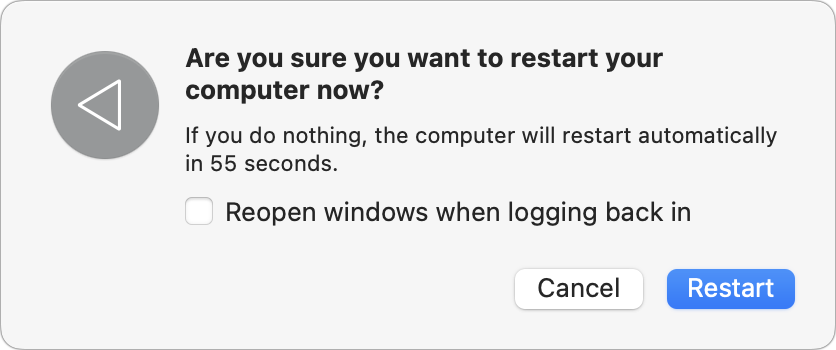
- Start fresh: Even if having 20 or more apps open isn’t affecting your Mac’s performance, a clean slate can help you focus on your work better. A simple restart quits everything and lets you start over with just those apps set to launch at login. For a completely fresh start, make sure to deselect “Reopen windows when logging back in” in the restart dialog. Of course, if you have a lot of documents open and need to return to them, leave that checkbox selected to pick up exactly where you left off.
There’s no set schedule on which you should restart, but if you use a Mac at work and like routines, it wouldn’t be problematic to restart on Friday evening as you wind down to leave for the weekend. That way, you’d return to a clean slate on Monday morning. It’s also totally fine to restart whenever it might be helpful.
Just don’t fear the restart—modern Macs, especially those with Apple silicon, restart quickly, and the benefits far outweigh the few minutes of downtime.
(Featured image based on an original by iStock.com/Armastas)
Social Media: You can go for weeks or months without restarting your Mac, but it’s a good idea to restart more frequently to increase security, avoid or resolve problems, get updates, and generally clear your Mac’s decks.

by Steve Sorbo | Feb 1, 2024 | Uncategorized
How would you realize that one or more of your Internet accounts—email, social media, financial—have been hacked? (Some prefer the terms “compromised” or “breached”—you may hear them from support techs.) Unfortunately, there’s no telltale warning sign because “hacked” could mean any number of things. Here are some possible indications:
- People you trust report receiving email that you didn’t send.
- Social media friend requests are made to people you don’t know, or messages you don’t recognize are sent from your account.
- Although you’re certain you have the correct password, you can’t log in to an account.
- You become aware of your personal data appearing in places it shouldn’t.
- Unknown charges or transfers appear in a bank or credit card account.
However, attackers will also try to fool you into thinking an account has been compromised to get you to enter passwords or financial information on a website designed to steal data. Don’t assume you’ve been hacked just because you received a phishing email saying so or because you see unexpected notifications claiming your computer is infected. No legitimate entity will ever send such email, and the only notification about malware you should ever see would come from anti-malware software you installed.
(Speaking of malware, dealing with that is a topic for another day—we’re focusing on online accounts in this article. Nonetheless, if one of your accounts has been compromised, it’s also worth scanning your Mac with the free version of Malwarebytes or VirusBarrier Scanner, just in case.)
First off, don’t panic. It’s important to take a deep breath, document everything you see with screenshots (press Command-Shift-5), and move quickly to regain control over whatever accounts were hacked and prevent others from falling prey to the attacker.
When you suspect an account has been compromised, try to verify the problem. Do the following:
- Alert techs: If the account in question is for work, immediately alert your IT department and follow their instructions. If it’s a personal account, contact us. Tell whoever is helping you that you have screenshots you can send and be ready to forward any suspicious messages you have as well.
- Gather evidence: Ask the person who told you about the problem to forward the message they received to another of your email addresses, or to a close friend or family member so you can see what’s being said in your name. Scrutiny of the fake message may reveal information about what has happened, though you may need help from someone with more technical experience.
- Examine email: Since email account breaches are the most concerning (because they can be used to reset passwords elsewhere), scan your email for messages you didn’t send or replies to such messages. Along with the Inbox, look in the Sent mailbox and the Trash. Also, check your settings and filters to ensure incoming messages aren’t being forwarded elsewhere and then deleted.
- Check social media: Connect to all your social media accounts—even those you don’t use regularly—and look for posts, friend requests, messages, or anything else that suggests an attacker has been impersonating you.
- Audit accounts: Log in to important accounts and look for suspicious activity, such as login attempts from unfamiliar locations or IP addresses or changes to account settings.
If you find evidence to suggest that one or more of your accounts have been compromised, follow these steps:
- Immediately change the passwords for any affected accounts. We always recommend using a password manager like 1Password to generate strong, random passwords.
- Whenever possible, turn on two-factor authentication.
- If available for the account in question, follow advice from the service. Apple, Facebook, Google, Instagram, Microsoft, and Twitter all have advice on how to respond, as will many other companies.
- Review account settings for unauthorized changes, especially recovery options like backup phone numbers and email addresses.
- Look through your accounts in your password manager and change the passwords for the most important ones and any that might be related.
- If you can’t get into an account because the password has been changed, make sure you have sole control of your email account and then trigger a password reset.
- For affected financial accounts, along with changing the password, immediately call the institution and ask for their help locking the account to prevent any transfers.
- If your email account was used to send phishing messages to contacts, you should alert any friends, family, and colleagues who might have received the messages that your account was hacked and that the previous message wasn’t from you.
Security breaches are stressful, we know, but it’s imperative that you deal with them right away. The longer you wait, the more damage the attacker can cause, including stealing your money, impersonating you, scamming your friends and family, and compromising your employer’s systems. We’re here to help.
(Featured image by iStock.com/PUGUN SJ)
Social Media: If you notice strange behavior in your online accounts, you might have been hacked. It’s imperative that you act immediately to verify the breach, change passwords, lock accounts, and alert support personnel. We provide steps here.
by Steve Sorbo | Feb 3, 2020 | TCN Content
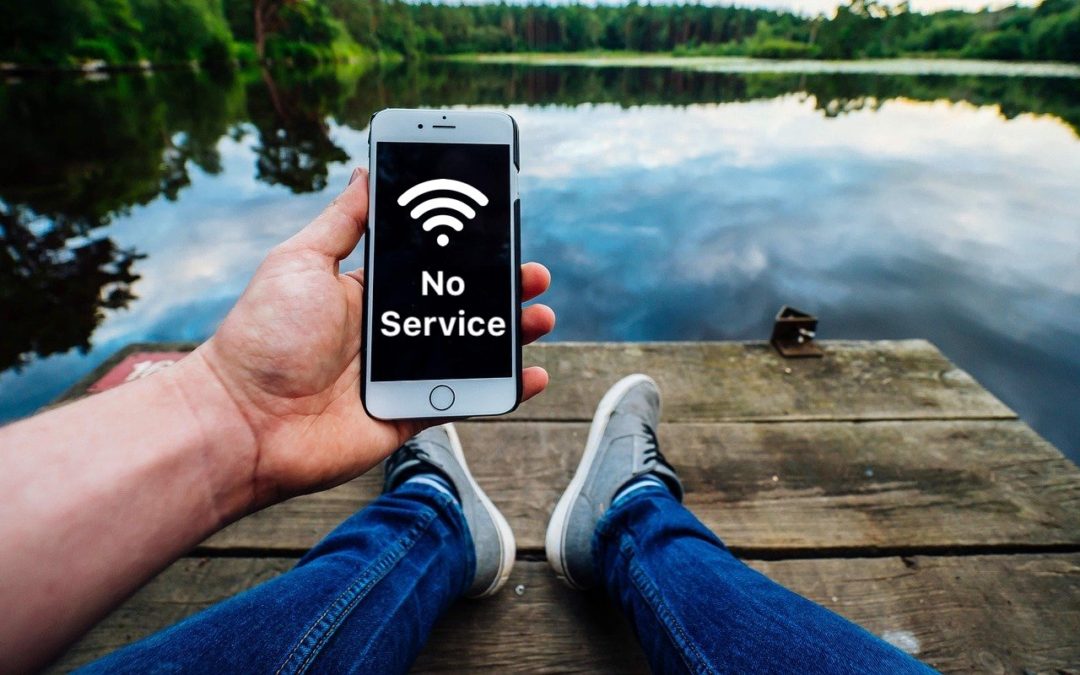
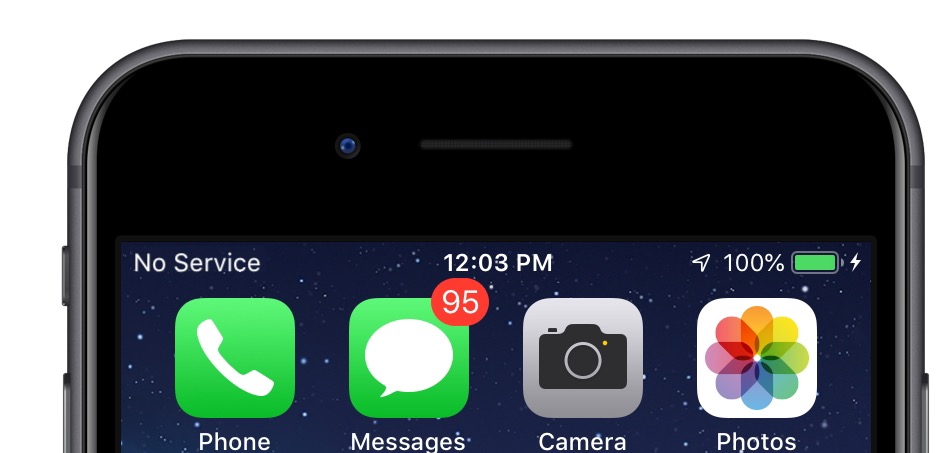
Have you ever seen the dreaded “No Service” label at the top of your iPhone’s screen, even when you’re pretty sure there should be cellular reception? It’s not common, but the iPhone’s cellular radio can occasionally get confused. Luckily, you can easily fix the problem. Open Control Center (swipe down from the upper-right corner on an iPhone X or later or an iPad; or up from the bottom on an earlier iPhone) and tap the airplane icon to put the iPhone in airplane mode. That turns off the cellular radio. Wait a few seconds and tap the airplane icon again to re-enable the cellular radio. If that doesn’t work, power-cycle your iPhone by holding the side or Sleep/Wake button until you see the Power Off slider. Slide it to turn the iPhone off, then press and hold the side or Sleep/Wake button again until the iPhone restarts.
(Featured image based on an original by Pexels from Pixabay)

by Steve Sorbo | May 1, 2018 | TCN Content
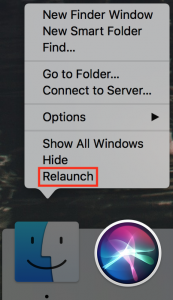
Finder freezes. They shouldn’t happen at all, and they don’t happen often, but it’s not unheard of for your Mac’s Finder to freeze, freak out, or otherwise stop responding properly. To bring it back to life, hold down the Option key, click and hold the Finder icon in the Dock, and choose Relaunch. (If the “click and hold” action feels odd, you can instead hold down Control and Option, and then just click.) In theory, you should be able to keep working normally after the Finder relaunches, but we recommend restarting your Mac afterward just to be safe.

Recent Comments