
by Steve Sorbo | Jun 3, 2024 | Uncategorized
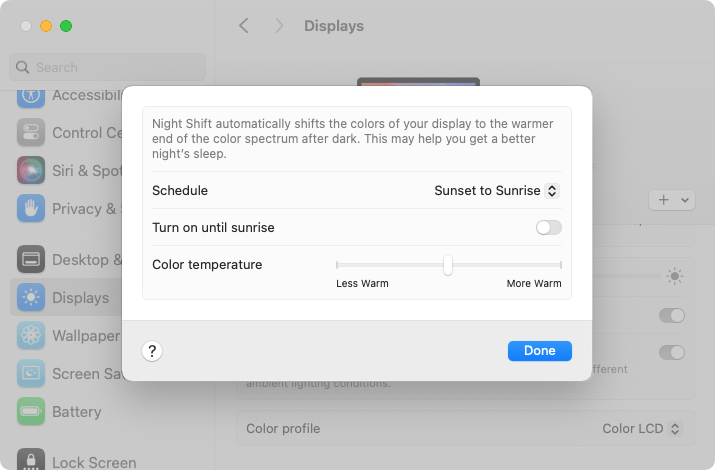
Research suggests that exposure to blue light fools your body into thinking it’s daytime, making it harder to fall asleep if you work late on a Mac with a bright white (which has a lot of blue light) screen. To help, a macOS feature called Night Shift subtly changes the colors of the screen as the sun sets to reduce the amount of blue light hitting your eyes. In essence, everything gets slightly warmer. To configure your Night Shift schedule—so it turns on and off automatically—go to System Settings > Displays > Night Shift. You can set any times, but Sunset to Sunrise adjusts for the sun’s movement in your location throughout the year. One warning: if you edit photos or videos, or work on graphics where specific colors matter, Night Shift’s color changes may be problematic.
(Featured image by iStock.com/PeopleImages)
Social Media: If you regularly work at your Mac late at night and have trouble falling asleep, consider turning on Night Shift to reduce your blue light exposure. By default, it makes the colors of your Mac warmer from sunset to sunrise.

by Steve Sorbo | Jun 3, 2024 | Uncategorized
Take a moment and look behind your Mac. Do you see a tangle of cables? The main downside of a mess of cables is that it’s a cluster of chaos that attracts dust bunnies. However, it’s possible for power cables—especially when tightly bundled or looped—to emit electromagnetic interference that can disrupt or degrade the signal carried by nearby data or network cables. They can also heat up, which is generally best avoided. Plus, the more tangled the cable nest, the more likely you’ll cause harm if you pull too hard while attempting to remove a cable from the tangle.
Also, consider cables that extend beyond your desk. Do you have power cables that run across the ground or Ethernet cables that loosely snake up into the ceiling? To protect both people and equipment, ensure that cables aren’t a tripping or catching hazard.
If your cables are a complete disaster, take some time to shut down your devices, disconnect all the cables, clean underneath, and reconnect them in an organized fashion, removing unused cables and replacing damaged or unnecessarily long cables with new ones.
To keep your cables under control going forward, follow these tips:
Select and reduce cables:
- Buy and use cables that are only as long as they need to be.
- When buying new cables, prefer braided cables, which catch less and last longer.
- If you have many cables, try to trim the number with judicious use of docks or hubs.
- Upgrade to wireless accessories, like the Magic Keyboard and Magic Trackpad, that only need to be plugged in occasionally to charge.
Pay attention to cable location:
- Try to keep cables off the floor, but use a floor cord cover if it’s unavoidable.
- Attach long runs of network cabling to the wall or floor to reduce the chance of accidents.
- Run cables through raceways or inside cable trays to keep them together under desks.
- Add adhesive cable clips to the back or underside of desks without cable management options.
- Ensure cables don’t interfere with workstation ergonomics, especially with movable sit/stand desks.
- Keep power adapters away from other cables for better heat management.
Group your cables:
- Use Velcro straps or cable ties to bundle power and data cables separately.
- Avoid bundling too many power cables too tightly to avoid heat buildup.
- Label cables with their type and use so you can easily distinguish between them.
- Store extra cables in clear zip lock bags or bins, one per cable type.
Maintain your cables:
- Throw out any damaged or suspect cables right away.
- Periodically check and reorganize your cables, removing any that aren’t in active use.
You should be able to find a wide variety of cable management accessories, such as Velcro cable ties, cable labels, cable clips, and floor cord covers, at your preferred electronics retailer.
None of these suggestions are difficult to follow, and you’d be surprised how much you will appreciate having neatly organized cables in use and available when you need them.
(Featured image by Adam Engst)
Social Media: Do you have a rat’s nest of random cables behind your Mac? Follow our quick tips to bring order to the mess, reduce the chance of accidents, and avoid degraded data signals.

by Steve Sorbo | Jun 3, 2024 | Uncategorized
Artificial intelligence dominates the tech news these days, but it’s hard to separate the hype from the reality. Every large company seems to have some major AI initiative in the works. Even Apple, which tends to stick to its own path, has started to tout features previously described as relying on “machine learning” as being “AI.” If you can get past the hype, AI has plenty of good uses now.
Despite Apple’s recent relabeling of features as using AI, when most people think about AI, they’re thinking of “generative AI” systems like OpenAI’s ChatGPT chatbot or Adobe’s Firefly artbot. These systems generate impressively good text and images from scratch based on user prompts. Ask ChatGPT to write an excuse for your sick kid, and you’ll get fluid, correct English. With Firefly, describe an image—“silhouettes of male and female runners with bright colors and black background”—and you’ll get images that match pretty well.
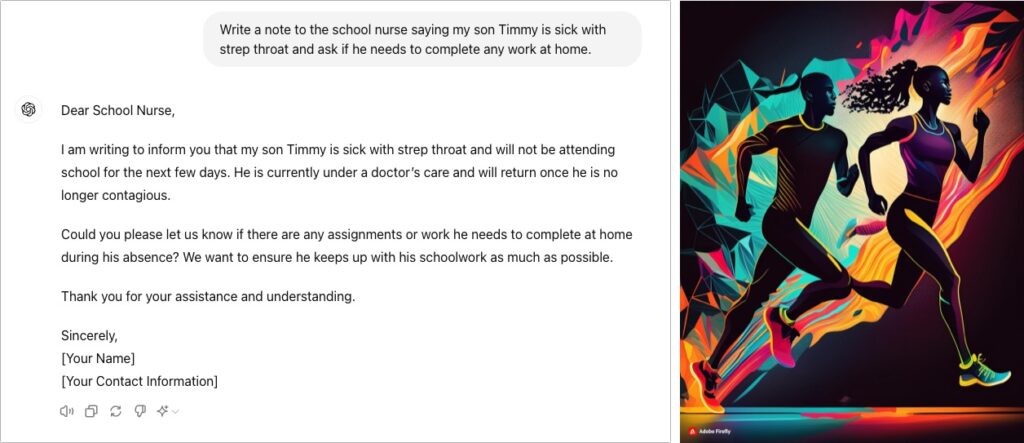
How do they accomplish this magic? Chatbots use statistical models to predict the next word based on training datasets that contain hundreds of billions of words—think autocomplete on radioactive steroids. Artbots work a little differently, but they also use statistical models to create images based on having been trained to identify numerous images.
Enough background. How can you make the most of today’s leading chatbots (ChatGPT, Claude, Copilot, Gemini, Meta AI, Pi, and Le Chat Mistral) and artbots (Adobe Firefly, Microsoft’s Copilot Designer, NightCafe, Meta AI, and Midjourney)?
Identify Good Uses of Generative AI
It’s essential to recognize that the effectiveness of generative AI for a particular task is highly individualized. What works for one person may not work for another due to varying skill levels, requirements, and preferences. With that in mind, here are three ways to evaluate tasks that might be a good fit for generative AI.
- Skill levels: The less skillful or knowledgeable you are about a subject, the happier you’ll be with generative AI’s results. You can think of an AI chatbot as a C+ student—its work will get a passing grade, but it won’t fool an expert. But we’re all happy to do or receive C+ work in many parts of our lives—no one is above average in everything.
- Requirements: Are you looking for something definitive—precisely what you have in mind—or would you be happy with an open-ended set of results? AI chatbots and artbots generate statistically likely results, so if you’re not caught up in things being just right, you’ll probably like what you get. Don’t expect them to read your mind, however.
- Preferences: It’s best to think of an AI chatbot as an assistant, because you must be willing to go back and forth with it. And that means you have to be willing to work with an assistant who is dumber than they seem, entirely reactive, unpredictable, and inconsistent. (On the plus side, chatbots are also tireless, imperturbable, incredibly well-read, and non-judgemental.)
To sum up, the best tasks for generative AI are those where you know little or aren’t particularly skillful, don’t have specific expectations about what you’ll get, and are willing to interact with a potentially annoying helper.
Get Better Results from Generative AI
These recommendations will help you get better responses from AI chatbots:
- Set the stage with detail and expectations: Unlike Web searches, chatbots work best when provided with more than essential keywords. Instead, tell the chatbot a little about yourself, provide background about the topic, and lay out your expectations. ChatGPT even lets you provide instructions to apply to all your chats. Additional detail helps the chatbot’s statistical model better predict what you want.
- Iterate repeatedly and push harder: You don’t have to provide all that detail up front. Chatbots retain context—they know what has been said in the chat—so after your initial prompt, you can and should keep pushing the chatbot to refine and improve its answer. Don’t be shy to ask, “What’s missing from this?” or “How could this be improved?” While it’s always best to be polite, there’s no harm in asking a chatbot to do better. Pretend you’re a coach or therapist and keep asking probing questions.
Remember, unlike a search engine, where each search stands alone, working with an AI chatbot is a conversation. Right now, that’s less true of AI artbots, but we’re moving in that direction.
Good Uses for Generative AI
AI has innumerable possible uses, limited mostly by your imagination. Here are a few that have worked well for us:
- Brainstorming: Have you ever needed to come up with a name for a program, product, or service and found your mind utterly blank? Or maybe you’re writing and can’t put your finger on precisely the word you want? Ask an AI chatbot! With a little direction, they’re great at coming up with a bunch of possible names or words. You may not get exactly what you want, but the chatbot’s suggestions will help you think in new directions.
- Coding: An AI chatbot won’t turn you into a professional programmer, but it can help you write a small AppleScript to automate a task like adding sequentially numbered calendar events to every Monday for the rest of the year. Chatbots are also good at helping you use powerful but complex Unix tools for reformatting text like sed, awk, and grep. But perhaps our favorite real-world use is getting help with devilishly complicated spreadsheet formulas that do lookups as part of their calculations.
- Talk to documents: Some AI chatbots (and services like ChatPDF) enable you to have conversations with long documents. That sounds weird, but it’s much easier to ask a few questions about how a hundred-page report affects your business, for instance, than to slog through the entire thing. Such systems provide page references to support their answers, so you can (and should) verify what you’re told.
- Drafting difficult email: Some email messages are hard—no one likes having to reprimand an employee, express condolences to a business associate, or announce layoffs. But such messages are essentially genres—if you’ve seen one corporate merger announcement, you’ve seen them all. If you seed your prompt with plenty of appropriate details, an AI chatbot can generate a credible first draft that you can tweak to improve accuracy and make it sound like you instead of an overeager college student. Never send an AI-generated email without taking an edit pass.
- Evaluating ideas: It’s always a good idea to talk through ideas and decisions, and conversations with AI chatbots can help you think about them. Should you ask for a raise or try for a promotion? What are the pros and cons of moving to a new location? Does it make more sense to rent or buy? An advantage of AI chatbots is that you can tell them to respond like a particular type of professional, such as a lawyer, financial advisor, or life coach. Of course, all chatbot responses are just statistically probable, so they won’t compete with those from actual professionals, but they’re a good start.
AI-Powered Searching
Finally, let’s look at AI-powered search engines like Perplexity and Arc Search (on the iPhone), and increasingly prominent AI-generated summaries in Google, Bing, and Brave Search. They blur the distinction between search engines and chatbots. Search engines focus on providing answers to questions, either link to or summarize their sources, and include the most recent information. In contrast, chatbots focus on conversation, generate answers from scratch, and always have some date after which their knowledge stops.
When might an AI-powered search engine be more effective than a traditional search engine’s list of links? Try one in situations like these:
- Searches for easy but non-obvious answers: If you want to know who held the mile world record before Hicham El Guerrouj, for instance, an AI search engine will just tell you, rather than make you read a Wikipedia page about the world record progression. It could even tell you who has come the closest to his world record in the last decade, which would be difficult to determine otherwise.
- Searches for answers to idle questions: If you don’t want to spend a long time reading source materials and don’t care much about the answer, an AI-powered summary will be efficient.
- Searches that require assembling information from multiple sources: Imagine that you want to know how many people live in New York City, Boston, and Chicago. With a traditional search engine, you’d need to find each city’s population independently (or a list of major US city populations) and add them manually. An AI-powered search engine could find them all and add them for you.
- Searches where you don’t quite know what you’re looking for: When you’re starting to explore a topic, an AI-powered search engine can suggest additional searches as you home in on aspects of the topic that especially interest you.
Google’s recent addition of AI-driven summaries quickly drew mockery for suggesting the addition of glue to pizza and encouraging the ingesting of rocks. But remember, humans say incorrect things all the time, often intentionally. In fact, both of those examples were triggered by jokes and could have come up in traditional searches as well, but in contexts that were clearly silly.
Regardless of whether information comes from an AI chatbot, an AI-powered search engine, a Facebook post, or the woman next to you on a plane, you have to discern whether it’s likely to be right. AI can be helpful in many ways, but it won’t do your thinking for you.
None of the text of this article was generated by AI.
(Featured image by iStock.com/Blue Planet Studio)
Social Media: Generative AI is all the rage, but what if you want to use it to create more than bad essays and surreal images? We explain how to make the most of AI chatbots and artbots, and how to benefit from AI-powered search engines.
by Steve Sorbo | May 1, 2024 | Uncategorized
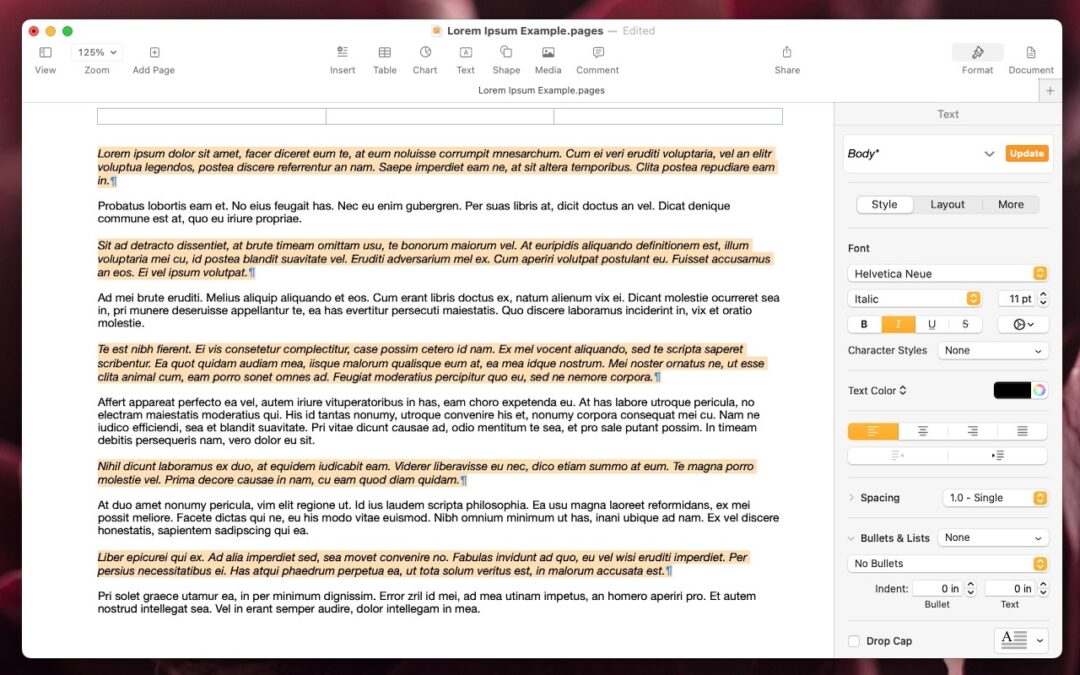
The latest versions of the Mac and iPad apps in Apple’s iWork suite—Pages 14, Keynote 14, and Numbers 14—have gained a helpful feature: non-contiguous text selection. By holding down the Command key, you can select chunks of text that aren’t next to each other. For example, imagine you want to make the first part of each item in a bullet list bold. Instead of bolding each one separately, hold down Command as you work to select all of them and then apply bold to the entire selection with a single command. Non-contiguous selection is particularly helpful when applying formatting, but you can also copy non-contiguously selected text or work with it in nearly any way you would interact with a contiguous text selection. (Note that while holding down Command, you can double-click to select words or triple-click to select paragraphs, just as you can normally without holding down Command.)

(Featured image by Adam Engst)
Social Media: A new feature in Pages, Keynote, and Numbers lets you select bits of text that aren’t next to each other so that you can, for example, format them or copy them all at once.

by Steve Sorbo | May 1, 2024 | Uncategorized
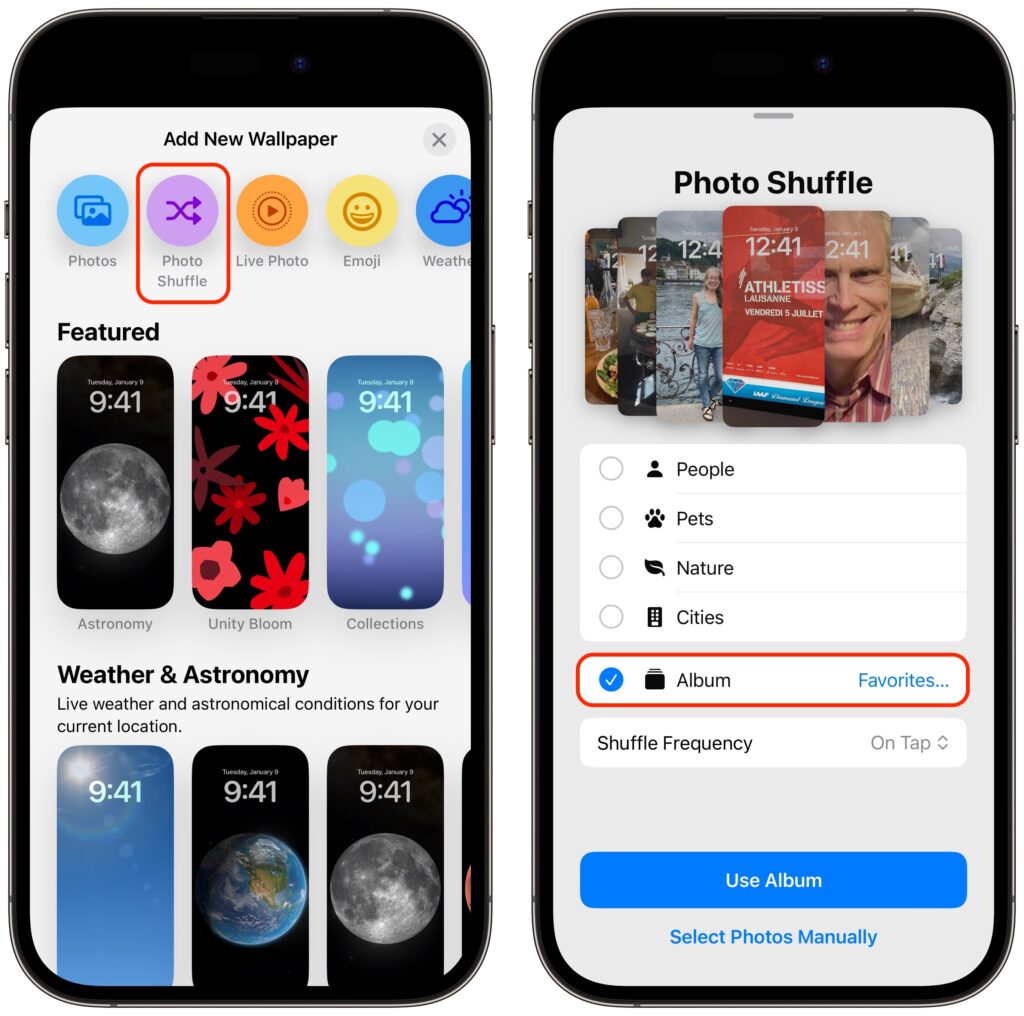
A popular feature of iOS 16 was the Photo Shuffle option for customizing the iPhone Lock Screen. It used machine learning to select photos in four categories—People, Pets, Nature, and Cities—and rotated through them when you tapped, on lock, hourly, or daily. If you didn’t like the automatic selection, you could pick photos manually, but it was clumsy. In iOS 17 (and iPadOS 17, which also added customizable Lock Screens), you can now point the Lock Screen’s Photo Shuffle wallpaper at an album. Touch and hold the Lock Screen, tap Customize, tap the blue ⨁ button to create a new wallpaper, select Photo Shuffle, select Album, choose the desired album from the pop-up menu, set a frequency, tap Use Album, and tap the Add button at the top. Then tap Set as Wallpaper Pair or Customize Home Screen to choose a different image for the Home Screen wallpaper.
(Featured image by Adam Engst)
Social Media: If you like how the Lock Screen’s Photo Shuffle wallpaper rotates through photos but would prefer that it worked from an album you specified, you’re in luck! That’s now possible in iOS 17 and iPadOS 17.

Recent Comments