
by Steve Sorbo | Mar 1, 2024 | Uncategorized
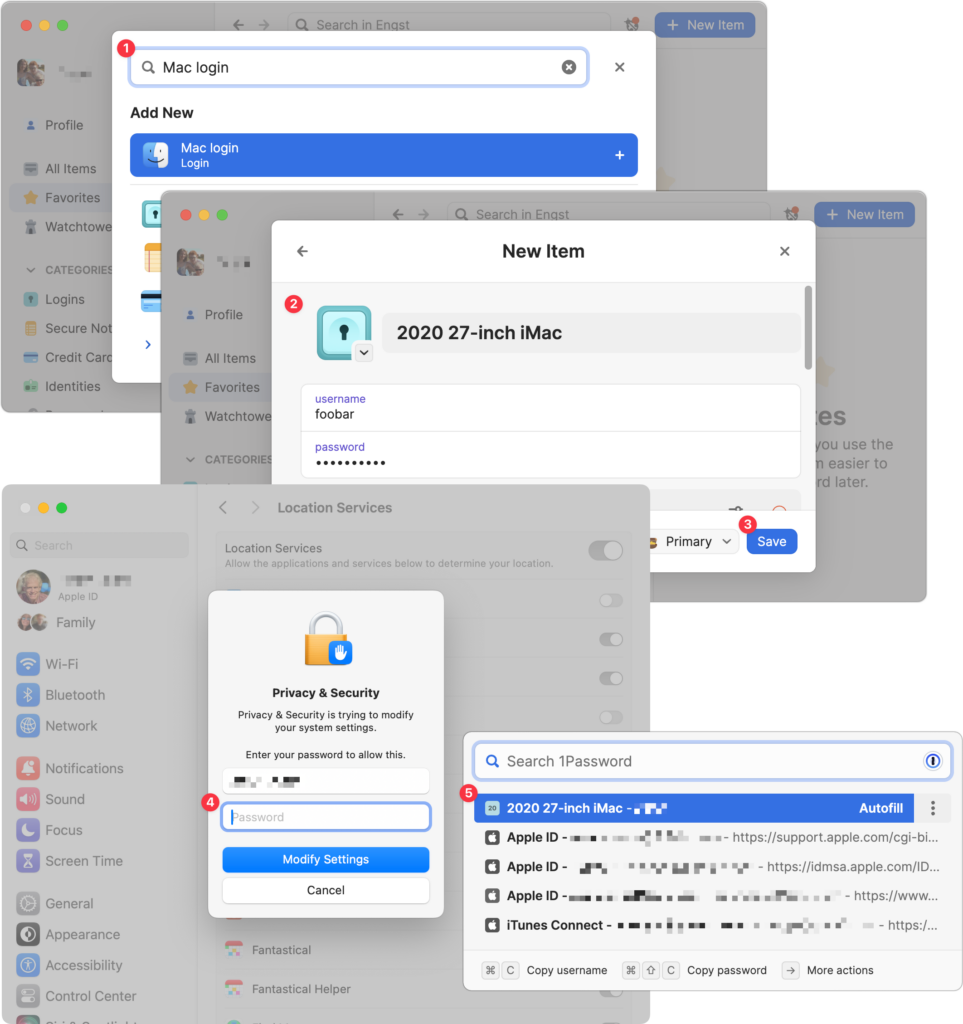
We think of 1Password as being helpful for entering passwords on websites and in iPhone and iPad apps. But its Universal Autofill feature has a hidden capability that lets 1Password enter your Mac login password when you have to provide it to change certain system settings, install apps, format drives in Disk Utility, and more. (But it won’t work to log in at startup before 1Password is running.) To turn this feature on, click the New Item button in 1Password, search for and select “Mac login” ➊, give it a name that will sort alphabetically to the top, like “2020 27-inch iMac” ➋, enter your password, and click Save ➌. From then on, whenever you’re prompted for your Mac login password ➍, press Command-\ (Backslash, located above the Return key), and then click the desired login or press Return to select the topmost item ➎.
(Featured image based on an original by iStock.com/ipuwadol)
Social Media: 1Password is tremendously helpful for entering website passwords, but a little-known feature also enables it to enter your Mac login password for changing system settings, installing apps, and more.

by Steve Sorbo | Aug 1, 2018 | TCN Content
Sad news: Apple is discontinuing its photo printing services, which enabled you to create and order physical prints, cards, calendars, and books from within Photos on the Mac. If you’re building such a project right now, be sure to place your order before September 30th, 2018. After that, Apple is directing users to download a Photos Project Extension from the Mac App Store. You’ll see this dialog whenever you click a project in Photos.
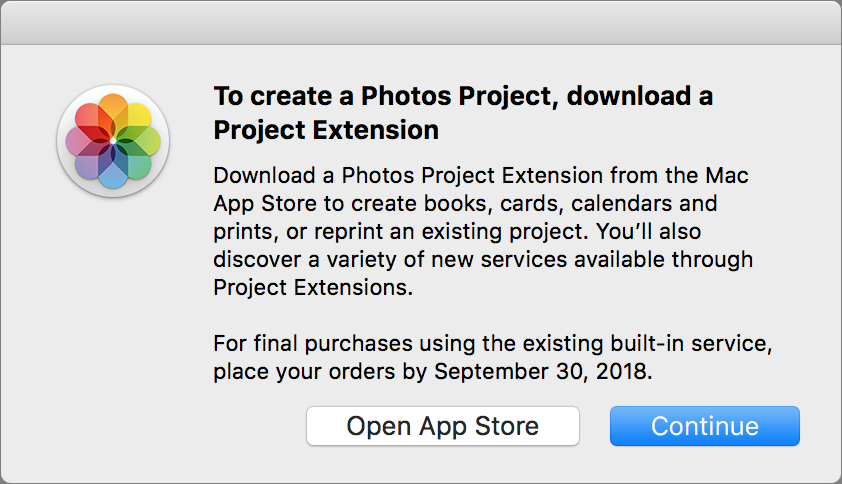
When you click the Open App Store button, Photos opens the App Store app and shows available Photos Project Extensions. (If you need to open this Mac App Store screen manually, search on appex:com.apple.photo-project.) Most of these extensions are free, since they’ll make their money when you order projects.
These extensions aren’t exact replacements for Apple’s projects, so let’s look briefly at what they provide.
Mimeo Photos
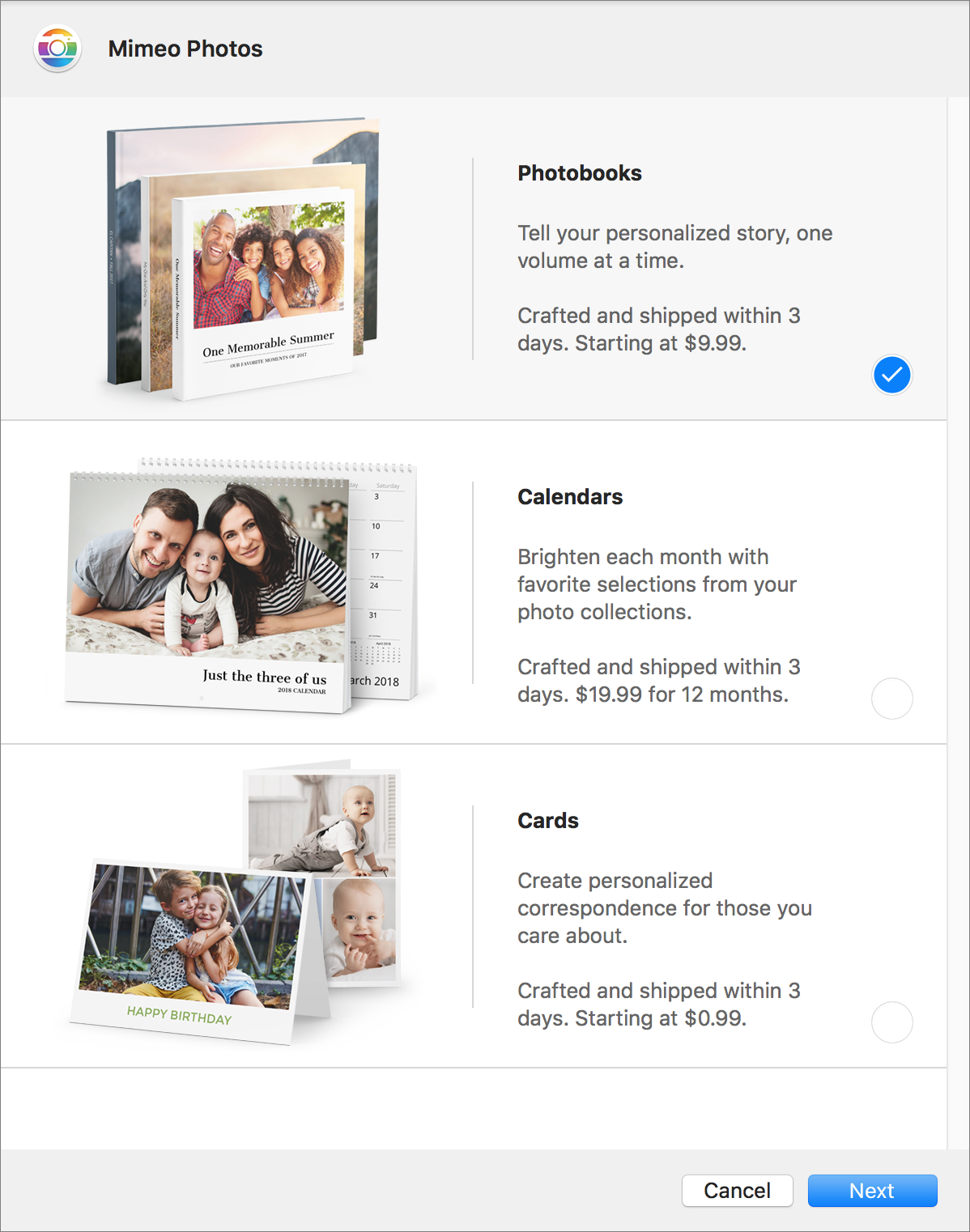
The extension that comes closest to providing the same products and features as Apple’s print projects is Mimeo Photos, which can create cards, calendars, and books. It offers a wide array of themes.
Motif
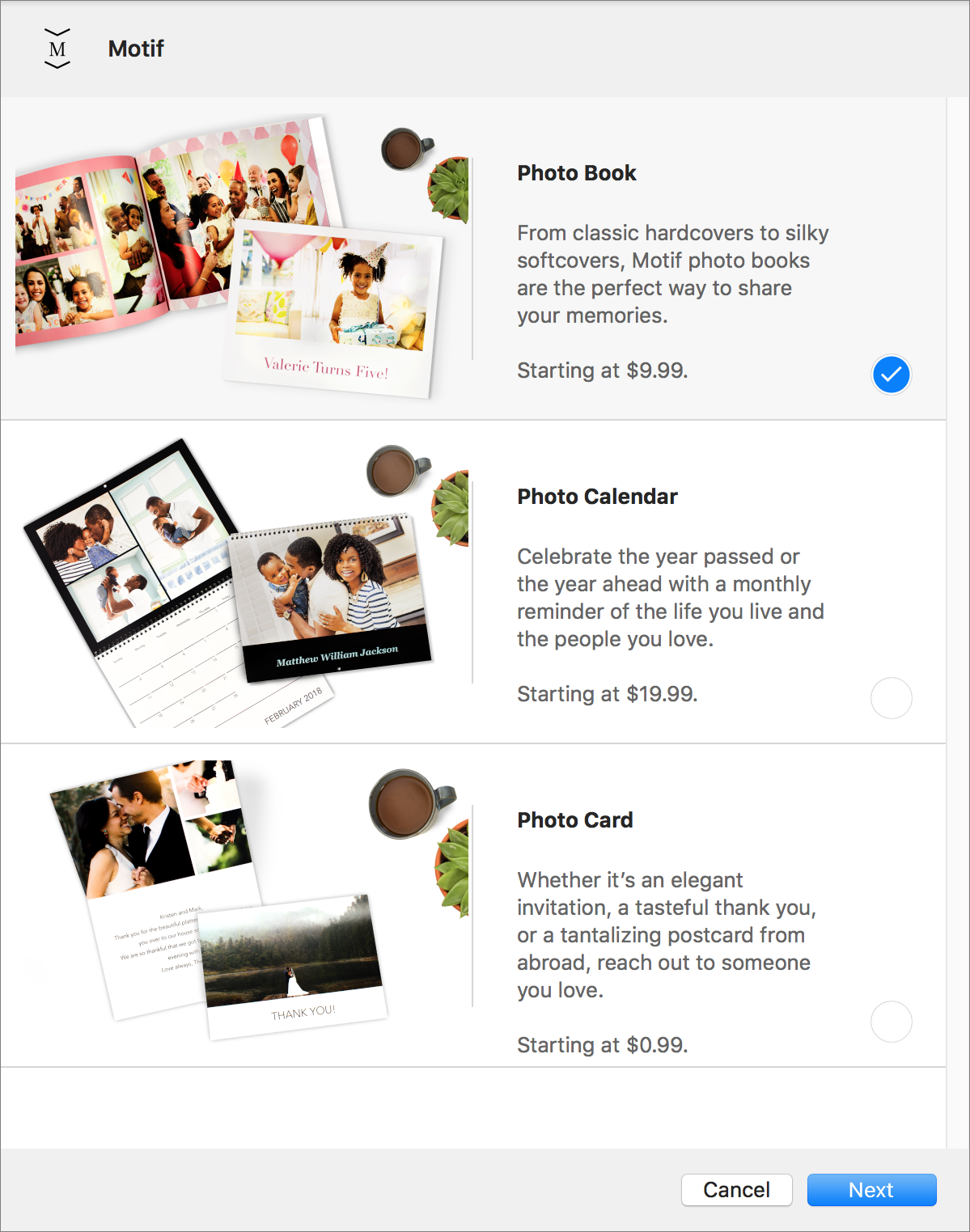
Motif looks quite similar to Mimeo Photos, also enabling you to create cards, calendars, and books with selected photos, and it comes from RR Donnelley, the company that was previously Apple’s partner for print projects. It doesn’t offer as many themes or options as Mimeo Photos, but it has a better interface.
Shutterfly
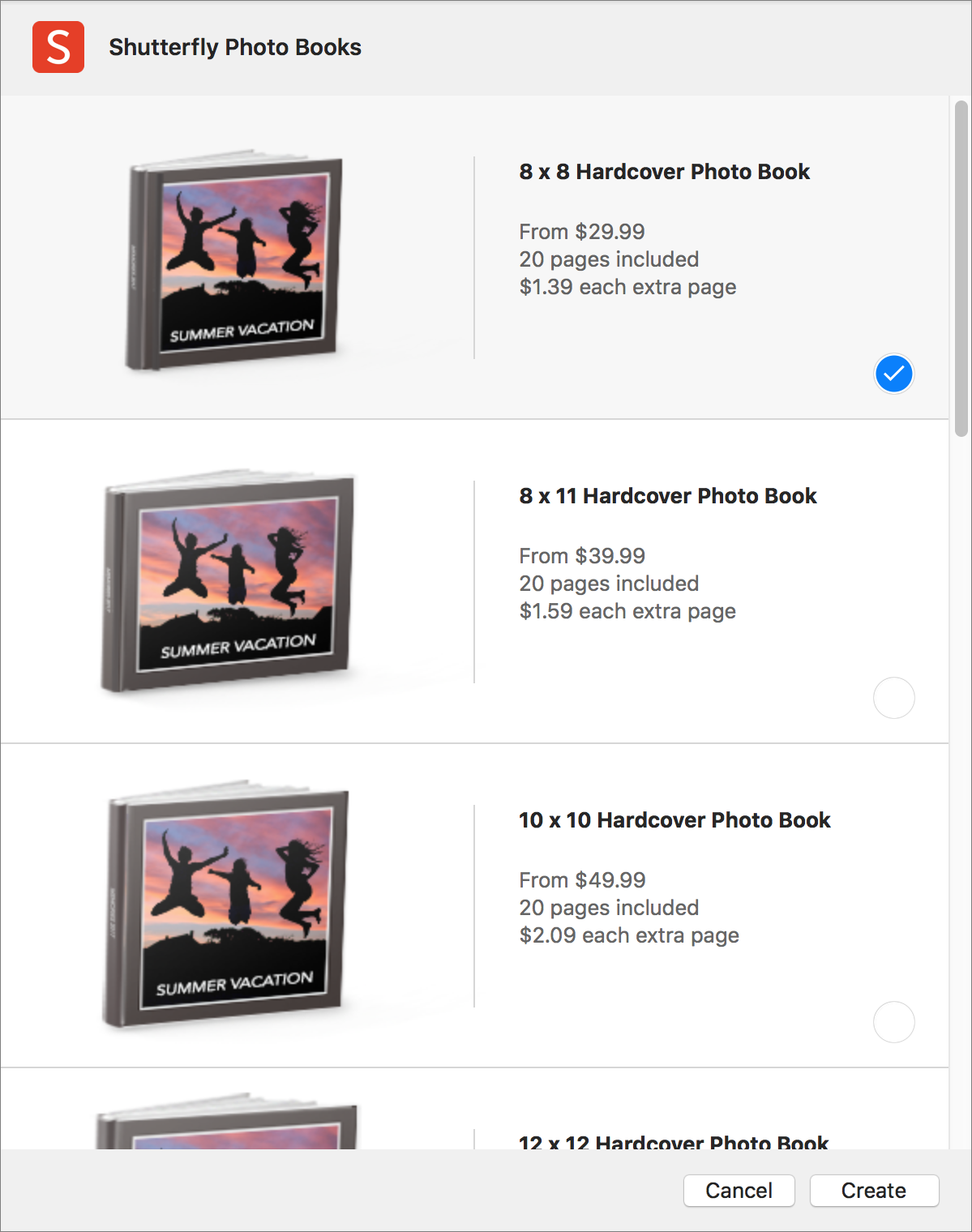
Even though the popular Shutterfly photo service’s Web site lets you go beyond the basics to put your photos on a vast number of objects, such as pillows, candles, and trivets, the company’s Photos extension is limited to photo books. Happily, it provides quite a few different sizes and bindings, and numerous themes for each.
Fujifilm Prints & Gifts
The Fujifilm Prints & Gifts extension lets you order prints, cards, wall art, mugs and drinkware, magnets, T-shirts, puzzles, iPhone cases, and much more. However, it has a non-standard interface (basically the company’s Web site), and every time we switched out of the extension, it crashed and forgot which photo we’d had selected.

Mpix
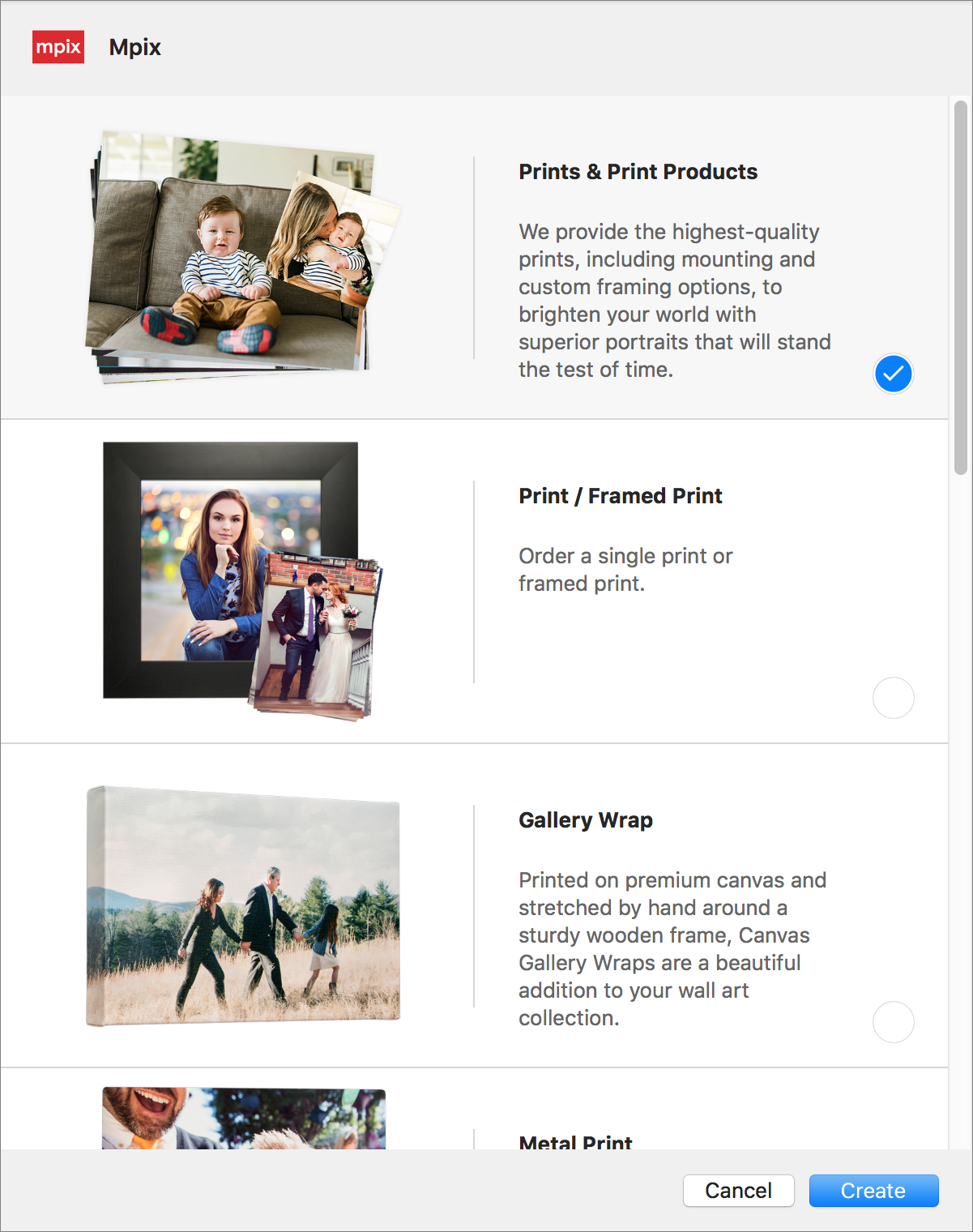
Although Mpix seems to focus on prints, if you scroll down in the project list, the final option is Browse Mpix, which provides more possibilities, including photo books, calendars, collages, foil art prints, posters, keychains, magnets, playing cards, and business cards. Confusingly, with some of these items, Photos acts as nothing more than a window onto Mpix’s Web site, with no awareness of the photos you’ve selected.
WhiteWall
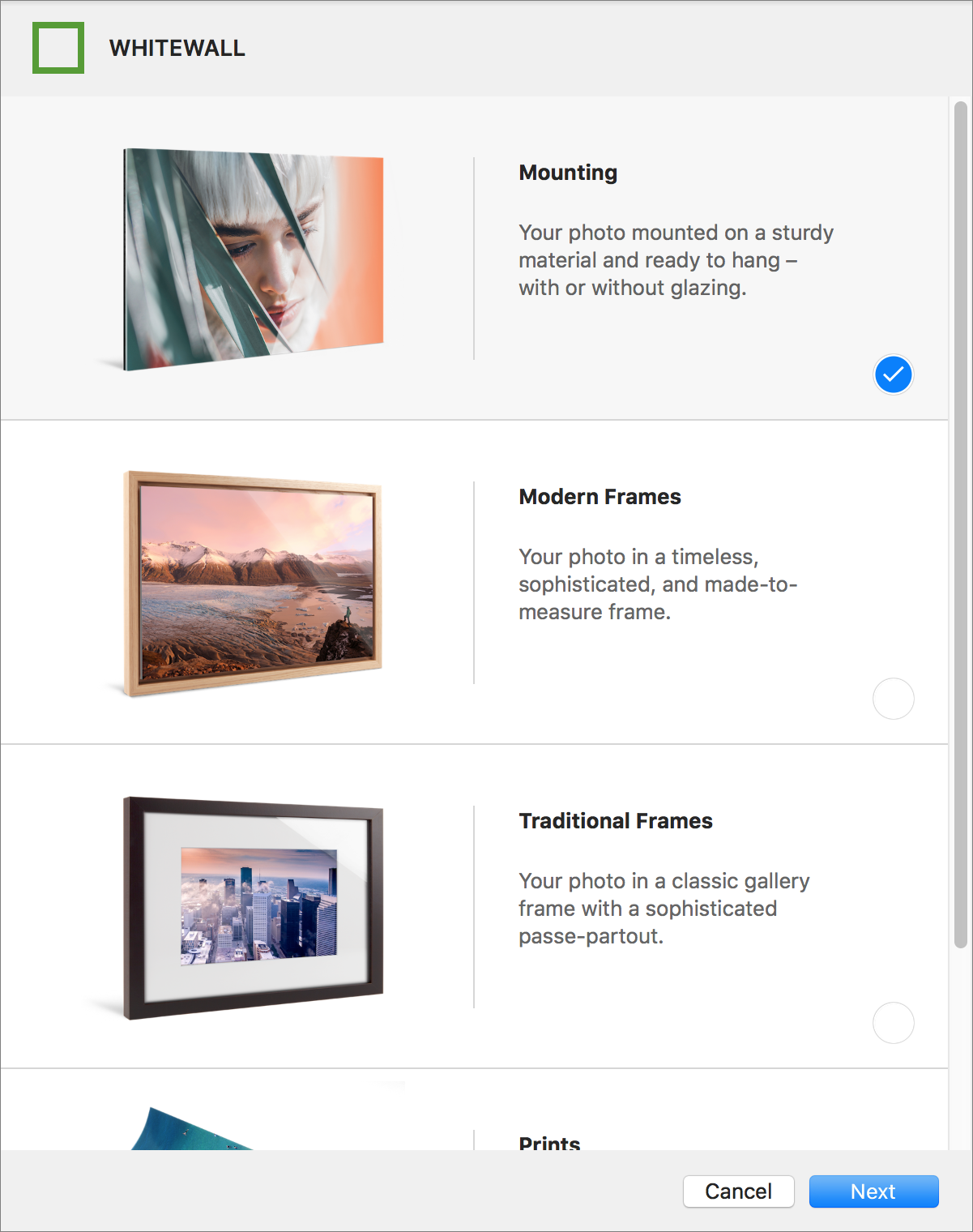
WhiteWall focuses entirely on prints, with high-end choices for exotic papers and options for mounting and framing. Supported sizes range from 8″ x 6″ up to 48″ x 36″. Unfortunately, the WhiteWall prices seemed high (a framed photo was between $130 and $530, depending on size), and once you select a particular paper or frame choice, there is no way to try another with the same photo without starting another project.
Wix
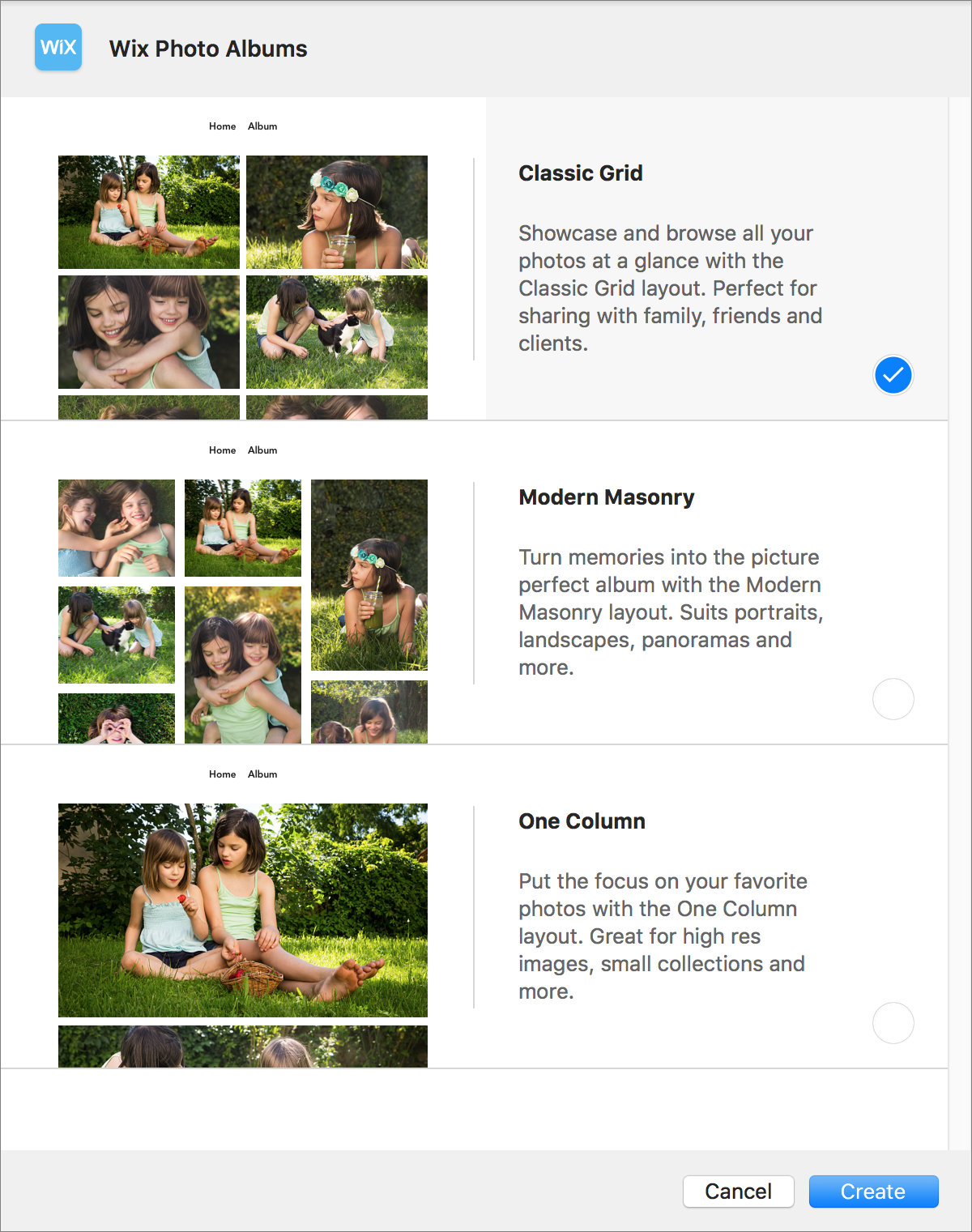
Unlike all the others, the Wix extension doesn’t put photos on physical products at all. Instead, it’s designed to create on-screen photo albums for Web sites designed with the Wix service. As such, it’s potentially extremely useful for Wix users, but not at all for everyone else.
It’s too bad that Apple is getting out of the print project business since the interfaces from these extensions tend not to be as good as what we’re used to from Apple. But if you like making yourself a calendar every year, you’ll probably do fine with Mimeo Photos or Motif, and the rest of the extensions do extend Photos’ printing capabilities in a big way.
Social Media: As of September 30th, you won’t be able to order prints, cards, calendars, or books from Apple in Photos. But several extensions do most of what Apple did, and others go well beyond!

by Steve Sorbo | May 1, 2018 | TCN Content
Smartphone addiction is real. Do you check your iPhone before you get out of bed? During family dinners? Right before you go to sleep? Constantly during the day even when you’re on vacation? If you—or your family members—feel that you’re disappearing into your phone too often or at inappropriate times, it may be time to do something about it.
To start, you might want to quantify the problem, and for that, you can turn to a free iPhone app called Moment. Written by developer Kevin Holesh, Moment is designed to track three key pieces of data:
- How often you pick up your iPhone every day
- How much time you spend on your iPhone
- Which apps you use the most
It then uses that information to paint a picture (well, not literally) of your iPhone use. Most people underestimate how much time they spend on their iPhones by about 100% (the average Moment user uses their iPhone for nearly 4 hours per day!). Knowing how much time you spend is the first step toward using your phone intentionally, rather than as a conduit to a constant stream of social media updates (look at the stats shown below), email messages, and quick-hit entertainment.
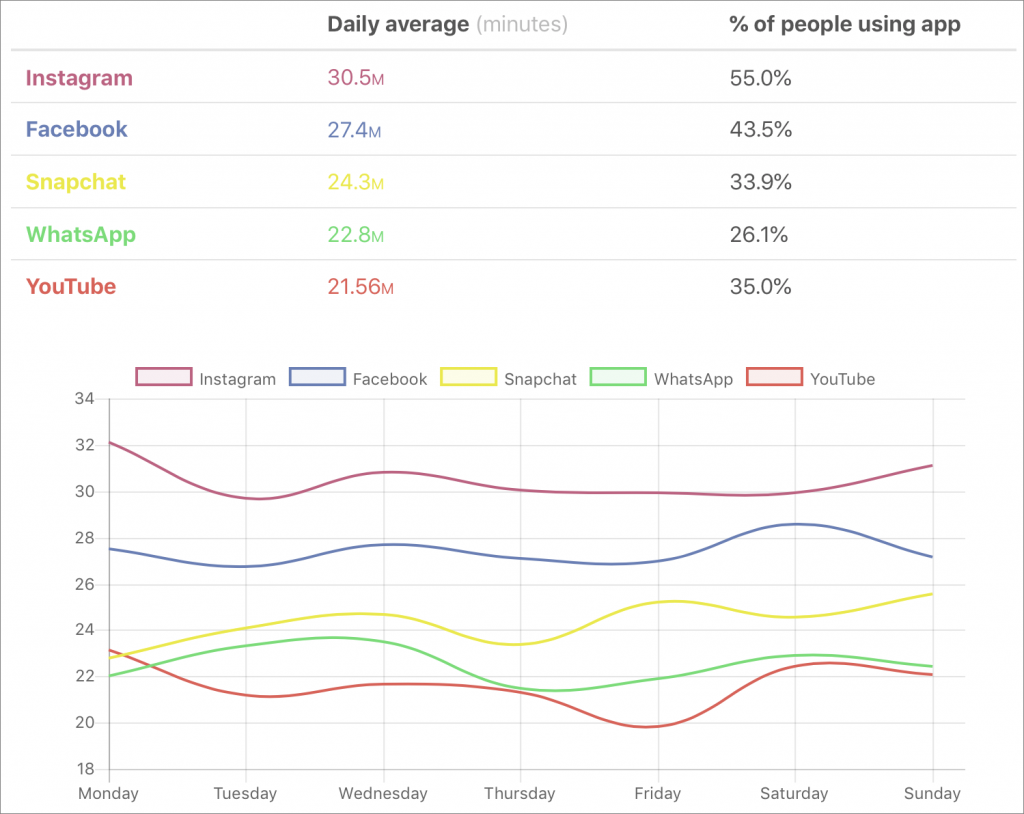
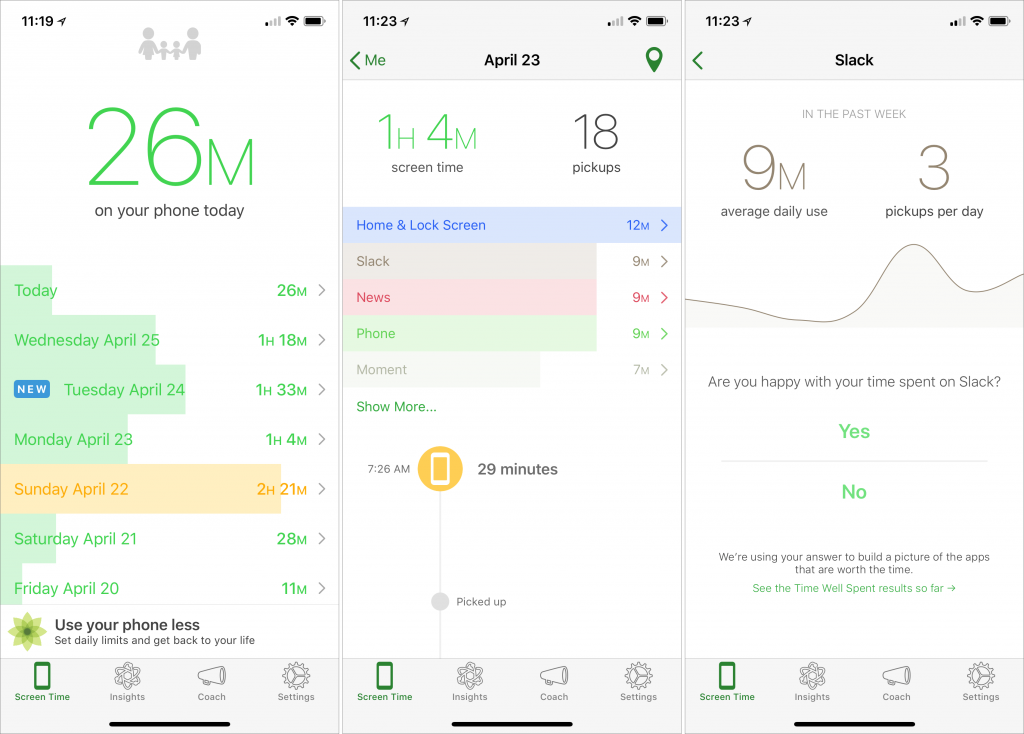
To get started, use the App Store app to install Moment, and then launch the app. It starts tracking your usage immediately, although once per week you’ll need to take screenshots of Settings > Battery so Moment can figure out how long you use each app. Then ignore Moment for a few days so it can gather some data.
On the main Screen Time screen, Moment shows how much time you’ve spent on your phone today, along with a scrolling bar graph of how much time you spent every day since you installed Moment. Don’t get too hung up on these raw numbers, though, since Moment tracks every second the screen is on. You probably aren’t concerned about time spent reading an ebook or working out with an app that talks you through a routine.
To view both a breakdown by app and a timestamp for each time you picked up your iPhone, tap any day’s entry, and to see how much you use a particular app on average, tap it in the day view. You can answer a Yes/No question about whether you’re happy with how much you use the app, which informs the Time Well Spent aggregate data about which apps people are and are not concerned about.
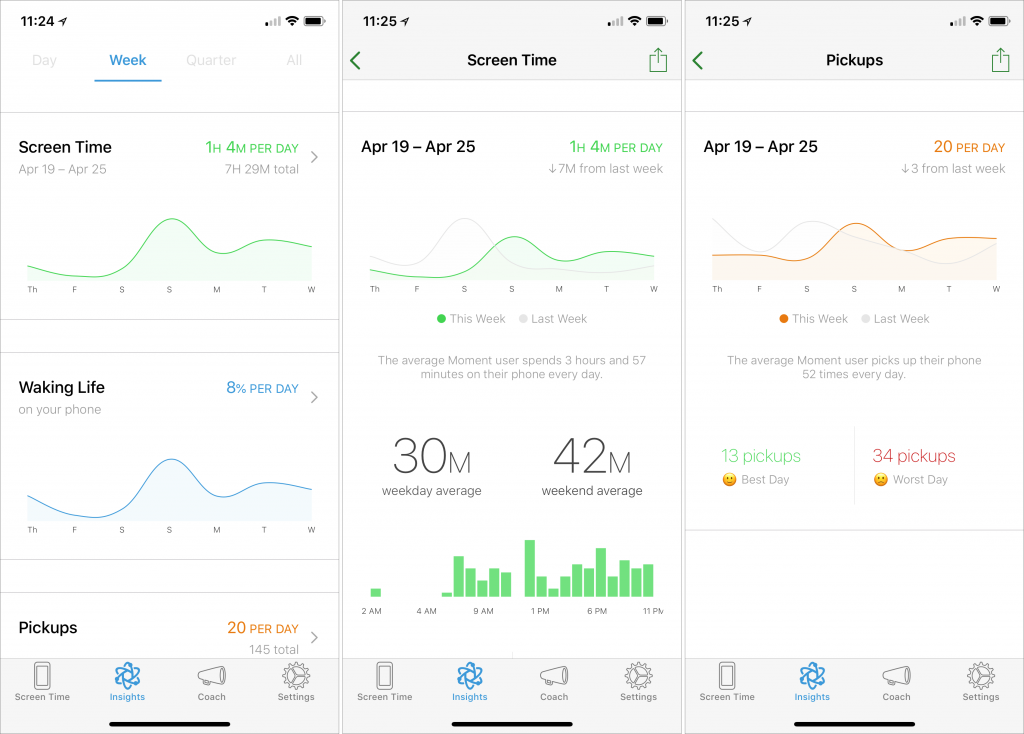
All that is helpful, but for a more useful overview, tap Insights and then Week. You’ll see graphs of your usage patterns for screen time, waking life, pickups, most used app, and sleep (this depends on your first and last pickups of the day, so take its data with a grain of salt). Tap any graph to see more detail, but wait until you’ve used Moment for a while.
Everything we’ve described so far is free, but Moment offers additional features for a one-time $3.99 in-app purchase. They let you exclude certain apps from the app-use detection, if you don’t want to be dinged for using apps that are necessary or otherwise positive. You can receive quick reminders about your usage, and set daily time limits. There is even a 14-day Phone Bootcamp course that helps you rethink your relationship with your phone.
More interesting for parents is Moment Family, a subscription service ($26.99 for 6 months or $44.99 for 12 months) that allows you to monitor your entire family’s screen time with Moment, set phone-free dinner times, and enforce daily limits.
So if you’re perturbed by the amount of time you spend using your iPhone every day, give Moment a try. On its own, it won’t solve your problem but by showing you exactly how often you turn to your phone—and for what apps—it can help you regain control over your usage patterns. And if others in your family have trouble putting their iPhones down at dinner or to do homework, Moment Family could be the answer.
Social Media: Bothered by how much you find yourself using your iPhone for social media? Use the Moment app to quantify the problem. An added subscription can also help an entire family reduce excessive iPhone use.

by Steve Sorbo | May 1, 2018 | TCN Content
Don’t get us wrong—email is great. But sometimes there’s too much of it at work, as colleagues share information too broadly or chime in unnecessarily, and as marketing offers and other junk fills your inbox. Over the past few years, lots of organizations—including small and large firms, non-profits, academic departments, student project teams, and government agencies—have moved their internal communications to the group messaging service Slack, which is free but includes paid plans with additional features. It’s also possible to make public groups that anyone can join.
Slack, which has apps for macOS, iOS (iPhone and iPad), Windows, and Android, isn’t conceptually all that different from Apple’s Messages app. You type short messages and other people in the conversation can reply. You can share graphics or other files in the discussion, and search through past messages. Slack supports person-to-person voice calls, and if you switch from a free to a paid team, group calls, video conferencing, and screen sharing.
What sets Slack apart from simple messaging apps is that it lets you segment discussions into “channels,” which can either be public, such that everyone in the team can see them, or private, so only invitees can participate. Plus, you can have “direct message” conversations with individuals or small groups.
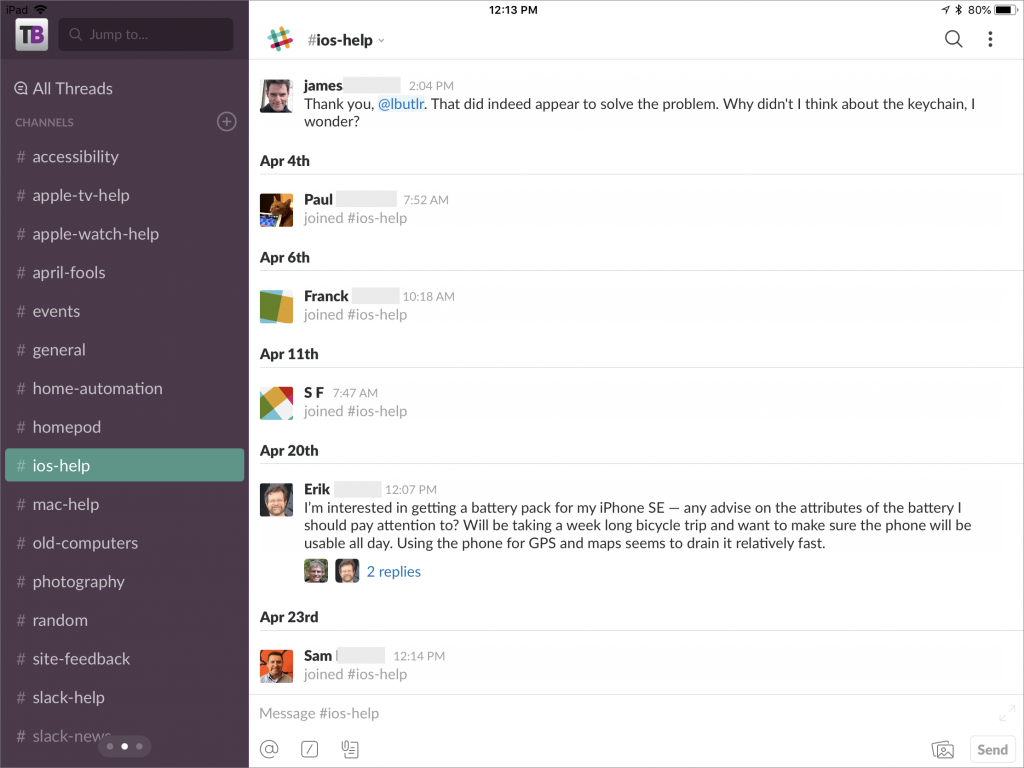
The beauty of Slack channels is that they’re easy to create and they bring together all communications relevant to a particular workgroup, project, or topic. You might have a private #marketing channel for everyone in that department, a private #annual-report channel for the people who need to put together that document, and a public #facilities channel to talk about burnt-out lightbulbs and stuck doors. That’s way better than organization-wide mailing lists, since you can pay attention to just those channels that matter to you, and ignore the others.
How do you keep up on discussions? Slack has flexible notifications, letting you choose at the top level to be notified about everything; just direct messages, mentions, and keywords; or nothing. You can also choose to be notified of replies to threads you’re in. Then you can override those defaults for any channel or conversation you’re in, which lets you make sure that important messages get through and water cooler chatter doesn’t interrupt you. Plus, if you leave your computer, Slack can repoint notifications to your mobile devices automatically, with separate settings to make sure you aren’t overly nagged while at your kid’s soccer game.
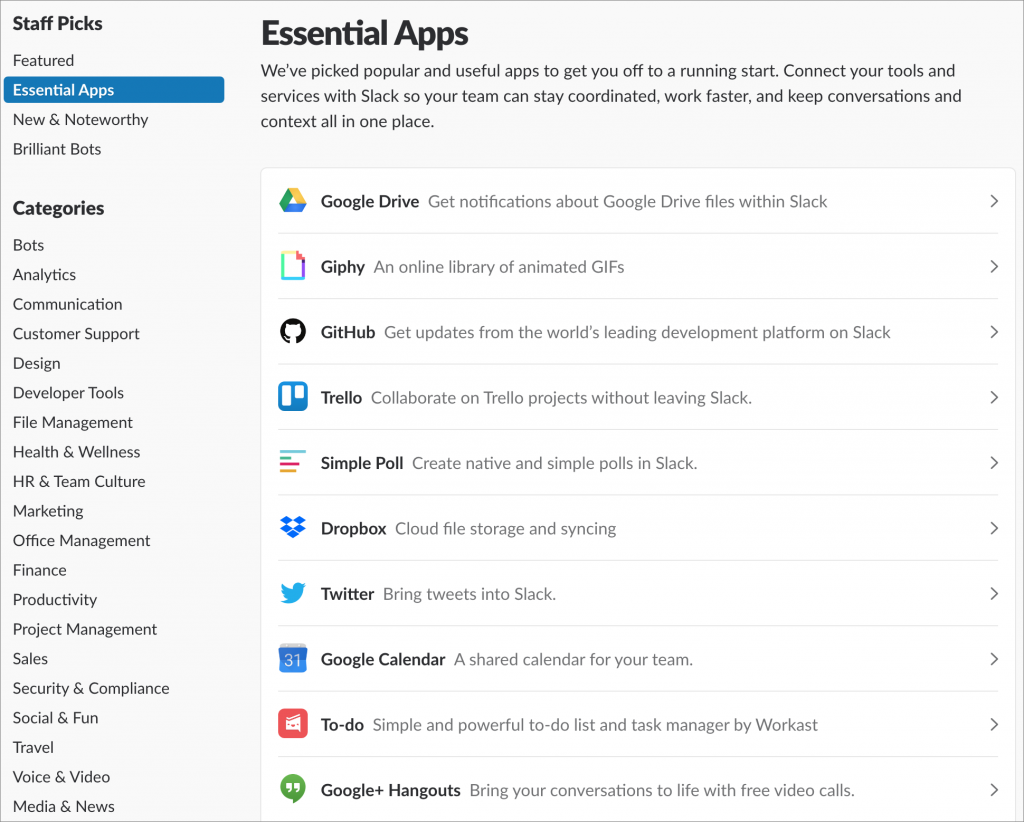
Slack provides tons of other features that can prove useful in organizations of any size. You can share and comment on files of any type, which is far more effective than sending attachments around in email. You can create “posts” and get others to edit them collaboratively—a boon when trying to craft the perfect bit of text for some purpose. And you can integrate hundreds of Internet services into Slack so it can act as a single dashboard for many other apps.
There’s no question that setting up Slack for your team is a major step, but the fact that it has become so popular—77% of Fortune 100 companies use it—shows that it can make your organization’s internal communications faster, more targeted, and more effective. It’s not hard to set up and maintain, but give us a call to talk about the best ways to begin.
Social Media: Is email overwhelming your organization? Look to Slack to make your internal communications, faster, more transparent, and more efficient. Here’s the scoop.

Recent Comments